> ## Documentation Index
> Fetch the complete documentation index at: https://craft-support.mintlify.site/llms.txt
> Use this file to discover all available pages before exploring further.

# 계정 삭제

> Craft 계정과 모든 관련 데이터를 영구적으로 삭제합니다.

Craft가 맞지 않는다고 판단되면, 계정과 모든 관련 데이터를 영구적으로 삭제할 수 있습니다.

## 계정 삭제

### 1단계: 설정 열기

<Tabs>
  <Tab title="Mac">
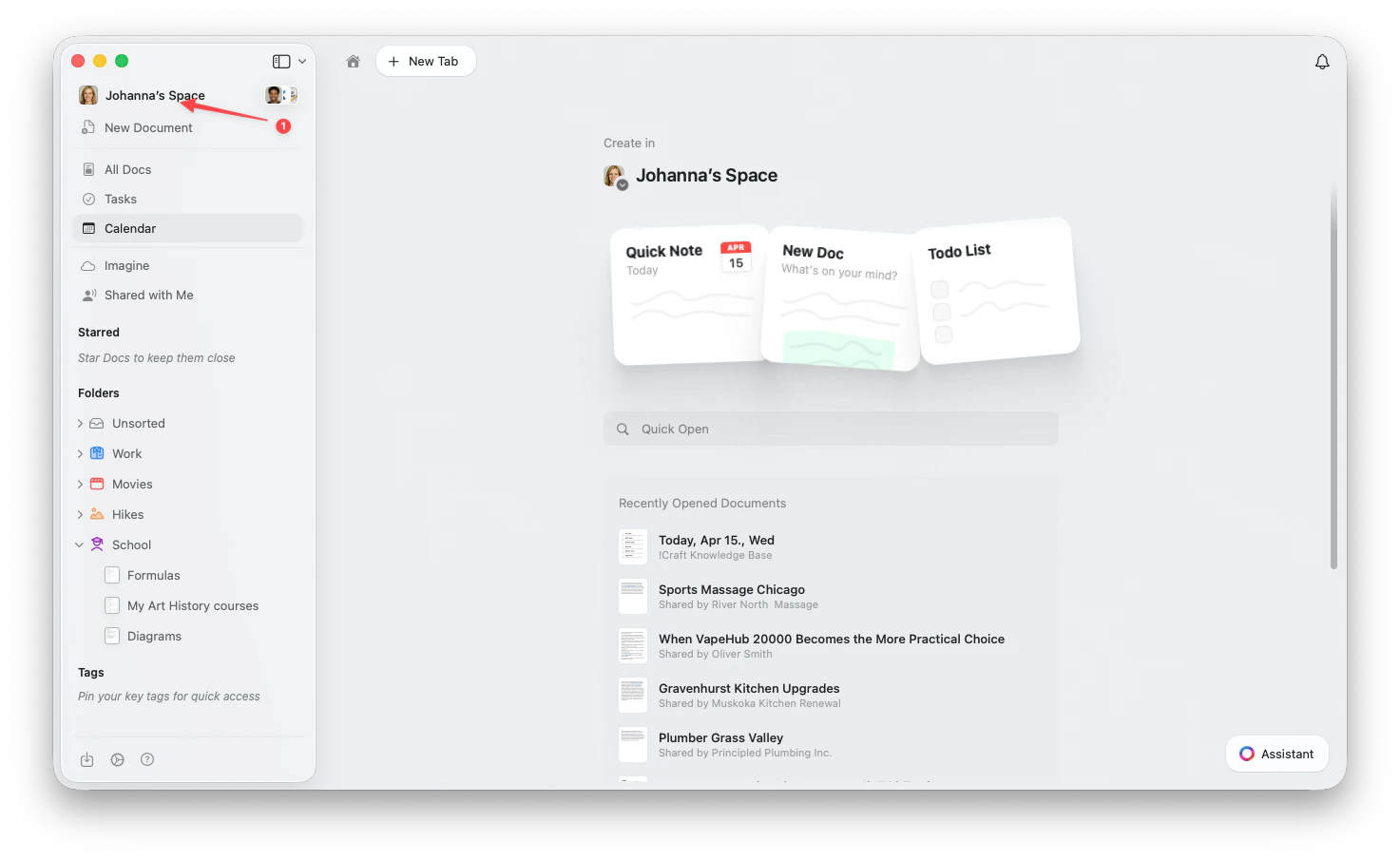
    사이드바 상단의 **스페이스 이름**을 클릭하여 설정을 엽니다.

    <Frame>
      <img src="https://mintcdn.com/craft-support/uCmTok0gNp17u6Tw/images/snippets/open-settings/en/content/mac-space-name.png?fit=max&auto=format&n=uCmTok0gNp17u6Tw&q=85&s=b2a80ae0eb9e67d830298c30f3046f02" alt="사이드바에서 스페이스 이름 클릭" width="1473" height="905" data-path="images/snippets/open-settings/en/content/mac-space-name.png" />
    </Frame>
  </Tab>

  <Tab title="Web / Windows">
    <Steps>
      <Step title="스페이스 드롭다운 열기">
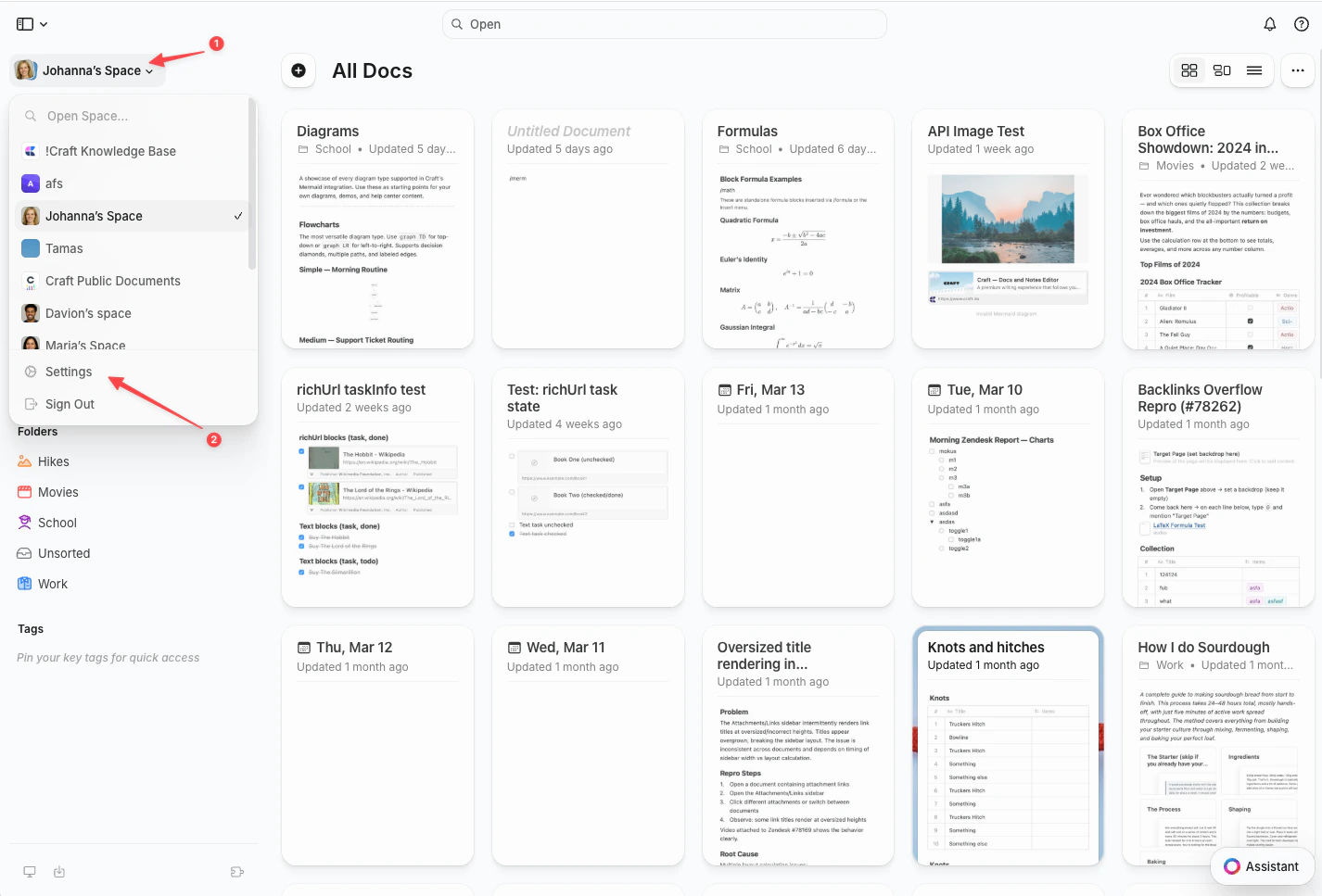
        왼쪽 상단 모서리의 **스페이스 이름**을 클릭합니다.
      </Step>

      <Step title="설정 선택">
        드롭다운 하단의 **설정**을 클릭합니다.

        <Frame>
          <img src="https://mintcdn.com/craft-support/uCmTok0gNp17u6Tw/images/snippets/open-settings/en/content/web-space-dropdown.png?fit=max&auto=format&n=uCmTok0gNp17u6Tw&q=85&s=8fe2f1b7ca147ccd7de2d4851d2857e1" alt="설정 옵션이 있는 스페이스 드롭다운" width="1426" height="967" data-path="images/snippets/open-settings/en/content/web-space-dropdown.png" />
        </Frame>
      </Step>
    </Steps>
  </Tab>

  <Tab title="iOS">
    <Steps>
      <Step title="스페이스 아이콘 탭">
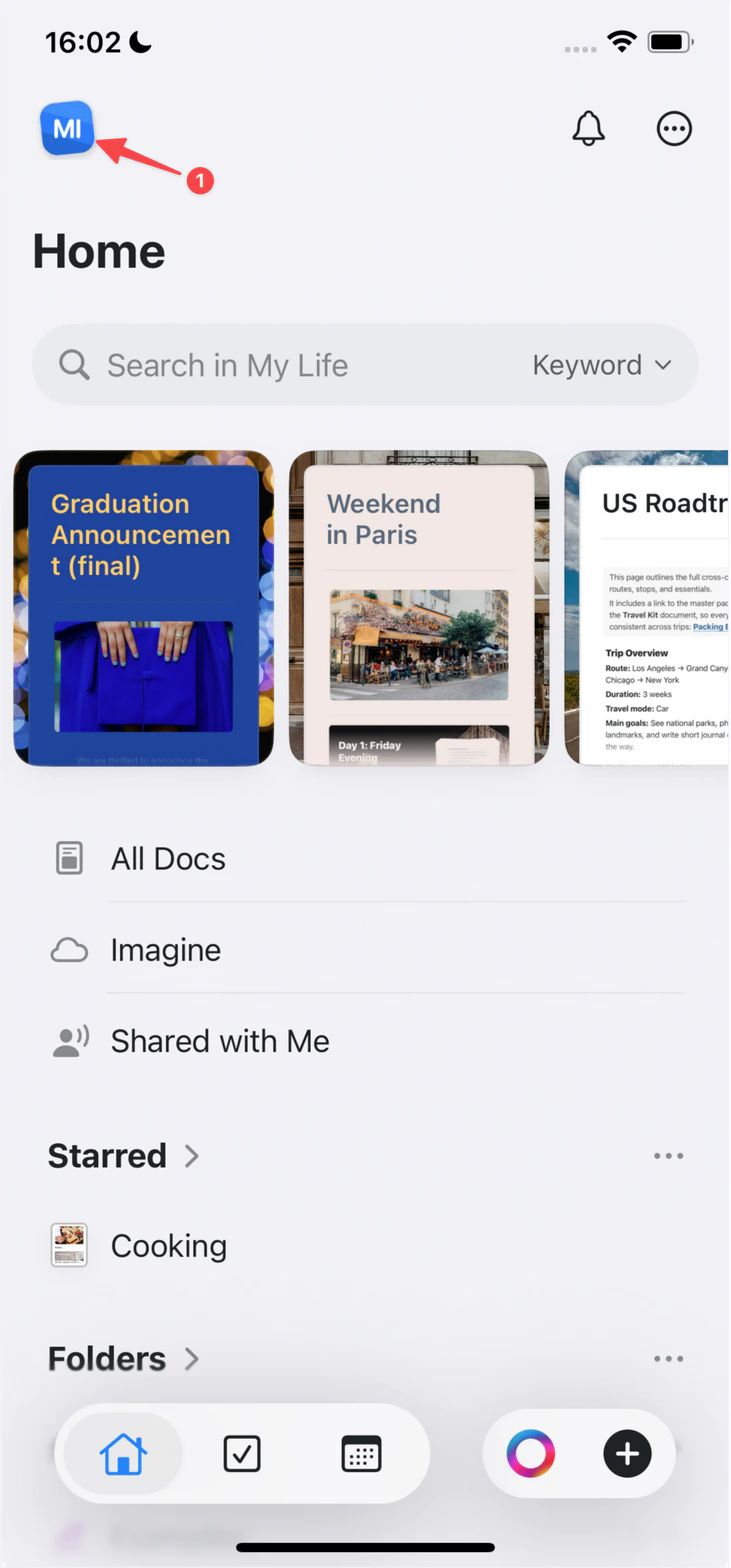
        왼쪽 상단 모서리의 **스페이스 아이콘**을 탭합니다.

        <Frame>
          <img src="https://mintcdn.com/craft-support/uCmTok0gNp17u6Tw/images/snippets/open-settings/en/content/ios-space-icon.png?fit=max&auto=format&n=uCmTok0gNp17u6Tw&q=85&s=82ed814971491d12743fb924294f595a" alt="왼쪽 상단 모서리의 스페이스 아이콘" width="731" height="1568" data-path="images/snippets/open-settings/en/content/ios-space-icon.png" />
        </Frame>
      </Step>

      <Step title="설정 열기">
        **설정**을 탭합니다.
      </Step>
    </Steps>
  </Tab>

  <Tab title="Android">
    <Steps>
      <Step title="프로필 사진 탭">
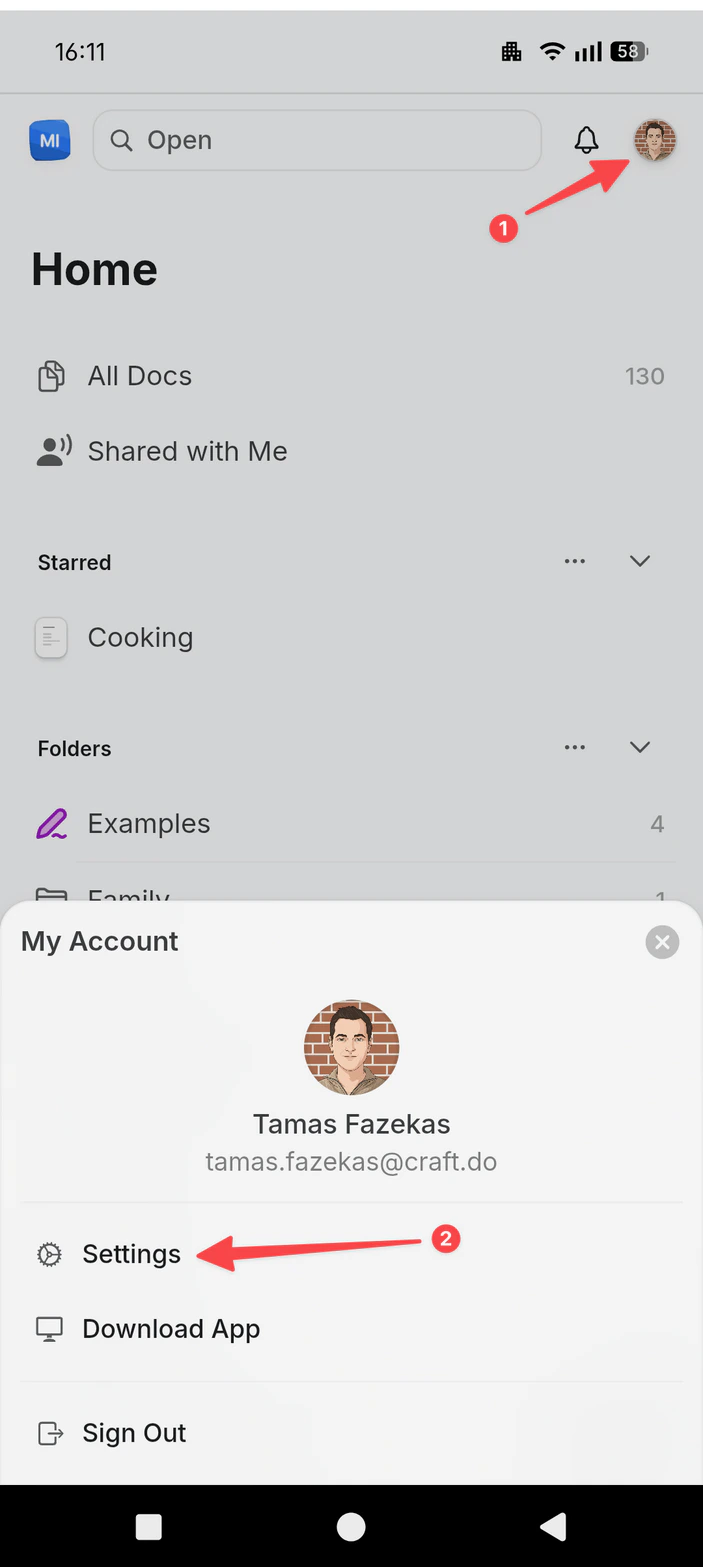
        오른쪽 상단 모서리의 **프로필 사진**을 탭합니다.
      </Step>

      <Step title="설정 열기">
        **설정**을 탭합니다.

        <Frame>
          <img src="https://mintcdn.com/craft-support/uCmTok0gNp17u6Tw/images/snippets/open-settings/en/content/android-profile-menu.png?fit=max&auto=format&n=uCmTok0gNp17u6Tw&q=85&s=04626672ba7545613f9b039a5d363698" alt="설정 옵션이 있는 프로필 메뉴" width="703" height="1567" data-path="images/snippets/open-settings/en/content/android-profile-menu.png" />
        </Frame>
      </Step>
    </Steps>
  </Tab>
</Tabs>

### 2단계: 계정 삭제

<Steps>
  <Step title="계정 설정으로 이동">
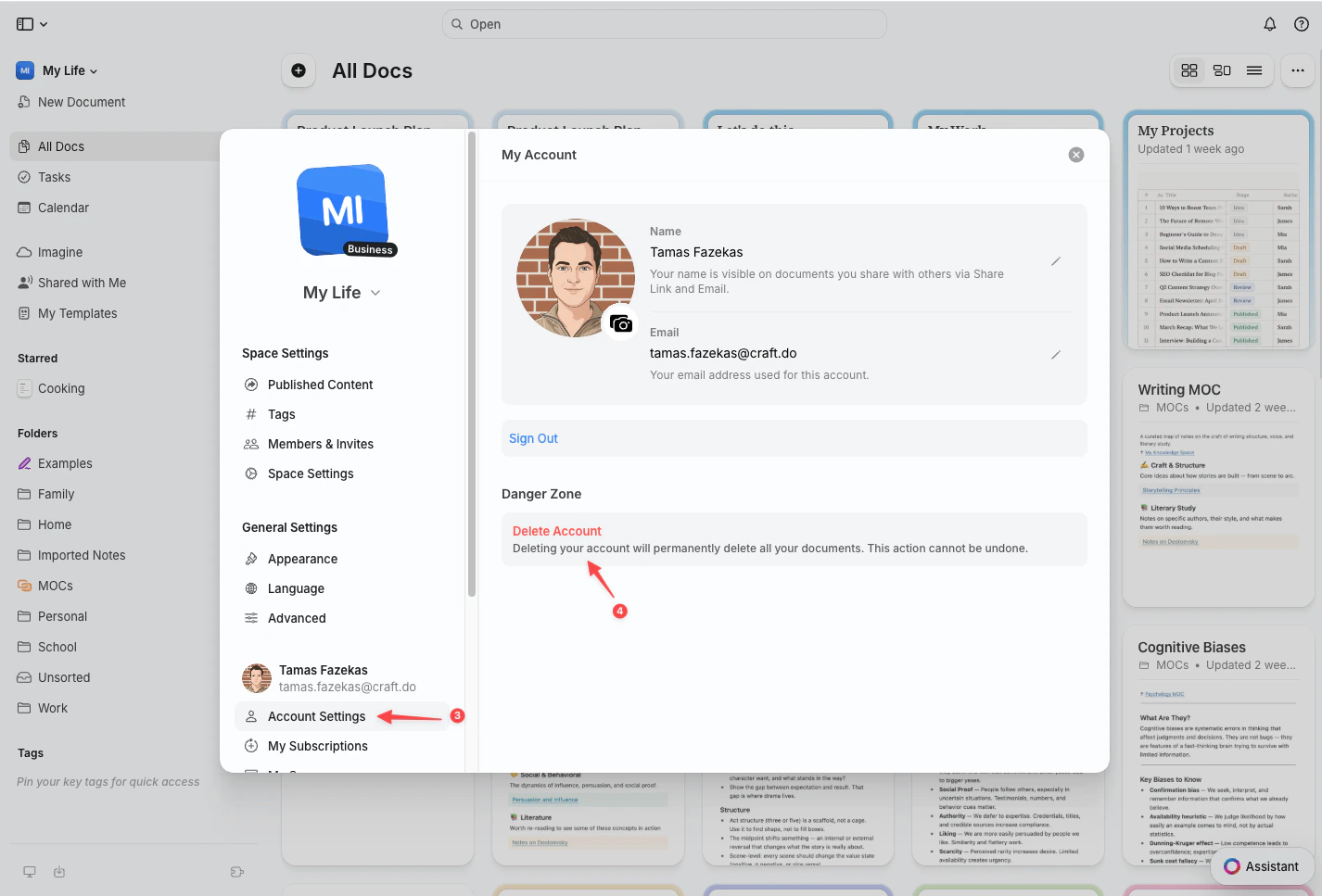
    사이드바에서 **계정 설정**을 선택합니다.
  </Step>

  <Step title="계정 삭제">
    위험 영역에서 **계정 삭제**를 클릭하고 삭제를 확인합니다.

    <Frame>
      <img src="https://mintcdn.com/craft-support/j2izMmgqvBpZqwSI/images/introduction/account-setup/delete-account/en/content/account-settings.png?fit=max&auto=format&n=j2izMmgqvBpZqwSI&q=85&s=2815b6a17711c4506b047f7434058cfc" alt="계정 설정의 계정 삭제 버튼" width="1426" height="967" data-path="images/introduction/account-setup/delete-account/en/content/account-settings.png" />
    </Frame>
  </Step>
</Steps>

<Danger title="영구 삭제">
  계정 삭제는 영구적이며 취소할 수 없습니다. 개인 스페이스와 소유한 모든 스페이스의 문서가 영원히 삭제됩니다.
</Danger>

<Info title="공유 스페이스">
  다른 사용자가 소유한 스페이스의 멤버인 경우, 해당 스페이스와 콘텐츠에는 영향이 없습니다. 해당 스페이스에서 멤버로만 제거됩니다.
</Info>

## 삭제 전 확인 사항

계정을 삭제하기 전에 다음 대안들을 고려해 보세요:

* **무료 플랜으로 다운그레이드** - 계정을 유지하면서 무료 플랜으로 전환합니다
* **데이터 내보내기** - 삭제 전에 문서를 다운로드합니다
* **스페이스 보관** - 전체 계정 대신 개별 스페이스를 삭제합니다
* **잠시 쉬어가기** - 단순히 Craft 사용을 중단하세요. 데이터는 안전하게 보관됩니다

<CardGroup cols={2}>
  <Card title="콘텐츠 내보내기" href="/ko/import-and-export/export">
    문서와 데이터를 내보내는 방법을 알아보세요
  </Card>

  <Card title="구독 관리" href="/ko/account-and-subscription/billing">
    구독 플랜을 변경하거나 취소합니다
  </Card>
</CardGroup>