> ## Documentation Index
> Fetch the complete documentation index at: https://craft-support.mintlify.site/llms.txt
> Use this file to discover all available pages before exploring further.

# 스페이스 사용하기

> 콘텐츠를 정리하기 위해 Craft 스페이스를 생성하고, 맞춤 설정하며, 관리하는 방법입니다.

스페이스는 Craft에서 콘텐츠를 정리하는 기본 단위입니다. 각 스페이스는 자체 문서, 설정 및 멤버를 갖춘 별도의 작업 공간으로 작동합니다.

## 새 스페이스 만들기

<Tabs>
  <Tab title="Mac">
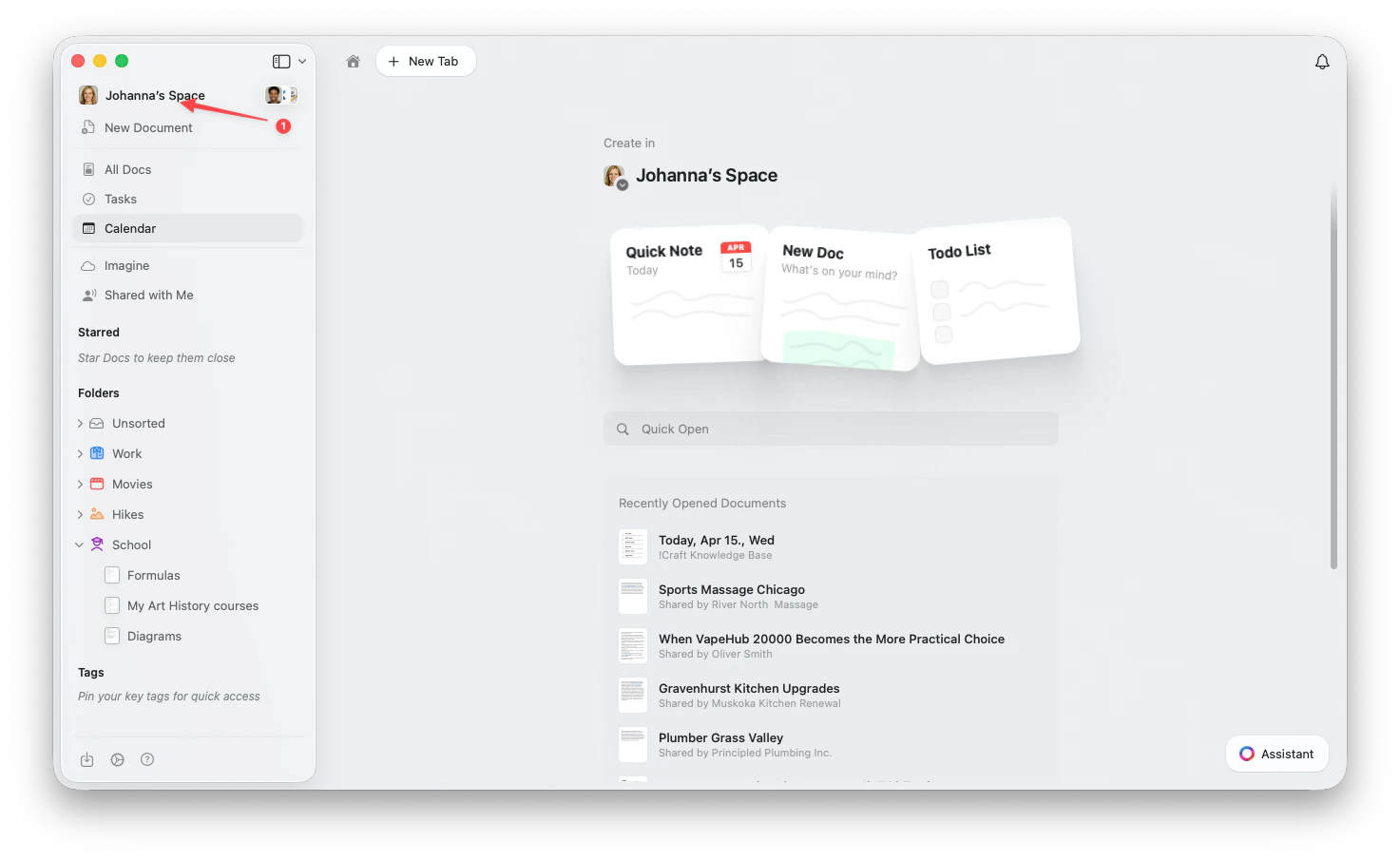
    사이드바 상단의 **스페이스 이름**을 클릭하여 설정을 엽니다.

    <Frame>
      <img src="https://mintcdn.com/craft-support/uCmTok0gNp17u6Tw/images/snippets/open-settings/en/content/mac-space-name.png?fit=max&auto=format&n=uCmTok0gNp17u6Tw&q=85&s=b2a80ae0eb9e67d830298c30f3046f02" alt="사이드바에서 스페이스 이름 클릭" width="1473" height="905" data-path="images/snippets/open-settings/en/content/mac-space-name.png" />
    </Frame>
  </Tab>

  <Tab title="Web / Windows">
    <Steps>
      <Step title="스페이스 드롭다운 열기">
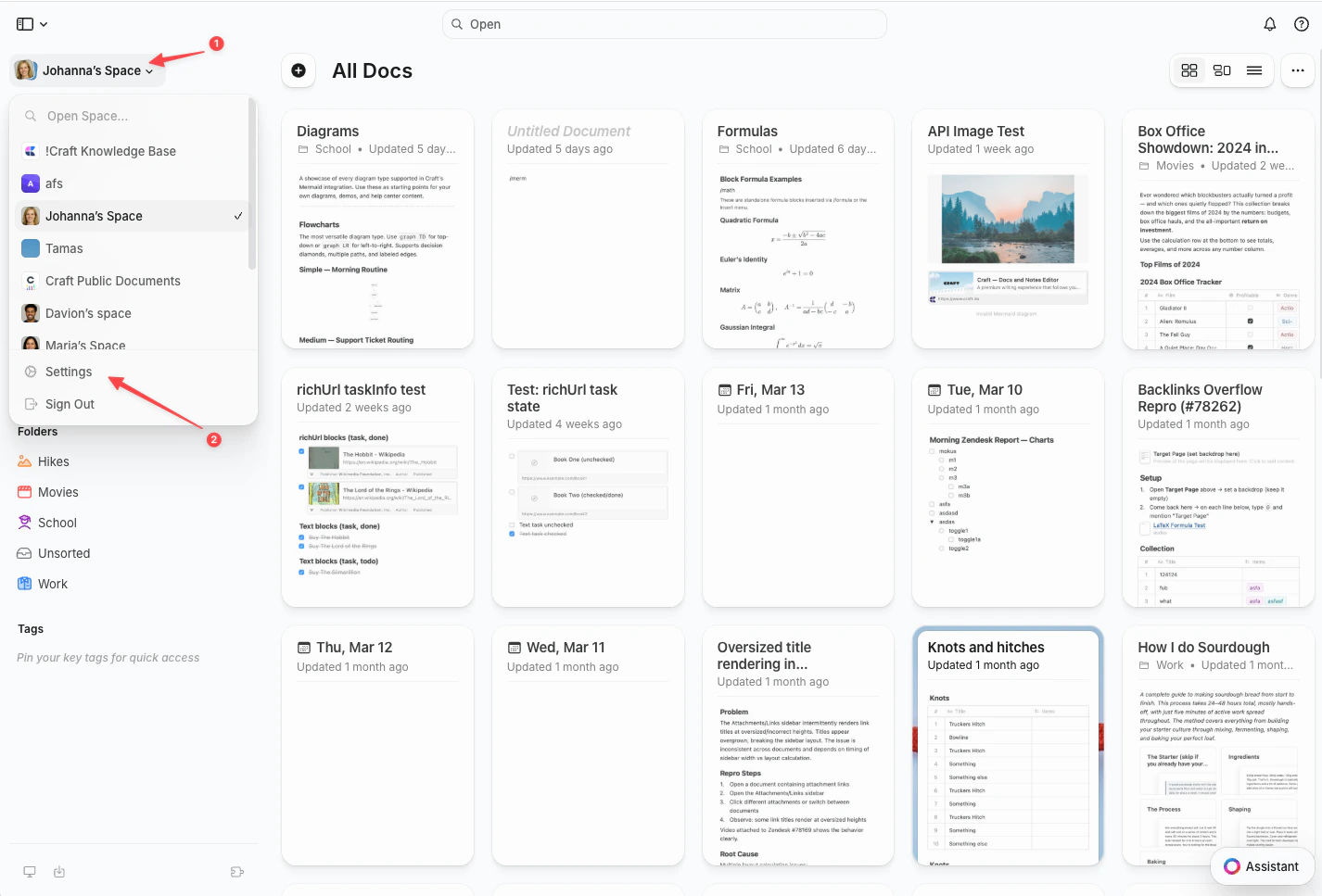
        왼쪽 상단 모서리의 **스페이스 이름**을 클릭합니다.
      </Step>

      <Step title="설정 선택">
        드롭다운 하단의 **설정**을 클릭합니다.

        <Frame>
          <img src="https://mintcdn.com/craft-support/uCmTok0gNp17u6Tw/images/snippets/open-settings/en/content/web-space-dropdown.png?fit=max&auto=format&n=uCmTok0gNp17u6Tw&q=85&s=8fe2f1b7ca147ccd7de2d4851d2857e1" alt="설정 옵션이 있는 스페이스 드롭다운" width="1426" height="967" data-path="images/snippets/open-settings/en/content/web-space-dropdown.png" />
        </Frame>
      </Step>
    </Steps>
  </Tab>

  <Tab title="iOS">
    <Steps>
      <Step title="스페이스 아이콘 탭">
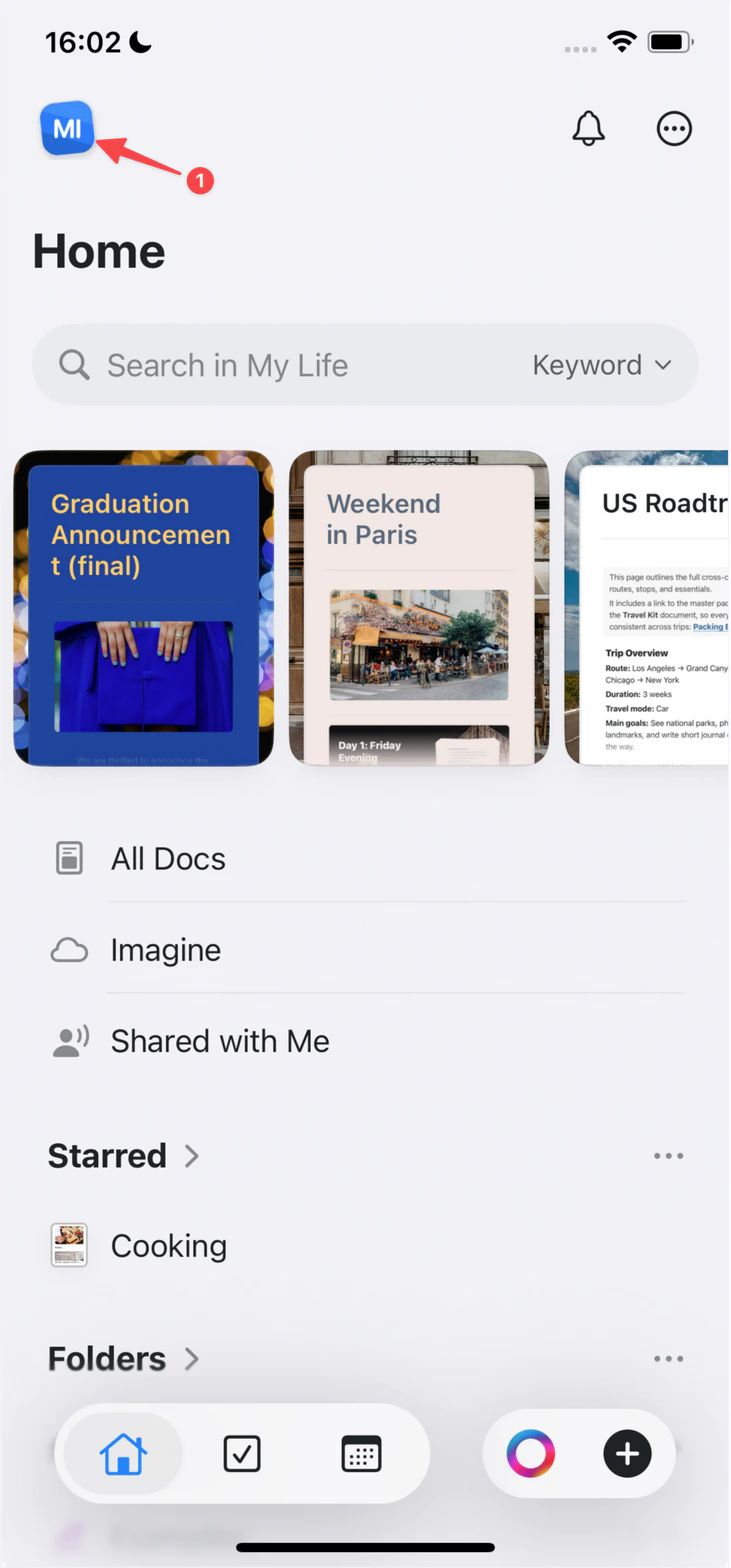
        왼쪽 상단 모서리의 **스페이스 아이콘**을 탭합니다.

        <Frame>
          <img src="https://mintcdn.com/craft-support/uCmTok0gNp17u6Tw/images/snippets/open-settings/en/content/ios-space-icon.png?fit=max&auto=format&n=uCmTok0gNp17u6Tw&q=85&s=82ed814971491d12743fb924294f595a" alt="왼쪽 상단 모서리의 스페이스 아이콘" width="731" height="1568" data-path="images/snippets/open-settings/en/content/ios-space-icon.png" />
        </Frame>
      </Step>

      <Step title="설정 열기">
        **설정**을 탭합니다.
      </Step>
    </Steps>
  </Tab>

  <Tab title="Android">
    <Steps>
      <Step title="프로필 사진 탭">
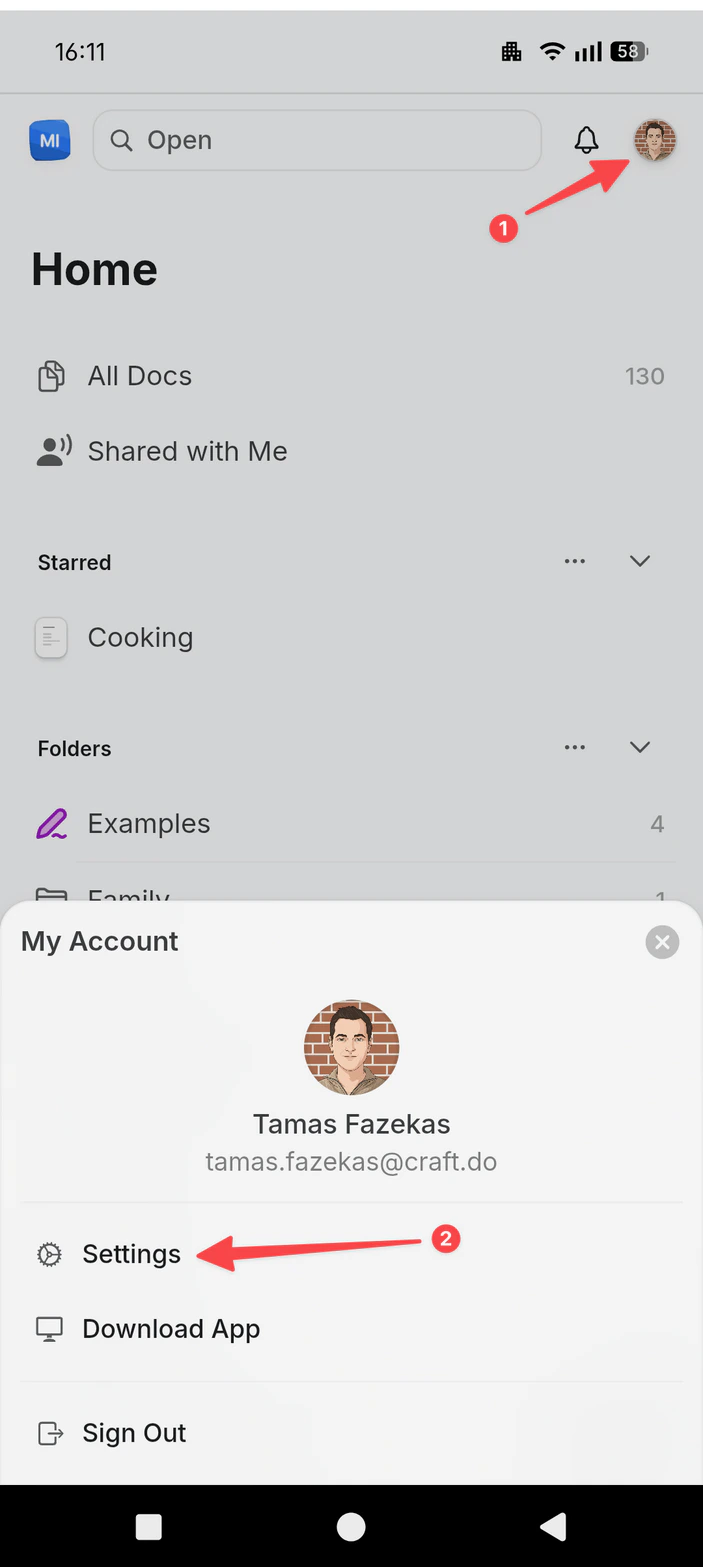
        오른쪽 상단 모서리의 **프로필 사진**을 탭합니다.
      </Step>

      <Step title="설정 열기">
        **설정**을 탭합니다.

        <Frame>
          <img src="https://mintcdn.com/craft-support/uCmTok0gNp17u6Tw/images/snippets/open-settings/en/content/android-profile-menu.png?fit=max&auto=format&n=uCmTok0gNp17u6Tw&q=85&s=04626672ba7545613f9b039a5d363698" alt="설정 옵션이 있는 프로필 메뉴" width="703" height="1567" data-path="images/snippets/open-settings/en/content/android-profile-menu.png" />
        </Frame>
      </Step>
    </Steps>
  </Tab>
</Tabs>

<Steps>
  <Step>
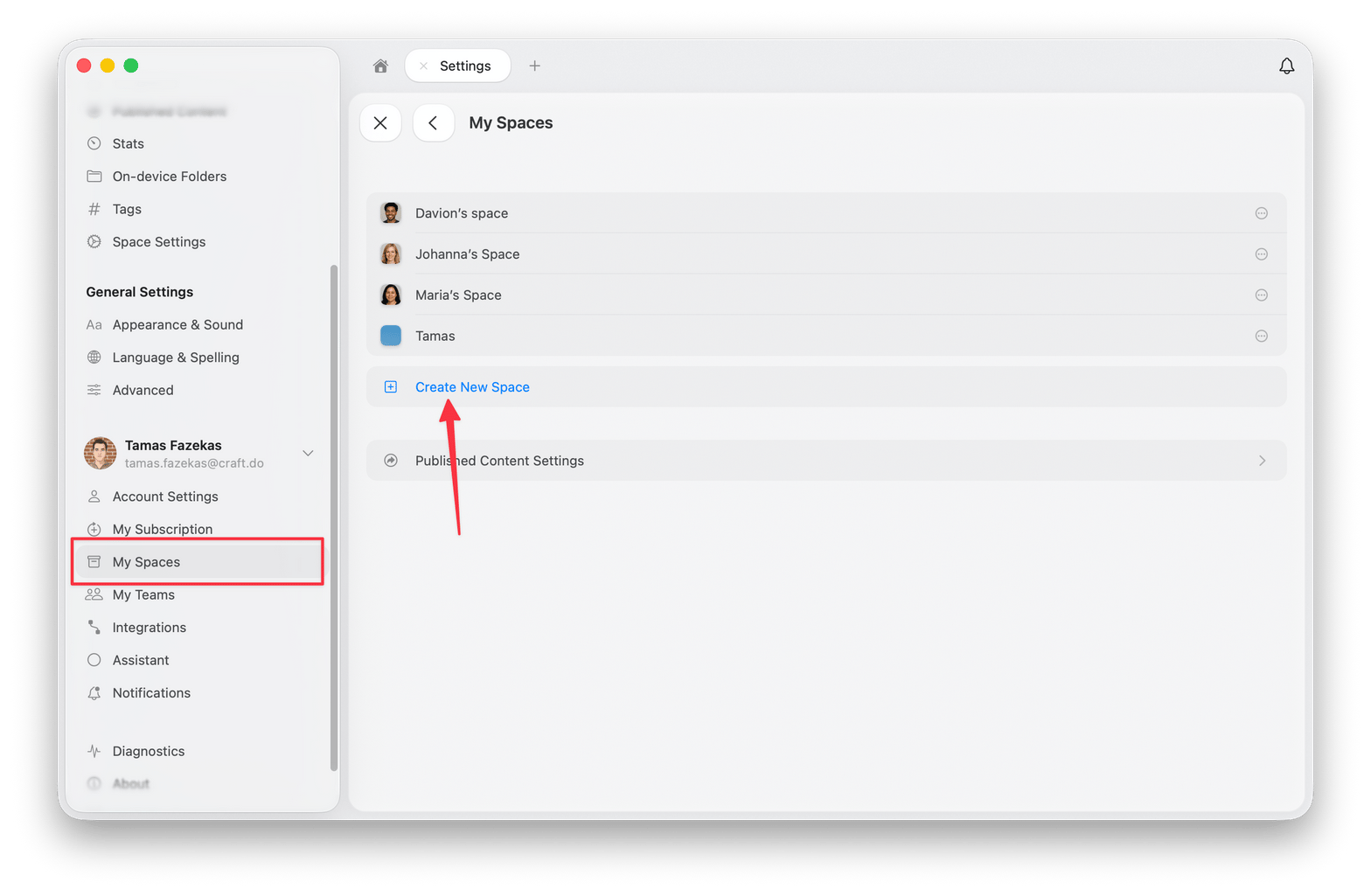
    설정 패널에서 **My Spaces**를 선택합니다.
  </Step>

  <Step>
    **새 스페이스 만들기**를 클릭합니다.
  </Step>

  <Step>
    스페이스 이름을 지정하고 초기 설정을 구성합니다.
  </Step>
</Steps>

<img src="https://mintcdn.com/craft-support/oJhhIFrpZpKRpF8f/images/introduction/account-setup/spaces/en/content/create-new-space.png?fit=max&auto=format&n=oJhhIFrpZpKRpF8f&q=85&s=1d6346e15b23b7ca9c8d8ee658356589" alt="Create New Space dialog" width="1568" height="1025" data-path="images/introduction/account-setup/spaces/en/content/create-new-space.png" />

## 스페이스 설정

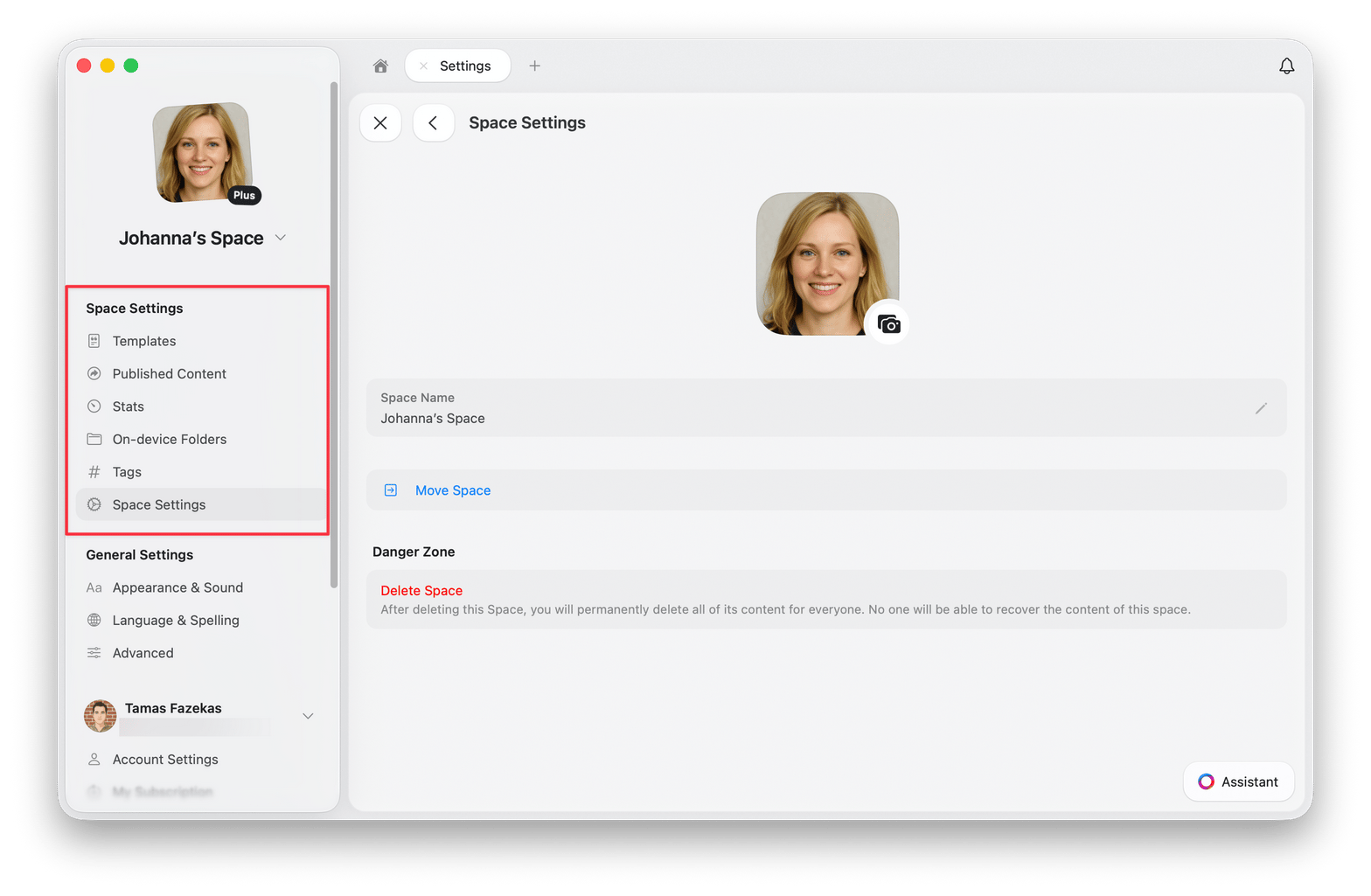
설정 → 스페이스 설정을 통해 스페이스 설정에 접근할 수 있습니다. 설정을 열면 스페이스 설정 패널이 첫 번째 섹션으로 나타납니다.
<img src="https://mintcdn.com/craft-support/oJhhIFrpZpKRpF8f/images/introduction/account-setup/spaces/en/content/space-settings-panel.png?fit=max&auto=format&n=oJhhIFrpZpKRpF8f&q=85&s=34bcab59ba93bd3d2397ba3ad8a31655" alt="Space Settings panel with various configuration options" width="1568" height="1025" data-path="images/introduction/account-setup/spaces/en/content/space-settings-panel.png" />

### 사용 가능한 옵션

* **Templates** – 이 스페이스에서 생성된 모든 템플릿을 보고 편집합니다
* **Published Content** – 게시된 페이지를 관리하고 해당 분석 정보를 확인합니다
* **Stats** – 저장 용량, 문서 수, 블록 수, 페이지 수, 단어 수, 문자 수 및 읽기 시간을 확인합니다
* **On-device Folders** – 로컬에 다운로드된 폴더를 확인합니다
* **Tags** – 태그를 켜기/끄기 및 사용자 태그 규칙을 추가합니다
* **Members & Invites** – 스페이스 멤버와 대기 중인 초대를 관리합니다
* **Space Settings** – 스페이스 이름 변경, 접근 권한 관리, 스페이스 이동, 스페이스 탈퇴 또는 스페이스 삭제를 수행합니다

## 스페이스 간 문서 이동

콘텐츠를 재구성하기 위해 개별 문서를 스페이스 간에 이동할 수 있습니다.

<Tabs>
  <Tab title="macOS">
    <Tabs>
      <Tab title="Mac">
        사이드바 상단의 **스페이스 이름**을 클릭하여 설정을 엽니다.

        <Frame>
          <img src="https://mintcdn.com/craft-support/uCmTok0gNp17u6Tw/images/snippets/open-settings/en/content/mac-space-name.png?fit=max&auto=format&n=uCmTok0gNp17u6Tw&q=85&s=b2a80ae0eb9e67d830298c30f3046f02" alt="사이드바에서 스페이스 이름 클릭" width="1473" height="905" data-path="images/snippets/open-settings/en/content/mac-space-name.png" />
        </Frame>
      </Tab>

      <Tab title="Web / Windows">
        <Steps>
          <Step title="스페이스 드롭다운 열기">
            왼쪽 상단 모서리의 **스페이스 이름**을 클릭합니다.
          </Step>

          <Step title="설정 선택">
            드롭다운 하단의 **설정**을 클릭합니다.

            <Frame>
              <img src="https://mintcdn.com/craft-support/uCmTok0gNp17u6Tw/images/snippets/open-settings/en/content/web-space-dropdown.png?fit=max&auto=format&n=uCmTok0gNp17u6Tw&q=85&s=8fe2f1b7ca147ccd7de2d4851d2857e1" alt="설정 옵션이 있는 스페이스 드롭다운" width="1426" height="967" data-path="images/snippets/open-settings/en/content/web-space-dropdown.png" />
            </Frame>
          </Step>
        </Steps>
      </Tab>

      <Tab title="iOS">
        <Steps>
          <Step title="스페이스 아이콘 탭">
            왼쪽 상단 모서리의 **스페이스 아이콘**을 탭합니다.

            <Frame>
              <img src="https://mintcdn.com/craft-support/uCmTok0gNp17u6Tw/images/snippets/open-settings/en/content/ios-space-icon.png?fit=max&auto=format&n=uCmTok0gNp17u6Tw&q=85&s=82ed814971491d12743fb924294f595a" alt="왼쪽 상단 모서리의 스페이스 아이콘" width="731" height="1568" data-path="images/snippets/open-settings/en/content/ios-space-icon.png" />
            </Frame>
          </Step>

          <Step title="설정 열기">
            **설정**을 탭합니다.
          </Step>
        </Steps>
      </Tab>

      <Tab title="Android">
        <Steps>
          <Step title="프로필 사진 탭">
            오른쪽 상단 모서리의 **프로필 사진**을 탭합니다.
          </Step>

          <Step title="설정 열기">
            **설정**을 탭합니다.

            <Frame>
              <img src="https://mintcdn.com/craft-support/uCmTok0gNp17u6Tw/images/snippets/open-settings/en/content/android-profile-menu.png?fit=max&auto=format&n=uCmTok0gNp17u6Tw&q=85&s=04626672ba7545613f9b039a5d363698" alt="설정 옵션이 있는 프로필 메뉴" width="703" height="1567" data-path="images/snippets/open-settings/en/content/android-profile-menu.png" />
            </Frame>
          </Step>
        </Steps>
      </Tab>
    </Tabs>

    <Steps>
      <Step>
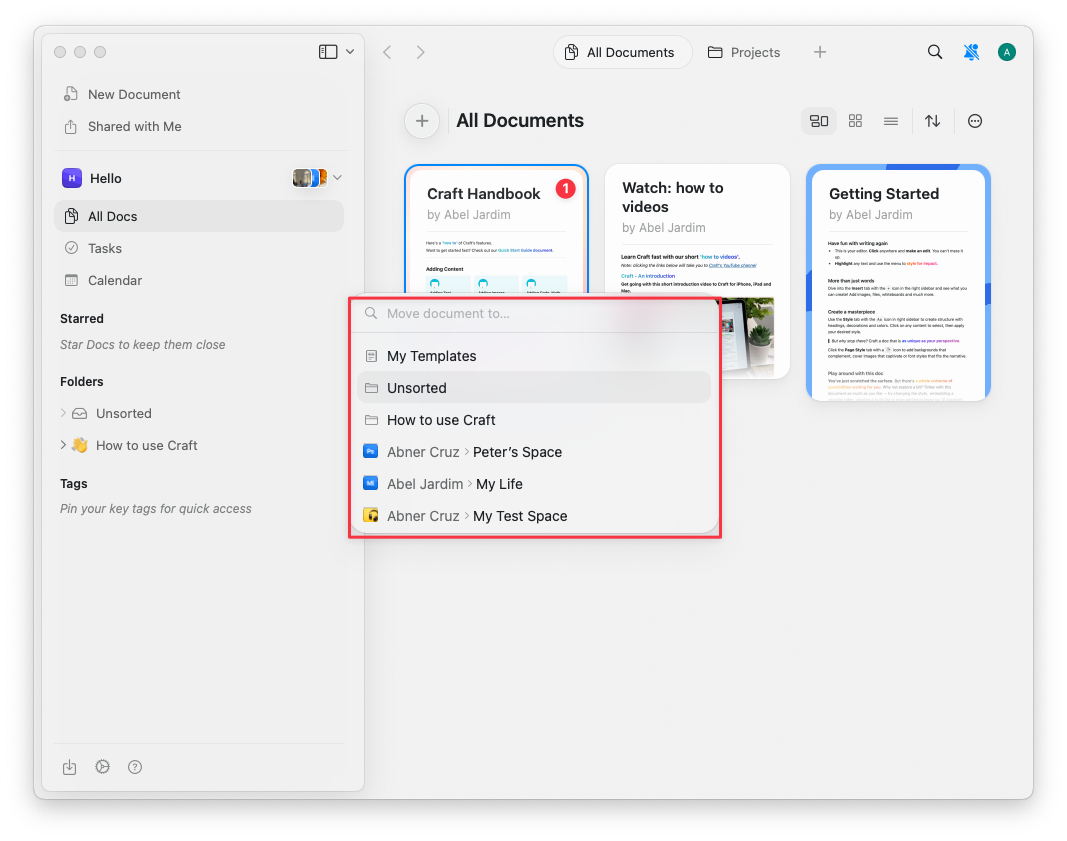
        컨텍스트 메뉴에서 **Move To**를 선택합니다.
      </Step>

      <Step>
        목적지 스페이스를 선택합니다.
      </Step>
    </Steps>
  </Tab>

  <Tab title="iOS">
    <Steps>
      <Step>
        sidebar에서 문서를 길게 누릅니다.
      </Step>

      <Step>
        메뉴에서 **Move To**를 선택합니다.
      </Step>

      <Step>
        목적지 스페이스를 선택합니다.
      </Step>
    </Steps>
  </Tab>

  <Tab title="iPad">
    <Steps>
      <Step>
        sidebar에서 문서를 길게 누릅니다.
      </Step>

      <Step>
        메뉴에서 **Move To**를 선택합니다.
      </Step>

      <Step>
        목적지 스페이스를 선택합니다.
      </Step>
    </Steps>
  </Tab>
</Tabs>

<img src="https://mintcdn.com/craft-support/4lRkwRvDwE7Wr43k/images/introduction/account-setup/spaces/en/content/move-document.png?fit=max&auto=format&n=4lRkwRvDwE7Wr43k&q=85&s=e4bfcebdd93446bf729c87edeb41a280" alt="Move To menu showing available Spaces" width="1067" height="841" data-path="images/introduction/account-setup/spaces/en/content/move-document.png" />

<Warning title="이동 시 제한 사항">
  * 폴더는 스페이스 간 이동이 불가능합니다 – 개별 문서만 이동할 수 있습니다
  * 이동된 문서는 목적지 스페이스의 **All Documents** 및 **Unsorted**에 나타납니다
  * 블록 링크는 보존되지만, 공유 링크와 댓글은 손실됩니다
</Warning>

## 스페이스 삭제하기

스페이스를 삭제하려면:

<Steps>
  <Step>
    **설정 → 스페이스 설정**을 엽니다.
  </Step>

  <Step>
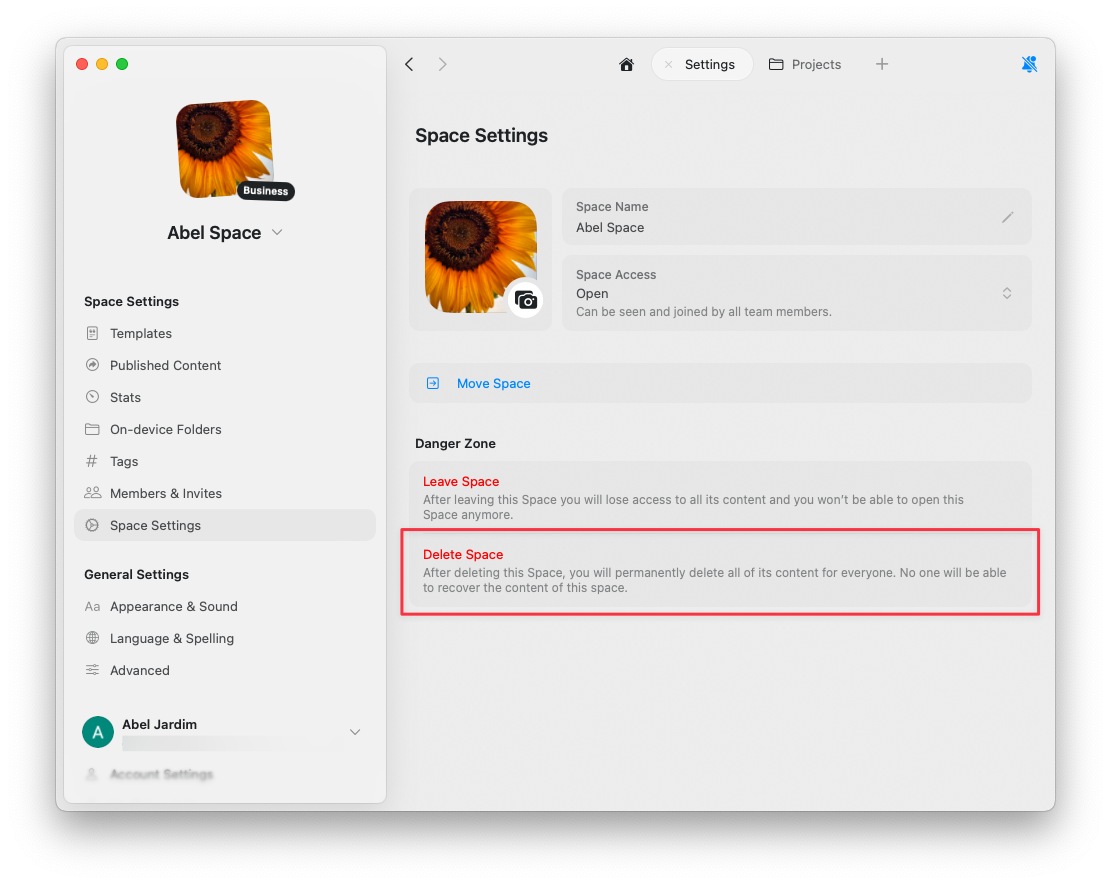
    아래로 스크롤하여 **스페이스 삭제**를 클릭합니다.
  </Step>

  <Step>
    삭제를 확인합니다(이 작업은 취소할 수 없습니다).
  </Step>
</Steps>

<img src="https://mintcdn.com/craft-support/4lRkwRvDwE7Wr43k/images/introduction/account-setup/spaces/en/content/delete-space.png?fit=max&auto=format&n=4lRkwRvDwE7Wr43k&q=85&s=c746800f2e4b21b8ebb9cd6ffc729af9" alt="Delete Space option in Space Settings" width="1111" height="885" data-path="images/introduction/account-setup/spaces/en/content/delete-space.png" />

<Danger title="기본 스페이스는 삭제할 수 없음">
  삭제 옵션이 비활성화(회색)되어 있다면, 현재 보고 있는 스페이스는 기본 스페이스입니다. 기본 스페이스는 가입 시 자동으로 생성되며 계정 구조의 핵심 부분이므로 삭제할 수 없습니다.
</Danger>