> ## Documentation Index
> Fetch the complete documentation index at: https://craft-support.mintlify.site/llms.txt
> Use this file to discover all available pages before exploring further.
# 문서 관리
> 여러 플랫폼에서 Craft 문서를 생성, 정리, 삭제 및 공유하는 방법을 설명합니다.
문서는 Craft에서 작업의 기반입니다. 이 가이드는 문서를 관리하는 기본 작업을 다룹니다.
## 문서 생성
새 문서를 만드는 방법은 여러 가지가 있습니다:
* 창 상단 가운데에 있는 **New Document** 아이콘을 클릭합니다.
* 왼쪽 sidebar의 **New Document** 아이콘을 클릭합니다.
* 키보드 단축키 사용 `⌘ (Command) + N`
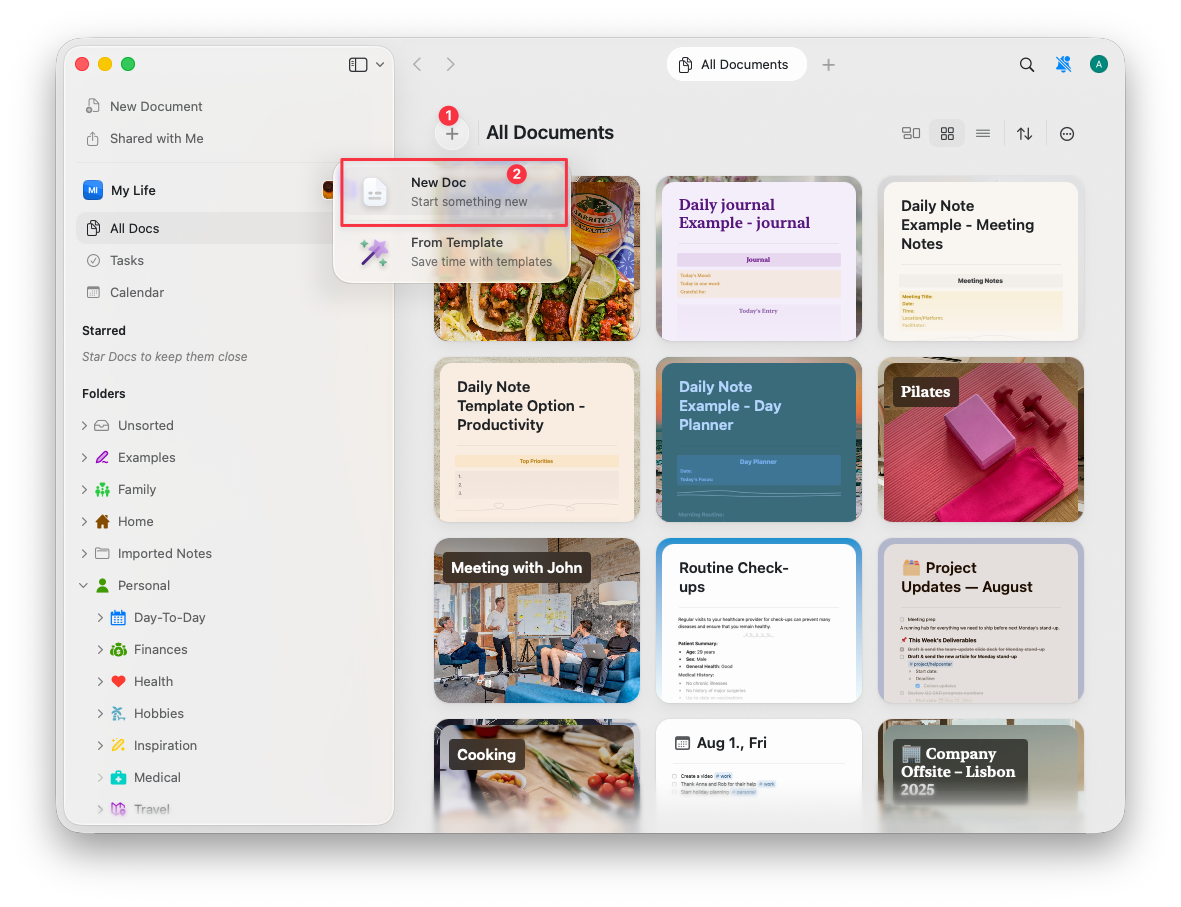 다음 방법으로 새 문서를 만들 수 있습니다:
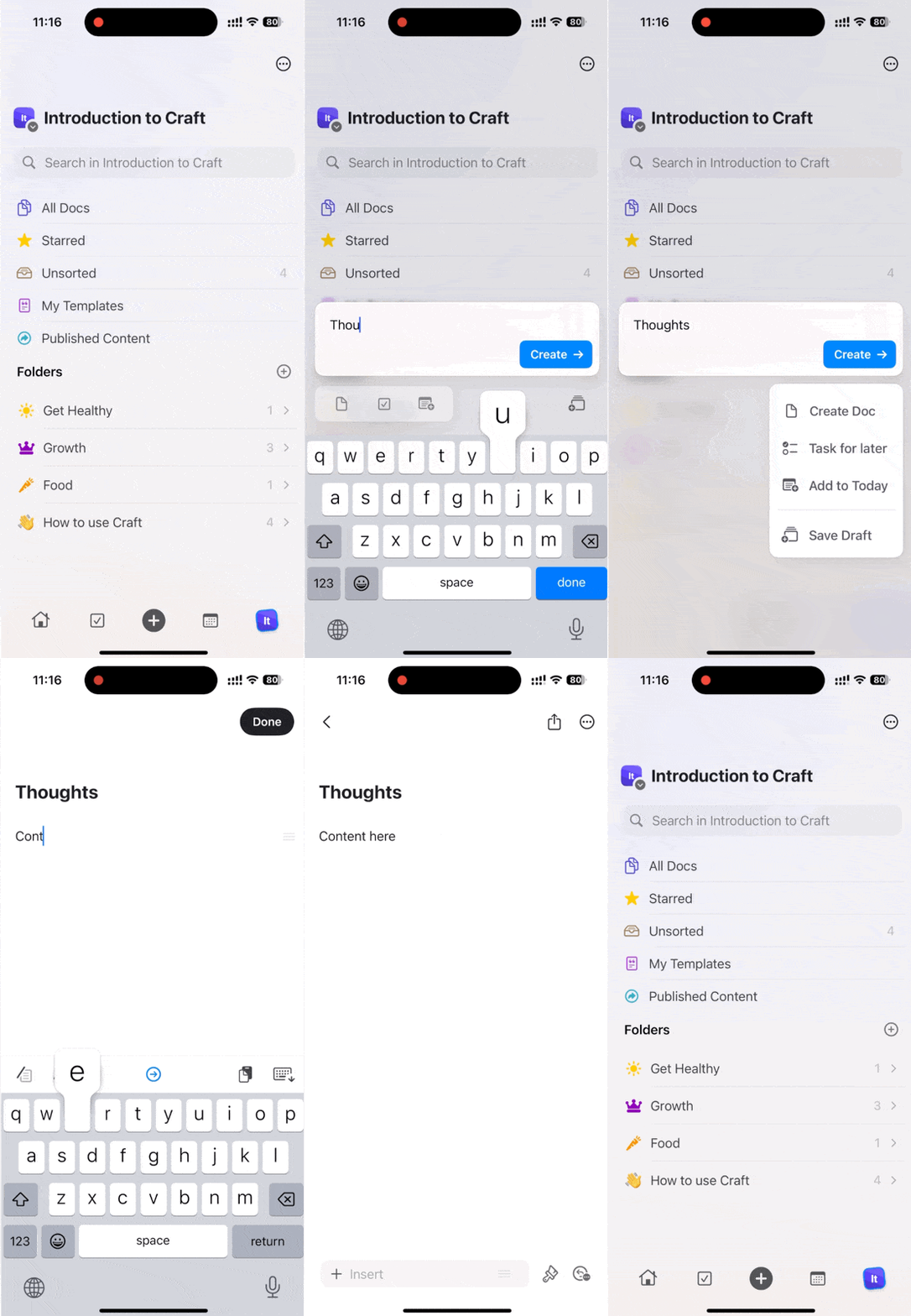
* 화면 상단에 있는 **New Document** 아이콘을 탭합니다.
* 하단 도구막대 가운데의 **+** 아이콘을 탭합니다.
* 외부 키보드를 사용하는 경우 `⌘ (Command) + N`를 누릅니다.
다음 방법으로 새 문서를 만들 수 있습니다:
* 화면 상단에 있는 **New Document** 아이콘을 탭합니다.
* 하단 도구막대 가운데의 **+** 아이콘을 탭합니다.
* 외부 키보드를 사용하는 경우 `⌘ (Command) + N`를 누릅니다.
 ## 문서 삭제
**왼쪽 sidebar에서:**
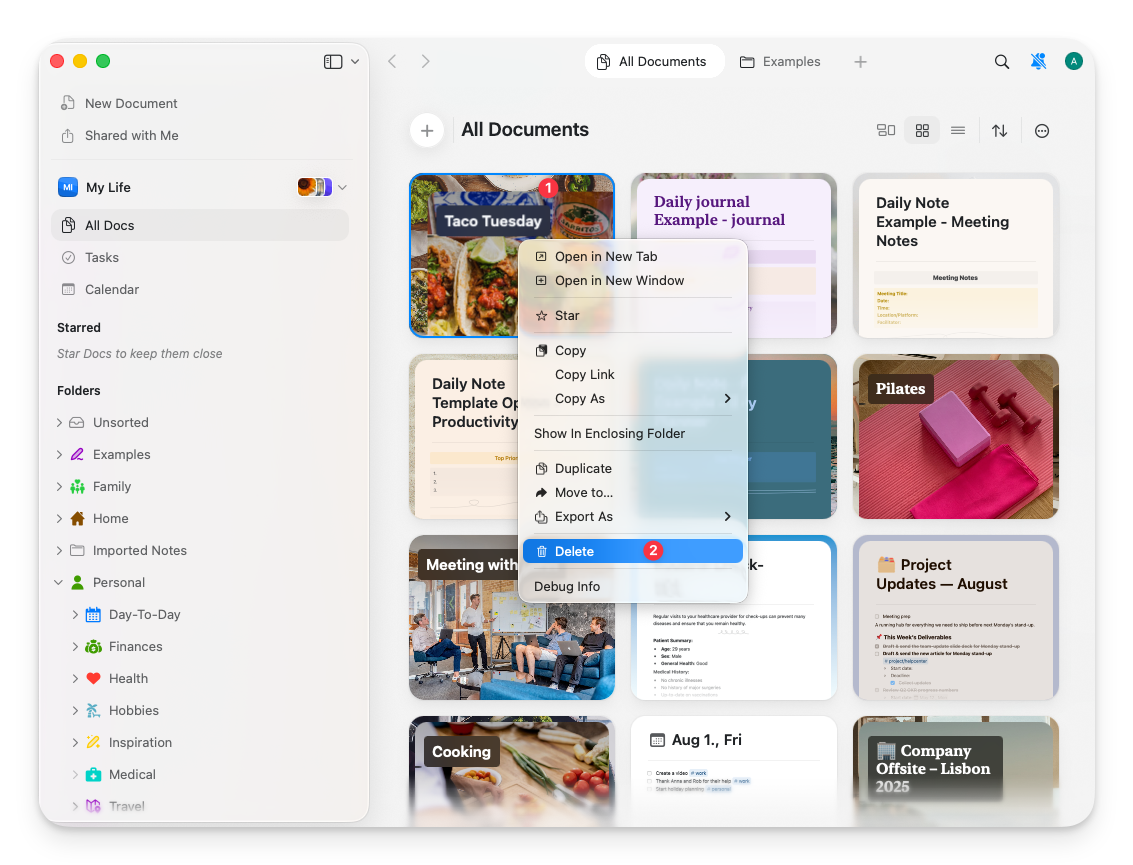
문서에서 오른쪽 클릭하고 **Delete**를 선택하거나, 문서를 선택한 후 Delete 키를 누릅니다.
## 문서 삭제
**왼쪽 sidebar에서:**
문서에서 오른쪽 클릭하고 **Delete**를 선택하거나, 문서를 선택한 후 Delete 키를 누릅니다.
 **문서 내에서:**
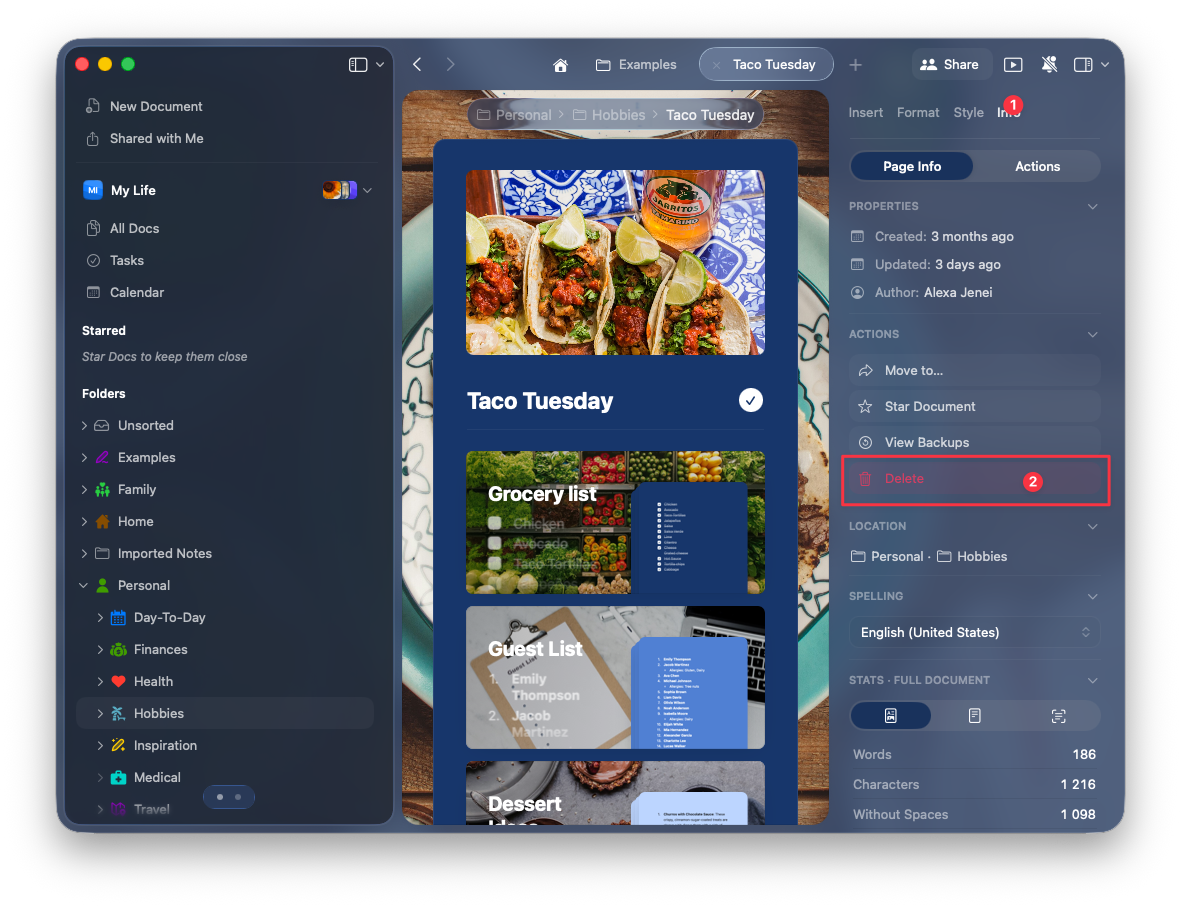
왼쪽 sidebar의 정보 아이콘을 클릭한 다음 **Delete**를 선택합니다.
**문서 내에서:**
왼쪽 sidebar의 정보 아이콘을 클릭한 다음 **Delete**를 선택합니다.
 **문서 목록에서:**
문서에서 왼쪽 또는 오른쪽으로 스와이프한 다음 **Delete**를 탭합니다.
**문서 목록에서:**
문서에서 왼쪽 또는 오른쪽으로 스와이프한 다음 **Delete**를 탭합니다.
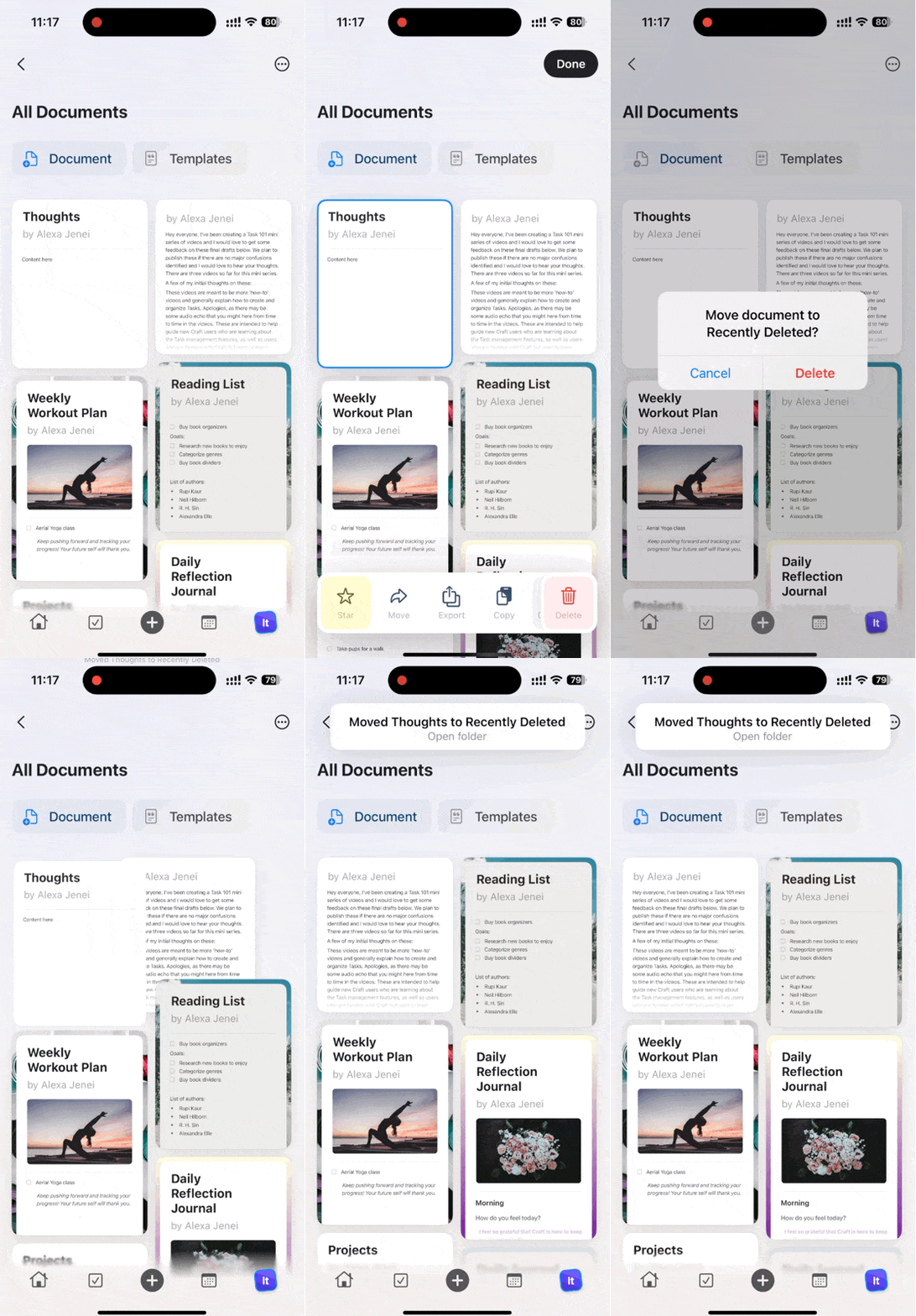 **문서 내에서:**
문서 세부 정보를 열고 **Delete**를 탭합니다.
**문서 내에서:**
문서 세부 정보를 열고 **Delete**를 탭합니다.
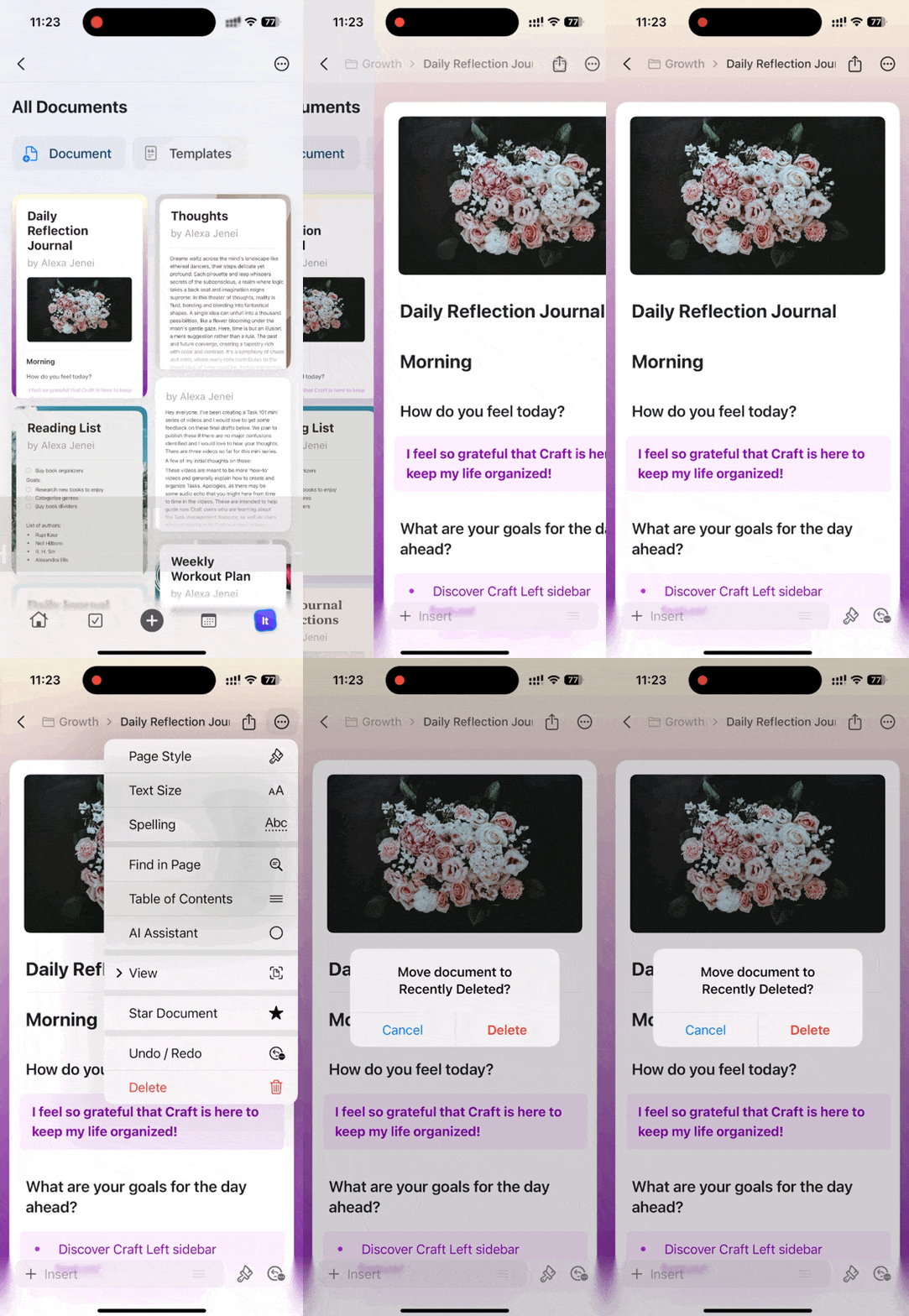 삭제된 문서는 **Recently Deleted** 폴더로 이동하며, 영구 삭제되기 전 최대 30일 동안 복원할 수 있습니다.
## 문서 즐겨찾기
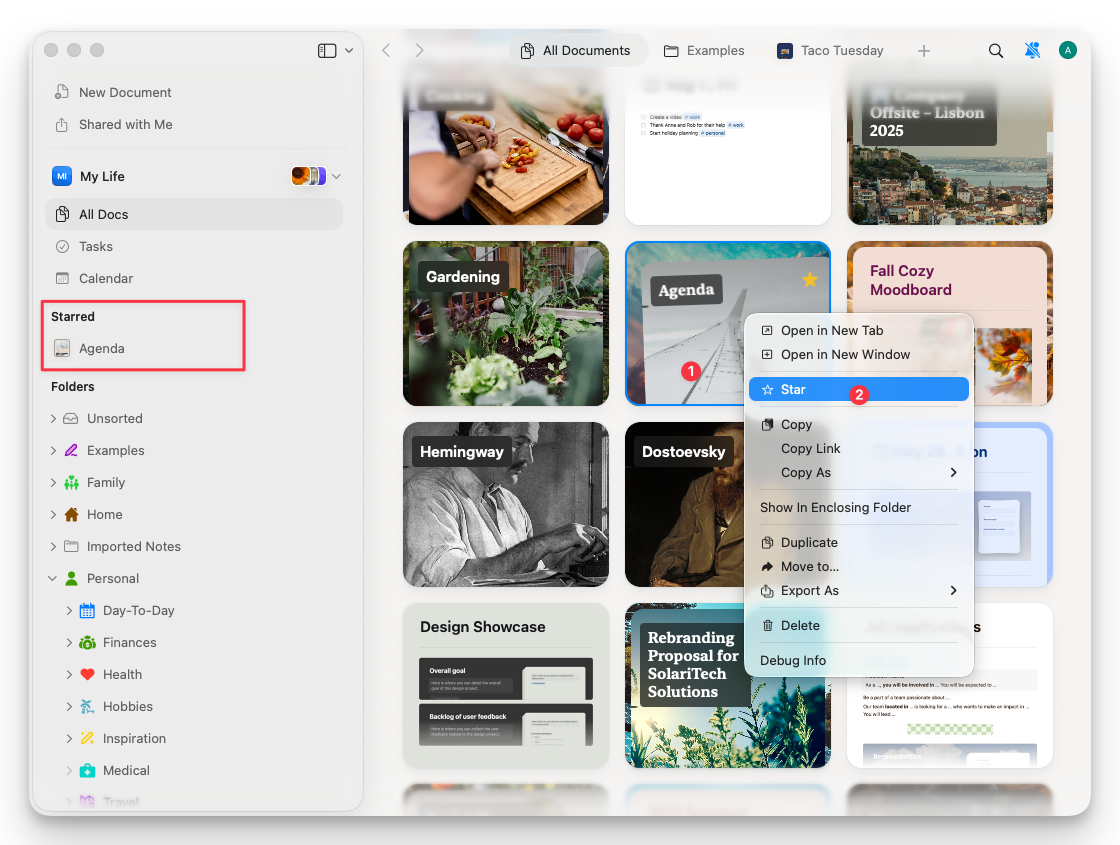
중요한 문서에 별표를 표시하면 나중에 **Starred** 폴더에서 빠르게 접근할 수 있습니다.
문서에서 오른쪽 클릭한 다음 컨텍스트 메뉴에서 **Star**를 선택합니다. **Starred** 폴더가 sidebar에 표시됩니다.
삭제된 문서는 **Recently Deleted** 폴더로 이동하며, 영구 삭제되기 전 최대 30일 동안 복원할 수 있습니다.
## 문서 즐겨찾기
중요한 문서에 별표를 표시하면 나중에 **Starred** 폴더에서 빠르게 접근할 수 있습니다.
문서에서 오른쪽 클릭한 다음 컨텍스트 메뉴에서 **Star**를 선택합니다. **Starred** 폴더가 sidebar에 표시됩니다.
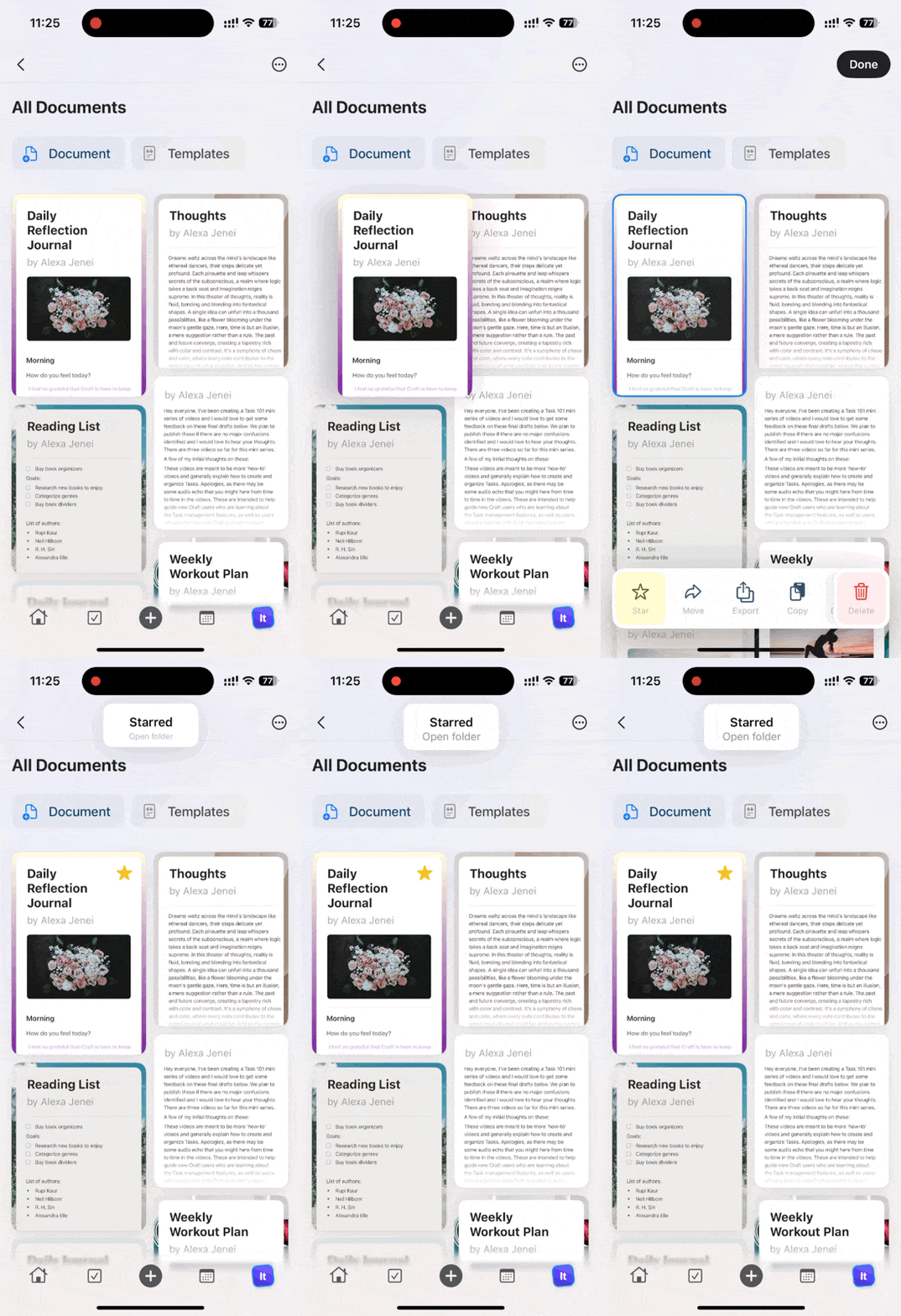
 문서에서 왼쪽 또는 오른쪽으로 스와이프한 다음 **Star**를 탭합니다. 모든 별표 표시된 문서는 **Starred** 폴더에서 확인할 수 있습니다.
 ## 문서 공유
문서를 열고 오른쪽 상단의 **Share** 버튼을 클릭합니다.
## 문서 공유
문서를 열고 오른쪽 상단의 **Share** 버튼을 클릭합니다.
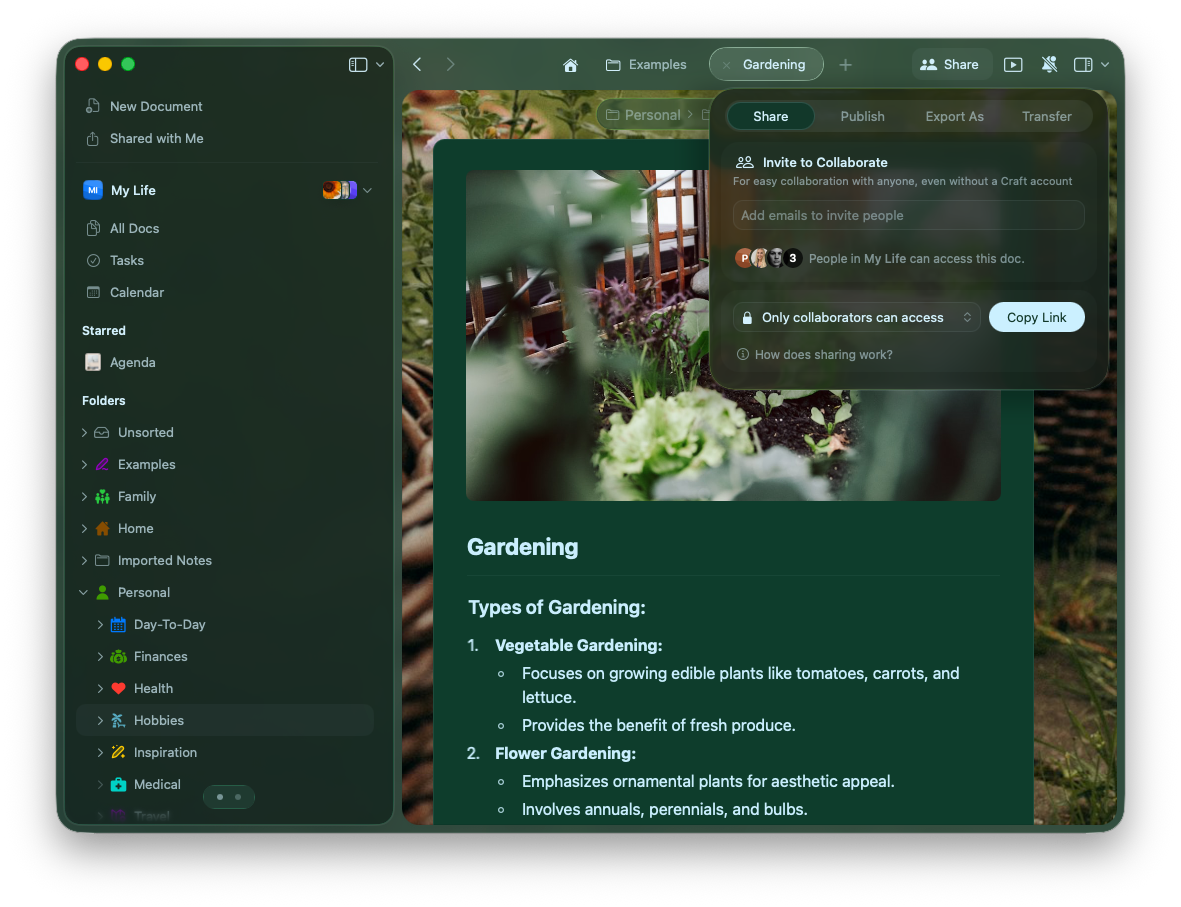 공유 권한을 선택하세요:
* **Only collaborators** – 초대된 구성원에게만 접근을 제한합니다
* **Anyone with the link can view** – 링크를 가진 모든 사용자가 편집 없이 보기만 할 수 있습니다
* **Anyone with the link can edit** – 링크를 가진 누구나 문서를 편집할 수 있도록 허용합니다
같은 메뉴에서 문서를 Publish, Export 또는 Transfer할 수도 있습니다.
문서를 열고 오른쪽 상단의 공유 아이콘(화살표가 있는 페이지)을 탭합니다.
공유 권한을 선택하세요:
* **Only collaborators** – 초대된 구성원에게만 접근을 제한합니다
* **Anyone with the link can view** – 링크를 가진 모든 사용자가 편집 없이 보기만 할 수 있습니다
* **Anyone with the link can edit** – 링크를 가진 누구나 문서를 편집할 수 있도록 허용합니다
같은 메뉴에서 문서를 Publish, Export 또는 Transfer할 수도 있습니다.
문서를 열고 오른쪽 상단의 공유 아이콘(화살표가 있는 페이지)을 탭합니다.
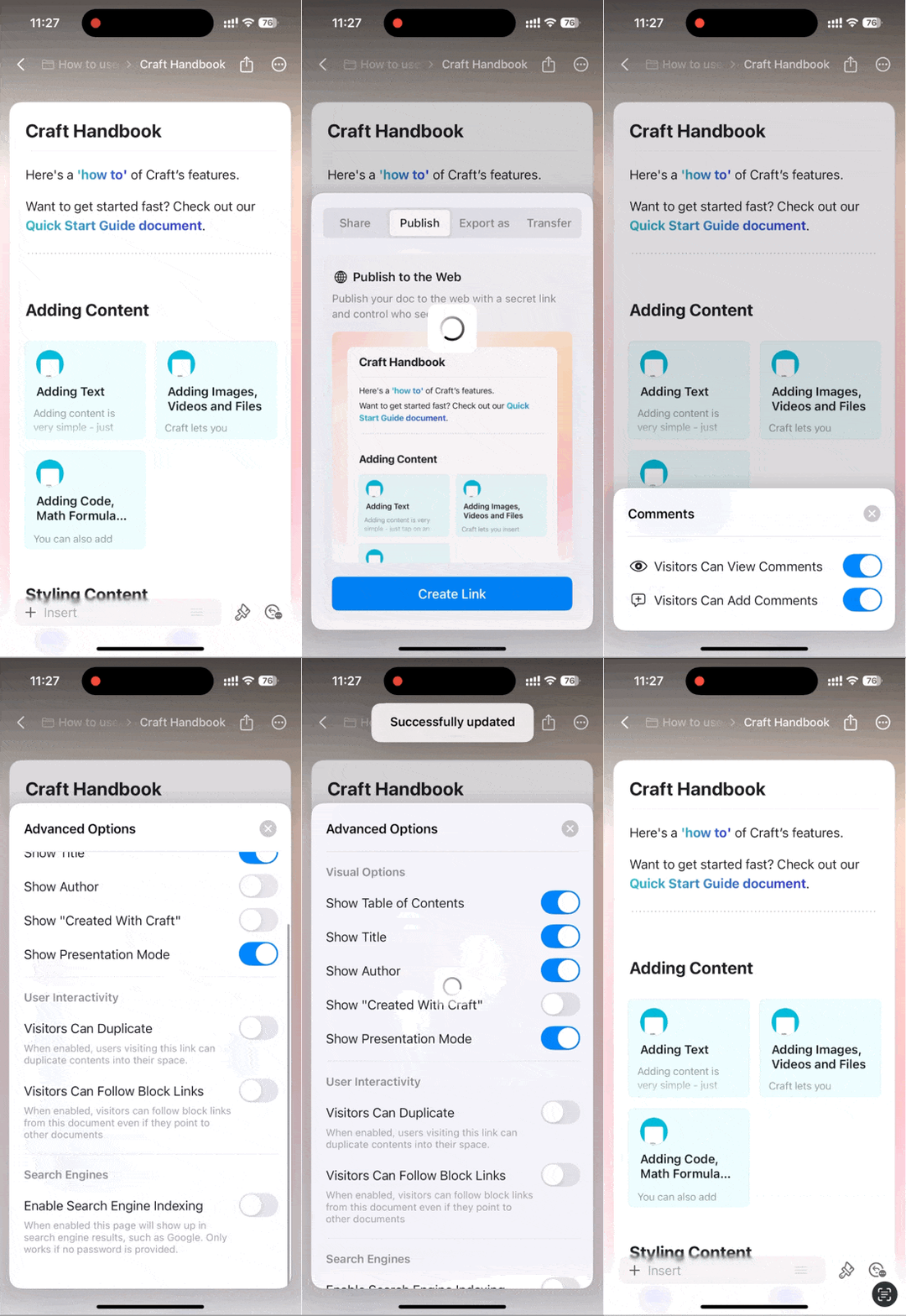 협업 제한을 설정하려면 **Comments** 탭을 탭하세요. 문서 작성자 표시와 같은 설정은 **Advanced Options**에서 구성할 수 있습니다.
iOS 버전은 현재 댓글 전용 공유만 지원합니다. 전체 보기/편집 권한은 macOS와 Web에서 사용할 수 있습니다.
## 목차
모든 문서는 헤딩을 기반으로 자동으로 목차를 생성합니다.
### macOS
목차는 왼쪽 sidebar에 표시됩니다. 왼쪽 상단의 **Sidebar Toggle**을 클릭하여 다음 보기 사이를 전환합니다:
* **Document view** – 현재 문서의 목차를 표시합니다
* **Folder view** – 스페이스의 폴더 구조를 표시합니다
협업 제한을 설정하려면 **Comments** 탭을 탭하세요. 문서 작성자 표시와 같은 설정은 **Advanced Options**에서 구성할 수 있습니다.
iOS 버전은 현재 댓글 전용 공유만 지원합니다. 전체 보기/편집 권한은 macOS와 Web에서 사용할 수 있습니다.
## 목차
모든 문서는 헤딩을 기반으로 자동으로 목차를 생성합니다.
### macOS
목차는 왼쪽 sidebar에 표시됩니다. 왼쪽 상단의 **Sidebar Toggle**을 클릭하여 다음 보기 사이를 전환합니다:
* **Document view** – 현재 문서의 목차를 표시합니다
* **Folder view** – 스페이스의 폴더 구조를 표시합니다
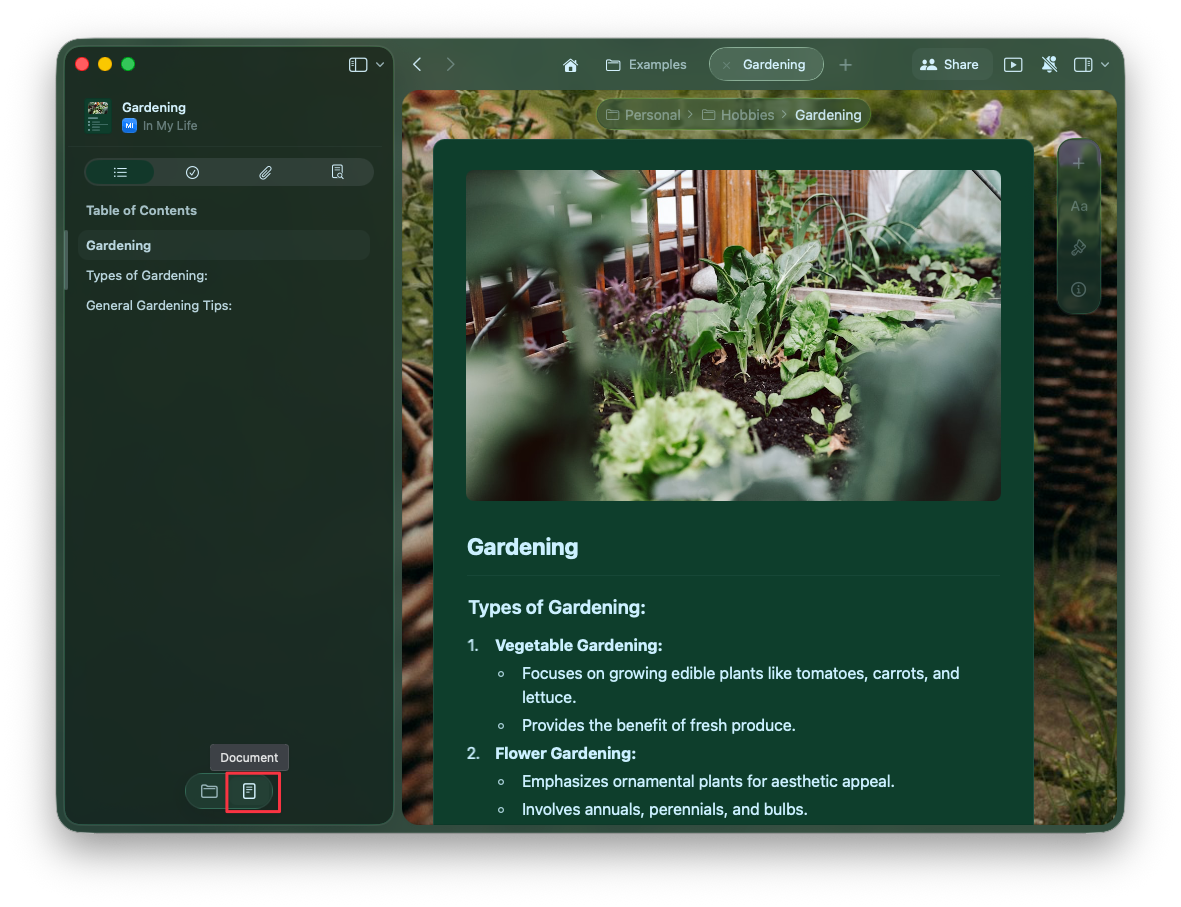 이 보기들 사이는 가로로 스와이프하여 전환할 수 있습니다.
문서를 폴더와 스페이스로 정리하는 방법을 알아보세요
고급 공유 및 협업 기능을 살펴보세요
이 보기들 사이는 가로로 스와이프하여 전환할 수 있습니다.
문서를 폴더와 스페이스로 정리하는 방법을 알아보세요
고급 공유 및 협업 기능을 살펴보세요