> ## Documentation Index
> Fetch the complete documentation index at: https://craft-support.mintlify.site/llms.txt
> Use this file to discover all available pages before exploring further.
# 댓글 및 알림
> 댓글로 협업하고 공유된 문서의 알림으로 업데이트를 받아보세요.
댓글과 알림은 가족, 친구 또는 팀원과 작업할 때 공유된 문서에서 협업자가 소통할 수 있도록 도와줍니다.
## 댓글 추가하기
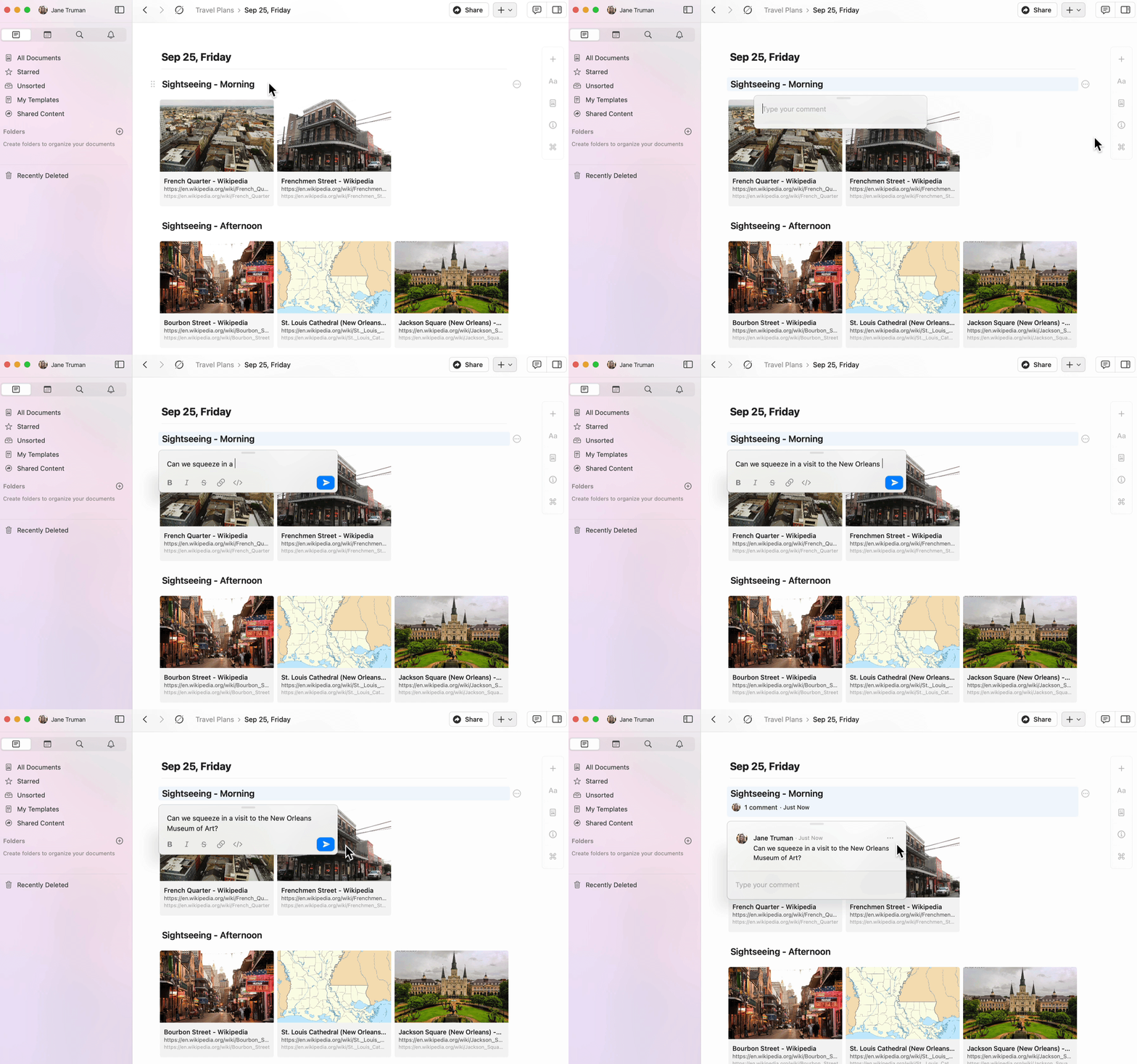
공유된 문서의 어느 블록에도 댓글을 추가할 수 있습니다.
Click로 컨텐츠 블록을 선택합니다.
블록 메뉴에서 three-dot menu (⋯)를 탭합니다.
**댓글 추가**를 선택합니다.
 ## 댓글 서식 지정
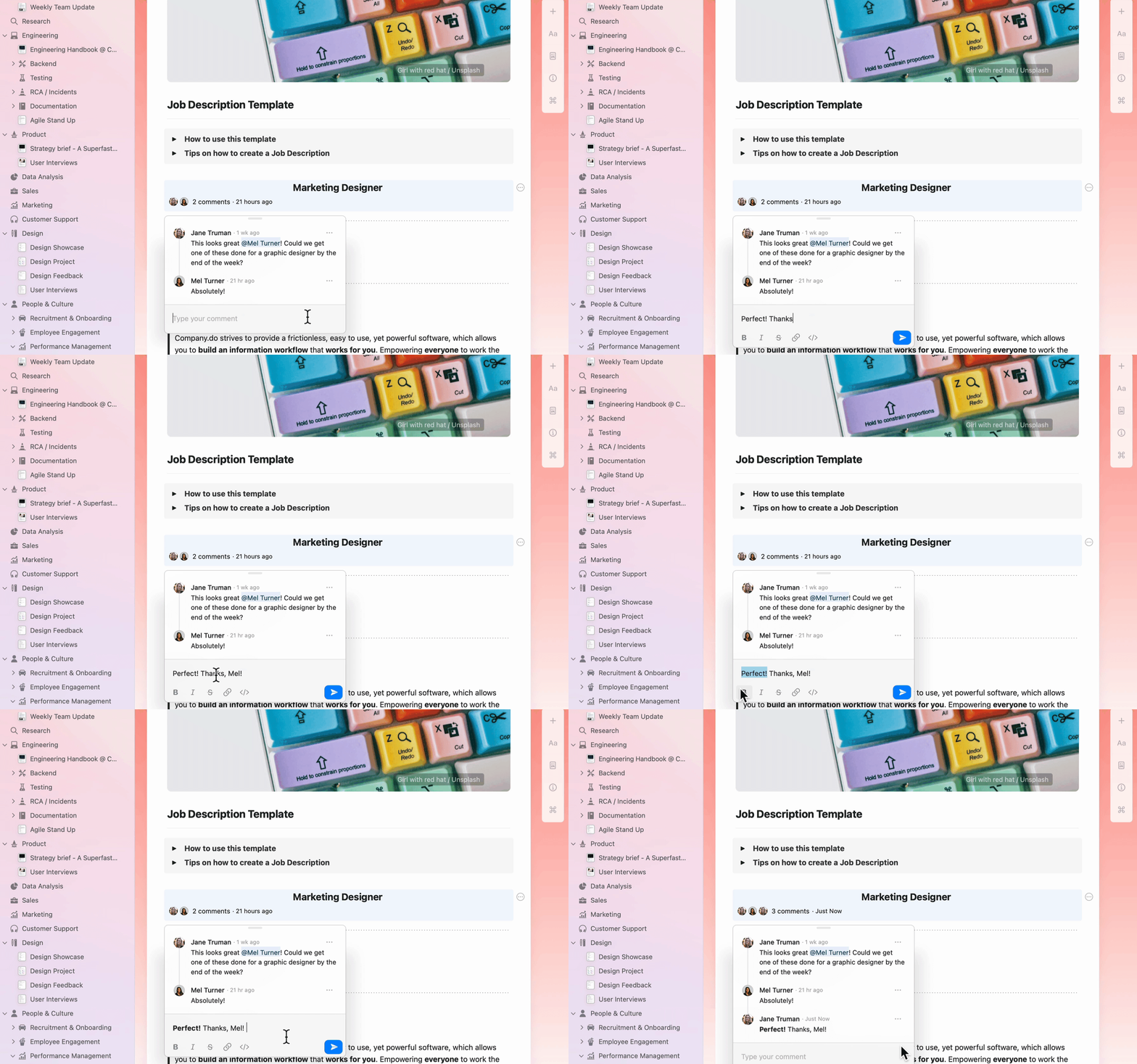
댓글은 더 효과적으로 소통할 수 있도록 기본 텍스트 서식을 지원합니다:
* **굵게**, *기울임*, 및 ~~취소선~~
* 링크
* 인라인 코드
## 댓글 서식 지정
댓글은 더 효과적으로 소통할 수 있도록 기본 텍스트 서식을 지원합니다:
* **굵게**, *기울임*, 및 ~~취소선~~
* 링크
* 인라인 코드
 ## 알림 보기
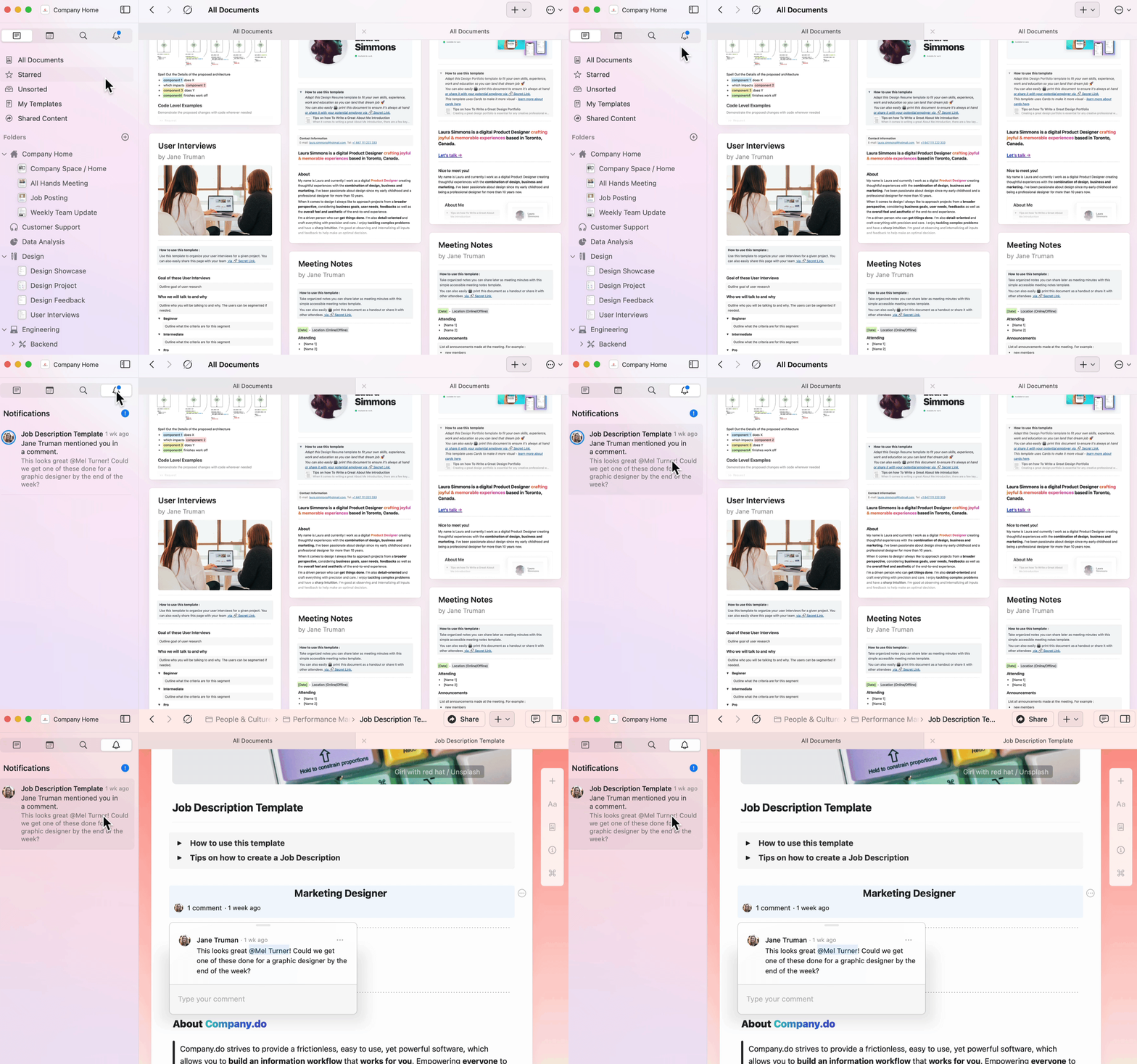
notifications panel은 공유된 문서에서 발생한 모든 활동을 빠르게 한눈에 보여줍니다.
sidebar의 알림 종 아이콘으로 이동합니다.
모든 스페ース의 읽지 않은 알림을 확인합니다.
관련 문서와 댓글로 바로 이동하려면 개별 알림을 Click합니다.
앱 아이콘은 모든 스페ース에서의 읽지 않은 알림 수를 배지로 표시합니다.
## 알림 보기
notifications panel은 공유된 문서에서 발생한 모든 활동을 빠르게 한눈에 보여줍니다.
sidebar의 알림 종 아이콘으로 이동합니다.
모든 스페ース의 읽지 않은 알림을 확인합니다.
관련 문서와 댓글로 바로 이동하려면 개별 알림을 Click합니다.
앱 아이콘은 모든 스페ース에서의 읽지 않은 알림 수를 배지로 표시합니다.
 다음과 같은 경우 알림을 받게 됩니다:
* 누군가 당신이 만든 블록에 댓글을 남긴 경우
* 누군가 댓글이나 문서에서 당신을 언급한 경우
## 댓글에 회신하기
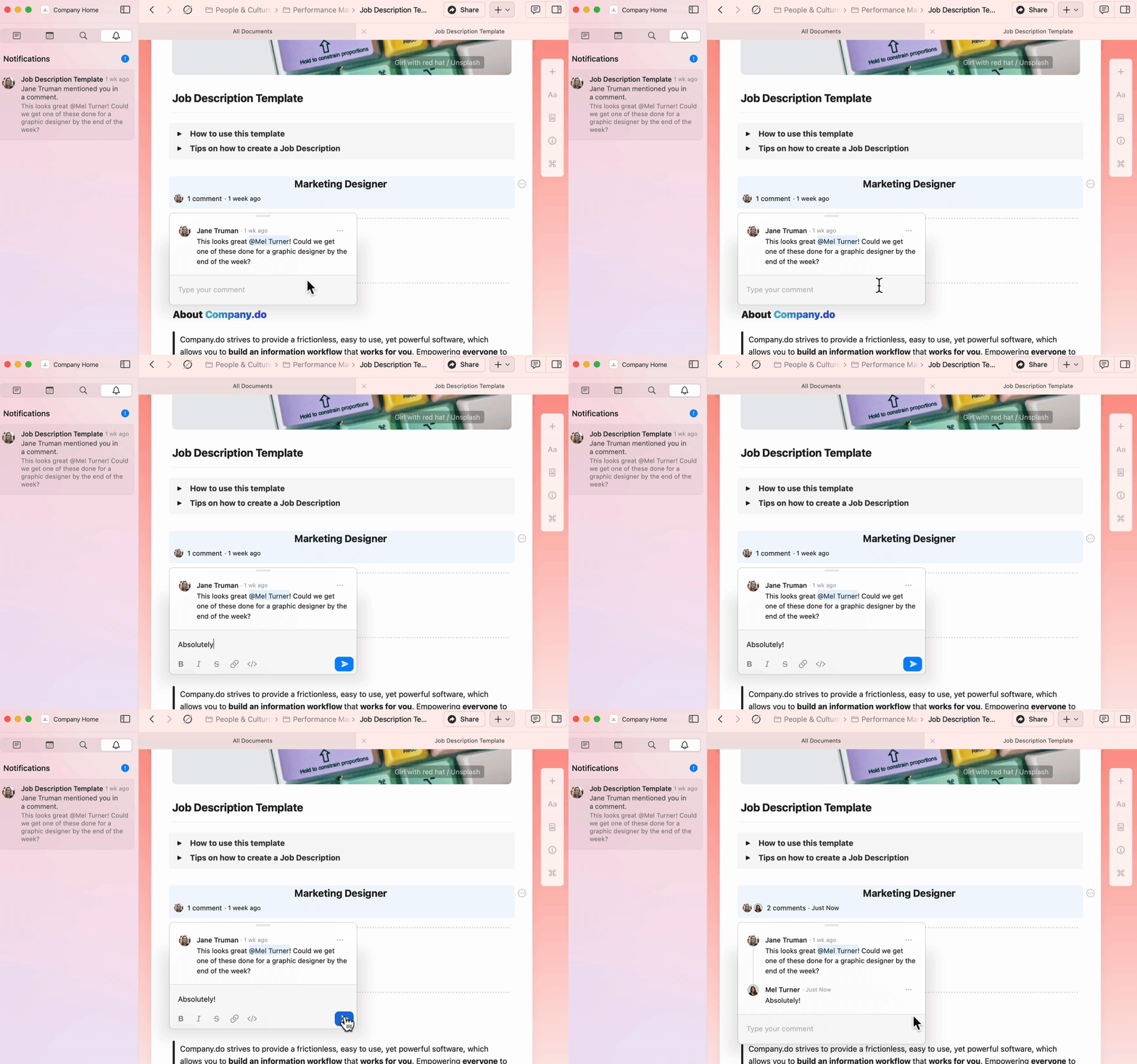
notifications panel에서 댓글로 바로 이동해 인라인으로 회신할 수 있습니다.
다음과 같은 경우 알림을 받게 됩니다:
* 누군가 당신이 만든 블록에 댓글을 남긴 경우
* 누군가 댓글이나 문서에서 당신을 언급한 경우
## 댓글에 회신하기
notifications panel에서 댓글로 바로 이동해 인라인으로 회신할 수 있습니다.
 ## 이메일 알림
이메일 알림은 매시간 전송되며 이전 기간의 모든 읽지 않은 알림을 포함합니다.
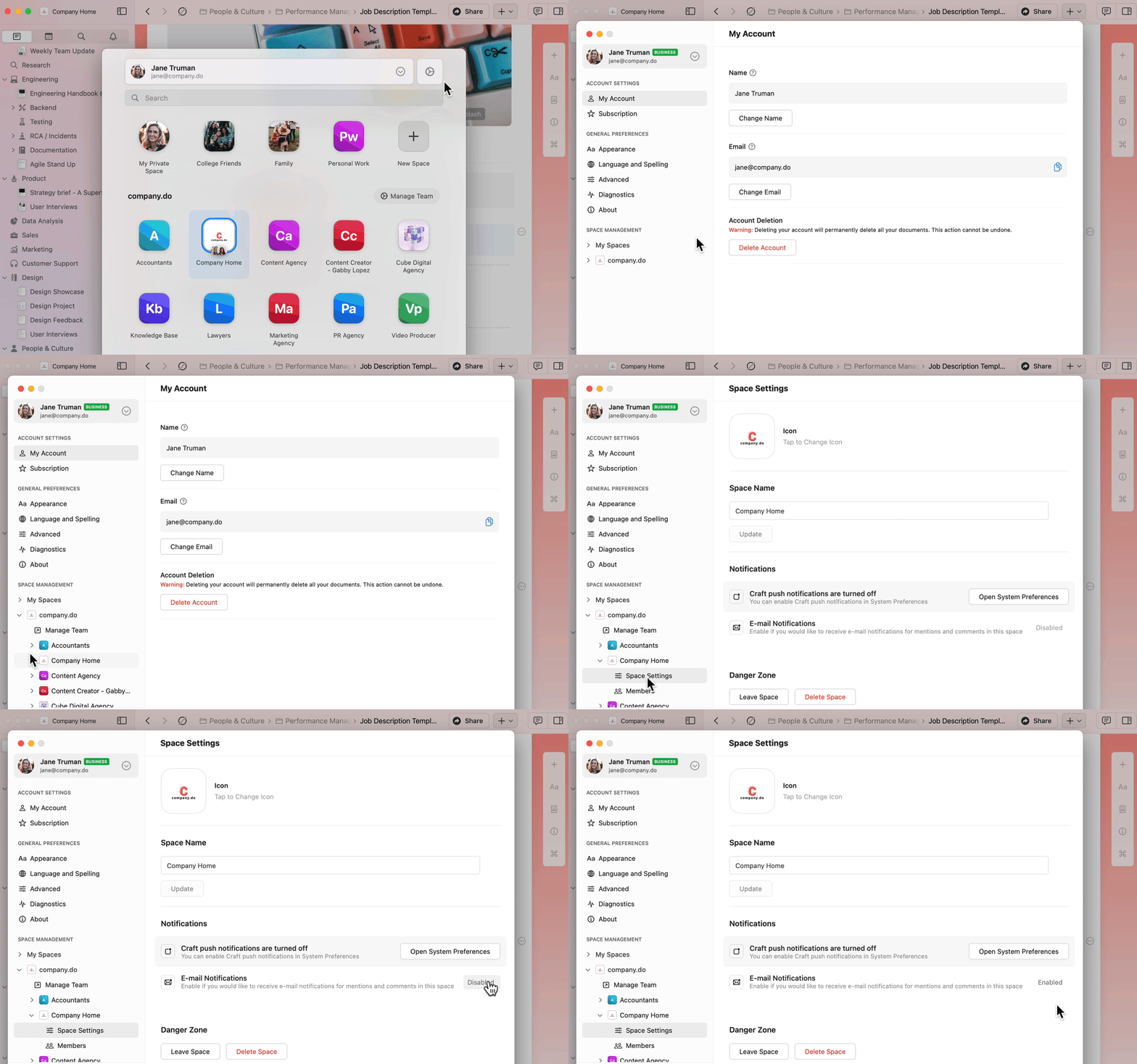
이메일 알림을 활성화하거나 비활성화하려면:
macOS에서는 **Preferences**로, iOS/Web app/Windows에서는 **설정**으로 이동합니다.
**Space Management**에서 구성하려는 스페ース를 선택합니다.
**Space Settings**로 이동합니다.
**이메일 알림**을 켜거나 끕니다.
## 이메일 알림
이메일 알림은 매시간 전송되며 이전 기간의 모든 읽지 않은 알림을 포함합니다.
이메일 알림을 활성화하거나 비활성화하려면:
macOS에서는 **Preferences**로, iOS/Web app/Windows에서는 **설정**으로 이동합니다.
**Space Management**에서 구성하려는 스페ース를 선택합니다.
**Space Settings**로 이동합니다.
**이메일 알림**을 켜거나 끕니다.
 여러 스페ース에 대해 이메일 알림을 켜거나 끄려면, 각 스페ース에서 위 단계를 각각 반복해 주세요.
## 푸시 알림
푸시 알림은 다음에 대해 실시간 경고를 제공합니다:
* 당신이 만든 블록에 대한 댓글
* 문서나 댓글 스레드에서의 언급
푸시 알림을 활성화하려면:
Craft에서 **Preferences**로 이동합니다.
**Space Management**에서 스페ース를 선택합니다.
**Space Settings**로 이동합니다.
Click하여 **Open System Preferences**를 엽니다.
시스템 설정에서 **Craft**를 찾습니다.
**Allow Notifications**를 켭니다.
여러 스페ース에 대해 이메일 알림을 켜거나 끄려면, 각 스페ース에서 위 단계를 각각 반복해 주세요.
## 푸시 알림
푸시 알림은 다음에 대해 실시간 경고를 제공합니다:
* 당신이 만든 블록에 대한 댓글
* 문서나 댓글 스레드에서의 언급
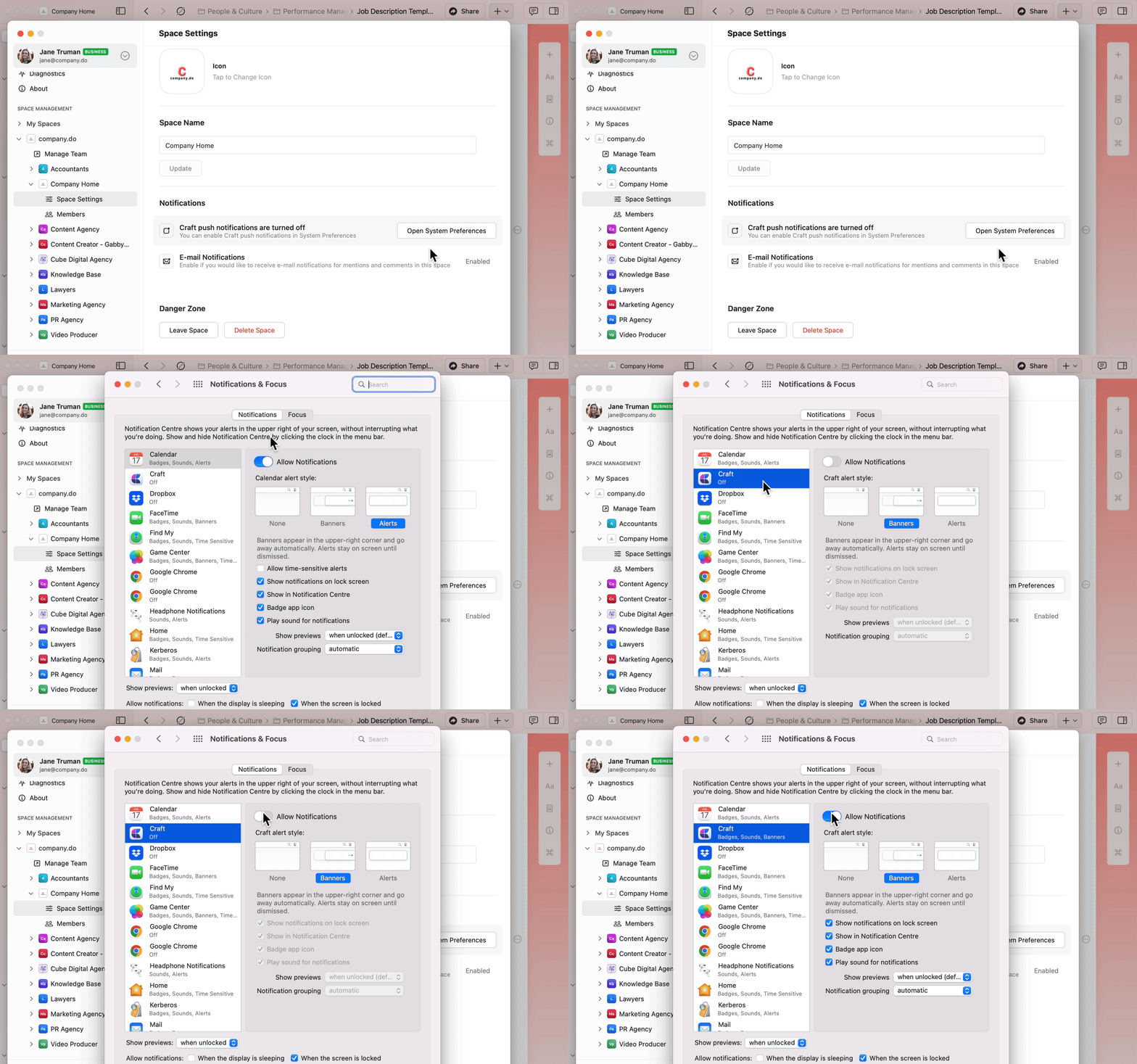
푸시 알림을 활성화하려면:
Craft에서 **Preferences**로 이동합니다.
**Space Management**에서 스페ース를 선택합니다.
**Space Settings**로 이동합니다.
Click하여 **Open System Preferences**를 엽니다.
시스템 설정에서 **Craft**를 찾습니다.
**Allow Notifications**를 켭니다.
 iOS **설정** 앱을 엽니다.
목록에서 **Craft**를 찾습니다.
**Notifications**를 탭합니다.
**Allow Notifications**를 켭니다.
배너, 소리, 배지 등 원하는 알림 스타일을 구성합니다.
현재 앱 내 알림 소리는 비활성화되어 있지만, 기기 설정에서 시스템 수준의 알림 소리를 활성화하면 소리는 재생됩니다.
## 관련 문서
문서를 공유하고 협업하는 방법 알아보기
팀 스페이스 및 권한으로 함께 작업하기
iOS **설정** 앱을 엽니다.
목록에서 **Craft**를 찾습니다.
**Notifications**를 탭합니다.
**Allow Notifications**를 켭니다.
배너, 소리, 배지 등 원하는 알림 스타일을 구성합니다.
현재 앱 내 알림 소리는 비활성화되어 있지만, 기기 설정에서 시스템 수준의 알림 소리를 활성화하면 소리는 재생됩니다.
## 관련 문서
문서를 공유하고 협업하는 방법 알아보기
팀 스페이스 및 권한으로 함께 작업하기