> ## Documentation Index
> Fetch the complete documentation index at: https://craft-support.mintlify.site/llms.txt
> Use this file to discover all available pages before exploring further.
# 날짜 추가
> 문서에서 빠르게 시간 참조를 할 수 있도록 데일리 노트에 연결되는 날짜 배지를 삽입합니다.
Craft의 날짜 배지는 두 가지 역할을 합니다: 콘텐츠에서 시간 참조를 표시하고 해당 날짜의 데일리 노트로 직접 연결됩니다.
## 날짜 삽입
날짜는 여러 방법으로 추가할 수 있습니다:
### 슬래시 메뉴 사용하기
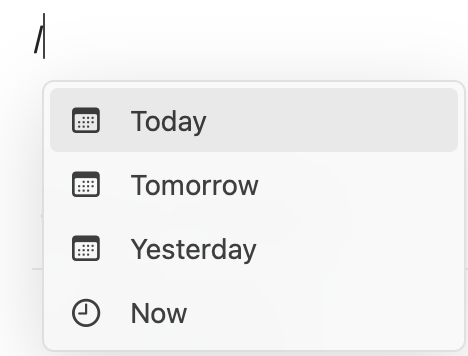
`/` 를 입력한 다음 다음 중 하나를 선택하세요:
* 날짜 선택기를 열려면 **Date & Time**을 입력하세요
* **Today**, **Tomorrow**, **Yesterday**처럼 자연어를 입력하세요
* 월 이름과 일을 입력하세요(예: **December 15**)
 ### @ 기호 사용하기
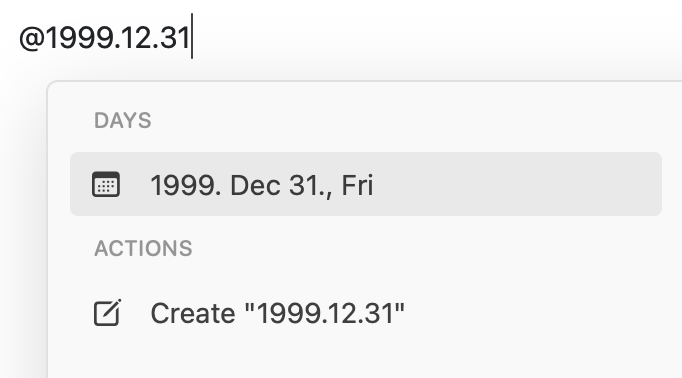
특정 날짜를 입력하려면 `@` 를 입력한 다음 **YYYY.MM.DD** 형식으로 날짜를 입력하세요:
### @ 기호 사용하기
특정 날짜를 입력하려면 `@` 를 입력한 다음 **YYYY.MM.DD** 형식으로 날짜를 입력하세요:
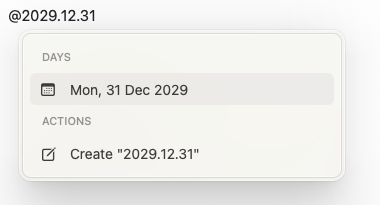
 날짜 선택기가 나타나 날짜를 선택하거나 조정할 수 있습니다:
 ## 날짜 배지와 데일리 노트
각 날짜 배지는 해당 [데일리 노트](/ko/plan-and-do/daily-notes)로 연결되는 클릭 가능한 링크이기도 합니다. 날짜 배지를 클릭하면 다음을 할 수 있습니다:
* 해당 날짜의 기존 콘텐츠 보기
* 새 노트나 할 일 추가
* 데일리 노트를 탐색
날짜 배지는 자동으로 데일리 노트와 연결되어 워크스페이스 전반에서 시간 기반 콘텐츠를 쉽게 참조하고 탐색할 수 있습니다.
## 날짜 배지와 데일리 노트
각 날짜 배지는 해당 [데일리 노트](/ko/plan-and-do/daily-notes)로 연결되는 클릭 가능한 링크이기도 합니다. 날짜 배지를 클릭하면 다음을 할 수 있습니다:
* 해당 날짜의 기존 콘텐츠 보기
* 새 노트나 할 일 추가
* 데일리 노트를 탐색
날짜 배지는 자동으로 데일리 노트와 연결되어 워크스페이스 전반에서 시간 기반 콘텐츠를 쉽게 참조하고 탐색할 수 있습니다.