> ## Documentation Index
> Fetch the complete documentation index at: https://craft-support.mintlify.site/llms.txt
> Use this file to discover all available pages before exploring further.
# 카드
> 사용자 지정 배경, 색상, 이미지, 미리보기 스타일로 페이지를 시각적으로 매력적인 카드로 변환하세요.
카드는 문서 내 페이지를 시각적으로 구분된 카드 형태의 요소로 바꿔주는 스타일 옵션입니다. 페이지에 다른 배경, 색상, 미리보기, 형식을 적용해 매력적인 레이아웃을 만들 수 있습니다.
카드와 페이지는 내부적으로 동일하게 작동합니다. 카드는 배경, 색상, 미리보기, 형식 등 시각적 스타일이 추가된 페이지일 뿐입니다. 페이지에서 할 수 있는 모든 작업은 카드 안에서도 할 수 있습니다.
## 카드 만들기
문서에 `/card`를 입력하세요.
메뉴에서 카드 스타일을 선택하세요.
카드가 새로운 페이지 블록으로 삽입됩니다.
자세한 내용은 [슬래시 메뉴 사용하기](/ko/write-and-edit/formatting/slash-menu)에서 확인하세요.
## 배경
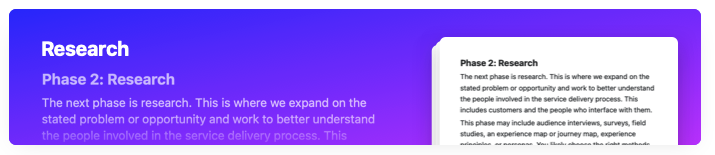
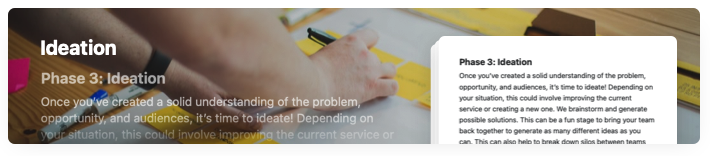
카드는 세 가지 배경 유형으로 맞춤 설정할 수 있습니다:
* **단색:** 색상 팔레트에서 선택하거나 사용자 지정 색상을 설정하세요.
* **Unsplash 이미지:** Craft 안에서 직접 전문 사진을 검색하고 선택하세요.
* **내 이미지:** 기기에서 이미지를 업로드하세요.
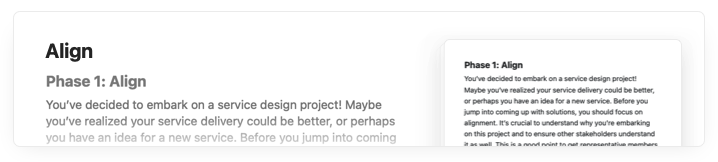
깔끔하고 미니멀한 느낌을 위해 배경 없이 카드를 둘 수도 있습니다:
## 미리보기 스타일
카드의 미리보기는 상위 페이지에서 내용이 어떻게 보이는지를 결정합니다. 다섯 가지 옵션 중에서 선택할 수 있습니다:
* **표준:** 제목과 카드 내용의 일부를 표시하는 기본 미리보기입니다.
* **이모지:** 텍스트 미리보기 대신 카드에 표시할 이모지를 최대 4개까지 선택합니다.
* **책:** 책의 한 페이지처럼 보이는 스타일입니다.
* **포스트잇:** 노란색 메모지처럼 보이는 스타일입니다.
* **갤러리:** 텍스트 미리보기 대신 카드 내부의 이미지를 최대 3개까지 모은 콜라주를 표시합니다.
## 카드 형식
카드는 문서에서 얼마나 두드러지게 나타나는지를 결정하는 다섯 가지 형식으로 제공됩니다. 이를 조합해 계층 구조와 시각적 강약을 만들 수 있습니다.
가장 큰 두 가지 카드 형식은 Craft Plus에서 사용할 수 있습니다. 나머지 세 가지 형식은 모든 요금제에서 사용할 수 있습니다.
## 동영상 튜토리얼
## 사용 사례
카드는 특히 다음과 같은 경우에 유용합니다:
* **프로젝트 계획:** 프로젝트 단계별로 시각적 섹션을 만드세요.
* **지식 베이스:** 주제를 시각적 계층으로 정리하세요.
* **회의 노트:** 안건이나 토론 주제를 구분하세요.
* **콘텐츠 기획:** 아이디어를 시각적으로 구분해 정리하세요.
## 관련 문서
모든 스타일링 기능에 대한 종합 가이드
문서의 커버 이미지를 맞춤 설정하세요
Craft의 빌딩 블록 이해하기
 * **Unsplash 이미지:** Craft 안에서 직접 전문 사진을 검색하고 선택하세요.
 * **내 이미지:** 기기에서 이미지를 업로드하세요.
깔끔하고 미니멀한 느낌을 위해 배경 없이 카드를 둘 수도 있습니다:
* **내 이미지:** 기기에서 이미지를 업로드하세요.
깔끔하고 미니멀한 느낌을 위해 배경 없이 카드를 둘 수도 있습니다:
 ## 미리보기 스타일
카드의 미리보기는 상위 페이지에서 내용이 어떻게 보이는지를 결정합니다. 다섯 가지 옵션 중에서 선택할 수 있습니다:
* **표준:** 제목과 카드 내용의 일부를 표시하는 기본 미리보기입니다.
* **이모지:** 텍스트 미리보기 대신 카드에 표시할 이모지를 최대 4개까지 선택합니다.
* **책:** 책의 한 페이지처럼 보이는 스타일입니다.
* **포스트잇:** 노란색 메모지처럼 보이는 스타일입니다.
* **갤러리:** 텍스트 미리보기 대신 카드 내부의 이미지를 최대 3개까지 모은 콜라주를 표시합니다.
## 카드 형식
카드는 문서에서 얼마나 두드러지게 나타나는지를 결정하는 다섯 가지 형식으로 제공됩니다. 이를 조합해 계층 구조와 시각적 강약을 만들 수 있습니다.
## 미리보기 스타일
카드의 미리보기는 상위 페이지에서 내용이 어떻게 보이는지를 결정합니다. 다섯 가지 옵션 중에서 선택할 수 있습니다:
* **표준:** 제목과 카드 내용의 일부를 표시하는 기본 미리보기입니다.
* **이모지:** 텍스트 미리보기 대신 카드에 표시할 이모지를 최대 4개까지 선택합니다.
* **책:** 책의 한 페이지처럼 보이는 스타일입니다.
* **포스트잇:** 노란색 메모지처럼 보이는 스타일입니다.
* **갤러리:** 텍스트 미리보기 대신 카드 내부의 이미지를 최대 3개까지 모은 콜라주를 표시합니다.
## 카드 형식
카드는 문서에서 얼마나 두드러지게 나타나는지를 결정하는 다섯 가지 형식으로 제공됩니다. 이를 조합해 계층 구조와 시각적 강약을 만들 수 있습니다.