> ## Documentation Index
> Fetch the complete documentation index at: https://craft-support.mintlify.site/llms.txt
> Use this file to discover all available pages before exploring further.
# Quản lý Tài liệu
> Tạo, tổ chức, xóa và chia sẻ Tài liệu của bạn trong Craft trên nhiều nền tảng.
Tài liệu là nền tảng cho công việc của bạn trong Craft. Hướng dẫn này trình bày các thao tác thiết yếu để quản lý Tài liệu.
## Tạo Tài liệu
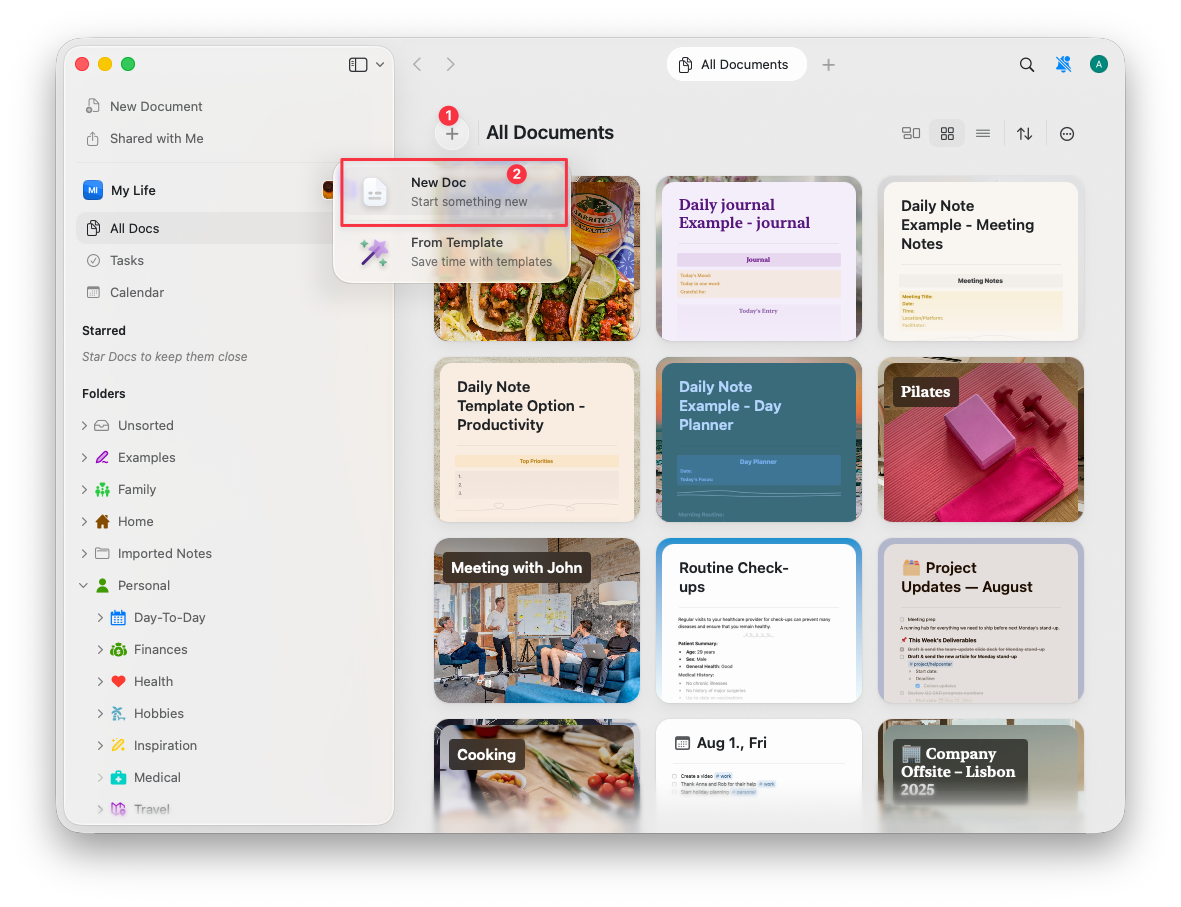
Bạn có một số cách để tạo Tài liệu mới:
* Nhấp vào biểu tượng **Tạo Tài liệu mới** ở giữa phía trên cửa sổ
* Chọn biểu tượng **Tạo Tài liệu mới** ở sidebar bên trái
* Sử dụng phím tắt `⌘ (Command) + N`
 Tạo Tài liệu mới bằng các cách sau:
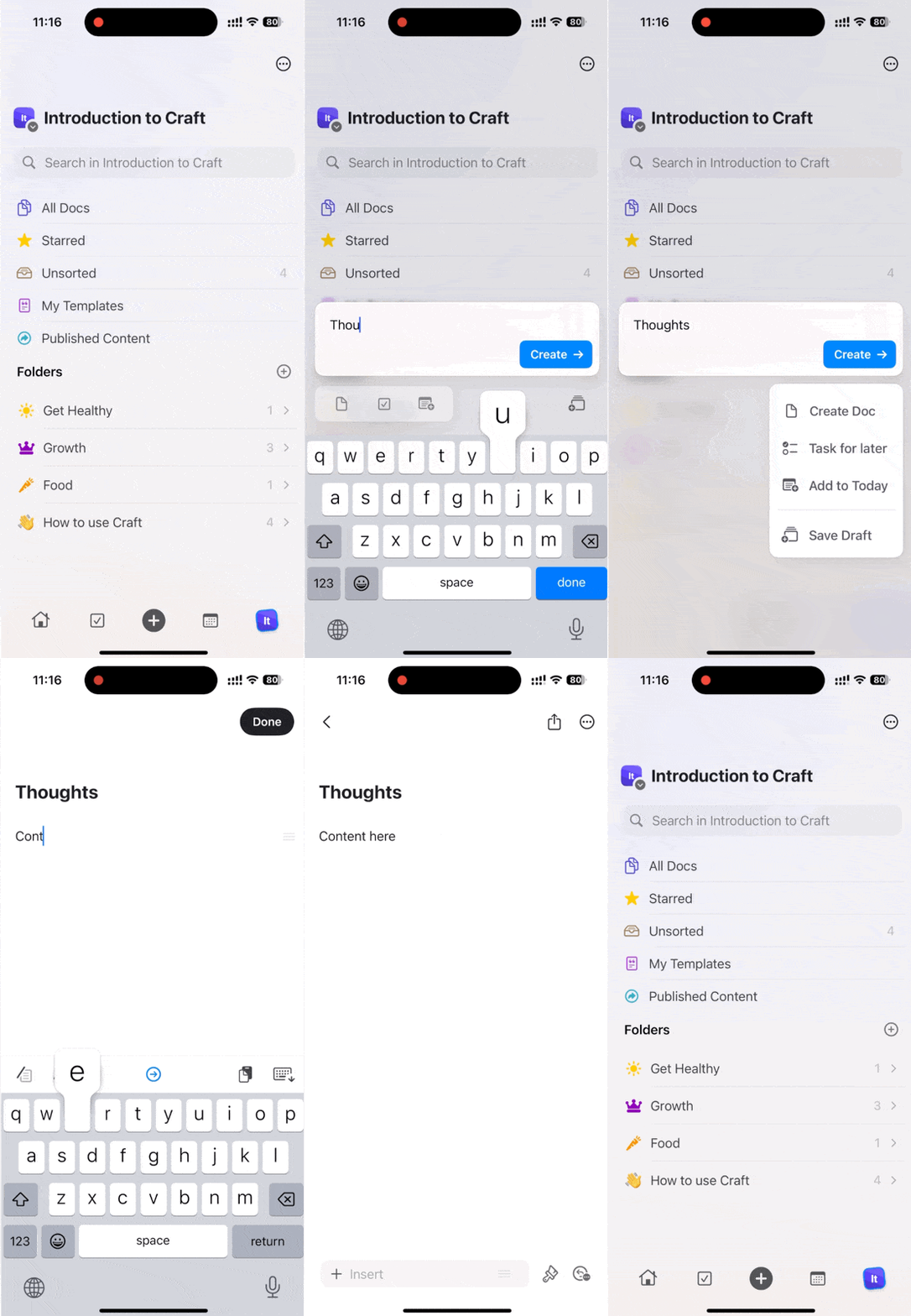
* Chạm vào biểu tượng **Tạo Tài liệu mới** ở đầu màn hình
* Chọn biểu tượng **+** ở giữa thanh công cụ dưới cùng
* Với bàn phím ngoài, nhấn `⌘ (Command) + N`
Tạo Tài liệu mới bằng các cách sau:
* Chạm vào biểu tượng **Tạo Tài liệu mới** ở đầu màn hình
* Chọn biểu tượng **+** ở giữa thanh công cụ dưới cùng
* Với bàn phím ngoài, nhấn `⌘ (Command) + N`
 ## Xóa Tài liệu
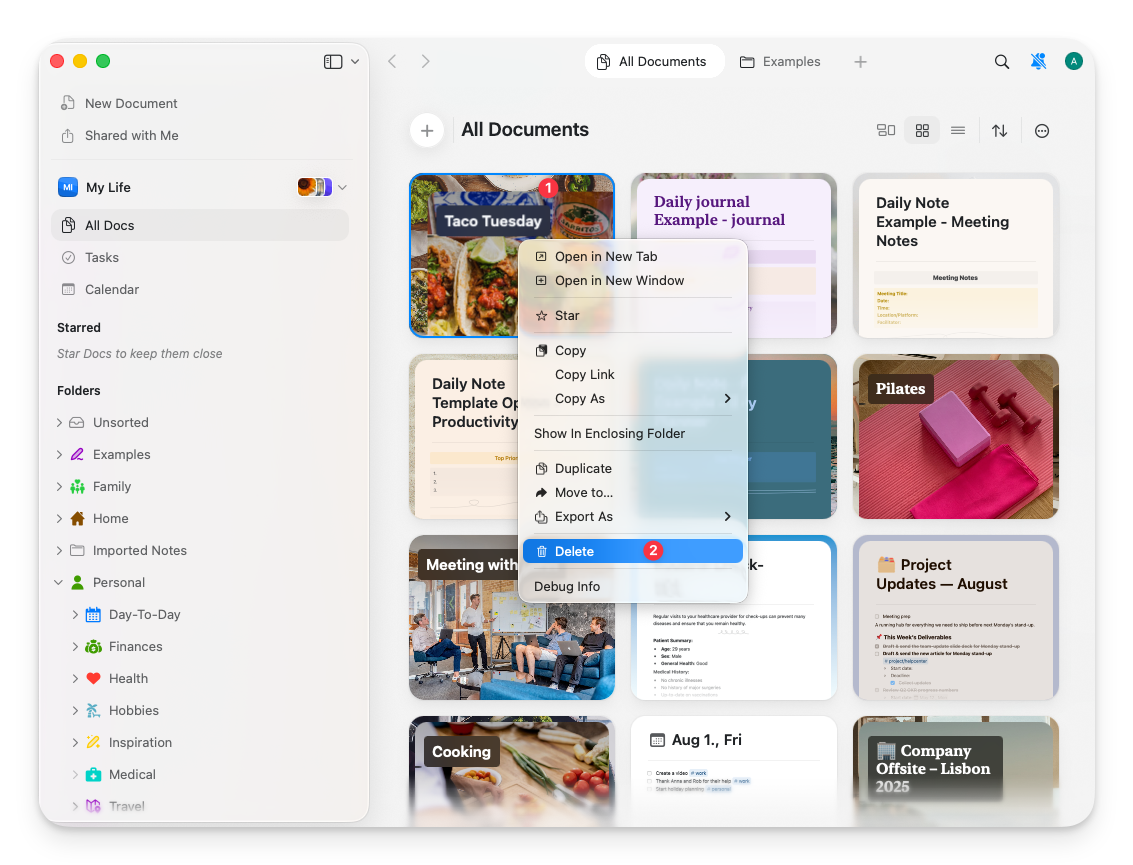
**Từ sidebar:**
Nhấp chuột phải vào Tài liệu và chọn **Xóa**, hoặc chọn Tài liệu rồi nhấn phím Delete.
## Xóa Tài liệu
**Từ sidebar:**
Nhấp chuột phải vào Tài liệu và chọn **Xóa**, hoặc chọn Tài liệu rồi nhấn phím Delete.
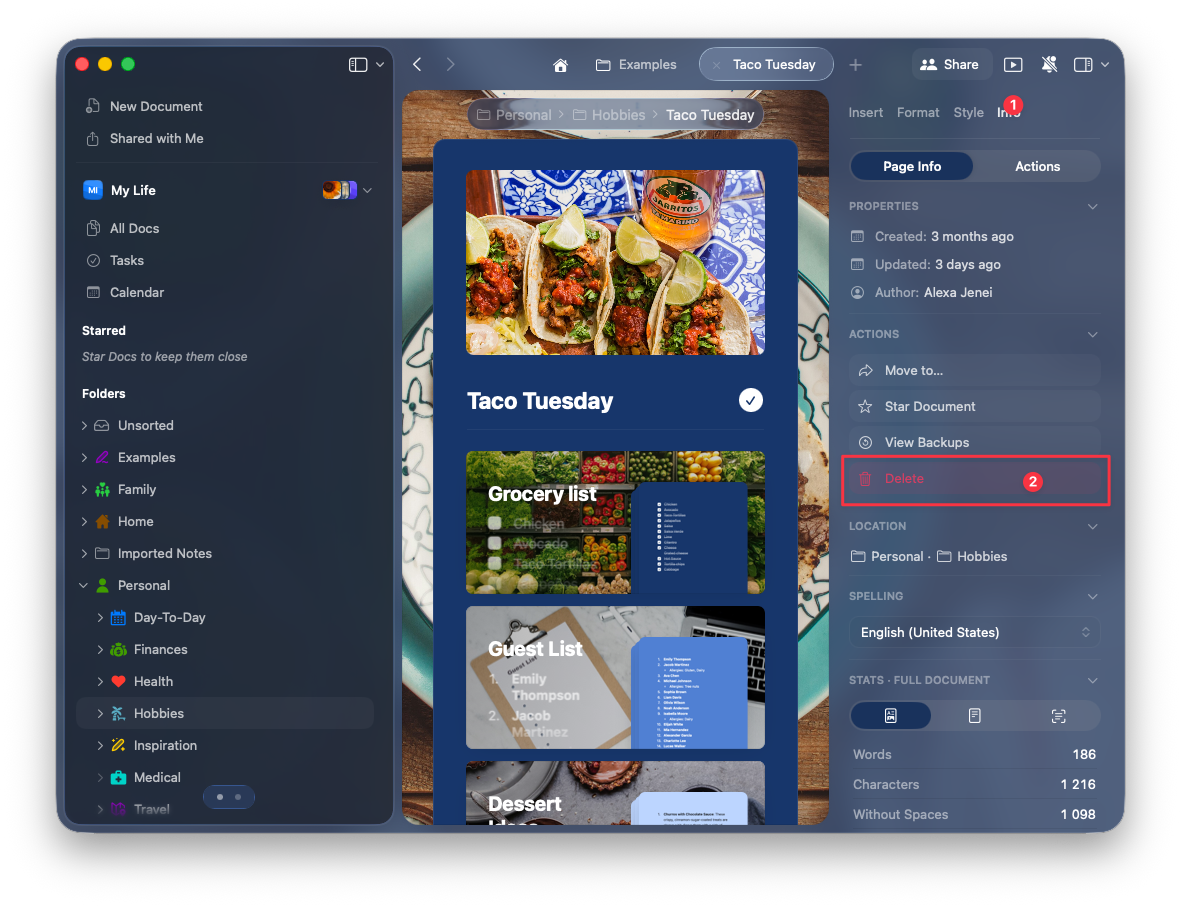
 **Từ bên trong một Tài liệu:**
Nhấp vào biểu tượng thông tin ở sidebar bên trái và chọn **Xóa**.
**Từ bên trong một Tài liệu:**
Nhấp vào biểu tượng thông tin ở sidebar bên trái và chọn **Xóa**.
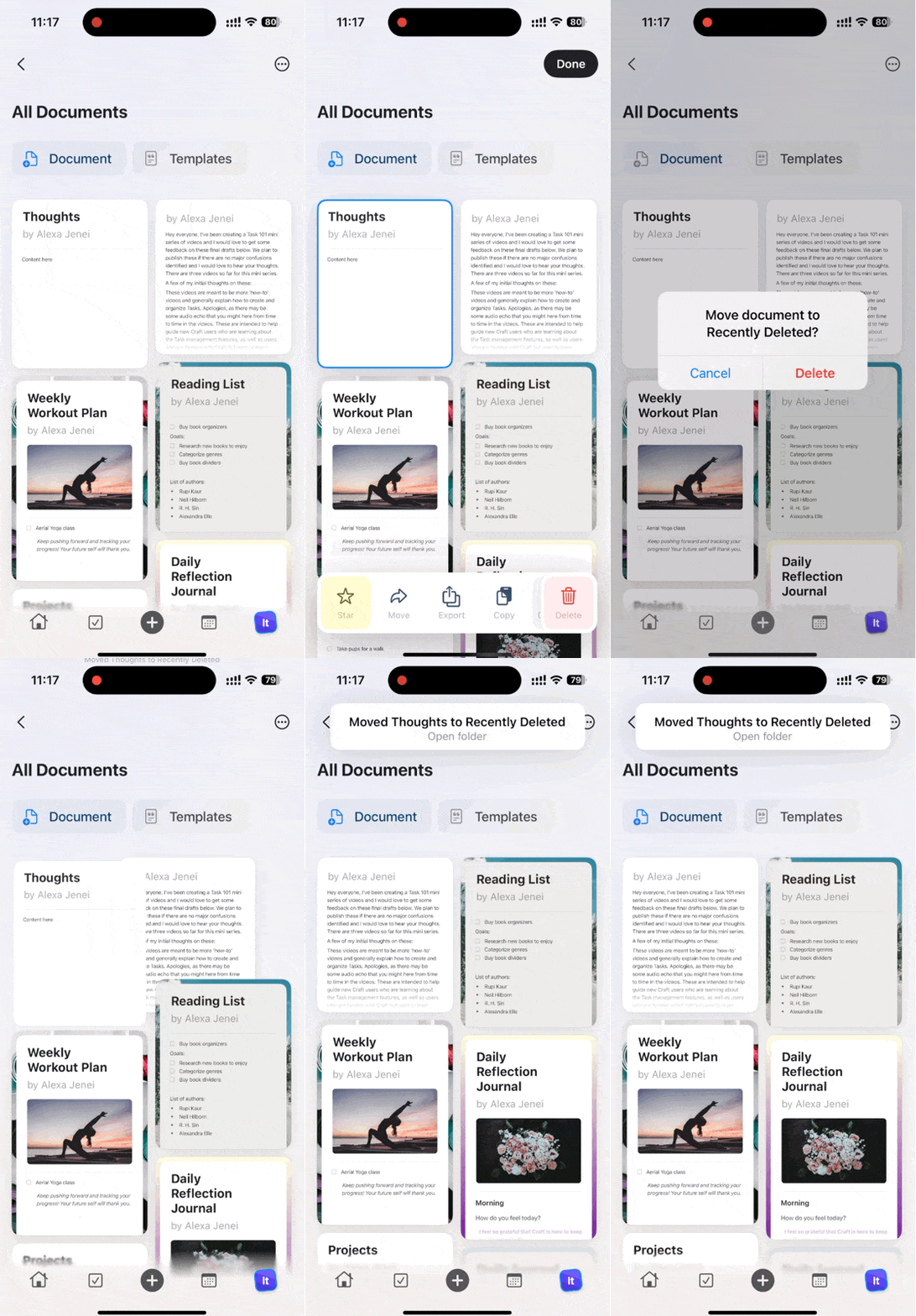
 **Từ danh sách Tài liệu:**
Vuốt sang trái hoặc phải trên Tài liệu và chạm vào **Xóa**.
**Từ danh sách Tài liệu:**
Vuốt sang trái hoặc phải trên Tài liệu và chạm vào **Xóa**.
 **Từ bên trong một Tài liệu:**
Mở chi tiết Tài liệu và chạm vào **Xóa**.
**Từ bên trong một Tài liệu:**
Mở chi tiết Tài liệu và chạm vào **Xóa**.
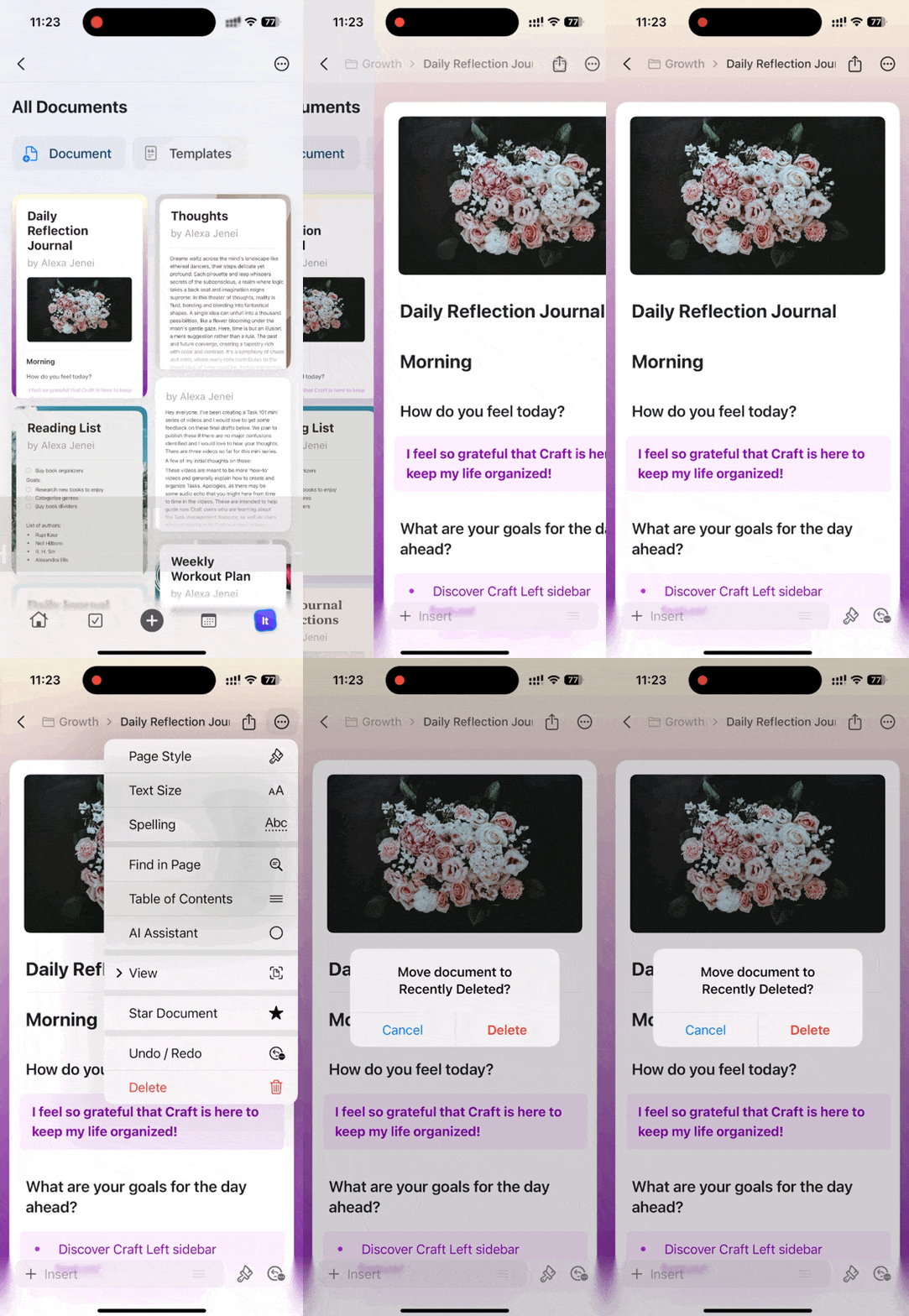 Các Tài liệu bị xóa sẽ được chuyển vào thư mục **Đã xóa gần đây**, nơi bạn có thể khôi phục trong vòng 30 ngày trước khi bị xóa vĩnh viễn.
## Gắn dấu sao cho Tài liệu
Đánh dấu các Tài liệu quan trọng bằng dấu sao để truy cập nhanh sau này từ thư mục **Đã gắn sao**.
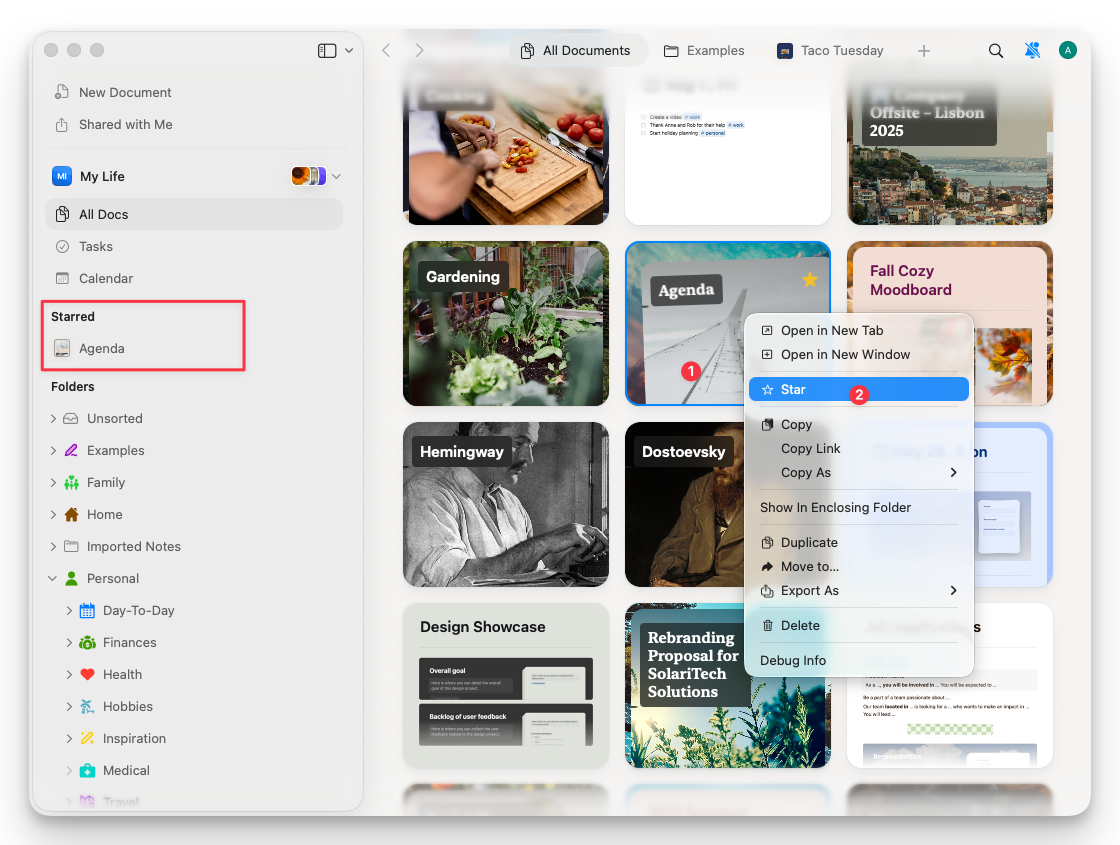
Nhấp chuột phải vào một Tài liệu và chọn **Gắn dấu sao** trong menu ngữ cảnh. Các Tài liệu đã gắn sao sẽ xuất hiện trong thư mục **Đã gắn sao** ở sidebar của bạn.
Các Tài liệu bị xóa sẽ được chuyển vào thư mục **Đã xóa gần đây**, nơi bạn có thể khôi phục trong vòng 30 ngày trước khi bị xóa vĩnh viễn.
## Gắn dấu sao cho Tài liệu
Đánh dấu các Tài liệu quan trọng bằng dấu sao để truy cập nhanh sau này từ thư mục **Đã gắn sao**.
Nhấp chuột phải vào một Tài liệu và chọn **Gắn dấu sao** trong menu ngữ cảnh. Các Tài liệu đã gắn sao sẽ xuất hiện trong thư mục **Đã gắn sao** ở sidebar của bạn.
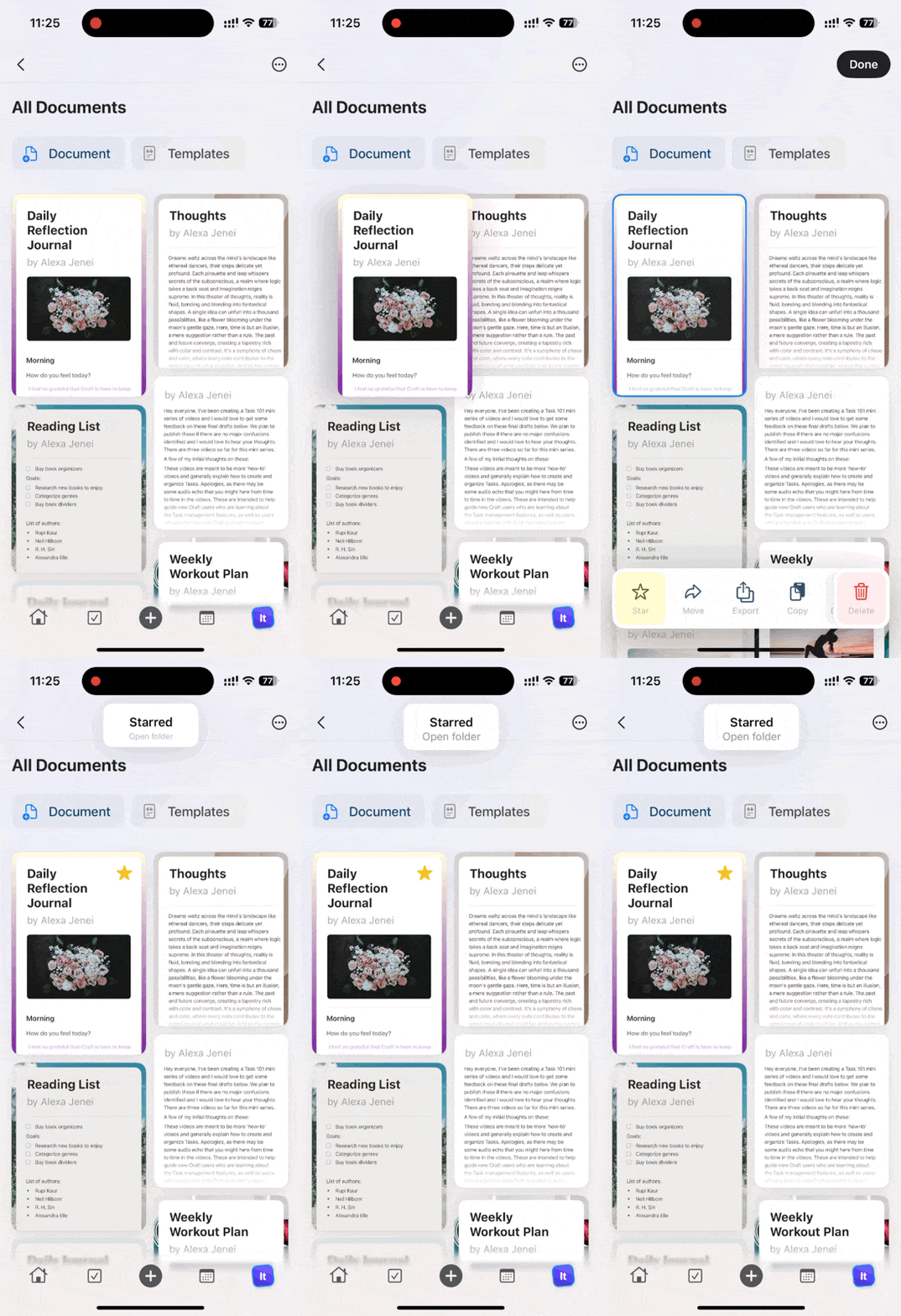
 Vuốt sang trái hoặc phải trên một Tài liệu và chạm vào **Gắn dấu sao**. Tất cả Tài liệu đã gắn sao có thể tìm thấy trong thư mục **Đã gắn sao**.
 ## Chia sẻ Tài liệu
Mở Tài liệu và nhấp vào nút **Chia sẻ** ở góc trên bên phải.
## Chia sẻ Tài liệu
Mở Tài liệu và nhấp vào nút **Chia sẻ** ở góc trên bên phải.
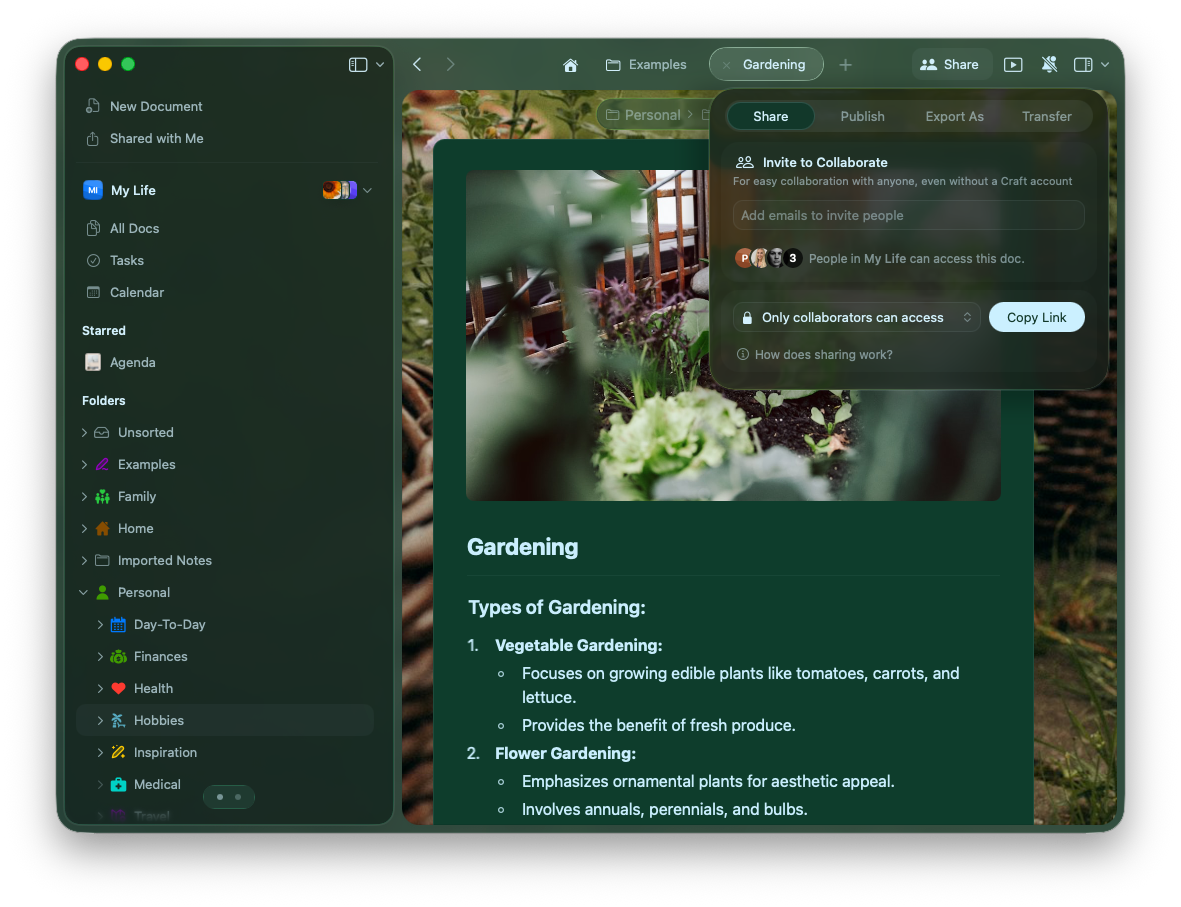 Chọn quyền chia sẻ:
* **Chỉ cộng tác viên** - Giới hạn truy cập cho những thành viên được mời
* **Bất kỳ ai có liên kết đều có thể xem** - Cho phép xem mà không chỉnh sửa
* **Bất kỳ ai có liên kết đều có thể chỉnh sửa** - Cho phép chỉnh sửa cộng tác
Bạn cũng có thể Publish, Export, hoặc Transfer Tài liệu từ cùng menu này.
Mở Tài liệu và chạm vào biểu tượng chia sẻ (trang có mũi tên) ở góc trên bên phải.
Chọn quyền chia sẻ:
* **Chỉ cộng tác viên** - Giới hạn truy cập cho những thành viên được mời
* **Bất kỳ ai có liên kết đều có thể xem** - Cho phép xem mà không chỉnh sửa
* **Bất kỳ ai có liên kết đều có thể chỉnh sửa** - Cho phép chỉnh sửa cộng tác
Bạn cũng có thể Publish, Export, hoặc Transfer Tài liệu từ cùng menu này.
Mở Tài liệu và chạm vào biểu tượng chia sẻ (trang có mũi tên) ở góc trên bên phải.
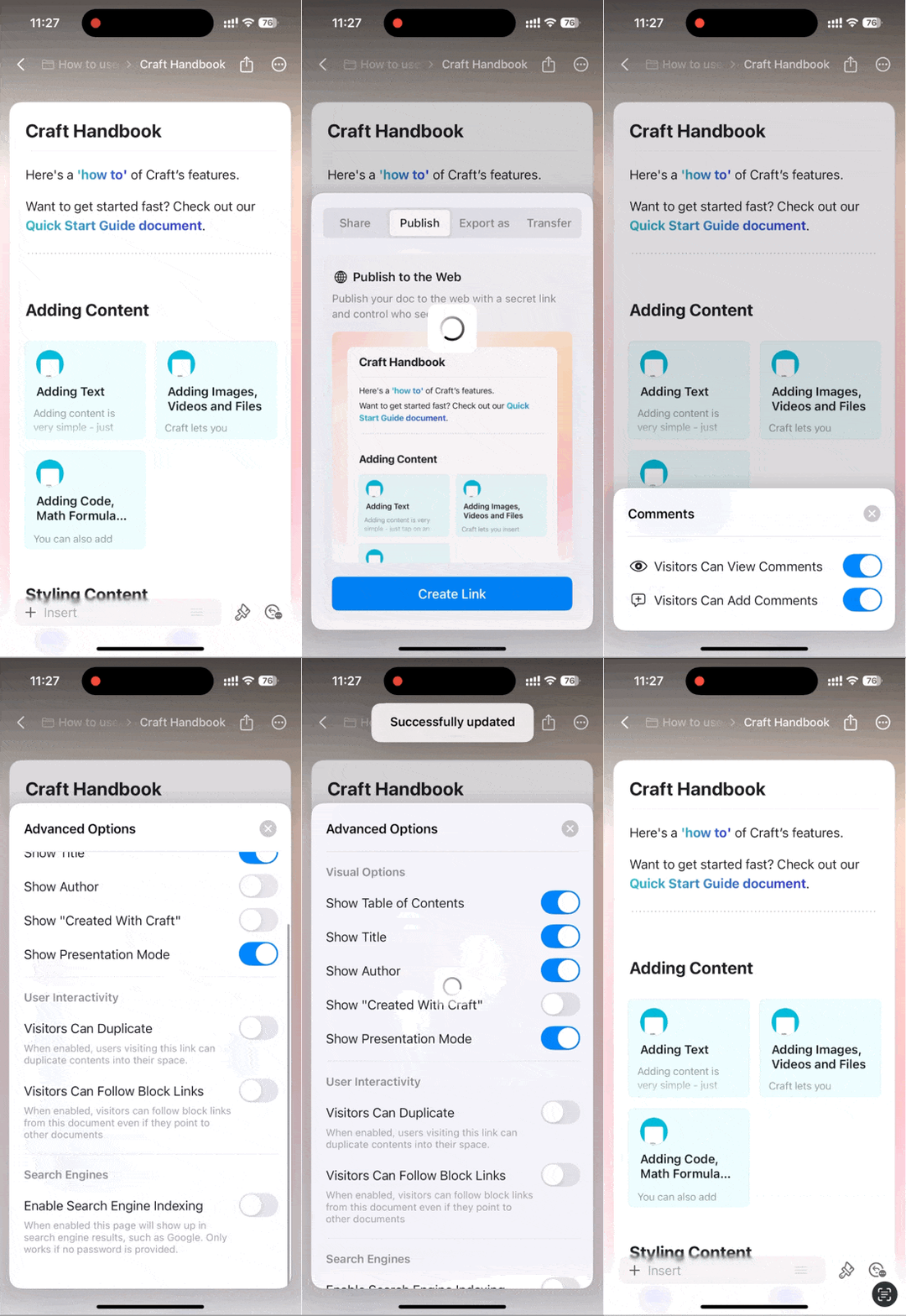 Chạm vào thẻ **Bình luận** để đặt hạn chế cộng tác. Dùng **Tùy chọn nâng cao** để cấu hình các thiết lập như hiển thị tác giả của Tài liệu.
Phiên bản iOS hiện chỉ hỗ trợ chia sẻ chỉ bình luận. Quyền xem/chỉnh sửa đầy đủ có sẵn trên macOS và Web.
## Mục lục
Mỗi Tài liệu tự động tạo Mục lục dựa trên các tiêu đề của bạn.
### macOS
Mục lục xuất hiện trong sidebar bên trái. Nhấp vào Sidebar Toggle ở góc trên bên trái để chuyển giữa:
* **Document view** – Hiển thị mục lục của Tài liệu hiện tại
* **Folder view** – Hiển thị cấu trúc thư mục của Không gian của bạn
Chạm vào thẻ **Bình luận** để đặt hạn chế cộng tác. Dùng **Tùy chọn nâng cao** để cấu hình các thiết lập như hiển thị tác giả của Tài liệu.
Phiên bản iOS hiện chỉ hỗ trợ chia sẻ chỉ bình luận. Quyền xem/chỉnh sửa đầy đủ có sẵn trên macOS và Web.
## Mục lục
Mỗi Tài liệu tự động tạo Mục lục dựa trên các tiêu đề của bạn.
### macOS
Mục lục xuất hiện trong sidebar bên trái. Nhấp vào Sidebar Toggle ở góc trên bên trái để chuyển giữa:
* **Document view** – Hiển thị mục lục của Tài liệu hiện tại
* **Folder view** – Hiển thị cấu trúc thư mục của Không gian của bạn
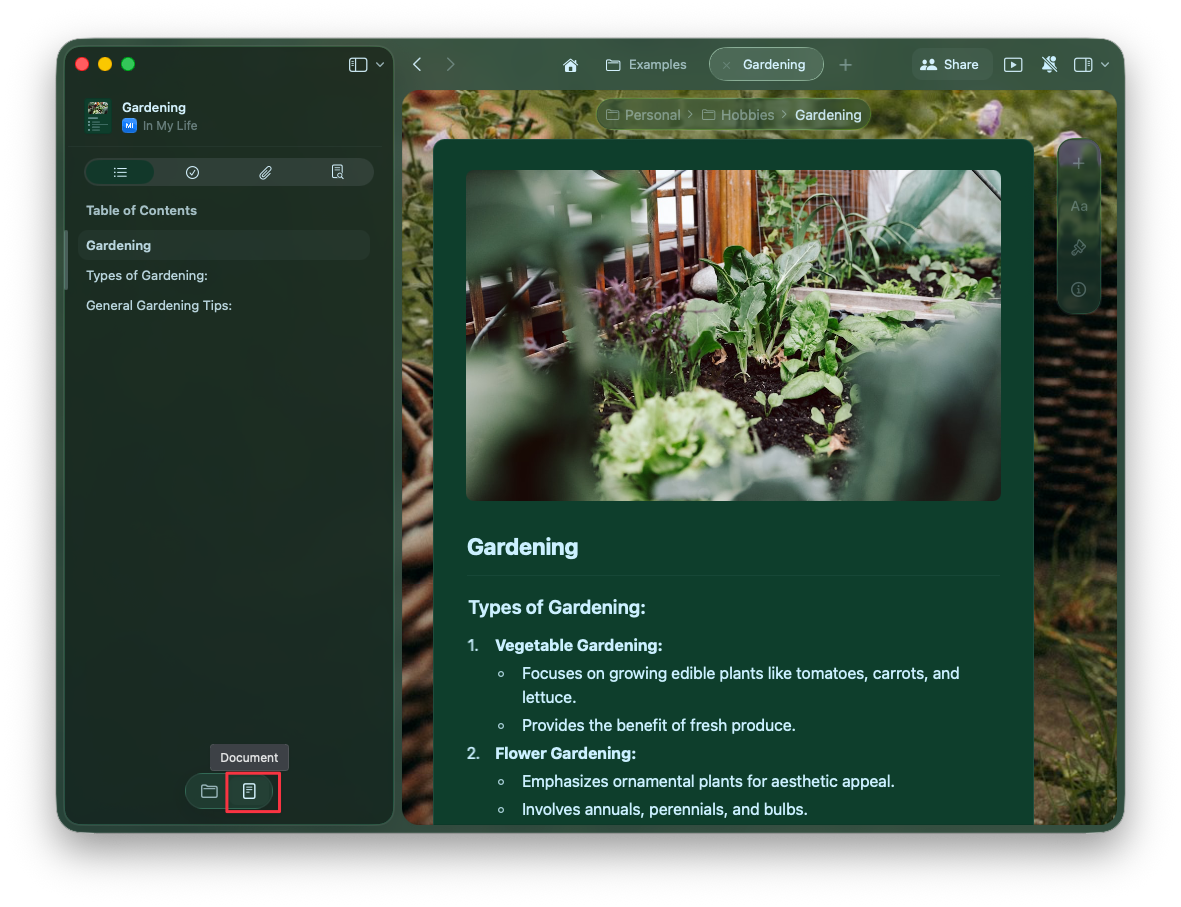 Bạn có thể swipe ngang để chuyển giữa các chế độ xem này.
Tìm hiểu cách tổ chức Tài liệu trong Thư mục và Không gian
Khám phá các tính năng chia sẻ và cộng tác nâng cao
Bạn có thể swipe ngang để chuyển giữa các chế độ xem này.
Tìm hiểu cách tổ chức Tài liệu trong Thư mục và Không gian
Khám phá các tính năng chia sẻ và cộng tác nâng cao