> ## Documentation Index
> Fetch the complete documentation index at: https://craft-support.mintlify.site/llms.txt
> Use this file to discover all available pages before exploring further.
# Apple Calendar 集成
> 在 Mac 上将 Apple Calendar 接入 Craft,让 Apple Calendar、Google Calendar 和 Outlook 的事件同步到日历视图。Windows 与网页版暂不支持。
Apple Calendar 集成可将事件同步到 Mac 上 Craft 的日历视图。Google Calendar 和 Outlook 的事件同样受支持——只需先将这些账户添加到 Apple Calendar,Craft 便会自动识别它们。本文介绍如何连接、授予权限以及排查问题。
Craft 在 Mac 上直接连接 Apple Calendar。Windows 与 Web 版不支持该集成。要同步 Google Calendar 或 Outlook 事件,请先将这些账户添加到 Apple Calendar——参见日历视图文章中的 [Google 与 Outlook 桥接步骤](/zh-Hans/plan-and-do/calendar#using-google-calendar)。
## 在 sidebar 中启用 Calendar 视图
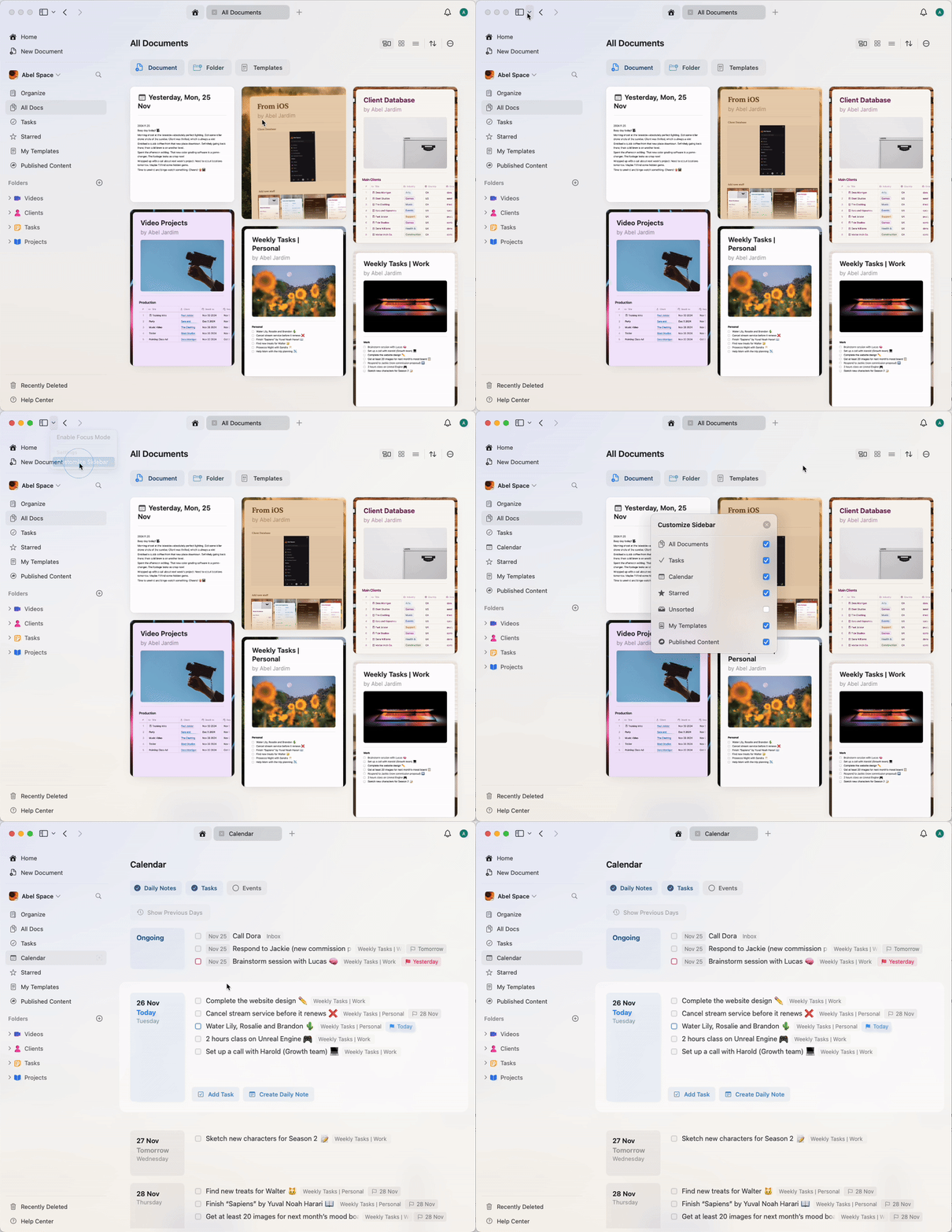
如果你在左侧 sidebar 中看不到 Calendar 视图,请通过 sidebar 下拉菜单的自定义选项将其启用。
 ## 设置日历集成
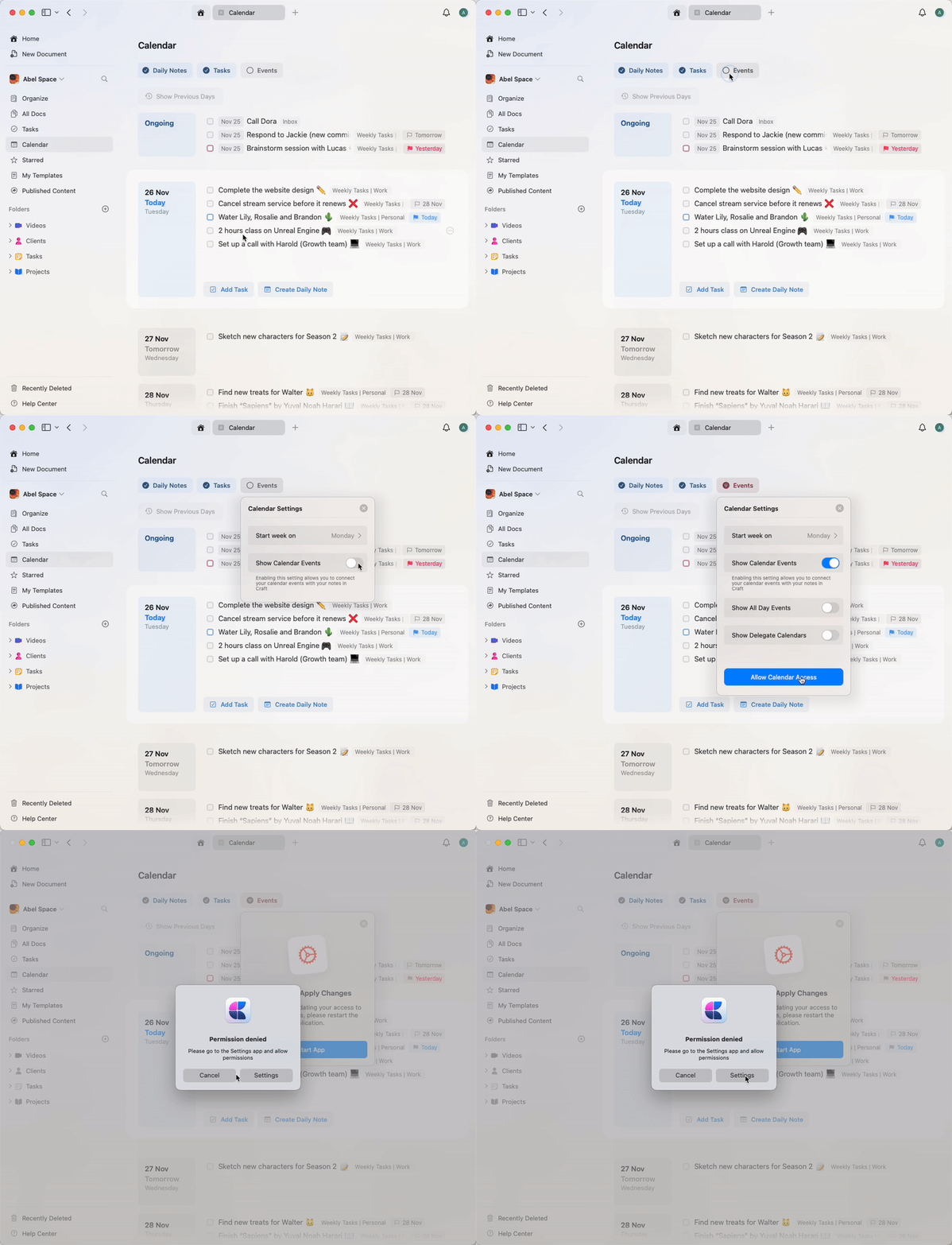
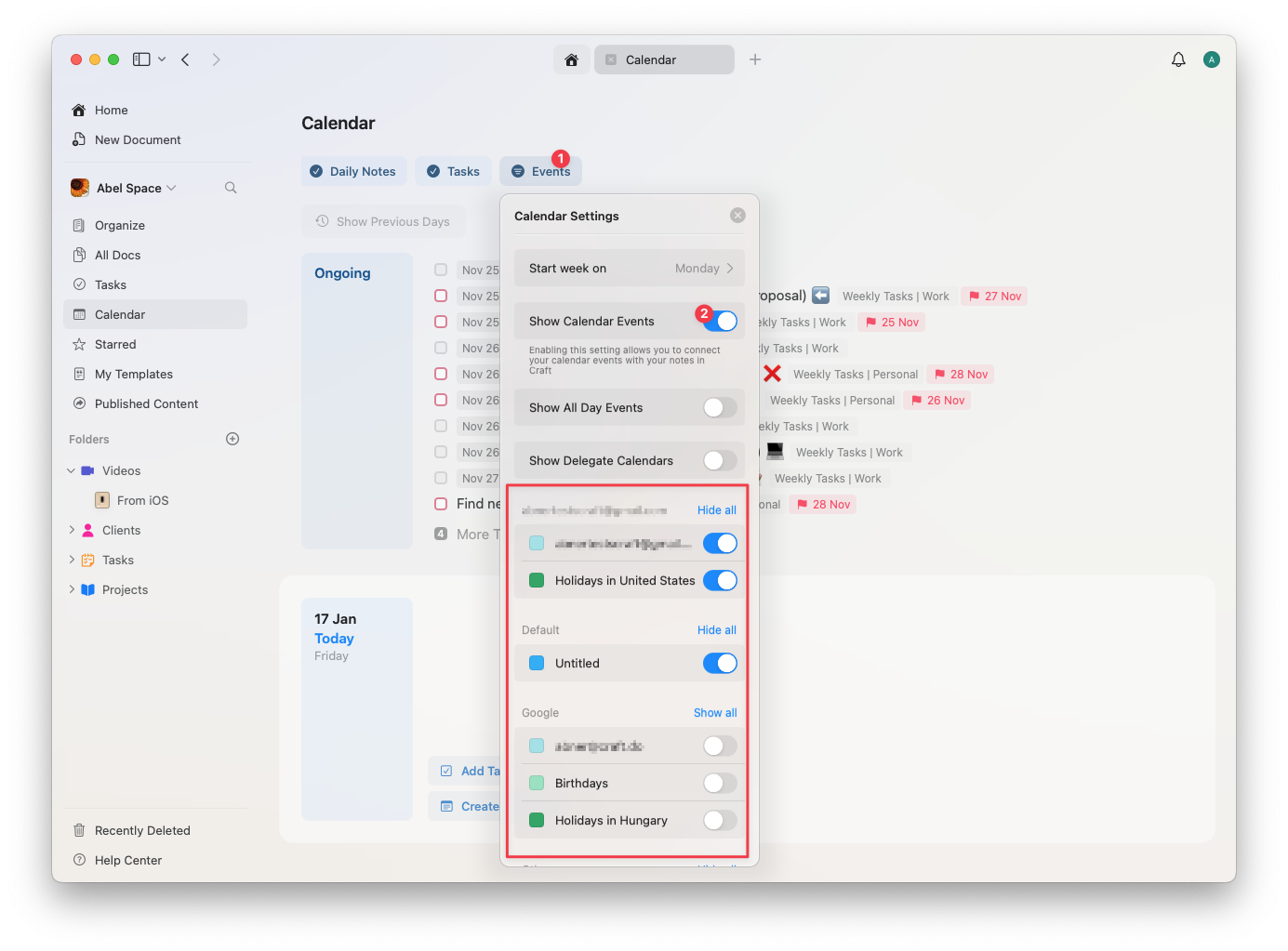
在 Calendar 视图中,尝试在点击 Events 按钮后启用 **Show Calendar Events** 来启动日历集成。系统会提示你在 Mac 的设置中允许 Craft 访问你的日历。
## 设置日历集成
在 Calendar 视图中,尝试在点击 Events 按钮后启用 **Show Calendar Events** 来启动日历集成。系统会提示你在 Mac 的设置中允许 Craft 访问你的日历。
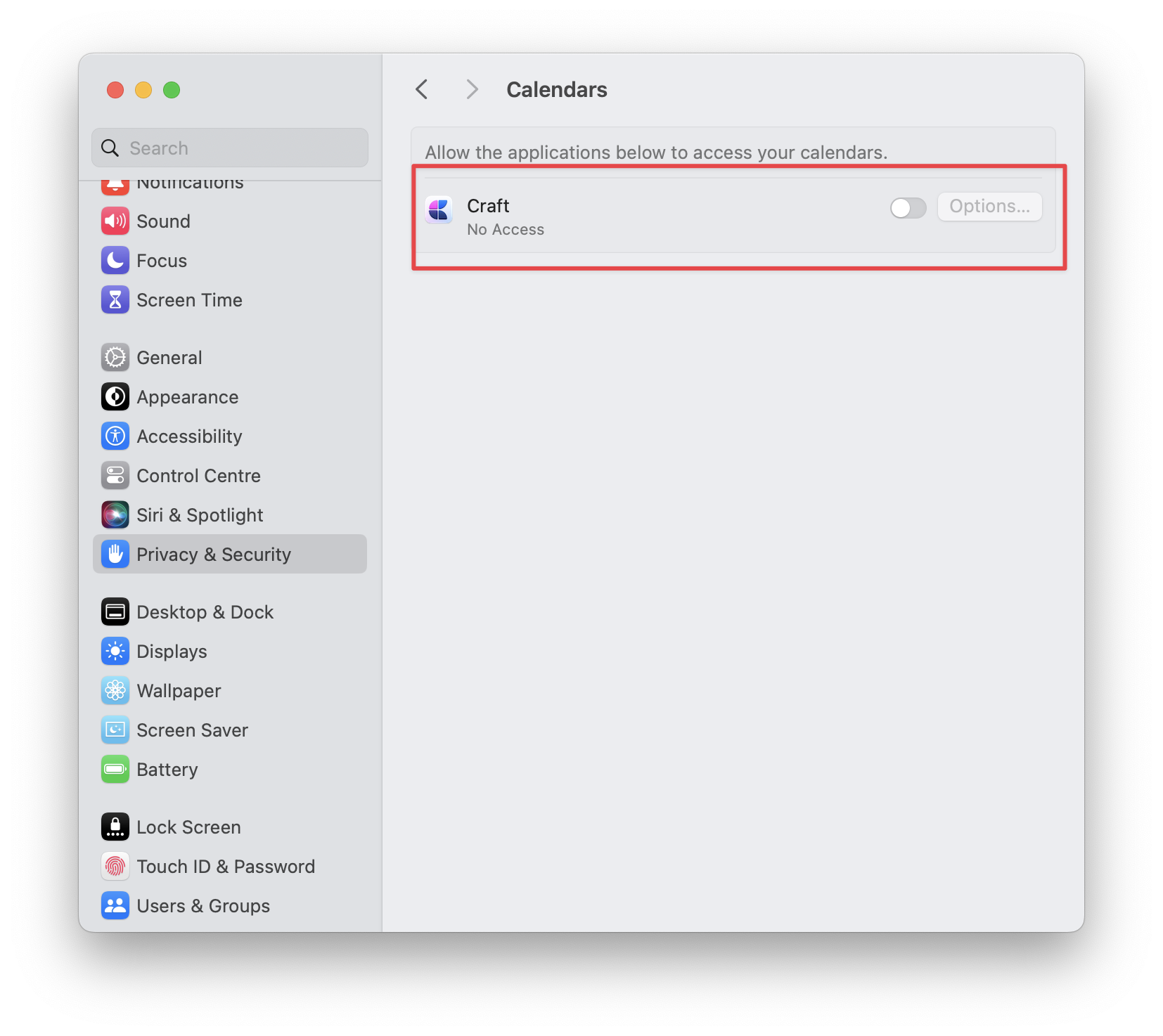 允许访问日历后,需要重启 Craft 以应用更改。
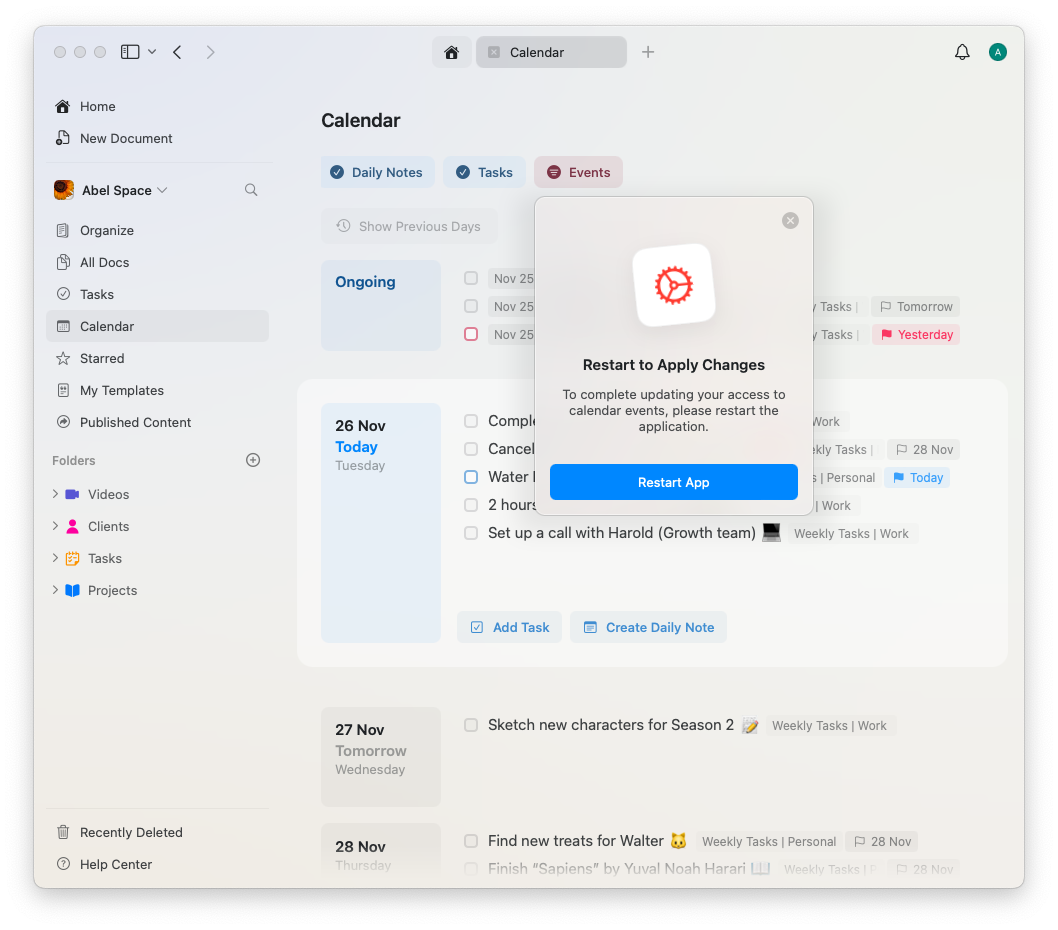 重启应用以应用更改后,返回 Calendar 视图并启用事件同步你的日历。如果你在 Apple Calendar 中连接了多个日历,还可以自定义要显示的日历。
 ## 你可以做什么
启用日历集成后,你可以:
* **在笔记旁查看事件**:在 Craft 工作时并列查看你的日程
* **筛选日历**:选择要显示的日历
* **快速跳转日期**:快速定位到特定日期并查看相关事件
* **创建事件笔记**:将笔记链接到日历事件(参见 每日笔记)
* **保持有序**:让日程与笔记保持同步
## 在 每日笔记 中使用日历
Calendar 集成可与 每日笔记 无缝配合,你可以:
* 在每日笔记中查看当天的日历事件
* 创建与特定日历事件关联的笔记
* 在制定当天计划时查看即将到来的事件
* 在查看过去的 每日笔记 时回顾以往事件
当你从日历事件创建事件笔记时,它们会自动出现在对应的 每日笔记 中,帮助你按日期整理会议记录与事件详情。
## 管理日历访问权限
如果你需要撤销或修改 Craft 对日历的访问权限:
在 Mac 上打开 系统设置(以前称为 System Preferences)
转到 隐私与安全 → 日历
在列表中找到 Craft,然后打开或关闭访问权限切换项
## 排查问题
如果日历事件未显示在 Craft 中:
* 确认你已在 Calendar 视图中启用 **Show Calendar Events**
* 检查 Craft 是否在 Mac 的系统设置中拥有日历访问权限
* 在授予权限后尝试重启 Craft
* 验证你想查看的日历是否已在 Craft 的日历设置中启用
了解如何将 每日笔记 与日历集成配合使用
在 任务 视图中查看日历事件
在日历事件旁管理 任务
了解事件笔记如何作为子页面工作
## 你可以做什么
启用日历集成后,你可以:
* **在笔记旁查看事件**:在 Craft 工作时并列查看你的日程
* **筛选日历**:选择要显示的日历
* **快速跳转日期**:快速定位到特定日期并查看相关事件
* **创建事件笔记**:将笔记链接到日历事件(参见 每日笔记)
* **保持有序**:让日程与笔记保持同步
## 在 每日笔记 中使用日历
Calendar 集成可与 每日笔记 无缝配合,你可以:
* 在每日笔记中查看当天的日历事件
* 创建与特定日历事件关联的笔记
* 在制定当天计划时查看即将到来的事件
* 在查看过去的 每日笔记 时回顾以往事件
当你从日历事件创建事件笔记时,它们会自动出现在对应的 每日笔记 中,帮助你按日期整理会议记录与事件详情。
## 管理日历访问权限
如果你需要撤销或修改 Craft 对日历的访问权限:
在 Mac 上打开 系统设置(以前称为 System Preferences)
转到 隐私与安全 → 日历
在列表中找到 Craft,然后打开或关闭访问权限切换项
## 排查问题
如果日历事件未显示在 Craft 中:
* 确认你已在 Calendar 视图中启用 **Show Calendar Events**
* 检查 Craft 是否在 Mac 的系统设置中拥有日历访问权限
* 在授予权限后尝试重启 Craft
* 验证你想查看的日历是否已在 Craft 的日历设置中启用
了解如何将 每日笔记 与日历集成配合使用
在 任务 视图中查看日历事件
在日历事件旁管理 任务
了解事件笔记如何作为子页面工作