> ## Documentation Index
> Fetch the complete documentation index at: https://craft-support.mintlify.site/llms.txt
> Use this file to discover all available pages before exploring further.
# 导航
> 掌握在 Craft 中浏览和管理文档的核心功能。
了解帮助你高效在 Craft 中移动并自定义工作区的核心导航功能。
## 文档缩放
在文档中使用缩放功能调整文字大小以提升可读性(macOS)。
**放大:** `Cmd +`
**缩小:** `Cmd -`
**重置缩放:** `Cmd 0`
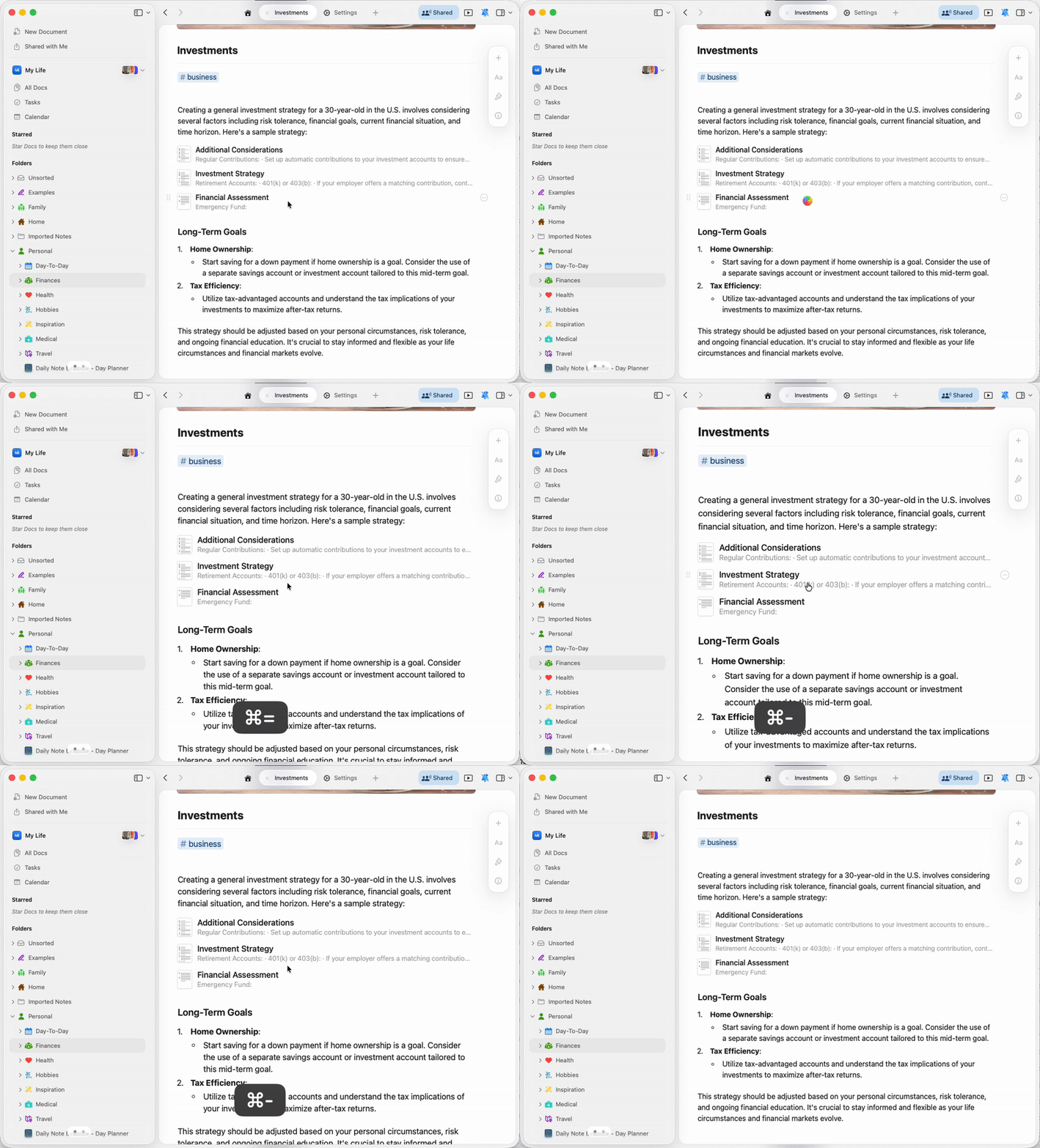 * 缩放仅影响文档内容,不会改变应用界面
* 缩放级别会应用到所有打开的 Craft 窗口
* 这与文档样式中的字体大小设置是独立的
## 标签页管理
Craft 支持多个标签页,方便你同时处理多个文档。了解如何打开、组织并在标签页之间切换。
使用标签页处理多个文档
## 评论与通知
通过评论和共享文档的实时通知与协作伙伴保持联络。
使用评论协作并管理通知
## 目录(Table of Contents)
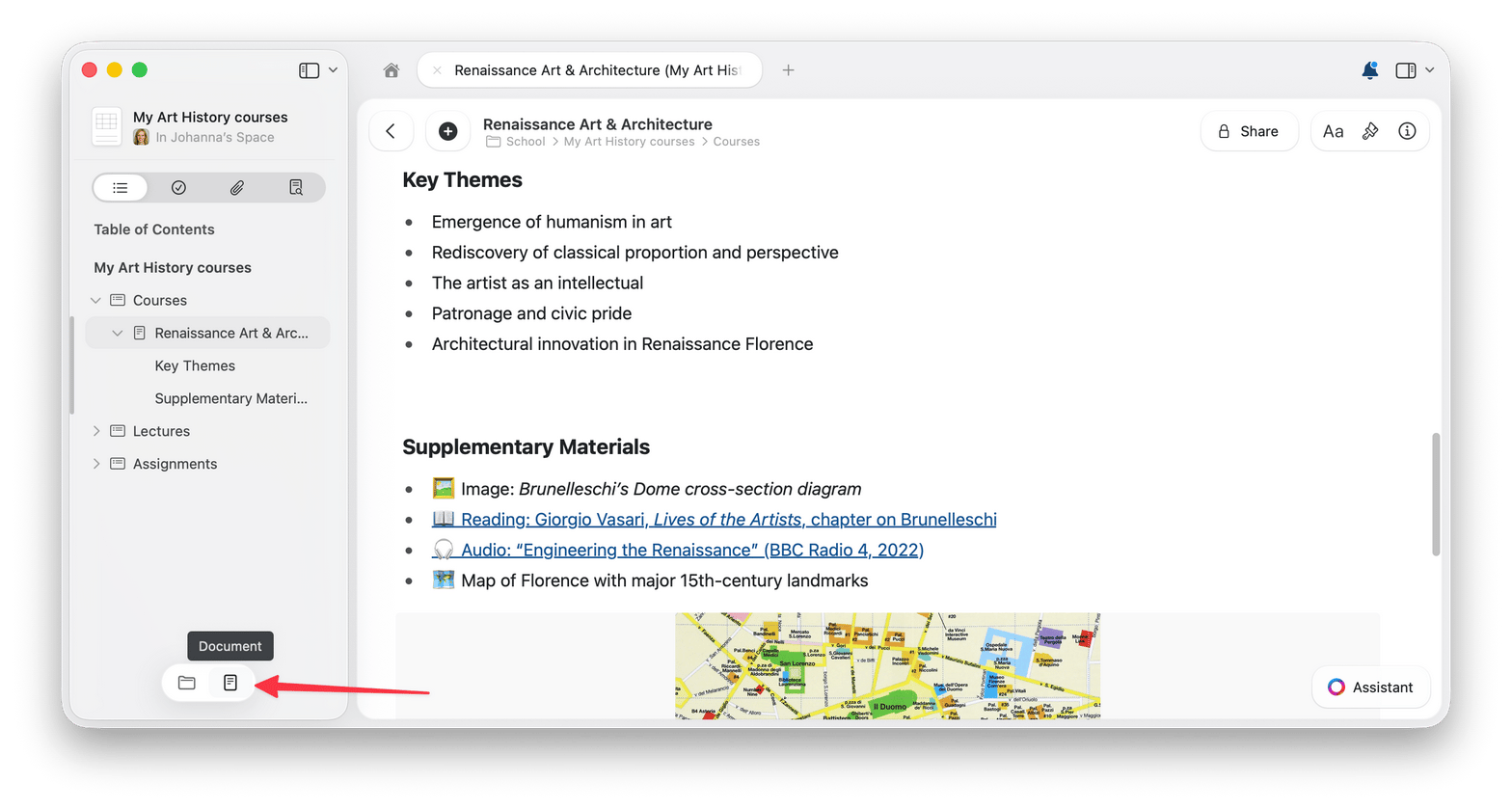
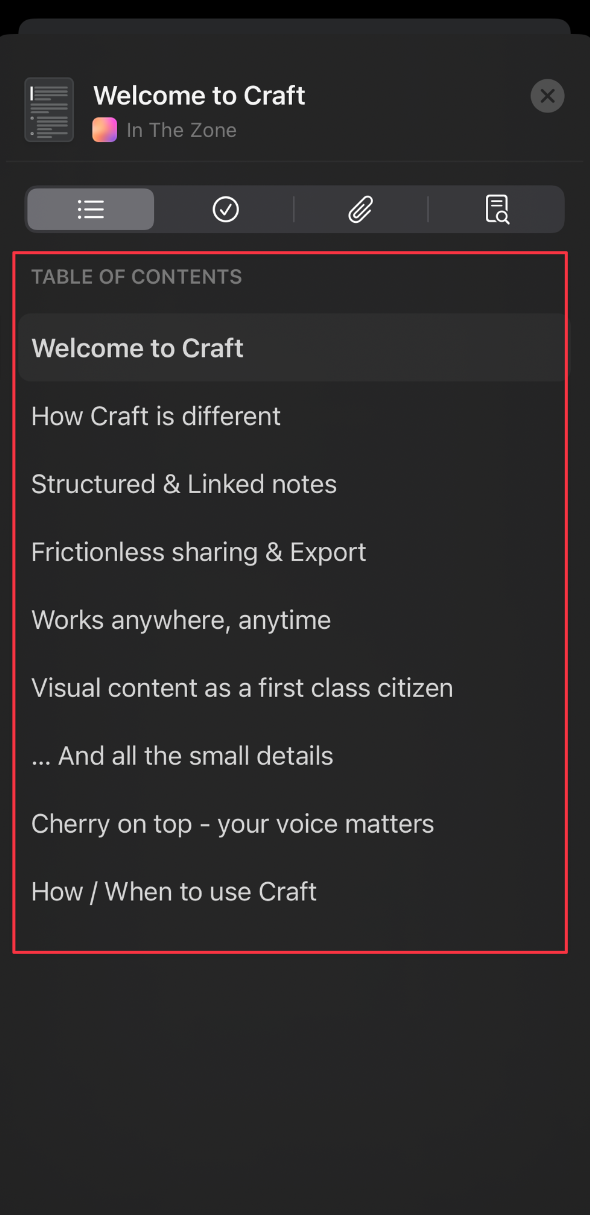
当你创建包含多个标题和章节的文档时,目录会自动在左侧边栏为你列出。你可以方便地在文档中创建的每个标题、子标题、章节和子页面之间导航。
每个目录都是针对单个文档的。下面是如何在文件夹视图与目录视图之间切换的方法:
将光标移到左侧边栏底部,以显示视图切换器。
选择**文档**图标可打开目录视图,选择**文件夹**图标可返回文件夹列表。
**目录视图:**
* 缩放仅影响文档内容,不会改变应用界面
* 缩放级别会应用到所有打开的 Craft 窗口
* 这与文档样式中的字体大小设置是独立的
## 标签页管理
Craft 支持多个标签页,方便你同时处理多个文档。了解如何打开、组织并在标签页之间切换。
使用标签页处理多个文档
## 评论与通知
通过评论和共享文档的实时通知与协作伙伴保持联络。
使用评论协作并管理通知
## 目录(Table of Contents)
当你创建包含多个标题和章节的文档时,目录会自动在左侧边栏为你列出。你可以方便地在文档中创建的每个标题、子标题、章节和子页面之间导航。
每个目录都是针对单个文档的。下面是如何在文件夹视图与目录视图之间切换的方法:
将光标移到左侧边栏底部,以显示视图切换器。
选择**文档**图标可打开目录视图,选择**文件夹**图标可返回文件夹列表。
**目录视图:**
 **文件夹视图:**
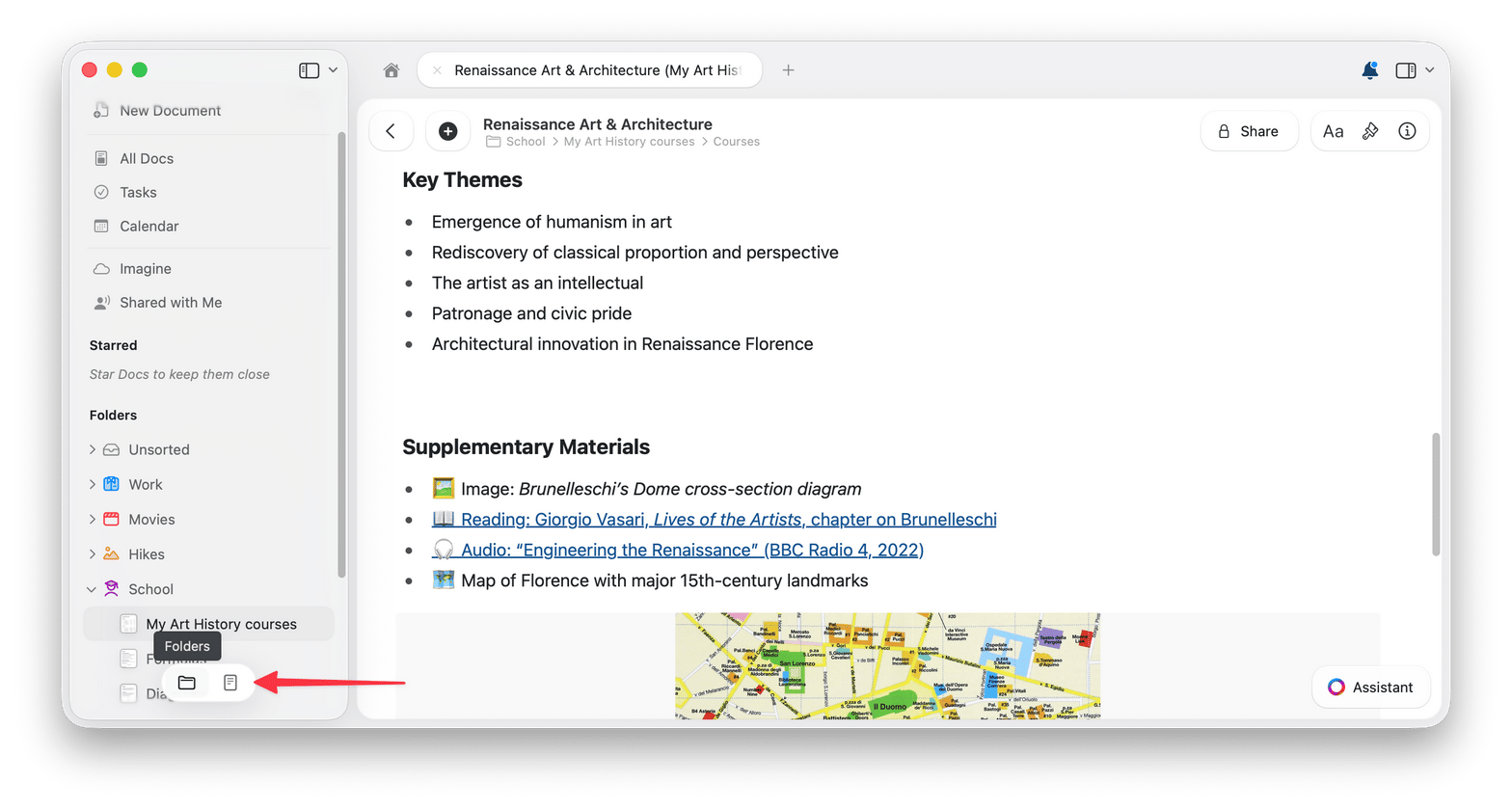 你可以在文档的 **目录视图** 与标准的 **文件夹视图** 之间轻松切换,在后者中你可以浏览各个文件夹及其中的文档。
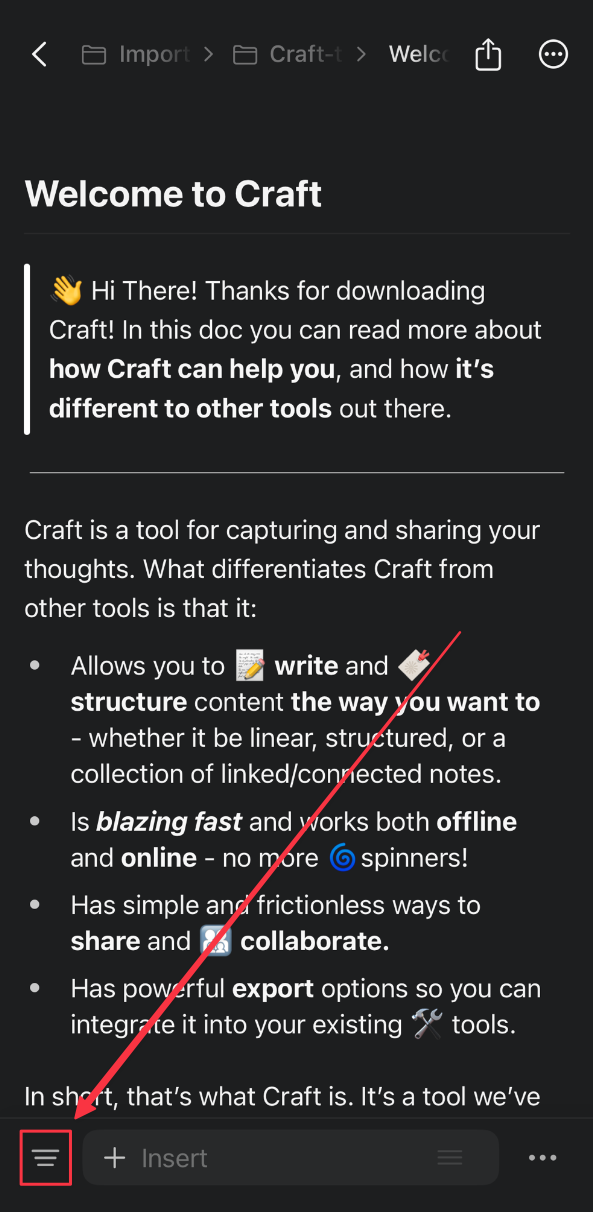
在 iOS 上,目录视图位于屏幕左下角,靠近插入按钮:
你可以在文档的 **目录视图** 与标准的 **文件夹视图** 之间轻松切换,在后者中你可以浏览各个文件夹及其中的文档。
在 iOS 上,目录视图位于屏幕左下角,靠近插入按钮:
 ## 收藏文档(加星)
给重要的文档加星,这样它们会在左侧边栏的已加星区域中保持易于访问。
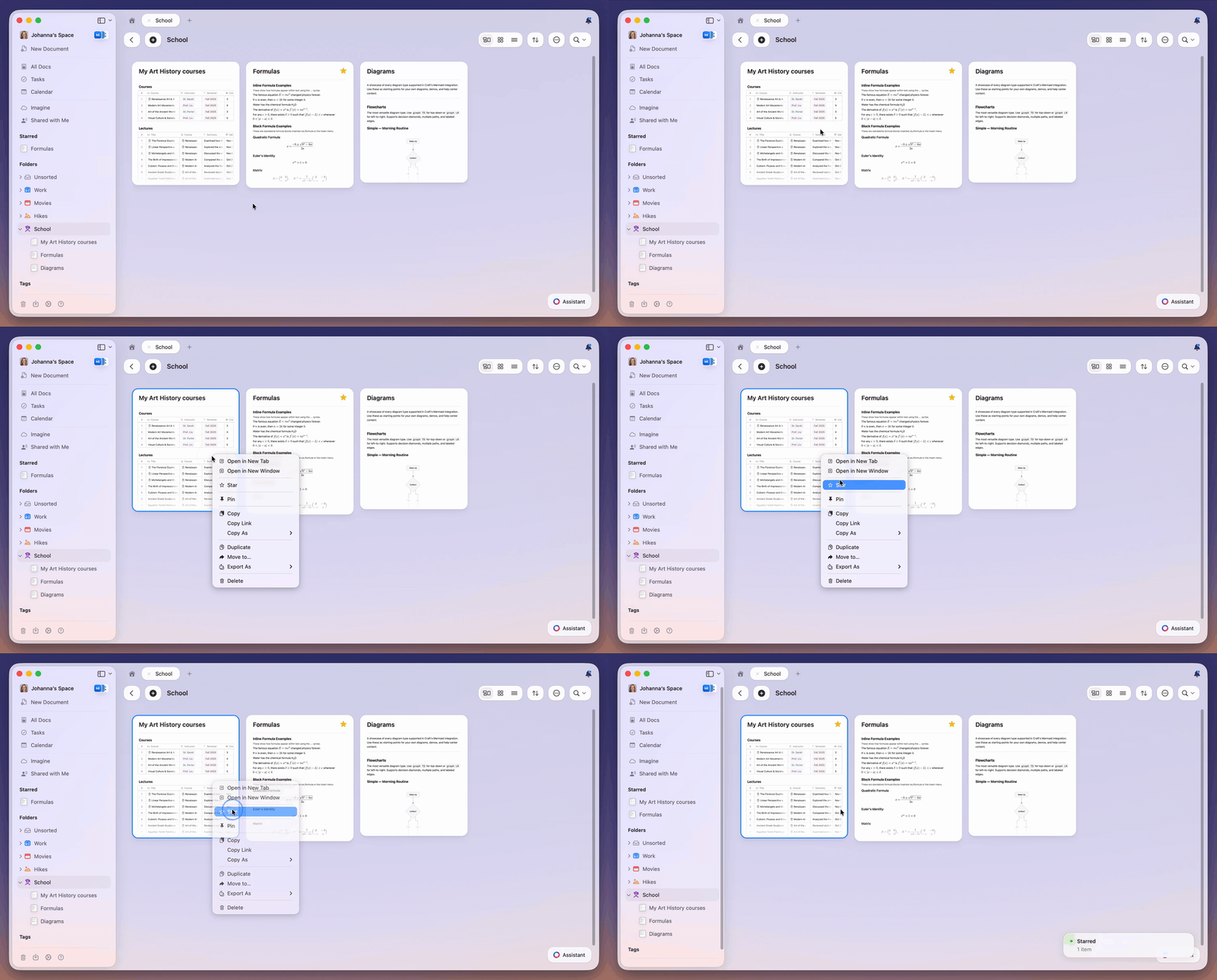
**方法 1:右键菜单**
在任意文档上右键点击并选择 **Star**。
## 收藏文档(加星)
给重要的文档加星,这样它们会在左侧边栏的已加星区域中保持易于访问。
**方法 1:右键菜单**
在任意文档上右键点击并选择 **Star**。
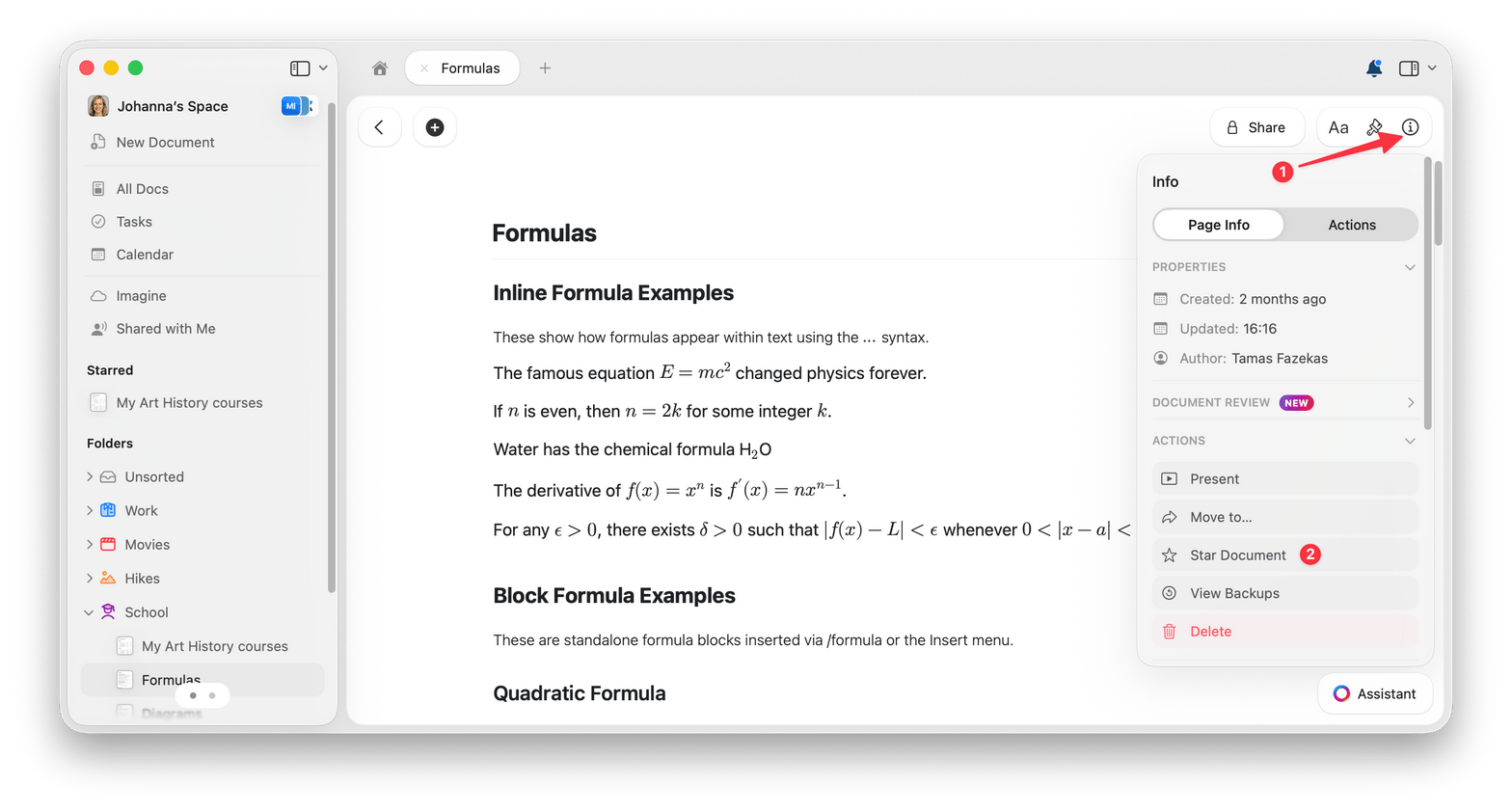
 **方法 2:页面信息**
打开文档后,前往左侧边栏 → Page Info → Actions → Star Document。
**方法 2:页面信息**
打开文档后,前往左侧边栏 → Page Info → Actions → Star Document。
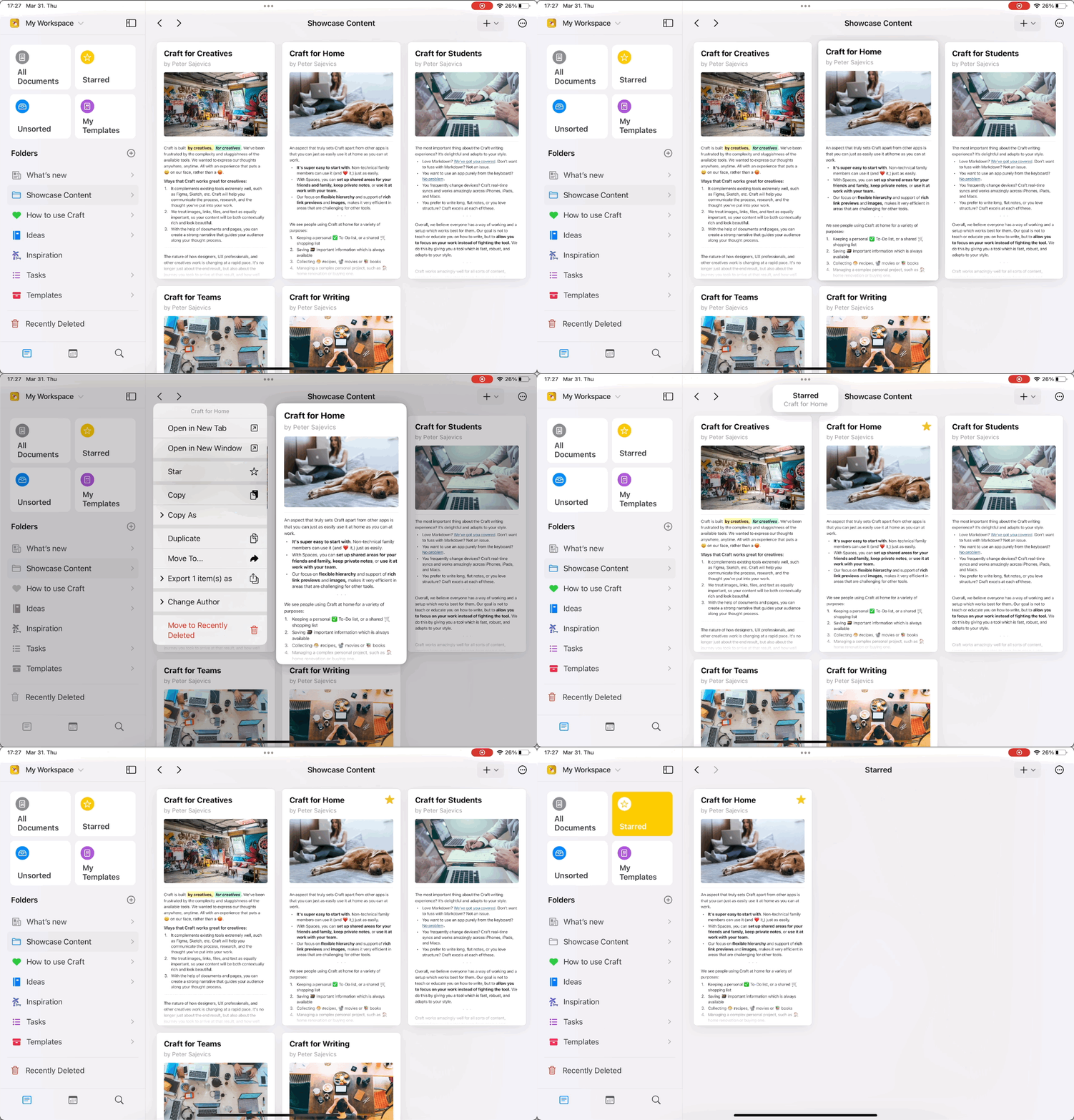
 **方法 1:长按**
长按任意文档,从弹出列表中选择 **Star**。
**方法 1:长按**
长按任意文档,从弹出列表中选择 **Star**。
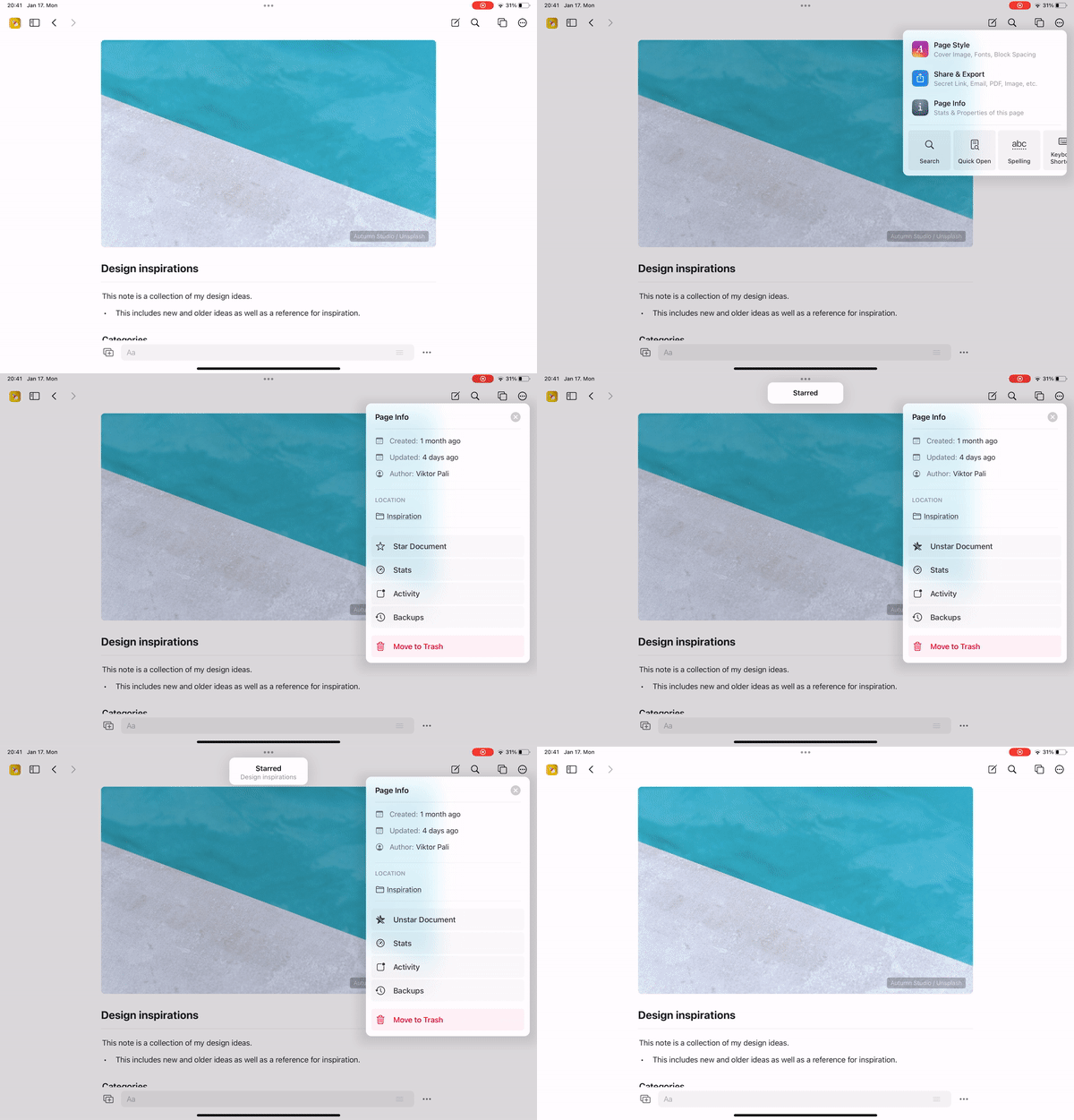
 **方法 2:文档菜单**
在文档视图中,使用右上角的三点菜单 (⋯) → Page Info → Star Document。
**方法 2:文档菜单**
在文档视图中,使用右上角的三点菜单 (⋯) → Page Info → Star Document。
 ## 自定义侧边栏
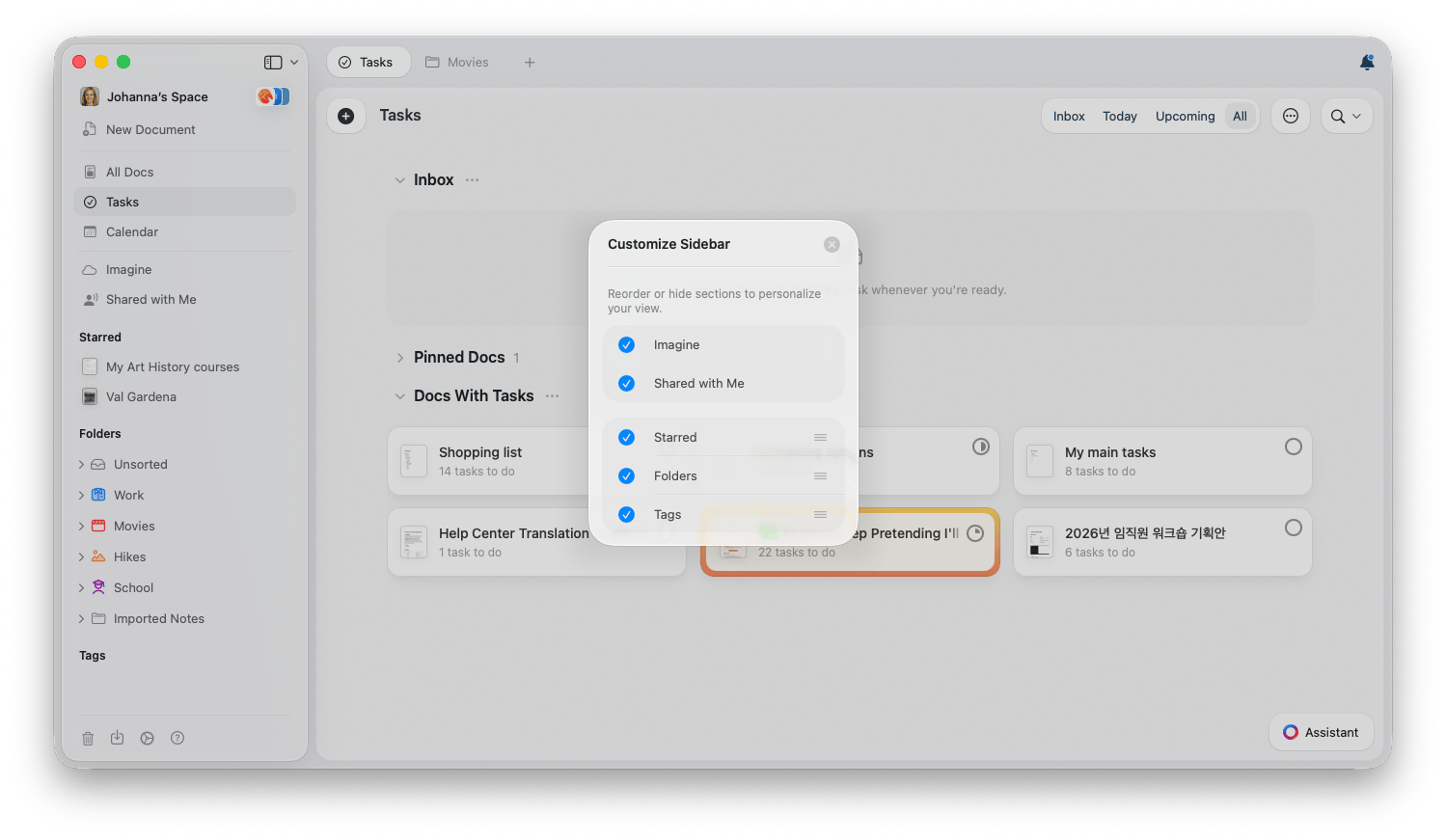
你可以隐藏不常用的侧边栏分区,并重新排序以符合你的使用习惯。此功能适用于 **Imagine**、**与我共享**、**标签**、**收藏** 和 **文件夹** 等分区。
右键点击任意一个可自定义的侧边栏分区(**Imagine**、**与我共享**、**标签**、**收藏** 或 **文件夹**)。
选择 **自定义侧边栏**,打开自定义弹窗。
关闭某个分区的开关即可将其隐藏;拖动排序手柄可对 收藏、文件夹 和 标签 分区进行重新排序。
## 自定义侧边栏
你可以隐藏不常用的侧边栏分区,并重新排序以符合你的使用习惯。此功能适用于 **Imagine**、**与我共享**、**标签**、**收藏** 和 **文件夹** 等分区。
右键点击任意一个可自定义的侧边栏分区(**Imagine**、**与我共享**、**标签**、**收藏** 或 **文件夹**)。
选择 **自定义侧边栏**,打开自定义弹窗。
关闭某个分区的开关即可将其隐藏;拖动排序手柄可对 收藏、文件夹 和 标签 分区进行重新排序。
 侧边栏的自定义设置仅保存在本地,只对当前设备生效,不会跨设备同步。
## 复制与移动文档
有时你在浏览时会遇到想要对其执行某些操作的文档(例如复制或移动到新文件夹),但这些操作在文档内部不可用。
这些对文档的操作都可以在文件夹视图中完成(例如在 iOS 的文件夹中长按文档或在 macOS 上右键点击)。如果你不知道文档所在的文件夹,下面有一个快速方法:
以某种方式编辑该文档(例如插入一个空行然后再删除它,这样实际上不会保留更改)。
在左侧的文件夹列表中选择 "所有文档"(在 iPhone 上,按住左上角的 `<`,然后从左向右滑动)。
如果该文档没有显示在页面顶部,按右上角的三点菜单 (⋯),然后轻触 Date Updated,直到箭头向下,这样文档就会按最近更新排序,最近修改的文档会排在最上面。
## 快速导航技巧
### 文档搜索
在 macOS 上按 `Cmd + O`,或点击搜索图标,即可按名称快速打开任意文档。
### 块内导航
使用 `Cmd + F` 在文档内搜索并跳转到特定内容。
### 侧栏切换
按 `Cmd + \` 以显示或隐藏左侧边栏,从而获得一个无干扰的写作体验。
## 相关文章
加快导航速度的完整快捷键列表
学习高级搜索技巧以查找任何内容
侧边栏的自定义设置仅保存在本地,只对当前设备生效,不会跨设备同步。
## 复制与移动文档
有时你在浏览时会遇到想要对其执行某些操作的文档(例如复制或移动到新文件夹),但这些操作在文档内部不可用。
这些对文档的操作都可以在文件夹视图中完成(例如在 iOS 的文件夹中长按文档或在 macOS 上右键点击)。如果你不知道文档所在的文件夹,下面有一个快速方法:
以某种方式编辑该文档(例如插入一个空行然后再删除它,这样实际上不会保留更改)。
在左侧的文件夹列表中选择 "所有文档"(在 iPhone 上,按住左上角的 `<`,然后从左向右滑动)。
如果该文档没有显示在页面顶部,按右上角的三点菜单 (⋯),然后轻触 Date Updated,直到箭头向下,这样文档就会按最近更新排序,最近修改的文档会排在最上面。
## 快速导航技巧
### 文档搜索
在 macOS 上按 `Cmd + O`,或点击搜索图标,即可按名称快速打开任意文档。
### 块内导航
使用 `Cmd + F` 在文档内搜索并跳转到特定内容。
### 侧栏切换
按 `Cmd + \` 以显示或隐藏左侧边栏,从而获得一个无干扰的写作体验。
## 相关文章
加快导航速度的完整快捷键列表
学习高级搜索技巧以查找任何内容