> ## Documentation Index
> Fetch the complete documentation index at: https://craft-support.mintlify.site/llms.txt
> Use this file to discover all available pages before exploring further.

# 评论与通知

> 通过评论与他人协作，并在共享文档上通过通知保持更新。

评论与通知可帮助你在共享文档上与协作者沟通，无论你是在与家人、朋友还是团队成员协作。

## 添加评论

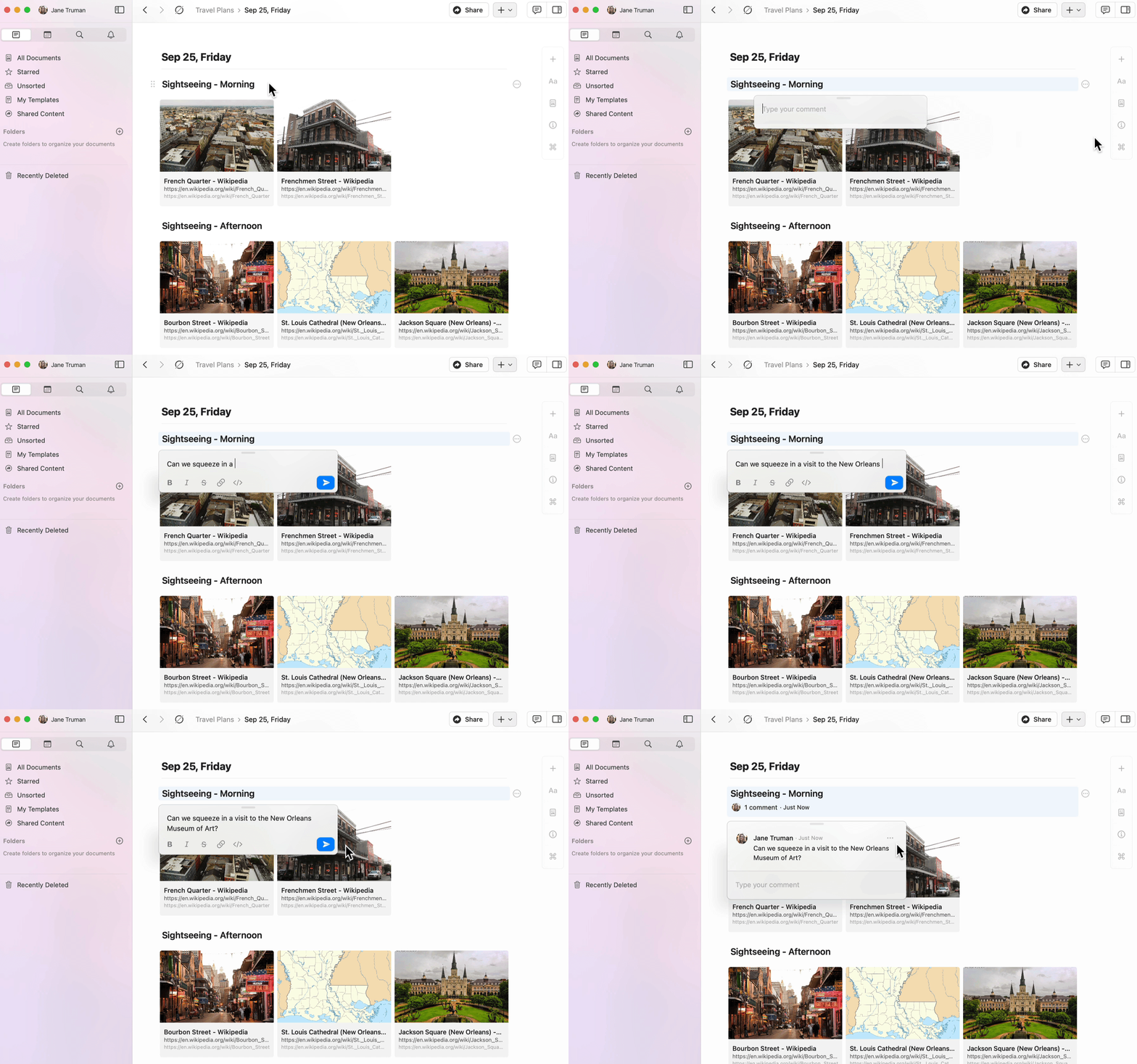
你可以在共享文档的任意块上添加评论。

<Steps>
  <Step>
    点击要选择的内容块。
  </Step>

  <Step>
    在块菜单中点击三点菜单 (⋯)。
  </Step>

  <Step>
    选择 **添加评论**。
  </Step>
</Steps>

<img src="https://mintcdn.com/craft-support/wb5Ce6cIohLU54lt/images/introduction/navigation/comments/en/content/add-comment.gif?s=58a6779eb902ad21cbc47fdd7b7d09db" alt="在块上添加评论" width="1680" height="1048" data-path="images/introduction/navigation/comments/en/content/add-comment.gif" />

## 评论格式

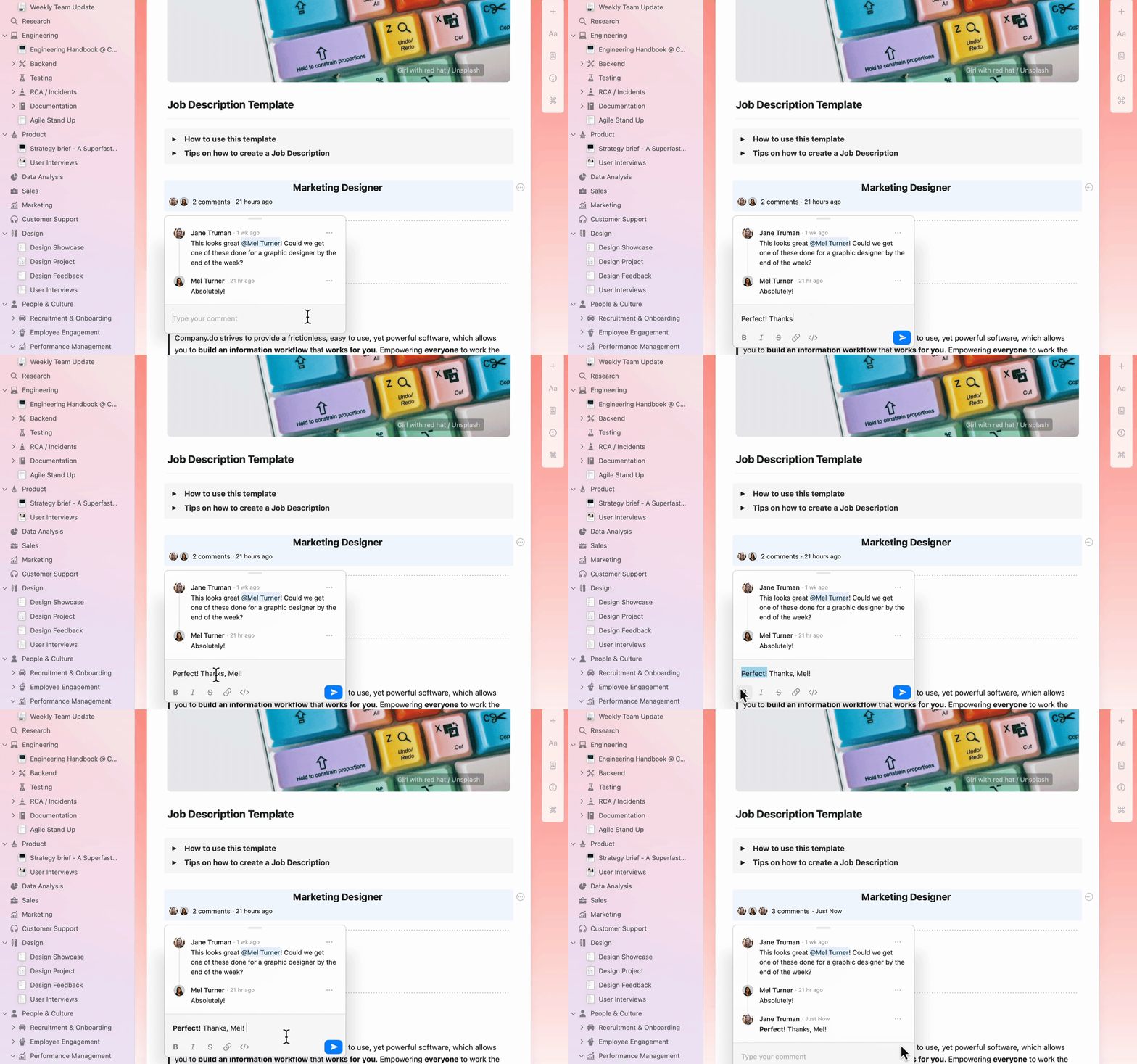
评论支持基本文本格式，帮助你更有效地交流：

* **加粗**、*斜体* 和 ~~删除线~~
* 链接
* 行内代码

<img src="https://mintcdn.com/craft-support/wb5Ce6cIohLU54lt/images/introduction/navigation/comments/en/content/comment-styling.gif?s=34cdd484eb1415fb60550715edcc1039" alt="对评论应用格式样式" width="1680" height="1048" data-path="images/introduction/navigation/comments/en/content/comment-styling.gif" />

## 查看通知

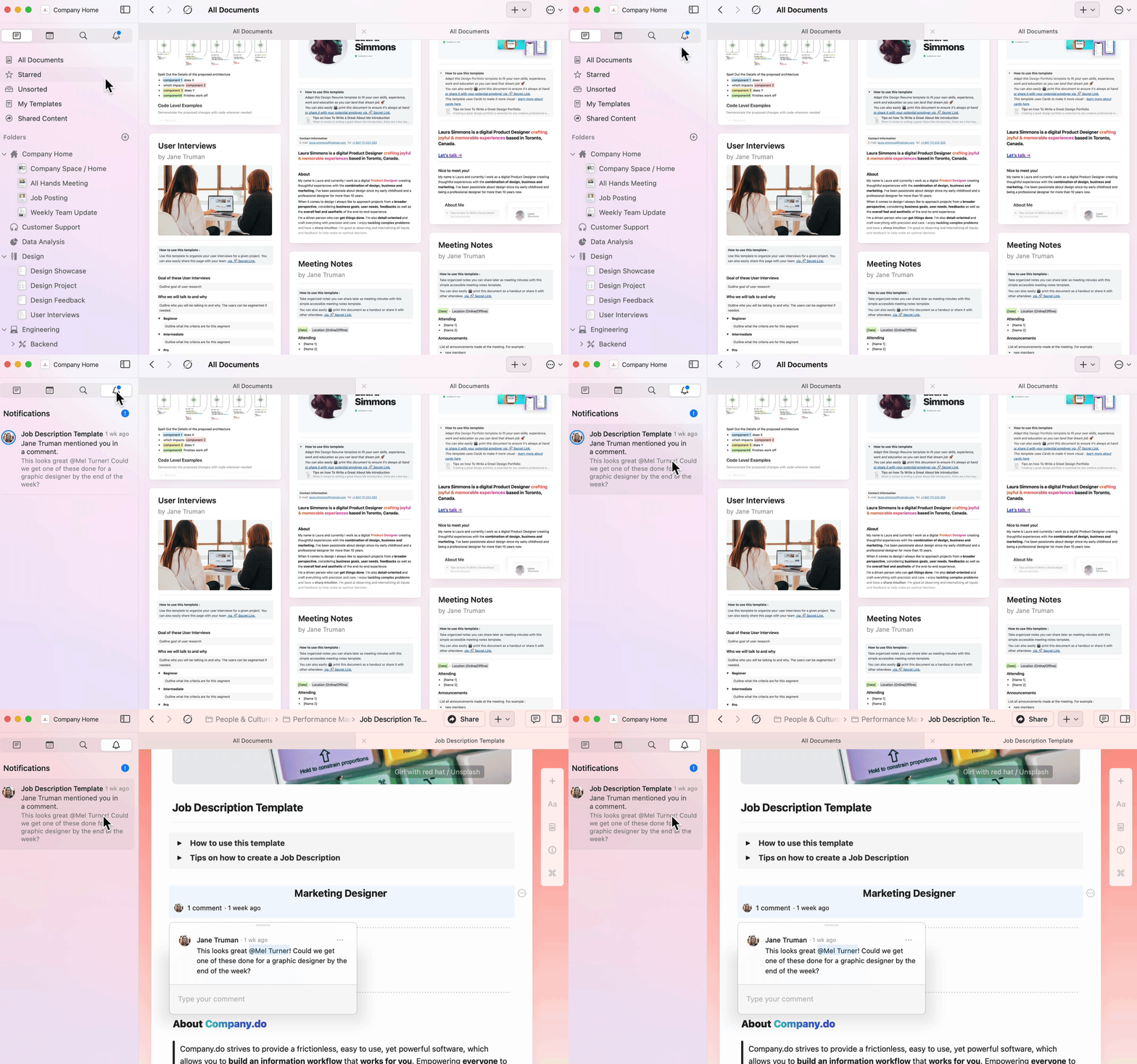
通知面板可让你快速概览共享文档的所有活动。

<Steps>
  <Step>
    在侧边栏中找到通知铃铛图标。
  </Step>

  <Step>
    查看你所有空间中的未读通知。
  </Step>

  <Step>
    点击任一通知即可直接跳转到相关文档和评论。
  </Step>
</Steps>

应用图标会显示一个徽章，表示你所有空间中的未读通知数量。

<img src="https://mintcdn.com/craft-support/wb5Ce6cIohLU54lt/images/introduction/navigation/comments/en/content/notifications-overview.gif?s=71d4fe696cdafe7ecc3863739e0552d1" alt="显示未读活动的通知面板" width="1680" height="1048" data-path="images/introduction/navigation/comments/en/content/notifications-overview.gif" />

<Info title="通知触发条件">
  你会在以下情况下收到通知：

  * 有人在你创建的块上发表评论
  * 有人在评论或文档中提到你
</Info>

## 回复评论

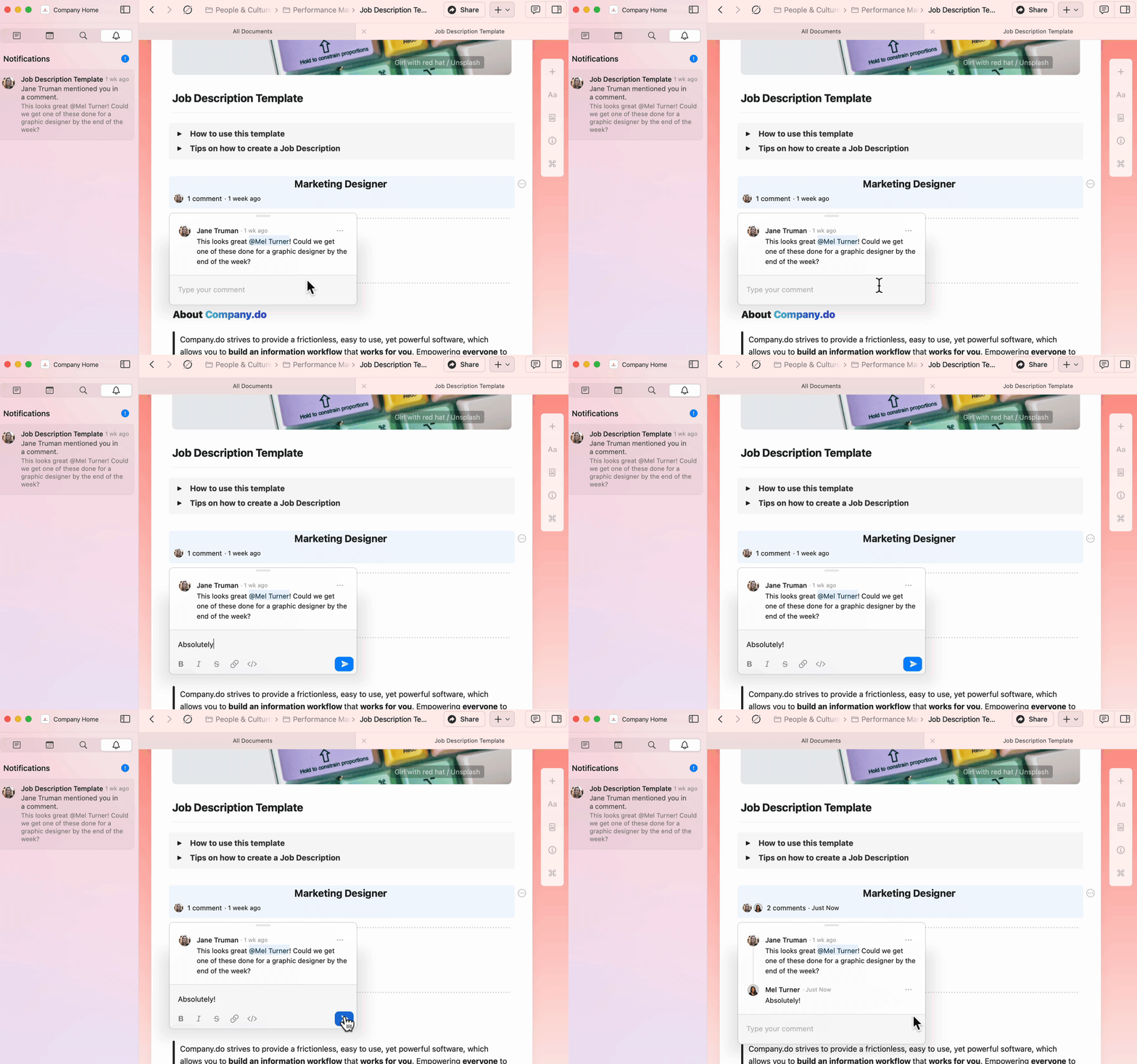
你可以从通知面板直接进入评论并在行内回复。

<img src="https://mintcdn.com/craft-support/wb5Ce6cIohLU54lt/images/introduction/navigation/comments/en/content/reply-comment.gif?s=a0e3a32105caed0efa26f031393c6991" alt="回复评论线程" width="1680" height="1048" data-path="images/introduction/navigation/comments/en/content/reply-comment.gif" />

## 电子邮件通知

电子邮件通知按小时发送，包含上一时段的所有未读通知。

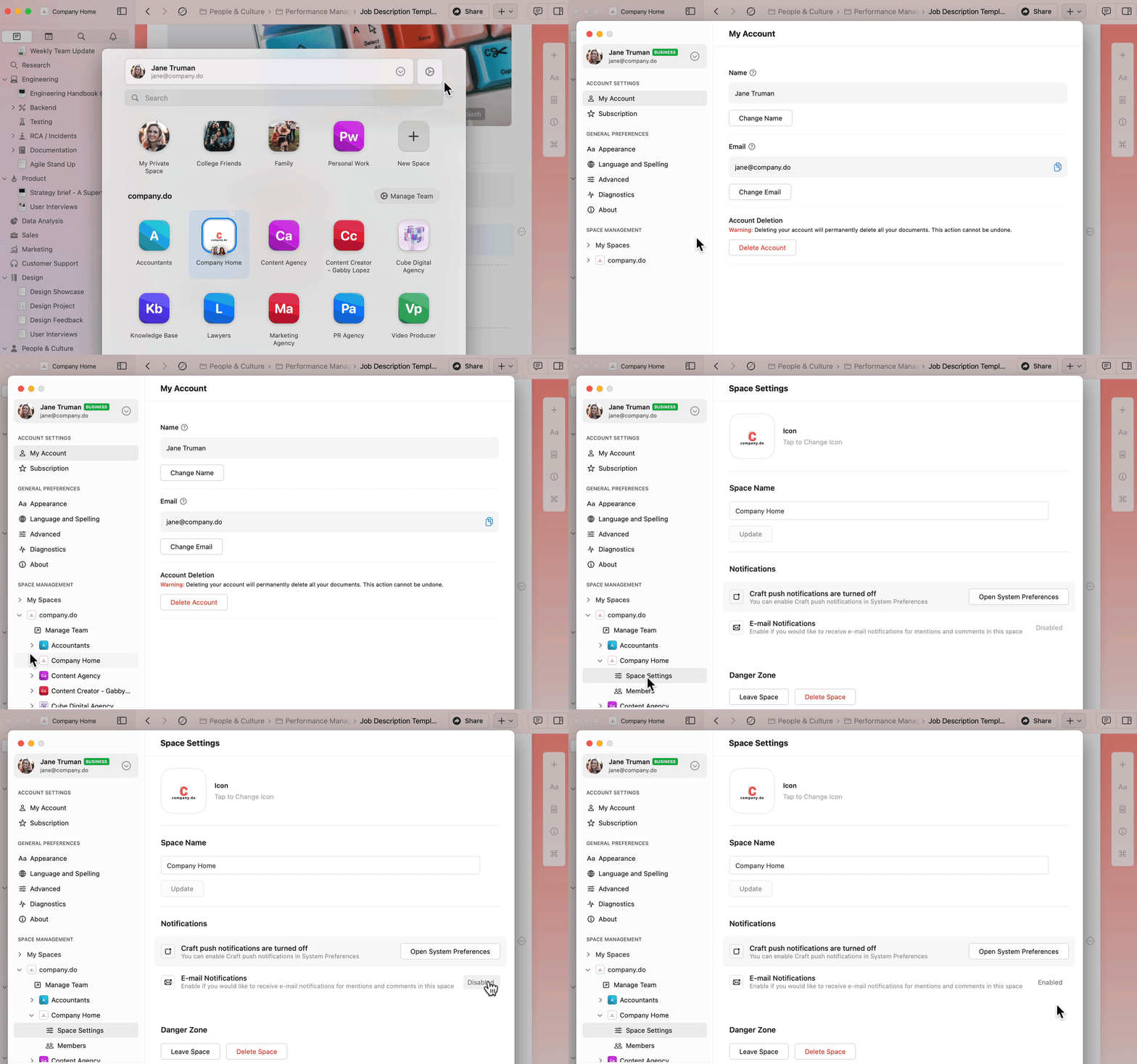
要启用或禁用电子邮件通知：

<Steps>
  <Step>
    前往 **偏好设置**（macOS）或 **设置**（iOS/Web/Windows）。
  </Step>

  <Step>
    在 **空间管理** 下，选择要配置的空间。
  </Step>

  <Step>
    前往 **空间设置**。
  </Step>

  <Step>
    将 **电子邮件通知** 开启或关闭。
  </Step>
</Steps>

<img src="https://mintcdn.com/craft-support/wb5Ce6cIohLU54lt/images/introduction/navigation/comments/en/content/email-settings.gif?s=7f91078bc313d0d8feb6db3d3f4af43c" alt="为空间配置电子邮件通知设置" width="1680" height="1048" data-path="images/introduction/navigation/comments/en/content/email-settings.gif" />

<Info title="多个空间">
  要为多个空间启用或禁用电子邮件通知，请对每个空间单独重复这些步骤。
</Info>

## 推送通知

推送通知可实时提醒：

* 你创建的块上的评论
* 在文档或评论线程中提及你

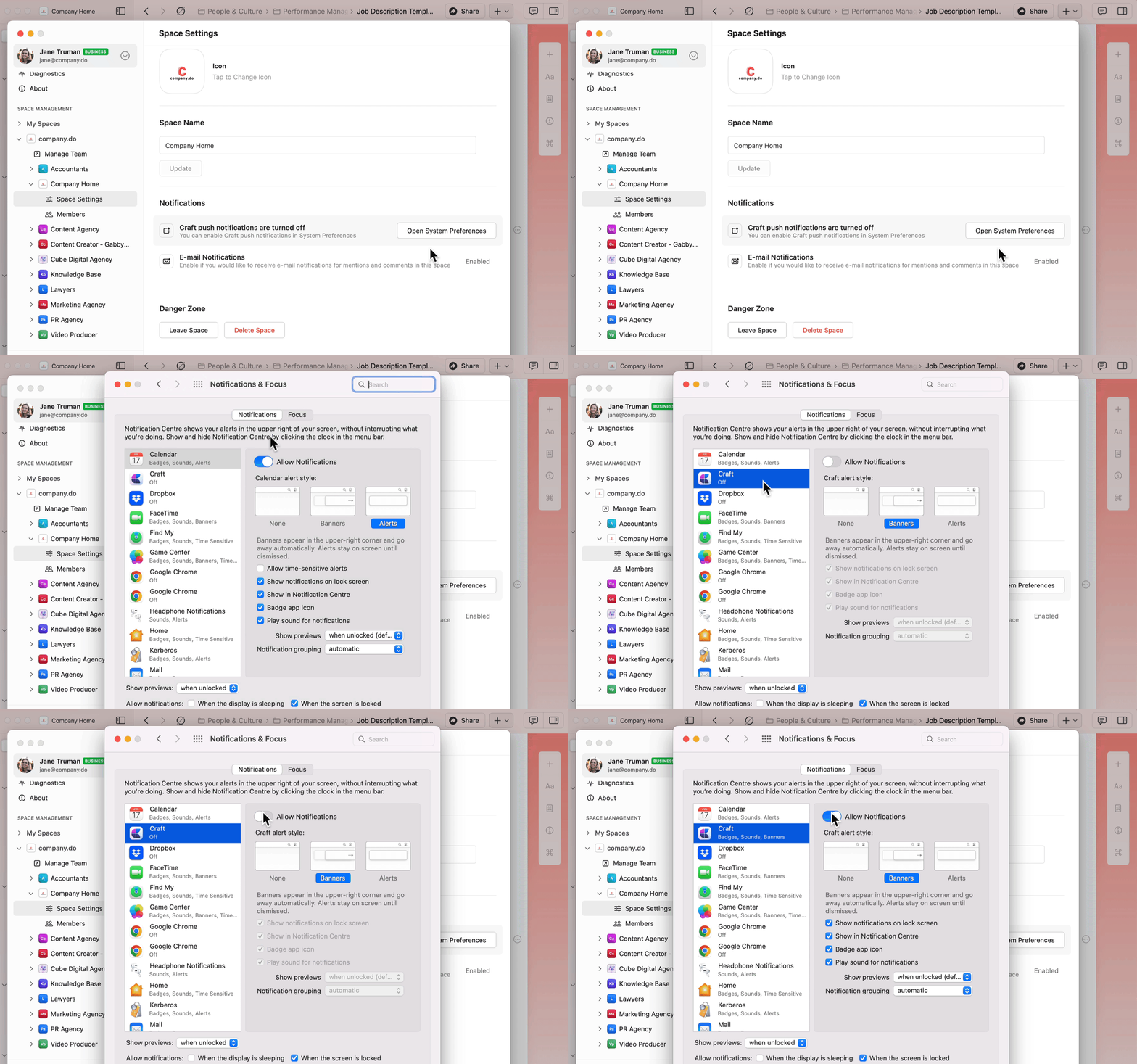
要启用推送通知：

<Tabs>
  <Tab title="macOS">
    <Steps>
      <Step>
        在 Craft 中打开 **偏好设置**。
      </Step>

      <Step>
        在 **空间管理** 下，选择你的空间。
      </Step>

      <Step>
        前往 **空间设置**。
      </Step>

      <Step>
        点击 **打开系统偏好设置**。
      </Step>

      <Step>
        在系统设置中找到 **Craft**。
      </Step>

      <Step>
        开启 **允许通知**。
      </Step>
    </Steps>

    <img src="https://mintcdn.com/craft-support/wb5Ce6cIohLU54lt/images/introduction/navigation/comments/en/content/push-settings.gif?s=bf777e4dd8138dcc72f6178b1ce7476b" alt="通过系统设置在 macOS 上启用推送通知" width="1680" height="1048" data-path="images/introduction/navigation/comments/en/content/push-settings.gif" />
  </Tab>

  <Tab title="iOS">
    <Steps>
      <Step>
        打开 iOS 的 **设置** 应用。
      </Step>

      <Step>
        向下滚动找到 **Craft**。
      </Step>

      <Step>
        轻触 **通知**。
      </Step>

      <Step>
        开启 **允许通知**。
      </Step>

      <Step>
        配置你偏好的通知样式（横幅、声音、徽章）。
      </Step>
    </Steps>
  </Tab>
</Tabs>

<Warning title="注意">
  应用内的通知声音目前已被禁用，但如果在设备设置中启用了系统级通知声音，系统声音仍会生效。
</Warning>

## 相关文章

<CardGroup cols={2}>
  <Card title="共享文档" href="/zh-Hans/share-and-publish/share">
    了解如何共享并在文档上协作
  </Card>

  <Card title="团队协作" href="/zh-Hans/organize-and-find/teams">
    在团队空间中协作并管理权限
  </Card>
</CardGroup>