> ## Documentation Index
> Fetch the complete documentation index at: https://craft-support.mintlify.site/llms.txt
> Use this file to discover all available pages before exploring further.
# 平台与可用性
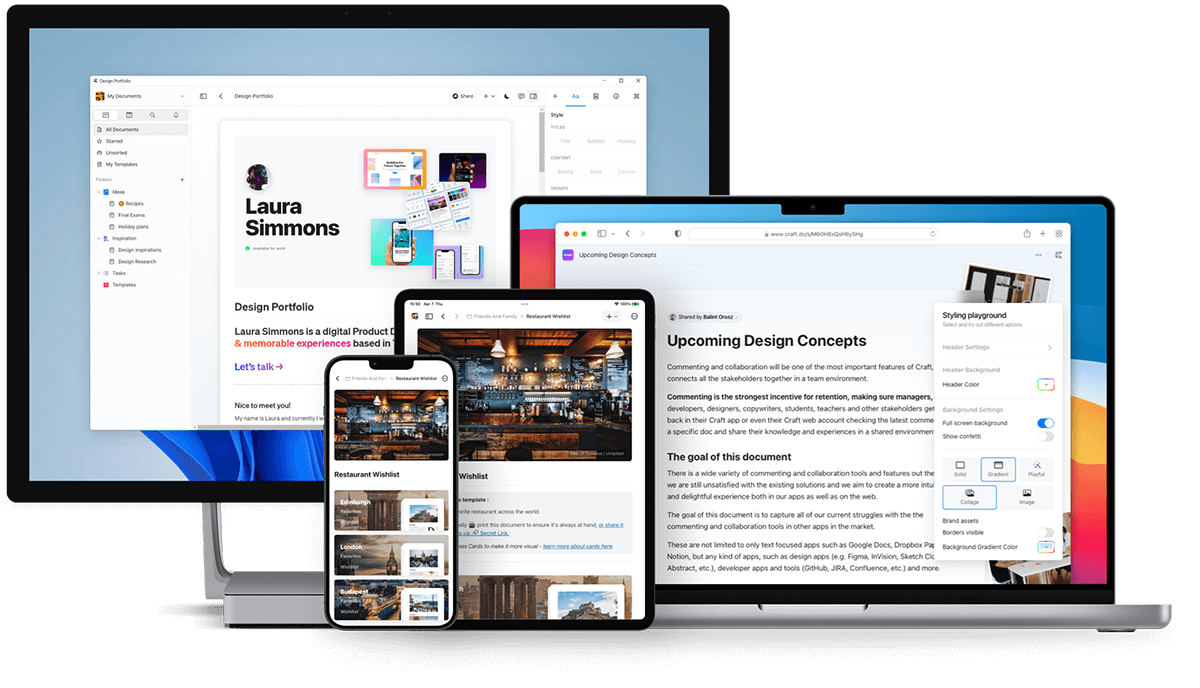
> Craft 可在 macOS、iOS、Windows、Web 应用和 Android 上使用——在所有设备上无缝工作。
Craft 在你的所有设备上运行,提供 macOS、iOS、Windows 和 Android 原生应用,以及功能齐全的 Web 应用。
 ## 下载 Craft
### macOS 和 iOS
从 [App Store](https://apps.apple.com/us/app/craft-docs/id1487937127) 下载 Craft 或访问 [craft.do](https://www.craft.do) 开始使用。
Craft 于 2020 年首次在 macOS 和 iOS 上发布,并获得了 **Mac 年度应用** 奖项。
### Web 应用
在 [docs.craft.do](https://docs.craft.do) 通过任何浏览器访问 Craft。Web 应用于 2021 年推出测试版,并于 2022 年 8 月正式发布。
Web 应用包含原生应用中几乎所有可用的功能。
### Windows
从 [craft.do/download](https://www.craft.do/download) 下载原生 Windows 应用。
Windows 应用提供与我们其他平台相同的高品质体验,并且正在积极开发新功能和改进。
### Android
从 [Google Play 商店](https://play.google.com/store/apps/details?id=com.craft.docs) 下载 Craft。
## 下载 Craft
### macOS 和 iOS
从 [App Store](https://apps.apple.com/us/app/craft-docs/id1487937127) 下载 Craft 或访问 [craft.do](https://www.craft.do) 开始使用。
Craft 于 2020 年首次在 macOS 和 iOS 上发布,并获得了 **Mac 年度应用** 奖项。
### Web 应用
在 [docs.craft.do](https://docs.craft.do) 通过任何浏览器访问 Craft。Web 应用于 2021 年推出测试版,并于 2022 年 8 月正式发布。
Web 应用包含原生应用中几乎所有可用的功能。
### Windows
从 [craft.do/download](https://www.craft.do/download) 下载原生 Windows 应用。
Windows 应用提供与我们其他平台相同的高品质体验,并且正在积极开发新功能和改进。
### Android
从 [Google Play 商店](https://play.google.com/store/apps/details?id=com.craft.docs) 下载 Craft。
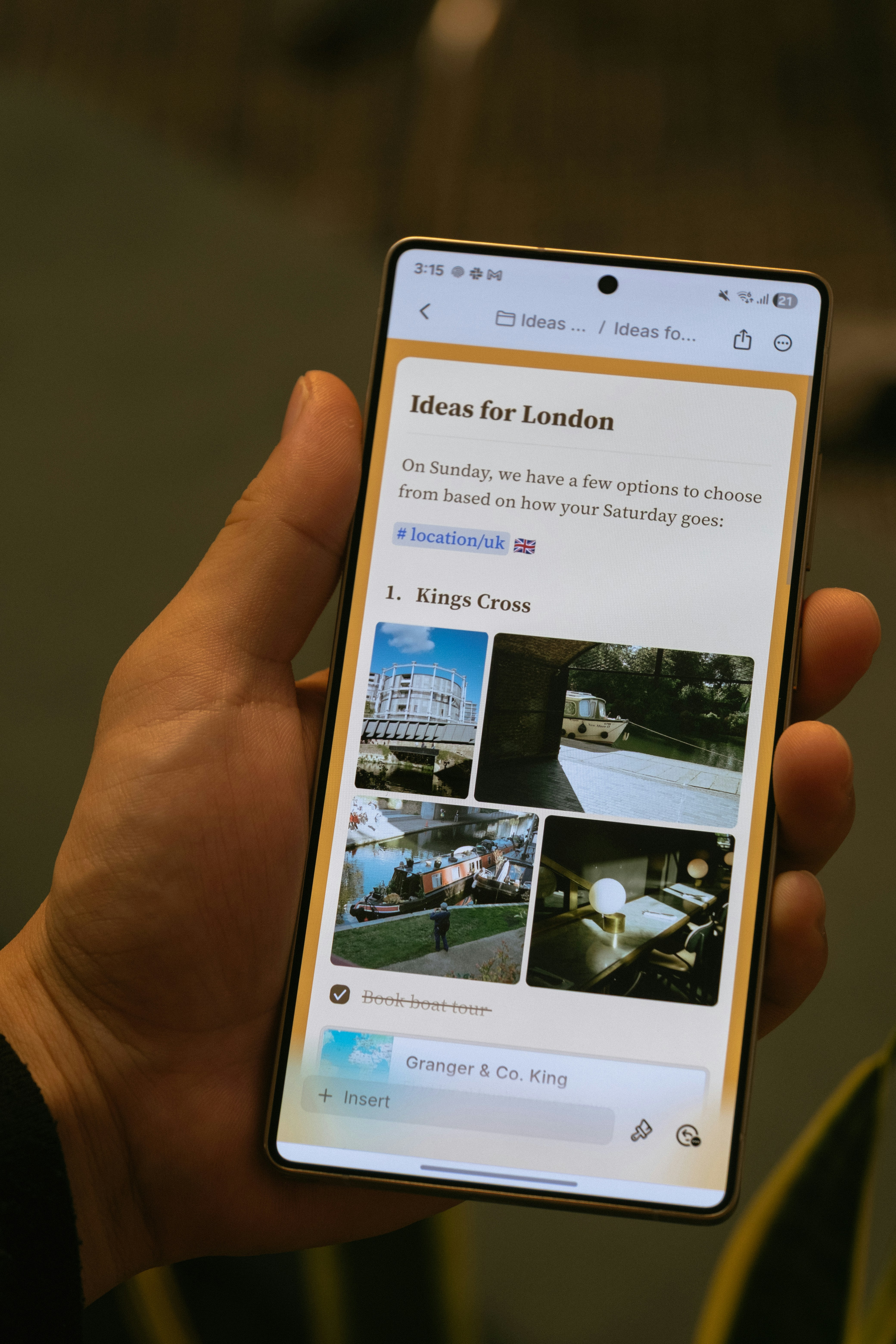 Android 应用于 2025 年 11 月发布,包含:
* 带底部导航栏的移动优先导航
* 触控友好的编辑体验
* 图片和附件面板
* 文档内搜索
* 核心 AI 功能,包括 Craft Assistant
Android 应用正在积极开发中,定期更新包括离线支持和 AI 功能。
## 平台特定功能
大多数 Craft 功能在所有平台上的工作方式完全相同。一些平台特定功能包括:
* **Apple Shortcuts**(仅 iOS 和 macOS)
* **Apple Pencil 支持**(仅 iOS 和 iPadOS)
* **系统日历集成**(macOS、iOS 和 iPadOS)
* **桌面端键盘快捷键**(macOS 和 Windows)
## 离线访问
Craft 在所有平台上都支持离线使用。原生 macOS 和 iOS 应用开箱即用支持离线,而 Web、Windows 和 Android 需要在设置中进行一次性设置。
详细信息请参阅[离线工作](/zh-Hans/introduction/offline)。
## 查看共享和已发布的文档
你发布或共享的任何文档都可以在所有平台的移动浏览器上查看。访问者无需 Craft 账户即可留下评论。
## Windows 特别说明
### 使用 Apple 登录
如果你使用 Apple 登录,需要使用你的私人中继电子邮件地址在 Windows 上登录:
在 macOS 或 iOS 的 **偏好设置 → 我的账户** 中找到你的私人中继电子邮件地址。
复制电子邮件地址并粘贴到 Windows 登录字段中。
点击继续并输入发送到你邮箱的 6 位验证码。
## 相关文章
创建账户并设置你的第一个空间
了解 iOS 和 Android 的特定功能
Android 应用于 2025 年 11 月发布,包含:
* 带底部导航栏的移动优先导航
* 触控友好的编辑体验
* 图片和附件面板
* 文档内搜索
* 核心 AI 功能,包括 Craft Assistant
Android 应用正在积极开发中,定期更新包括离线支持和 AI 功能。
## 平台特定功能
大多数 Craft 功能在所有平台上的工作方式完全相同。一些平台特定功能包括:
* **Apple Shortcuts**(仅 iOS 和 macOS)
* **Apple Pencil 支持**(仅 iOS 和 iPadOS)
* **系统日历集成**(macOS、iOS 和 iPadOS)
* **桌面端键盘快捷键**(macOS 和 Windows)
## 离线访问
Craft 在所有平台上都支持离线使用。原生 macOS 和 iOS 应用开箱即用支持离线,而 Web、Windows 和 Android 需要在设置中进行一次性设置。
详细信息请参阅[离线工作](/zh-Hans/introduction/offline)。
## 查看共享和已发布的文档
你发布或共享的任何文档都可以在所有平台的移动浏览器上查看。访问者无需 Craft 账户即可留下评论。
## Windows 特别说明
### 使用 Apple 登录
如果你使用 Apple 登录,需要使用你的私人中继电子邮件地址在 Windows 上登录:
在 macOS 或 iOS 的 **偏好设置 → 我的账户** 中找到你的私人中继电子邮件地址。
复制电子邮件地址并粘贴到 Windows 登录字段中。
点击继续并输入发送到你邮箱的 6 位验证码。
## 相关文章
创建账户并设置你的第一个空间
了解 iOS 和 Android 的特定功能