> ## Documentation Index
> Fetch the complete documentation index at: https://craft-support.mintlify.site/llms.txt
> Use this file to discover all available pages before exploring further.
# 添加日期
> 插入日期徽章,链接到相应的每日笔记,便于在文档中快速引用时间。
Craft 中的日期徽章有双重作用:它们在内容中标注时间参考,并直接链接到该日期对应的每日笔记。
## 插入日期
你可以通过多种方式添加日期:
### 使用斜杠菜单
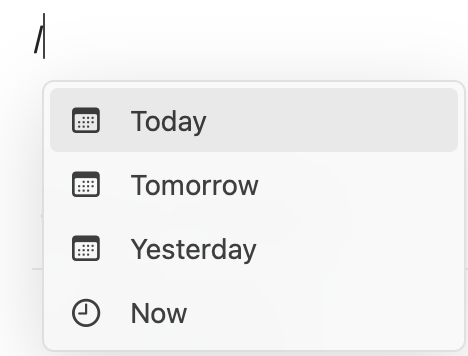
输入 / 然后执行下列任一操作:
* 输入 **Date & Time** 以打开日期选择器
* 输入自然语言,例如 **Today**、**Tomorrow** 或 **Yesterday**
* 输入月份名称加上日期(例如,**December 15**)
 ### 使用 @ 符号
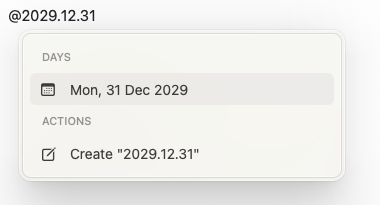
对于特定日期,输入 @ 然后按 **YYYY.MM.DD** 格式输入日期:
### 使用 @ 符号
对于特定日期,输入 @ 然后按 **YYYY.MM.DD** 格式输入日期:
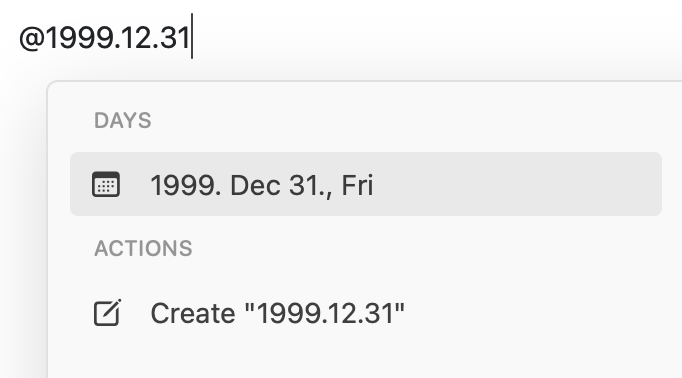 日期选择器会出现,便于你选择或调整日期:
 ## 日期徽章与每日笔记
每个日期徽章还是到对应 [每日笔记](/zh-Hans/plan-and-do/daily-notes) 的可点击链接。单击任何日期徽章以:
* 查看该日期已有内容
* 添加新的笔记或任务
* 在每日笔记间导航
日期徽章会自动连接到每日笔记,便于在整个工作区中引用和导航基于时间的内容。
## 日期徽章与每日笔记
每个日期徽章还是到对应 [每日笔记](/zh-Hans/plan-and-do/daily-notes) 的可点击链接。单击任何日期徽章以:
* 查看该日期已有内容
* 添加新的笔记或任务
* 在每日笔记间导航
日期徽章会自动连接到每日笔记,便于在整个工作区中引用和导航基于时间的内容。