> ## Documentation Index
> Fetch the complete documentation index at: https://craft-support.mintlify.site/llms.txt
> Use this file to discover all available pages before exploring further.
# 数学公式
> 使用 LaTeX 符号书写数学方程式——可嵌入文本行内,也可作为独立公式块使用。
Craft 支持 LaTeX 数学符号,涵盖从简单的上下标到复杂的多行方程式。公式在所有平台上原生渲染,在编辑器、块预览和导出中显示效果完全一致。
有两种使用公式的方式:**块公式**用于独立方程式,**行内公式**用于文本中的数学表达式。
## 块公式
块公式是独立的方程式块,居中显示在单独一行。适用于重要的方程式、推导过程和多行数学表达式。
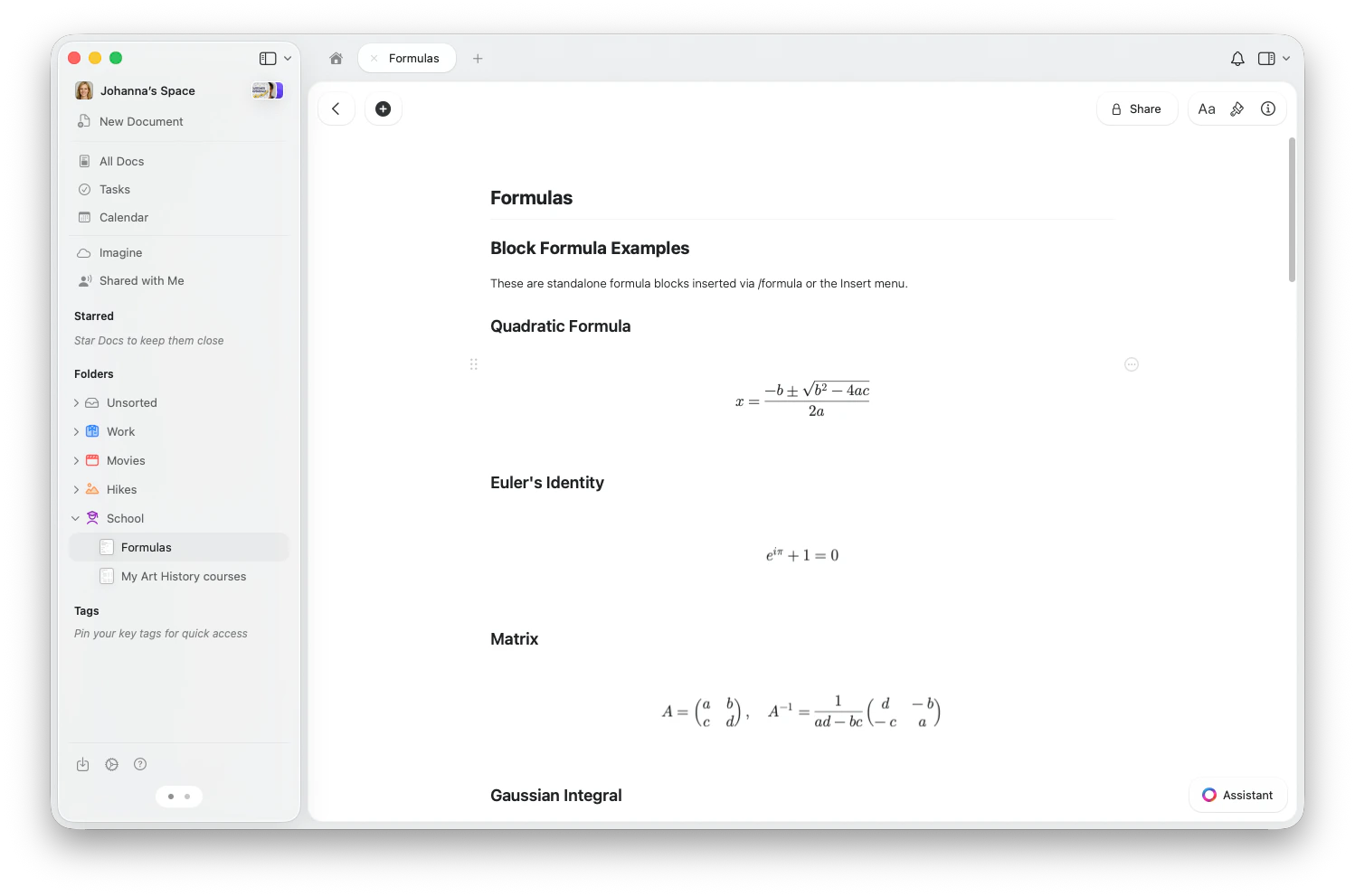 ### 插入块公式
* 输入 `/formula` 或 `/math`,然后从斜杠菜单中选择 **Insert Formula (TeX)**
* 或打开工具栏中的 **Insert menu**,选择 **Formula (TeX)**
* 点击工具栏中的 **+**,选择 **Formula (TeX)**
* 或输入 `/formula`,从斜杠菜单中选择
* 输入 `/formula` 或 `/math`,然后从斜杠菜单中选择 **Insert Formula (TeX)**
* 或使用侧边栏中的 **Insert menu**,选择 **Formula (TeX)**
### 编辑块公式
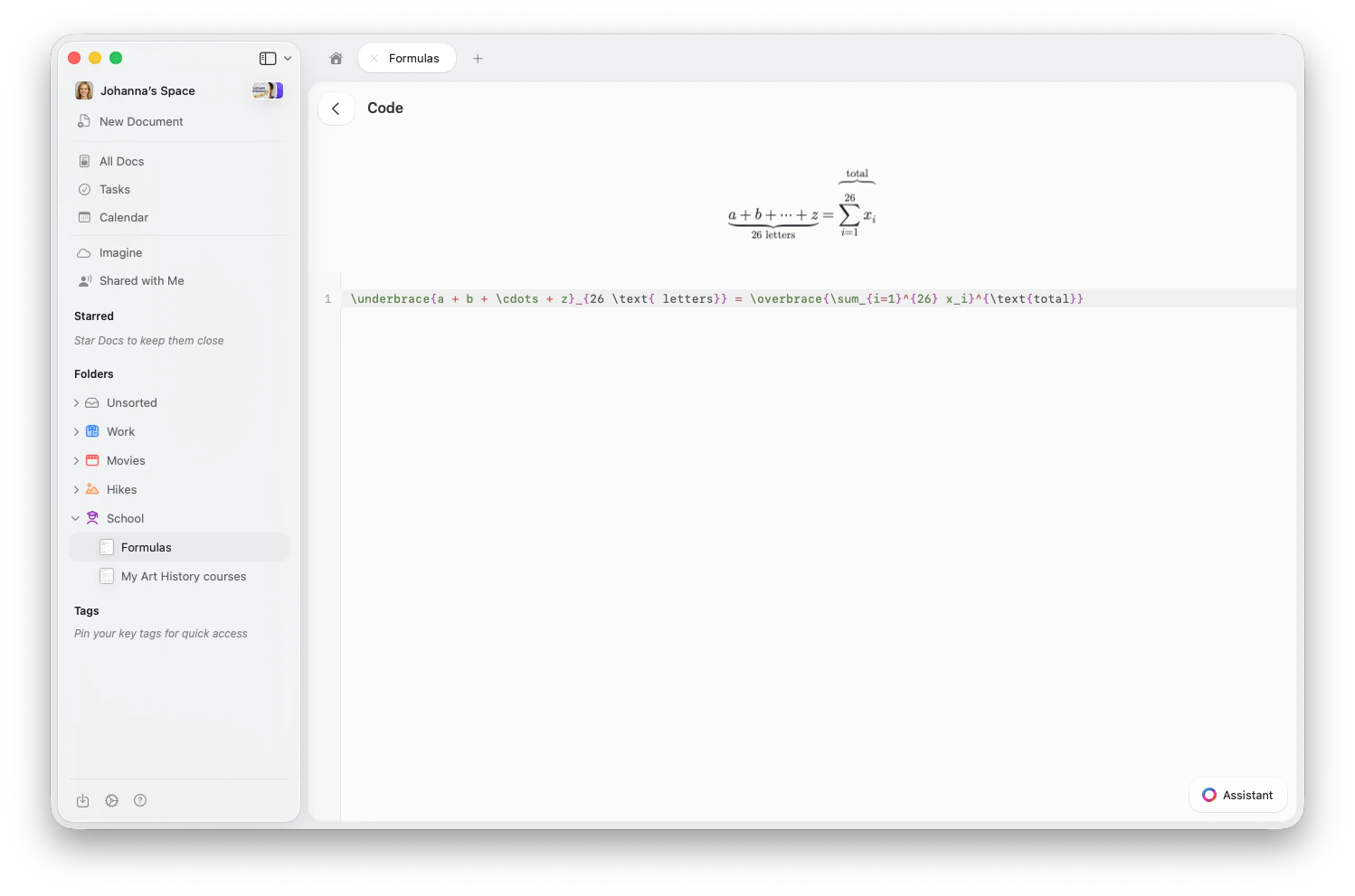
点击块公式即可打开公式编辑器。在输入框中输入 LaTeX 代码——上方的渲染公式会实时更新。
### 插入块公式
* 输入 `/formula` 或 `/math`,然后从斜杠菜单中选择 **Insert Formula (TeX)**
* 或打开工具栏中的 **Insert menu**,选择 **Formula (TeX)**
* 点击工具栏中的 **+**,选择 **Formula (TeX)**
* 或输入 `/formula`,从斜杠菜单中选择
* 输入 `/formula` 或 `/math`,然后从斜杠菜单中选择 **Insert Formula (TeX)**
* 或使用侧边栏中的 **Insert menu**,选择 **Formula (TeX)**
### 编辑块公式
点击块公式即可打开公式编辑器。在输入框中输入 LaTeX 代码——上方的渲染公式会实时更新。
 ## 行内公式
行内公式直接在文本中渲染,方便你引用变量、表达式和简短的方程式,而不会打断阅读节奏。
## 行内公式
行内公式直接在文本中渲染,方便你引用变量、表达式和简短的方程式,而不会打断阅读节奏。
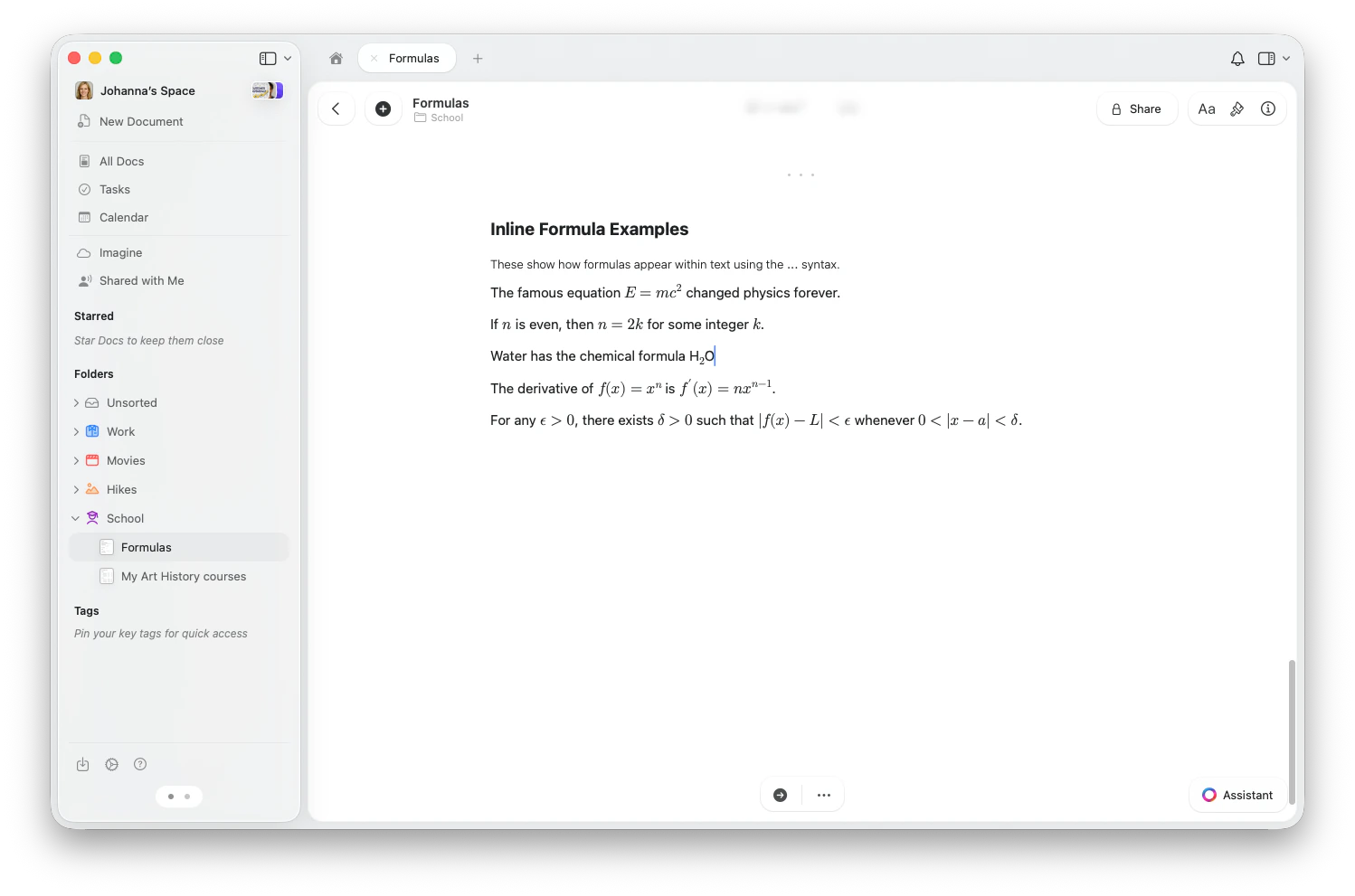 插入行内公式的方法:
1. 输入 `$$` 打开公式编辑器
2. 输入 LaTeX 符号(例如 `E = mc^2`)
3. 再次输入 `$$` 关闭并渲染公式
在句子中引用变量和简短表达式时使用行内公式。对于重要的独立方程式、推导过程或多行内容,使用块公式。
## LaTeX 快速参考
以下是 Craft 中最常用的 LaTeX 命令。
### 基础数学
| 你想要的效果 | LaTeX | Result |
| ------ | ---------------------------- | ---------- |
| 分数 | `\frac{a}{b}` | a/b |
| 平方根 | `\sqrt{x}` | √x |
| n 次根 | `\sqrt[3]{x}` | ∛x |
| 上标 | `x^2` | x² |
| 下标 | `x_i` | xᵢ |
| 上下标 | `x_i^2` | xᵢ² |
| 希腊字母 | `\alpha, \beta, \pi, \Sigma` | α, β, π, Σ |
| 无穷 | `\infty` | ∞ |
### 运算符与关系
| 你想要的效果 | LaTeX |
| ------- | --------------------- |
| 求和 | `\sum_{i=1}^{n}` |
| 求积 | `\prod_{i=1}^{n}` |
| 积分 | `\int_a^b` |
| 极限 | `\lim_{x \to \infty}` |
| 不等于 | `\neq` |
| 小于/大于等于 | `\leq, \geq` |
| 约等于 | `\approx` |
| 加减 | `\pm` |
### 结构
使用 `\begin{pmatrix}...\end{pmatrix}` 表示圆括号矩阵,或用 `bmatrix` 表示方括号矩阵:
```
\begin{pmatrix} a & b \\ c & d \end{pmatrix}
```
其他矩阵类型:`vmatrix`(竖线)、`Vmatrix`(双竖线)、`Bmatrix`(花括号)。
```
f(x) = \begin{cases} x & \text{if } x \geq 0 \\ -x & \text{if } x < 0 \end{cases}
```
使用 `align*` 在 `&` 符号处对齐方程式:
```
\begin{align*}
(a + b)^2 &= (a + b)(a + b) \\
&= a^2 + 2ab + b^2
\end{align*}
```
使用 `\begin{array}{lcr}` 配合列对齐标识符(l、c、r)和 `\\` 分隔行:
```
\begin{array}{c|c}
x & f(x) \\ \hline
0 & 1 \\
1 & 2
\end{array}
```
### 装饰
* `\cancel{x}` — 对角删除线
* `\bcancel{x}` — 反对角删除线
* `\xcancel{x}` — X 形删除线
* `\boxed{expression}` — 给结果加方框
* `\overbrace{a+b+c}^{\text{label}}` — 上方花括号
* `\underbrace{a+b+c}_{\text{label}}` — 下方花括号
* `\overrightarrow{AB}` — 上方箭头
* `\overleftarrow{AB}` — 上方箭头(向左)
箭头会自动伸缩以适应标签:
* `\xrightarrow[\text{below}]{\text{above}}` — 带标签的右箭头
* `\xleftarrow{\text{label}}` — 左箭头
* `\xRightarrow{}` — 双线右箭头
* `\xleftrightarrow{}` — 双向箭头
手动调整定界符大小:
* `\big( \Big( \bigg( \Bigg(` — 依次增大的括号
* 适用于所有定界符类型:`()`、`[]`、`\{\}`、`|`、`\|`
### 颜色
为公式的部分内容添加颜色:
* `\color{blue}{x+y}` — 给子表达式着色
* `\textcolor{red}{x}` — 给文本着色
* `\colorbox{yellow}{expression}` — 彩色背景
也可使用简写颜色命令:`\red{x}`、`\blue{x}`、`\green{x}`、`\purple{x}` 等。
支持的颜色名称:red、blue、green、cyan、magenta、yellow、orange、purple、brown、black、white、gray、teal、pink、olive、violet。
### 专业符号
Craft 内置了物理符号命令:
* `\abs{x}` — 绝对值
* `\norm{x}` — 范数
* `\dd{x}` — 微分
* `\dv{f}{x}` — 全导数
* `\pdv{f}{x}` — 偏导数
* `\grad`、`\curl`、`\divergence`、`\cross` — 向量微积分算子
* `\vb{F}` — 向量粗体
* `\bra{\psi}` — bra ⟨ψ|
* `\ket{\phi}` — ket |φ⟩
* `\braket{\psi | \phi}` — 内积 ⟨ψ|φ⟩
使用黑板粗体快速输入常用数集:
* `\R` — 实数 ℝ
* `\N` — 自然数 ℕ
* `\Z` — 整数 ℤ
* `\Q` — 有理数 ℚ
* `\C` — 复数 ℂ
或使用 `\mathbb{X}` 表示任意字母。
使用标准 TeX 宏语法在公式中定义可复用的命令:
```
\def\RR{\mathbb{R}}
\def\norm#1{\left\| #1 \right\|}
f: \RR \to \RR, \quad \norm{x} < 1
```
也可以使用 `\newcommand{\cmd}[n]{definition}` 语法。
### 方程式编号
使用 `\tag{n}` 为方程式添加标签:
```
E = mc^2 \tag{1}
```
使用 `\tag*{text}` 添加无括号的标签,或使用 `\notag` 在对齐环境中取消编号。
## 示例
以下是一些常见的实际公式,帮助你快速上手:
| 公式 | LaTeX |
| -------- | ----------------------------------------------------- |
| 一元二次方程公式 | `x = \frac{-b \pm \sqrt{b^2 - 4ac}}{2a}` |
| 欧拉恒等式 | `e^{i\pi} + 1 = 0` |
| 高斯积分 | `\int_{-\infty}^{\infty} e^{-x^2} dx = \sqrt{\pi}` |
| 巴塞尔级数 | `\sum_{n=1}^{\infty} \frac{1}{n^2} = \frac{\pi^2}{6}` |
| 二项式系数 | `\binom{n}{k} = \frac{n!}{k!(n-k)!}` |
| 化学方程式 | `2\text{H}_2 + \text{O}_2 \to 2\text{H}_2\text{O}` |
使用行内公式快速设置上标和下标格式
插入并格式化带语法高亮的代码块
使用 Markdown 风格的快捷方式格式化文本,包括行内方程式
插入行内公式的方法:
1. 输入 `$$` 打开公式编辑器
2. 输入 LaTeX 符号(例如 `E = mc^2`)
3. 再次输入 `$$` 关闭并渲染公式
在句子中引用变量和简短表达式时使用行内公式。对于重要的独立方程式、推导过程或多行内容,使用块公式。
## LaTeX 快速参考
以下是 Craft 中最常用的 LaTeX 命令。
### 基础数学
| 你想要的效果 | LaTeX | Result |
| ------ | ---------------------------- | ---------- |
| 分数 | `\frac{a}{b}` | a/b |
| 平方根 | `\sqrt{x}` | √x |
| n 次根 | `\sqrt[3]{x}` | ∛x |
| 上标 | `x^2` | x² |
| 下标 | `x_i` | xᵢ |
| 上下标 | `x_i^2` | xᵢ² |
| 希腊字母 | `\alpha, \beta, \pi, \Sigma` | α, β, π, Σ |
| 无穷 | `\infty` | ∞ |
### 运算符与关系
| 你想要的效果 | LaTeX |
| ------- | --------------------- |
| 求和 | `\sum_{i=1}^{n}` |
| 求积 | `\prod_{i=1}^{n}` |
| 积分 | `\int_a^b` |
| 极限 | `\lim_{x \to \infty}` |
| 不等于 | `\neq` |
| 小于/大于等于 | `\leq, \geq` |
| 约等于 | `\approx` |
| 加减 | `\pm` |
### 结构
使用 `\begin{pmatrix}...\end{pmatrix}` 表示圆括号矩阵,或用 `bmatrix` 表示方括号矩阵:
```
\begin{pmatrix} a & b \\ c & d \end{pmatrix}
```
其他矩阵类型:`vmatrix`(竖线)、`Vmatrix`(双竖线)、`Bmatrix`(花括号)。
```
f(x) = \begin{cases} x & \text{if } x \geq 0 \\ -x & \text{if } x < 0 \end{cases}
```
使用 `align*` 在 `&` 符号处对齐方程式:
```
\begin{align*}
(a + b)^2 &= (a + b)(a + b) \\
&= a^2 + 2ab + b^2
\end{align*}
```
使用 `\begin{array}{lcr}` 配合列对齐标识符(l、c、r)和 `\\` 分隔行:
```
\begin{array}{c|c}
x & f(x) \\ \hline
0 & 1 \\
1 & 2
\end{array}
```
### 装饰
* `\cancel{x}` — 对角删除线
* `\bcancel{x}` — 反对角删除线
* `\xcancel{x}` — X 形删除线
* `\boxed{expression}` — 给结果加方框
* `\overbrace{a+b+c}^{\text{label}}` — 上方花括号
* `\underbrace{a+b+c}_{\text{label}}` — 下方花括号
* `\overrightarrow{AB}` — 上方箭头
* `\overleftarrow{AB}` — 上方箭头(向左)
箭头会自动伸缩以适应标签:
* `\xrightarrow[\text{below}]{\text{above}}` — 带标签的右箭头
* `\xleftarrow{\text{label}}` — 左箭头
* `\xRightarrow{}` — 双线右箭头
* `\xleftrightarrow{}` — 双向箭头
手动调整定界符大小:
* `\big( \Big( \bigg( \Bigg(` — 依次增大的括号
* 适用于所有定界符类型:`()`、`[]`、`\{\}`、`|`、`\|`
### 颜色
为公式的部分内容添加颜色:
* `\color{blue}{x+y}` — 给子表达式着色
* `\textcolor{red}{x}` — 给文本着色
* `\colorbox{yellow}{expression}` — 彩色背景
也可使用简写颜色命令:`\red{x}`、`\blue{x}`、`\green{x}`、`\purple{x}` 等。
支持的颜色名称:red、blue、green、cyan、magenta、yellow、orange、purple、brown、black、white、gray、teal、pink、olive、violet。
### 专业符号
Craft 内置了物理符号命令:
* `\abs{x}` — 绝对值
* `\norm{x}` — 范数
* `\dd{x}` — 微分
* `\dv{f}{x}` — 全导数
* `\pdv{f}{x}` — 偏导数
* `\grad`、`\curl`、`\divergence`、`\cross` — 向量微积分算子
* `\vb{F}` — 向量粗体
* `\bra{\psi}` — bra ⟨ψ|
* `\ket{\phi}` — ket |φ⟩
* `\braket{\psi | \phi}` — 内积 ⟨ψ|φ⟩
使用黑板粗体快速输入常用数集:
* `\R` — 实数 ℝ
* `\N` — 自然数 ℕ
* `\Z` — 整数 ℤ
* `\Q` — 有理数 ℚ
* `\C` — 复数 ℂ
或使用 `\mathbb{X}` 表示任意字母。
使用标准 TeX 宏语法在公式中定义可复用的命令:
```
\def\RR{\mathbb{R}}
\def\norm#1{\left\| #1 \right\|}
f: \RR \to \RR, \quad \norm{x} < 1
```
也可以使用 `\newcommand{\cmd}[n]{definition}` 语法。
### 方程式编号
使用 `\tag{n}` 为方程式添加标签:
```
E = mc^2 \tag{1}
```
使用 `\tag*{text}` 添加无括号的标签,或使用 `\notag` 在对齐环境中取消编号。
## 示例
以下是一些常见的实际公式,帮助你快速上手:
| 公式 | LaTeX |
| -------- | ----------------------------------------------------- |
| 一元二次方程公式 | `x = \frac{-b \pm \sqrt{b^2 - 4ac}}{2a}` |
| 欧拉恒等式 | `e^{i\pi} + 1 = 0` |
| 高斯积分 | `\int_{-\infty}^{\infty} e^{-x^2} dx = \sqrt{\pi}` |
| 巴塞尔级数 | `\sum_{n=1}^{\infty} \frac{1}{n^2} = \frac{\pi^2}{6}` |
| 二项式系数 | `\binom{n}{k} = \frac{n!}{k!(n-k)!}` |
| 化学方程式 | `2\text{H}_2 + \text{O}_2 \to 2\text{H}_2\text{O}` |
使用行内公式快速设置上标和下标格式
插入并格式化带语法高亮的代码块
使用 Markdown 风格的快捷方式格式化文本,包括行内方程式