> ## Documentation Index
> Fetch the complete documentation index at: https://craft-support.mintlify.site/llms.txt
> Use this file to discover all available pages before exploring further.

# 应用样式

> 将文档的样式扩展到应用界面，使编辑体验更沉浸、更统一。

应用样式会把文档的配色带到周边的应用界面，从而营造更统一、更沉浸的编辑体验。启用后，侧边栏、工具栏及其他界面元素会反映文档的主题色。

## 什么是应用样式？

应用样式会将文档的文本色和背景色应用到 Craft 界面的部分区域。这样可以在内容与编辑环境之间形成视觉一致性。

### 示例对比

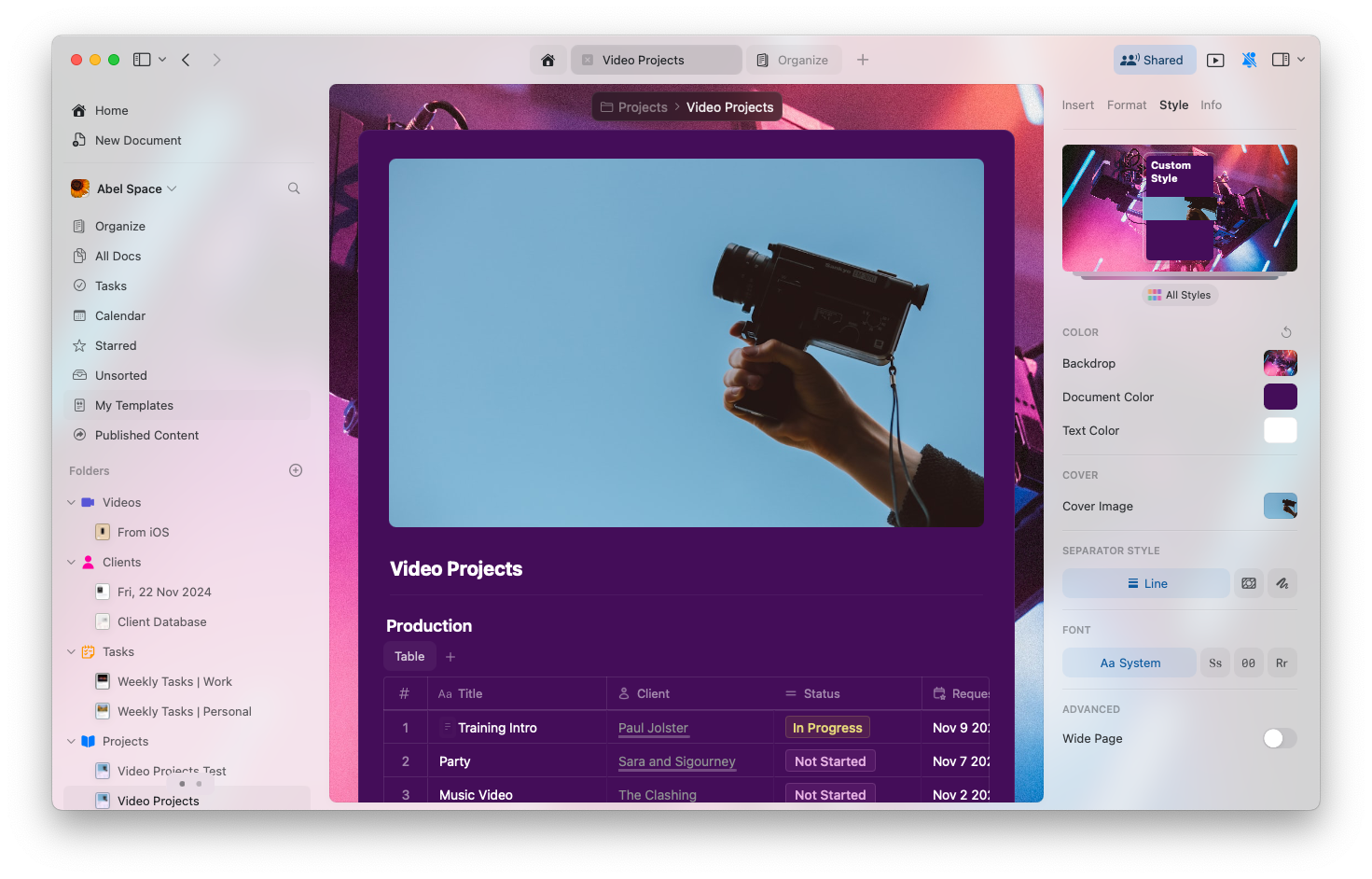
**应用样式已禁用：**

<img src="https://mintcdn.com/craft-support/L5zMoIm2o8A5WVUD/images/write-and-edit/styling/app-styles/en/content/app-style-disabled.png?fit=max&auto=format&n=L5zMoIm2o8A5WVUD&q=85&s=d0045f0dfada83655f5ca289dfe063c5" alt="App with default interface colors" width="1471" height="942" data-path="images/write-and-edit/styling/app-styles/en/content/app-style-disabled.png" />

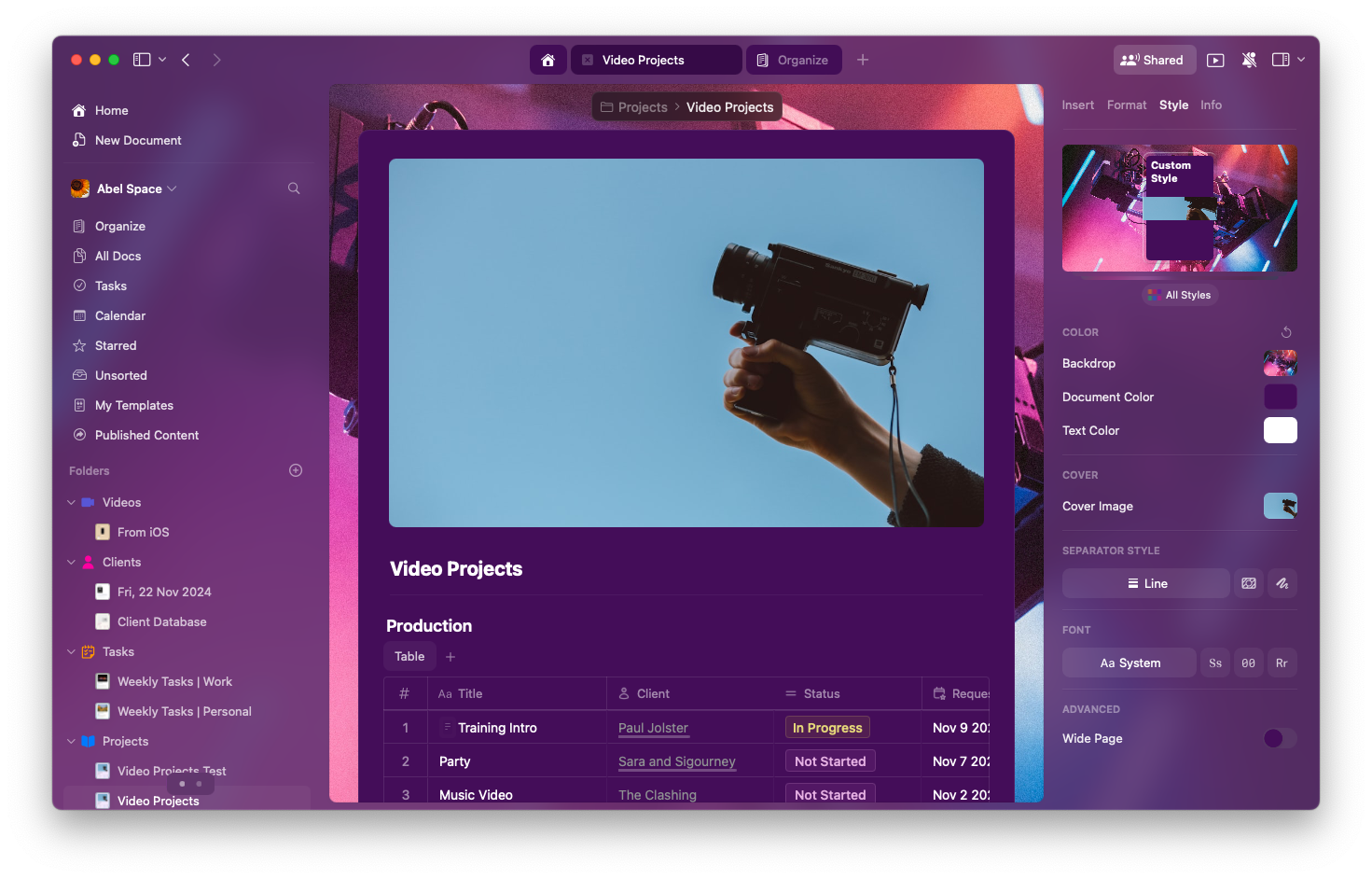
**应用样式已启用：**

<img src="https://mintcdn.com/craft-support/L5zMoIm2o8A5WVUD/images/write-and-edit/styling/app-styles/en/content/app-style-enabled.png?fit=max&auto=format&n=L5zMoIm2o8A5WVUD&q=85&s=c6cee8bf6aaddfa0ba743cee10ccb138" alt="App with document colors applied to interface" width="1471" height="942" data-path="images/write-and-edit/styling/app-styles/en/content/app-style-enabled.png" />

## 平台可用性

<Tabs>
  <Tab title="macOS">
    应用样式在 Mac 上完全受支持：

    * **可用范围**：仅在 编辑视图 可用（主页和浏览视图使用系统默认）
    * **应用到**：侧边栏、工具栏和界面元素
    * **使用**：文档的文本色和背景色
    * **字体**：为保证可读性和性能，继续使用系统字体
  </Tab>

  <Tab title="iPad">
    应用样式在 iPad 上完全受支持：

    * **可用范围**：仅在 编辑视图 可用（主页和浏览视图使用系统默认）
    * **应用到**：侧边栏、工具栏和界面元素
    * **使用**：文档的文本色和背景色
    * **字体**：为保证可读性和性能，继续使用系统字体
  </Tab>

  <Tab title="iPhone">
    应用样式尚未在 iPhone 上提供。此功能计划在未来更新中推出。
  </Tab>
</Tabs>

## 启用或禁用应用样式

你可以完全控制此功能：

<Tabs>
  <Tab title="Mac">
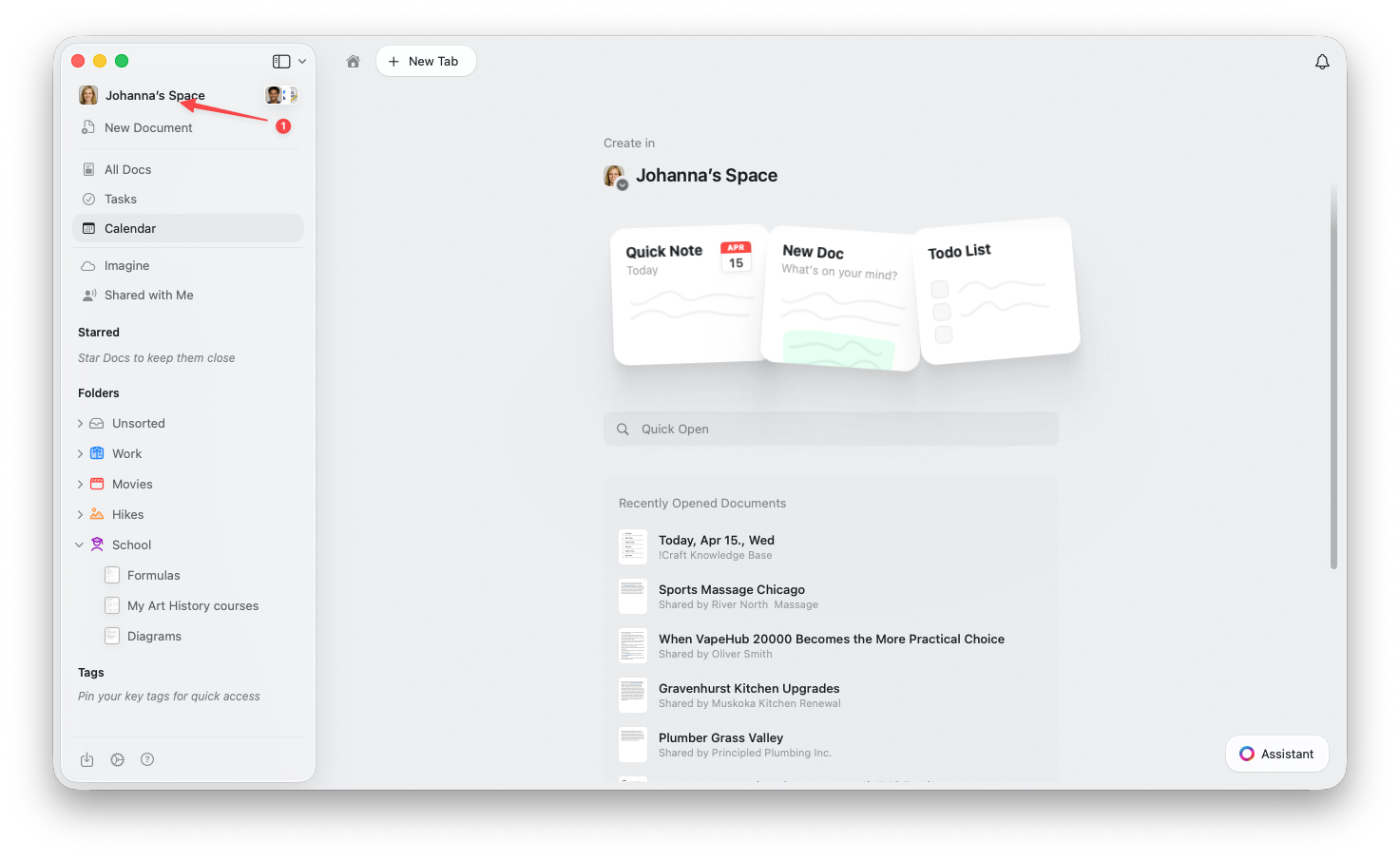
    点击侧边栏顶部的**空间名称**以打开设置。

    <Frame>
      <img src="https://mintlify.s3.us-west-1.amazonaws.com/craft-support/images/snippets/open-settings/en/content/mac-space-name.png" alt="点击侧边栏中的空间名称" />
    </Frame>
  </Tab>

  <Tab title="Web / Windows">
    <Steps>
      <Step title="打开空间下拉菜单">
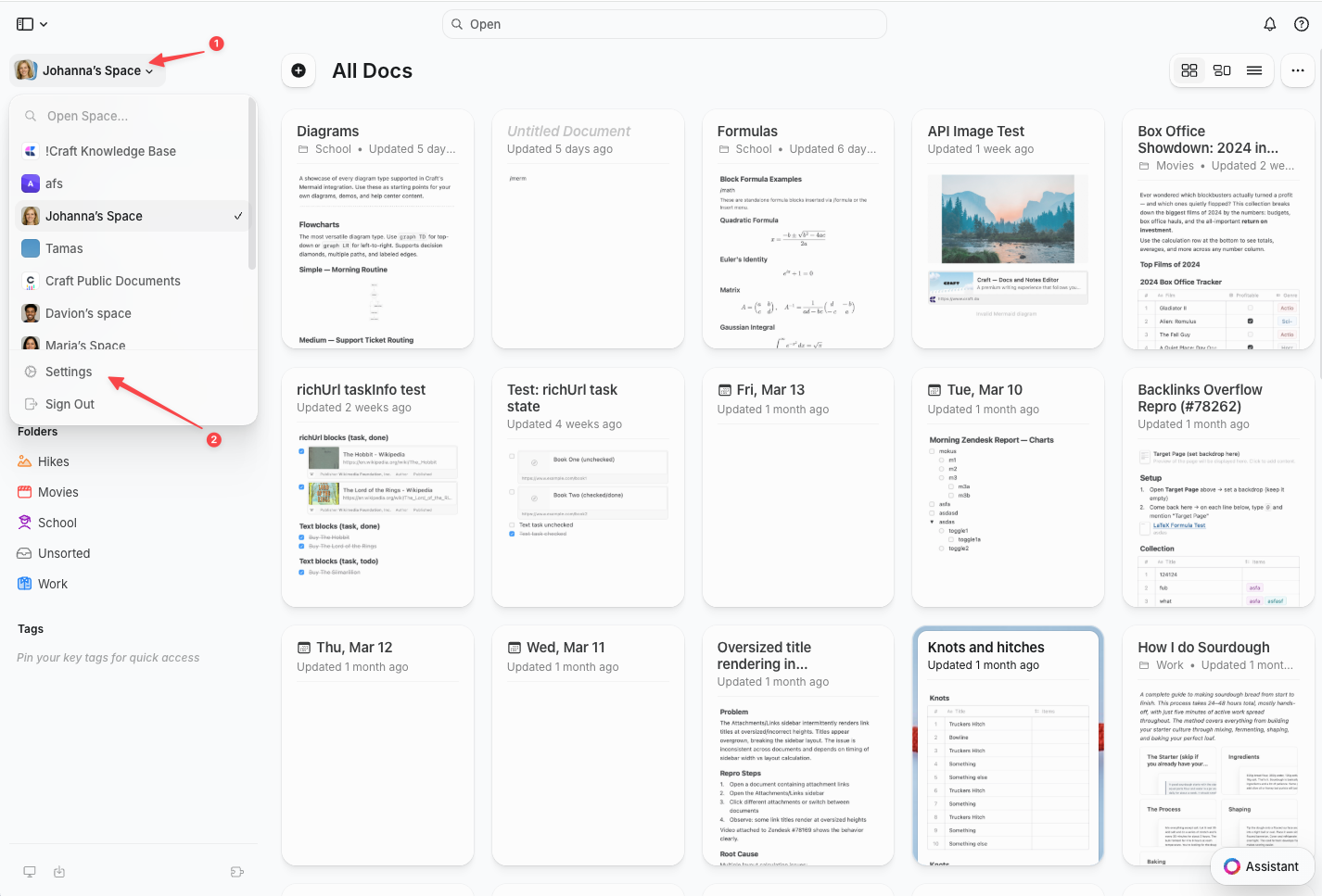
        点击左上角的**空间名称**。
      </Step>

      <Step title="选择设置">
        点击下拉菜单底部的**设置**。

        <Frame>
          <img src="https://mintlify.s3.us-west-1.amazonaws.com/craft-support/images/snippets/open-settings/en/content/web-space-dropdown.png" alt="包含设置选项的空间下拉菜单" />
        </Frame>
      </Step>
    </Steps>
  </Tab>

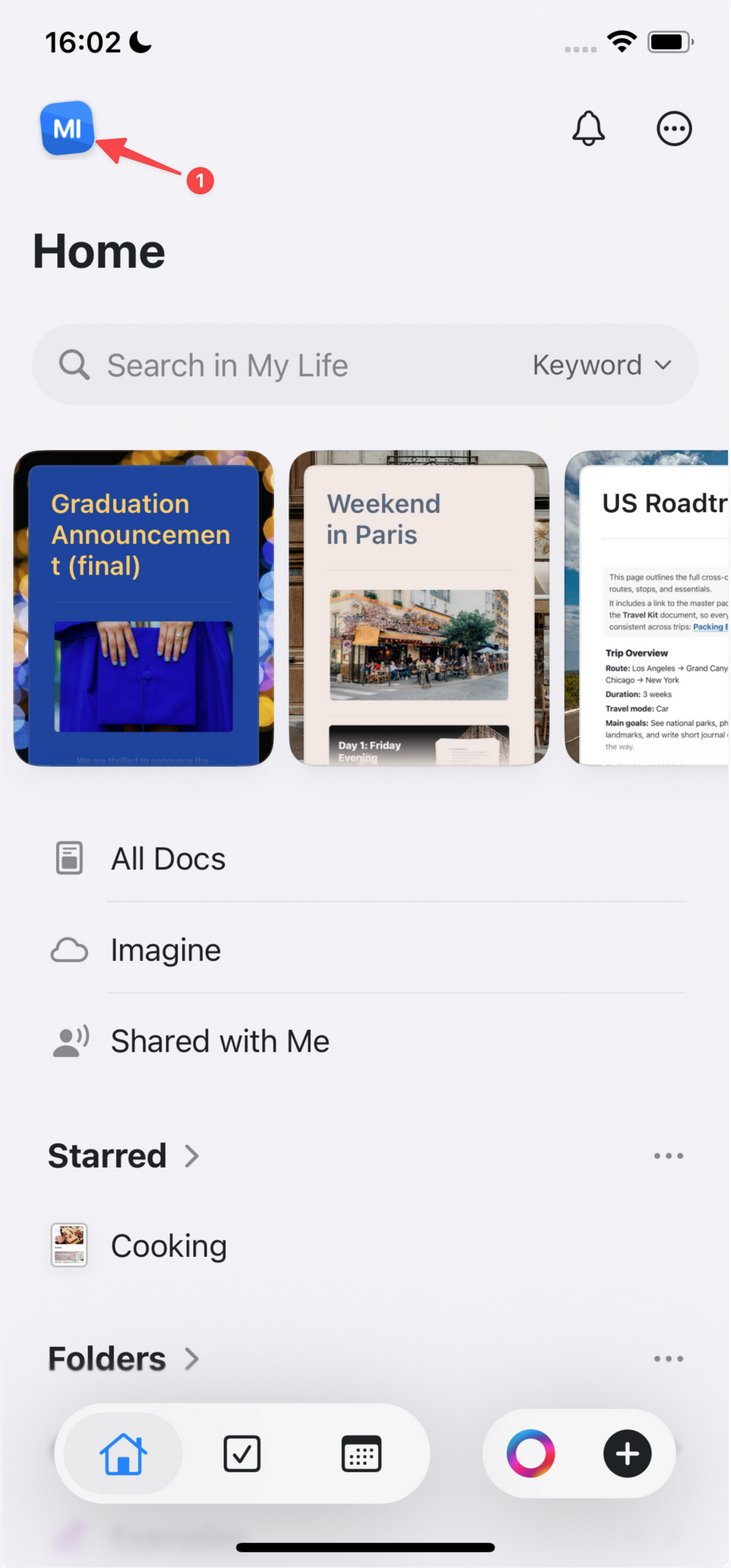
  <Tab title="iOS">
    <Steps>
      <Step title="点按空间图标">
        点按左上角的**空间图标**。

        <Frame>
          <img src="https://mintlify.s3.us-west-1.amazonaws.com/craft-support/images/snippets/open-settings/en/content/ios-space-icon.png" alt="左上角的空间图标" />
        </Frame>
      </Step>

      <Step title="打开设置">
        点按**设置**。
      </Step>
    </Steps>
  </Tab>

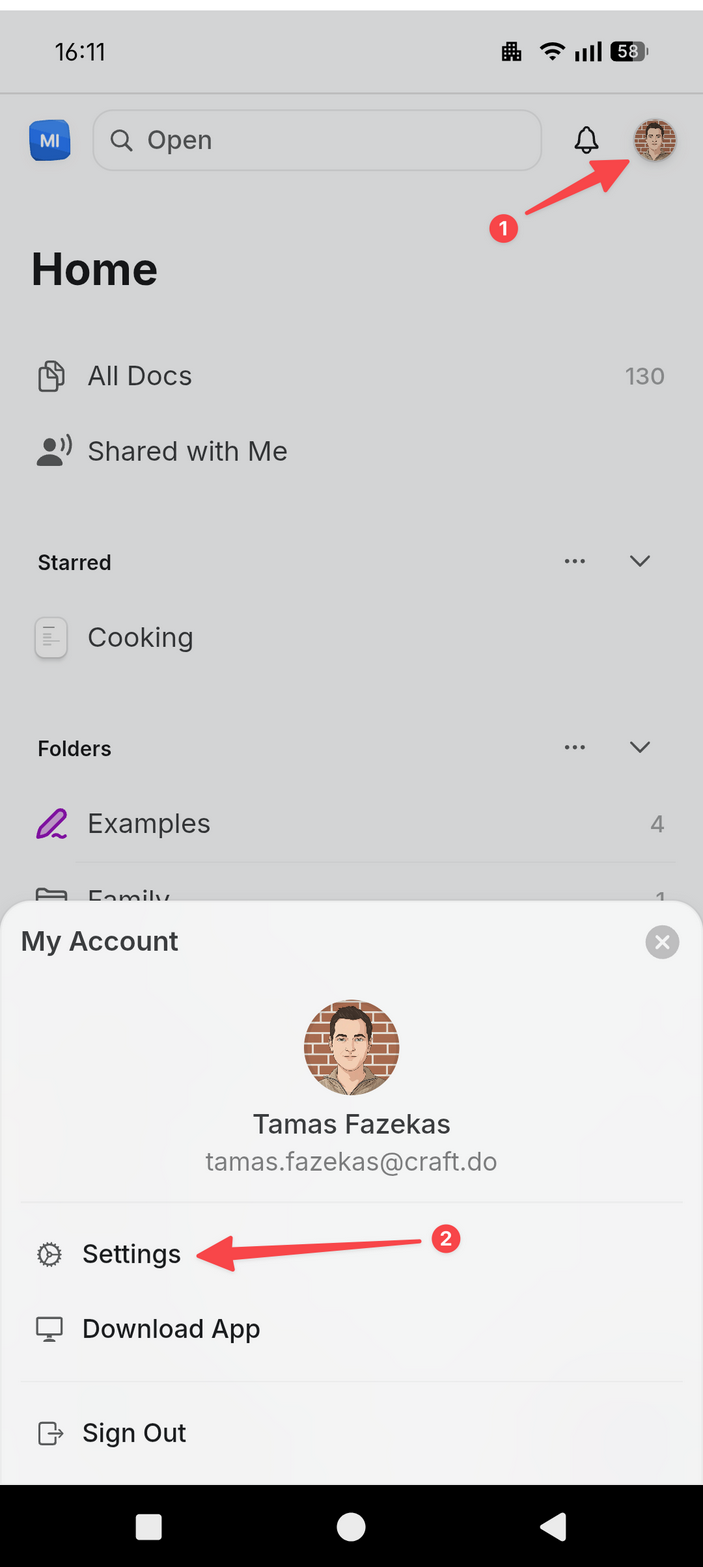
  <Tab title="Android">
    <Steps>
      <Step title="点按您的头像">
        点按右上角的**头像**。
      </Step>

      <Step title="打开设置">
        点按**设置**。

        <Frame>
          <img src="https://mintlify.s3.us-west-1.amazonaws.com/craft-support/images/snippets/open-settings/en/content/android-profile-menu.png" alt="包含设置选项的个人资料菜单" />
        </Frame>
      </Step>
    </Steps>
  </Tab>
</Tabs>

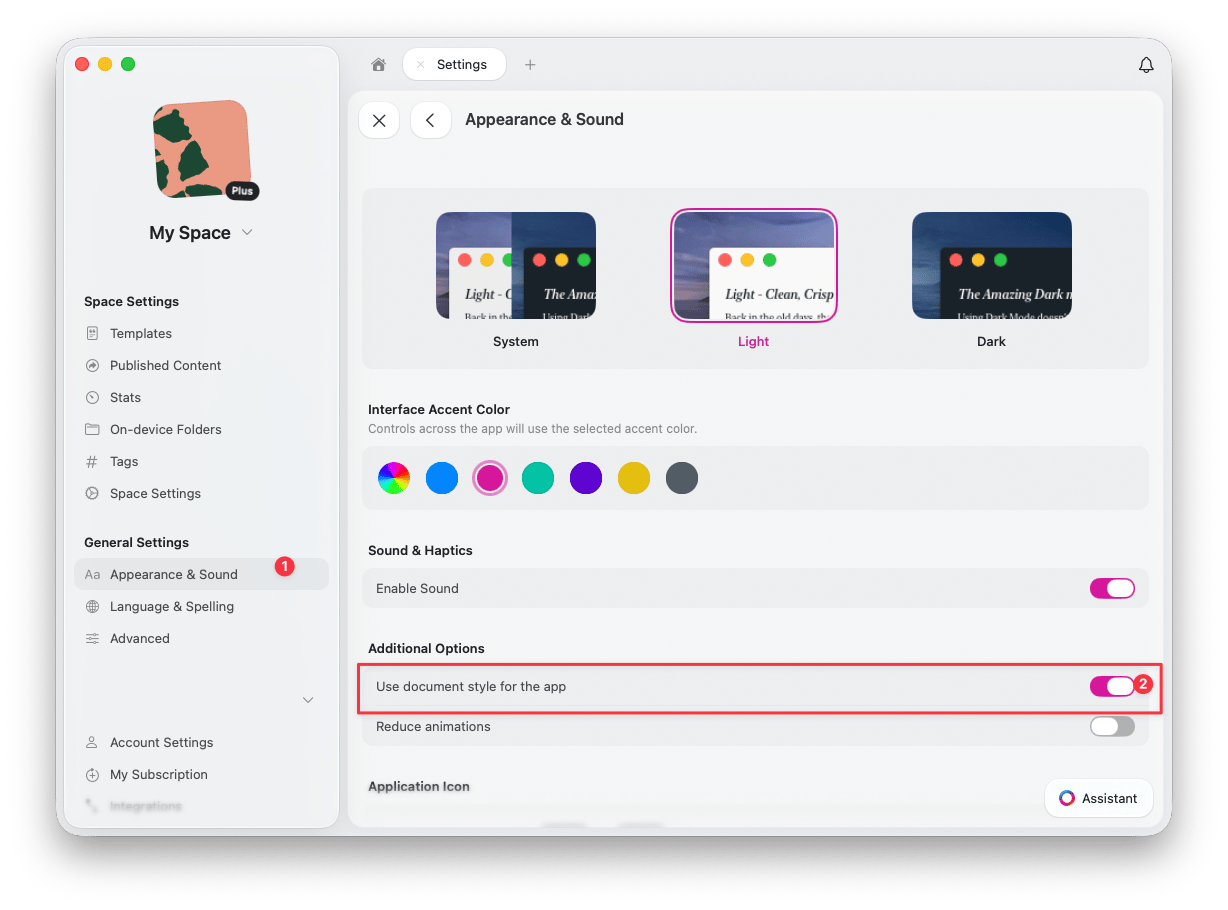
<Steps>
  <Step>
    找到 **外观与声音**
  </Step>

  <Step>
    将 **“在应用中使用文档样式”** 开启或关闭
  </Step>
</Steps>

<img src="https://mintcdn.com/craft-support/7XT5Lt06NgKSFXzt/images/write-and-edit/styling/app-styles/en/content/app-style-settings.png?fit=max&auto=format&n=7XT5Lt06NgKSFXzt&q=85&s=24c86e00c65a23e72ed89e4ba3b9e948" alt="App Style toggle in settings" width="1228" height="910" data-path="images/write-and-edit/styling/app-styles/en/content/app-style-settings.png" />

## 为什么使用应用样式？

应用样式带来多项好处：

* **沉浸式体验** - 在视觉上创建一致的环境
* **情绪匹配** - 将界面与内容的基调对齐
* **减少干扰** - 缩小内容与界面之间的视觉断层
* **个性化** - 让 Craft 更像你自己的工作空间

## 限制说明

<Info title="应用样式不会更改的内容">
  * **字体** - 界面仍继续使用系统字体以保证可读性
  * **其他视图** - 主页、浏览以及其他区域使用默认界面
  * **平台** - 目前尚不支持 iPhone
</Info>

## 相关文章

<CardGroup cols={2}>
  <Card title="样式快速指南" href="/zh-Hans/write-and-edit/styling/quick-guide">
    涵盖所有样式功能的完整指南
  </Card>

  <Card title="默认样式" href="/zh-Hans/write-and-edit/styling/default-styles">
    将你偏好的样式设为默认
  </Card>

  <Card title="封面图片" href="/zh-Hans/write-and-edit/styling/cover-images">
    为你的文档自定义封面图片
  </Card>
</CardGroup>