> ## Documentation Index
> Fetch the complete documentation index at: https://craft-support.mintlify.site/llms.txt
> Use this file to discover all available pages before exploring further.
# 卡片
> 通过自定义背景、颜色、图片和预览样式,将页面转换为具有视觉吸引力的卡片。
卡片是一种样式选项,可将文档中的页面变成视觉上独立的卡片式元素。通过为页面设置不同的背景、颜色、预览或格式,打造更具吸引力的版面。
卡片与页面在底层的工作方式完全相同。卡片只是带有额外视觉样式(背景、颜色、预览或格式)的页面。在页面上能做的所有事情,在卡片中同样可以做。
## 创建卡片
在文档中输入 `/card`。
在菜单中选择卡片样式。
卡片将作为新的页面块插入。
了解更多请参阅[使用斜杠菜单](/zh-Hans/write-and-edit/formatting/slash-menu)。
## 背景
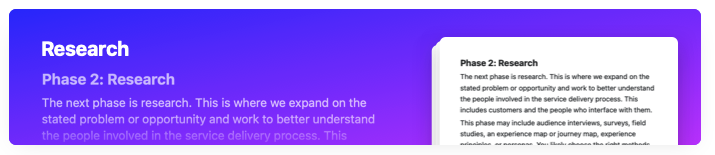
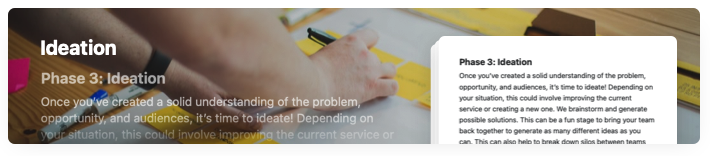
卡片可以使用三种背景类型进行自定义:
* **纯色:** 从调色板中选择,或设置自定义颜色。
 * **Unsplash 图片:** 直接在 Craft 中搜索并选择专业摄影作品。
 * **你自己的图片:** 从设备上传图片。
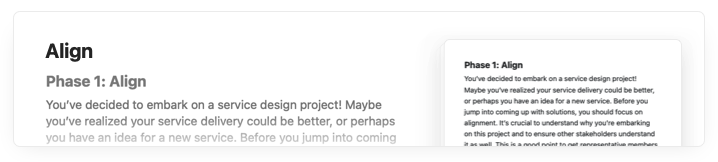
你也可以让卡片不设置背景,呈现简洁、极简的外观:
* **你自己的图片:** 从设备上传图片。
你也可以让卡片不设置背景,呈现简洁、极简的外观:
 ## 预览样式
卡片的预览决定了它的内容在父页面上如何显示。共有五种选择:
* **标准:** 默认预览,显示卡片的标题和一段内容摘要。
* **表情符号:** 选择最多四个表情符号,显示在卡片上以替代文字预览。
* **书本:** 模仿书页的样式。
* **便签:** 模仿黄色记事本页面的样式。
* **画廊:** 一个最多包含卡片内三张图片的拼贴,替代文字预览。
## 卡片格式
卡片有五种格式,可改变其在文档中的突出程度。组合搭配可营造层次感和视觉趣味。
两种最大的卡片格式仅在 Craft Plus 中提供。其他三种格式在所有套餐中均可使用。
## 视频教程
## 使用场景
卡片特别适用于:
* **项目规划:** 为不同的项目阶段创建可视化分区。
* **知识库:** 以视觉层次组织主题。
* **会议记录:** 将议程项或讨论主题分隔开。
* **内容规划:** 通过视觉区分来整理想法。
## 相关文章
所有样式功能的全面指南
为文档自定义封面图片
了解 Craft 的构建块
## 预览样式
卡片的预览决定了它的内容在父页面上如何显示。共有五种选择:
* **标准:** 默认预览,显示卡片的标题和一段内容摘要。
* **表情符号:** 选择最多四个表情符号,显示在卡片上以替代文字预览。
* **书本:** 模仿书页的样式。
* **便签:** 模仿黄色记事本页面的样式。
* **画廊:** 一个最多包含卡片内三张图片的拼贴,替代文字预览。
## 卡片格式
卡片有五种格式,可改变其在文档中的突出程度。组合搭配可营造层次感和视觉趣味。
两种最大的卡片格式仅在 Craft Plus 中提供。其他三种格式在所有套餐中均可使用。
## 视频教程
## 使用场景
卡片特别适用于:
* **项目规划:** 为不同的项目阶段创建可视化分区。
* **知识库:** 以视觉层次组织主题。
* **会议记录:** 将议程项或讨论主题分隔开。
* **内容规划:** 通过视觉区分来整理想法。
## 相关文章
所有样式功能的全面指南
为文档自定义封面图片
了解 Craft 的构建块