> ## Documentation Index
> Fetch the complete documentation index at: https://craft-support.mintlify.site/llms.txt
> Use this file to discover all available pages before exploring further.

# 連結 AI 供應商

> 使用您自己的 OpenAI 或 Anthropic 憑證搭配 Craft Assistant，取代 Craft AI 點數。

Craft Assistant 預設使用 Craft AI 點數，但您也可以改為連結自己的 AI 供應商帳號。使用已連結的供應商時，不會消耗任何 Craft AI 點數。

<Info>
  此功能僅適用於 **macOS** 和 **iOS**，目前不支援 Web 或 Windows。
</Info>

## 可用供應商

| 供應商           | 連結方式                      |
| ------------- | ------------------------- |
| **OpenAI**    | 以 ChatGPT 帳號登入，或貼上 API 金鑰 |
| **Anthropic** | 貼上 API 金鑰                 |
| **本機模型**      | 在裝置上執行，無需連線               |
| **Craft**     | 預設，使用 Craft AI 點數         |

<Info>
  使用已連結的供應商時，對話會透過該供應商的 API 執行，不影響 Craft AI 使用配額。
</Info>

## 連結供應商

<Steps>
  <Step title="開啟設定">
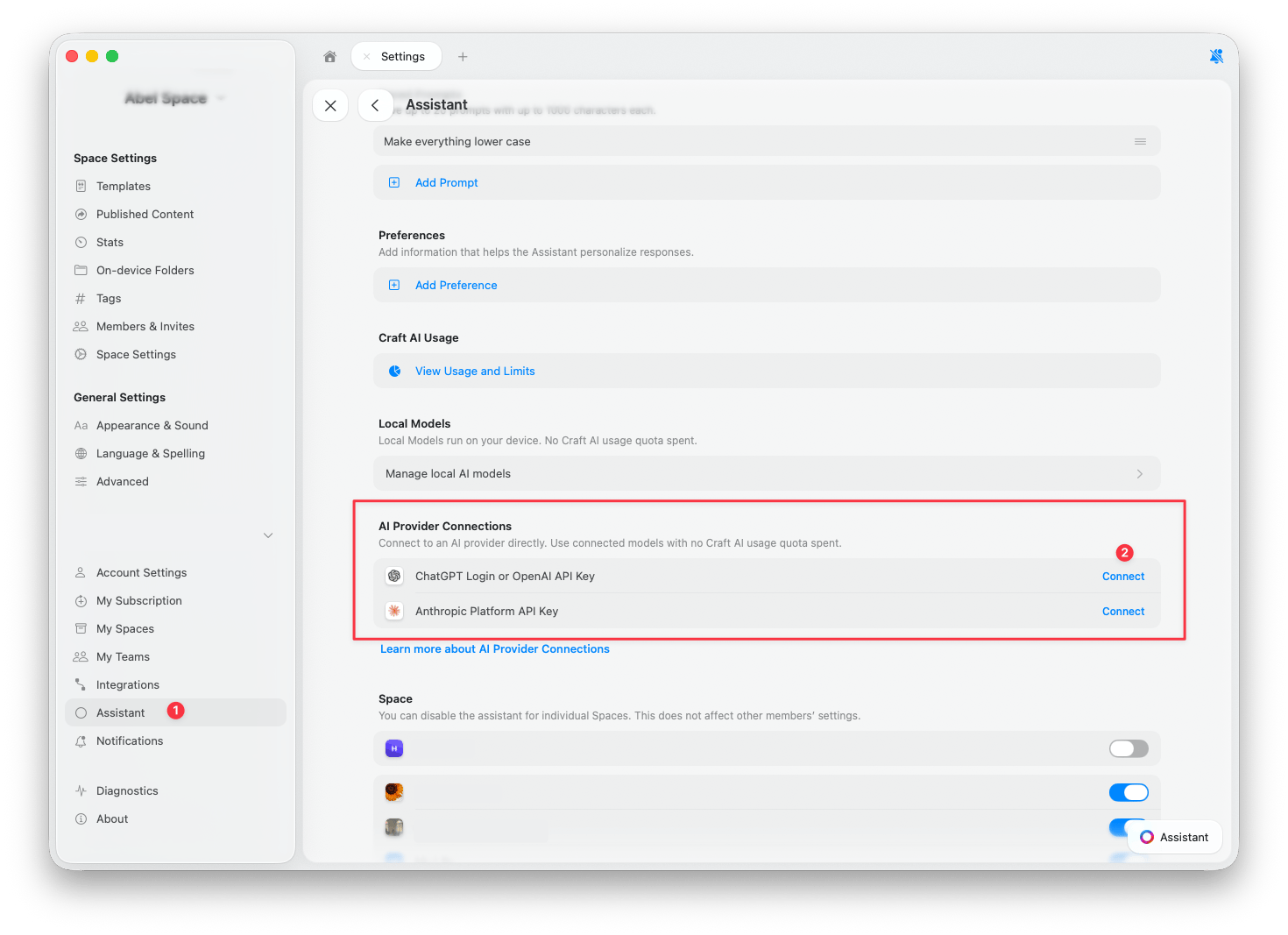
    前往 **設定** > **Assistant**。
  </Step>

  <Step title="找到 AI 供應商連結">
    向下捲動至 **AI 供應商連結** 區塊。
  </Step>

  <Step title="點選連結">
    點選您要新增的供應商旁的 **連結**。
  </Step>

  <Step title="確認使用中的供應商">
    開啟 Assistant 面板，確認已選取新供應商。新的對話會自動使用已連結的供應商，但已開啟的對話可能仍在使用 Craft。請參閱[切換供應商](#切換供應商)以進行變更。
  </Step>
</Steps>

<Frame caption="點擊放大">
  <img src="https://mintcdn.com/craft-support/mrn9h3Zv_F-f37nX/images/ai-assistant/bring-your-own-key/en/content/settings-ai-provider-connections.png?fit=max&auto=format&n=mrn9h3Zv_F-f37nX&q=85&s=b7258cea96e57b581394a1f82ad381cc" alt="AI Provider Connections section in Settings showing OpenAI and Anthropic options" width="1470" height="1067" data-path="images/ai-assistant/bring-your-own-key/en/content/settings-ai-provider-connections.png" />
</Frame>

### OpenAI

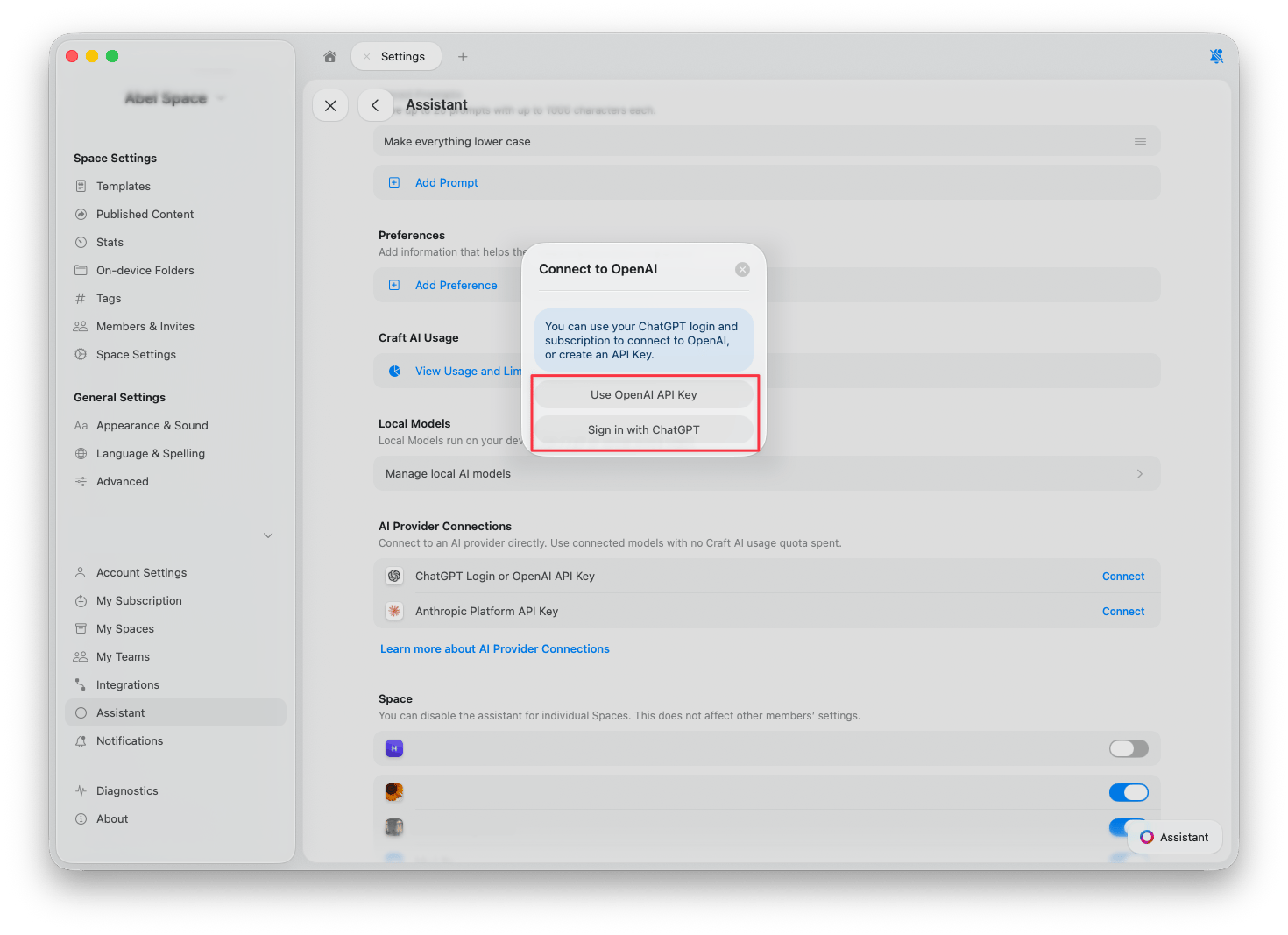
連結 OpenAI 有兩種方式：

* **以 ChatGPT 帳號登入**：使用您現有的 ChatGPT 帳號與訂閱，無需 API 金鑰。
* **使用 OpenAI API 金鑰**：貼上從 [OpenAI Platform](https://platform.openai.com/api-keys) 取得的 API 金鑰，使用量將計費至您的 OpenAI 帳號。

<Frame>
  <img src="https://mintcdn.com/craft-support/mrn9h3Zv_F-f37nX/images/ai-assistant/bring-your-own-key/en/content/connect-openai-dialog.png?fit=max&auto=format&n=mrn9h3Zv_F-f37nX&q=85&s=0c42784bf0718402b2f4b626a621f9a4" alt="Connect to OpenAI dialog with two options: Use OpenAI API Key and Sign in with ChatGPT" width="1470" height="1067" data-path="images/ai-assistant/bring-your-own-key/en/content/connect-openai-dialog.png" />
</Frame>

### Anthropic

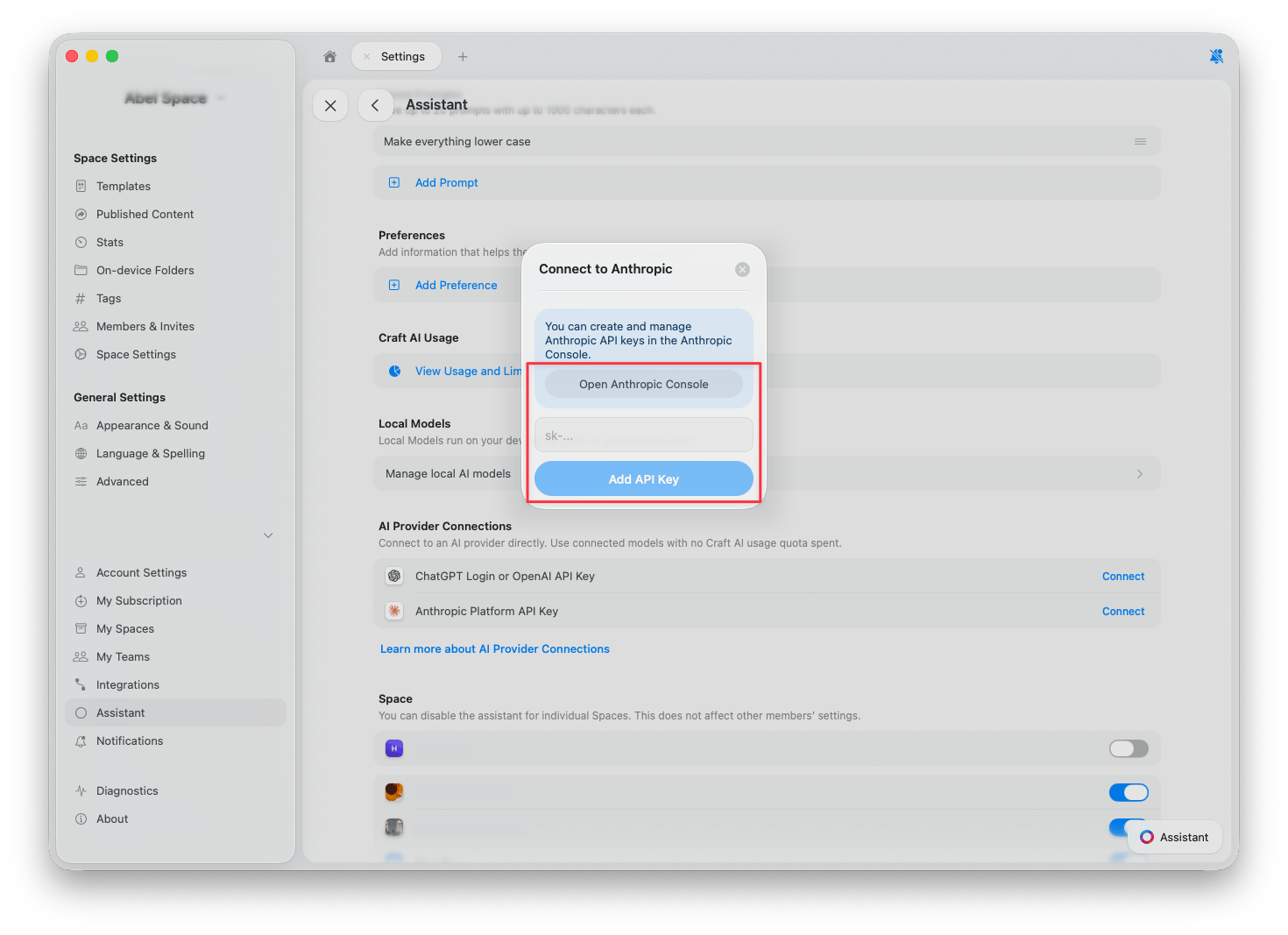
連結 Anthropic 時，請貼上從 [Anthropic Console](https://console.anthropic.com/) 取得的 API 金鑰，使用量將計費至您的 Anthropic 帳號。

<Frame>
  <img src="https://mintcdn.com/craft-support/mrn9h3Zv_F-f37nX/images/ai-assistant/bring-your-own-key/en/content/connect-anthropic-dialog.png?fit=max&auto=format&n=mrn9h3Zv_F-f37nX&q=85&s=99975bfc8d17d7a33ca55af604b3b23e" alt="Connect to Anthropic dialog with API key field and Open Anthropic Console button" width="1470" height="1067" data-path="images/ai-assistant/bring-your-own-key/en/content/connect-anthropic-dialog.png" />
</Frame>

## 切換供應商

連結供應商後，您可以直接在 Assistant 面板中切換供應商和模型。

<Steps>
  <Step title="開啟 Assistant 面板">
    從任何文件或 Space 檢視開啟 Assistant。
  </Step>

  <Step title="點選 Assistant 按鈕">
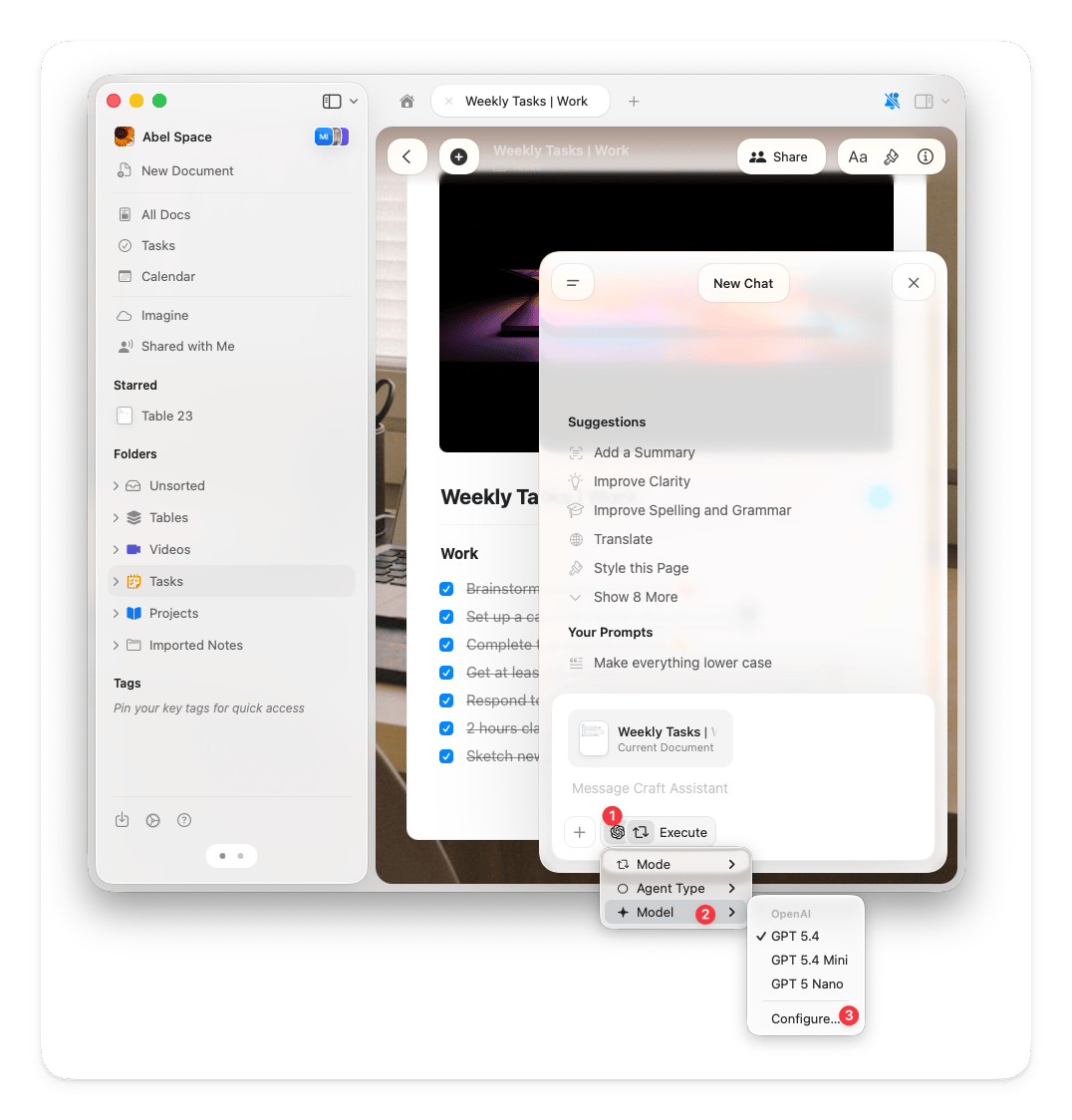
    在輸入欄位下方，點選 **Assistant 按鈕**。
  </Step>

  <Step title="選擇模型">
    從彈出選單中選擇 **模型**。已連結供應商的模型會與 Craft 模型一同顯示。
  </Step>
</Steps>

<Frame>
  <img src="https://mintcdn.com/craft-support/mrn9h3Zv_F-f37nX/images/ai-assistant/bring-your-own-key/en/content/model-selector-provider.png?fit=max&auto=format&n=mrn9h3Zv_F-f37nX&q=85&s=58d8da8fb4d5adb65f5f04222a1b5f23" alt="Model selector in the Assistant panel showing OpenAI models" width="1076" height="1124" data-path="images/ai-assistant/bring-your-own-key/en/content/model-selector-provider.png" />
</Frame>

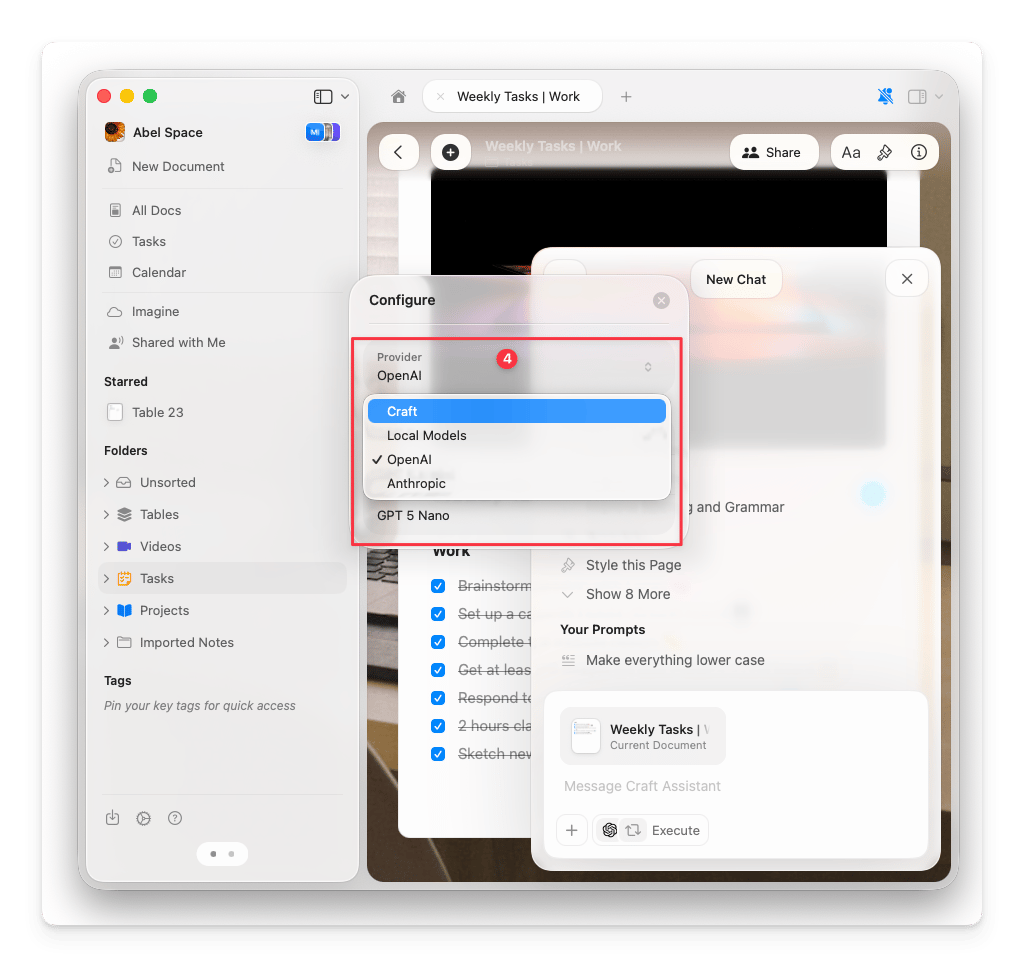
若要變更使用中的供應商，請點選模型清單底部的 **設定**，然後從 **供應商** 下拉選單中選取供應商。

<Frame>
  <img src="https://mintcdn.com/craft-support/mrn9h3Zv_F-f37nX/images/ai-assistant/bring-your-own-key/en/content/configure-provider-dropdown.png?fit=max&auto=format&n=mrn9h3Zv_F-f37nX&q=85&s=e64aeb2da5097bb72d3e02a0366e762d" alt="Configure dialog showing provider dropdown with Craft, Local Models, OpenAI, and Anthropic" width="1024" height="967" data-path="images/ai-assistant/bring-your-own-key/en/content/configure-provider-dropdown.png" />
</Frame>

<Tip>
  您可以透過對話中的標記來確認目前使用的供應商。供應商的標誌會顯示在模型名稱旁，讓您隨時得知對話是使用 Craft 點數還是您自己的供應商。
</Tip>

## 移除連結

<Steps>
  <Step title="開啟設定">
    前往 **設定** > **Assistant**。
  </Step>

  <Step title="找到連結">
    在 **AI 供應商連結** 區塊中，找到您要移除的供應商。
  </Step>

  <Step title="移除">
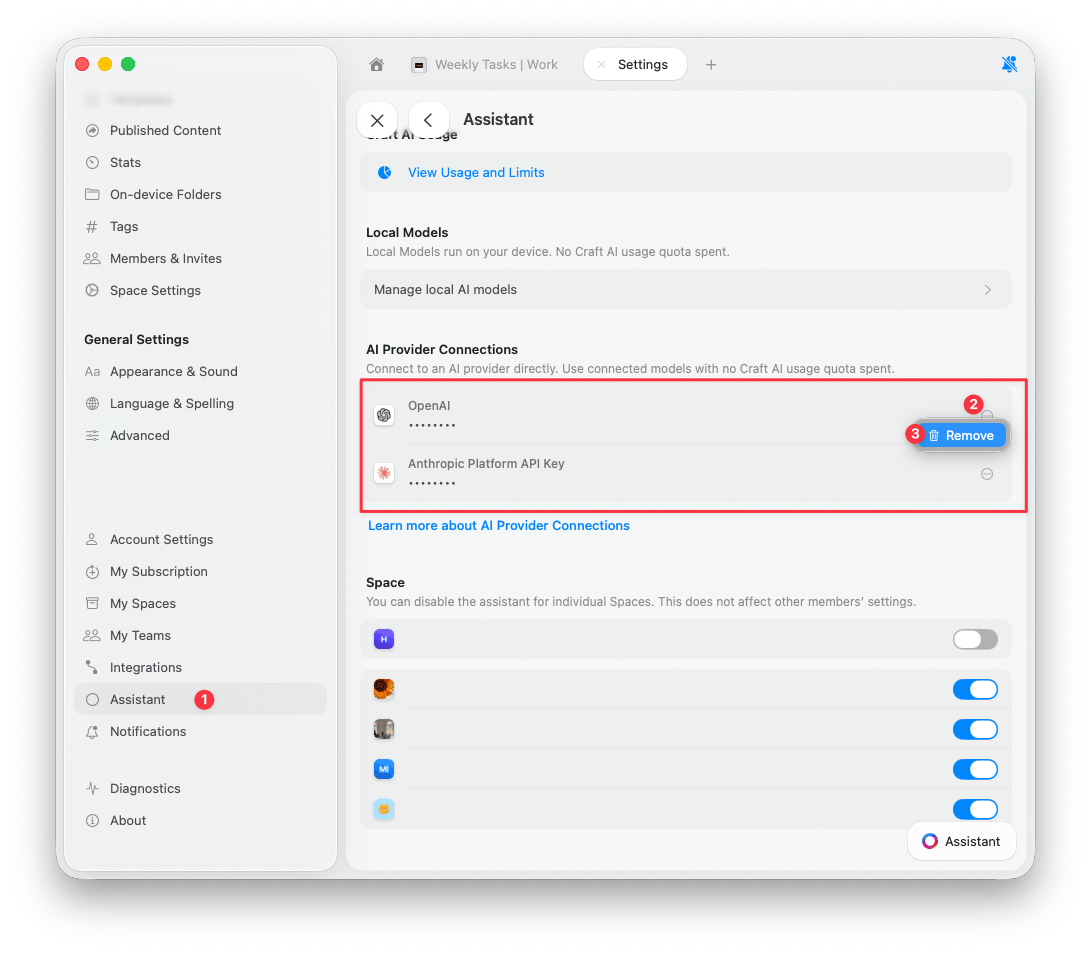
    點選連結旁的 **三點按鈕**，然後點選 **移除**。
  </Step>
</Steps>

<Frame>
  <img src="https://mintcdn.com/craft-support/mrn9h3Zv_F-f37nX/images/ai-assistant/bring-your-own-key/en/content/remove-connection.png?fit=max&auto=format&n=mrn9h3Zv_F-f37nX&q=85&s=d047ca8c12d7fb24a5e088400343bd1c" alt="AI Provider Connections showing connected providers with Remove button" width="1091" height="953" data-path="images/ai-assistant/bring-your-own-key/en/content/remove-connection.png" />
</Frame>

移除連結後，Assistant 會切換回使用 Craft AI 點數。

<Columns cols={2}>
  <Card title="選擇 AI 模型" href="/zh-Hant/ai-assistant/models" />

  <Card title="AI 點數" href="/zh-Hant/ai-assistant/usage" />
</Columns>