> ## Documentation Index
> Fetch the complete documentation index at: https://craft-support.mintlify.site/llms.txt
> Use this file to discover all available pages before exploring further.
# Readwise
> 將你在 Readwise 的閱讀重點自動同步到 Craft 的集合中。
Craft 可以輕鬆將你在 Readwise 的閱讀洞見帶入工作區。只要簡單設定一次,你就能自動整理並同步書籍、文章與推文的重點摘錄。
## 如何設定 Readwise 同步
**打開 [Readwise Import Settings page](https://docs.craft.do/readwise)**
如果你尚未登入 Craft,系統會要求你先登入,然後再導回設定頁面。
**配置與 Craft 帳戶的連線**
從 Readwise 取得你的 Access Token,依說明貼上,並選擇你要將摘錄匯入的空間(Space)。
現在,初始匯入會在背景執行。根據你的 Readwise 資料量,可能需要幾分鐘時間。你可以安全地關閉設定頁面,稍後再回來 – 同步會在背景繼續進行。
## 設定完成後會發生什麼事
Craft 會在所選的空間(Space)中建立一個名為 **"Readwise Highlights"** 的文件(Document)。在裡面,你會看到名為 **"My Library"** 的集合(Collections),所有摘錄都會儲存在該集合中。
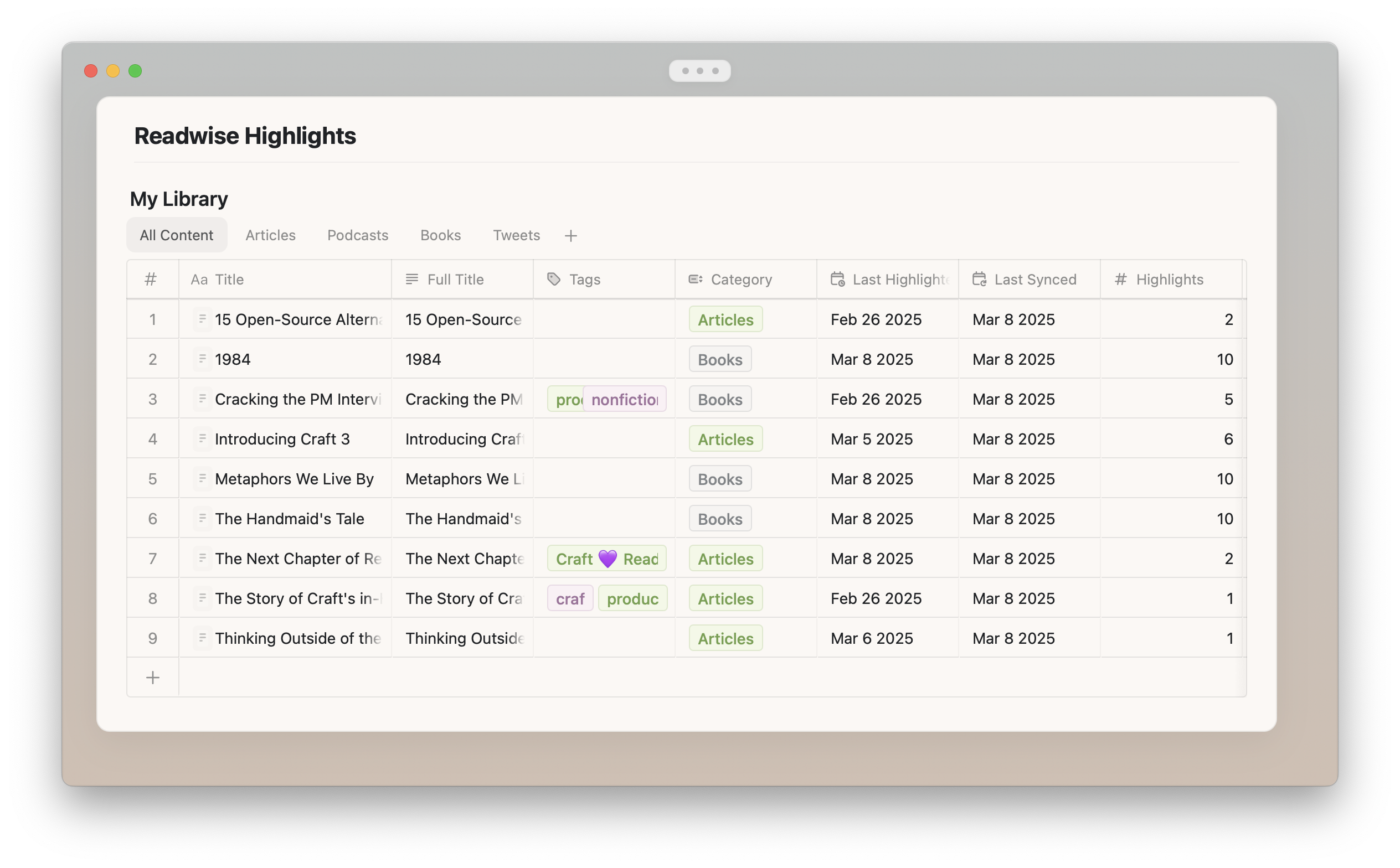 初始匯入完成後,**新的摘錄**會在一天內 **自動更新** 到 Craft。
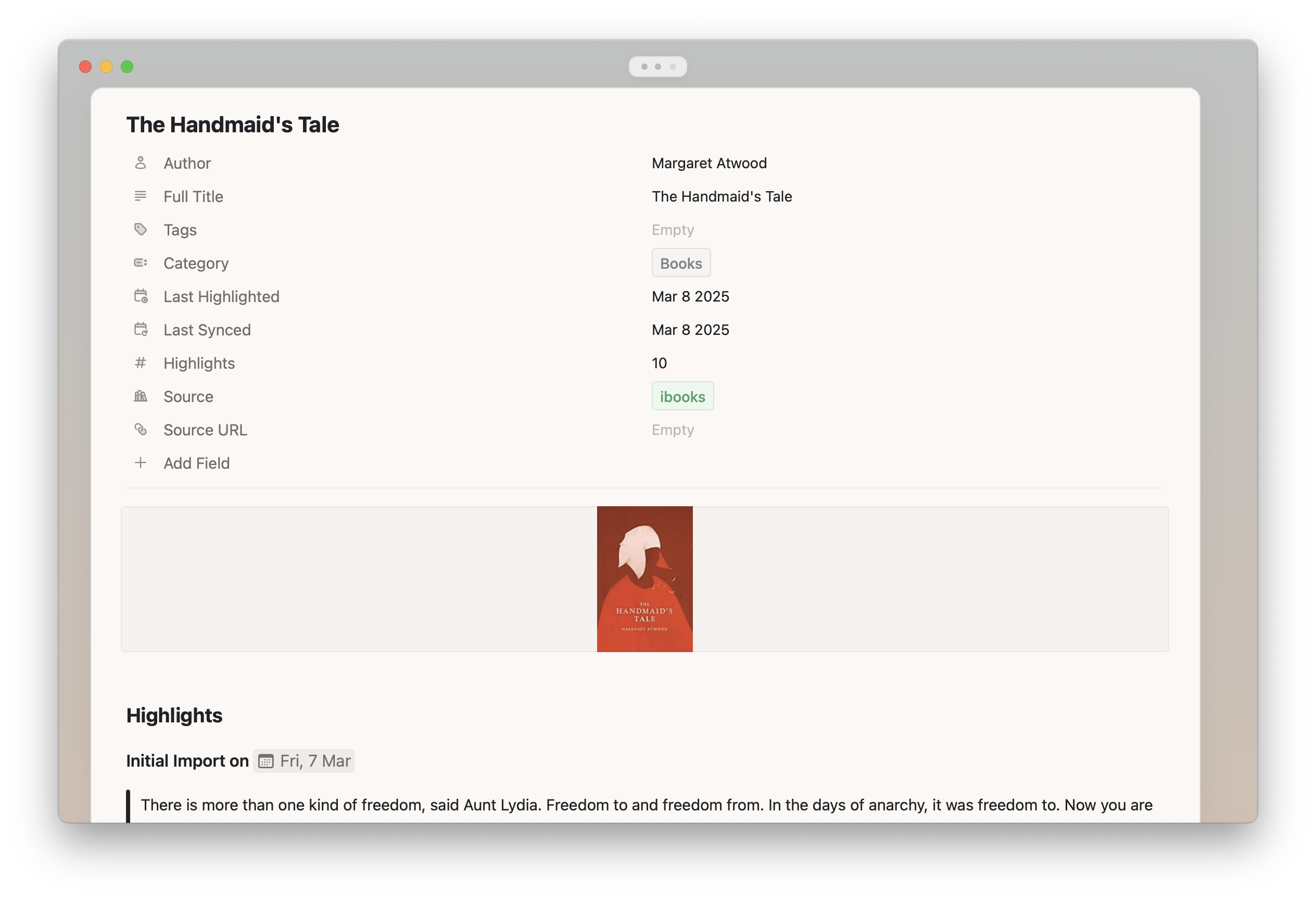
每本書、文章或推文會作為集合內的獨立頁面儲存。這些頁面會包含:
* 書名與來自 Readwise 的 metadata
* 所有的摘錄與註記
初始匯入完成後,**新的摘錄**會在一天內 **自動更新** 到 Craft。
每本書、文章或推文會作為集合內的獨立頁面儲存。這些頁面會包含:
* 書名與來自 Readwise 的 metadata
* 所有的摘錄與註記
 ## 常見問題
### 當我有新的摘錄時會發生什麼?
你匯入到 Readwise 的任何新摘錄都會自動匯入到 Craft,無需你額外操作。如果摘錄來自全新的文件,Craft 會在集合中新增一個頁面;若摘錄屬於既有文件,則會附加到該文件頁面的底部。
某些服務(例如 Amazon Kindle、Instapaper、Pocket)一天只會與 Readwise 同步數次。因此新的摘錄可能不會立即出現在 Readwise 或 Craft。如果你需要更快同步,可在 Readwise 的 [Import Highlights page](https://readwise.io/welcome/sync) 與 Craft 的 [Readwise Import Settings](https://docs.craft.do/readwise) 上強制手動重新同步。
### 我可以篩選要匯入哪些摘錄嗎?
可以!在你首次設定整合或之後的任何時間,都可以使用 **"Select Items to be Exported"** 選項來篩選要匯入的書籍、文章與推文。新增的書籍會自動同步,除非你在 [設定](https://docs.craft.do/readwise) 中特別取消勾選。
### 我可以更改摘錄的格式化選項嗎?
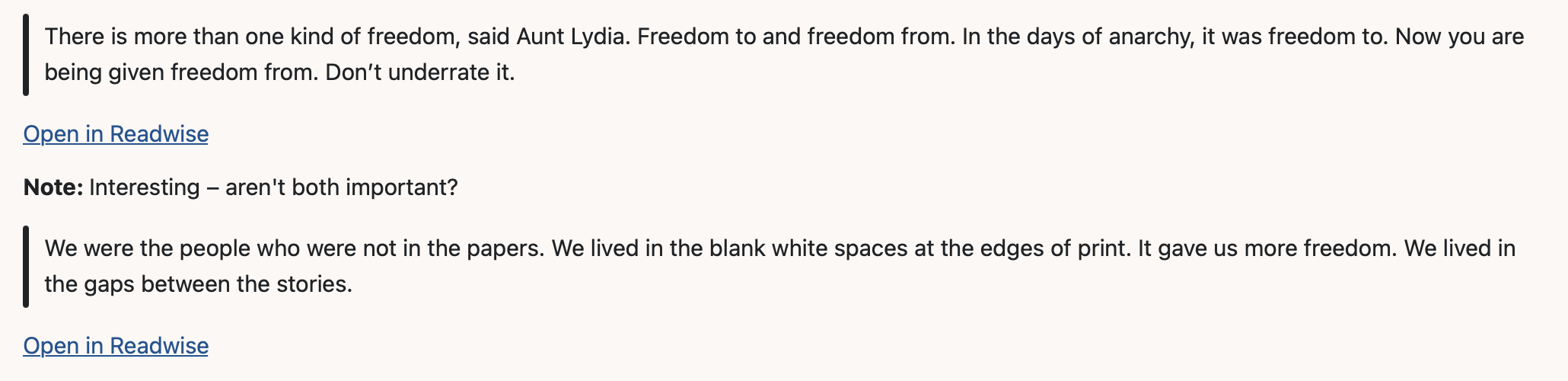
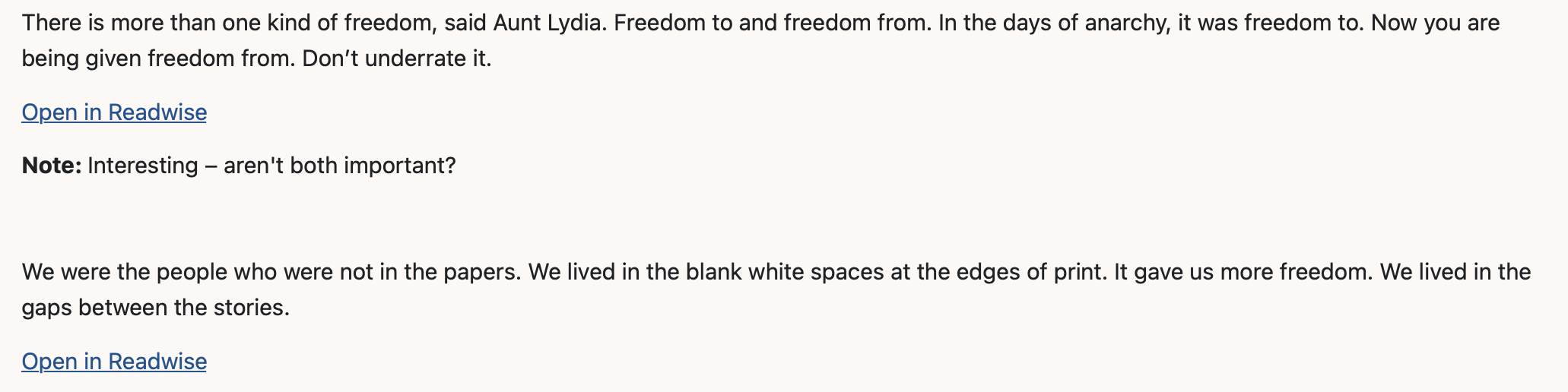
如果你不想使用 Craft 的預設格式,而偏好較為簡潔的格式,可在 [設定](https://docs.craft.do/readwise) 中啟用 **"Use Simple Formatting"** 切換。
使用 Craft 預設格式時:
## 常見問題
### 當我有新的摘錄時會發生什麼?
你匯入到 Readwise 的任何新摘錄都會自動匯入到 Craft,無需你額外操作。如果摘錄來自全新的文件,Craft 會在集合中新增一個頁面;若摘錄屬於既有文件,則會附加到該文件頁面的底部。
某些服務(例如 Amazon Kindle、Instapaper、Pocket)一天只會與 Readwise 同步數次。因此新的摘錄可能不會立即出現在 Readwise 或 Craft。如果你需要更快同步,可在 Readwise 的 [Import Highlights page](https://readwise.io/welcome/sync) 與 Craft 的 [Readwise Import Settings](https://docs.craft.do/readwise) 上強制手動重新同步。
### 我可以篩選要匯入哪些摘錄嗎?
可以!在你首次設定整合或之後的任何時間,都可以使用 **"Select Items to be Exported"** 選項來篩選要匯入的書籍、文章與推文。新增的書籍會自動同步,除非你在 [設定](https://docs.craft.do/readwise) 中特別取消勾選。
### 我可以更改摘錄的格式化選項嗎?
如果你不想使用 Craft 的預設格式,而偏好較為簡潔的格式,可在 [設定](https://docs.craft.do/readwise) 中啟用 **"Use Simple Formatting"** 切換。
使用 Craft 預設格式時:
 使用簡潔格式時:
 ### 我可以把 Readwise 的文件移到 Craft 的其他地方嗎?
在你為整合設定的該空間(Space)內,可以自由將 Readwise 文件(Document)移動到任何你喜歡的資料夾(Folders)。
### 我可以在 Craft 中修改 Readwise 的集合(Collections)嗎?
可以!歡迎修改集合檢視,或新增檢視。你也可以加入額外欄位,或編輯預設欄位的名稱。這些更動不會被後續同步覆寫。
請注意不要刪除任何預設欄位,或更改欄位類型。這會導致同步中斷,必須從頭重新設定。
### 我可以編輯 Readwise 集合中的頁面內容嗎?
針對單一書籍、文章或推文,你可以自訂頁面標題,系統不會覆寫。當然,你也可以自由編輯頁面內容。整合僅會將新的摘錄附加到頁面底部,不會覆寫既有內容。
### 如果我在 Readwise 編輯或格式化既有摘錄,或對既有摘錄新增註記或標籤,Craft 會更新這些變更嗎?
不會。從 Readwise 的匯入是僅附加 (append-only) 的。也就是說,已存在於 Craft 中的 Readwise 文件不會被覆寫 – 以避免不小心刪除你在 Craft 中手動編輯或新增的內容。
### 我想刪除 Readwise 文件並重新開始,該怎麼做?
在 Craft 中刪除 Readwise 文件(Document)。
前往 [Readwise Import Settings page](https://docs.craft.do/readwise) 並關閉整合(Turn off the integration)。
重新設定整合。設定時請務必取消勾選 "Use existing collection" 選項。
### 我如何變更要匯入的 Craft 空間(Space)?
前往 [Readwise Import Settings page](https://docs.craft.do/readwise) 並關閉整合(Turn off the integration)。
重新設定整合。設定時請務必取消勾選 "Use existing collection" 選項。
選擇你想要匯入的其他空間(Space)。
## 疑難排解
當你在 [Readwise Import Settings page](https://docs.craft.do/readwise) 看到像是「Last import failed. Please try again」的錯誤訊息時,可能有幾種原因:
* **你已重置 Readwise 的 access token**
關閉同步後以新 token 重新設定。勾選 "Use existing collection" 以確保系統會繼續使用既有的 Readwise 文件(Document)。
* **你已刪除或更改某個預設集合欄位的類型**
很不幸地,這會導致同步中斷且無法復原。你需要從頭重新設定。如果系統提供該選項,請務必取消勾選 "Use existing collection",因為你的既有集合無法再用於同步。
如果問題仍未解決,且你確定不是上述原因,請與我們聯絡並說明你遇到的問題。
## 相關主題
了解在 Craft 中使用集合的更多資訊
探索 Craft 中可用的其他整合
### 我可以把 Readwise 的文件移到 Craft 的其他地方嗎?
在你為整合設定的該空間(Space)內,可以自由將 Readwise 文件(Document)移動到任何你喜歡的資料夾(Folders)。
### 我可以在 Craft 中修改 Readwise 的集合(Collections)嗎?
可以!歡迎修改集合檢視,或新增檢視。你也可以加入額外欄位,或編輯預設欄位的名稱。這些更動不會被後續同步覆寫。
請注意不要刪除任何預設欄位,或更改欄位類型。這會導致同步中斷,必須從頭重新設定。
### 我可以編輯 Readwise 集合中的頁面內容嗎?
針對單一書籍、文章或推文,你可以自訂頁面標題,系統不會覆寫。當然,你也可以自由編輯頁面內容。整合僅會將新的摘錄附加到頁面底部,不會覆寫既有內容。
### 如果我在 Readwise 編輯或格式化既有摘錄,或對既有摘錄新增註記或標籤,Craft 會更新這些變更嗎?
不會。從 Readwise 的匯入是僅附加 (append-only) 的。也就是說,已存在於 Craft 中的 Readwise 文件不會被覆寫 – 以避免不小心刪除你在 Craft 中手動編輯或新增的內容。
### 我想刪除 Readwise 文件並重新開始,該怎麼做?
在 Craft 中刪除 Readwise 文件(Document)。
前往 [Readwise Import Settings page](https://docs.craft.do/readwise) 並關閉整合(Turn off the integration)。
重新設定整合。設定時請務必取消勾選 "Use existing collection" 選項。
### 我如何變更要匯入的 Craft 空間(Space)?
前往 [Readwise Import Settings page](https://docs.craft.do/readwise) 並關閉整合(Turn off the integration)。
重新設定整合。設定時請務必取消勾選 "Use existing collection" 選項。
選擇你想要匯入的其他空間(Space)。
## 疑難排解
當你在 [Readwise Import Settings page](https://docs.craft.do/readwise) 看到像是「Last import failed. Please try again」的錯誤訊息時,可能有幾種原因:
* **你已重置 Readwise 的 access token**
關閉同步後以新 token 重新設定。勾選 "Use existing collection" 以確保系統會繼續使用既有的 Readwise 文件(Document)。
* **你已刪除或更改某個預設集合欄位的類型**
很不幸地,這會導致同步中斷且無法復原。你需要從頭重新設定。如果系統提供該選項,請務必取消勾選 "Use existing collection",因為你的既有集合無法再用於同步。
如果問題仍未解決,且你確定不是上述原因,請與我們聯絡並說明你遇到的問題。
## 相關主題
了解在 Craft 中使用集合的更多資訊
探索 Craft 中可用的其他整合