> ## Documentation Index
> Fetch the complete documentation index at: https://craft-support.mintlify.site/llms.txt
> Use this file to discover all available pages before exploring further.
# 提醒事項
> 將任務從 Apple 提醒事項匯入到 Craft,以便與你的筆記一起管理。
許多 Craft 使用者仰賴 Apple 提醒事項 進行快速任務擷取與組織。提醒事項整合可將這些任務匯入 Craft,幫助你簡化工作流程,並在同一處管理所有內容。
此整合可在 **Craft for macOS, iPhone, and iPad** 使用。Windows 與 Web 不支援此功能。
## 啟用 Apple 提醒事項 存取權限
前往 **任務** 在 Craft 側邊欄 中
在 Inbox 旁的 three-dot menu (⋯) 中,選擇 **從提醒事項 匯入 任務 → 顯示 → 提醒事項**
授予 Craft 存取你的提醒事項 的權限
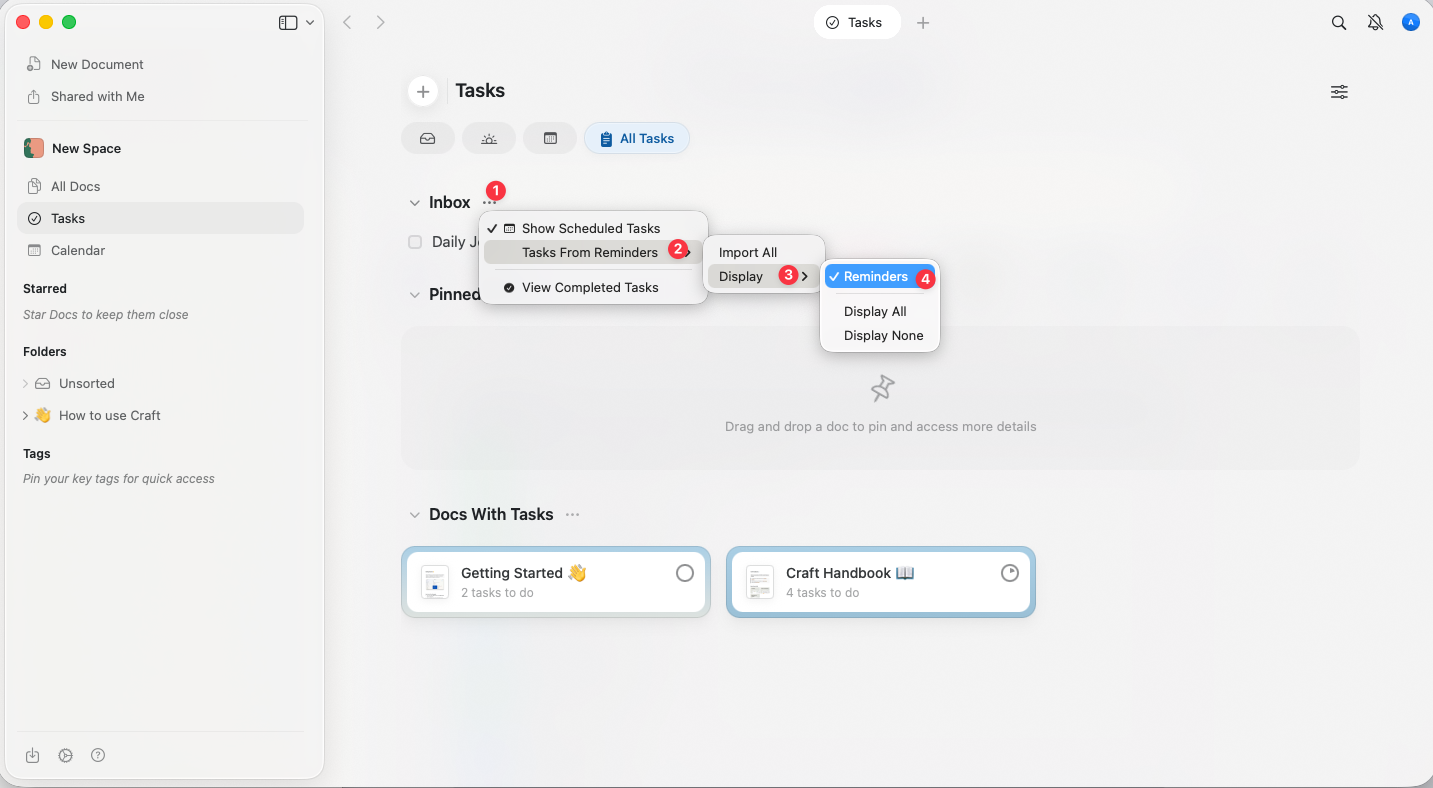 啟用後,會在 Craft 中的預設 Inbox 任務 列上方顯示一個新區段。
## 在 Craft 中檢視你的 Apple 提醒事項
所有來自 Apple 提醒事項 的任務會顯示在 Inbox 下方的一個區段中。
任務會合併顯示,無論來自哪個清單或帳號 – 都在單一統一檢視中顯示。
啟用後,會在 Craft 中的預設 Inbox 任務 列上方顯示一個新區段。
## 在 Craft 中檢視你的 Apple 提醒事項
所有來自 Apple 提醒事項 的任務會顯示在 Inbox 下方的一個區段中。
任務會合併顯示,無論來自哪個清單或帳號 – 都在單一統一檢視中顯示。
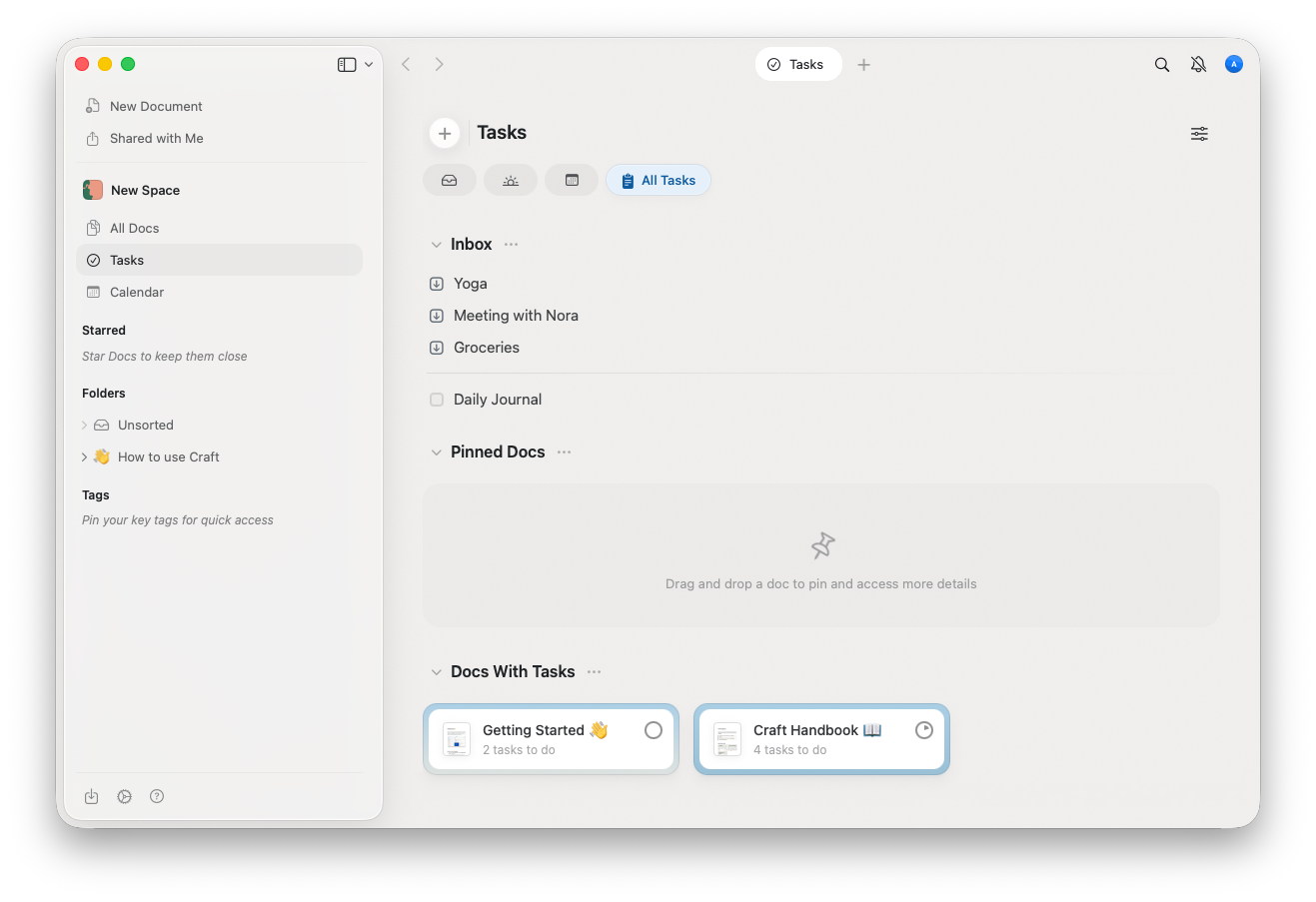 提醒事項 清單會在已登入該 Craft 應用程式的所有 空間 和 帳號 中可見。
## 將任務匯入 Craft
選取你要匯入 Craft 的任務,然後輕觸箭頭圖示將它們下載至你的 Inbox:
提醒事項 清單會在已登入該 Craft 應用程式的所有 空間 和 帳號 中可見。
## 將任務匯入 Craft
選取你要匯入 Craft 的任務,然後輕觸箭頭圖示將它們下載至你的 Inbox:
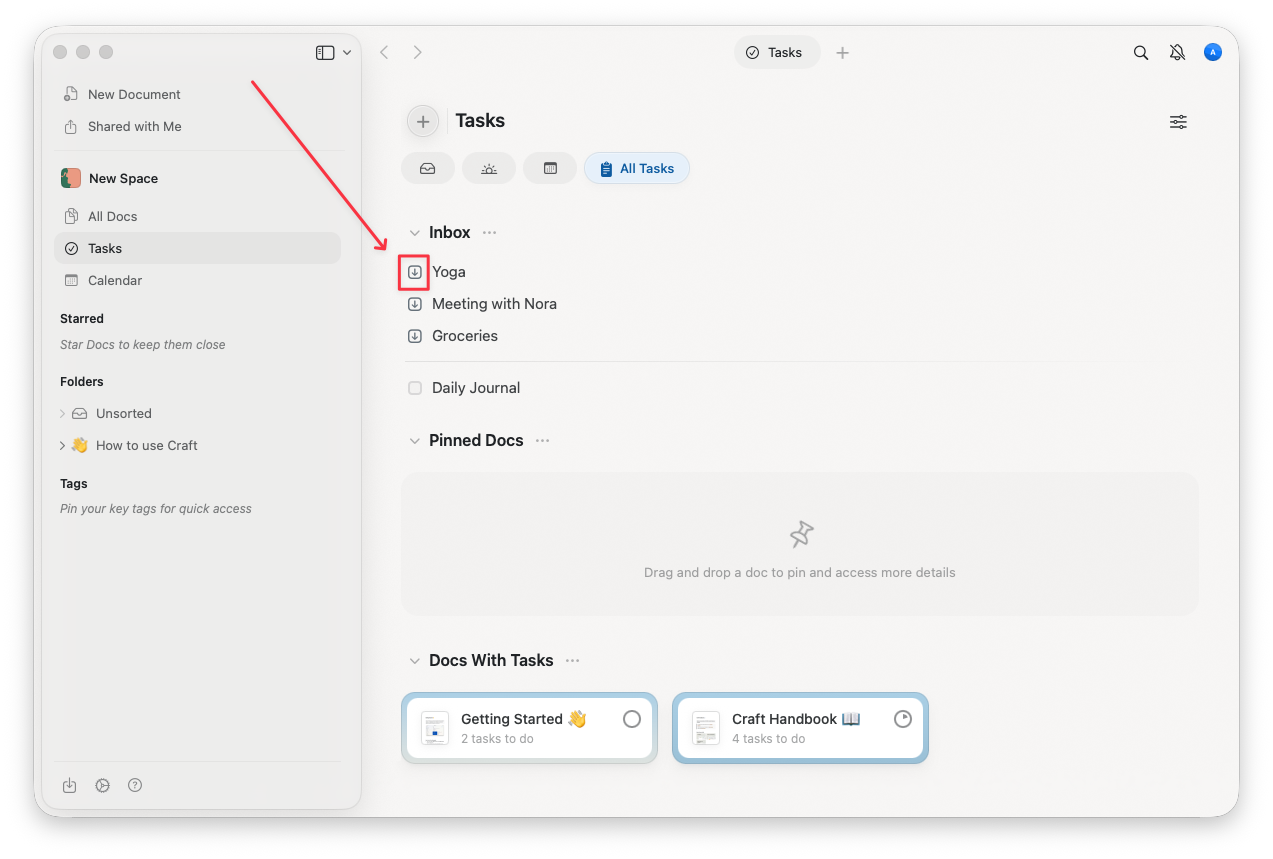 匯入後:
* 該任務將 **從 Apple 提醒事項 中刪除**
* 任務不會與 Apple 提醒事項 保持連結(僅單向同步)
## 重要細節與限制
### 單向同步
任務只能匯入到 Craft。你在 Craft 中所做的變更不會同步回 Apple 提醒事項。
### 無區分顯示
來自 Apple 提醒事項 中所有帳號與清單的任務會一併顯示在 Inbox 區段中,沒有分別顯示來源。
### 子任務
任務與子任務將以相同方式處理,並會出現在統一清單中。
### 重複任務
來自 Apple 提醒事項 的重複任務會以單一任務的形式匯入 Craft。
### 時區問題
由於時區差異,日期可能會變更。我們會在即將推出的更新中修正此問題。
### 刪除行為
一旦任務下載到 Craft,該任務會 **從 Apple 提醒事項 中刪除**。請確認此操作符合你的偏好。
## 在 Craft 中管理已匯入的任務
### Inbox
* 所有從 Apple 提醒事項 下載的任務會加入到你的 Inbox
* 從那裡,你可以:
* 指派任務到 文件
* 設定開始日期或截止日期
* 視需要整理任務
### 行事曆檢視
有開始日期的任務會自動出現在指定日期的行事曆檢視中。
## 最佳做法
### 匯入前檢查任務
在下載前請再次確認「來自提醒事項」區段中的任務。記得下載後任務會從 Apple 提醒事項 中刪除。
### 匯入後整理任務
將任務從 Inbox 移到相關文件,以便保持有條理並與適當的專案連結。
### 使用提醒事項 進行快速擷取
繼續在行動裝置上使用 Apple 提醒事項 快速擷取任務,然後在規劃時將它們匯入並在 Craft 中整理。
## 停用 Craft 存取 Apple 提醒事項
如果你需要撤銷 Craft 對提醒事項的存取權限:
打開你裝置上的 系統設定
前往 隱私與安全性 → 提醒事項
在清單中找到 Craft,將其停用
了解如何在 Craft 中管理任務
使用每日筆記按日組織任務
設定 Craft 的內建提醒系統
在行事曆檢視中查看匯入的任務
匯入後:
* 該任務將 **從 Apple 提醒事項 中刪除**
* 任務不會與 Apple 提醒事項 保持連結(僅單向同步)
## 重要細節與限制
### 單向同步
任務只能匯入到 Craft。你在 Craft 中所做的變更不會同步回 Apple 提醒事項。
### 無區分顯示
來自 Apple 提醒事項 中所有帳號與清單的任務會一併顯示在 Inbox 區段中,沒有分別顯示來源。
### 子任務
任務與子任務將以相同方式處理,並會出現在統一清單中。
### 重複任務
來自 Apple 提醒事項 的重複任務會以單一任務的形式匯入 Craft。
### 時區問題
由於時區差異,日期可能會變更。我們會在即將推出的更新中修正此問題。
### 刪除行為
一旦任務下載到 Craft,該任務會 **從 Apple 提醒事項 中刪除**。請確認此操作符合你的偏好。
## 在 Craft 中管理已匯入的任務
### Inbox
* 所有從 Apple 提醒事項 下載的任務會加入到你的 Inbox
* 從那裡,你可以:
* 指派任務到 文件
* 設定開始日期或截止日期
* 視需要整理任務
### 行事曆檢視
有開始日期的任務會自動出現在指定日期的行事曆檢視中。
## 最佳做法
### 匯入前檢查任務
在下載前請再次確認「來自提醒事項」區段中的任務。記得下載後任務會從 Apple 提醒事項 中刪除。
### 匯入後整理任務
將任務從 Inbox 移到相關文件,以便保持有條理並與適當的專案連結。
### 使用提醒事項 進行快速擷取
繼續在行動裝置上使用 Apple 提醒事項 快速擷取任務,然後在規劃時將它們匯入並在 Craft 中整理。
## 停用 Craft 存取 Apple 提醒事項
如果你需要撤銷 Craft 對提醒事項的存取權限:
打開你裝置上的 系統設定
前往 隱私與安全性 → 提醒事項
在清單中找到 Craft,將其停用
了解如何在 Craft 中管理任務
使用每日筆記按日組織任務
設定 Craft 的內建提醒系統
在行事曆檢視中查看匯入的任務