> ## Documentation Index
> Fetch the complete documentation index at: https://craft-support.mintlify.site/llms.txt
> Use this file to discover all available pages before exploring further.
# 文件、頁面與區塊
> 了解 Craft 的建構基礎以及它們如何創建靈活的文件結構。
Craft 使用三個核心概念來組織你的內容:區塊、頁面與文件。了解它們如何協同運作,將幫助你充分利用 Craft 的靈活結構。
## 理解區塊
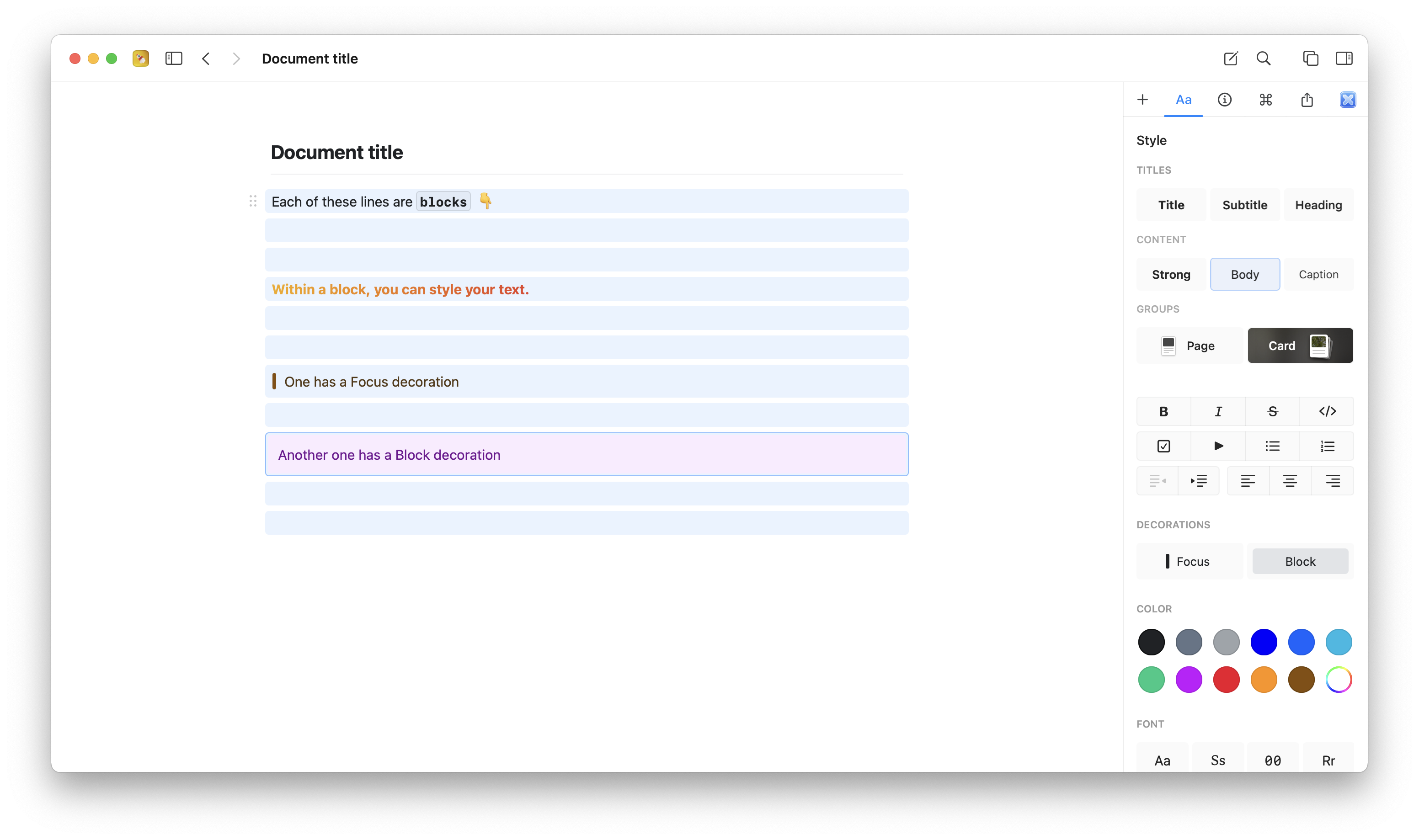
Craft 中的每個段落都是一個**區塊**。每個區塊都可以包含自己的內容並具有雙重用途:
* 作為目前頁面上的一段文字或內容
* 作為更深層頁面的標題/入口點,包含自己的巢狀內容
這種簡單的結構讓你在撰寫時自然地創建層次結構。
 ## 理解頁面
當區塊包含巢狀內容時,它就成為一個**頁面**。頁面可以像任何一般區塊一樣設定樣式,點擊它們會導覽進入內部以顯示其內容。
「頁面」文字樣式選項(連同卡片樣式)專為包含巢狀內容的區塊設計,使它們在視覺上作為入口點更加突出。
## 理解文件
**文件**是 Craft 中的頂層檔案,就像傳統的數位檔案一樣。你可以:
* 為它們加星以便快速存取
* 將它們移動到資料夾中
* 排序與整理它們
* 刪除它們(它們會進入最近刪除)
## 在文件間移動區塊
你可以透過在文件與頁面之間移動區塊來重新組織內容。
**剪下與貼上**:使用標準的剪下/貼上操作來移動區塊。
**拖放(macOS)**:在同一個空間內開啟兩個 Craft 視窗,並在它們之間拖動區塊。
## 理解頁面
當區塊包含巢狀內容時,它就成為一個**頁面**。頁面可以像任何一般區塊一樣設定樣式,點擊它們會導覽進入內部以顯示其內容。
「頁面」文字樣式選項(連同卡片樣式)專為包含巢狀內容的區塊設計,使它們在視覺上作為入口點更加突出。
## 理解文件
**文件**是 Craft 中的頂層檔案,就像傳統的數位檔案一樣。你可以:
* 為它們加星以便快速存取
* 將它們移動到資料夾中
* 排序與整理它們
* 刪除它們(它們會進入最近刪除)
## 在文件間移動區塊
你可以透過在文件與頁面之間移動區塊來重新組織內容。
**剪下與貼上**:使用標準的剪下/貼上操作來移動區塊。
**拖放(macOS)**:在同一個空間內開啟兩個 Craft 視窗,並在它們之間拖動區塊。
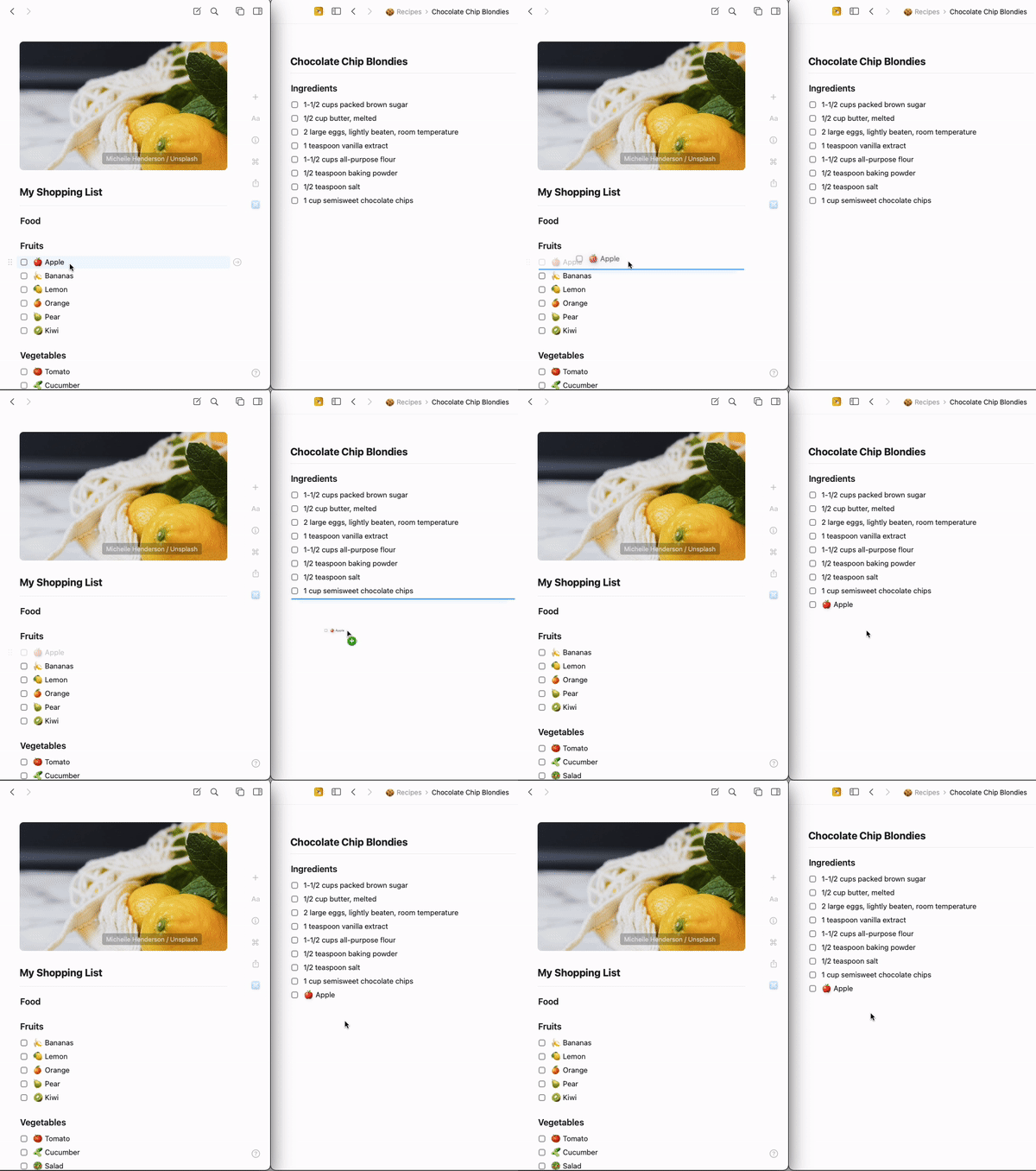 在同一個空間內移動區塊時,所有區塊連結都會保留並繼續正常運作。
## 將區塊組合成頁面
將多個區塊轉換為巢狀頁面,為你的文件創建結構。
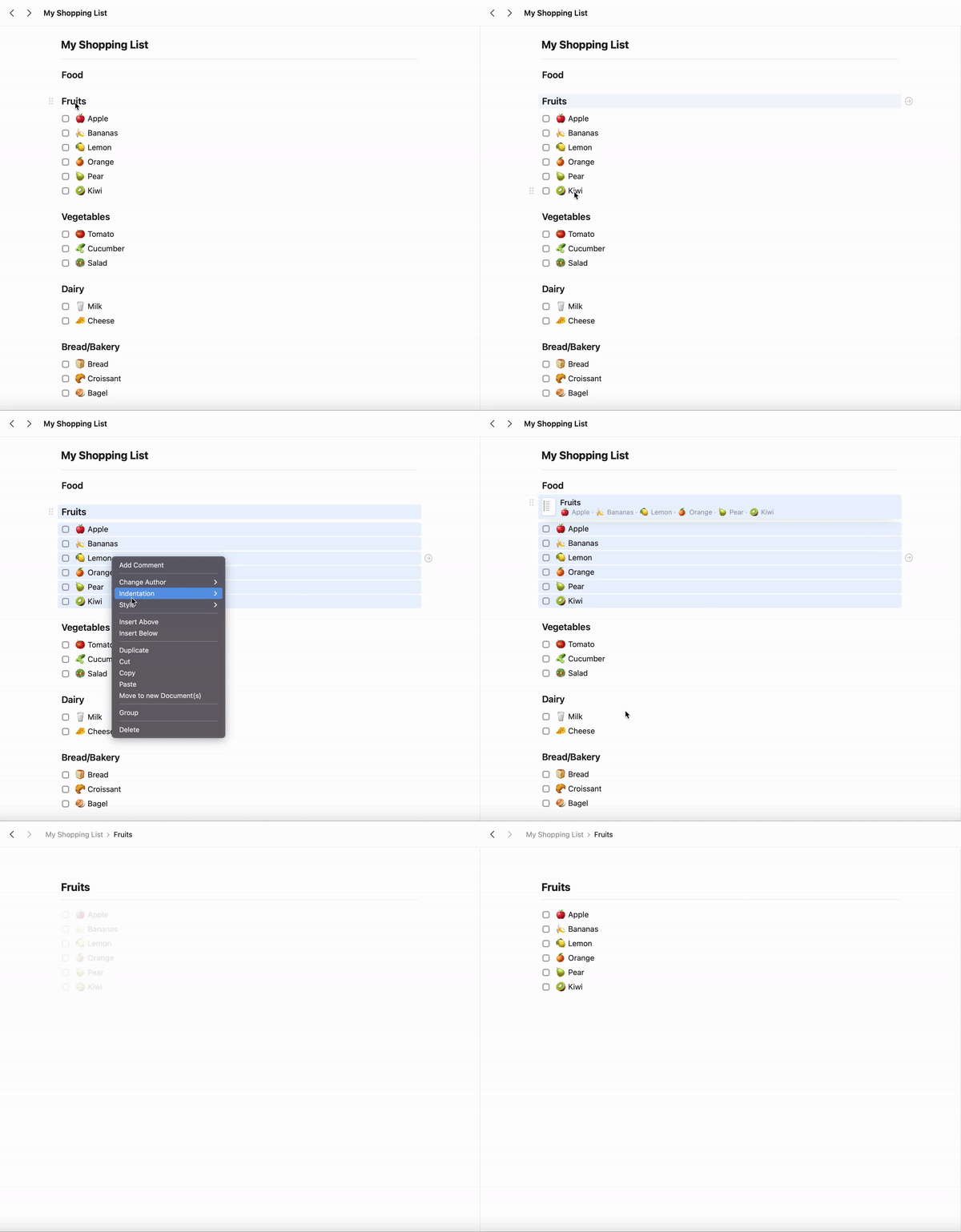
選取你想要組合的區塊(點擊並拖動,或 Shift-點擊)。
右鍵點擊選取範圍並選擇**組合**,或按下 `⌘ (Command) + G`。
這些區塊現在巢狀在一個新的父區塊下,該區塊充當頁面。
在同一個空間內移動區塊時,所有區塊連結都會保留並繼續正常運作。
## 將區塊組合成頁面
將多個區塊轉換為巢狀頁面,為你的文件創建結構。
選取你想要組合的區塊(點擊並拖動,或 Shift-點擊)。
右鍵點擊選取範圍並選擇**組合**,或按下 `⌘ (Command) + G`。
這些區塊現在巢狀在一個新的父區塊下,該區塊充當頁面。
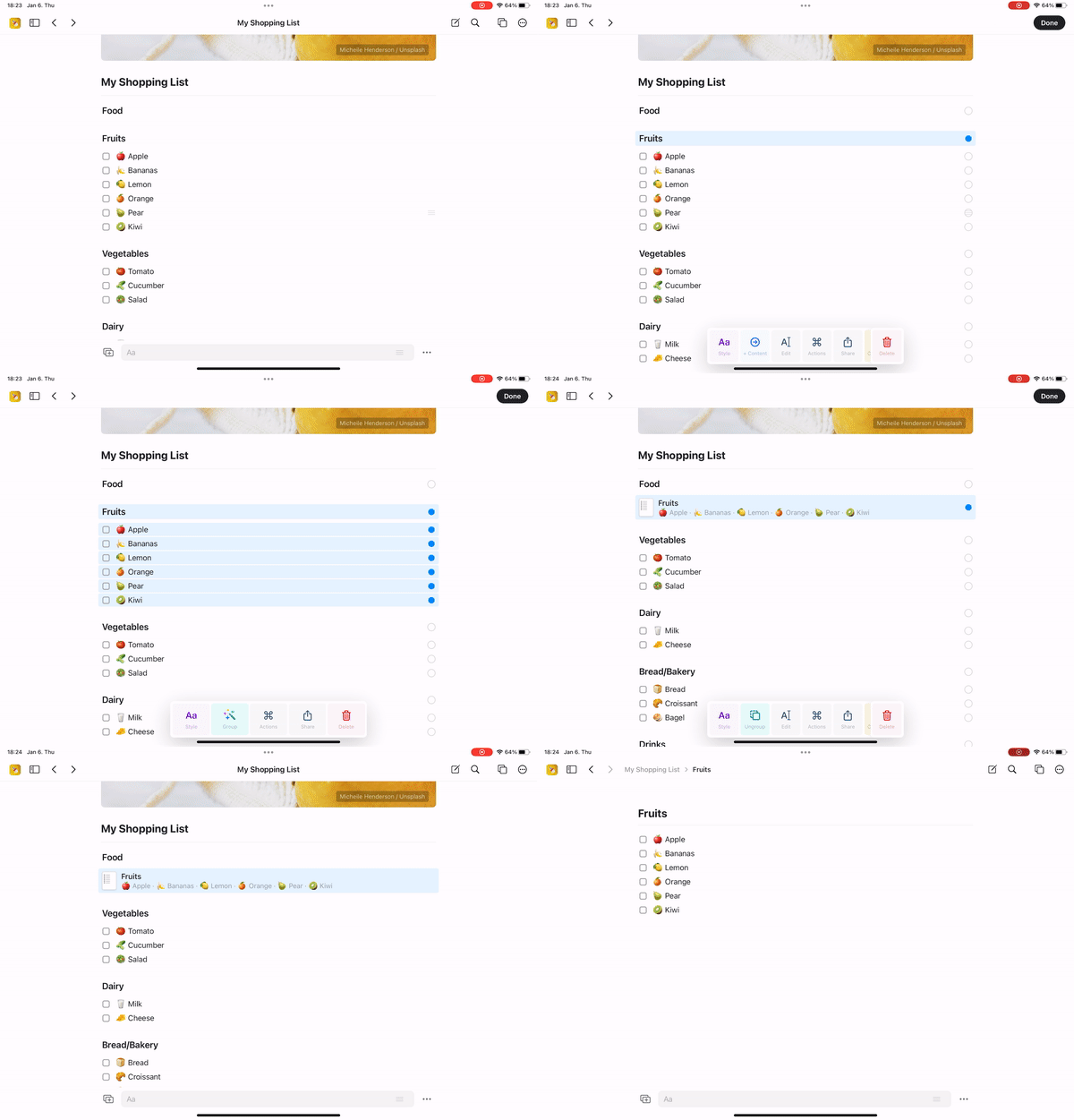
 使用滑動手勢選取多個區塊。
輕觸出現的**組合**動作。
這些區塊現在組合在一個新的父頁面下。
使用滑動手勢選取多個區塊。
輕觸出現的**組合**動作。
這些區塊現在組合在一個新的父頁面下。
 ## 重要注意事項
頁面(文件內的巢狀內容)被視為區塊,而不是獨立的文件。如果刪除,它們**不會**進入最近刪除資料夾。你可以:
* 在刪除後立即使用**復原**(`⌘ + Z`)
* 使用版本歷史記錄還原父文件的較早版本
## 開始使用
Craft 設計得很直覺。**只需像平常一樣開始撰寫**。每當你的文件變得太長或需要更多結構時,你會透過將相關區塊組合在一起自然地發現頁面的運作方式。
Learn how to create, delete, and organize documents
Explore folders, tags, and spaces for organizing content
## 重要注意事項
頁面(文件內的巢狀內容)被視為區塊,而不是獨立的文件。如果刪除,它們**不會**進入最近刪除資料夾。你可以:
* 在刪除後立即使用**復原**(`⌘ + Z`)
* 使用版本歷史記錄還原父文件的較早版本
## 開始使用
Craft 設計得很直覺。**只需像平常一樣開始撰寫**。每當你的文件變得太長或需要更多結構時,你會透過將相關區塊組合在一起自然地發現頁面的運作方式。
Learn how to create, delete, and organize documents
Explore folders, tags, and spaces for organizing content