> ## Documentation Index
> Fetch the complete documentation index at: https://craft-support.mintlify.site/llms.txt
> Use this file to discover all available pages before exploring further.

# 管理文件

> 在多個平台上建立、整理、刪除並分享你的 Craft 文件。

文件是你在 Craft 中工作的基礎。本指南涵蓋管理文件的基本操作。

## 建立文件

<Tabs>
  <Tab title="macOS">
    你可以透過以下幾種方式建立新文件：

    * 點擊視窗頂端中央的 **New Document** 圖示
    * 在左側側邊欄點擊 **New Document** 圖示
    * 使用鍵盤快速鍵 `⌘ (Command) + N`
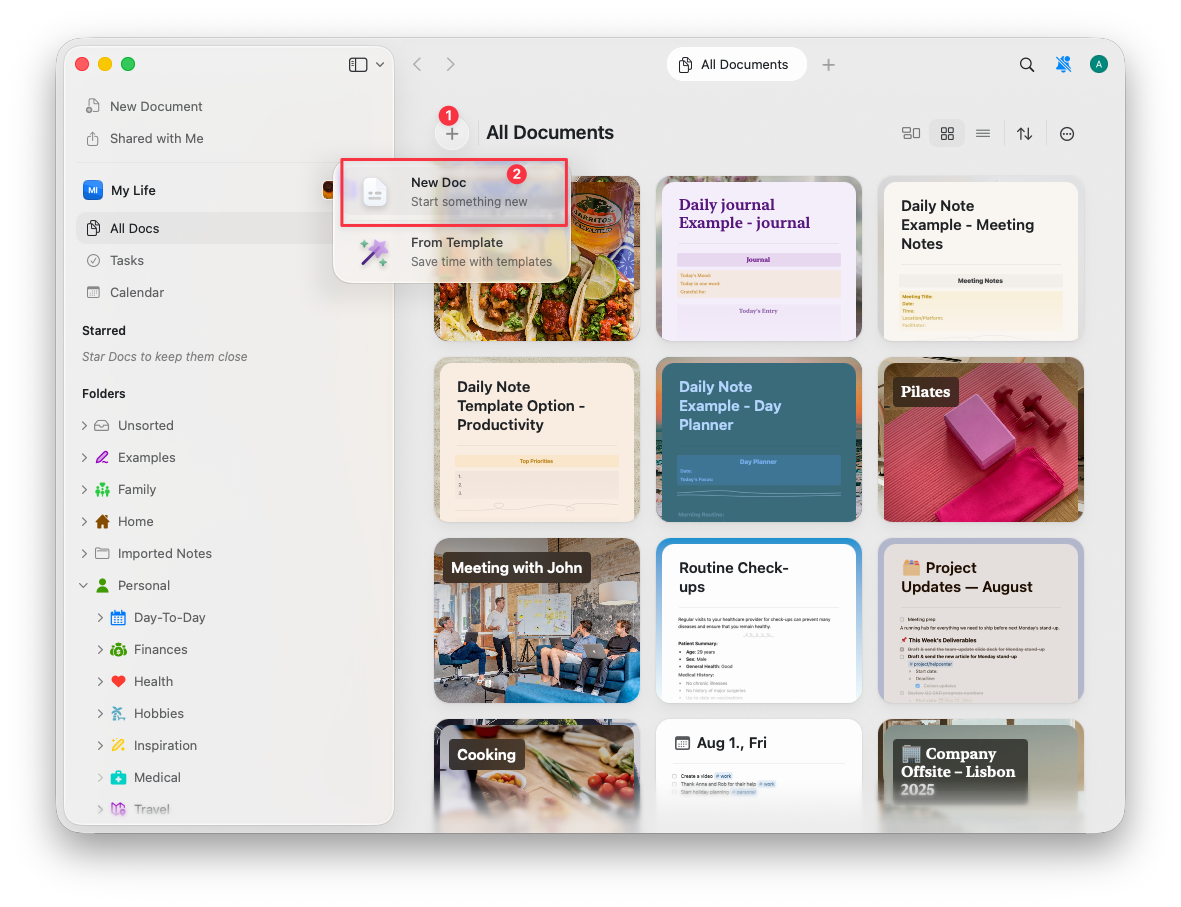
          <img src="https://mintcdn.com/craft-support/4lRkwRvDwE7Wr43k/images/introduction/documents/manage/en/content/create-macos.png?fit=max&auto=format&n=4lRkwRvDwE7Wr43k&q=85&s=7be3b09513dfc1bd4fcaff672c6aeab9" alt="New document options in macOS interface" width="1181" height="907" data-path="images/introduction/documents/manage/en/content/create-macos.png" />
  </Tab>

  <Tab title="iOS">
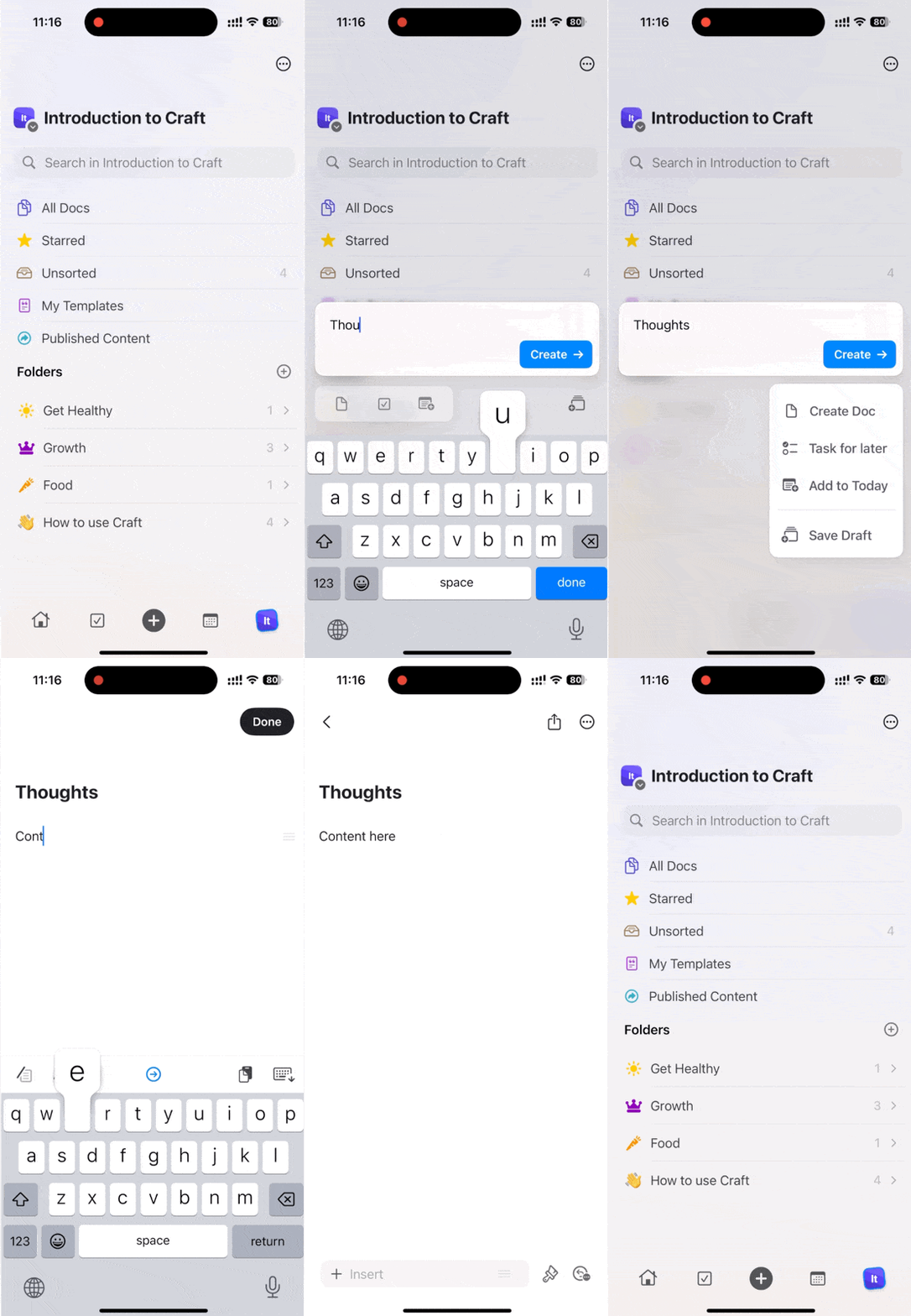
    可透過下列方式在 iOS 上建立新文件：

    * 輕觸螢幕頂端的 **New Document** 圖示
    * 在底部工具列中央輕觸 **+** 圖示
    * 若使用外接鍵盤，按下 `⌘ (Command) + N`

          <img src="https://mintcdn.com/craft-support/4lRkwRvDwE7Wr43k/images/introduction/documents/manage/en/content/create-ios.gif?s=85a9cb562d0583e024a7a8149408a96b" alt="Creating a new document on iOS" width="370" height="800" data-path="images/introduction/documents/manage/en/content/create-ios.gif" />
  </Tab>
</Tabs>

## 刪除文件

<Tabs>
  <Tab title="macOS">
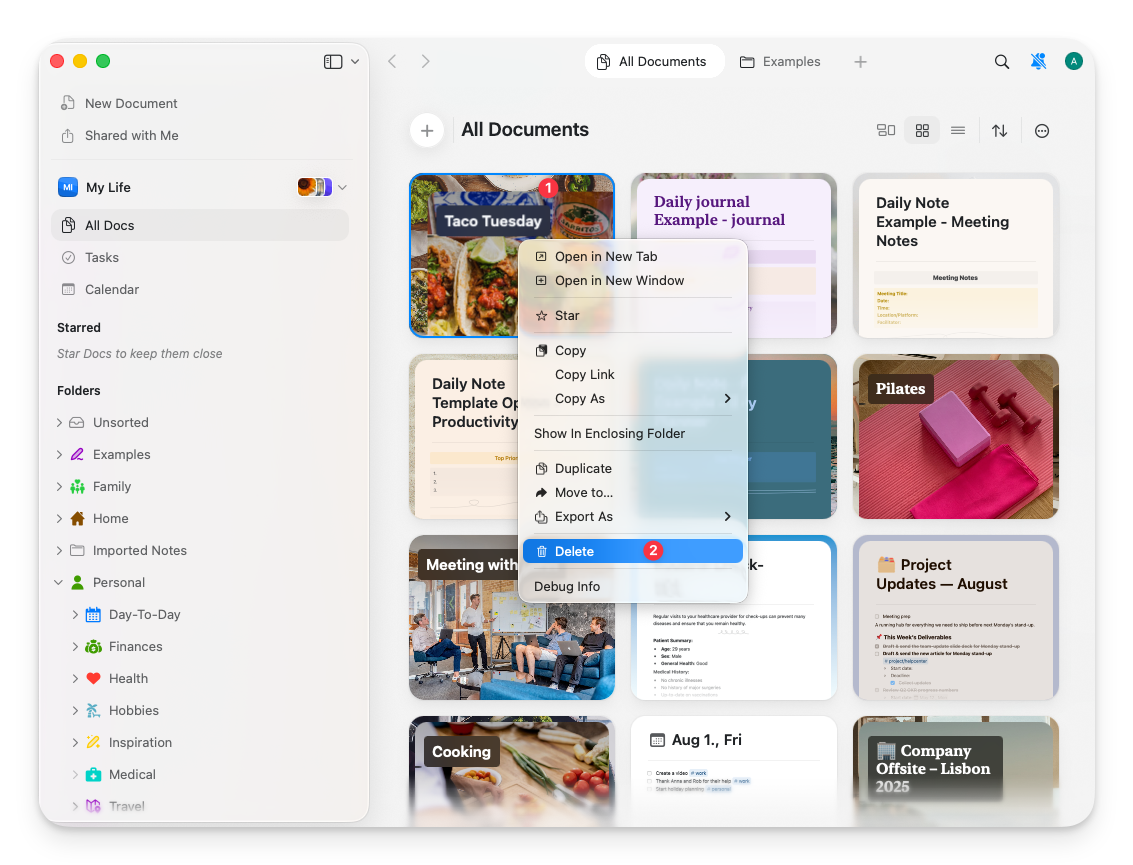
    **從側邊欄：**

    右鍵點擊該文件然後選擇 **Delete**，或選取文件後按下 Delete 鍵。

    <img src="https://mintcdn.com/craft-support/4lRkwRvDwE7Wr43k/images/introduction/documents/manage/en/content/delete-macos.png?fit=max&auto=format&n=4lRkwRvDwE7Wr43k&q=85&s=f03cec71756b4a52286d813df7f883b4" alt="Delete option in right-click context menu" width="1133" height="865" data-path="images/introduction/documents/manage/en/content/delete-macos.png" />

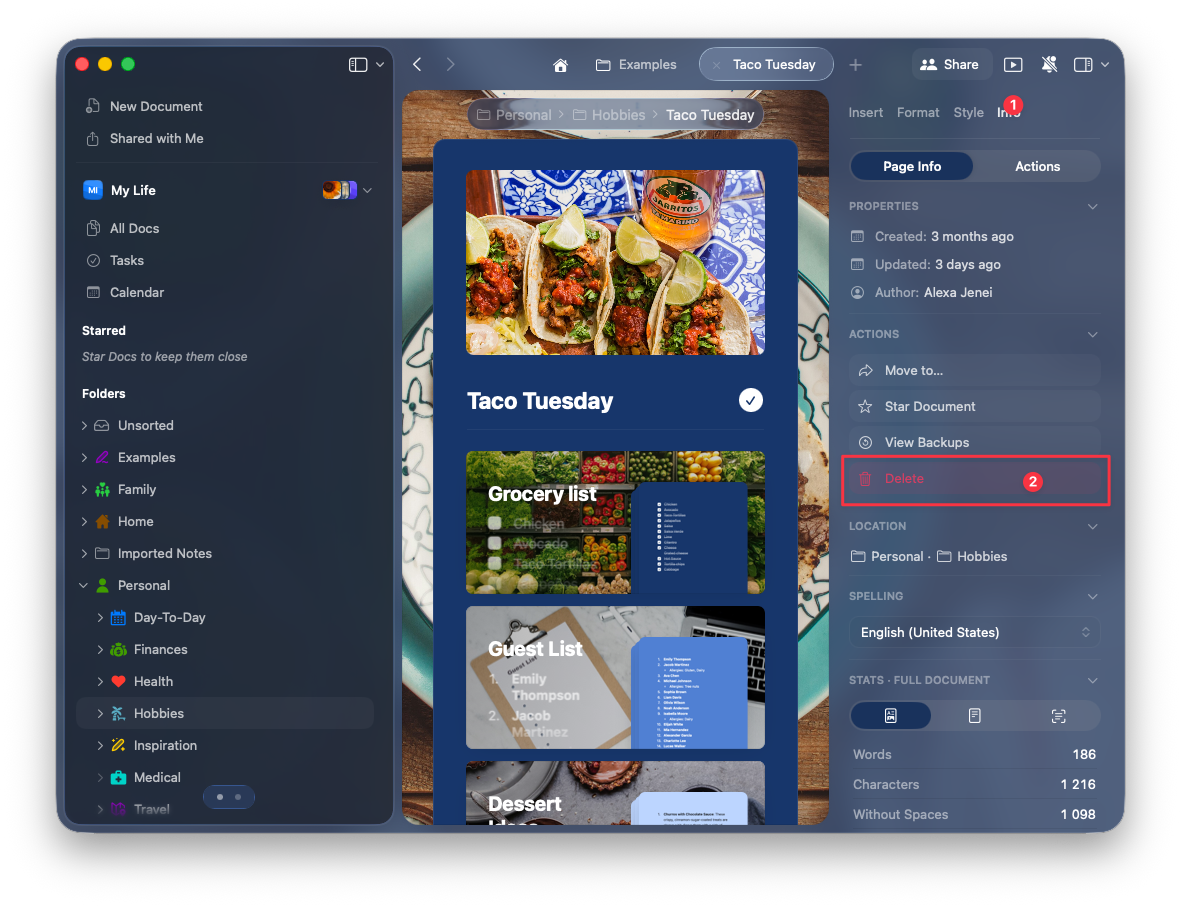
    **在文件內：**

    點擊左側側邊欄的資訊圖示，然後選擇 **Delete**。

    <img src="https://mintcdn.com/craft-support/4lRkwRvDwE7Wr43k/images/introduction/documents/manage/en/content/delete-macos-info.png?fit=max&auto=format&n=4lRkwRvDwE7Wr43k&q=85&s=692af15537d2e0562ba68df5b9788fc6" alt="Delete button in document info panel" width="1181" height="907" data-path="images/introduction/documents/manage/en/content/delete-macos-info.png" />
  </Tab>

  <Tab title="iOS">
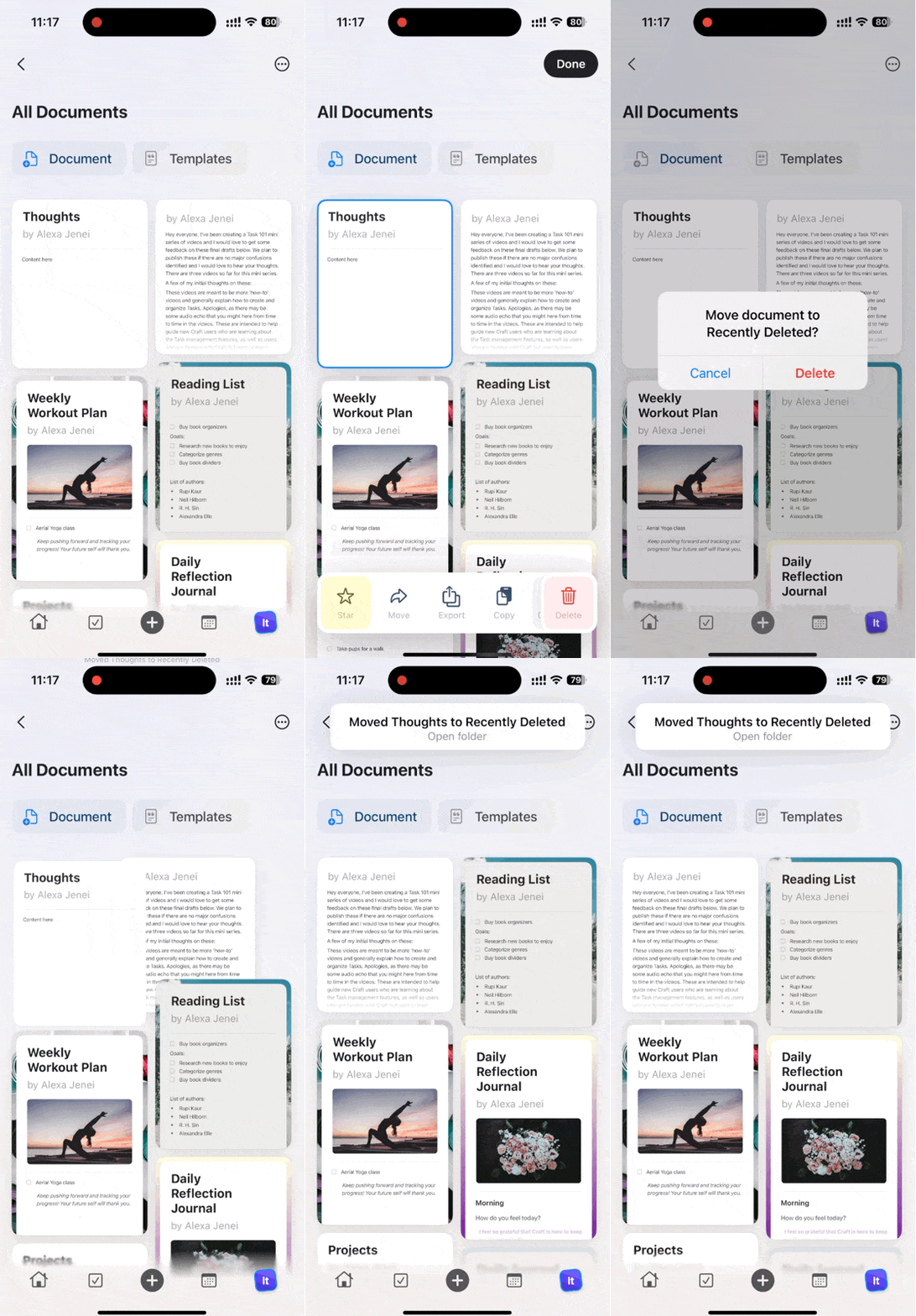
    **從文件清單：**

    向左或向右滑動文件，然後輕觸 **Delete**。

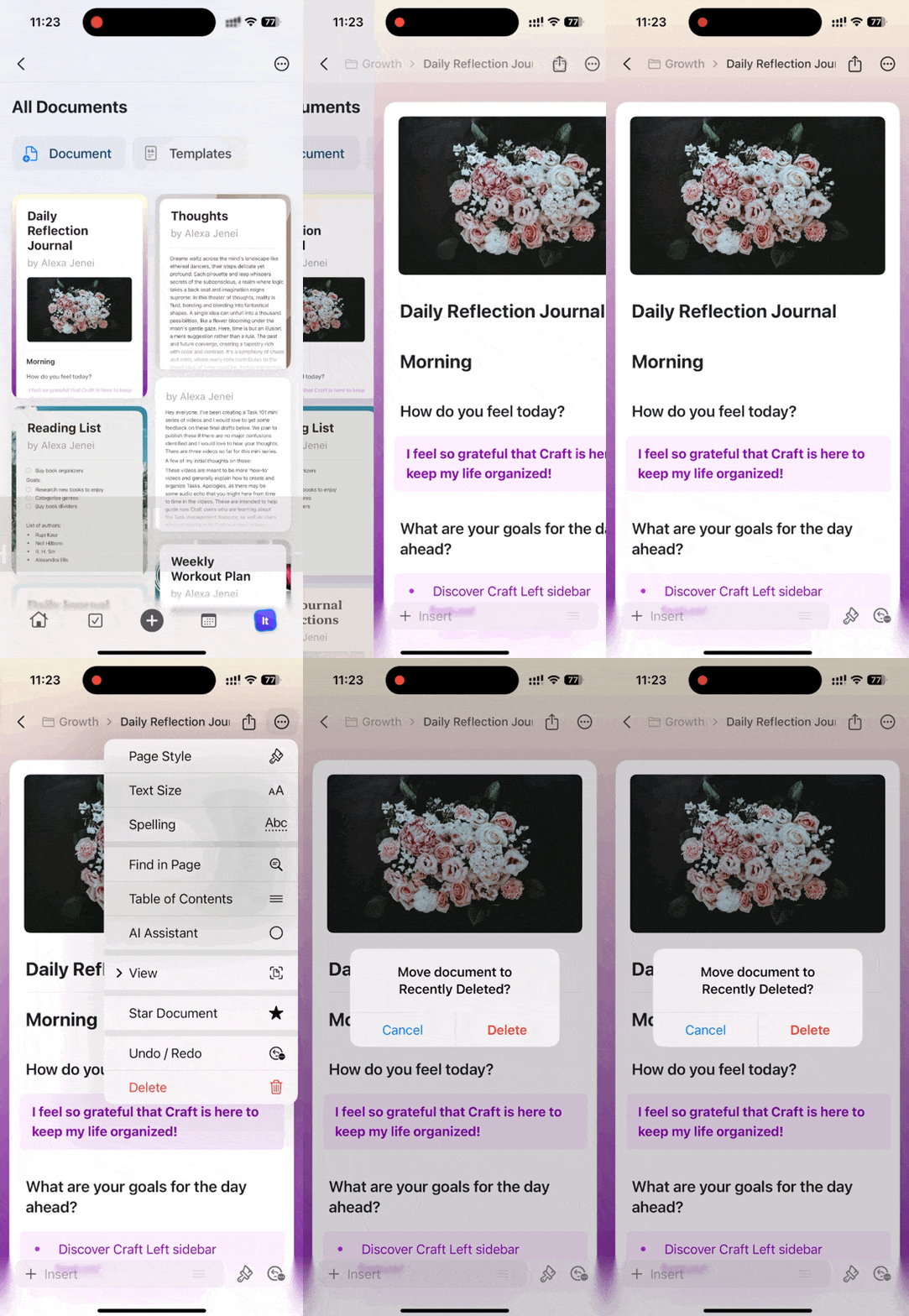
    <img src="https://mintcdn.com/craft-support/4lRkwRvDwE7Wr43k/images/introduction/documents/manage/en/content/delete-ios.gif?s=af34a07788b7fc987a52123eeb61c715" alt="Swipe to delete gesture on iOS" width="372" height="800" data-path="images/introduction/documents/manage/en/content/delete-ios.gif" />

    **在文件內：**

    開啟文件詳細資訊，然後輕觸 **Delete**。

    <img src="https://mintcdn.com/craft-support/4lRkwRvDwE7Wr43k/images/introduction/documents/manage/en/content/delete-ios-details.gif?s=2741d3b1af48f6e45e24d3ad397fe53c" alt="Deleting from document details on iOS" width="369" height="800" data-path="images/introduction/documents/manage/en/content/delete-ios-details.gif" />
  </Tab>
</Tabs>

<Info title="最近刪除">
  被刪除的文件會移至 **最近刪除** 資料夾，可在 30 天內還原，之後將永久刪除。
</Info>

## 標注文件（加星）

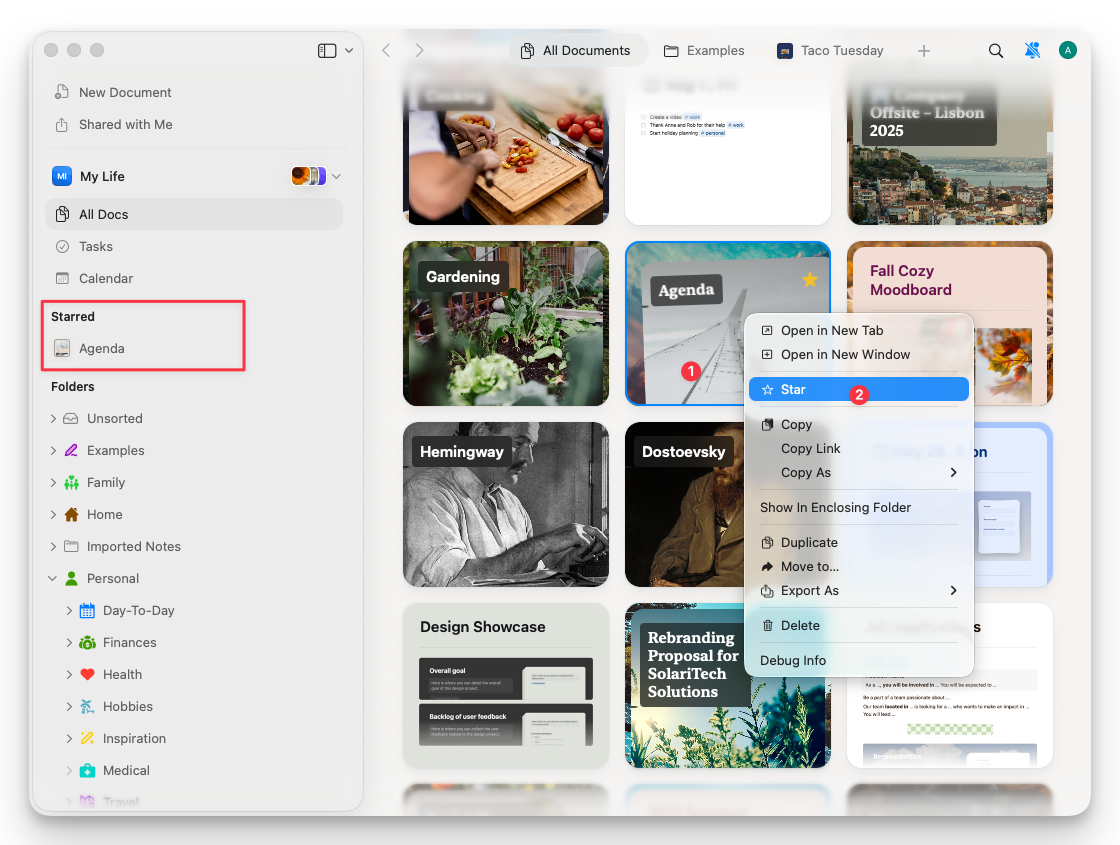
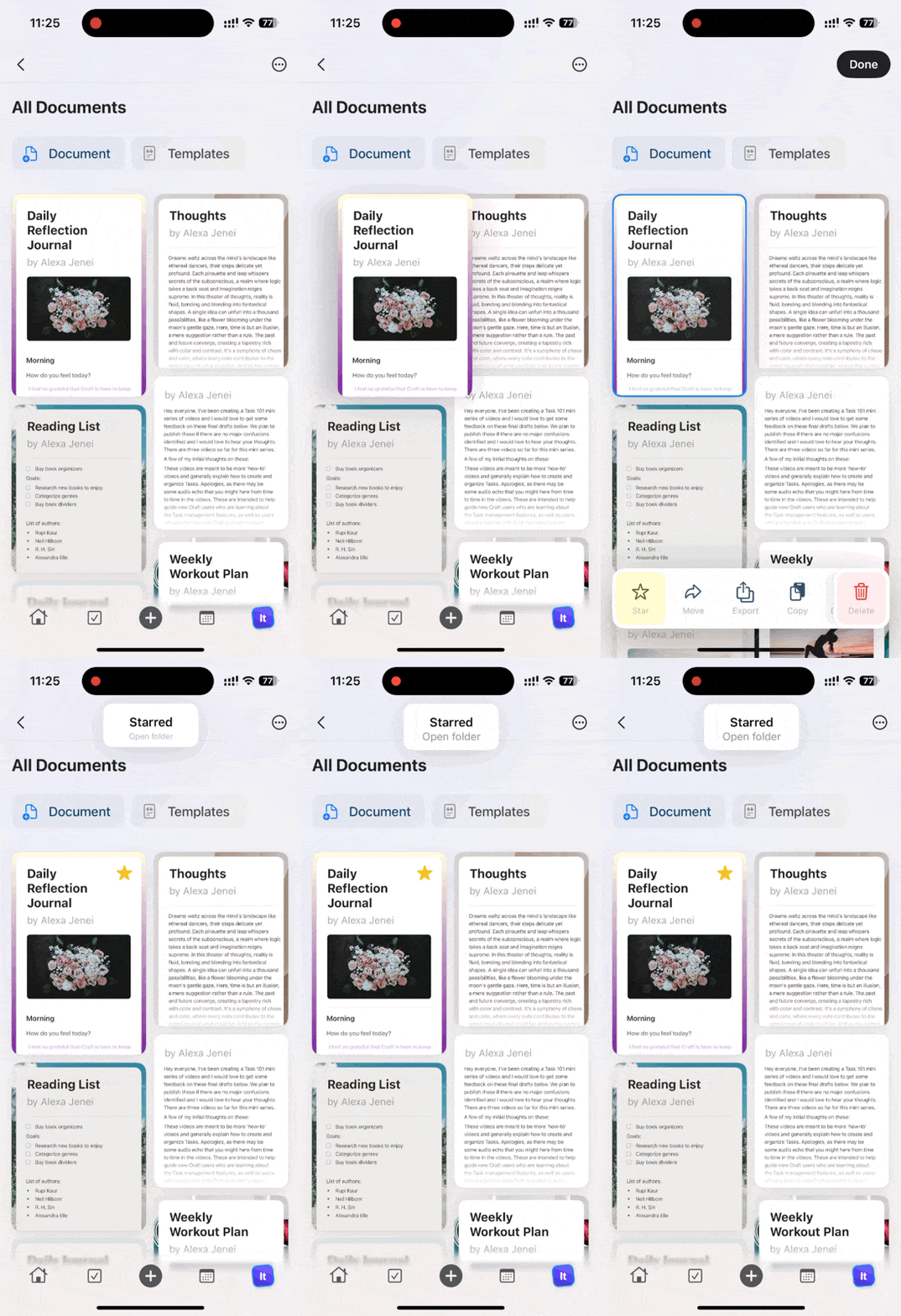
將重要的文件標記為星號，便可從 **已加星** 資料夾快速存取。

<Tabs>
  <Tab title="macOS">
    在文件上右鍵點擊，然後從選單中選擇 **Star**。已加星的文件會出現在側邊欄的 **已加星** 資料夾中。
    <img src="https://mintcdn.com/craft-support/4lRkwRvDwE7Wr43k/images/introduction/documents/manage/en/content/star-macos.png?fit=max&auto=format&n=4lRkwRvDwE7Wr43k&q=85&s=f49e655687403b180ea91bda0f83661b" alt="Star option in context menu" width="1120" height="845" data-path="images/introduction/documents/manage/en/content/star-macos.png" />
  </Tab>

  <Tab title="iOS">
    在文件上向左或向右滑動，然後輕觸 **Star**。所有已加星的文件可在 **已加星** 資料夾中找到。
    <img src="https://mintcdn.com/craft-support/4lRkwRvDwE7Wr43k/images/introduction/documents/manage/en/content/star-ios.gif?s=0427cd69a63ab4bea3a64990e15f62c8" alt="Starring a document with swipe gesture" width="366" height="800" data-path="images/introduction/documents/manage/en/content/star-ios.gif" />
  </Tab>
</Tabs>

## 分享文件

<Tabs>
  <Tab title="macOS">
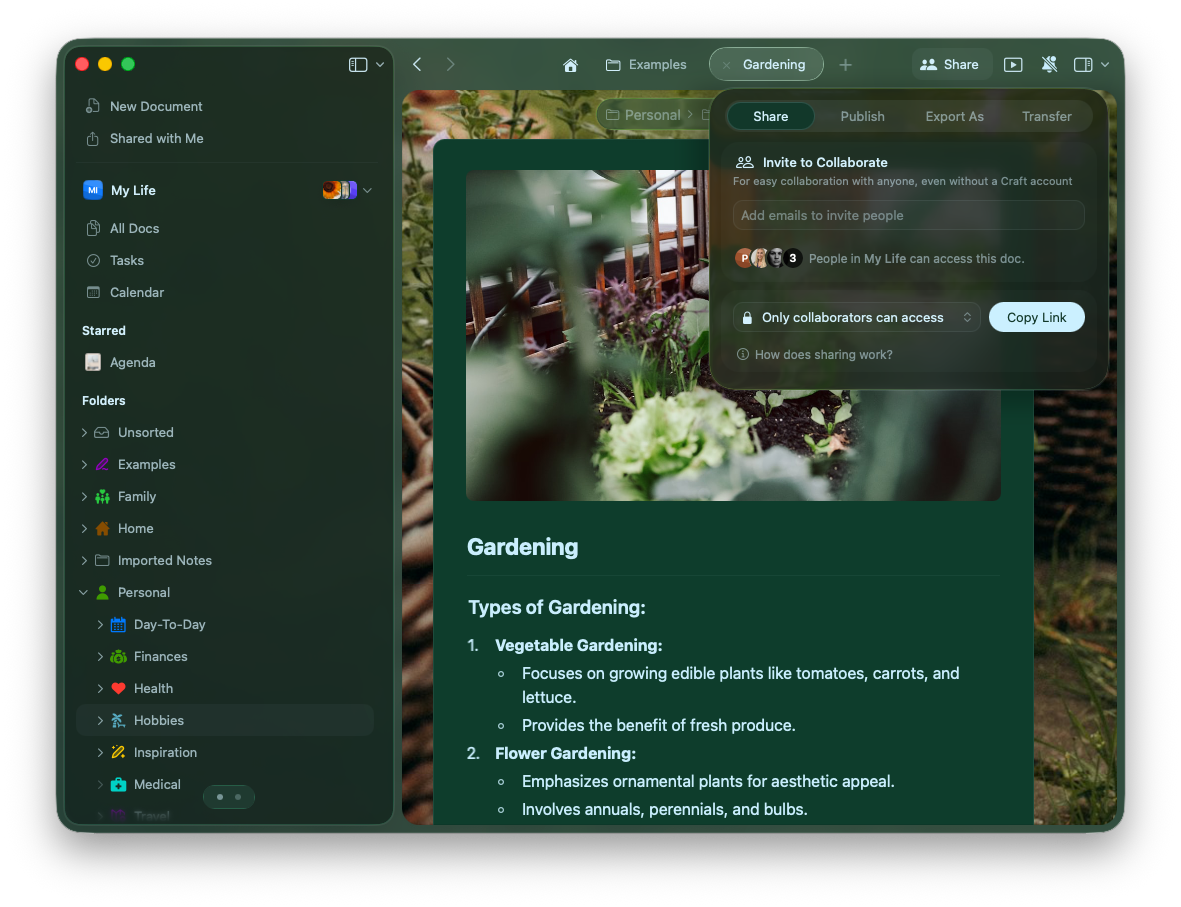
    開啟文件，然後點擊右上角的 **Share** 按鈕。

    <img src="https://mintcdn.com/craft-support/4lRkwRvDwE7Wr43k/images/introduction/documents/manage/en/content/share-macos.png?fit=max&auto=format&n=4lRkwRvDwE7Wr43k&q=85&s=0f9ab40e2bd5bf488dda705f096f0f3c" alt="Share button and sharing options panel" width="1181" height="907" data-path="images/introduction/documents/manage/en/content/share-macos.png" />

    選擇你的分享權限：

    * **Only collaborators** – 限制存取僅供被邀請成員
    * **Anyone with the link can view** – 允許僅檢視（無編輯）
    * **Anyone with the link can edit** – 允許共同編輯

    <Info title="其他選項">
      你也可以從相同的選單進行 Publish、Export 或 Transfer 文件。
    </Info>
  </Tab>

  <Tab title="iOS">
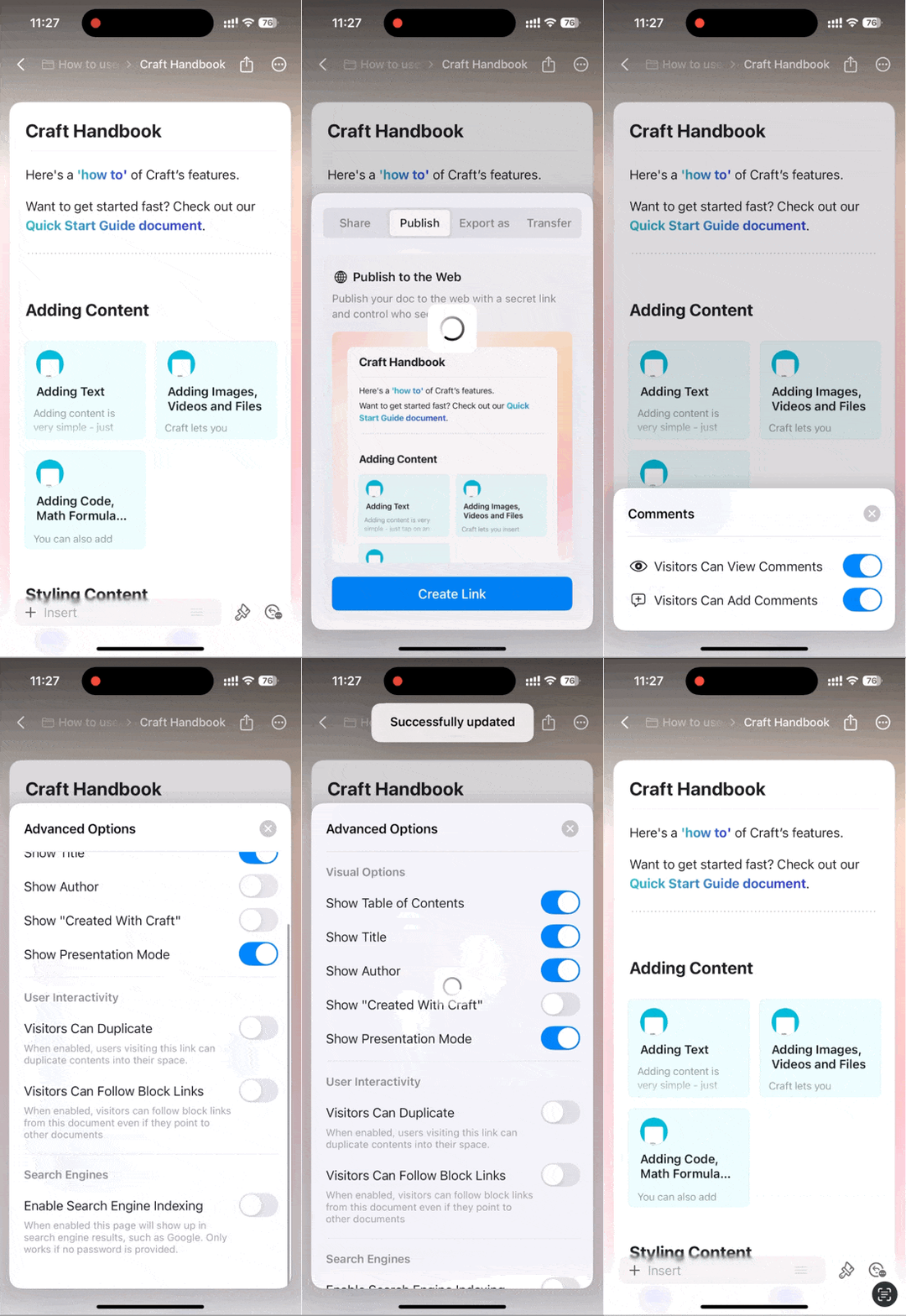
    開啟文件，然後輕觸右上角的分享圖示（頁面帶箭頭）。

    <img src="https://mintcdn.com/craft-support/4lRkwRvDwE7Wr43k/images/introduction/documents/manage/en/content/share-ios.gif?s=4d0db73c89b123b39fc2617e7f737f5e" alt="Share menu on iOS" width="368" height="800" data-path="images/introduction/documents/manage/en/content/share-ios.gif" />

    輕觸 **Comments** 分頁以設定協作限制。使用 **Advanced Options** 可設定例如是否顯示文件作者等選項。

    <Warning title="iOS 限制">
      iOS 版本目前僅支援「僅留言」的分享模式。完整的檢視/編輯權限僅在 macOS 與 Web 上提供。
    </Warning>
  </Tab>
</Tabs>

## 目錄（Table of Contents）

每個文件會根據標題自動產生目錄。

### macOS

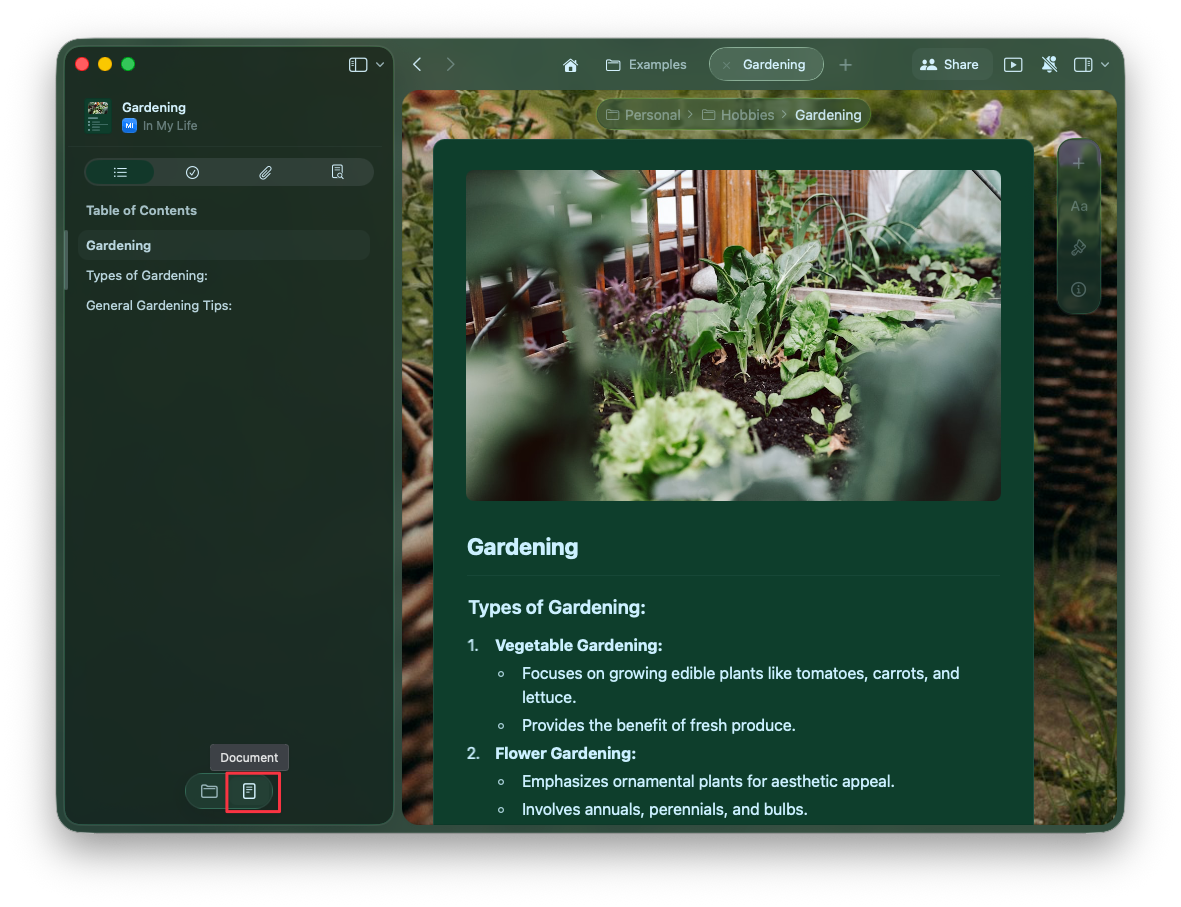
目錄會顯示在左側側邊欄。點擊左上角的 Sidebar Toggle 以切換以下檢視：

* **Document view** - 顯示目前文件的目錄
* **Folder view** - 顯示你在空間中的資料夾結構
<img src="https://mintcdn.com/craft-support/4lRkwRvDwE7Wr43k/images/introduction/documents/manage/en/content/toc-sidebar.png?fit=max&auto=format&n=4lRkwRvDwE7Wr43k&q=85&s=9ef233ad5b9fe7dd5d2b8bc0ef050a5e" alt="Sidebar showing table of contents and folder views" width="1181" height="907" data-path="images/introduction/documents/manage/en/content/toc-sidebar.png" />

你也可以以水平方向滑動來在這些檢視間切換。

<CardGroup cols={2}>
  <Card title="使用資料夾來整理" href="/zh-Hant/organize-and-find/spaces">
    了解如何在資料夾與空間中整理文件
  </Card>

  <Card title="透過分享進行協作" href="/zh-Hant/share-and-publish/share">
    探索進階的分享與協作功能
  </Card>
</CardGroup>