> ## Documentation Index
> Fetch the complete documentation index at: https://craft-support.mintlify.site/llms.txt
> Use this file to discover all available pages before exploring further.
# 評論與通知
> 使用評論與通知在共用文件上協作,並掌握最新動態。
評論與通知能協助您在共用文件上與合作者溝通,不論是與家人、朋友或 Team 成員一起工作。
## 新增評論
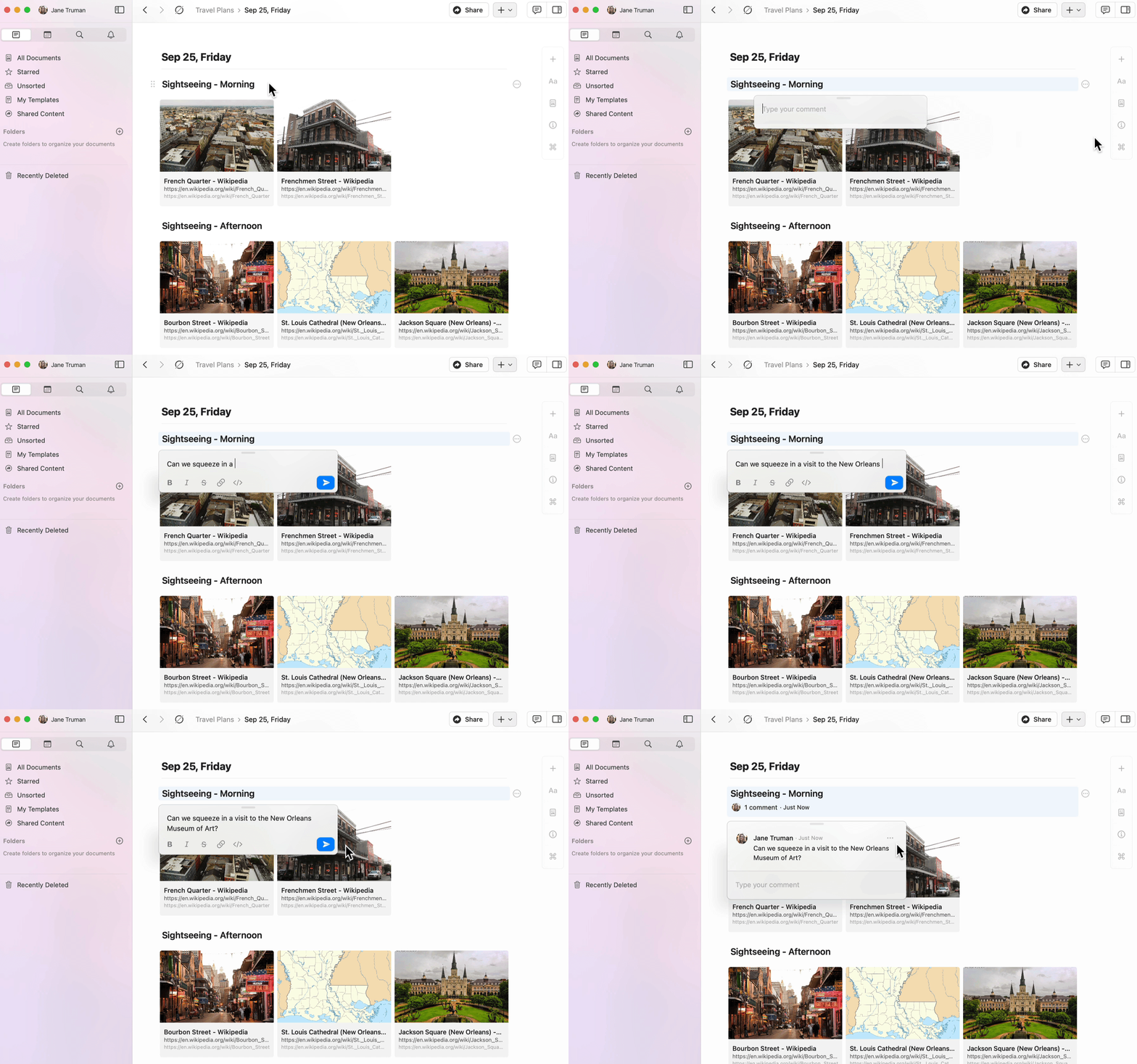
您可以在共用文件的任一區塊新增評論。
點擊選取一個區塊的內容。
輕觸區塊選單中的 three-dot menu (⋯)。
選擇 **Add comment**。
 ## 評論格式化
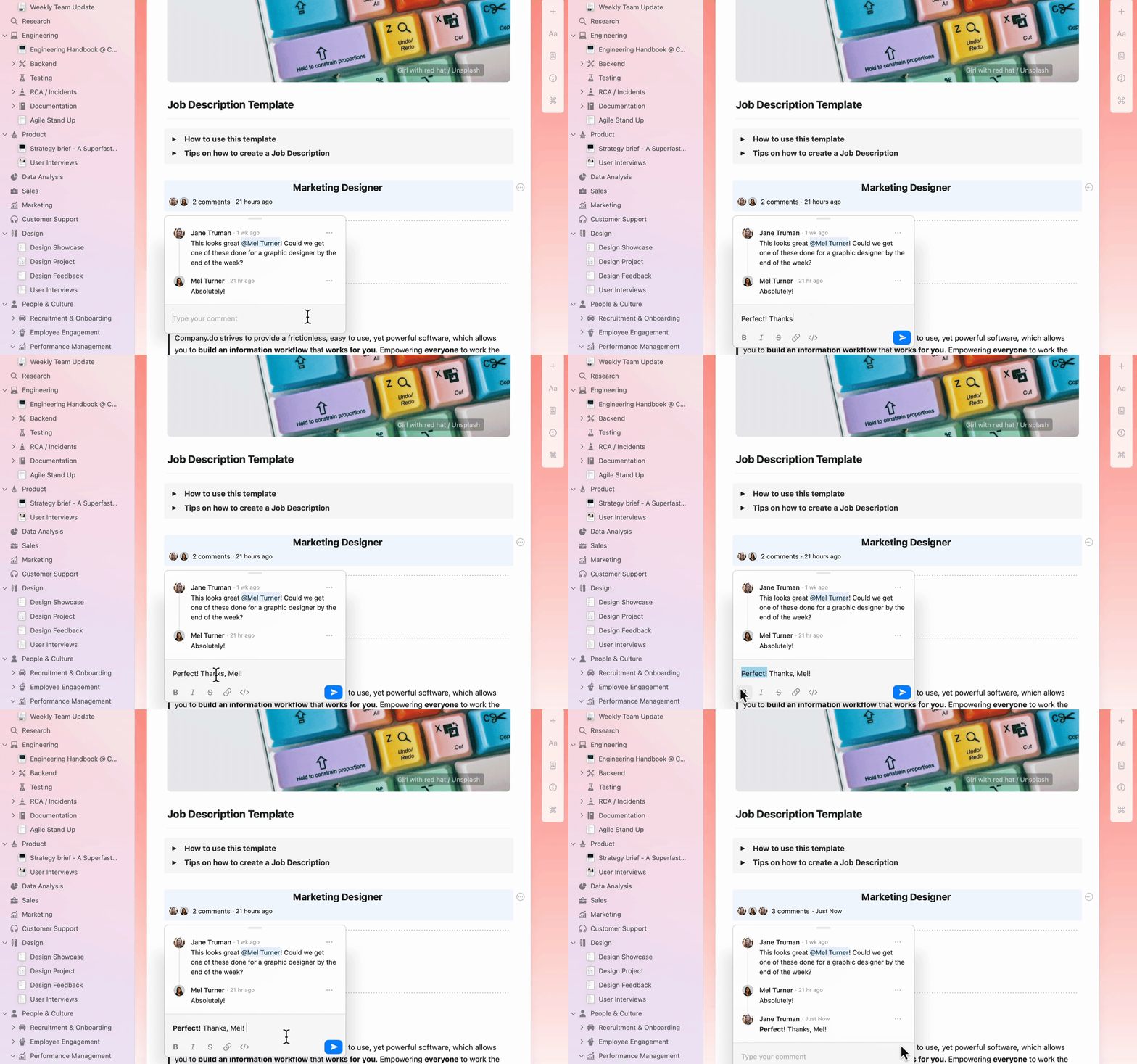
評論支援基本文字格式,幫助您更有效表達:
* **粗體**、*斜體* 與 ~~刪除線~~
* 連結
* 行內程式碼
## 評論格式化
評論支援基本文字格式,幫助您更有效表達:
* **粗體**、*斜體* 與 ~~刪除線~~
* 連結
* 行內程式碼
 ## 檢視通知
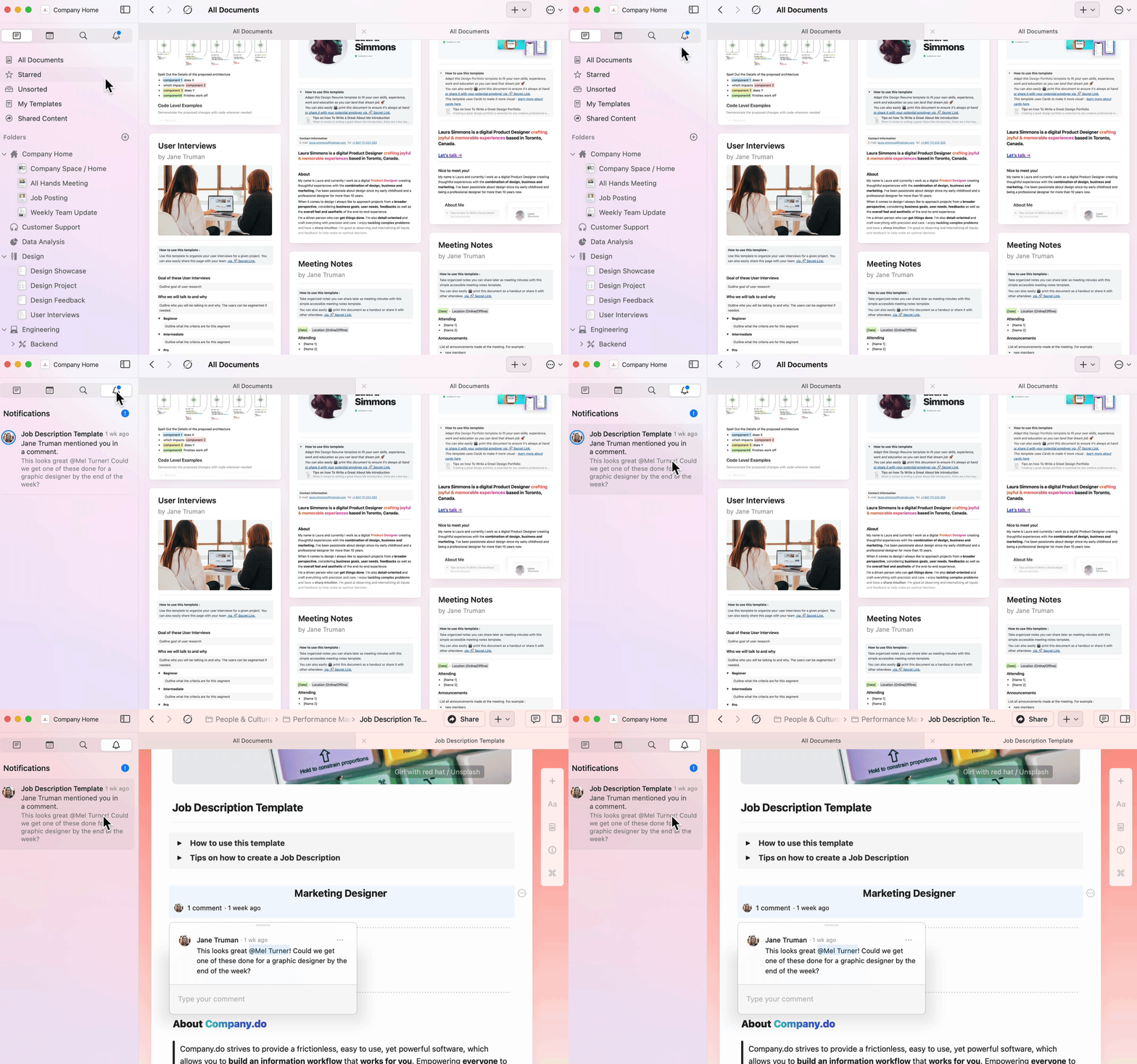
通知面板可讓您快速檢視共用文件上的所有活動。
前往側邊欄中的通知鈴鐺圖示。
檢視您在所有 空間 中的所有未讀通知。
點擊任一通知即可直接跳至相關文件與評論。
應用程式圖示會顯示徽章,標示您在所有 空間 中的未讀通知數量。
## 檢視通知
通知面板可讓您快速檢視共用文件上的所有活動。
前往側邊欄中的通知鈴鐺圖示。
檢視您在所有 空間 中的所有未讀通知。
點擊任一通知即可直接跳至相關文件與評論。
應用程式圖示會顯示徽章,標示您在所有 空間 中的未讀通知數量。
 您會在下列情況收到通知:
* 有人在您建立的 區塊 上發表評論
* 有人在評論或文件中提到您
## 回覆評論
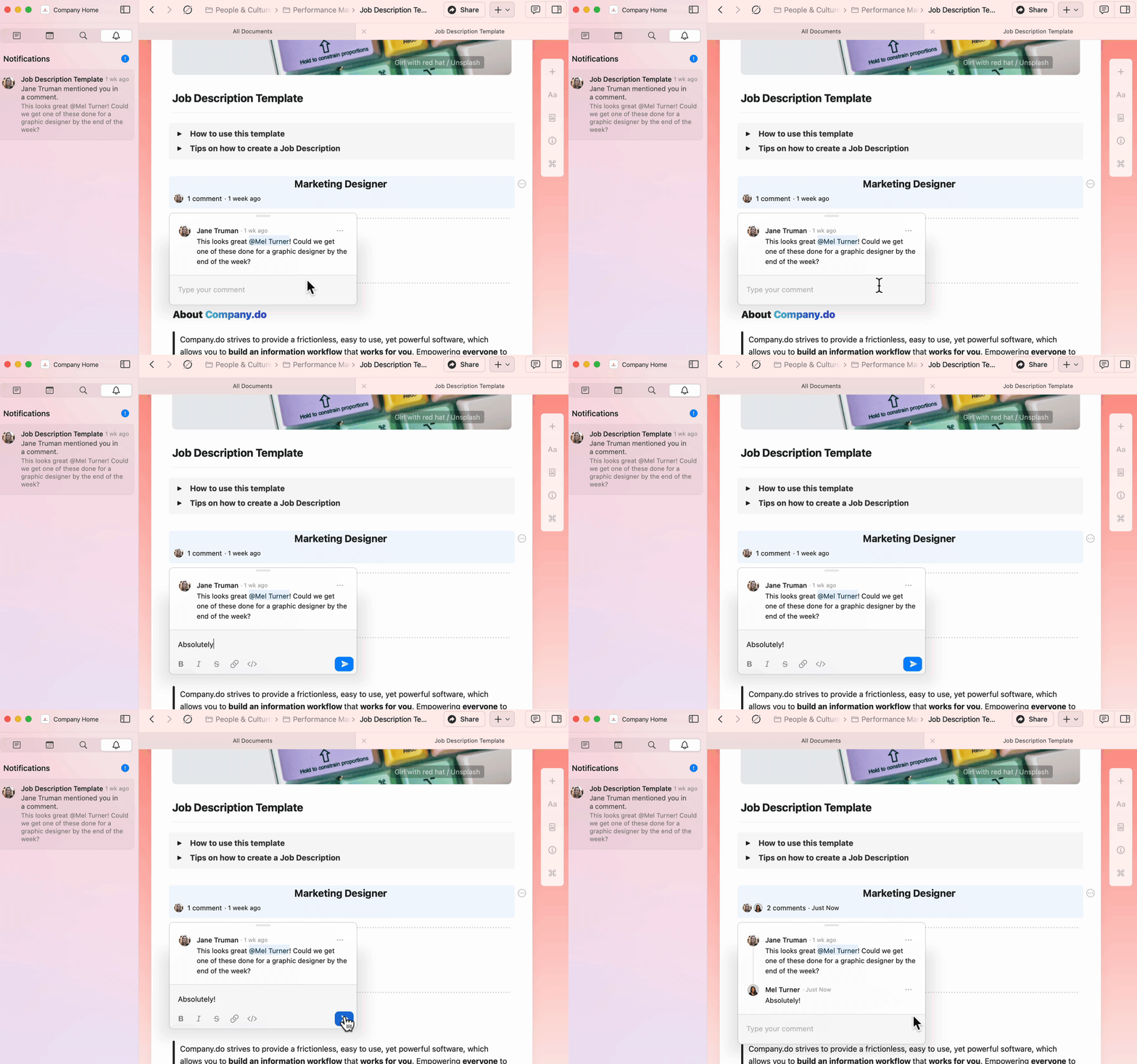
可從通知面板直接前往評論,並在原位回覆。
您會在下列情況收到通知:
* 有人在您建立的 區塊 上發表評論
* 有人在評論或文件中提到您
## 回覆評論
可從通知面板直接前往評論,並在原位回覆。
 ## 電子郵件通知
電子郵件通知每小時發送,包含前一時段內的所有未讀通知。
若要啟用或停用電子郵件通知:
前往 **Preferences**(macOS)或 **設定**(iOS/Web/Windows)。
在 **Space Management** 下,選取您要設定的 空間 。
前往 **Space Settings**。
將 **Email notifications** 開啟或關閉。
## 電子郵件通知
電子郵件通知每小時發送,包含前一時段內的所有未讀通知。
若要啟用或停用電子郵件通知:
前往 **Preferences**(macOS)或 **設定**(iOS/Web/Windows)。
在 **Space Management** 下,選取您要設定的 空間 。
前往 **Space Settings**。
將 **Email notifications** 開啟或關閉。
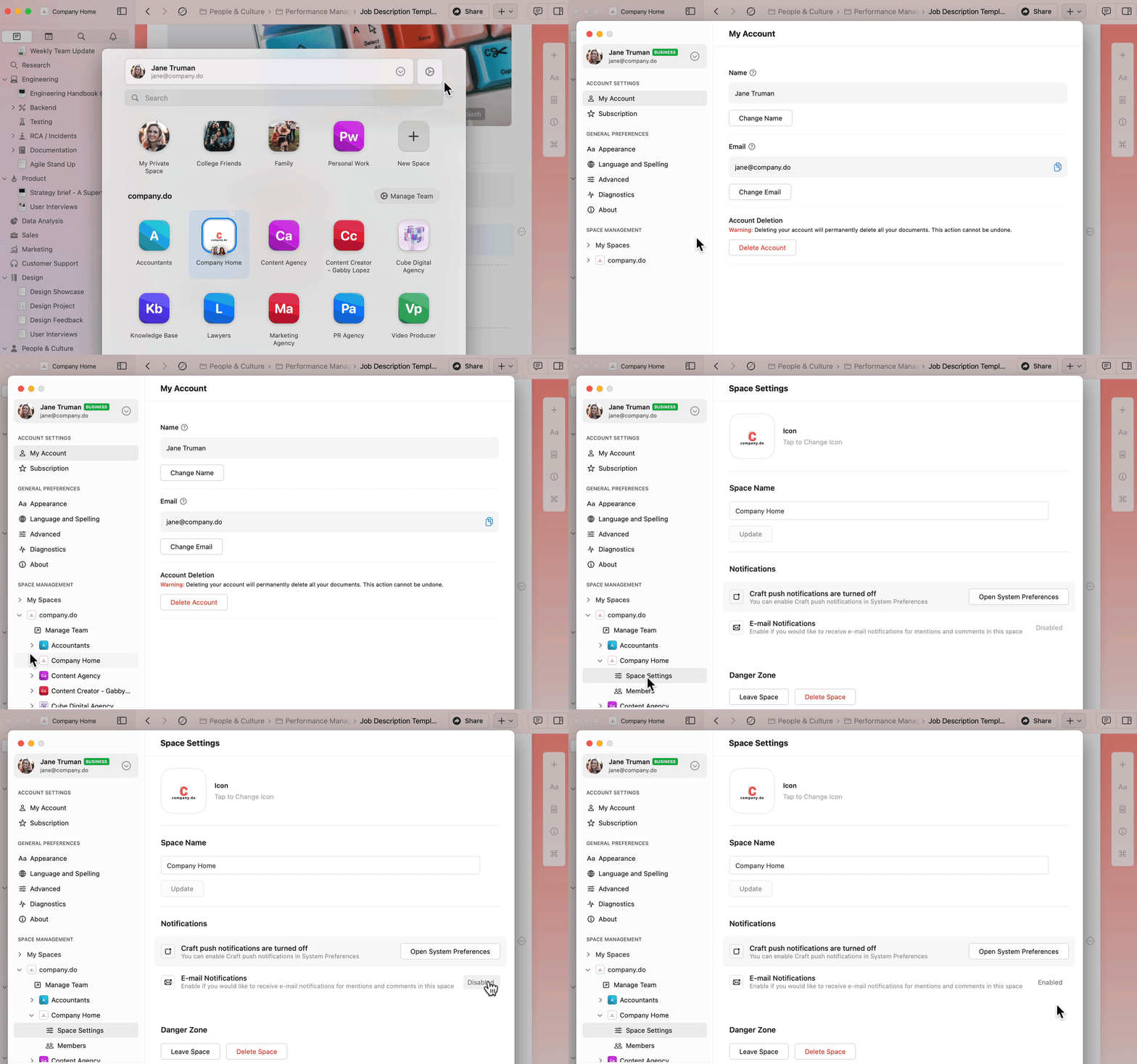 若要為多個 空間 啟用或停用電子郵件通知,請針對每個空間重複上述步驟。
## 推播通知
推播通知會即時提供以下提醒:
* 您建立的 區塊 上的評論
* 在文件或評論串中的提及
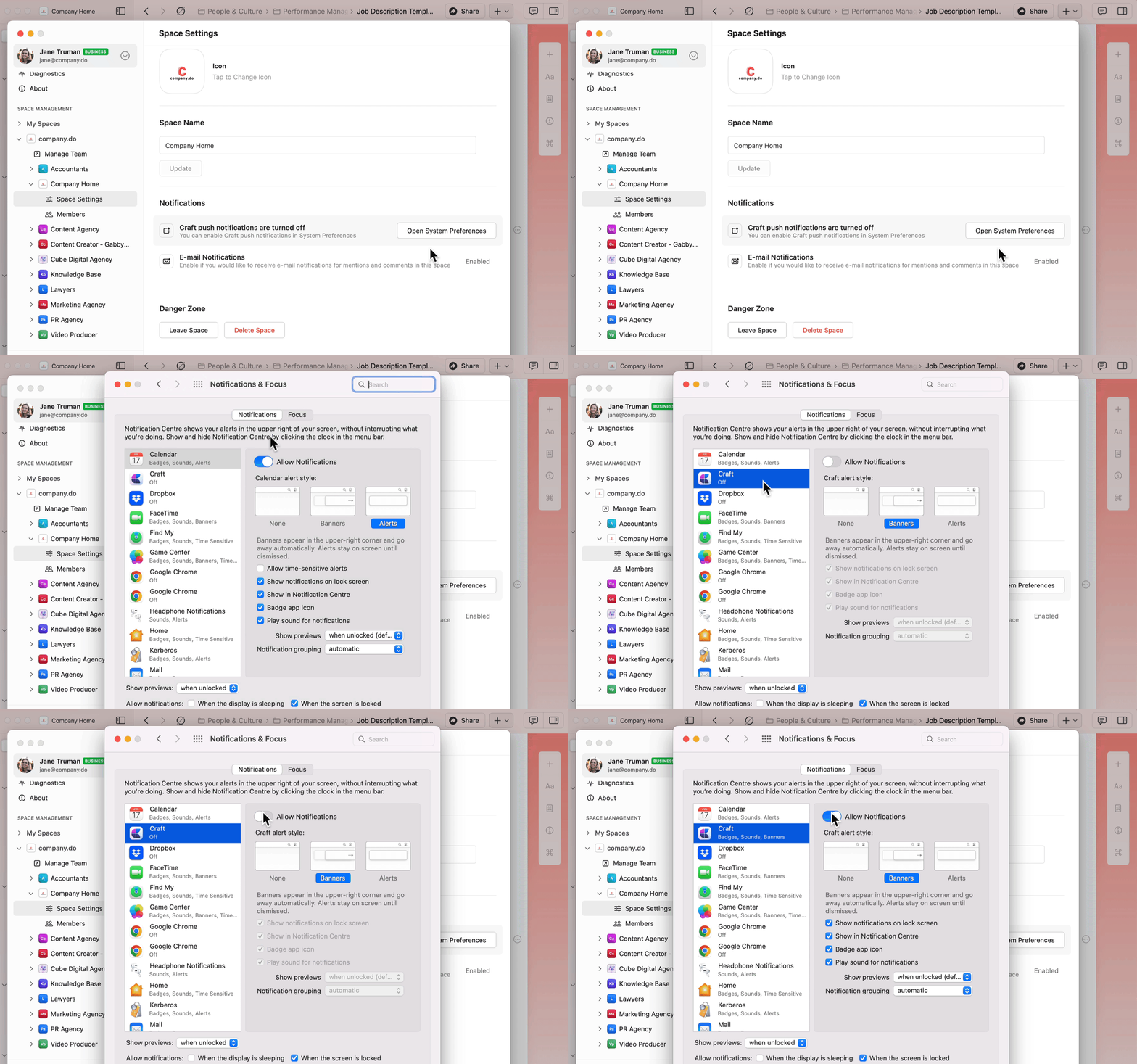
若要啟用推播通知:
在 Craft 中前往 **Preferences**。
在 **Space Management** 下選取您的 空間 。
前往 **Space Settings**。
點擊 **Open System Preferences**。
在 System Settings 中找到 **Craft**。
將 **Allow Notifications** 開啟。
若要為多個 空間 啟用或停用電子郵件通知,請針對每個空間重複上述步驟。
## 推播通知
推播通知會即時提供以下提醒:
* 您建立的 區塊 上的評論
* 在文件或評論串中的提及
若要啟用推播通知:
在 Craft 中前往 **Preferences**。
在 **Space Management** 下選取您的 空間 。
前往 **Space Settings**。
點擊 **Open System Preferences**。
在 System Settings 中找到 **Craft**。
將 **Allow Notifications** 開啟。
 開啟 iOS **設定** 應用程式。
捲動找到 **Craft**。
輕觸 **Notifications**。
將 **Allow Notifications** 開啟。
設定您偏好的通知樣式(橫幅、聲音、徽章)。
應用內的通知音目前已停用 - 若您在裝置的系統設定中啟用了通知音,系統層級的通知音仍會奏效。
## 相關文章
瞭解如何共用並在文件上協作
與 Team 空間與權限一起協作
開啟 iOS **設定** 應用程式。
捲動找到 **Craft**。
輕觸 **Notifications**。
將 **Allow Notifications** 開啟。
設定您偏好的通知樣式(橫幅、聲音、徽章)。
應用內的通知音目前已停用 - 若您在裝置的系統設定中啟用了通知音,系統層級的通知音仍會奏效。
## 相關文章
瞭解如何共用並在文件上協作
與 Team 空間與權限一起協作