> ## Documentation Index
> Fetch the complete documentation index at: https://craft-support.mintlify.site/llms.txt
> Use this file to discover all available pages before exploring further.
# 平台與可用性
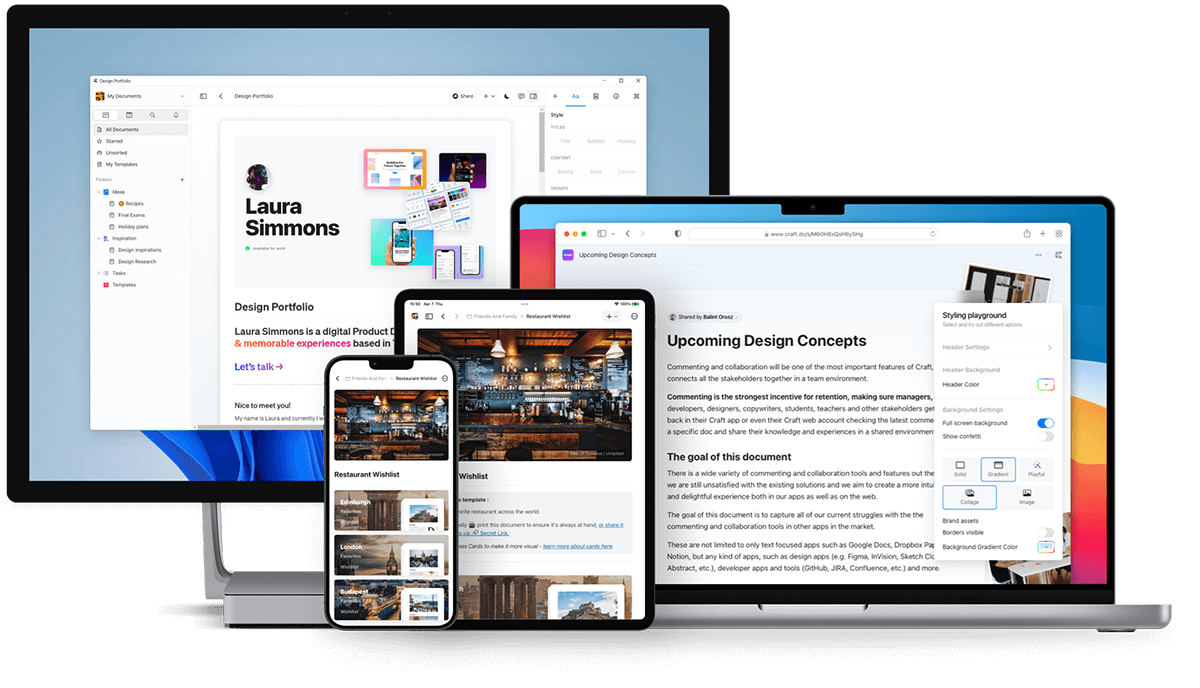
> Craft 可在 macOS、iOS、Windows、Web 應用程式和 Android 上使用——在所有裝置上無縫工作。
Craft 在你的所有裝置上運行,提供 macOS、iOS、Windows 和 Android 原生應用程式,以及功能完整的 Web 應用程式。
 ## 下載 Craft
### macOS 和 iOS
從 [App Store](https://apps.apple.com/us/app/craft-docs/id1487937127) 下載 Craft 或造訪 [craft.do](https://www.craft.do) 開始使用。
Craft 於 2020 年首次在 macOS 和 iOS 上發佈,並榮獲 **Mac 年度應用程式** 獎項。
### Web 應用程式
在 [docs.craft.do](https://docs.craft.do) 透過任何瀏覽器存取 Craft。Web 應用程式於 2021 年推出測試版,並於 2022 年 8 月正式發佈。
Web 應用程式包含原生應用程式中幾乎所有可用的功能。
### Windows
從 [craft.do/download](https://www.craft.do/download) 下載原生 Windows 應用程式。
Windows 應用程式提供與我們其他平台相同的高品質體驗,並且正在積極開發新功能和改進。
### Android
從 [Google Play 商店](https://play.google.com/store/apps/details?id=com.craft.docs) 下載 Craft。
## 下載 Craft
### macOS 和 iOS
從 [App Store](https://apps.apple.com/us/app/craft-docs/id1487937127) 下載 Craft 或造訪 [craft.do](https://www.craft.do) 開始使用。
Craft 於 2020 年首次在 macOS 和 iOS 上發佈,並榮獲 **Mac 年度應用程式** 獎項。
### Web 應用程式
在 [docs.craft.do](https://docs.craft.do) 透過任何瀏覽器存取 Craft。Web 應用程式於 2021 年推出測試版,並於 2022 年 8 月正式發佈。
Web 應用程式包含原生應用程式中幾乎所有可用的功能。
### Windows
從 [craft.do/download](https://www.craft.do/download) 下載原生 Windows 應用程式。
Windows 應用程式提供與我們其他平台相同的高品質體驗,並且正在積極開發新功能和改進。
### Android
從 [Google Play 商店](https://play.google.com/store/apps/details?id=com.craft.docs) 下載 Craft。
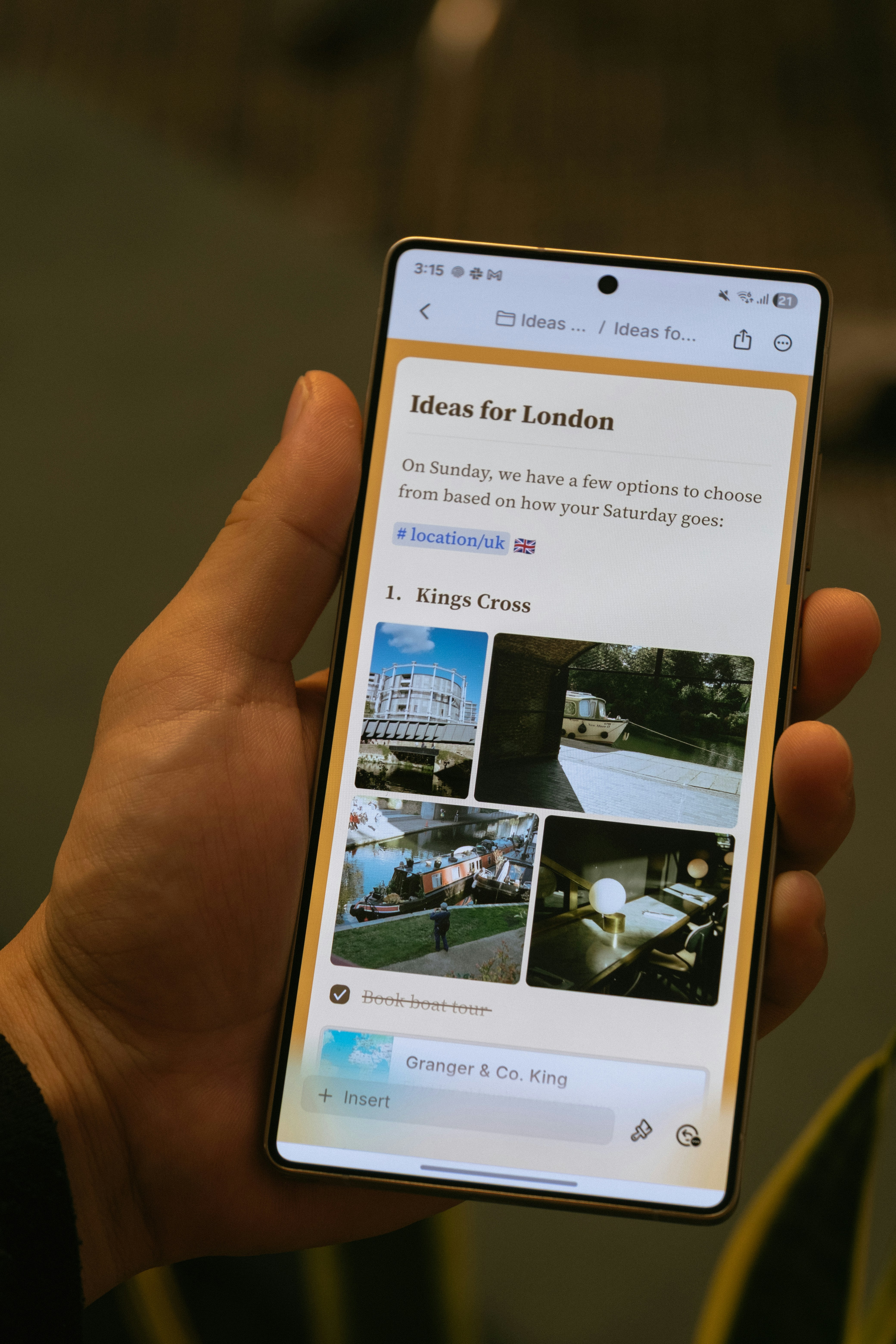 Android 應用程式於 2025 年 11 月發佈,包含:
* 帶有底部導航列的行動優先導航
* 觸控友善的編輯體驗
* 圖片和附件面板
* 文件內搜尋
* 核心 AI 功能,包括 Craft Assistant
Android 應用程式正在積極開發中,定期更新包括離線支援和 AI 功能。
## 平台特定功能
大多數 Craft 功能在所有平台上的運作方式完全相同。部分平台特定功能包括:
* **Apple Shortcuts**(僅 iOS 和 macOS)
* **Apple Pencil 支援**(僅 iOS 和 iPadOS)
* **系統行事曆整合**(macOS、iOS 和 iPadOS)
* **桌面端鍵盤快捷鍵**(macOS 和 Windows)
## 離線存取
Craft 在所有平台上都支援離線使用。原生 macOS 和 iOS 應用程式開箱即用支援離線,而 Web、Windows 和 Android 需要在設定中進行一次性設定。
詳細資訊請參閱[離線工作](/zh-Hant/introduction/offline)。
## 檢視共享和已發佈的文件
你發佈或共享的任何文件都可以在所有平台的行動瀏覽器上檢視。訪客無需 Craft 帳戶即可留下留言。
## Windows 特別說明
### 使用 Apple 登入
如果你使用 Apple 登入,需要使用你的私人中繼電子郵件地址在 Windows 上登入:
在 macOS 或 iOS 的**偏好設定 → 我的帳戶**中找到你的私人中繼電子郵件地址。
複製電子郵件地址並貼到 Windows 登入欄位中。
點擊繼續並輸入傳送到你信箱的 6 位驗證碼。
## 相關文章
建立帳戶並設定你的第一個空間
了解 iOS 和 Android 的特定功能
Android 應用程式於 2025 年 11 月發佈,包含:
* 帶有底部導航列的行動優先導航
* 觸控友善的編輯體驗
* 圖片和附件面板
* 文件內搜尋
* 核心 AI 功能,包括 Craft Assistant
Android 應用程式正在積極開發中,定期更新包括離線支援和 AI 功能。
## 平台特定功能
大多數 Craft 功能在所有平台上的運作方式完全相同。部分平台特定功能包括:
* **Apple Shortcuts**(僅 iOS 和 macOS)
* **Apple Pencil 支援**(僅 iOS 和 iPadOS)
* **系統行事曆整合**(macOS、iOS 和 iPadOS)
* **桌面端鍵盤快捷鍵**(macOS 和 Windows)
## 離線存取
Craft 在所有平台上都支援離線使用。原生 macOS 和 iOS 應用程式開箱即用支援離線,而 Web、Windows 和 Android 需要在設定中進行一次性設定。
詳細資訊請參閱[離線工作](/zh-Hant/introduction/offline)。
## 檢視共享和已發佈的文件
你發佈或共享的任何文件都可以在所有平台的行動瀏覽器上檢視。訪客無需 Craft 帳戶即可留下留言。
## Windows 特別說明
### 使用 Apple 登入
如果你使用 Apple 登入,需要使用你的私人中繼電子郵件地址在 Windows 上登入:
在 macOS 或 iOS 的**偏好設定 → 我的帳戶**中找到你的私人中繼電子郵件地址。
複製電子郵件地址並貼到 Windows 登入欄位中。
點擊繼續並輸入傳送到你信箱的 6 位驗證碼。
## 相關文章
建立帳戶並設定你的第一個空間
了解 iOS 和 Android 的特定功能