> ## Documentation Index
> Fetch the complete documentation index at: https://craft-support.mintlify.site/llms.txt
> Use this file to discover all available pages before exploring further.
# 連結與反向連結
> 透過內部連結在文件與區塊之間建立關聯,並使用自動反向連結探索它們之間的關係。
## Sharing & Publishing
In Craft, you can share or publish your documents with just a few clicks. Whether you want to invite collaborators or create a public link, sharing is built right into every document.
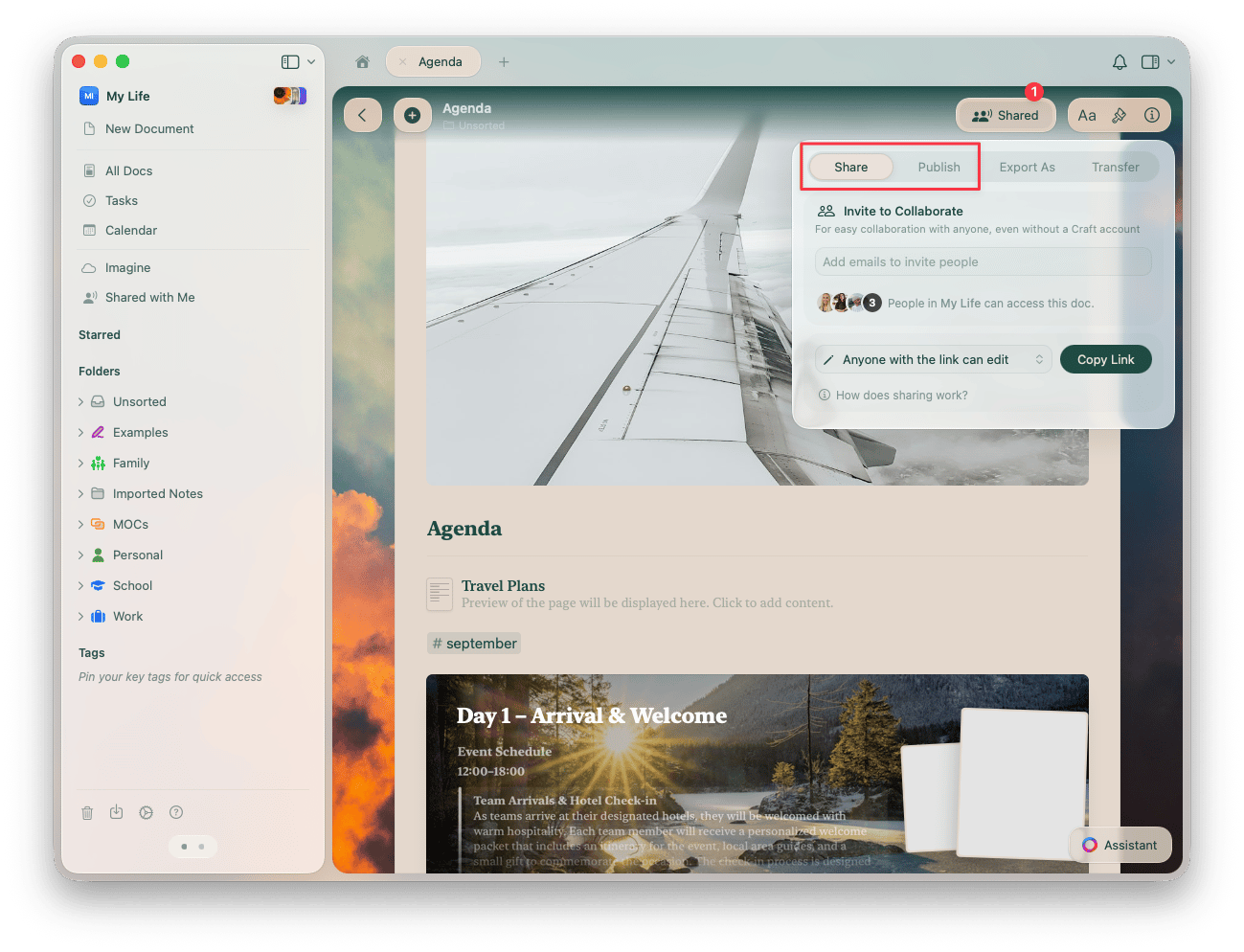 You can read more about sharing and publishing in the [Sharing Documents](/zh-Hant/share-and-publish/share#sharing-documents) article.
## 連結到 Craft 文件或區塊
你可以在同一個空間中連結其他文件或區塊。當你想參照其他資訊時,這項功能非常有用。建立連結有三種方式:
### 使用 @ 指令
輸入 **@** 後,你會看到一個下拉選單顯示可連結的項目。輸入前幾個字元可幫助你找到目標的區塊 / 頁面 / 文件。若在此 空間 中沒有符合的標題,也可以藉由輸入標題直接建立一個帶有連結的新頁面。
You can read more about sharing and publishing in the [Sharing Documents](/zh-Hant/share-and-publish/share#sharing-documents) article.
## 連結到 Craft 文件或區塊
你可以在同一個空間中連結其他文件或區塊。當你想參照其他資訊時,這項功能非常有用。建立連結有三種方式:
### 使用 @ 指令
輸入 **@** 後,你會看到一個下拉選單顯示可連結的項目。輸入前幾個字元可幫助你找到目標的區塊 / 頁面 / 文件。若在此 空間 中沒有符合的標題,也可以藉由輸入標題直接建立一個帶有連結的新頁面。
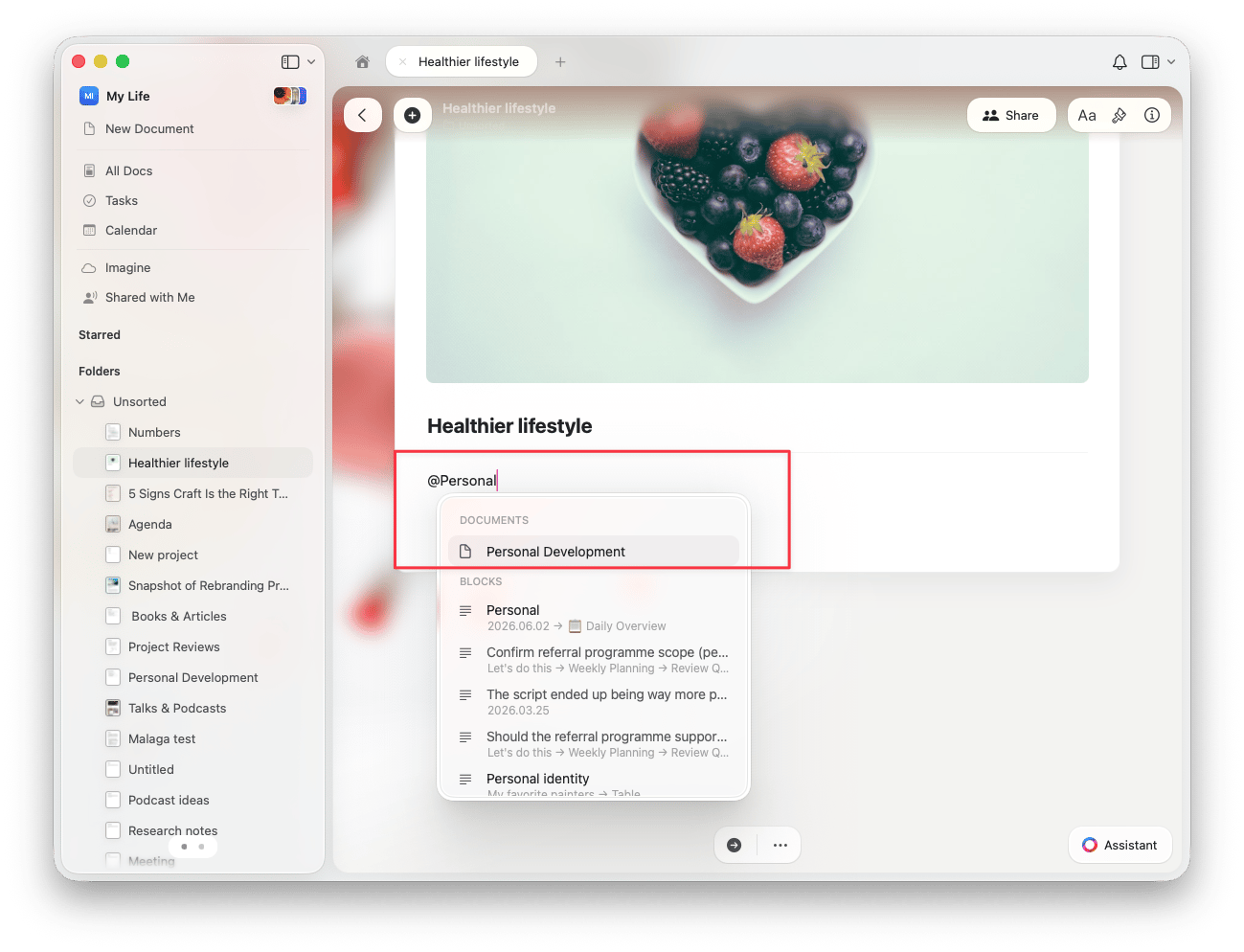 ### 使用 \[\[ 指令
輸入 **\[\[** 會自動轉為 **@**,並顯示相同的下拉選單。
## 反向連結
反向連結會顯示所有連結到目前文件的區塊。你可以利用這些連結快速在你的 空間 中導覽,並查看文件與區塊之間的關聯。
* 反向連結會自動產生!每當你以 @ 提及某個文件 / 區塊時,系統會在被連結的內容中新增一個反向連結。
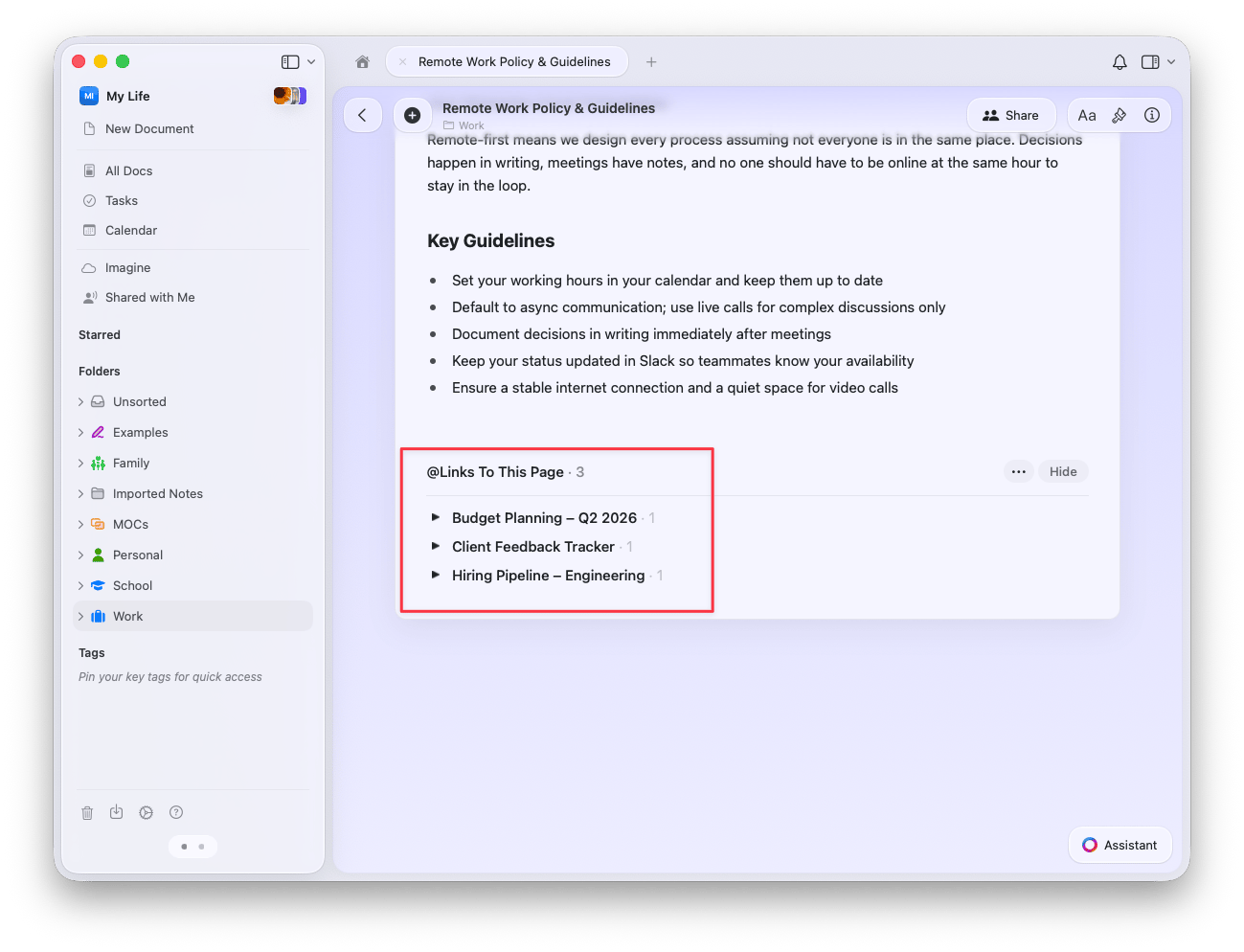
* 反向連結會顯示在被連結內容的底部,位於 **連結到此頁面** 區塊下方。若文件沒有任何連結,則不會顯示此區塊。
你可以快速導覽到該連結所在的文件或確切的區塊。
### 使用 \[\[ 指令
輸入 **\[\[** 會自動轉為 **@**,並顯示相同的下拉選單。
## 反向連結
反向連結會顯示所有連結到目前文件的區塊。你可以利用這些連結快速在你的 空間 中導覽,並查看文件與區塊之間的關聯。
* 反向連結會自動產生!每當你以 @ 提及某個文件 / 區塊時,系統會在被連結的內容中新增一個反向連結。
* 反向連結會顯示在被連結內容的底部,位於 **連結到此頁面** 區塊下方。若文件沒有任何連結,則不會顯示此區塊。
你可以快速導覽到該連結所在的文件或確切的區塊。
 你可以透過拖放的方式,將被連結的區塊移動到其他文件,以保留連結。但如果使用「剪下貼上」動作,連結會被刪除。
## 相關文章
建立指向特定頁面和區塊的直接連結
將 Google Maps 嵌入到你的文件中
了解區塊與頁面如何構成連結的基礎
與協作者分享已連結的內容
將集合中的條目連結到其他文件與區塊
你可以透過拖放的方式,將被連結的區塊移動到其他文件,以保留連結。但如果使用「剪下貼上」動作,連結會被刪除。
## 相關文章
建立指向特定頁面和區塊的直接連結
將 Google Maps 嵌入到你的文件中
了解區塊與頁面如何構成連結的基礎
與協作者分享已連結的內容
將集合中的條目連結到其他文件與區塊