> ## Documentation Index
> Fetch the complete documentation index at: https://craft-support.mintlify.site/llms.txt
> Use this file to discover all available pages before exploring further.
# 建立任務
> 想到的當下就把任務記下來。使用 Inbox 以及在 Craft 任何角落快速建立任務的方法。
任何任務系統的首要工作,就是在你忘記之前把事情記下來。Craft 提供一個毫無阻力的任務存放處(Inbox),以及多種讓你隨時隨地快速建立任務的方式。
## 建立任務的方式
你不必待在任務檢視中才能建立任務。挑選最符合當下情境的方式即可。
### 捕捉到 Inbox
還沒想好要放進哪份文件?在任務檢視的 **Inbox** 分頁建立任務,它就會留在那裡、不附屬於任何文件,直到你把它移入文件為止。非常適合在會議中或外出時先記下來,之後再慢慢整理。想進一步了解 Inbox,請參閱[任務檢視](/zh-Hant/plan-and-do/tasks/tasks-views)。
### 任務檢視中的 + 按鈕
開啟任務後,使用 **+** 按鈕新增任務。當你已經在規劃一天的行程時,這是最直接的方式。
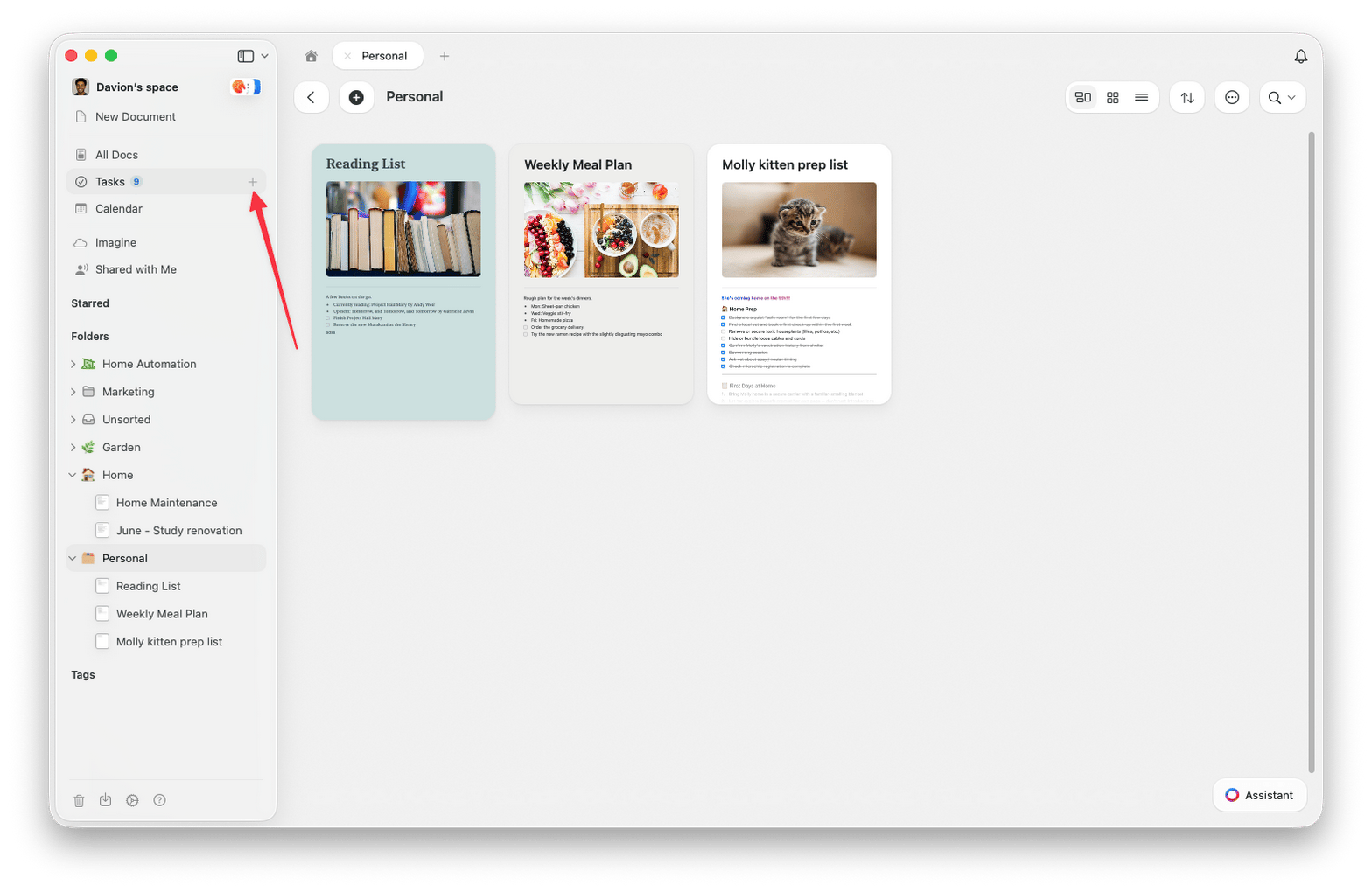
### 側邊欄任務項目上的 +
將游標移到左側側邊欄的**任務**上,旁邊會出現 **+**。點擊它就能在目前所在的任何檢視中建立任務,而不必先開啟任務檢視。
 ### 全域新增任務快速鍵
在 Mac 上,隨時按下 `Cmd` + `J` 即可開啟**新增任務**快顯視窗。你可以在不離開目前文件或檢視的情況下記下任務,然後立刻回到原本的工作。
### 將文字區塊轉換為任務
已經以純文字寫下內容了嗎?在文字區塊上按下任一任務快速鍵,即可將它轉換為任務,並同時開啟對應的選擇器:
* `Cmd` + `Shift` + `S`:**排程任務...**
* `Cmd` + `Shift` + `D`:**設定截止日期...**
* `Cmd` + `Shift` + `R`:**設定提醒...**
### 直接在任何文件中輸入任務
在文件的任何位置建立核取方塊,它就會成為一項任務。最快的方式是在行首輸入 `x` 加上一個空格,該行會立即變成任務。它會與周圍的內容保持在同一脈絡中,也會出現在任務檢視裡、歸在該文件底下,讓你在兩邊都能處理它。
### 從 Apple Reminders 同步
在 Mac 與 iOS 上,Craft 可以匯入你的 **Apple Reminders**,讓它們與 Craft 任務並存。你可以從 Inbox 檢視並匯入這些提醒事項,並選擇要顯示哪些清單。逾期的提醒事項會出現在你的「今天」檢視中。
設定詳情請參閱 [Apple Reminders 整合](/zh-Hant/integrate/reminders)。
目前,這些任務功能提供於 Mac 與 iPhone/iPad 應用程式。任務在 Windows 與網頁版上也能使用,體驗相近,但功能與檢視選項較為精簡。
## 相關文章
為任務設定日期、提醒與重複規則
Inbox、今天、即將到來與全部分頁
從 Apple Reminders 匯入任務到 Craft
回到任務總覽
### 全域新增任務快速鍵
在 Mac 上,隨時按下 `Cmd` + `J` 即可開啟**新增任務**快顯視窗。你可以在不離開目前文件或檢視的情況下記下任務,然後立刻回到原本的工作。
### 將文字區塊轉換為任務
已經以純文字寫下內容了嗎?在文字區塊上按下任一任務快速鍵,即可將它轉換為任務,並同時開啟對應的選擇器:
* `Cmd` + `Shift` + `S`:**排程任務...**
* `Cmd` + `Shift` + `D`:**設定截止日期...**
* `Cmd` + `Shift` + `R`:**設定提醒...**
### 直接在任何文件中輸入任務
在文件的任何位置建立核取方塊,它就會成為一項任務。最快的方式是在行首輸入 `x` 加上一個空格,該行會立即變成任務。它會與周圍的內容保持在同一脈絡中,也會出現在任務檢視裡、歸在該文件底下,讓你在兩邊都能處理它。
### 從 Apple Reminders 同步
在 Mac 與 iOS 上,Craft 可以匯入你的 **Apple Reminders**,讓它們與 Craft 任務並存。你可以從 Inbox 檢視並匯入這些提醒事項,並選擇要顯示哪些清單。逾期的提醒事項會出現在你的「今天」檢視中。
設定詳情請參閱 [Apple Reminders 整合](/zh-Hant/integrate/reminders)。
目前,這些任務功能提供於 Mac 與 iPhone/iPad 應用程式。任務在 Windows 與網頁版上也能使用,體驗相近,但功能與檢視選項較為精簡。
## 相關文章
為任務設定日期、提醒與重複規則
Inbox、今天、即將到來與全部分頁
從 Apple Reminders 匯入任務到 Craft
回到任務總覽