> ## Documentation Index
> Fetch the complete documentation index at: https://craft-support.mintlify.site/llms.txt
> Use this file to discover all available pages before exploring further.
# 繪圖
> 在文件中新增素描、使用形狀辨識,並建立繪圖。
在 iPhone 與 iPad 上,你可以在文件中加入快速繪圖與手寫筆記。Sketch 區塊提供簡單的繪圖工具,適合用來做註記、快速示意圖與視覺筆記。
## 新增 Sketch 區塊
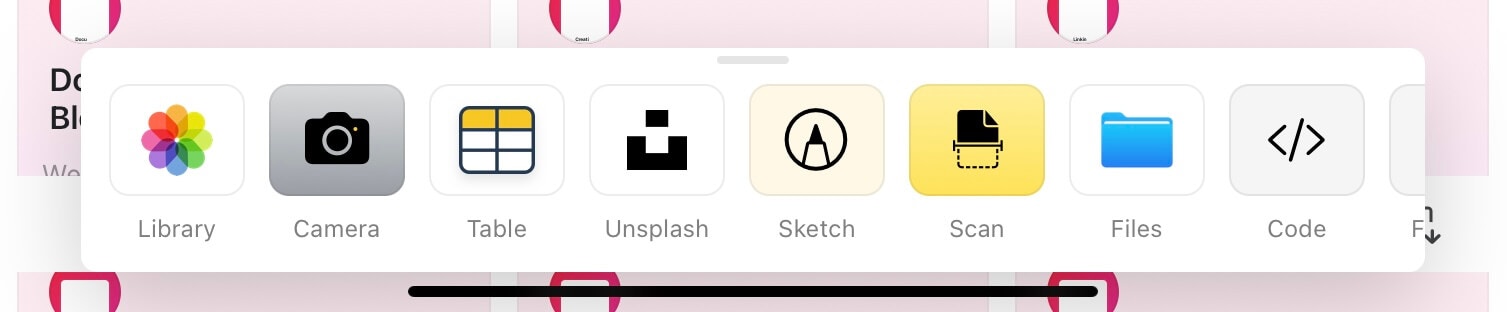
可從 iOS 與 iPadOS 的加號選單存取 Sketch 區塊。
Tap the **+** icon on the bottom of the screen.
瀏覽可用的區塊類型列表。
選取 **Sketch** 以新增繪圖區塊。
 輕點加號後,你會看到可加入文件的不同區塊類型。
 ## 繪圖工具
Sketch 區塊提供多種繪圖工具,包含:
* **Pencil** - 繪製精準線條與圖形
* **Highlighter** - 使用半透明筆觸做重點標示
* **Eraser** - 刪除繪圖中的部分內容
* **Color options** - 從多種顏色中選擇繪圖顏色
## 繪圖工具
Sketch 區塊提供多種繪圖工具,包含:
* **Pencil** - 繪製精準線條與圖形
* **Highlighter** - 使用半透明筆觸做重點標示
* **Eraser** - 刪除繪圖中的部分內容
* **Color options** - 從多種顏色中選擇繪圖顏色
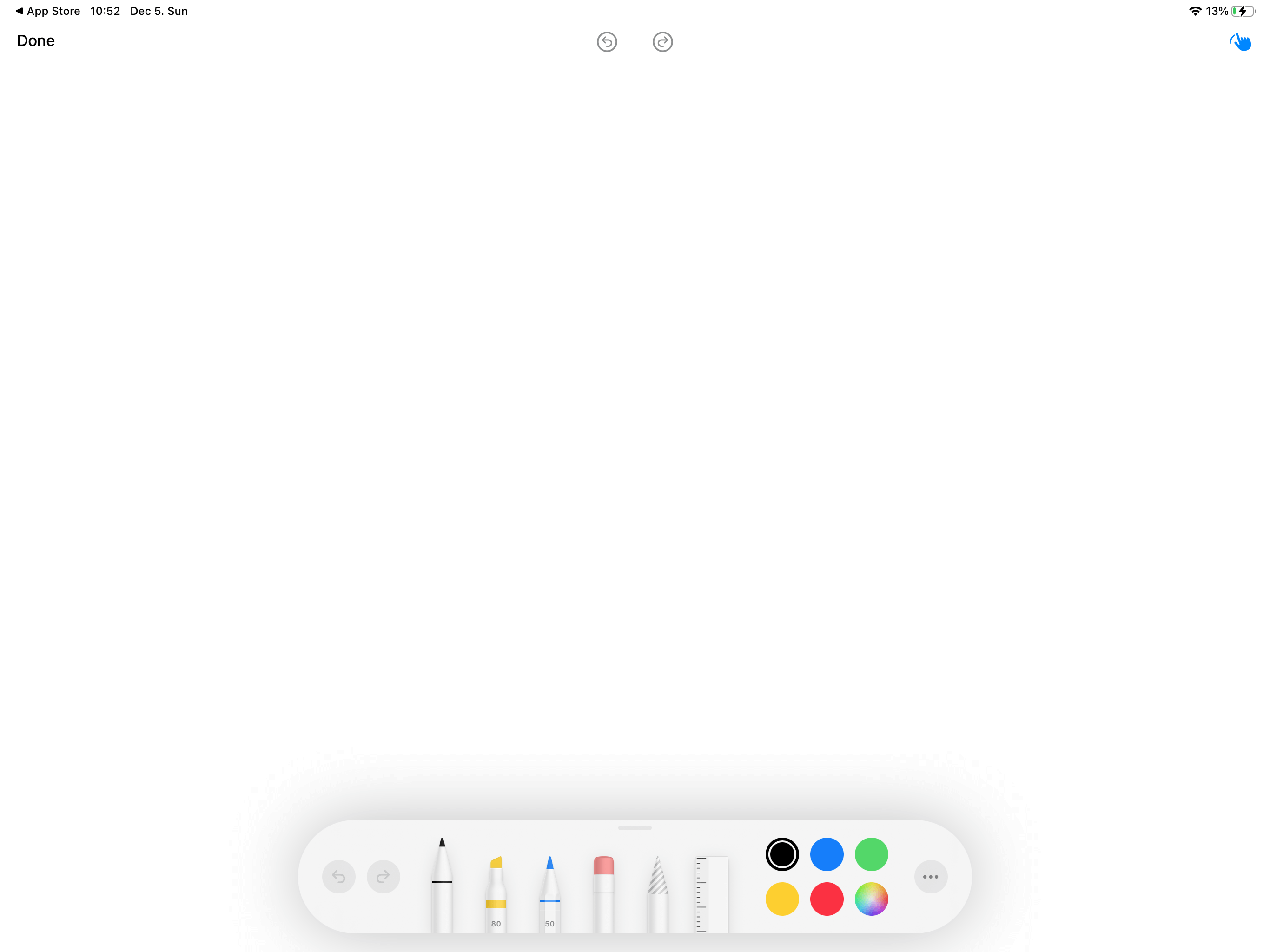 Sketch 區塊在 iPad 上完整支援 Apple Pencil,提供壓力感應與精細控制,適合進行更細緻的繪製。
## 儲存你的繪圖
完成繪圖後,請務必儲存你的變更。
Tap the **Done** button when you finish drawing.
Tap **Save Changes** to preserve your sketch.
結束繪圖時務必 Tap **Done** 並 Tap **Save Changes**。若未儲存即離開,繪圖將會遺失。
## 使用情境
Sketch 區塊非常適合用於:
* **Quick annotations** - 標註圖片或強調重要重點
* **Diagrams and flowcharts** - 建立簡單的示意圖與流程圖
* **Handwritten notes** - 在文件中加入個人化手寫筆記
* **Brainstorming** - 快速捕捉視覺化的想法
* **Signatures** - 直接在 Craft 中簽名
## Scribble:手寫轉文字
在執行 iPadOS 14 或更新版本的 iPad 上,可以使用 Scribble 將手寫筆記轉成輸入文字。Scribble 使用手寫辨識,會自動將 Apple Pencil 的書寫內容轉換為文字。
若已在 iPad 的 設定 中啟用 Scribble,只要在文件中的任一文字欄位使用 Apple Pencil 書寫,系統便會自動將手寫轉為輸入文字。
### 啟用 Scribble
要在 Craft 中使用 Scribble,請先在你的 iPad 上啟用:
開啟 **設定** 在你的 iPad
前往 **Apple Pencil**
開啟 **Scribble**
啟用後,你可在任何文字欄位以 Apple Pencil 自然書寫,Craft 會即時將手寫內容轉為文字。
目前繪圖功能可在 iPhone 與 iPad 上使用。Scribble 需要 iPadOS 14 或更新版本,並搭配 Apple Pencil。若需在 macOS 上進行更進階的圖表或繪圖,請考慮使用 Whiteboard 功能。
Sketch 區塊在 iPad 上完整支援 Apple Pencil,提供壓力感應與精細控制,適合進行更細緻的繪製。
## 儲存你的繪圖
完成繪圖後,請務必儲存你的變更。
Tap the **Done** button when you finish drawing.
Tap **Save Changes** to preserve your sketch.
結束繪圖時務必 Tap **Done** 並 Tap **Save Changes**。若未儲存即離開,繪圖將會遺失。
## 使用情境
Sketch 區塊非常適合用於:
* **Quick annotations** - 標註圖片或強調重要重點
* **Diagrams and flowcharts** - 建立簡單的示意圖與流程圖
* **Handwritten notes** - 在文件中加入個人化手寫筆記
* **Brainstorming** - 快速捕捉視覺化的想法
* **Signatures** - 直接在 Craft 中簽名
## Scribble:手寫轉文字
在執行 iPadOS 14 或更新版本的 iPad 上,可以使用 Scribble 將手寫筆記轉成輸入文字。Scribble 使用手寫辨識,會自動將 Apple Pencil 的書寫內容轉換為文字。
若已在 iPad 的 設定 中啟用 Scribble,只要在文件中的任一文字欄位使用 Apple Pencil 書寫,系統便會自動將手寫轉為輸入文字。
### 啟用 Scribble
要在 Craft 中使用 Scribble,請先在你的 iPad 上啟用:
開啟 **設定** 在你的 iPad
前往 **Apple Pencil**
開啟 **Scribble**
啟用後,你可在任何文字欄位以 Apple Pencil 自然書寫,Craft 會即時將手寫內容轉為文字。
目前繪圖功能可在 iPhone 與 iPad 上使用。Scribble 需要 iPadOS 14 或更新版本,並搭配 Apple Pencil。若需在 macOS 上進行更進階的圖表或繪圖,請考慮使用 Whiteboard 功能。