> ## Documentation Index
> Fetch the complete documentation index at: https://craft-support.mintlify.site/llms.txt
> Use this file to discover all available pages before exploring further.
# 檔案與連結
> 在你的文件中附加檔案、建立連結,並嵌入豐富連結預覽。
Craft 讓你能附加檔案並建立豐富連結預覽,讓你的文件更具資訊性與視覺吸引力。
## 檔案附件
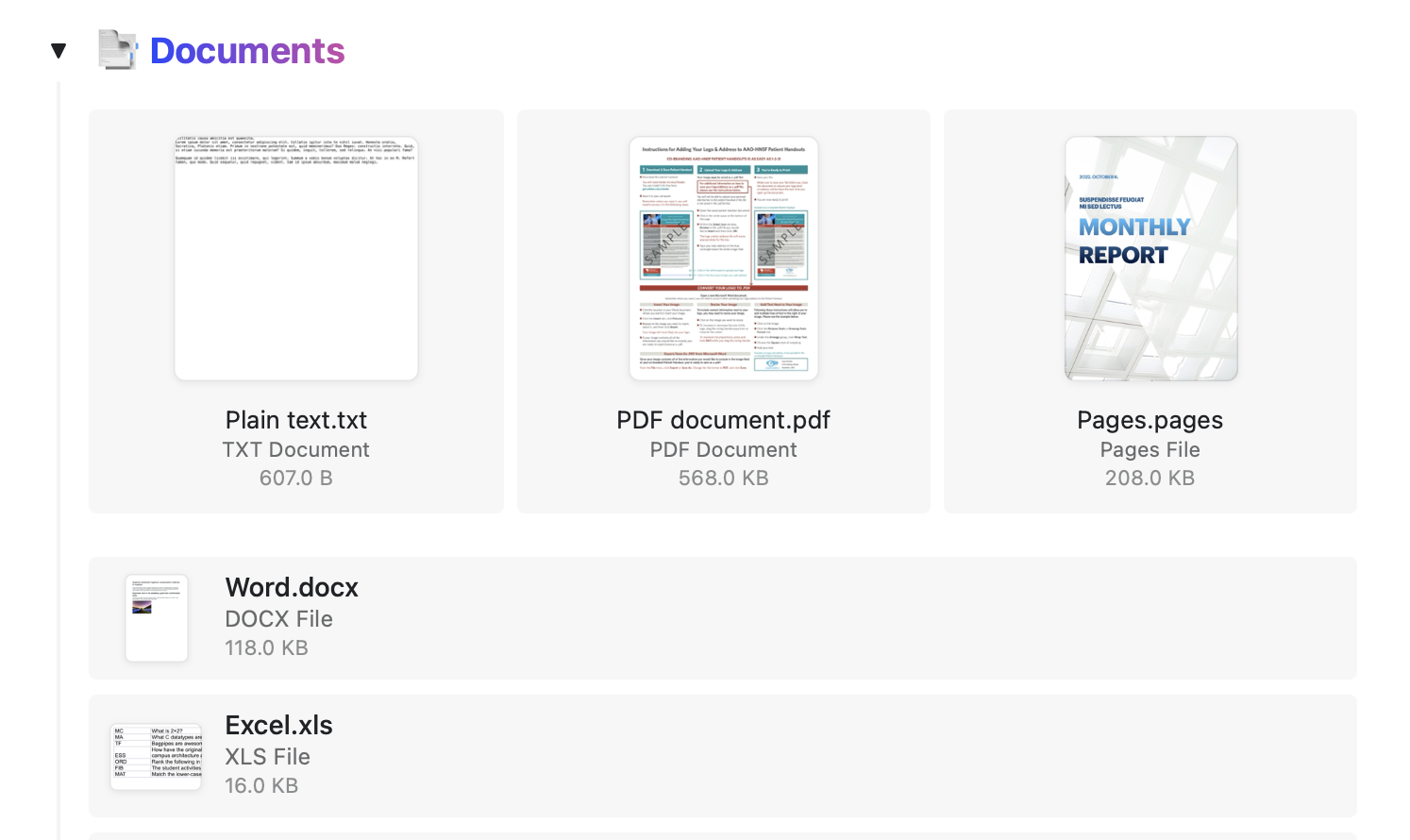
你可以將任何類型的文件上傳到 Craft 文件 - 包括 Word 檔案、PDF、Excel 試算表等。
 ### 開啟檔案
像 Word、PDF 或 Excel 等可編輯文件可以直接從 Craft 開啟。檔案會在其對應的應用程式中開啟。
檔案會在瀏覽器的新分頁中開啟。
目前無法在 Craft 的 Windows 應用程式中直接開啟文件檔案。
從應用程式開啟的文件所做的變更不會由 Craft 自動儲存。若要保留編輯內容,請在修改後將檔案儲存在你的裝置上。
## 連結
Craft 提供強大的連結處理功能,包含自動產生的豐富預覽及多種自訂選項。
### 自動建立豐富連結預覽
當你在空白的 區塊 貼上連結時,Craft 會自動建立帶有縮圖、標題與描述的豐富連結預覽。
### 開啟檔案
像 Word、PDF 或 Excel 等可編輯文件可以直接從 Craft 開啟。檔案會在其對應的應用程式中開啟。
檔案會在瀏覽器的新分頁中開啟。
目前無法在 Craft 的 Windows 應用程式中直接開啟文件檔案。
從應用程式開啟的文件所做的變更不會由 Craft 自動儲存。若要保留編輯內容,請在修改後將檔案儲存在你的裝置上。
## 連結
Craft 提供強大的連結處理功能,包含自動產生的豐富預覽及多種自訂選項。
### 自動建立豐富連結預覽
當你在空白的 區塊 貼上連結時,Craft 會自動建立帶有縮圖、標題與描述的豐富連結預覽。
 ### 連結版型
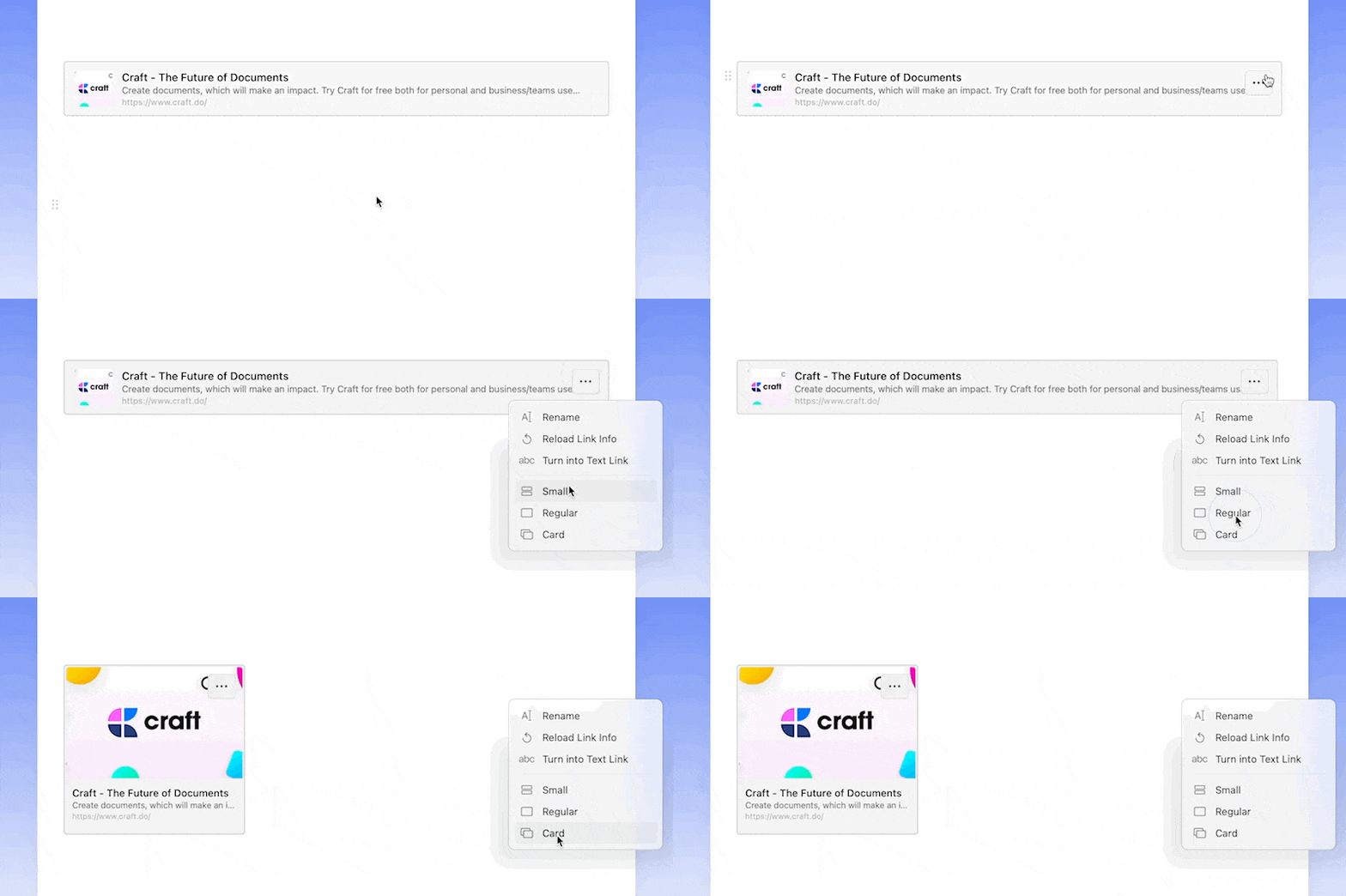
使用 three-dot menu (⋯) 變更豐富連結的視覺顯示。可從三種版型中選擇:
* **Small** - 精簡預覽
* **Regular** - 標準大小並顯示縮圖
* **Card** - 全寬卡片式版面
### 連結版型
使用 three-dot menu (⋯) 變更豐富連結的視覺顯示。可從三種版型中選擇:
* **Small** - 精簡預覽
* **Regular** - 標準大小並顯示縮圖
* **Card** - 全寬卡片式版面
 ### 自訂連結
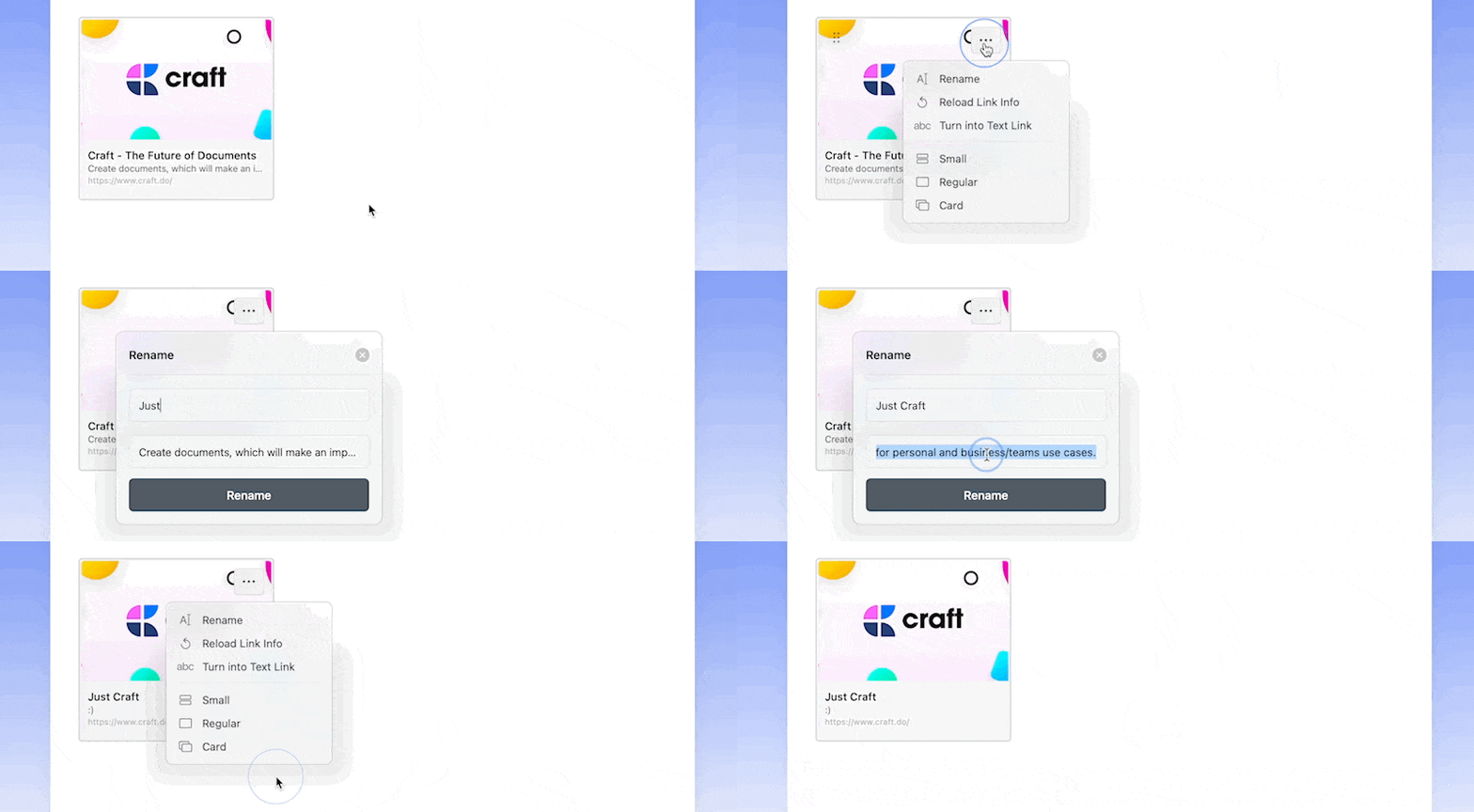
編輯豐富連結的標題與描述,使其更貼近你的內容。使用 three-dot menu (⋯) 自訂這些欄位。
### 自訂連結
編輯豐富連結的標題與描述,使其更貼近你的內容。使用 three-dot menu (⋯) 自訂這些欄位。
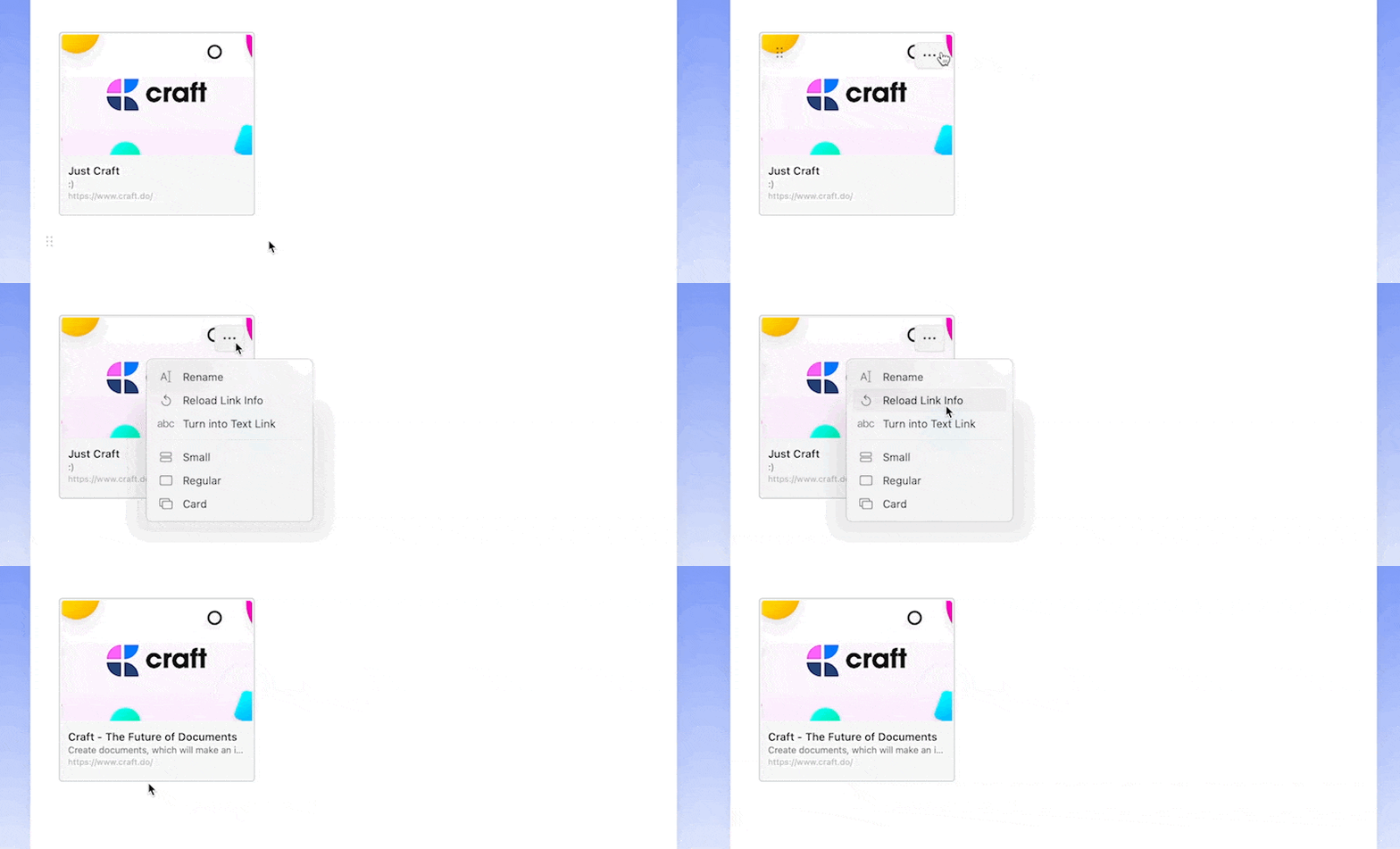
 若要將豐富連結重設為原始的標題與描述,請從 three-dot menu (⋯) 中選擇 **Reload Link Info**。
 ### 避免自動建立豐富連結
如果你偏好純文字連結,可以阻止 Craft 自動建立豐富連結:
* 將連結插入於句子中間
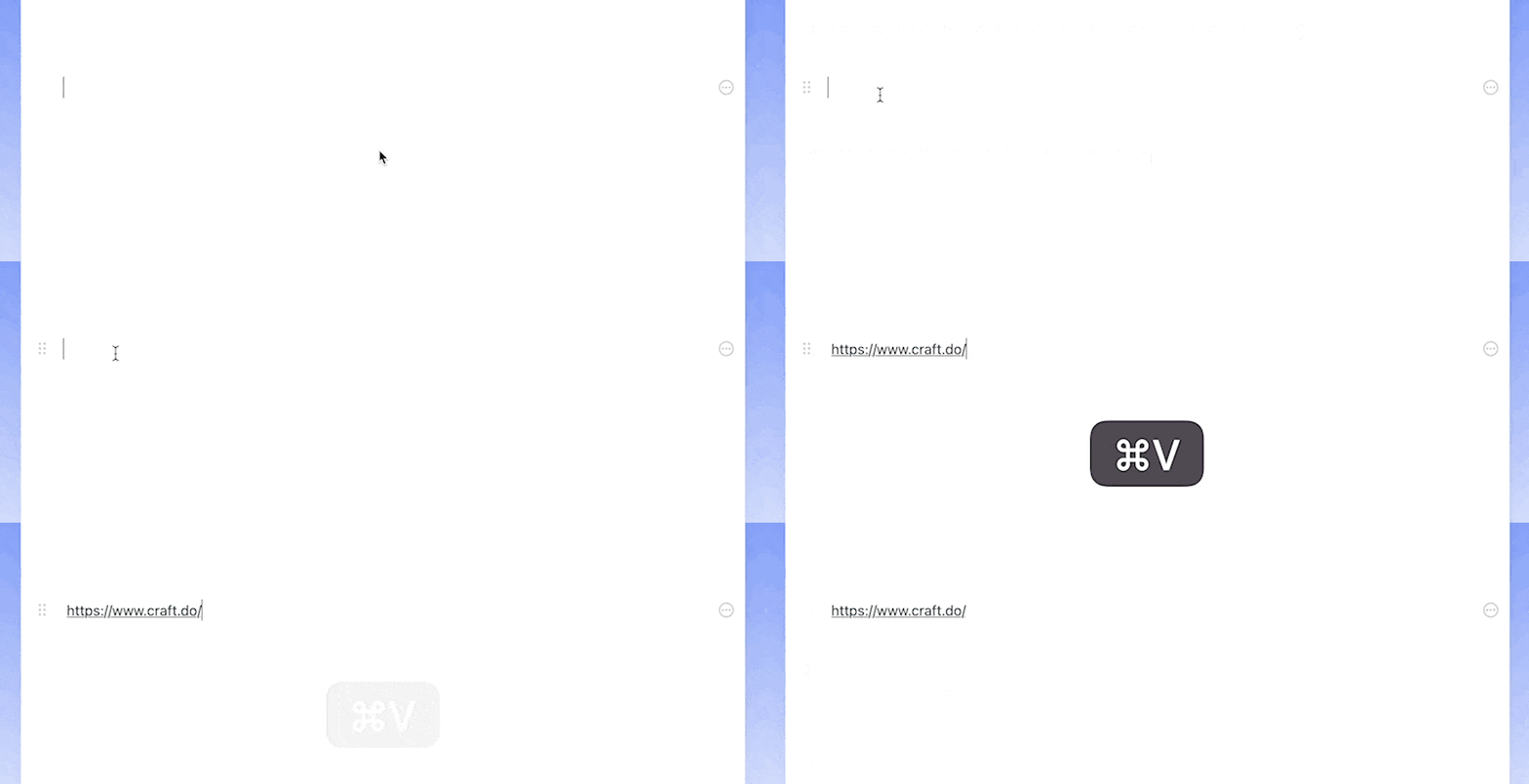
* 在空白區塊貼上連結前先按空白鍵
* 使用 three-dot menu (⋯) 將豐富連結轉為文字
### 避免自動建立豐富連結
如果你偏好純文字連結,可以阻止 Craft 自動建立豐富連結:
* 將連結插入於句子中間
* 在空白區塊貼上連結前先按空白鍵
* 使用 three-dot menu (⋯) 將豐富連結轉為文字
 ### 建立文字連結
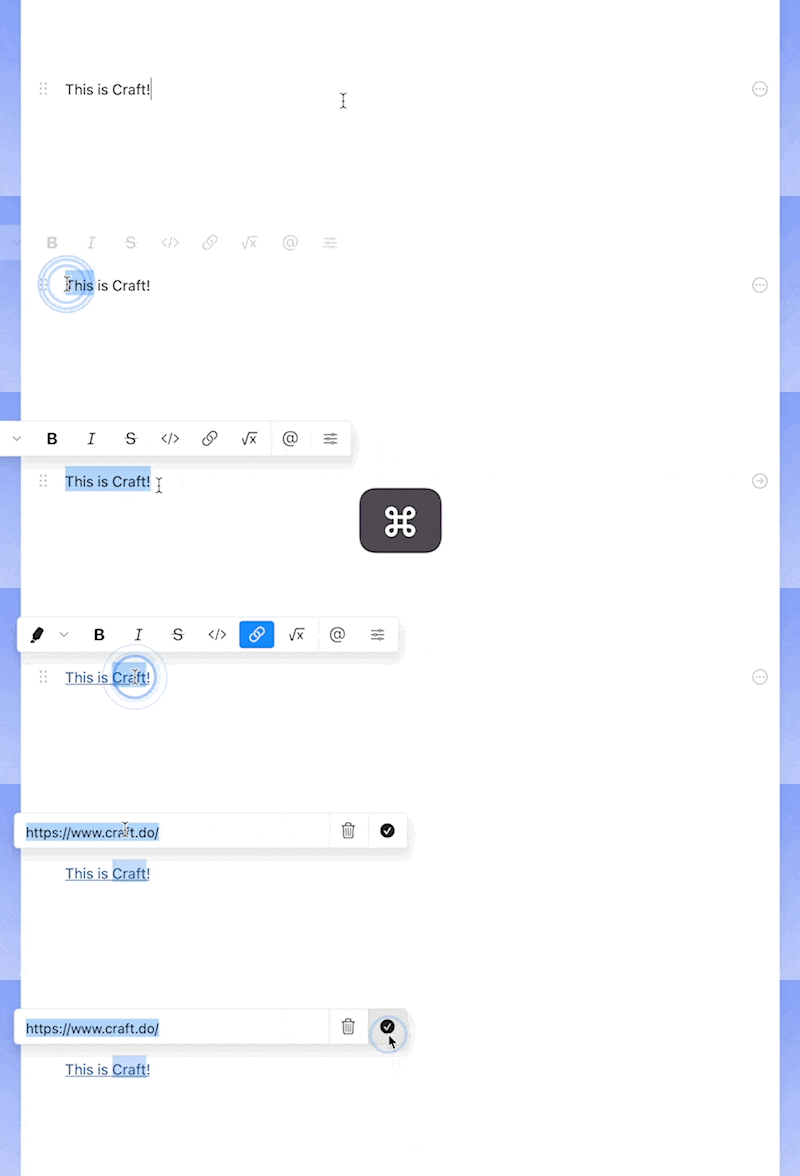
在已選取的文字中貼上連結,使用 `Cmd+V`(macOS)或 `Ctrl+V`(Windows)即可立即將其變為內嵌連結。
### 建立文字連結
在已選取的文字中貼上連結,使用 `Cmd+V`(macOS)或 `Ctrl+V`(Windows)即可立即將其變為內嵌連結。
 ### 連結顏色自訂
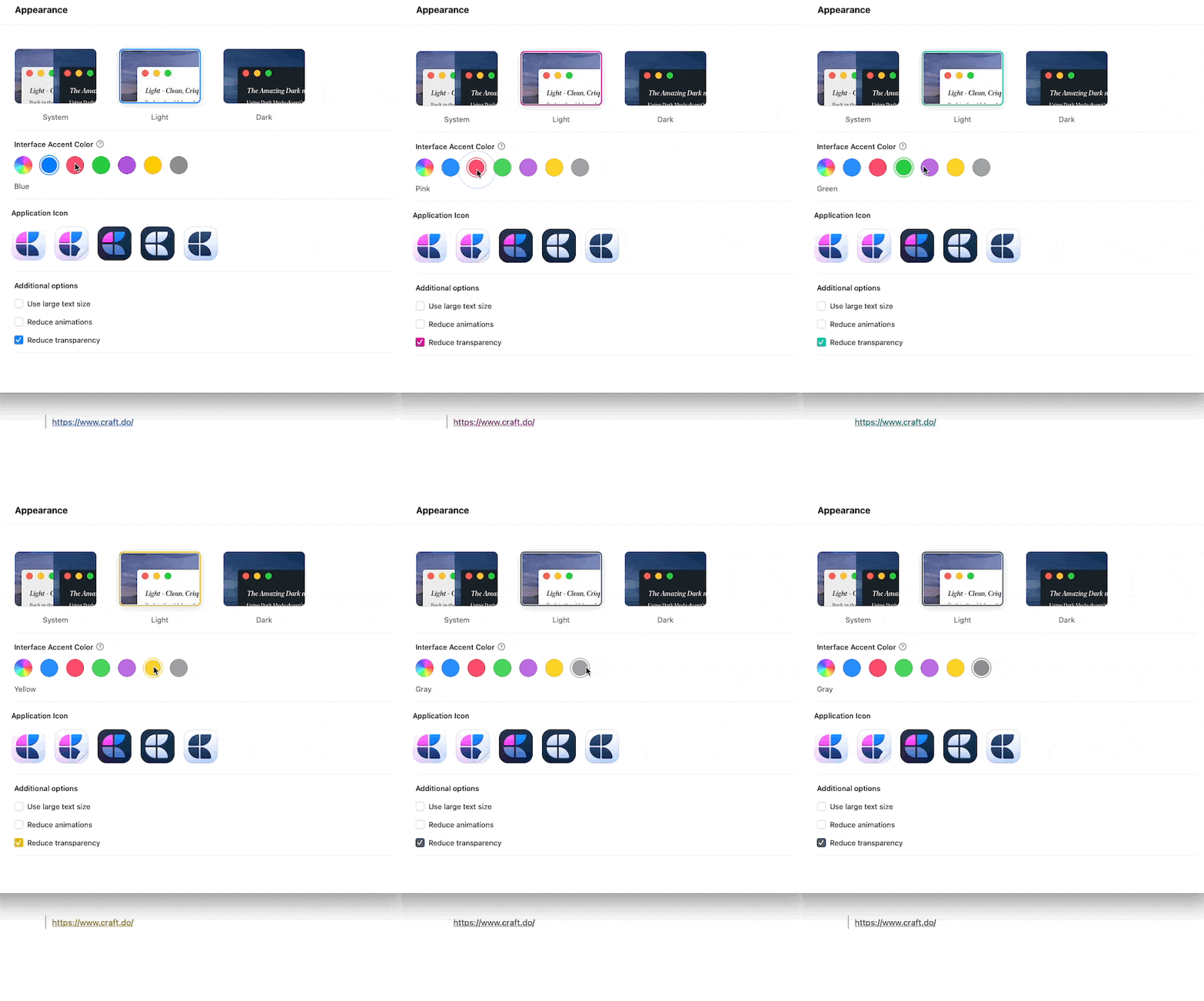
可透過前往 **Account → Preferences → Appearance → Accent color** 變更文字連結的顏色。
### 連結顏色自訂
可透過前往 **Account → Preferences → Appearance → Accent color** 變更文字連結的顏色。
 Craft 在 Windows 平台目前不會自動建立豐富連結。連結會以一般文字連結顯示。
## 在連結類型間轉換
你可以輕鬆在豐富連結與文字連結之間轉換:
* **Rich to text** - 使用 three-dot menu (⋯),選取 **Change to Text Link**
* **Text to rich** - Right-click 於純文字連結上,選取 **Change to Preview Link**
要將文字連結轉為豐富預覽,該連結必須獨立置於段落中,周圍無其他文字。
Craft 在 Windows 平台目前不會自動建立豐富連結。連結會以一般文字連結顯示。
## 在連結類型間轉換
你可以輕鬆在豐富連結與文字連結之間轉換:
* **Rich to text** - 使用 three-dot menu (⋯),選取 **Change to Text Link**
* **Text to rich** - Right-click 於純文字連結上,選取 **Change to Preview Link**
要將文字連結轉為豐富預覽,該連結必須獨立置於段落中,周圍無其他文字。