> ## Documentation Index
> Fetch the complete documentation index at: https://craft-support.mintlify.site/llms.txt
> Use this file to discover all available pages before exploring further.

# 格式設定

> 透過格式工具列、斜線選單、Markdown 與鍵盤快速鍵，全面掌握 Craft 的文字格式設定。

Craft 提供多種文字格式設定方式，從視覺化的格式工具列到以鍵盤為主的 Markdown 指令。不論你習慣點選、輸入，或是兩者並用，都能找到適合自己的方式。

## 文字、區塊與頁面格式

本節介紹的是**文字格式**：直接套用在文字本身的行內樣式與特殊元素。它與 Craft 中另外兩個層級的樣式設定相輔相成：

* **文字格式**（本節內容）– 粗體、斜體、醒目標示等行內樣式，以及日期、表情符號與連結等特殊元素
* **區塊格式** – 標題、清單、引言與程式碼區塊等結構元素（請參閱[區塊與頁面](/zh-Hant/write-and-edit/blocks-and-pages)）
* **頁面樣式** – 顏色、背景與字型等視覺設計（請參閱[樣式設定](/zh-Hant/write-and-edit/styling)）

## 四種文字格式設定方式

<Tabs>
  <Tab title="格式工具列">
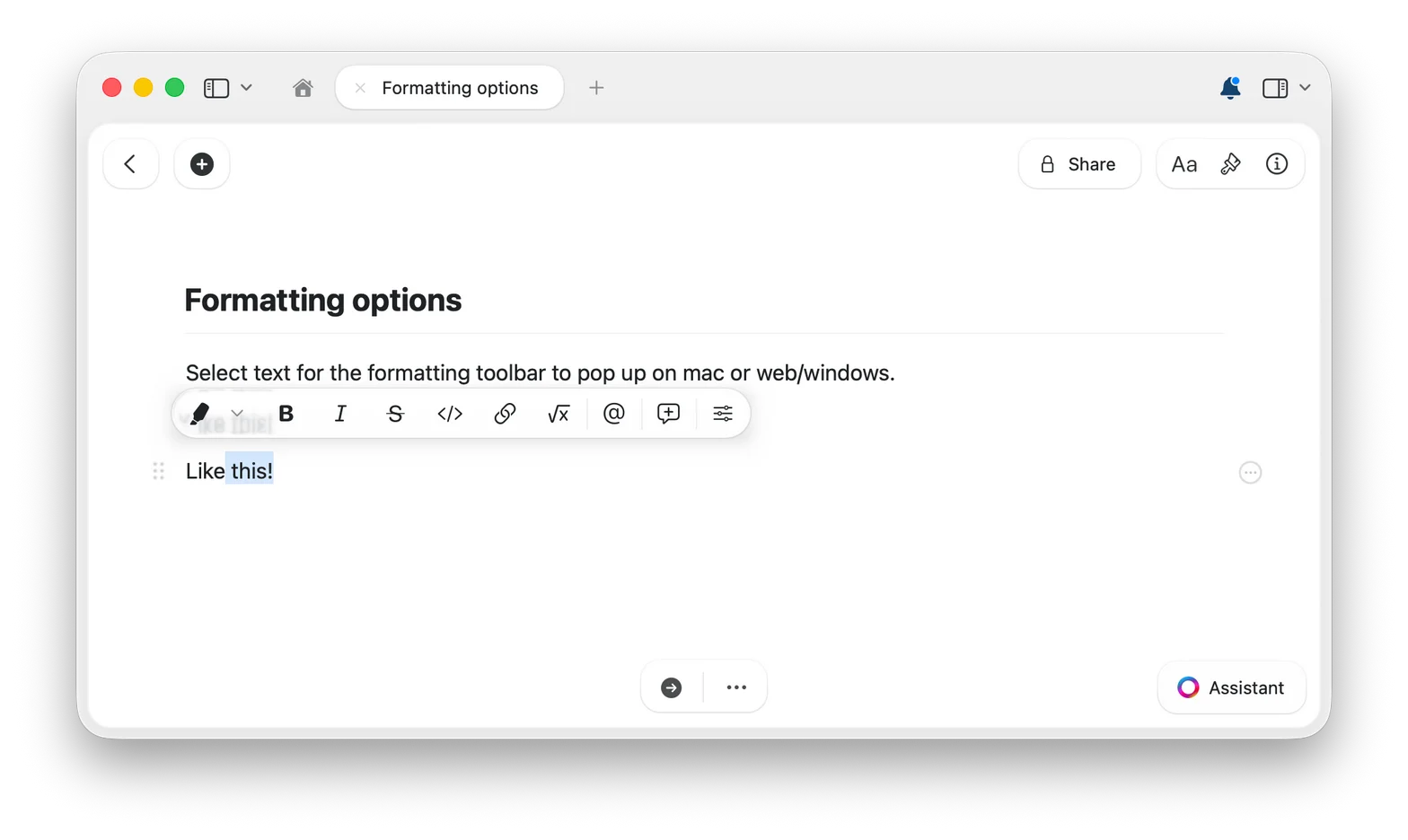
    選取任意文字後，格式工具列便會出現，提供粗體、斜體、醒目標示、連結等選項。這是最直覺的格式設定方式，完全不需要背指令。

    <img src="https://mintcdn.com/craft-support/XJjEDsqRyI4wI0NM/images/write-and-edit/formatting/en/content/formatting-toolbar.png?fit=max&auto=format&n=XJjEDsqRyI4wI0NM&q=85&s=c178a7130a008e74bf1fda6b2723a8ff" alt="選取文字上方顯示的格式工具列" width="1568" height="936" data-path="images/write-and-edit/formatting/en/content/formatting-toolbar.png" />

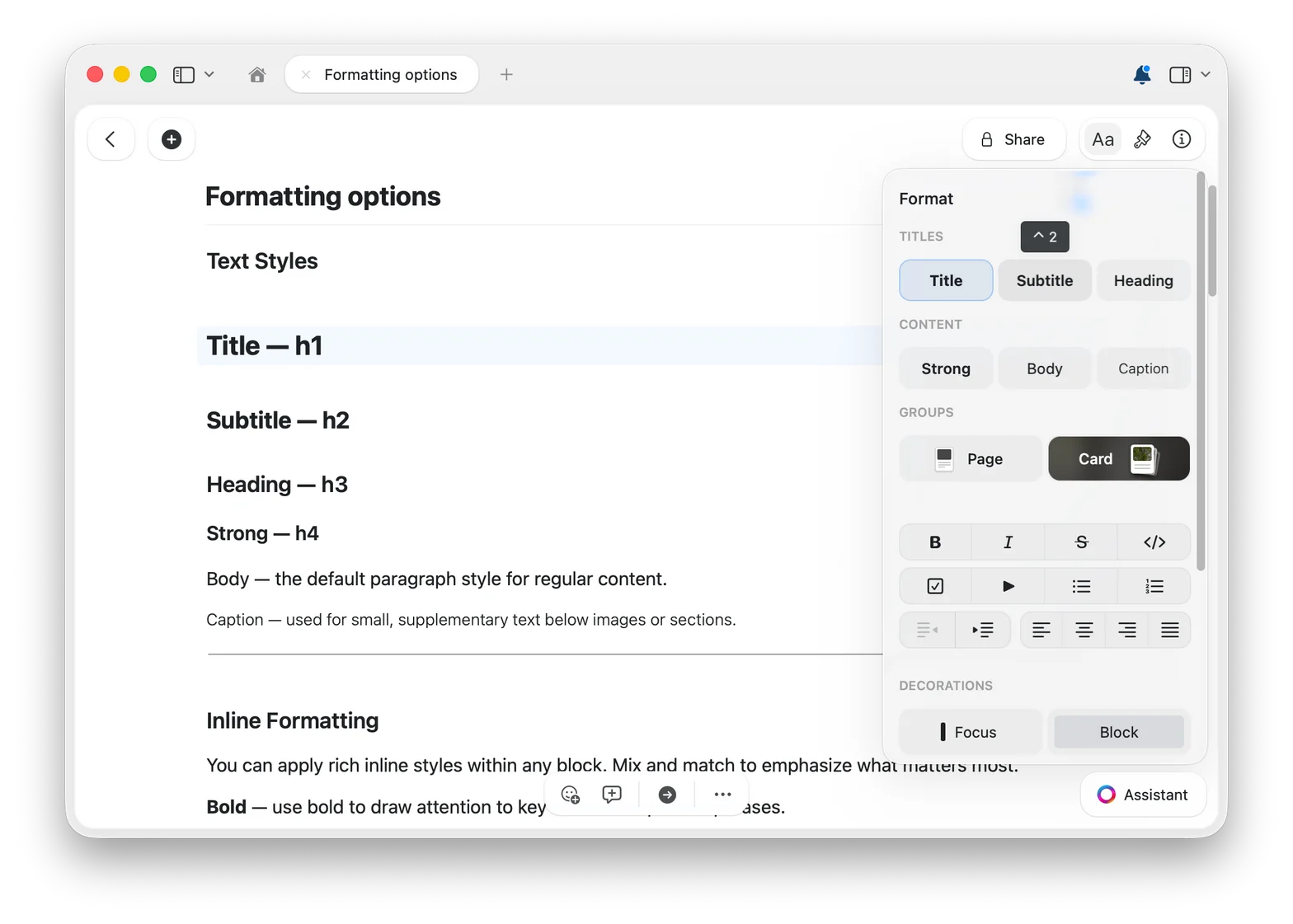
    想在同一處查看所有文字與區塊樣式？點選右上角的 `Aa` 按鈕開啟**格式面板**。

    <img src="https://mintcdn.com/craft-support/XJjEDsqRyI4wI0NM/images/write-and-edit/formatting/en/content/format-panel.png?fit=max&auto=format&n=XJjEDsqRyI4wI0NM&q=85&s=0d73e0b9c22d4ce094edf5cf3d1510fa" alt="顯示標題、內文與區塊樣式的格式面板" width="1568" height="1121" data-path="images/write-and-edit/formatting/en/content/format-panel.png" />
  </Tab>

  <Tab title="斜線選單">
    輸入 `/` 開啟指令選單，接著繼續輸入即可篩選出需要的樣式或動作。這也是探索 Craft 各種功能的好方法。
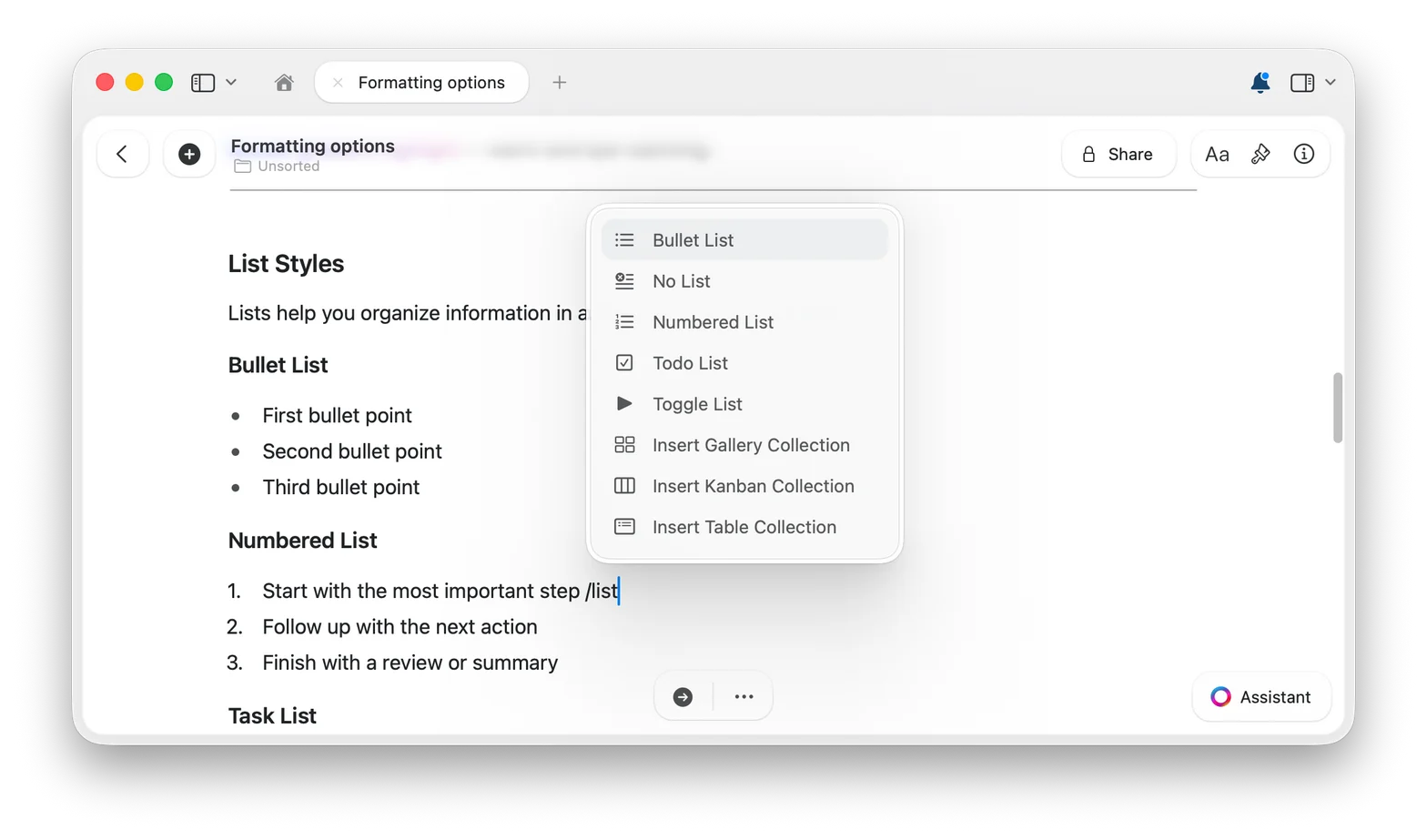
    <img src="https://mintcdn.com/craft-support/XJjEDsqRyI4wI0NM/images/write-and-edit/formatting/en/content/slash-menu.png?fit=max&auto=format&n=XJjEDsqRyI4wI0NM&q=85&s=8d32e9801d8f08732a5ce77f50de42b7" alt="輸入時顯示清單指令的斜線選單" width="1568" height="923" data-path="images/write-and-edit/formatting/en/content/slash-menu.png" />

    [進一步瞭解斜線選單](/zh-Hant/write-and-edit/formatting/slash-menu)
  </Tab>

  <Tab title="Markdown">
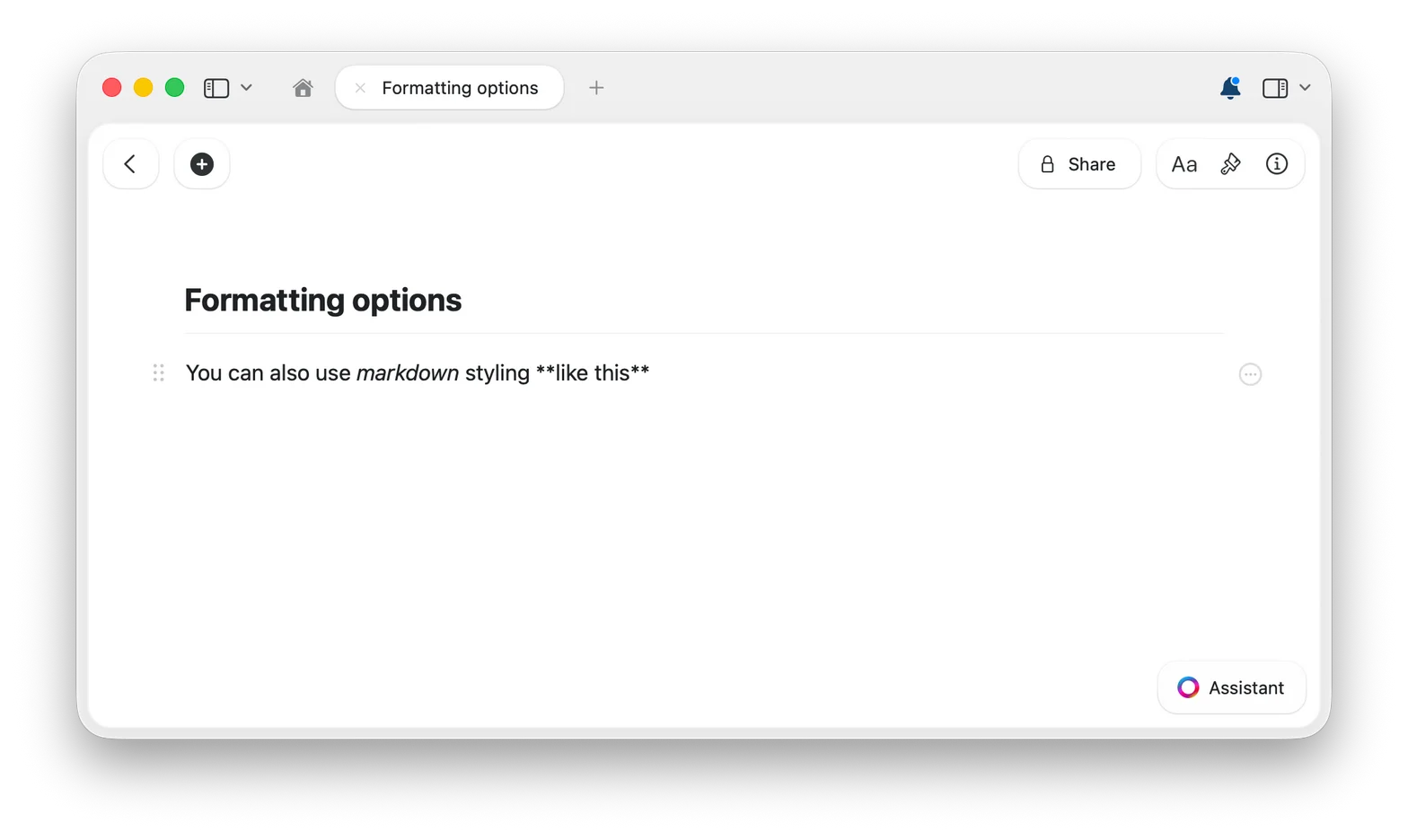
    一邊書寫一邊使用熟悉的 Markdown 語法：輸入 `**粗體文字**`，在補上星號的那一刻，文字就會變成**粗體文字**。

    <img src="https://mintcdn.com/craft-support/XJjEDsqRyI4wI0NM/images/write-and-edit/formatting/en/content/markdown-typing.png?fit=max&auto=format&n=XJjEDsqRyI4wI0NM&q=85&s=f263d6f6466e0a7070c576f13b202c47" alt="Markdown 語法轉換為格式化文字" width="1568" height="936" data-path="images/write-and-edit/formatting/en/content/markdown-typing.png" />

    [查看所有 Markdown 快速輸入](/zh-Hant/write-and-edit/formatting/markdown-shortcuts)
  </Tab>

  <Tab title="鍵盤快速鍵">
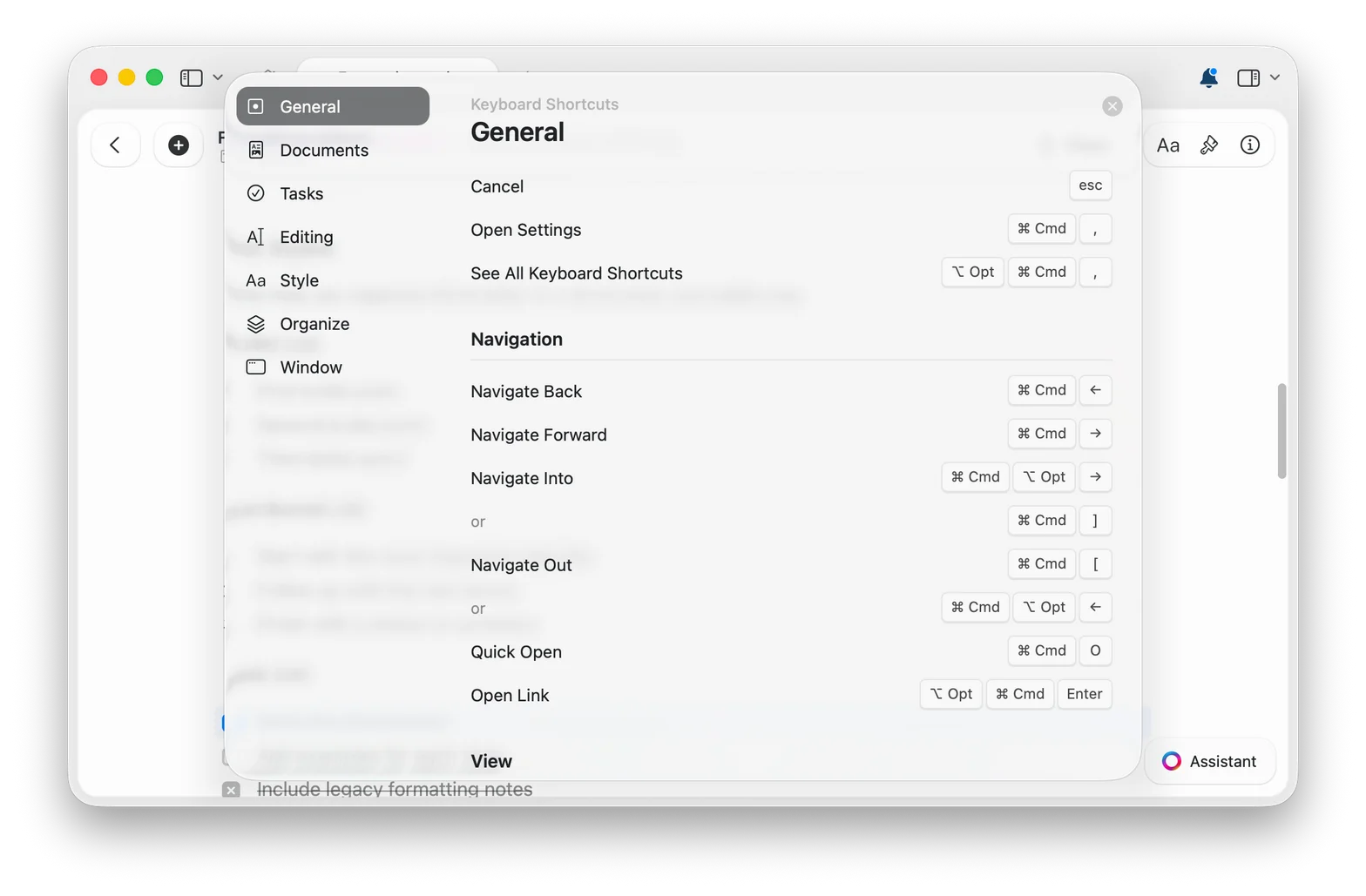
    `Cmd+B` 套用粗體、`Cmd+I` 套用斜體等快速指令，一旦記熟就是最快的格式設定方式。

    <img src="https://mintcdn.com/craft-support/XJjEDsqRyI4wI0NM/images/write-and-edit/formatting/en/content/shortcuts-panel.png?fit=max&auto=format&n=XJjEDsqRyI4wI0NM&q=85&s=fd80212ae106ee8d86da23737bbccf2e" alt="Craft 的鍵盤快速鍵面板" width="1568" height="1029" data-path="images/write-and-edit/formatting/en/content/shortcuts-panel.png" />

    [瀏覽所有鍵盤快速鍵](/zh-Hant/introduction/shortcuts)
  </Tab>
</Tabs>

這四種方式可以自由搭配，依照當下的工作靈活切換。想深入瞭解以鍵盤為主的方法，請參閱[快速樣式技巧](/zh-Hant/write-and-edit/formatting/quick-styling)。

## 所有格式設定功能

<CardGroup cols={2}>
  <Card title="拼字檢查與自動修正" href="/zh-Hant/write-and-edit/formatting/spell-check">
    支援 34 種語言的拼字檢查，可全域或依文件個別設定
  </Card>

  <Card title="Markdown 快速輸入" href="/zh-Hant/write-and-edit/formatting/markdown-shortcuts">
    使用 Markdown 語法邊寫邊排版
  </Card>

  <Card title="使用斜線選單" href="/zh-Hant/write-and-edit/formatting/slash-menu">
    雙手不離鍵盤即可使用所有功能
  </Card>

  <Card title="尋找與取代" href="/zh-Hant/write-and-edit/formatting/find-replace">
    在文件中搜尋並取代文字
  </Card>

  <Card title="括住所選文字" href="/zh-Hant/write-and-edit/formatting/surround-selection">
    以方括號、圓括號或大括號括住選取的文字
  </Card>

  <Card title="加入日期" href="/zh-Hant/write-and-edit/formatting/dates">
    插入可連結至每日筆記的日期標籤
  </Card>

  <Card title="使用表情符號" href="/zh-Hant/write-and-edit/formatting/emoji">
    輸入 `:` 加上表情符號名稱即可插入表情符號
  </Card>

  <Card title="下標與上標" href="/zh-Hant/write-and-edit/formatting/subscript-superscript">
    排版數學符號、公式與註腳
  </Card>

  <Card title="快速樣式技巧" href="/zh-Hant/write-and-edit/formatting/quick-styling">
    結合快速鍵、Markdown 與斜線選單，加快排版速度
  </Card>

  <Card title="數學公式" href="/zh-Hant/write-and-edit/math-formulas">
    使用 LaTeX 語法撰寫方程式，支援行內或獨立區塊
  </Card>
</CardGroup>