> ## Documentation Index
> Fetch the complete documentation index at: https://craft-support.mintlify.site/llms.txt
> Use this file to discover all available pages before exploring further.
# 新增日期
> 在文件中插入會連結到每日筆記的日期徽章,方便快速參考時間。
Craft 中的日期徽章具有雙重功能:它們標示內容中的時間參考,並直接連結到該日期的每日筆記。
## 插入日期
你可以用多種方式新增日期:
### 使用斜線選單
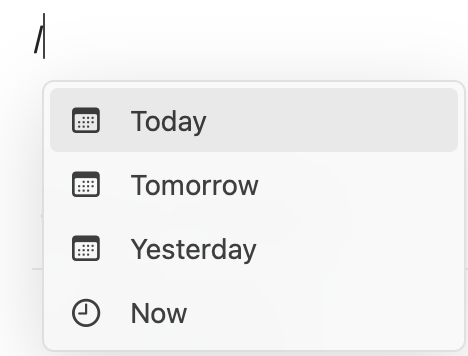
輸入 `/`,然後選擇:
* 輸入 **Date & Time** 以開啟日期選擇器
* 輸入自然語言,例如 **Today**、**Tomorrow** 或 **Yesterday**
* 輸入月份名稱後接日期(例如 **December 15**)
 ### 使用 @ 符號
針對特定日期,輸入 `@`,後面接 **YYYY.MM.DD** 格式的日期:
### 使用 @ 符號
針對特定日期,輸入 `@`,後面接 **YYYY.MM.DD** 格式的日期:
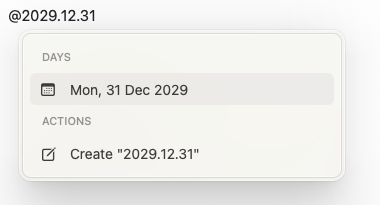
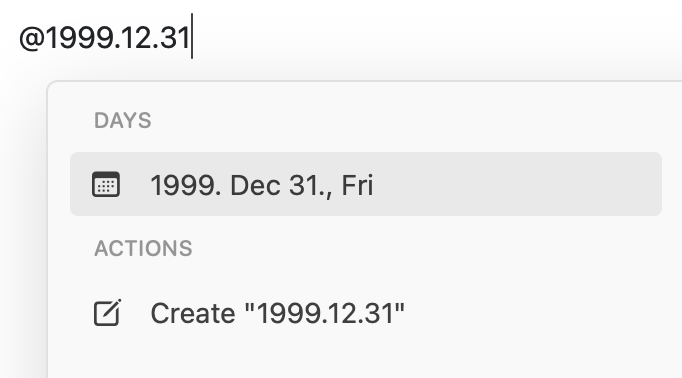 會出現日期選擇器,讓你選擇或調整日期:
 ## 日期徽章與每日筆記
每個日期徽章同時也是連結,會導向對應的[每日筆記](/zh-Hant/plan-and-do/daily-notes)。點選任一日期徽章可:
* 檢視該日期已有的內容
* 新增筆記或任務
* 在每日筆記間瀏覽
日期徽章會自動連結到每日筆記,方便在整個工作區中參考及瀏覽以時間為基礎的內容。
## 日期徽章與每日筆記
每個日期徽章同時也是連結,會導向對應的[每日筆記](/zh-Hant/plan-and-do/daily-notes)。點選任一日期徽章可:
* 檢視該日期已有的內容
* 新增筆記或任務
* 在每日筆記間瀏覽
日期徽章會自動連結到每日筆記,方便在整個工作區中參考及瀏覽以時間為基礎的內容。