> ## Documentation Index
> Fetch the complete documentation index at: https://craft-support.mintlify.site/llms.txt
> Use this file to discover all available pages before exploring further.
# App Styles
> 將你文件的樣式延伸至應用程式介面,打造更沉浸且一致的編輯體驗。
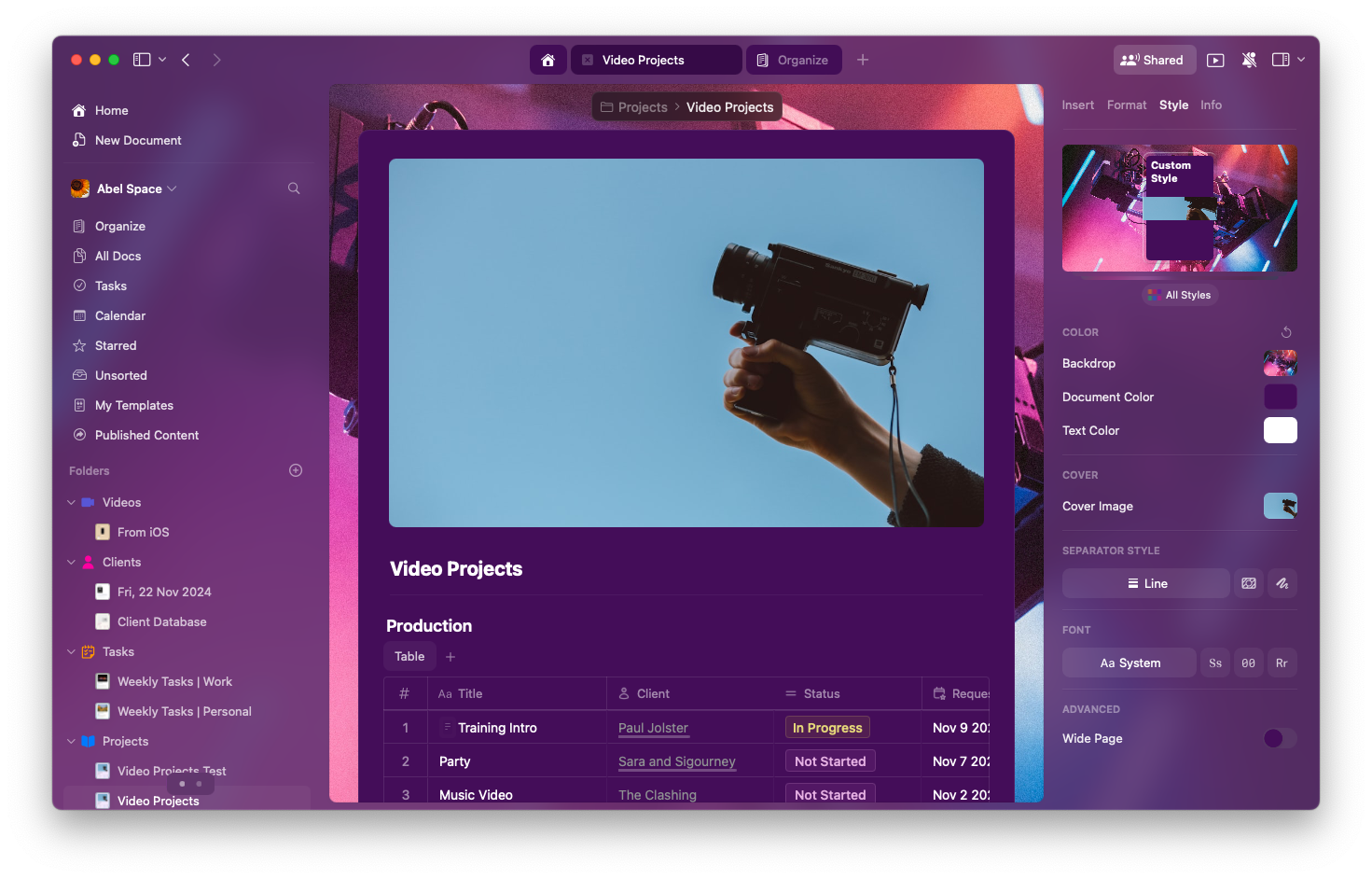
App Styles 將你文件的顏色帶入周圍的應用程式介面,創造更統一且沉浸的編輯體驗。啟用後,sidebar、工具列與其他介面元素會反映文件的主題顏色。
## 什麼是 App Styles?
App Styles 會將你文件的**文字與背景顏色**套用到 Craft 的部分介面,讓內容與編輯環境在視覺上更一致。
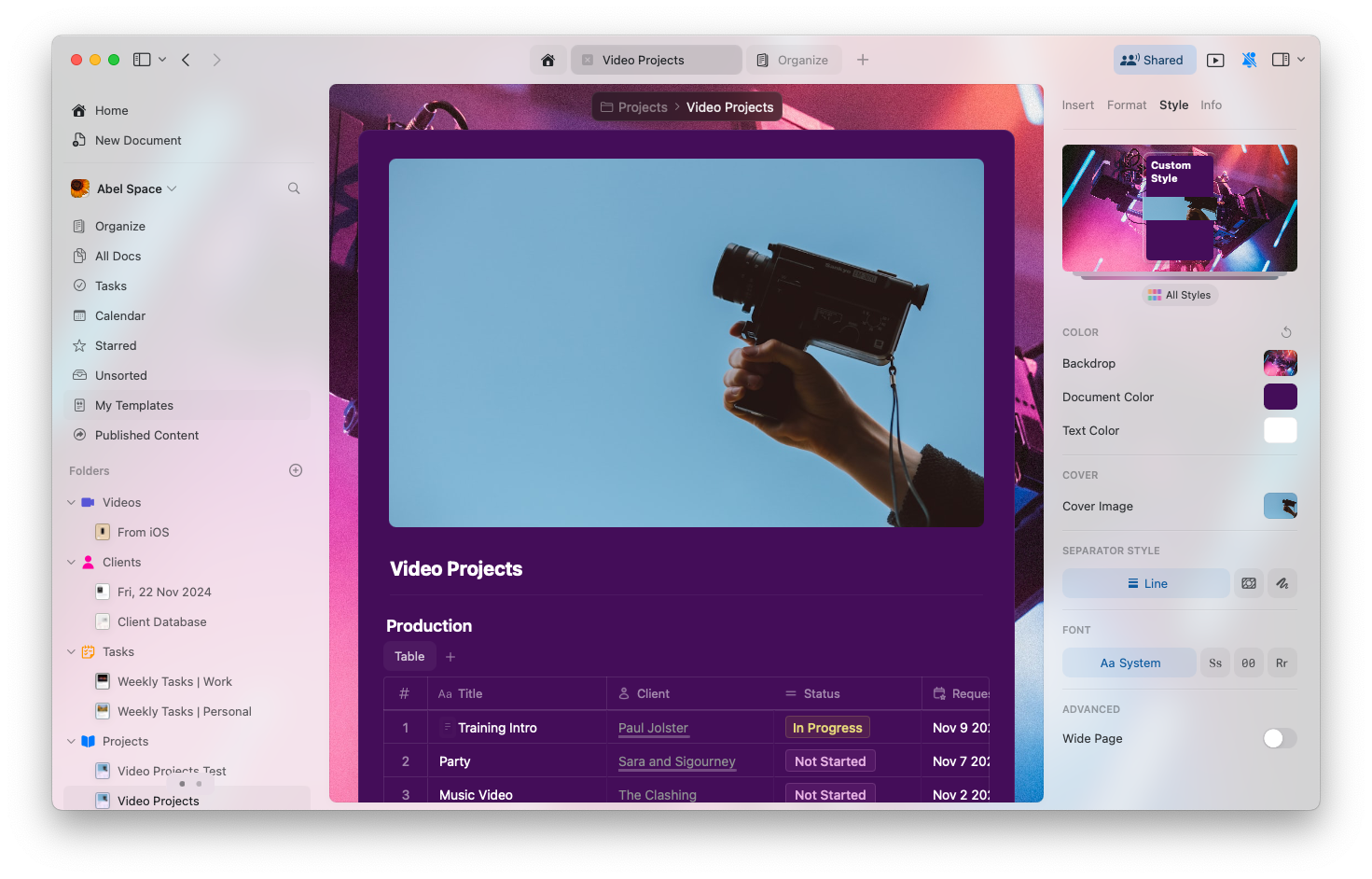
### 範例對照
**已停用 App Styles:**
 **已啟用 App Styles:**
 ## 平台可用性
App Styles 在 macOS 上完整支援:
* **可用於**: 編輯器檢視僅此支援(Home 與 Browse 使用系統預設)
* **套用至**: sidebar、工具列,與其他介面元素
* **使用**: 文件的文字與背景顏色
* **字型**: 為了可讀性與效能,維持系統字型
App Styles 在 iPad 上完整支援:
* **可用於**: 編輯器檢視僅此支援(Home 與 Browse 使用系統預設)
* **套用至**: sidebar、工具列,與其他介面元素
* **使用**: 文件的文字與背景顏色
* **字型**: 為了可讀性與效能,維持系統字型
App Styles 目前尚未在 iPhone 提供。此功能計畫在未來更新中推出。
## 啟用或停用 App Styles
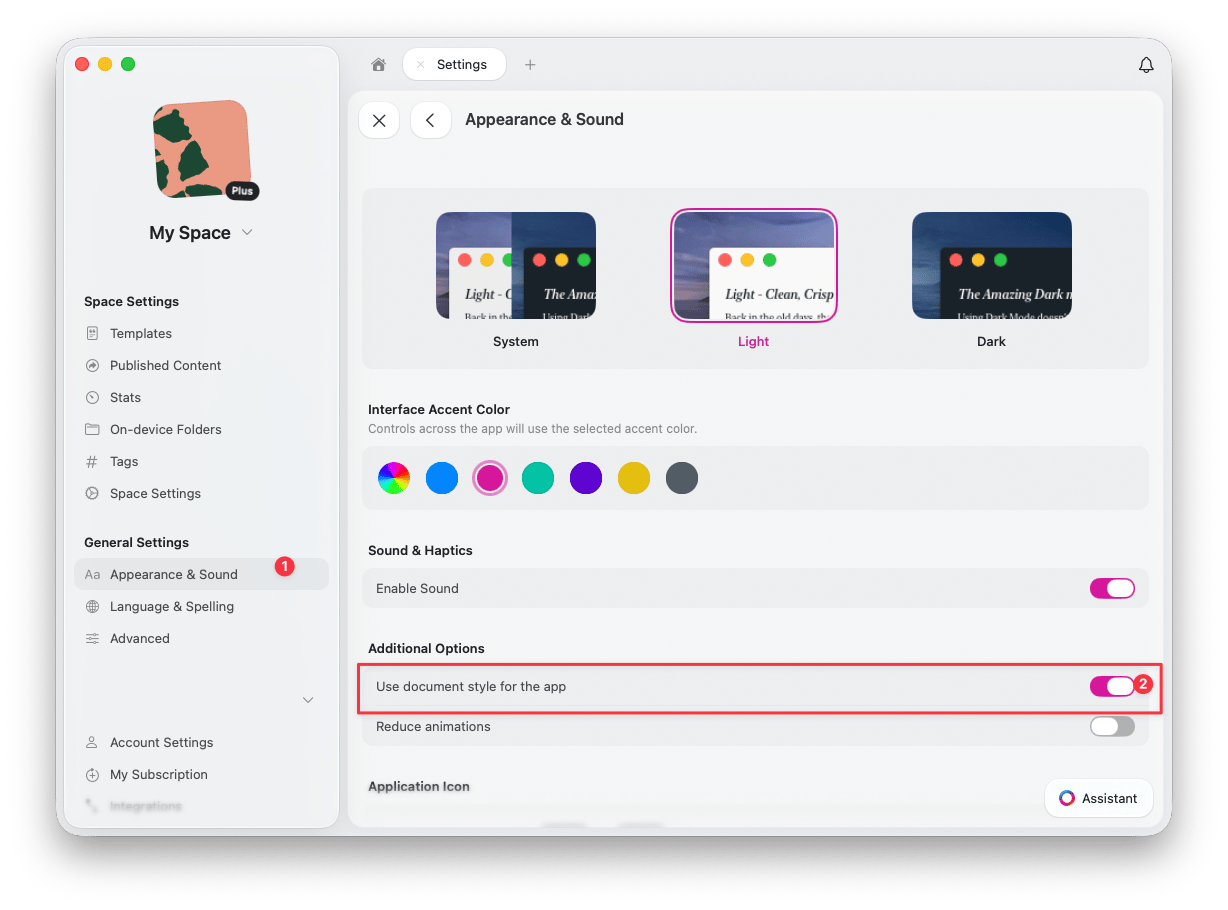
開啟**設定** > **外觀與聲音**
在**Additional Options**下,開啟或關閉\*\*「Use document style for the app」\*\*
## 平台可用性
App Styles 在 macOS 上完整支援:
* **可用於**: 編輯器檢視僅此支援(Home 與 Browse 使用系統預設)
* **套用至**: sidebar、工具列,與其他介面元素
* **使用**: 文件的文字與背景顏色
* **字型**: 為了可讀性與效能,維持系統字型
App Styles 在 iPad 上完整支援:
* **可用於**: 編輯器檢視僅此支援(Home 與 Browse 使用系統預設)
* **套用至**: sidebar、工具列,與其他介面元素
* **使用**: 文件的文字與背景顏色
* **字型**: 為了可讀性與效能,維持系統字型
App Styles 目前尚未在 iPhone 提供。此功能計畫在未來更新中推出。
## 啟用或停用 App Styles
開啟**設定** > **外觀與聲音**
在**Additional Options**下,開啟或關閉\*\*「Use document style for the app」\*\*
 ## 為什麼要使用 App Styles?
App Styles 提供多項好處:
* **沉浸式體驗** - 建立一致的視覺環境
* **調性一致** - 讓介面與內容的氛圍相符
* **減少干擾** - 降低內容與介面之間的視覺斷裂
* **個人化** - 讓 Craft 更像你的專屬工作空間
## 限制
* **字型** - 介面仍會使用系統字型以保持可讀性
* **其他檢視** - Home、Browse 與其他區段使用預設介面
* **平台** - 目前在 iPhone 上尚不可用
## 相關文章
涵蓋所有樣式功能的完整指南
設定你偏好的樣式為預設
為你的文件自訂封面圖片
## 為什麼要使用 App Styles?
App Styles 提供多項好處:
* **沉浸式體驗** - 建立一致的視覺環境
* **調性一致** - 讓介面與內容的氛圍相符
* **減少干擾** - 降低內容與介面之間的視覺斷裂
* **個人化** - 讓 Craft 更像你的專屬工作空間
## 限制
* **字型** - 介面仍會使用系統字型以保持可讀性
* **其他檢視** - Home、Browse 與其他區段使用預設介面
* **平台** - 目前在 iPhone 上尚不可用
## 相關文章
涵蓋所有樣式功能的完整指南
設定你偏好的樣式為預設
為你的文件自訂封面圖片