> ## Documentation Index
> Fetch the complete documentation index at: https://craft-support.mintlify.site/llms.txt
> Use this file to discover all available pages before exploring further.
# 卡片
> 透過自訂背景、顏色、圖片與預覽樣式,將頁面轉換為具視覺吸引力的卡片。
卡片是一種樣式選項,可將文件中的頁面變成在視覺上獨立的卡片式元素。透過為頁面設定不同的背景、顏色、預覽或格式,打造更吸引人的版面配置。
卡片與頁面在底層運作上是相同的。卡片其實就是加上額外視覺樣式(背景、顏色、預覽或格式)的頁面。所有能在頁面上做的事,也都能在卡片裡進行。
## 建立卡片
在文件中輸入 `/card`。
在選單中選擇卡片樣式。
卡片會以新的頁面區塊形式插入。
進一步了解請參考[使用斜線選單](/zh-Hant/write-and-edit/formatting/slash-menu)。
## 背景
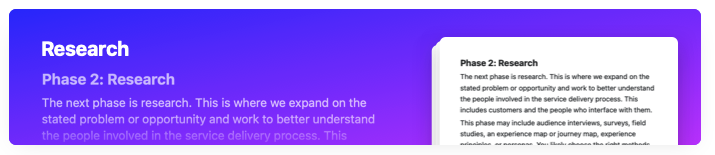
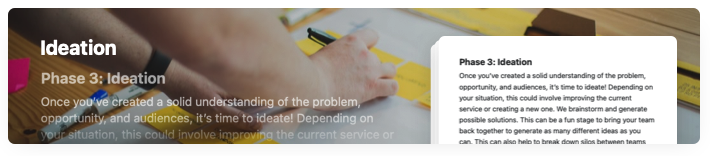
卡片可以使用三種背景類型來自訂:
* **純色:** 從調色盤中選擇,或設定自訂顏色。
 * **Unsplash 圖片:** 直接在 Craft 中搜尋並選擇專業照片。
 * **您自己的圖片:** 從裝置上傳圖片。
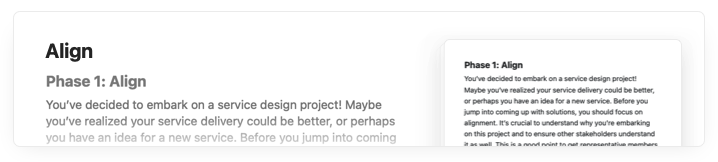
您也可以讓卡片不設定背景,呈現乾淨、極簡的外觀:
* **您自己的圖片:** 從裝置上傳圖片。
您也可以讓卡片不設定背景,呈現乾淨、極簡的外觀:
 ## 預覽樣式
卡片的預覽決定了它的內容在父頁面上的顯示方式。共有五種選擇:
* **標準:** 預設預覽,顯示卡片的標題與一段內容摘要。
* **表情符號:** 選擇最多四個表情符號,顯示在卡片上以取代文字預覽。
* **書本:** 模仿書頁的樣式。
* **便利貼:** 模仿黃色筆記本頁的樣式。
* **圖庫:** 一個最多包含卡片內三張圖片的拼貼,取代文字預覽。
## 卡片格式
卡片有五種格式,可改變其在文件中的醒目程度。搭配使用可營造層次與視覺重點。
兩種最大的卡片格式僅在 Craft Plus 中提供。其餘三種格式於所有方案中皆可使用。
## 影片教學
## 使用情境
卡片特別適用於:
* **專案規劃:** 為不同的專案階段建立視覺區塊。
* **知識庫:** 以視覺層次整理主題。
* **會議紀錄:** 將議程項目或討論主題分隔。
* **內容規劃:** 以視覺區隔整理想法。
## 相關文章
完整介紹所有樣式功能的綜合指南
為文件自訂封面圖片
了解 Craft 的組成區塊
## 預覽樣式
卡片的預覽決定了它的內容在父頁面上的顯示方式。共有五種選擇:
* **標準:** 預設預覽,顯示卡片的標題與一段內容摘要。
* **表情符號:** 選擇最多四個表情符號,顯示在卡片上以取代文字預覽。
* **書本:** 模仿書頁的樣式。
* **便利貼:** 模仿黃色筆記本頁的樣式。
* **圖庫:** 一個最多包含卡片內三張圖片的拼貼,取代文字預覽。
## 卡片格式
卡片有五種格式,可改變其在文件中的醒目程度。搭配使用可營造層次與視覺重點。
兩種最大的卡片格式僅在 Craft Plus 中提供。其餘三種格式於所有方案中皆可使用。
## 影片教學
## 使用情境
卡片特別適用於:
* **專案規劃:** 為不同的專案階段建立視覺區塊。
* **知識庫:** 以視覺層次整理主題。
* **會議紀錄:** 將議程項目或討論主題分隔。
* **內容規劃:** 以視覺區隔整理想法。
## 相關文章
完整介紹所有樣式功能的綜合指南
為文件自訂封面圖片
了解 Craft 的組成區塊