

Comment le mode hors ligne fonctionne sur votre plateforme
- macOS
- iOS / iPadOS
- Web / Windows
- Android
L’édition hors ligne fonctionne nativement — aucune configuration nécessaire.Tous vos documents se synchronisent en arrière-plan, ils sont donc toujours disponibles même sans connexion. Lorsque vous vous reconnectez, les modifications sont envoyées automatiquement.
Ce que vous pouvez faire hors ligne
Lorsque vous travaillez hors ligne, vous pouvez :- Lire et modifier tout document que vous avez déjà ouvert
- Créer et mettre en forme du texte avec toutes les options de style
- Ajouter et organiser des blocs
- Travailler avec des tableaux, des listes et des titres
- Cocher des tâches
- Réorganiser et restructurer le contenu
Ce qui nécessite une connexion internet
Certaines fonctionnalités ne sont disponibles qu’en ligne :- Créer de nouveaux documents ou dossiers
- Recherche
- Ajouter des commentaires et des réactions
- Télécharger de nouvelles images ou fichiers
- Modifier les paramètres de partage ou de publication
- Utiliser AI Assistant et les fonctionnalités Connexions
- Gérer les documents (mettre en favori, épingler, dupliquer, déplacer, supprimer)
- Vue des tâches (boîte de réception, tâches à venir et actives)
Synchronisation et reconnexion
En cas de perte de connexion
Craft continue de fonctionner sans interruption. Toutes vos modifications sont enregistrées localement et l’application tente automatiquement de se reconnecter en arrière-plan.Lors de la reconnexion
- Les modifications non synchronisées sont envoyées automatiquement
- Si le document est ouvert, il se synchronise immédiatement
- Si le document est fermé, il se synchronisera lorsque vous l’ouvrirez
Travailler sur plusieurs appareils
Si vous modifiez le même document sur différents appareils hors ligne, aucun appareil ne verra les modifications de l’autre tant que les deux ne sont pas en ligne et que vous n’avez pas rouvert le document.Notes pour Web et Windows
Ces détails s’appliquent spécifiquement aux applications web, Windows et Android.Stockage des documents
Les documents sont enregistrés localement lorsque vous les ouvrez (pas l’intégralité de votre espace en une fois). Votre navigateur ou application gère le stockage automatiquement. Si l’espace de stockage vient à manquer, les documents en cache les plus anciens peuvent être supprimés — vous pouvez toujours y accéder en les ouvrant en ligne.Onglets multiples
Le mode hors ligne fonctionne sur plusieurs onglets ou fenêtres de navigateur. Lorsque vous l’activez ou le désactivez, le paramètre s’applique automatiquement à tous les onglets ouverts.Rechargement de page
Dépannage
Le document ne se charge pas hors ligne
Le document ne se charge pas hors ligne
- Assurez-vous d’avoir ouvert le document au moins une fois en ligne
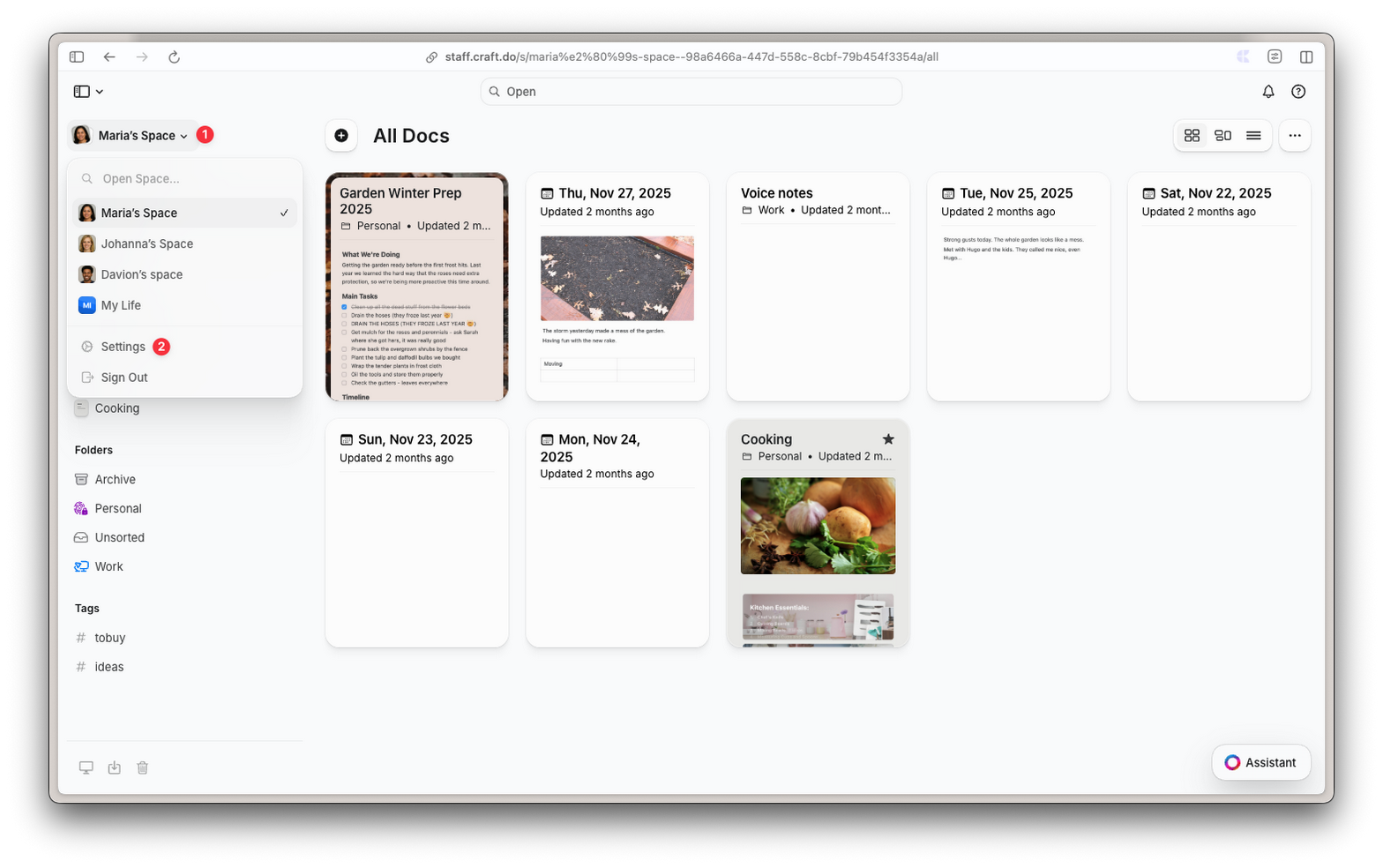
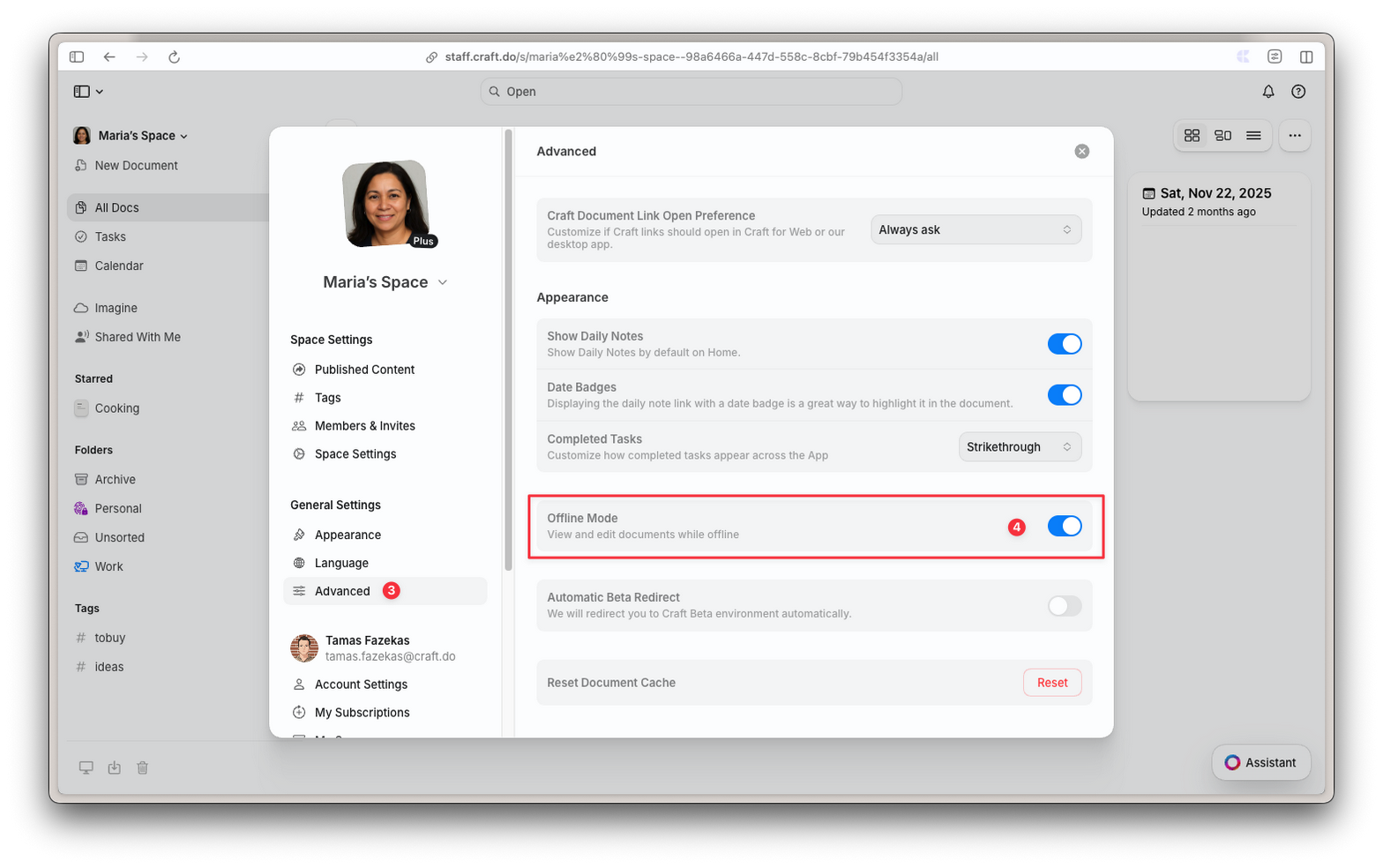
- Sur Web/Windows/Android : vérifiez que le mode hors ligne est activé dans Réglages → Avancé
- Vérifiez que votre navigateur n’a pas effacé son stockage
- Essayez d’ouvrir le document à nouveau en ligne pour actualiser la copie locale
Les modifications ne se synchronisent pas
Les modifications ne se synchronisent pas
- Vérifiez votre connexion internet
- Rouvrez le document pour déclencher une synchronisation
- Sur Web : assurez-vous de ne pas avoir rechargé la page avant la synchronisation des modifications
Foire aux questions
Dois-je sélectionner quels documents rendre disponibles hors ligne ?
Dois-je sélectionner quels documents rendre disponibles hors ligne ?
Sur macOS et iOS, tous les documents se synchronisent automatiquement. Sur Web, Windows et Android, les documents sont enregistrés lorsque vous les ouvrez — activez simplement le mode hors ligne dans les Réglages et Craft s’occupe du reste.
Quelle est la différence entre le mode hors ligne natif et celui de Web/Windows/Android ?
Quelle est la différence entre le mode hors ligne natif et celui de Web/Windows/Android ?
La principale différence est la synchronisation en arrière-plan. Les applications natives macOS et iOS synchronisent tous les documents en arrière-plan, même lorsqu’elles sont fermées. Web, Windows et Android ne synchronisent les documents que lorsque vous les avez ouverts. Cela signifie que vous devez ouvrir un document en ligne pour obtenir les dernières modifications des autres appareils.
Que se passe-t-il si je manque d'espace de stockage ?
Que se passe-t-il si je manque d'espace de stockage ?
Votre navigateur gère le stockage automatiquement. Si l’espace est limité, les documents les plus anciens ou les moins utilisés peuvent être supprimés du stockage local. Vous pouvez toujours y accéder en les ouvrant en ligne.
Puis-je travailler sur le même document hors ligne sur deux appareils différents ?
Puis-je travailler sur le même document hors ligne sur deux appareils différents ?
Oui, mais aucun appareil ne verra les modifications de l’autre tant que les deux ne sont pas en ligne et que vous n’avez pas rouvert le document. Pour éviter les conflits, essayez de travailler sur des documents différents sur chaque appareil, ou synchronisez avant de changer.