

Como o modo offline funciona na sua plataforma
- macOS
- iOS / iPadOS
- Web / Windows
- Android
A edição offline funciona de imediato — nenhuma configuração necessária.Todos os seus documentos são sincronizados em segundo plano, então estão sempre disponíveis mesmo sem conexão. Quando você se reconectar, as alterações são enviadas automaticamente.
O que você pode fazer offline
Quando está trabalhando offline, você pode:- Ler e editar qualquer documento que tenha aberto anteriormente
- Criar e formatar texto com todas as opções de estilo
- Adicionar e organizar blocos
- Trabalhar com tabelas, listas e títulos
- Marcar tarefas como concluídas
- Reorganizar e reestruturar conteúdo
O que requer conexão com a internet
Alguns recursos estão disponíveis apenas estando online:- Criar novos documentos ou pastas
- Busca
- Adicionar comentários e reações
- Enviar novas imagens ou arquivos
- Alterar configurações de compartilhamento ou publicação
- Usar o AI Assistant e recursos de Conexões
- Gerenciar documentos (favoritar, fixar, duplicar, mover, excluir)
- Visualização de tarefas (caixa de entrada, tarefas próximas e ativas)
Sincronização e reconexão
Quando você perde a conexão
O Craft continua funcionando sem interrupção. Todas as suas edições são salvas localmente e o app tenta se reconectar automaticamente em segundo plano.Quando você se reconecta
- Alterações não sincronizadas são enviadas automaticamente
- Se o documento estiver aberto, ele sincroniza imediatamente
- Se o documento estiver fechado, ele sincronizará quando você o abrir novamente
Trabalhar em vários dispositivos
Se você editar o mesmo documento em dispositivos diferentes enquanto estiver offline, nenhum dispositivo verá as alterações do outro até que ambos estejam online e você reabra o documento.Observações sobre Web e Windows
Estes detalhes se aplicam especificamente aos apps web, Windows e Android.Armazenamento de documentos
Os documentos são salvos localmente quando você os abre (não todo o seu espaço de uma vez). Seu navegador ou app gerencia o armazenamento automaticamente. Se o armazenamento ficar baixo, documentos em cache mais antigos podem ser removidos — você sempre pode acessá-los novamente abrindo-os estando online.Múltiplas abas
O modo offline funciona em múltiplas abas ou janelas do navegador. Quando você habilita ou desabilita, a configuração se aplica a todas as abas abertas automaticamente.Recarregamento de página
Solução de problemas
Documento não carrega offline
Documento não carrega offline
- Certifique-se de ter aberto o documento pelo menos uma vez estando online
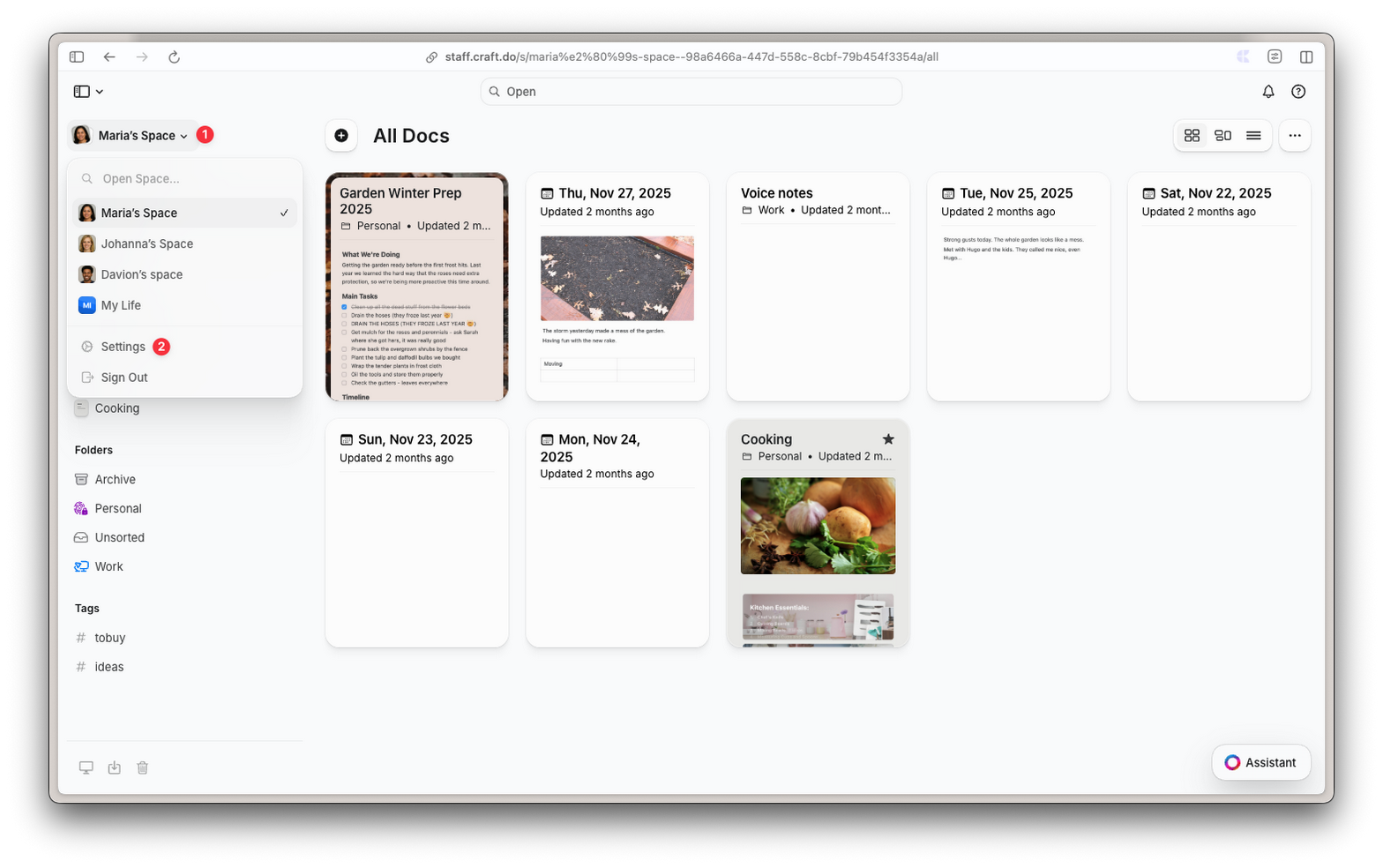
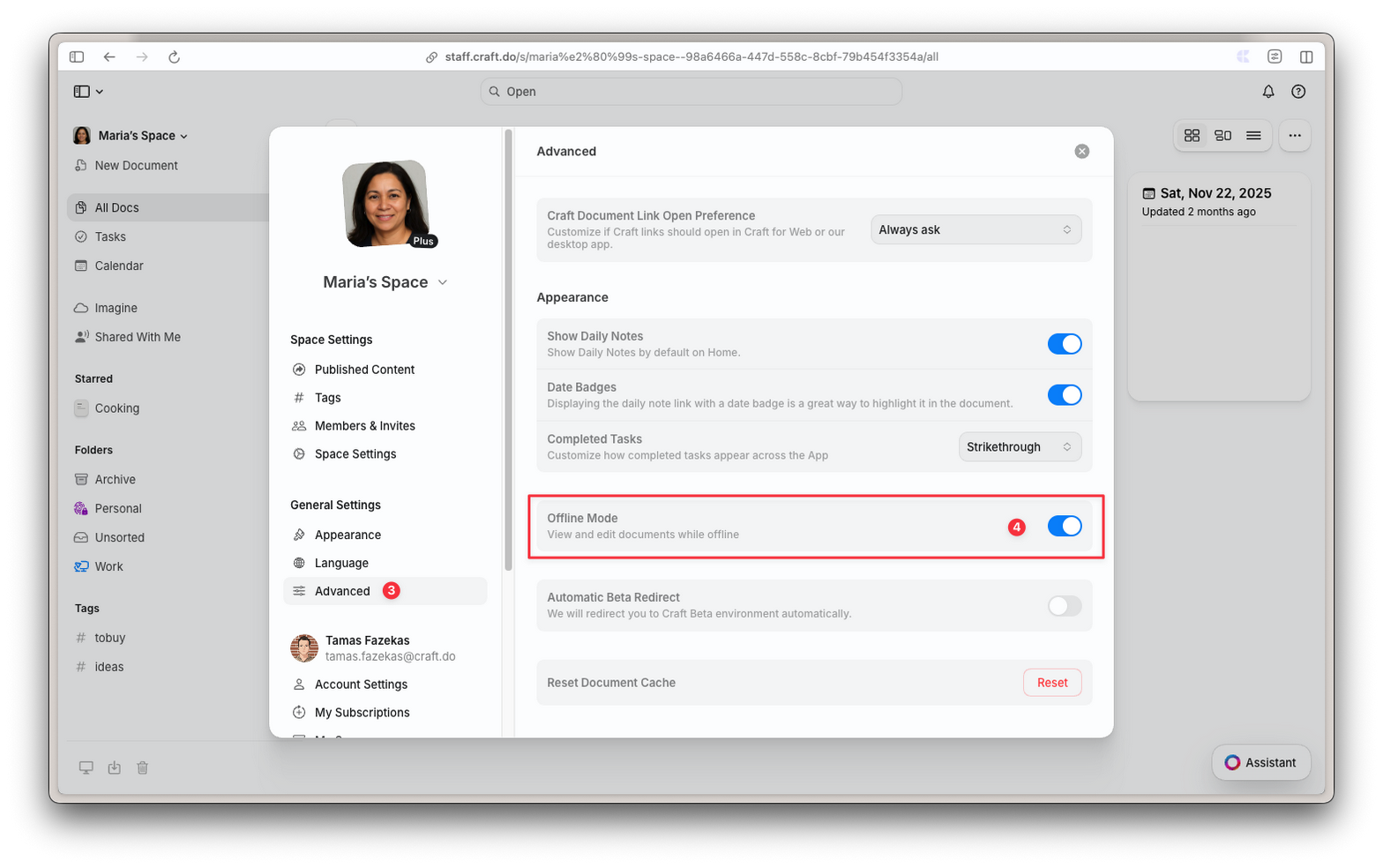
- No Web/Windows/Android: verifique se o modo offline está habilitado em Configurações → Avançado
- Verifique se o navegador não limpou seu armazenamento
- Tente abrir o documento novamente estando online para atualizar a cópia local
Alterações não estão sincronizando
Alterações não estão sincronizando
- Verifique sua conexão com a internet
- Reabra o documento para iniciar uma sincronização
- No Web: certifique-se de não ter recarregado a página antes das alterações serem sincronizadas
Perguntas frequentes
Preciso selecionar quais documentos ficarão disponíveis offline?
Preciso selecionar quais documentos ficarão disponíveis offline?
No macOS e iOS, todos os documentos são sincronizados automaticamente. No Web, Windows e Android, os documentos são salvos quando você os abre — basta habilitar o modo offline nas Configurações e o Craft cuida do resto.
Qual a diferença entre o offline nativo e o do Web/Windows/Android?
Qual a diferença entre o offline nativo e o do Web/Windows/Android?
A principal diferença é a sincronização em segundo plano. Os apps nativos para macOS e iOS sincronizam todos os documentos em segundo plano, mesmo quando fechados. Web, Windows e Android só sincronizam documentos quando você os tem abertos. Isso significa que você precisa abrir um documento estando online para obter as últimas alterações de outros dispositivos.
O que acontece se eu ficar sem espaço de armazenamento?
O que acontece se eu ficar sem espaço de armazenamento?
Seu navegador gerencia o armazenamento automaticamente. Se o espaço ficar baixo, documentos mais antigos ou menos usados podem ser removidos do armazenamento local. Você sempre pode acessá-los novamente abrindo-os estando online.
Posso trabalhar no mesmo documento offline em dois dispositivos diferentes?
Posso trabalhar no mesmo documento offline em dois dispositivos diferentes?
Sim, mas nenhum dispositivo verá as alterações do outro até que ambos estejam online e você reabra o documento. Para evitar conflitos, tente trabalhar em documentos diferentes em cada dispositivo, ou sincronize antes de trocar.