

Adding multiple accounts is currently available on iOS and macOS only.
Add Another Account
You can sign in to multiple Craft accounts on the same device and switch between them instantly.Step 1: Open Settings
- Mac
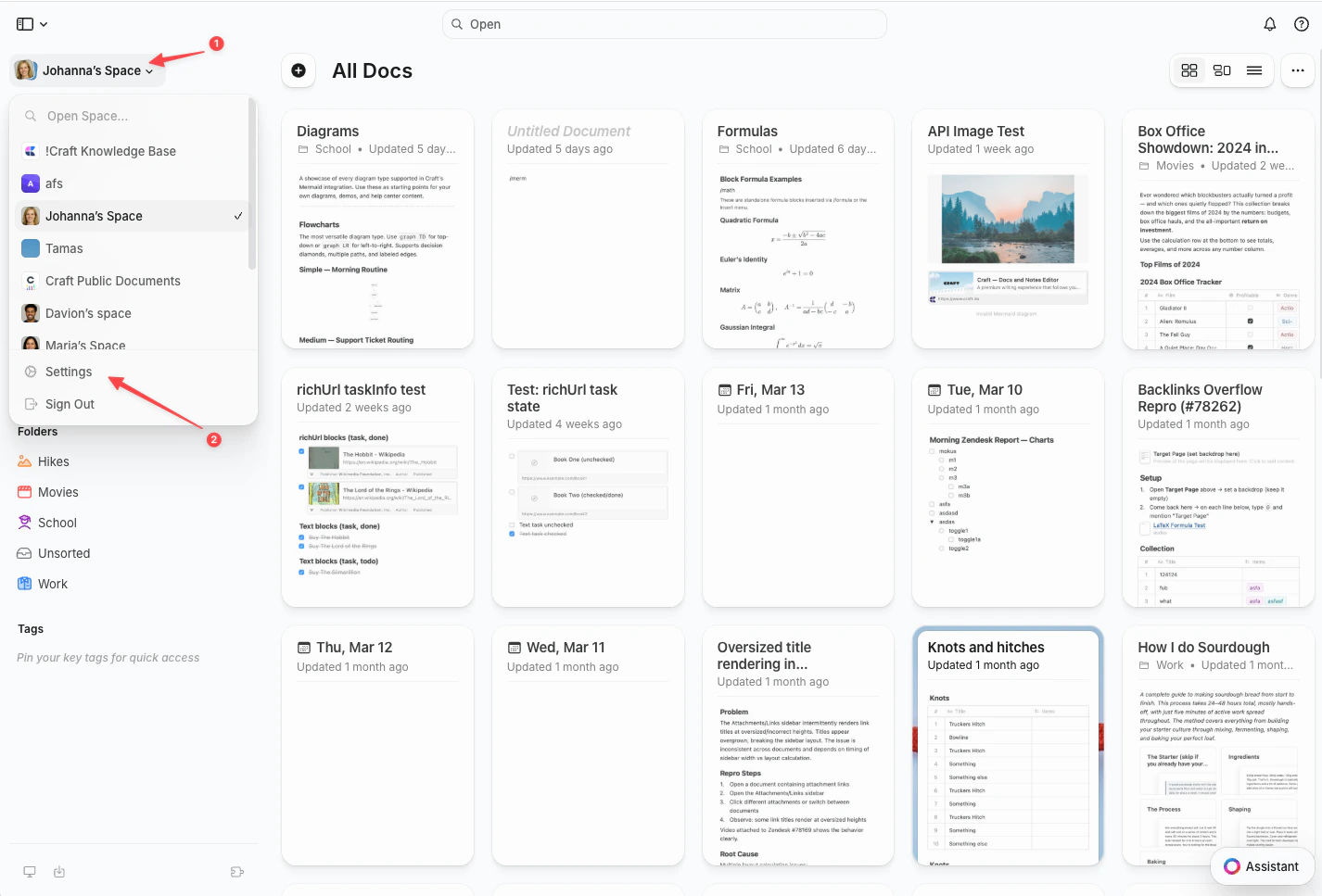
- Web / Windows
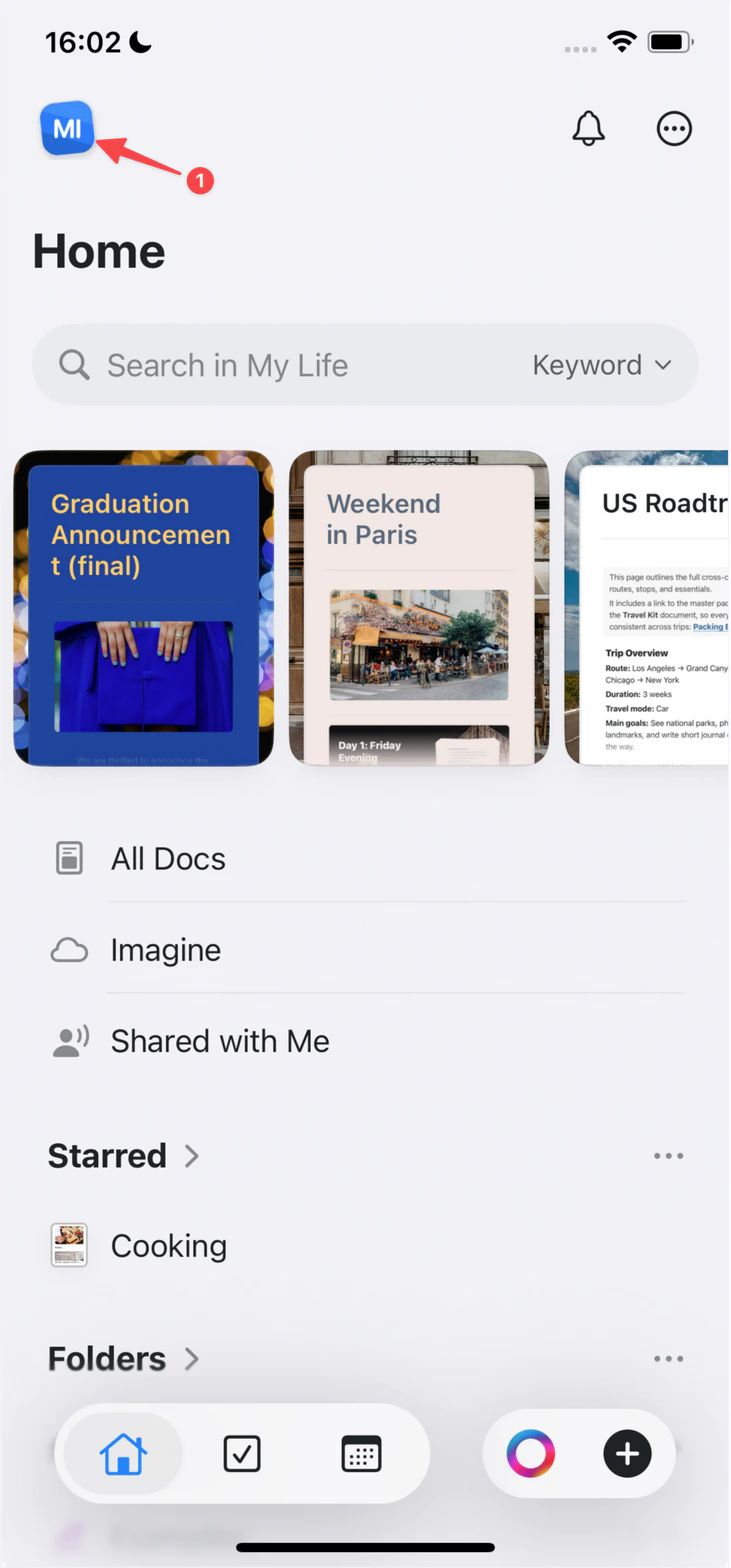
- iOS
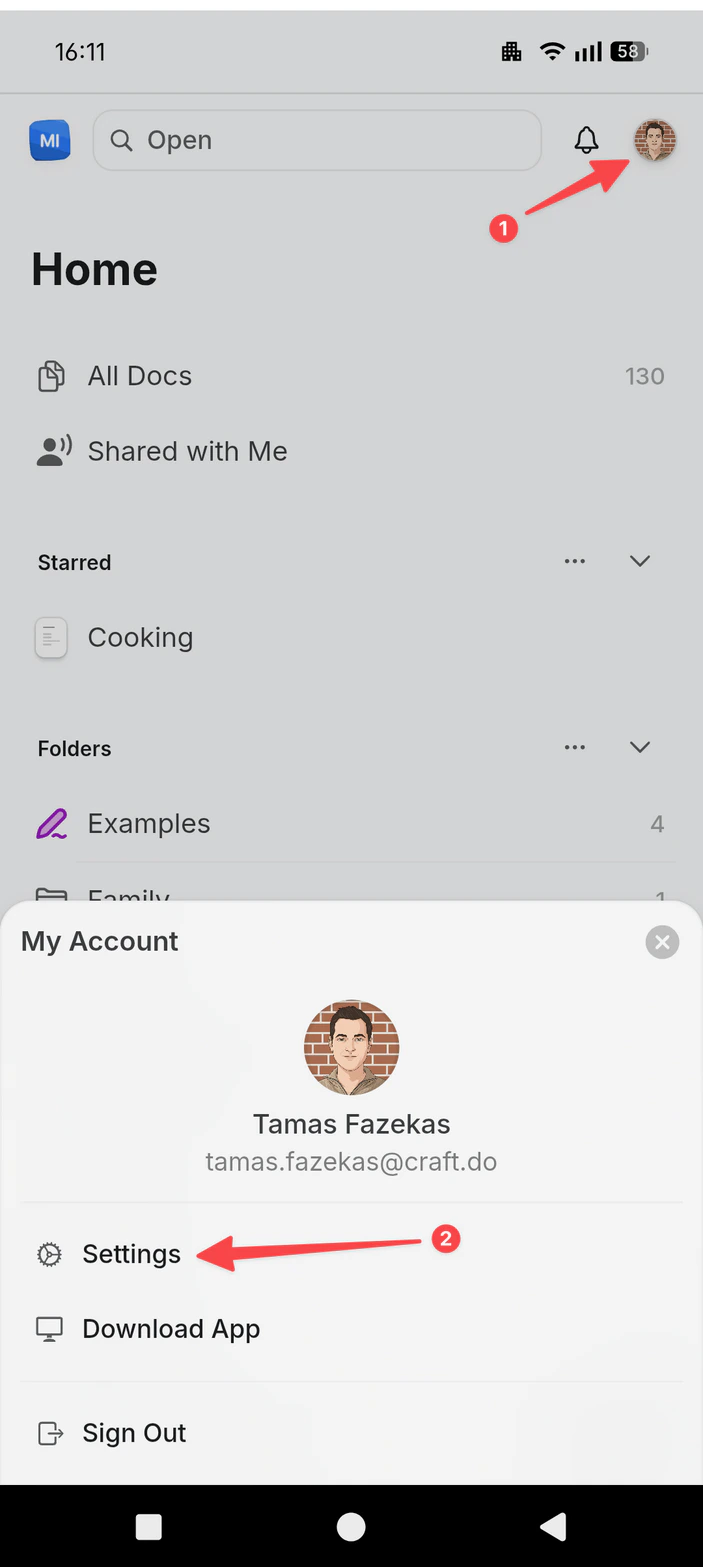
- Android
Click the Space name at the top of the sidebar to open Settings.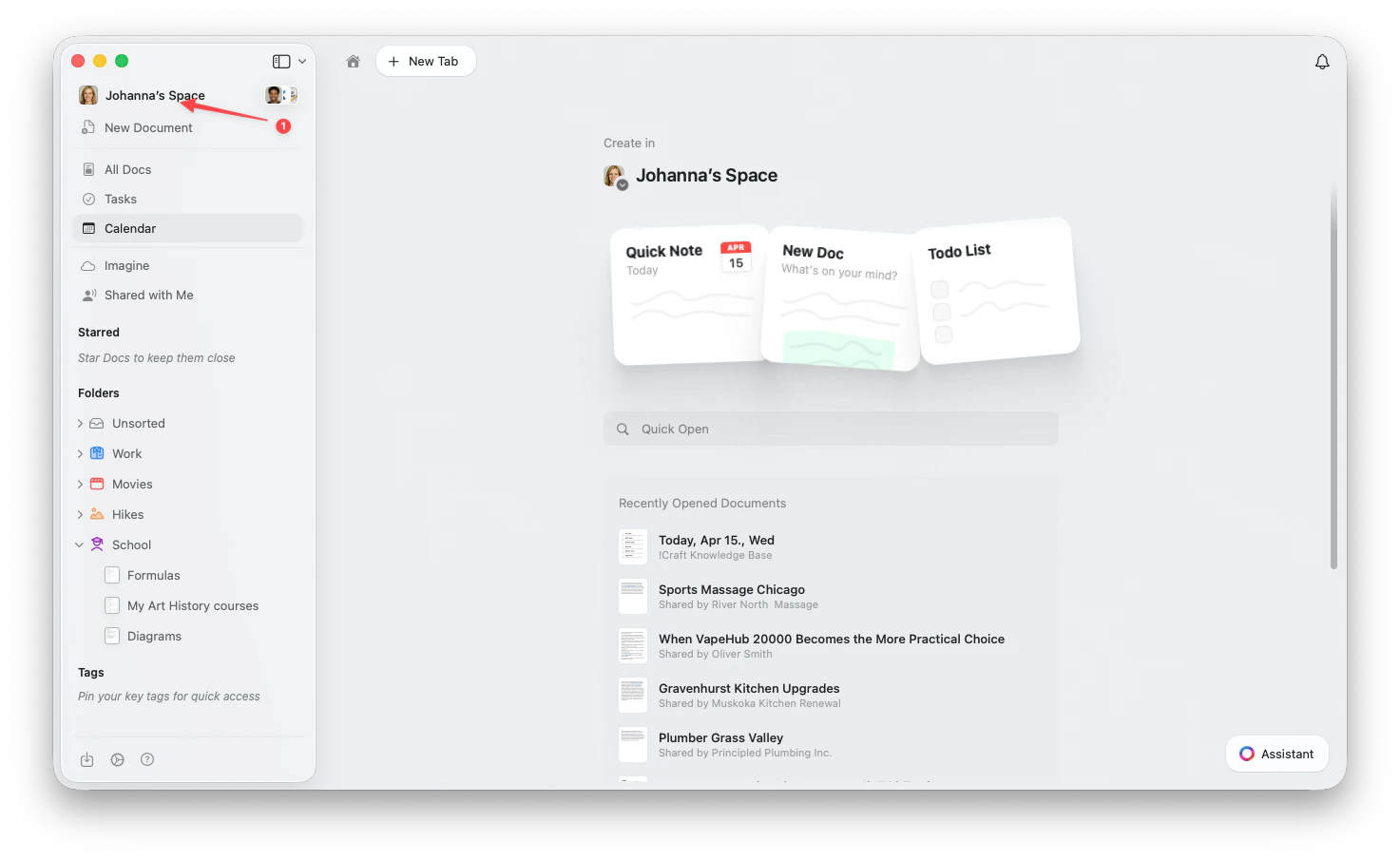
Step 2: Add the Account
1
Go to Account Settings
Select Account Settings under Your Account in the sidebar.
2
Add the account
Click Add Account, then sign in with your additional account credentials.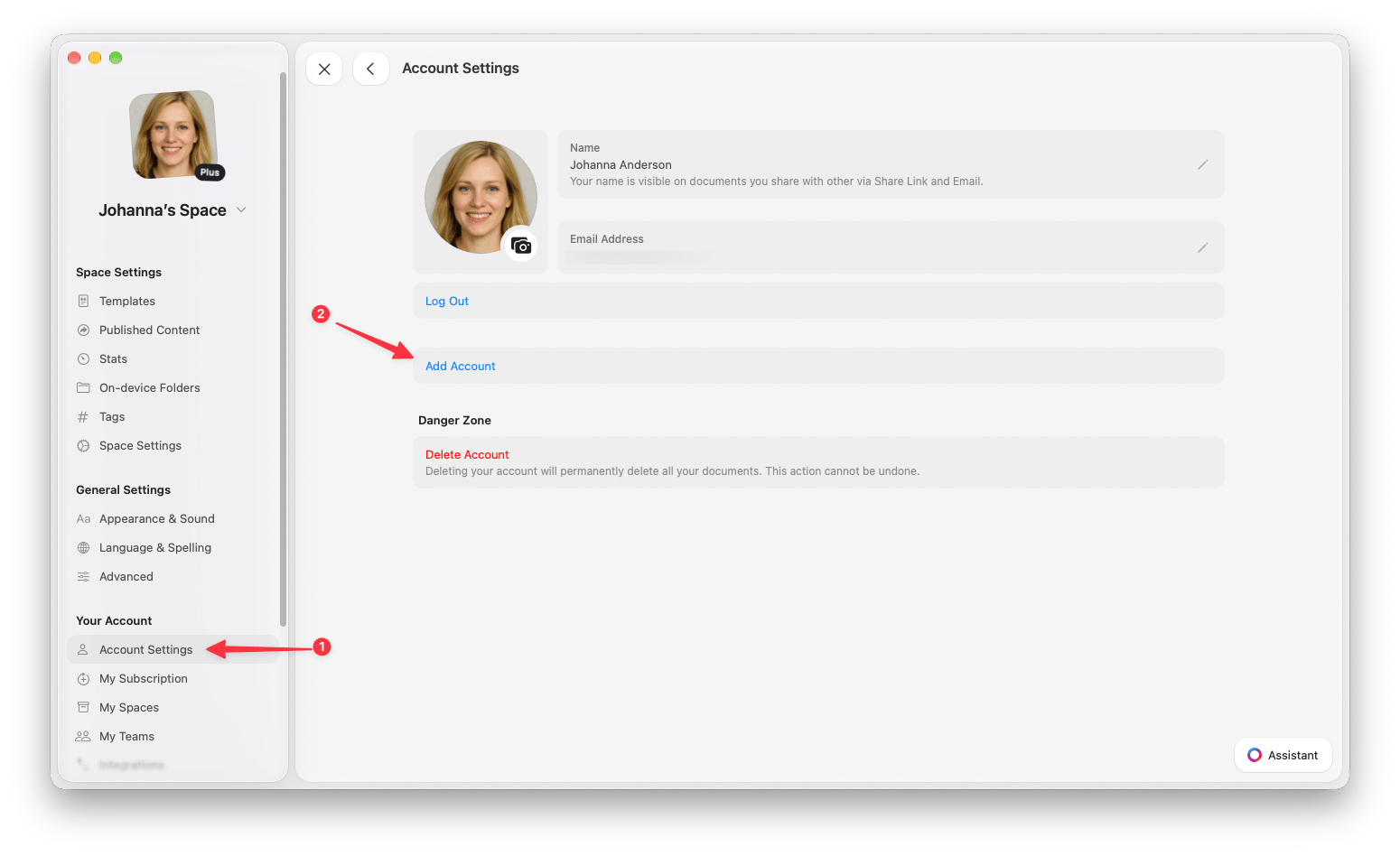
Switch Between Accounts
Once you’ve added multiple accounts, you can quickly switch between them from the profile menu.1
Click or tap your profile picture in the top-right corner
2
Select the account you want to switch to from the account list
Move Documents Between Accounts
You can transfer individual documents from one account to another while preserving the document content.- macOS
- iOS
1
Right-click on the document you want to move
2
Select Move to… from the context menu
3
Choose To Another Space
4
Select the destination space in your other account
Best Practices
- Use descriptive profile photos: Set different profile pictures for each account to make them easy to identify at a glance
- Organize by workspace type: Consider using separate accounts for fundamentally different types of work rather than just for different projects
- Export before major moves: If you’re planning to move many documents between accounts, consider exporting them first as a backup
Related Articles
Spaces
Learn about organizing content within spaces
Account Setup
Get started with your Craft account