

/ while editing a document, then start typing the name of what you want to do.
Adding Content
Click in an empty area and start typing. To insert content at a specific location, drag and drop it into your document on macOS, or use the insert controls available on your platform. When a block is focused, press the Space bar to insert a new block below it.Opening the Slash Menu
Type/ while writing in a document to open the menu. You can:
- Type
/in an empty block to browse available commands - Type a search term after
/, such as/table,/heading,/image, or/reminder - Use the menu while editing a block to apply styles or insert content near that block
- Select one or more blocks first, then use the menu to apply actions to the selection
- Press the Up and Down arrow keys to move between commands
- Press the Right arrow key to open a submenu (such as List, Text Style, or Color)
- Press the Left arrow key to go back to the previous menu
- Press Enter to run the highlighted command
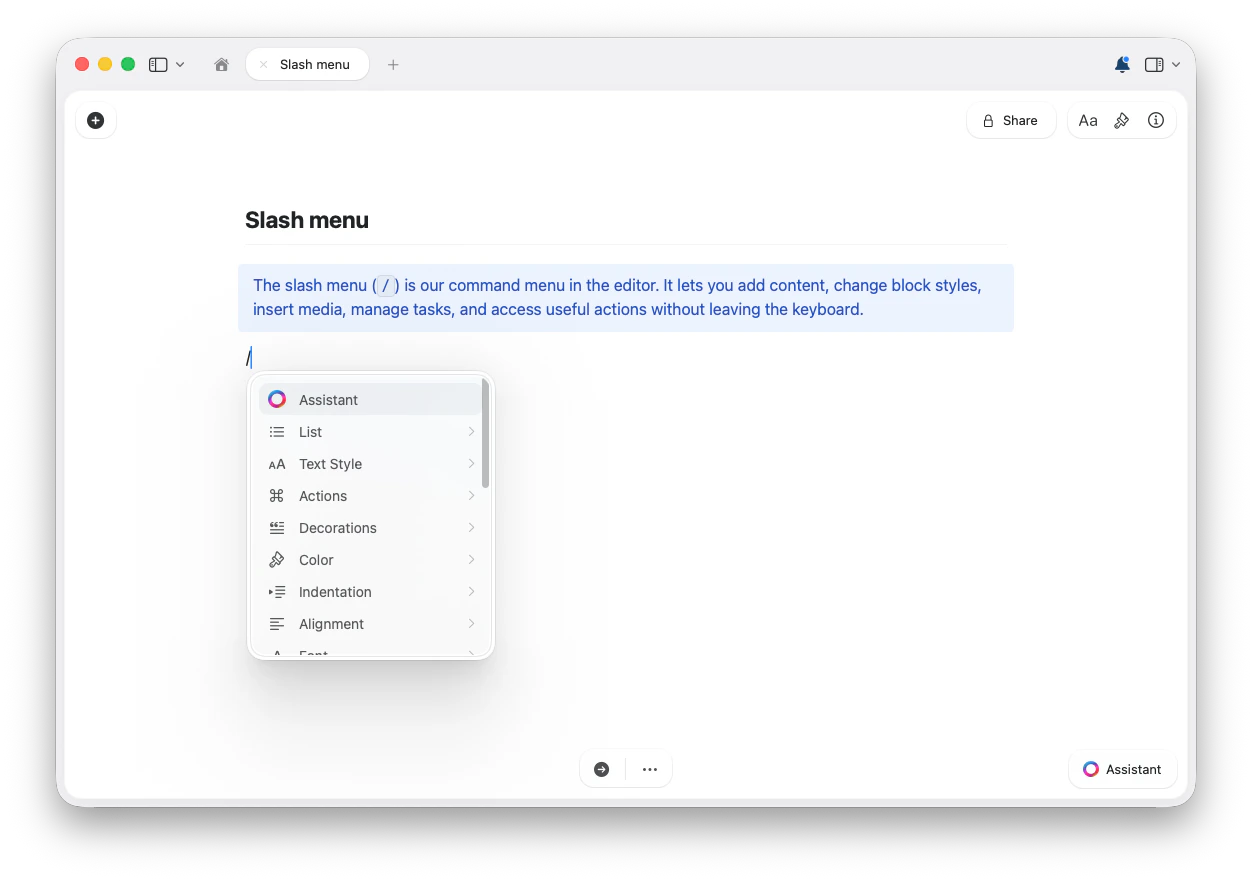
The slash menu changes based on what you’re editing. Some commands only appear for selected blocks, tasks, links, tables, or table cells. Availability can also vary by platform and workspace settings.
Browse Commands
The exact menu can change by context, but these are the main types of slash menu commands you can expect to find. Expand a group below to see its commands.AI and writing
AI and writing
- Assistant — open Craft’s AI Assistant from the editor
Text and block styles
Text and block styles
Change the current block, or selected blocks, into another style:
- Title
- Subtitle
- Heading
- Strong
- Body
- Caption
- Page
- Card
- Block
- Focus
Lists and tasks
Lists and tasks
Create or change list styles:
- Todo
- Toggle List
- Bullet List
- Numbered List
- No List
- Schedule: Today, Tomorrow, Next Monday, Pick a date, or Clear schedule
- Deadline: Today, Tomorrow, Next Monday, Pick a date, or Clear deadline
- Check selected tasks
- Uncheck selected tasks
Text formatting
Text formatting
Apply inline formatting to selected text or the current editing context:
- Bold
- Italic
- Strikethrough
- Code
Color, font, alignment, and indentation
Color, font, alignment, and indentation
Depending on the selected content, the slash menu can include commands for:
- Colors
- Fonts: System, Serif, Mono, and Round
- Alignment: Left, Center, Right, and Justify where available
- Indent and Outdent
Dates, time, and reminders
Dates, time, and reminders
Insert date and time references:
- Today
- Tomorrow
- Yesterday
- Now
- Date & Time / date picker options where available
- In 20 minutes
- In 1 hour
- In 3 hours
- Tomorrow
- Next week
- Later
- Remove reminder
- Resolve reminder
Insert content
Insert content
Add common content blocks and attachments:
- File
- Image
- Unsplash image
- Table
- Code block
- Plain text block
- TeX formula
- Mermaid diagram
- Whiteboard
- Excalidraw
Separators and page breaks
Separators and page breaks
Insert visual separators between sections:
- Separator
- Strong separator
- Regular separator
- Light separator
- Extra light separator
- Page break
Collections
Collections
Create structured collections directly from the menu:
- Table Collection
- Gallery Collection
- Kanban Collection
Templates and snippets
Templates and snippets
Depending on your workspace and context, the menu can include:
- Insert template
- Code snippet
- Text snippet
- Formula snippet
- Mermaid snippet
Cleanup and actions
Cleanup and actions
Useful editing actions can also appear in the slash menu:
- Clear styling
- Reload link info
- Turn into text link
- Turn into rich link
- Turn file into collection
- Turn table into collection
Table cells
Table cells
When your cursor is inside a table cell, the slash menu shows table-editing commands. Type part of a command, such as 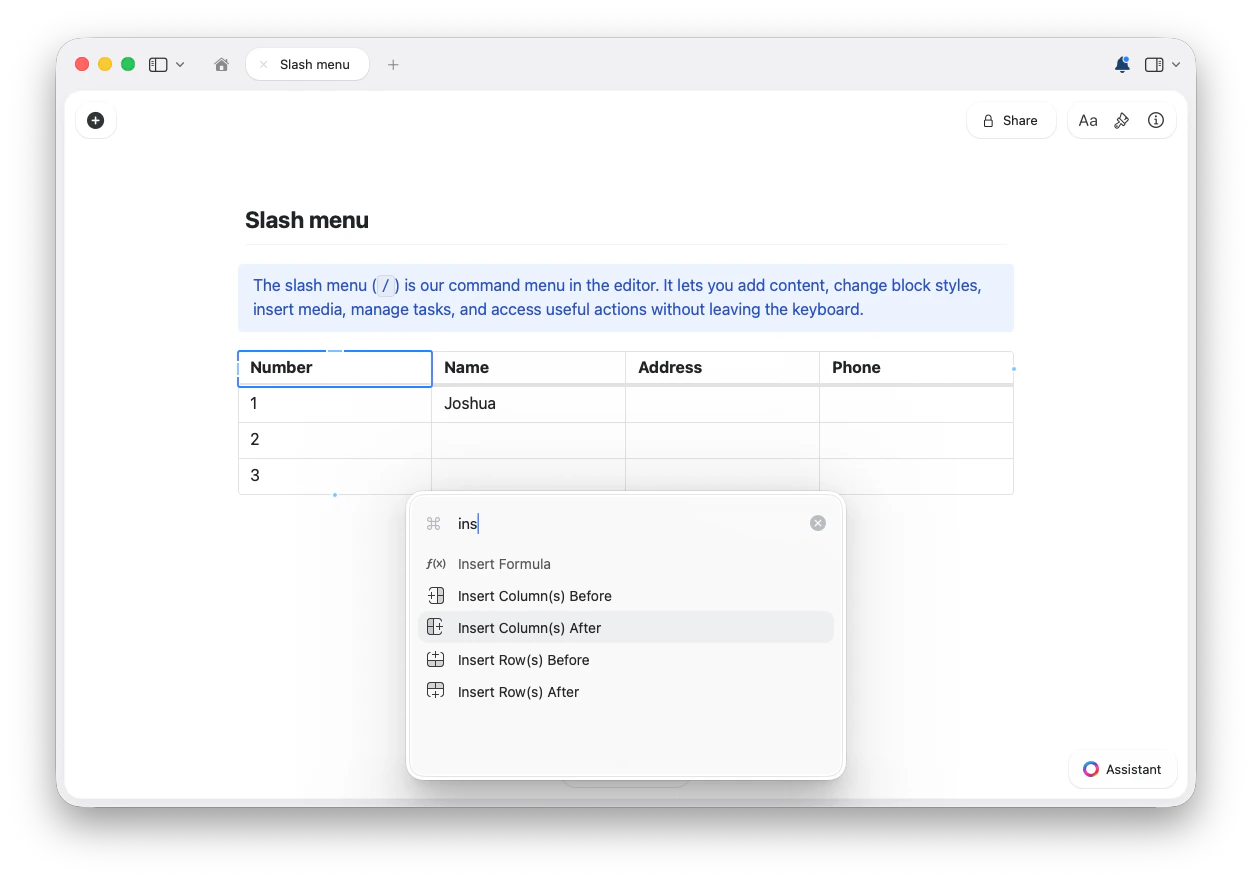
/ins, to filter to the matching actions.- Insert Row(s) Before
- Insert Row(s) After
- Insert Column(s) Before
- Insert Column(s) After
- Insert Formula
- Move row up
- Move row down
- Move table column left
- Move table column right
- Delete row
- Delete table column
- Clear cell contents
- Clear styling
Tips
- If you know the command name, type it after
/to filter immediately. - If a command doesn’t appear, try selecting the relevant block first, or place your cursor in the specific block, table, or cell you want to edit.
- Use the slash menu to discover commands, then learn keyboard shortcuts for the actions you use most often.
Other Fast Typing Shortcuts
Slash commands are one keyboard-first way to work in Craft. You can also use::followed by a name to insert emoji@or[[to link to pages, blocks, or dates- Markdown-style shortcuts such as
#,-,[],>, and**bold** - Keyboard shortcuts such as
Cmd+B/Ctrl+Bfor bold andTab/Shift+Tabfor indentation
Related Articles
Markdown Shortcuts
Format text as you write with markdown syntax
Keyboard Shortcuts
Complete list of keyboard shortcuts