

Why Switch to Craft?
Here are some of the most appreciated advantages:- Clean, distraction-free interface - Designed to help you focus, think clearly, and create beautifully styled content
- Offline access across platforms - Work without internet on macOS, iOS, iPadOS, Windows, Web, and Android with automatic syncing
- Beautiful, structured documents - Build visually polished pages with flexible layouts, styled cards, and intuitive nesting
- Fast and responsive - Lightweight and optimized for performance across all platforms
- Organize your way - Use folders, nested pages, backlinks, and collections to manage content however you like
- Seamless sharing and collaboration - Real-time collaboration with powerful publishing options
Where to Find Import
Open Craft, then click the Import icon at the bottom of the left sidebar. You can also reach it from the three-dot menu (⋯) in the top right while in All Documents, Organize, or Unsorted view.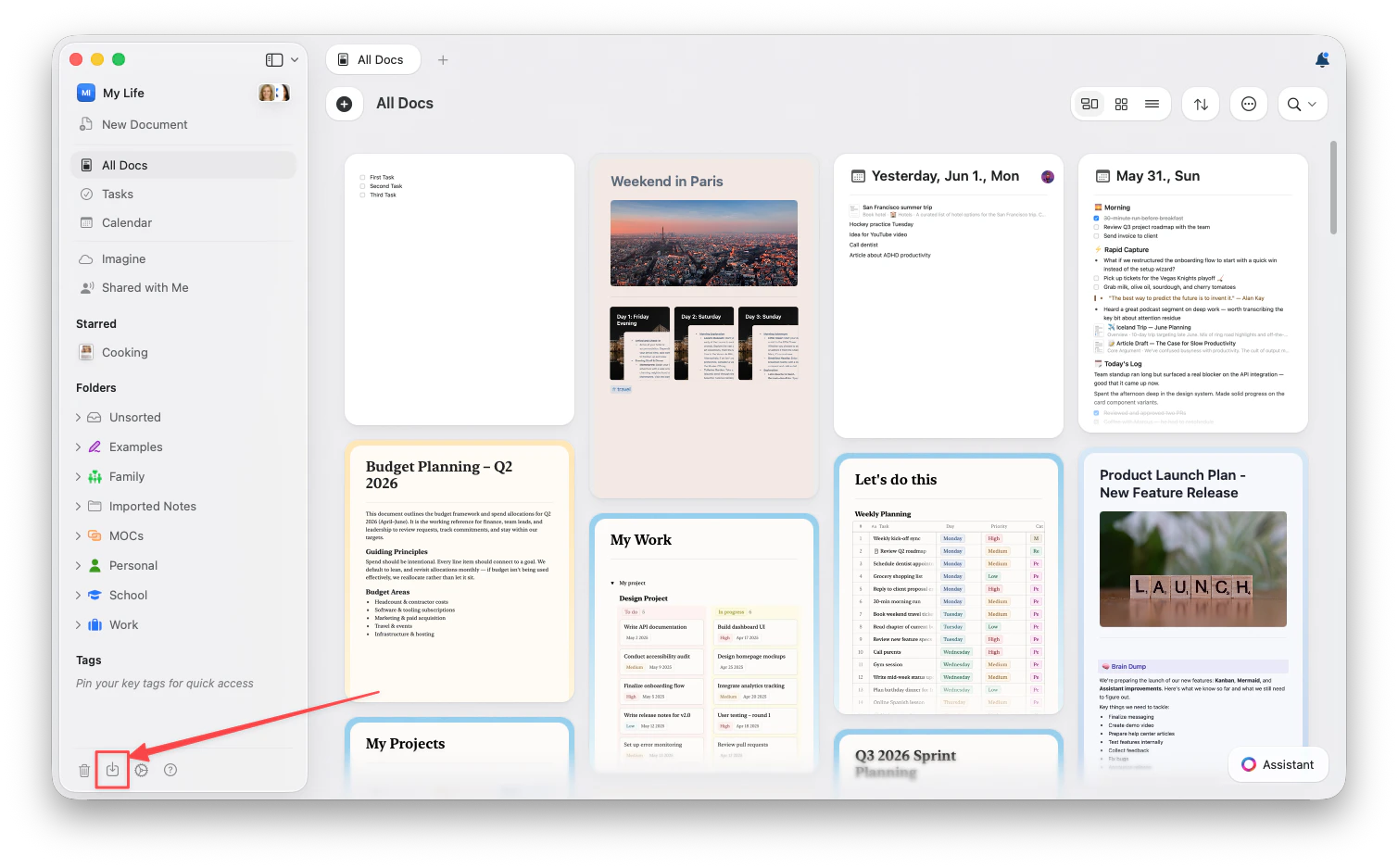
On Web and Windows, TextBundle import is not available.
Choose Your App
Each app has its own import flow. Pick yours for step-by-step instructions:Notion
Connect your workspace directly — no file export needed
Evernote
Export .enex files and upload them
Google Docs
Import documents from Google Drive
Obsidian
Import vaults with backlinks preserved
Apple Notes
Export as Markdown and upload the folder
Bear
Transfer notes with tags and attachments
OneNote
Import notebooks and sections
Roam Research
Bring your knowledge graph
Anytype
Import spaces and objects
Markdown & TextBundle
Import standard file formats directly
What Gets Imported?
Depending on the source app and format, imports may include:- Text content with formatting (bold, italic, links)
- Images and attachments
- Document structure (headings, lists, nesting)
- Tables and structured data
- Links between documents, where supported
- Tags and metadata, where supported
After Importing
Once your content is in Craft:- Review and organize – Check that everything imported correctly
- Update links – Internal links should work, but verify any external references
- Apply Craft styling – Use document styling, cards, and page styles to enhance your content
- Set up folders and spaces – Organize content using Craft’s folder structure
Need Help?
If you run into any issues or have questions during the transition, feel free to contact support. We’re excited to have you in the Craft community!Related Articles
Import Guide
Detailed guides for importing from each app
Document Organization
Learn how to organize content in Craft
Collections
Work with databases and structured content