

Swipe to Select a Block
Quickly select any block by swiping left or right across it. This is faster than tapping the selection circle, especially when working with multiple blocks.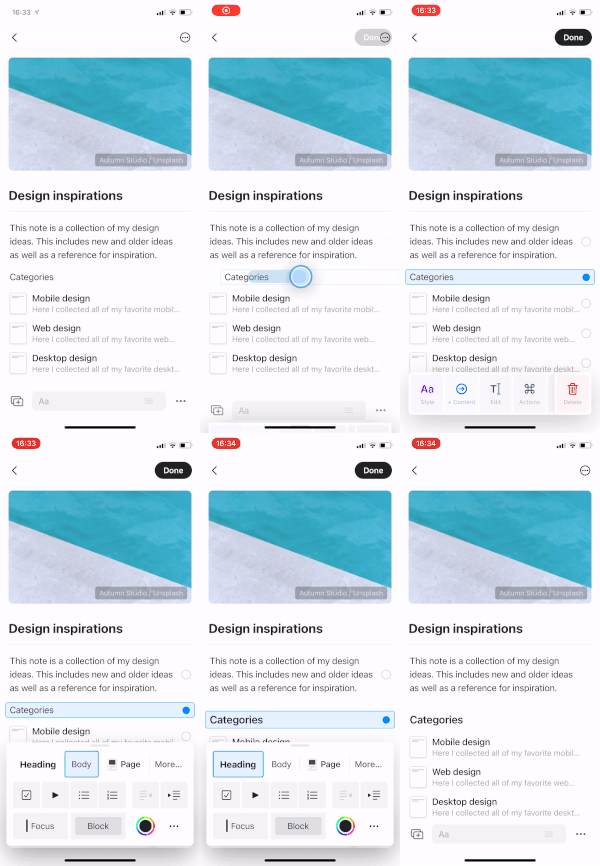
This gesture works anywhere on the block – you don’t need to aim for a specific button.
Select Multiple Blocks
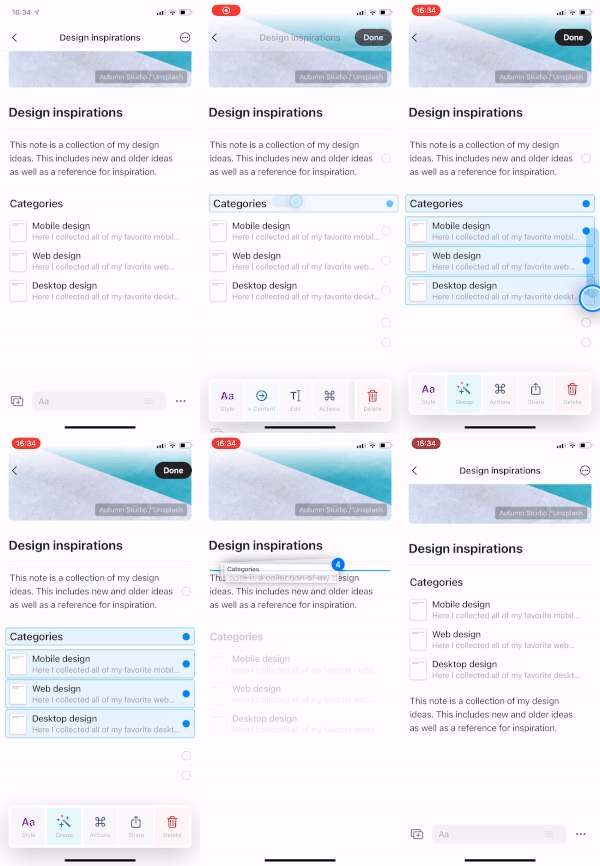
Once you’ve selected a block, you have two ways to extend your selection:- Tap the selection circles on additional blocks to add them one by one
- Swipe up or down to quickly select consecutive blocks
Swipe to Indent
When editing a block, swipe left or right to quickly change its indentation level. This works while you’re actively typing or editing.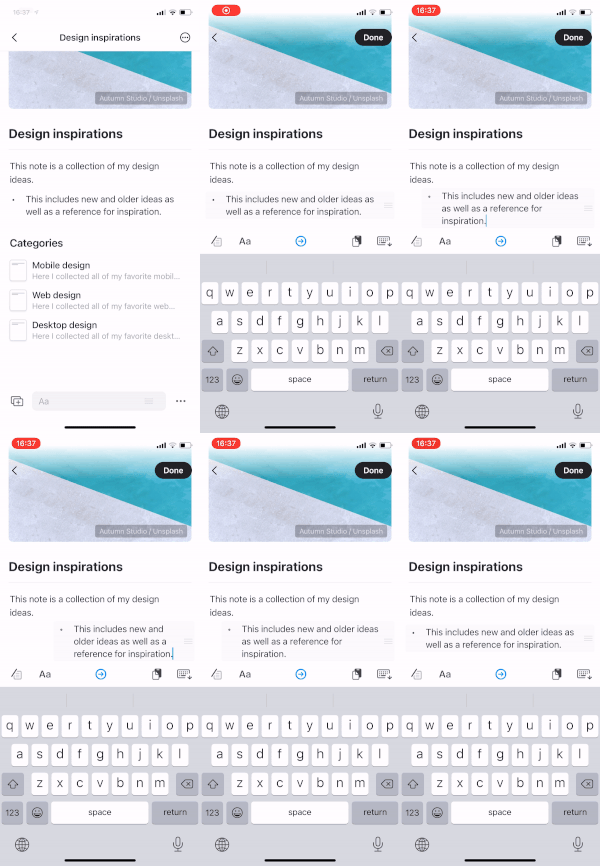
Two-Finger Tap for Search
Tap anywhere with two fingers to instantly open search. This works throughout the app, making it easy to find content or navigate to different documents without reaching for the search button.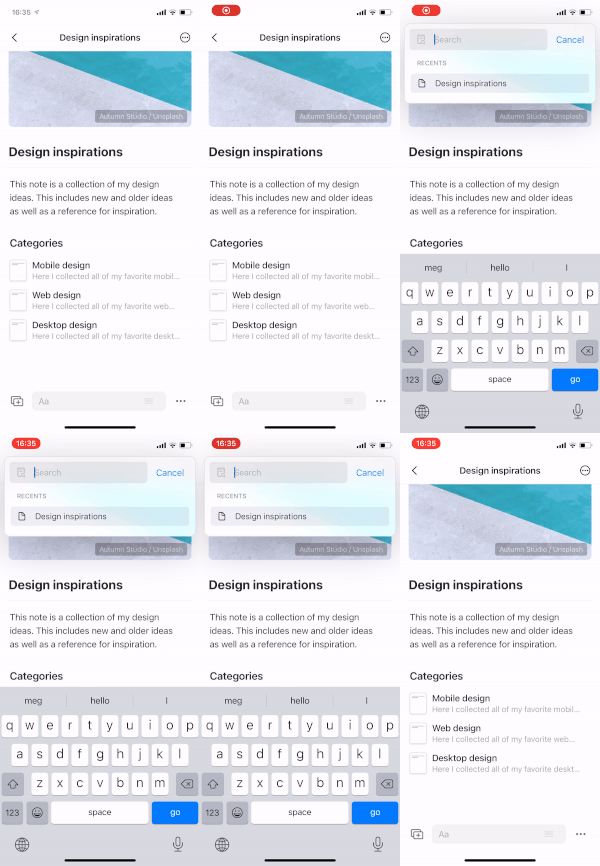
Search is one of the fastest ways to navigate in Craft. Use this gesture to quickly jump between documents, find specific content, or access recent pages.
Other iOS Gestures
In addition to these editing-focused gestures, iOS also supports:- Swipe left on a document in the sidebar to reveal options like Star, Share, and Delete
- Pull down on a document to refresh and sync the latest changes
- Long press on elements to reveal contextual menus