

Tabs are available on macOS and iPad. They’re not available on iOS (iPhone) or Web app, as browsers provide their own tab system.
Tabs on macOS
Each tab represents an open document or view. Tabs can be shown at the top of the window or in the sidebar.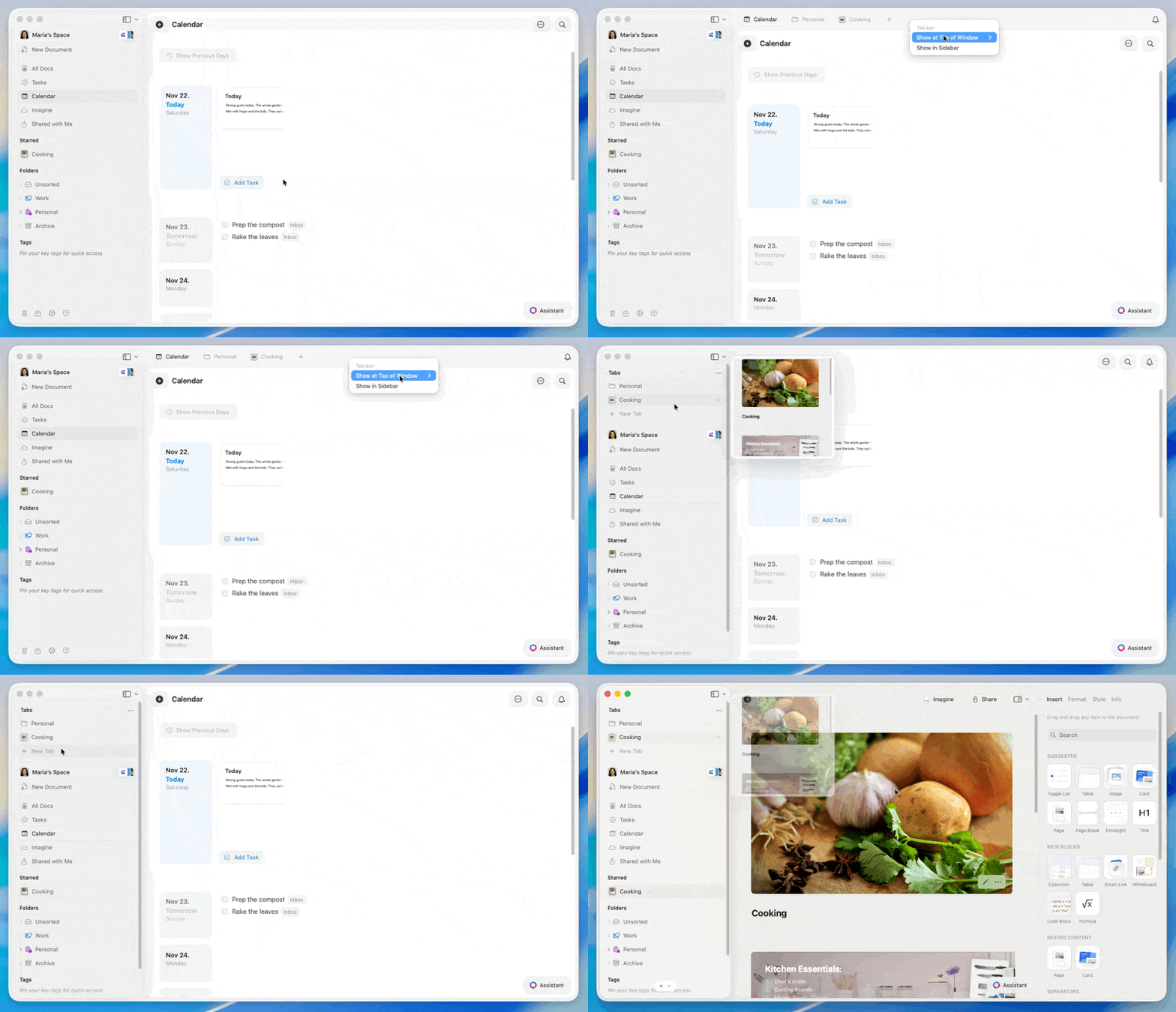
Choosing Tab Layout
1
Move your pointer to the tab bar at the top of the window.
2
Right-click on the tab bar (on a tab or empty area).
3
Choose one of the following layouts:
- Show at Top of Window – Tabs appear in the top bar
- Always Visible – Tab bar stays on screen
- Auto Hide – Tab bar hides until you hover near the top
- Show in Sidebar – Tabs appear above navigation
Tab Preview
Hold your pointer over any tab for a moment to see a preview window. This lets you check tab content without switching to it.Customizing the Sidebar
When tabs are shown in the sidebar, you can simplify the sidebar to keep tabs easy to see.1
Click the layout button at the top left of the window.
2
Choose Customize.
3
Turn sections on or off to show only the folders and views you use most often.
Keyboard Shortcuts
Create and Close
- New tab:
⌘ (Command) + T - Close current tab:
⌘ (Command) + W - Reopen last closed tab:
⌘ (Command) + ⇧ (Shift) + T
Switch Between Tabs
- Switch to tab 1-9:
⌘ (Command) + (1-9) - Next tab:
⌃ (Control) + ⇥ (Tab)⌘ (Command) + ⇧ (Shift) + ]
- Previous tab:
⌃ (Control) + ⇧ (Shift) + ⇥ (Tab)⌘ (Command) + ⇧ (Shift) + [
Tabs on iPad
On iPad, tabs always appear in the sidebar above your main navigation. Each open document is listed as a tab. Tap a tab to switch between documents. You can adjust which sections appear in the sidebar from the iPad layout options, keeping the tab list easy to scan.Keyboard Shortcuts
Complete keyboard shortcuts reference
Navigation Basics
Learn more about navigating Craft