

On-Device Folders is available on macOS, iPad, and iPhone.
How to Enable On-Device Folders
1
Open Craft on your Mac, iPad, or iPhone
2
Locate the folder you want to store on your device
3
Tap the three-dot menu (⋯) next to the folder
4
Select “Keep On Device”
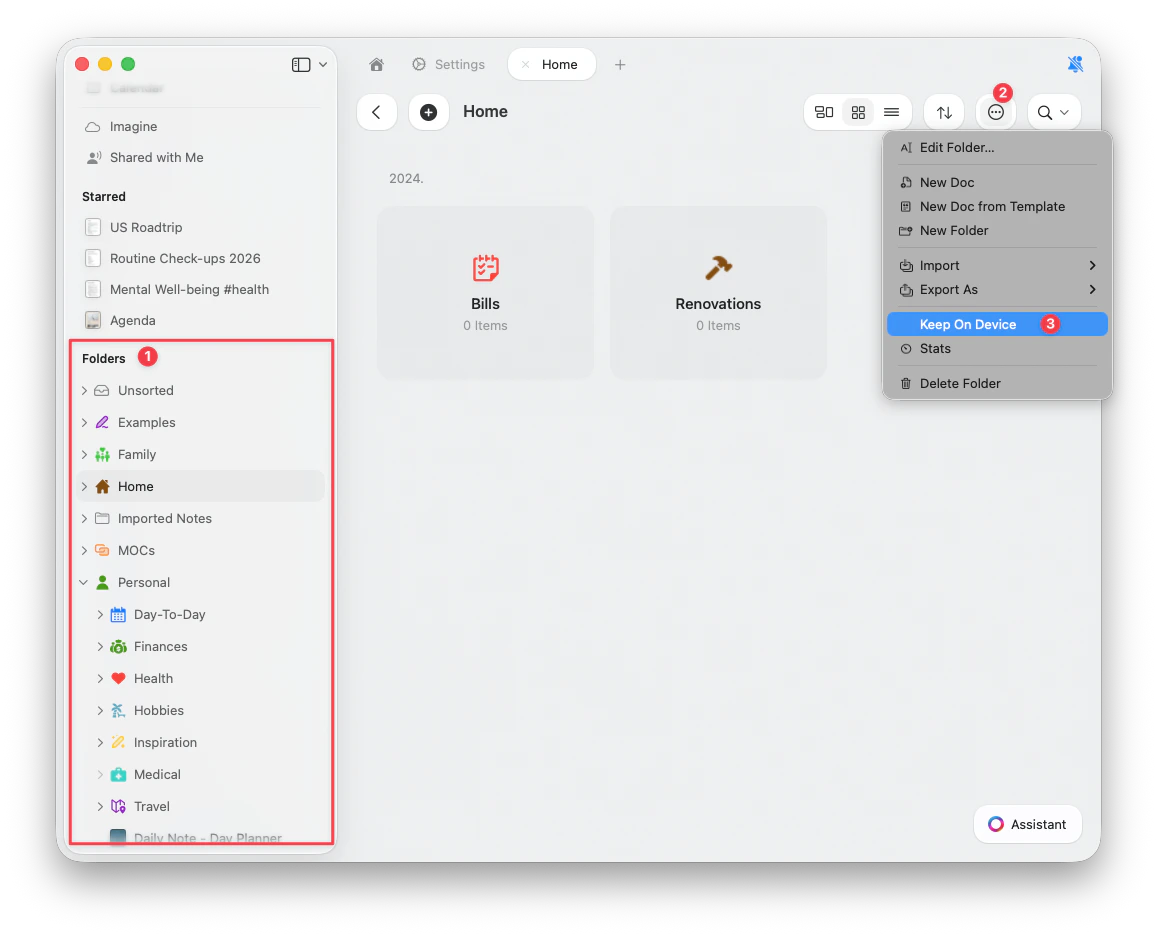
All nested folders inside the selected folder will be included in the download. Individual nested folders cannot be stored separately.
How On-Device Folders Work
- Once a folder is stored on device, all images, files, and attachments within it will be available locally, even without an internet connection
- Any changes made while offline will sync once your device reconnects to the internet
- Documents have always been available offline – this feature specifically ensures assets (images, files) are also available
Limitations and Important Notes
Folder Eligibility
- The “Keep On Device” option only appears on top-level folders in the sidebar
- It is not available on subfolders, individual documents, or the space home page
- All nested content inside a top-level folder is included automatically
Sync and Device Storage
- The On-Device Folder setting applies individually to each device
- While the content within the folder will sync across all your devices, you need to manually enable On-Device mode on each device where you want the folder stored locally
- Ensure your device has enough storage before enabling this feature – Craft will display a warning if space is limited
Downloading Process
- Downloads only occur when the app is open in the foreground – background downloads are not currently supported
- Moving an on-device folder into another folder will remove its on-device setting – if moved back, the setting must be re-enabled
Editing and Updates
- On-device folders do not update automatically when changes are made offline (e.g., sketching on a draft, cropping a cover image)
- Changes will sync once you’re back online
File Types and Restrictions
- Whiteboards cannot be edited while on device – attempting to do so will result in an error
- Mention profile images will not be downloaded in the first iteration, though they may still appear in Craft’s cache
Best Practices
- Ensure you have enough device storage before storing large folders
- Keep Craft open while downloading folders to your device
- Re-enable on-device access if you move a folder back to its original location
- Plan for manual updates when making edits to on-device content – sync only triggers once back online
When to Use On-Device Folders
On-Device Folders are ideal for:- Traveling or working in areas with limited connectivity
- Presentations where you need guaranteed access to images and media
- Projects with large media files that you frequently access
- Ensuring critical folders are always accessible regardless of internet connection