

Recovering Documents
Recently Deleted Folder
All deleted documents are automatically moved to the Recently Deleted folder, where they are kept for 30 days.1
Navigate to the Recently Deleted folder in your sidebar
2
Find the document you want to recover
3
Right-click on the document and select Restore
Recovering Folders
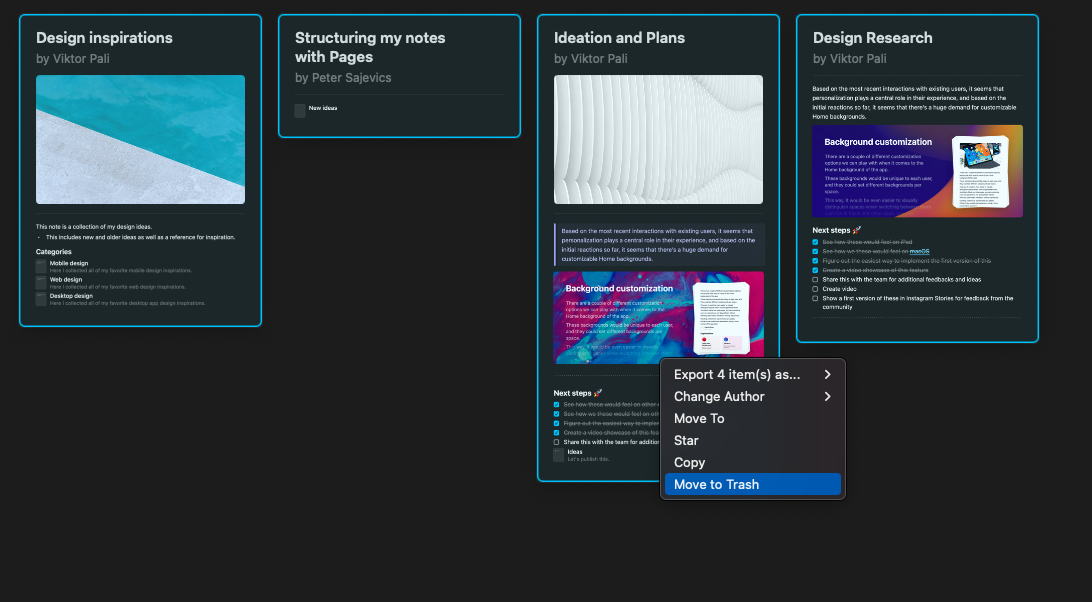
When you delete a folder, the folder structure is removed but all documents within the folder remain accessible from the All Documents view. If you want to delete all the content of a folder:1
Open the folder
2
Highlight all the documents in the folder
3
Move them to Trash
Recovering Pages and Blocks
To recover deleted pages or blocks, you have two options:Option 1: Undo Action
Immediately after deleting a page or block, use the undo command:- macOS: Press
Cmd + Z - iOS/iPadOS: Tap the undo button or shake your device
- Windows/Web: Press
Ctrl + Z
Option 2: Restore from Version History
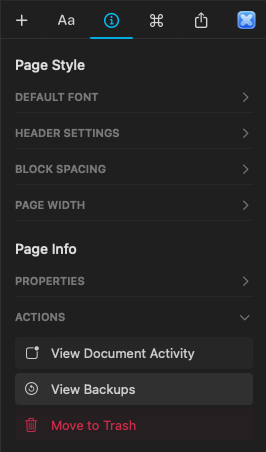
If you can’t use undo, you can restore an earlier version of the document that contained the deleted page or block:1
Open the document where the page or block was deleted
2
Click the Info tab in the right sidebar
3
Select View Backups
4
Choose a backup from before the deletion occurred
5
Restore that version to recover the deleted content
Recovering Deleted Spaces
Currently, deleted spaces cannot be restored manually from the app once they have been removed. All content inside a deleted space is also deleted permanently and is not sent to the Recently Deleted folder. If you believe a space was deleted by mistake, contact the Craft support team as soon as possible. While we cannot guarantee recovery, we will investigate and check if there’s anything we can do. When contacting support, provide:- The name of the deleted space
- The email address associated with your Craft account
- An approximate date of when the space was deleted
Document History
If you can’t find deleted content using undo or version history, you can try searching for it using Document History — a dedicated microsite that lets you search through recent content changes and snapshots.Document History is available on Web only and requires a paid plan (Plus or Business).
What Document History Can Do
- Search content across recent document changes (including deletions) and snapshots
- Browse a timeline showing snapshots for a document and document movements between folders
How to Access Document History
1
Navigate to the Recently Deleted folder
2
Click the three-dot menu (⋯) on the document
3
Select Find in History
Good to Know
- Document History searches text blocks only — other block types are not included
- Deleted documents cannot be searched — the document must still exist in Recently Deleted
- Searchable history depends on your plan: Plus covers the last 30 days, Business covers the last 180 days
- All space members can access Document History for their space
- Snapshots are still created every hour, but Document History may also find content that was created and deleted between snapshots
- This feature is in early access — think of it as a place to try searching for lost content rather than a guaranteed recovery tool
Preventing Accidental Deletion
To reduce the risk of losing important content:- Be cautious when deleting, especially for spaces and pages
- Make regular backups by exporting your documents
- Ensure only trusted members have admin rights in shared spaces
- Use version history to create regular snapshots of important documents
Need More Help?
If you can’t recover your content using these methods, please reach out to our support team at support@craft.do. We’re here to help!Related Articles
Document Version History
Learn how Craft automatically backs up your documents
Export Documents
Create backups by exporting your content
Check Storage Usage
Monitor your storage usage per space