

Understanding Blocks
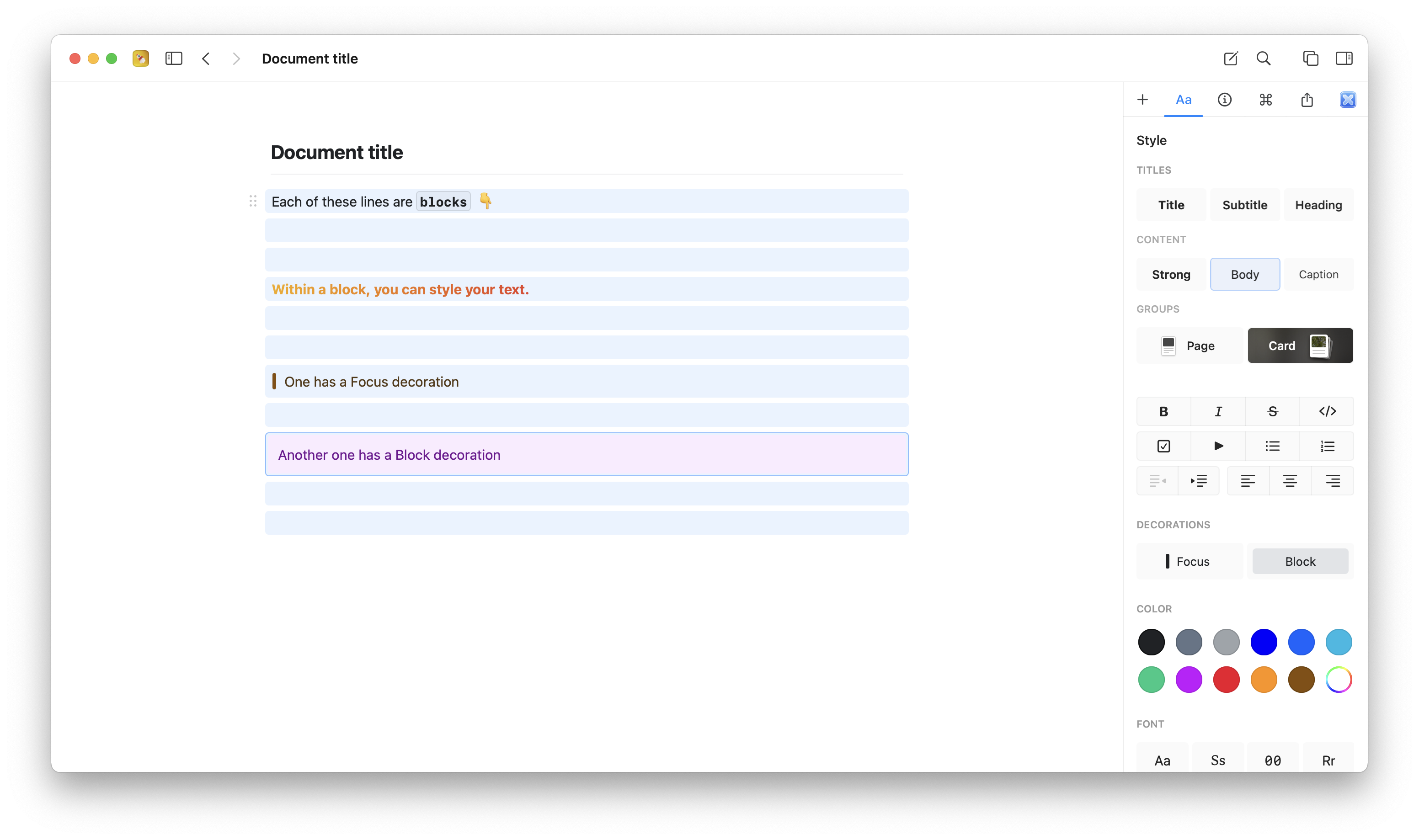
Every paragraph in Craft is a Block. Each block can contain its own content and serve a dual purpose:- As a piece of text or content on the current page
- As the title/entry point to a deeper page with its own nested content
Understanding Pages
When a block contains nested content, it becomes a Page. Pages can be styled like any regular block, and clicking on them navigates inside to reveal their content.The “Page” text style option (along with the Card style) is specifically designed for blocks that contain nested content, making them visually distinct as entry points.
Understanding Documents
Documents are top-level files in Craft that work like traditional digital files. You can:- Star them for quick access
- Move them into folders
- Sort and organize them
- Delete them (they go to Recently Deleted)
Moving Blocks Between Documents
You can reorganize content by moving blocks between documents and pages. Cut and paste: Use standard cut/paste operations to move blocks. Drag and drop (macOS): Open two Craft windows within the same Space and drag blocks between them.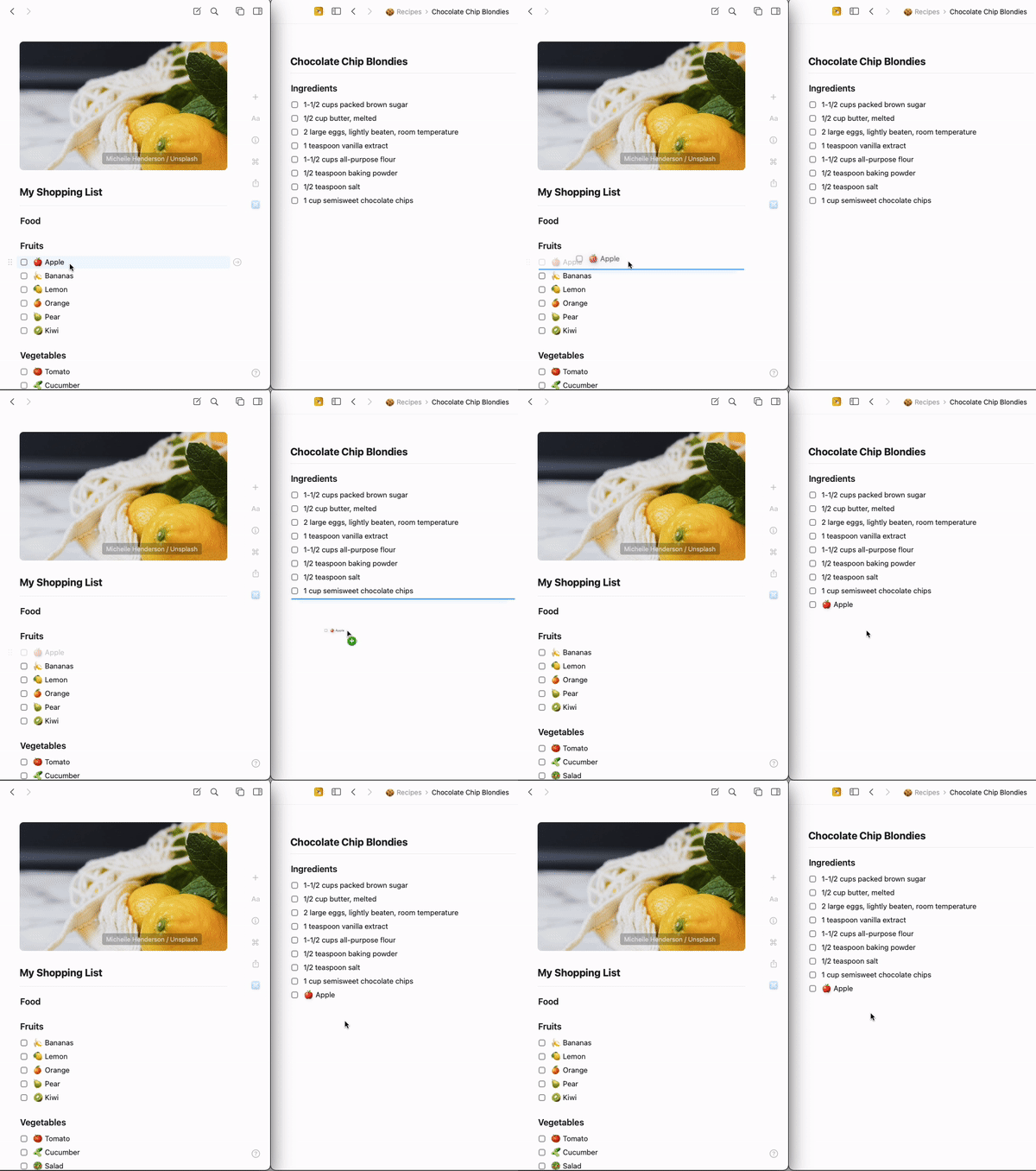
When moving blocks within the same Space, all block links are preserved and continue to work correctly.
Grouping Blocks into Pages
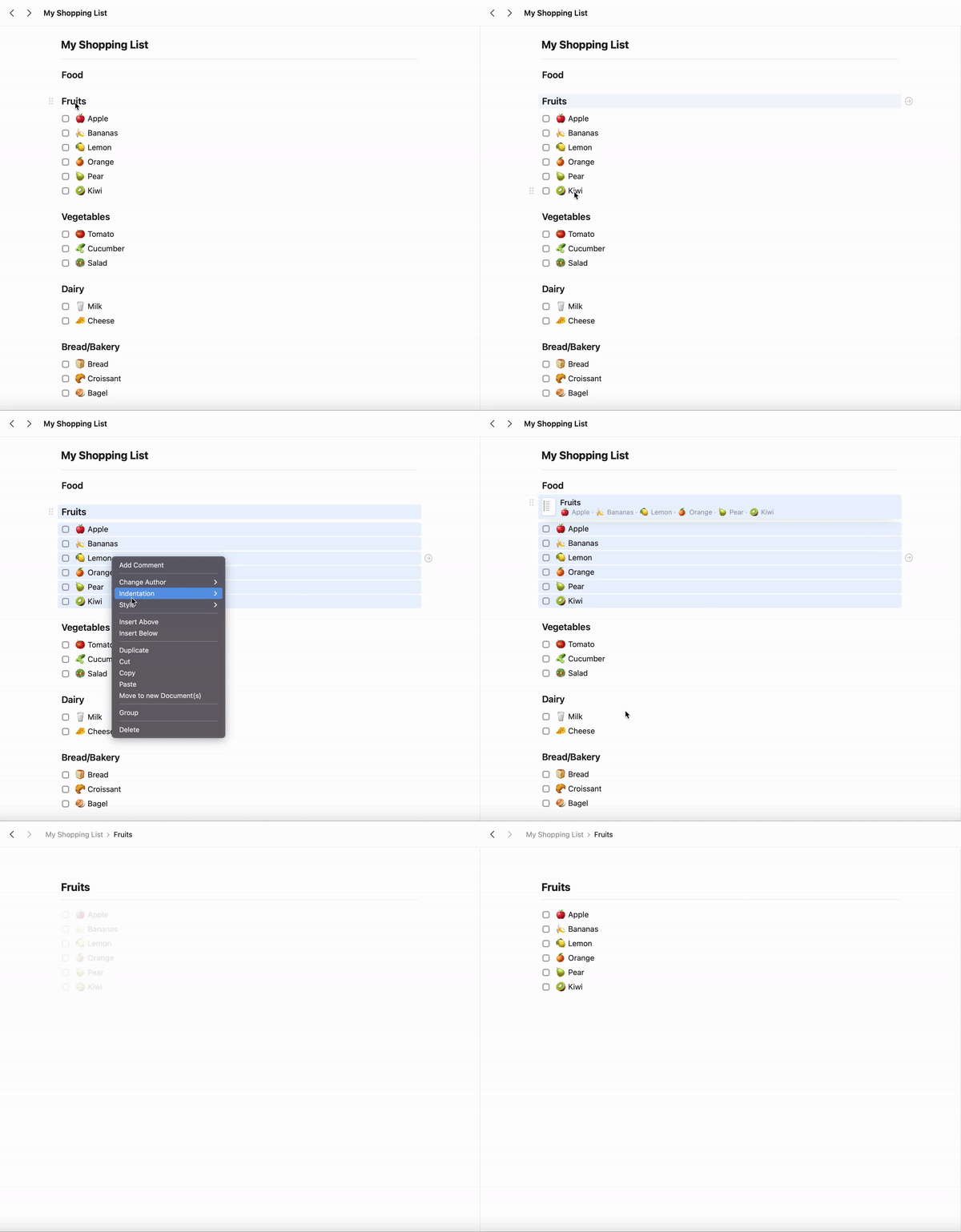
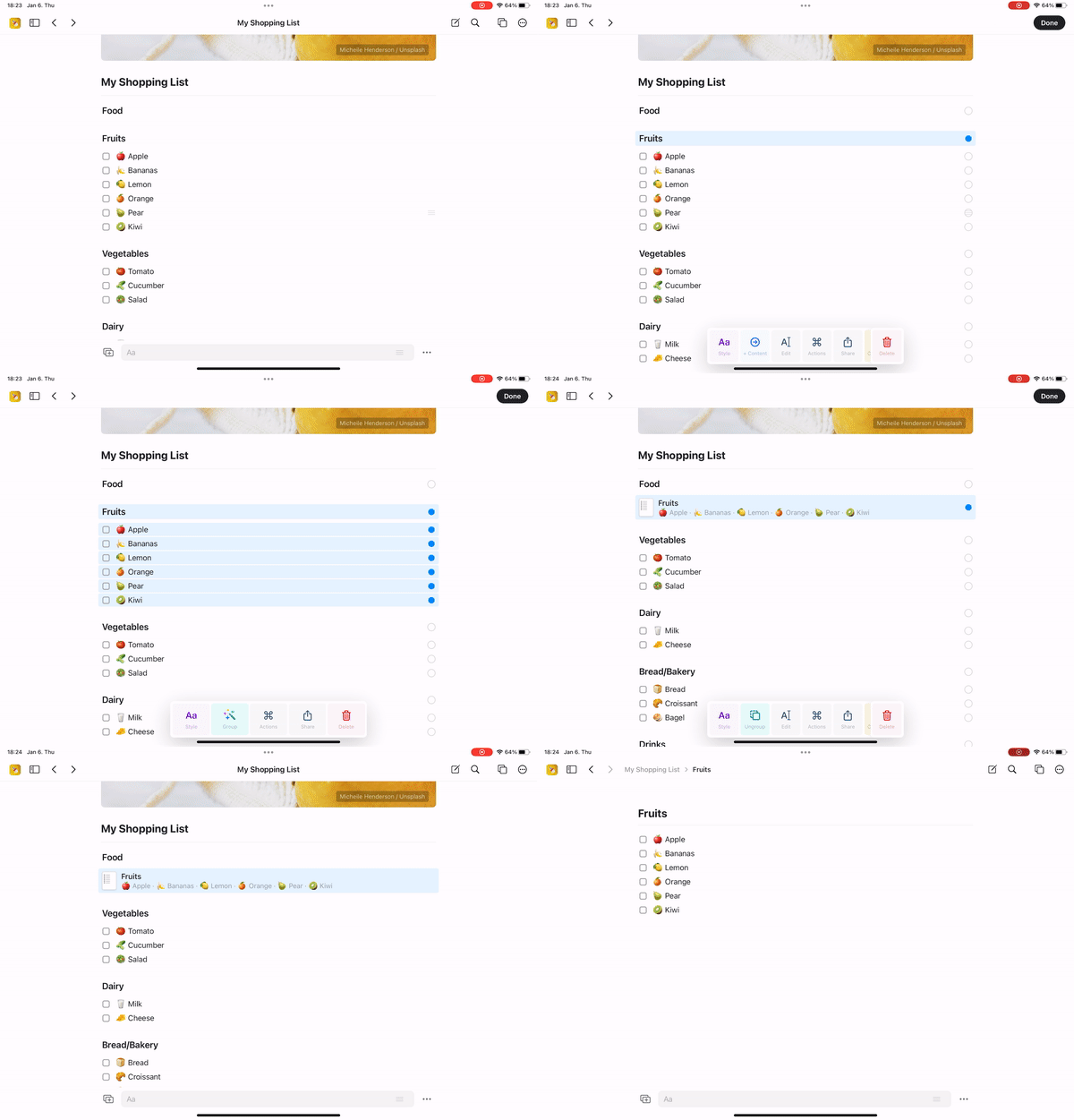
Transform multiple blocks into a nested page to create structure in your documents.- macOS
- iOS
1
Select the blocks you want to group (click and drag, or Shift-click).
2
Right-click the selection and choose Group, or press
⌘ (Command) + G.3
The blocks are now nested under a new parent block that acts as a page.
Important Notes
Getting Started
Craft is designed to be intuitive. Just start writing as you normally would. Whenever your document gets too long or you need more structure, you’ll naturally discover how pages work by grouping related blocks together.Managing Documents
Learn how to create, delete, and organize documents
Document Organization
Explore folders, tags, and spaces for organizing content