

Creating Documents
- macOS
- iOS
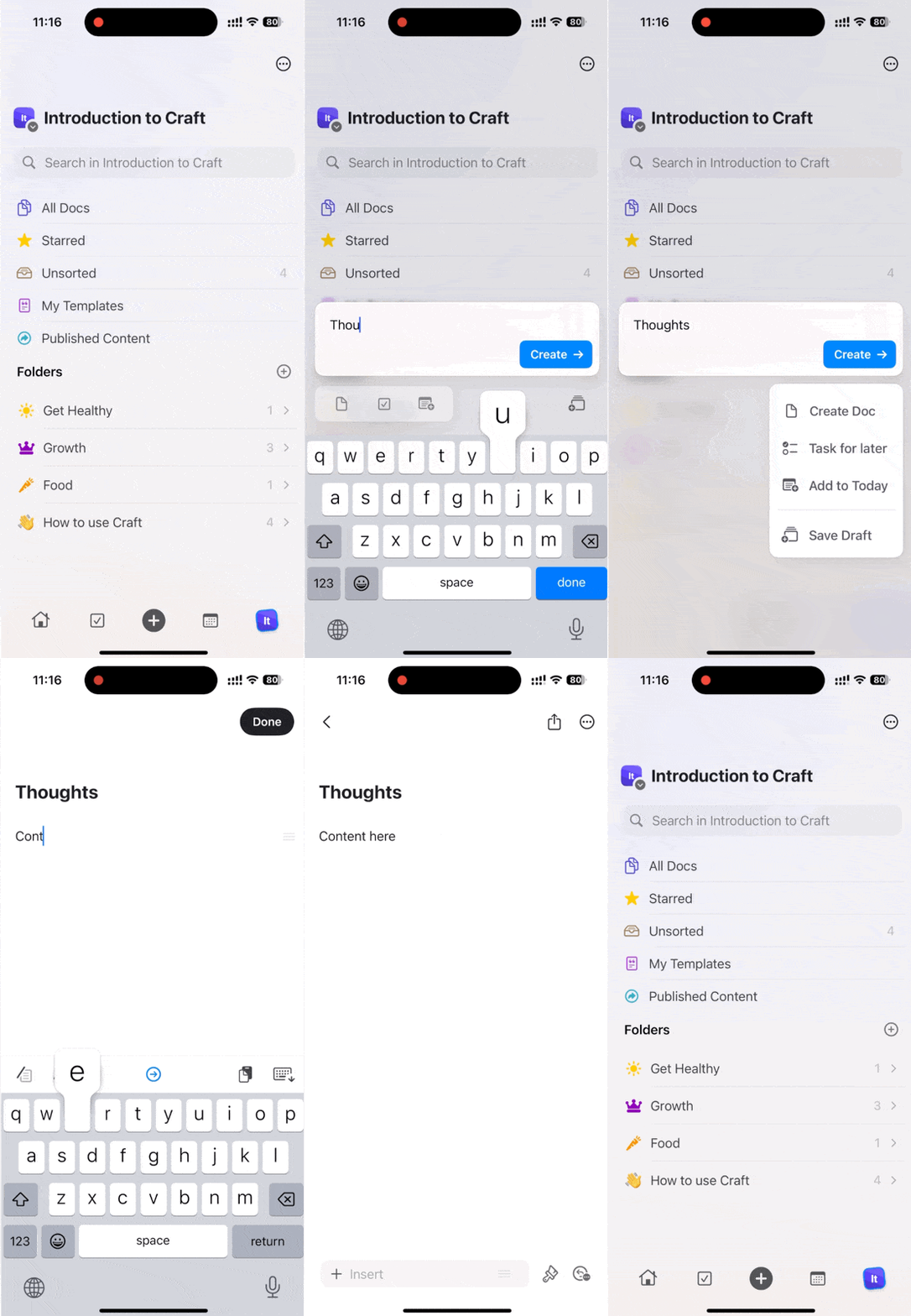
You have multiple ways to create a new document:
- Click the New Document icon at the top center of the window
- Click the New Document icon in the left sidebar
-
Use the keyboard shortcut
⌘ (Command) + N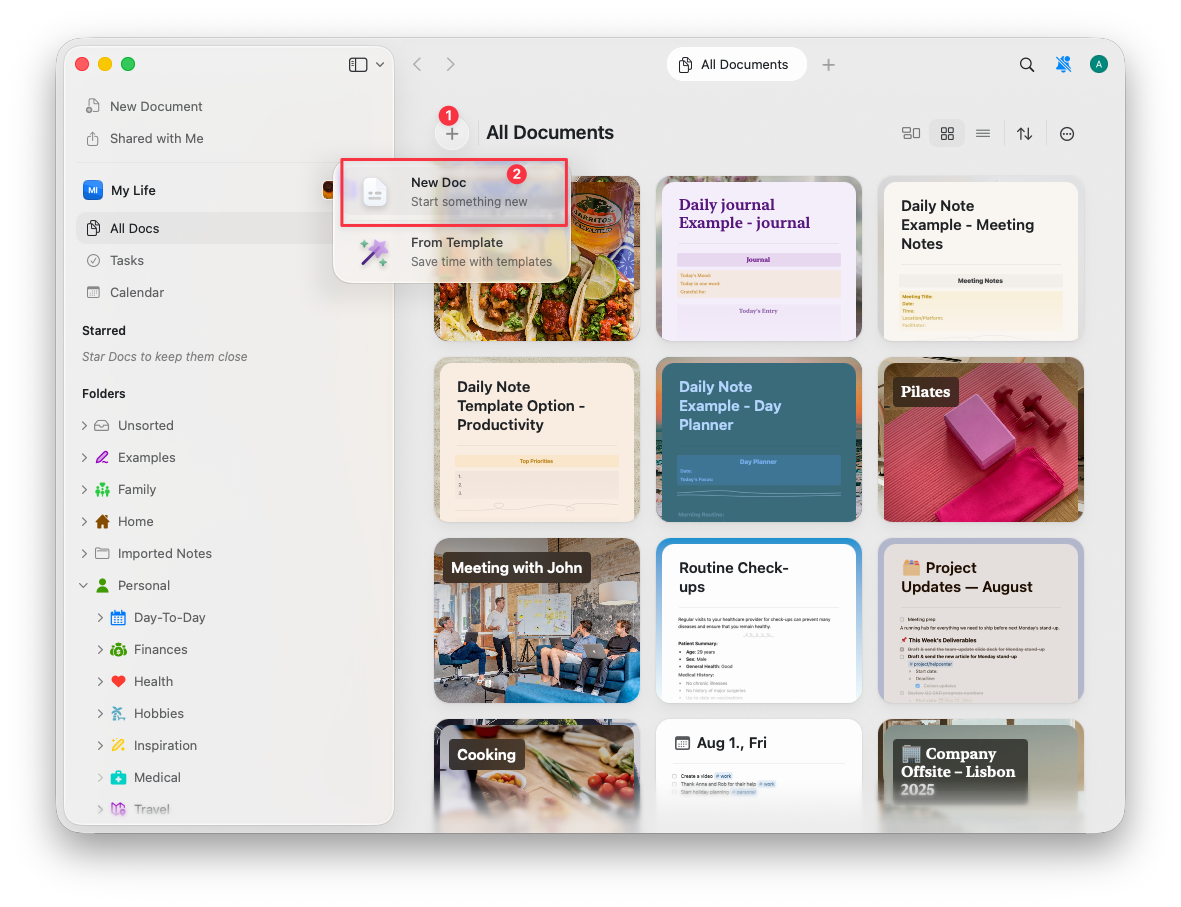
Deleting Documents
- macOS
- iOS
From the sidebar:Right-click on the document and select Delete, or select the document and press the Delete key.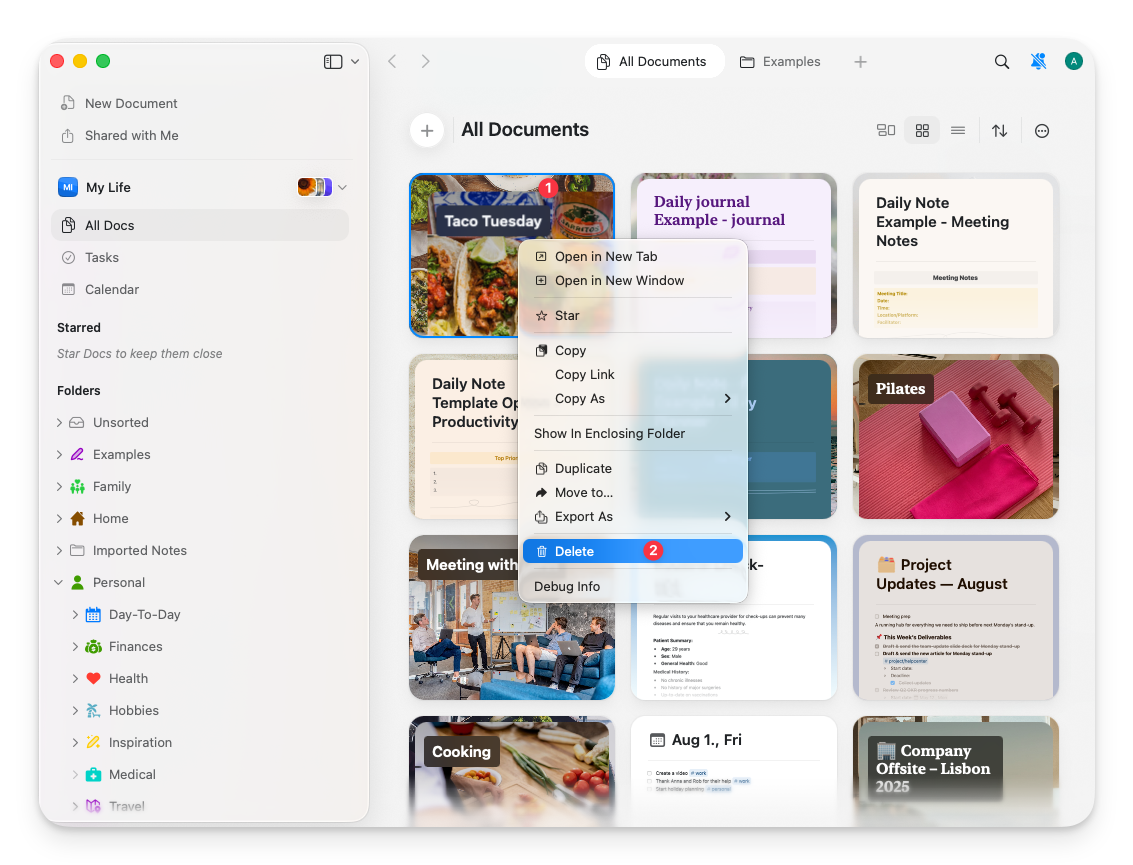
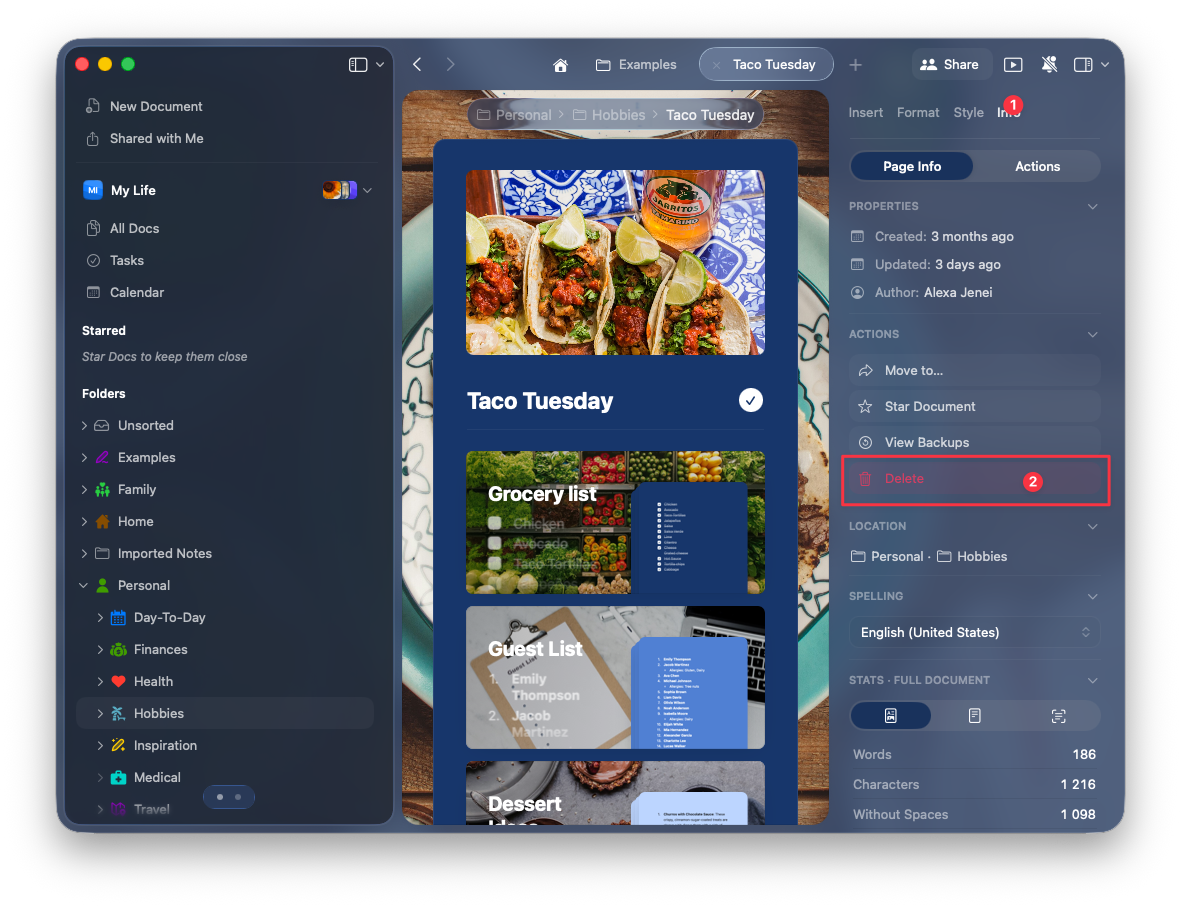
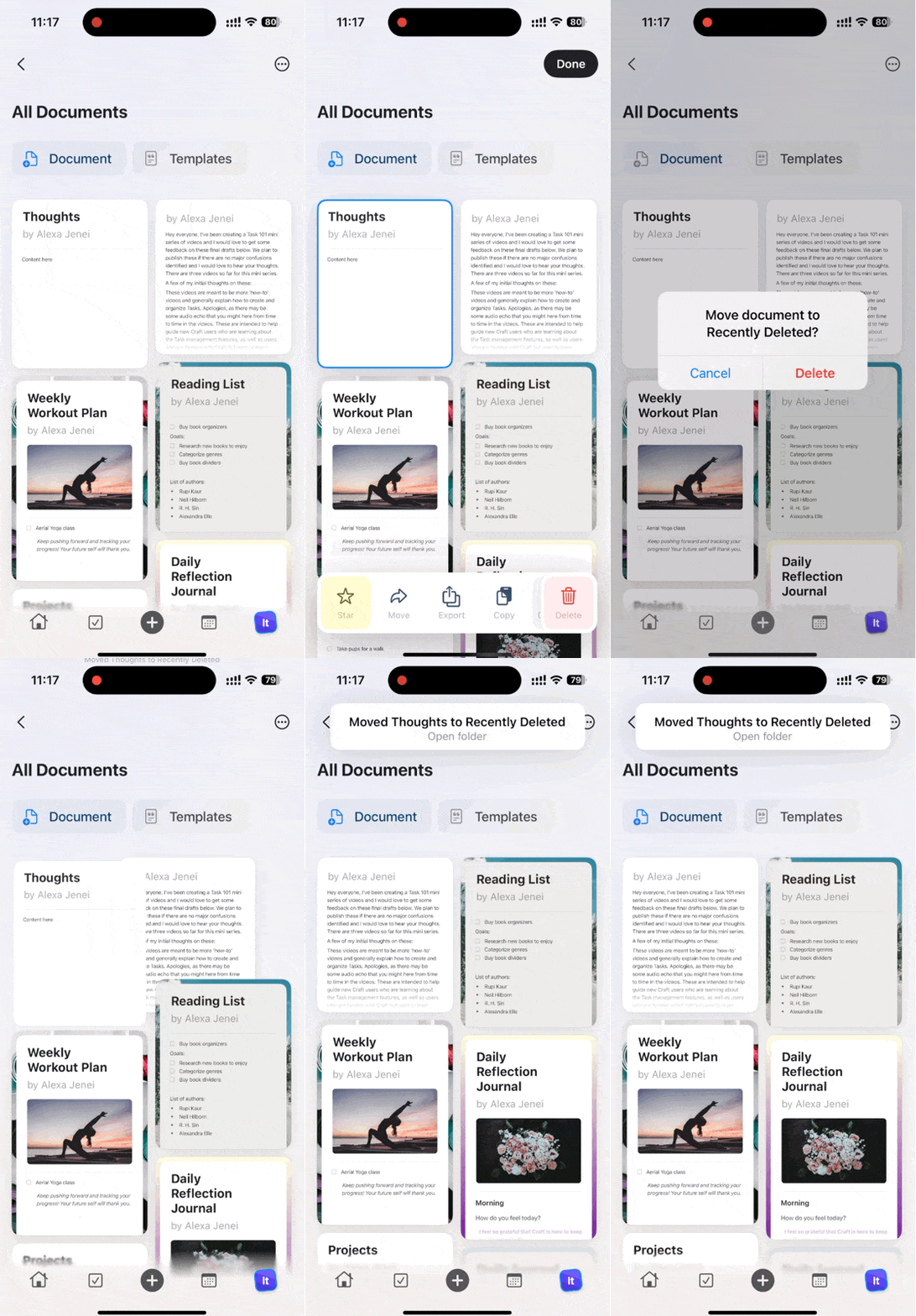
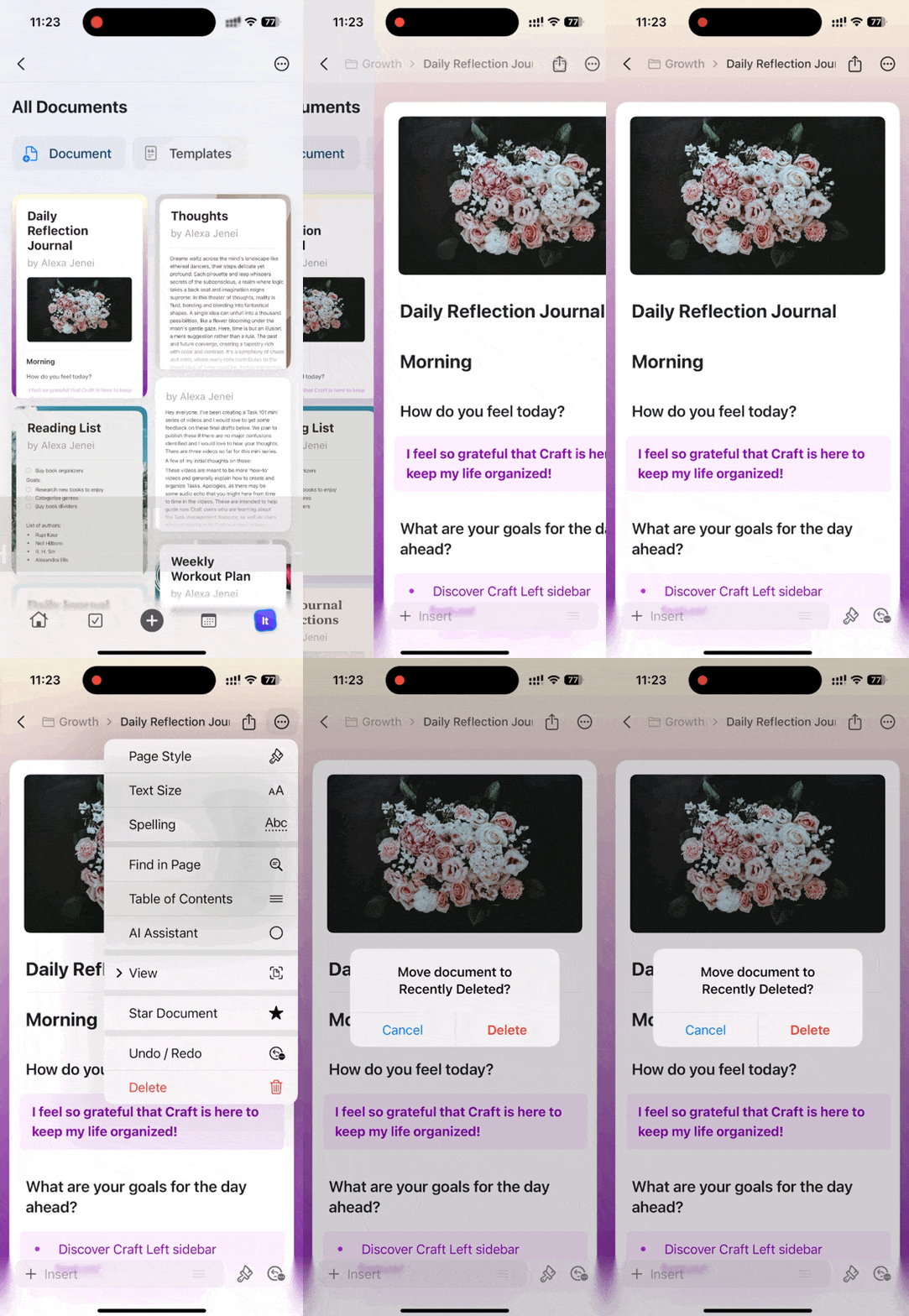
Deleted documents move to the Recently Deleted folder where they can be restored for 30 days before permanent deletion.
Starring Documents
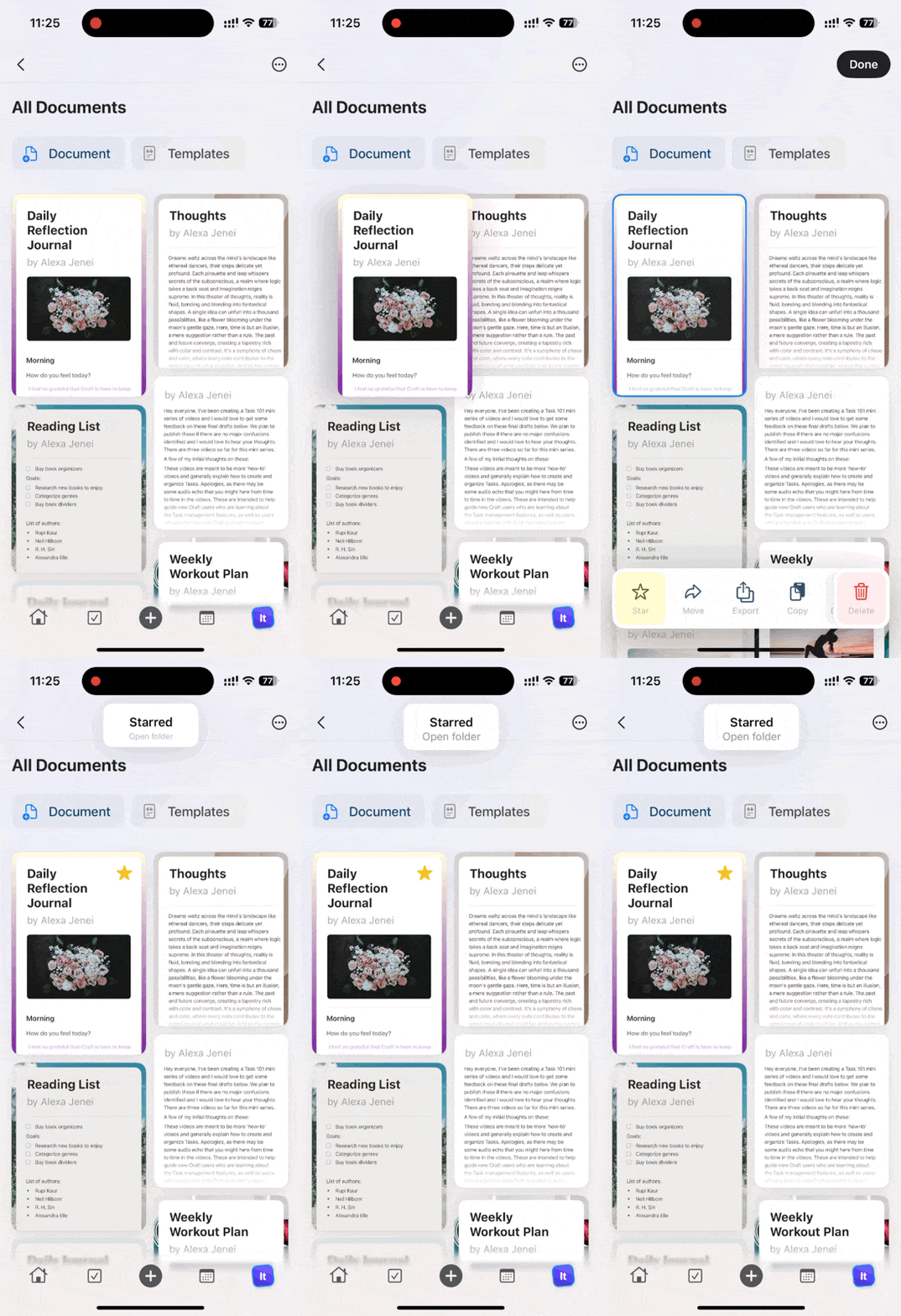
Mark important documents with a star to quickly access them later from the Starred folder.- macOS
- iOS
Right-click on a document and select Star from the context menu. Starred documents appear in the Starred folder in your sidebar.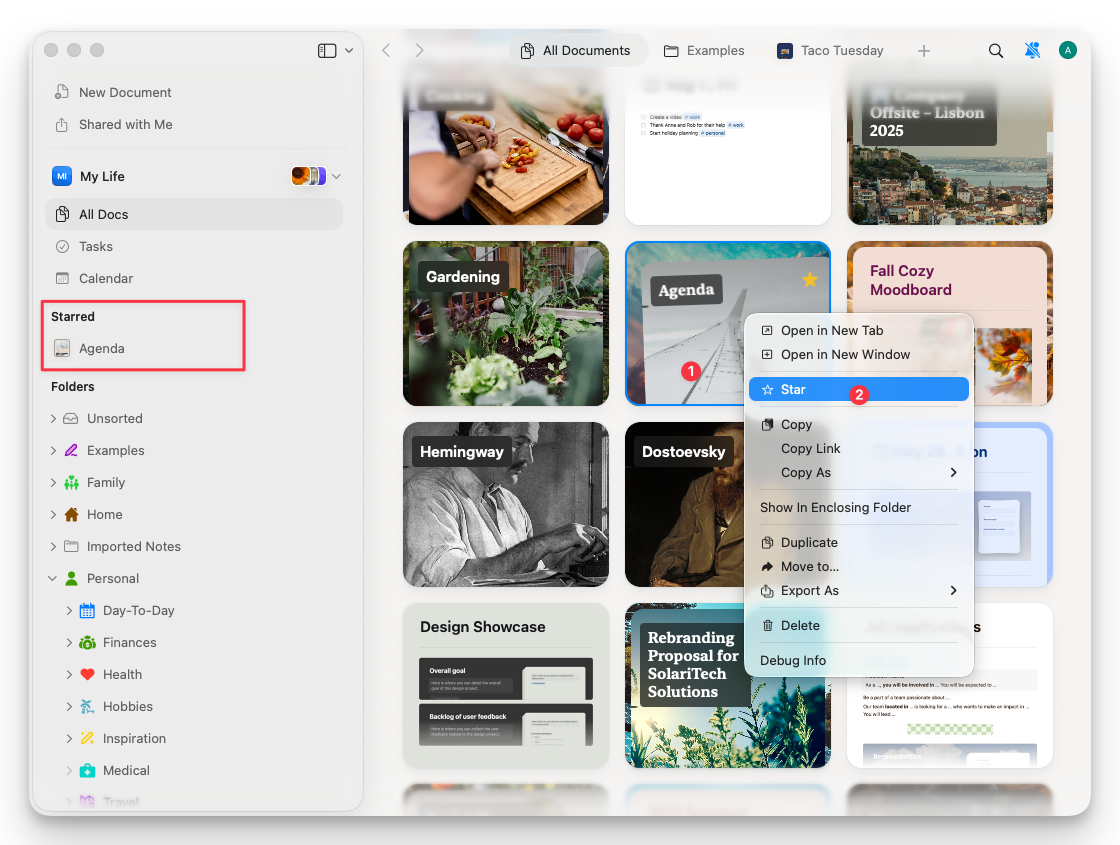
Sharing Documents
- macOS
- iOS
Open a document and click the Share button in the top right corner.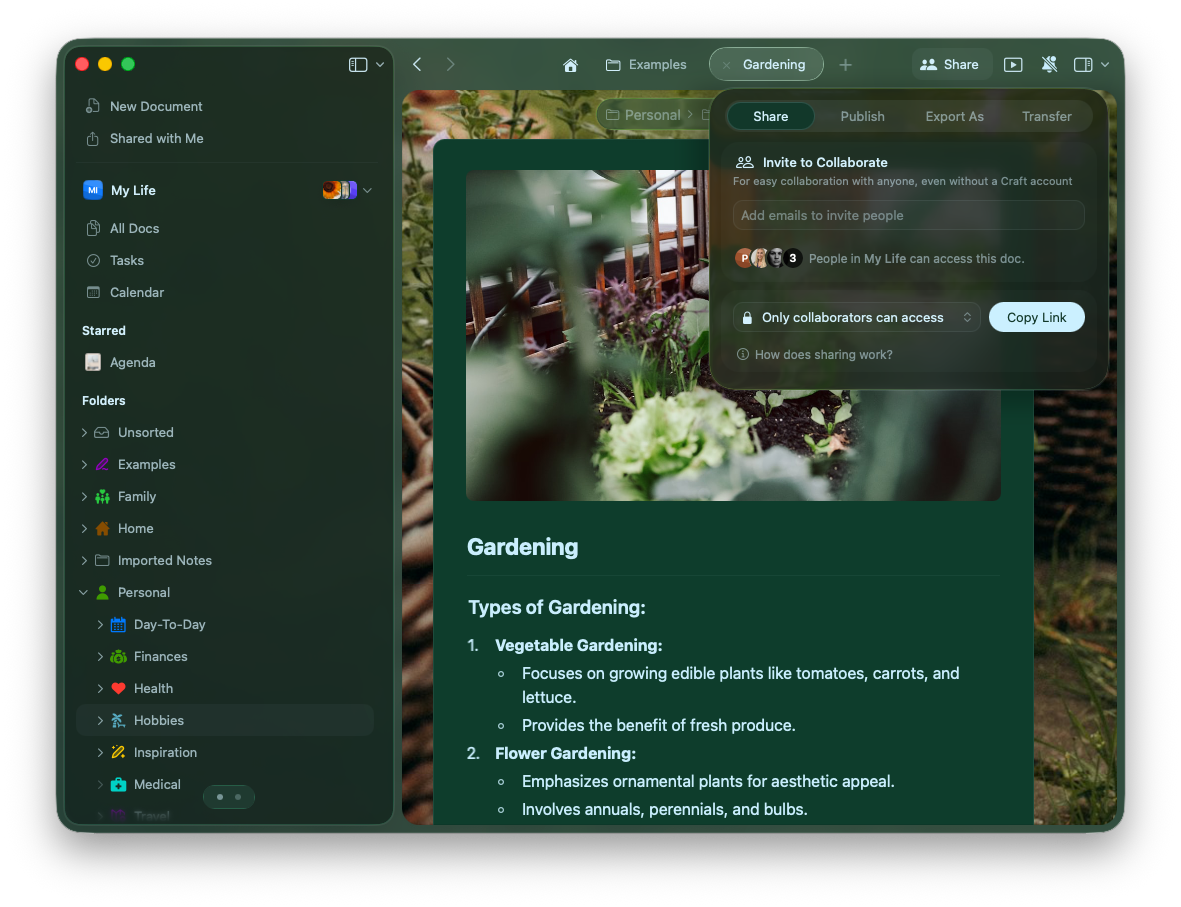
- Only collaborators – Restrict access to invited members
- Anyone with the link can view – Allow viewing without editing
- Anyone with the link can edit – Enable collaborative editing
You can also Publish, Export, or Transfer documents from the same menu.
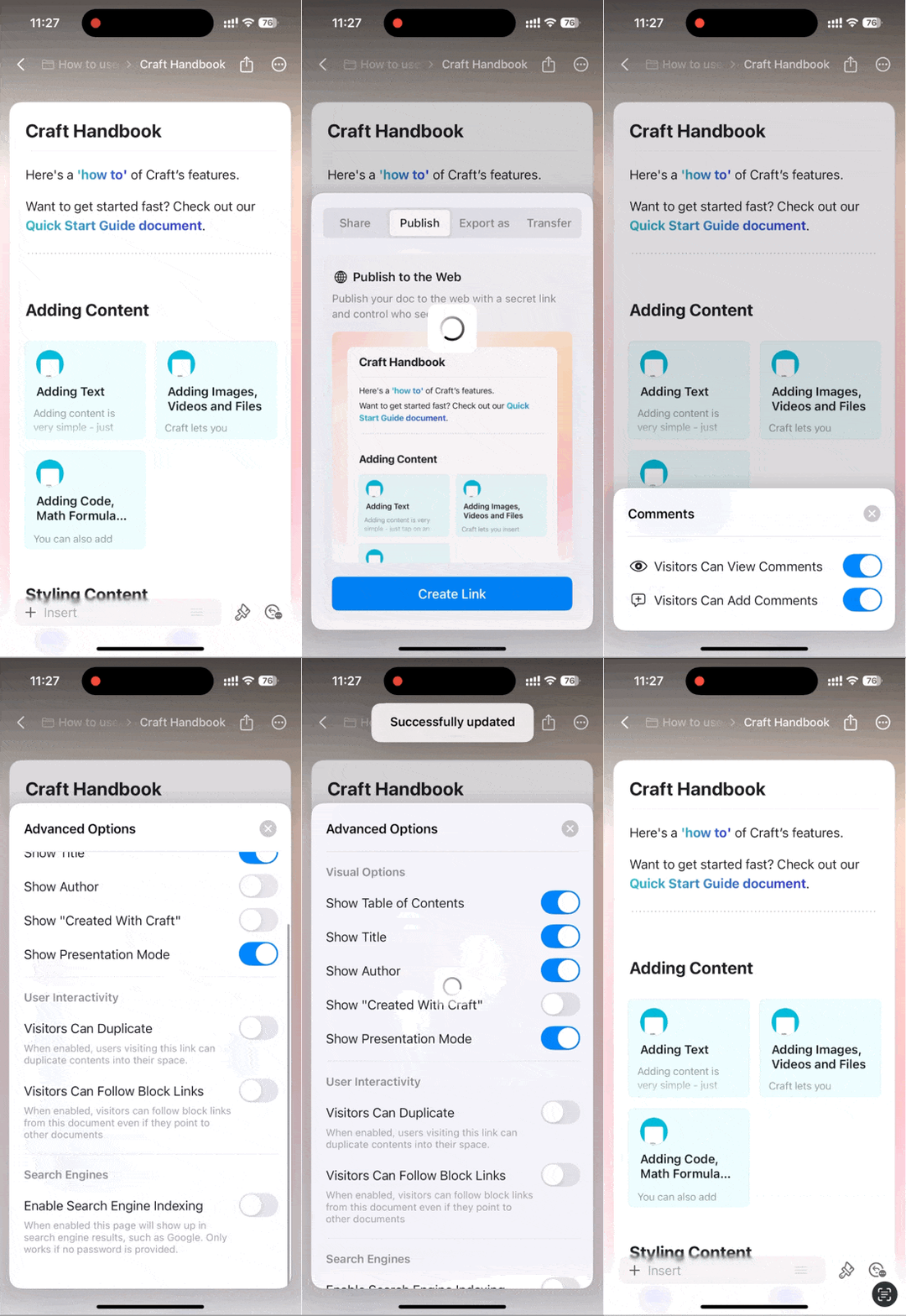
Table of Contents
Every document automatically generates a Table of Contents based on your headings.macOS
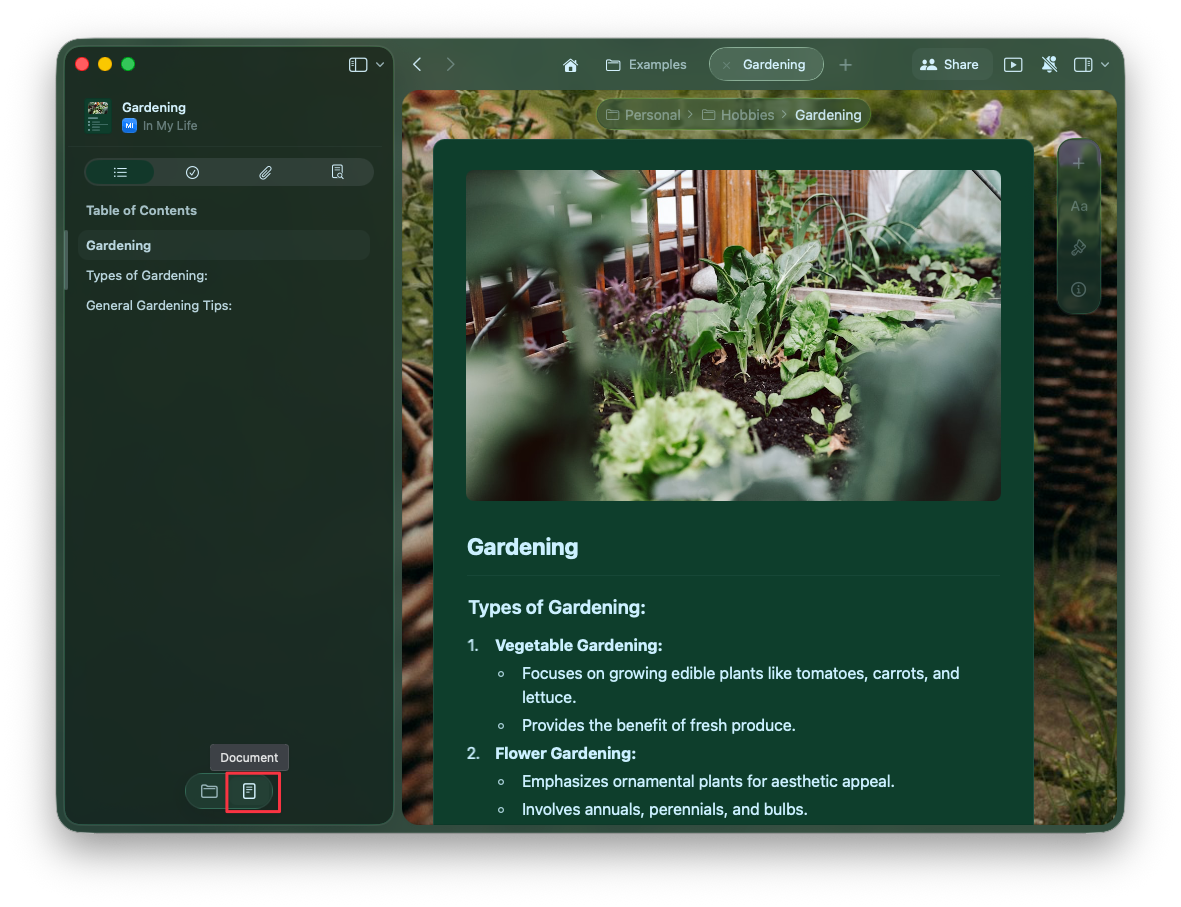
The Table of Contents appears in the left sidebar. Click the Sidebar Toggle in the top left to switch between:- Document view – Shows the current document’s table of contents
- Folder view – Shows your space’s folder structure
Organize with Folders
Learn how to organize documents in folders and spaces
Collaborate with Sharing
Explore advanced sharing and collaboration features