

- Clip entire articles or selected sections
- Cleanly format content into Craft blocks
- Retain source links and metadata (title, favicon, author, publish date)
- Choose where to save: existing documents, folders, or Daily Notes
Installation
1
Install the Craft Web Clipper extension in your browser from craft.do/download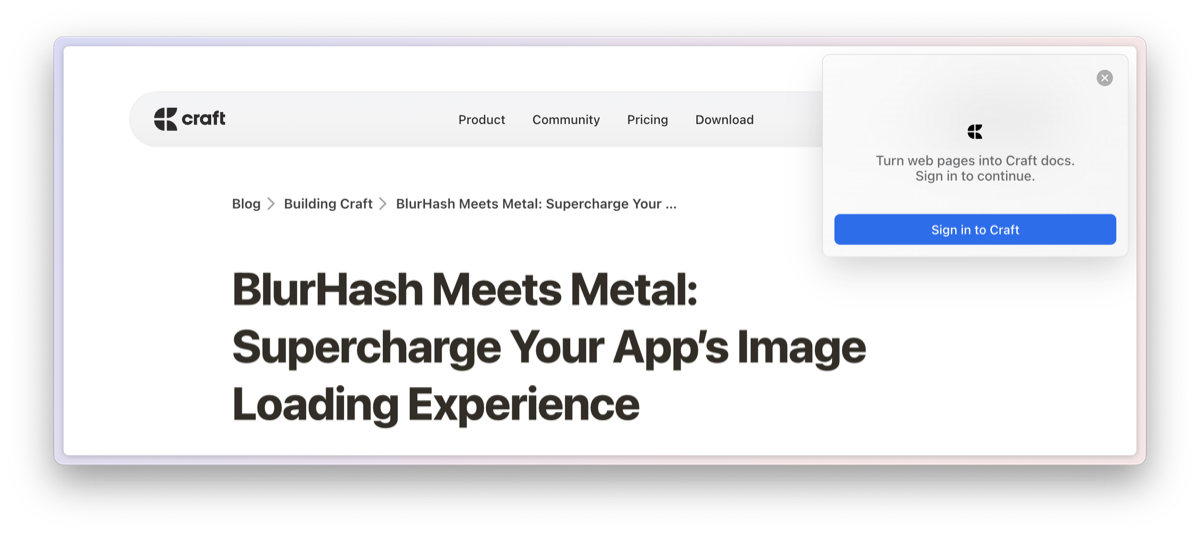
2
Once you open the Web Clipper for the first time by clicking the Craft icon in your browser toolbar or extensions panel, you’ll be prompted to log in with your Craft account as usual.
Platform-Specific Notes
- Safari
- Firefox
You might encounter issues with permissions. We recommend granting the Web Clipper access to all pages you visit for the best experience.
We never read, store, log or access the sites you visit. The only content shared with Craft and uploaded to our servers is the content that you clip and save.
How To Use
1
When you find an article or webpage you want to save, click the Craft Web Clipper icon in your browser toolbar. You can also pin the extension for easier access.
2
Select the destination note or folder within your Craft space. You can search for all kinds of folders, docs, and daily notes. Click one to select it.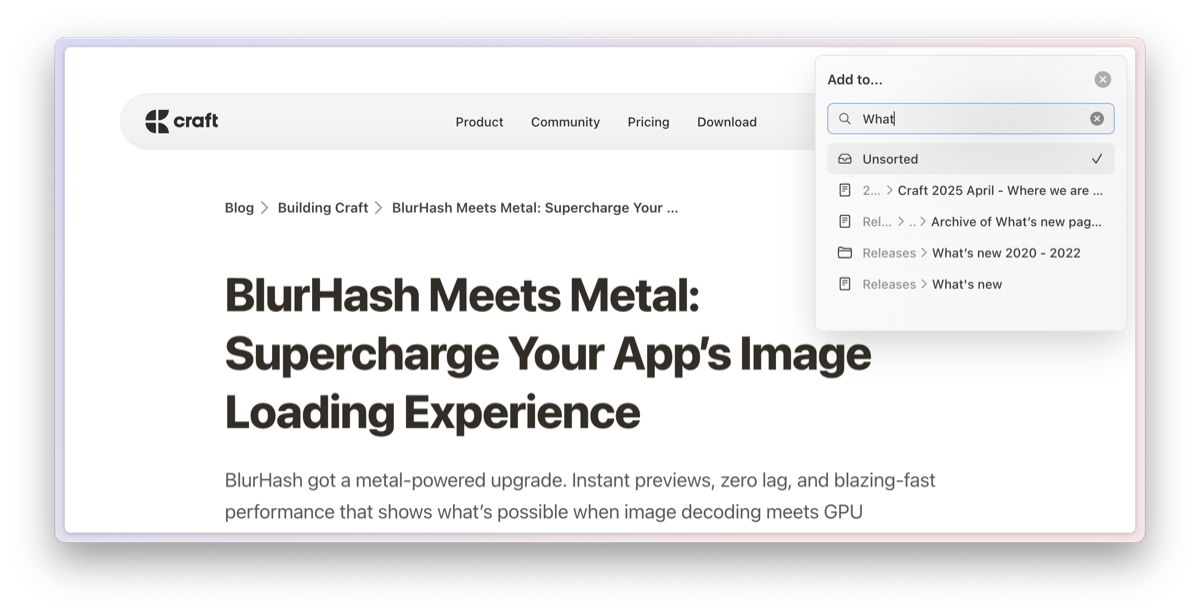
3
Choose the Format you want to use, either Article or Multi Select. With Multi Select, you can pick yourself what parts of the website you want to save.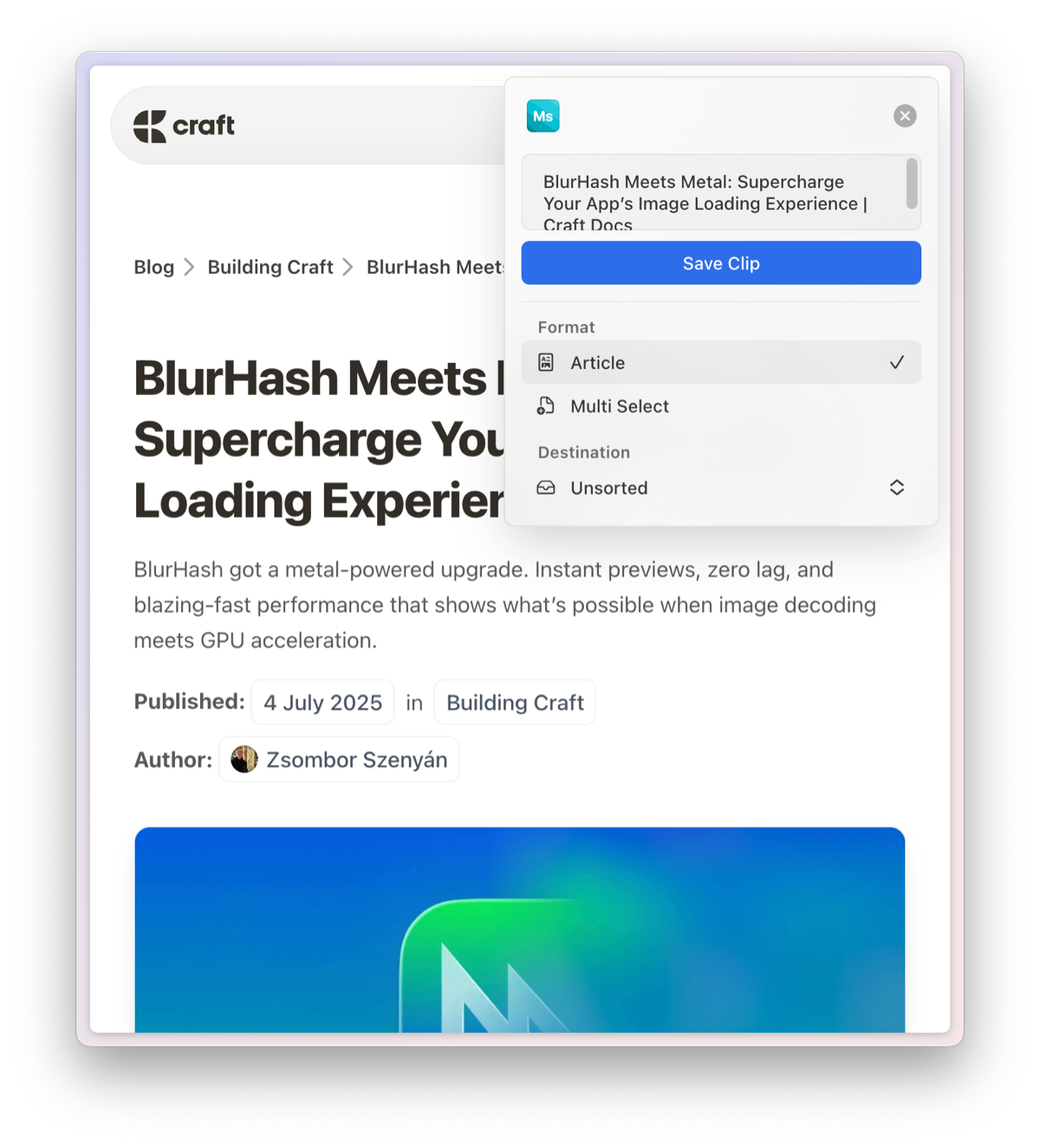
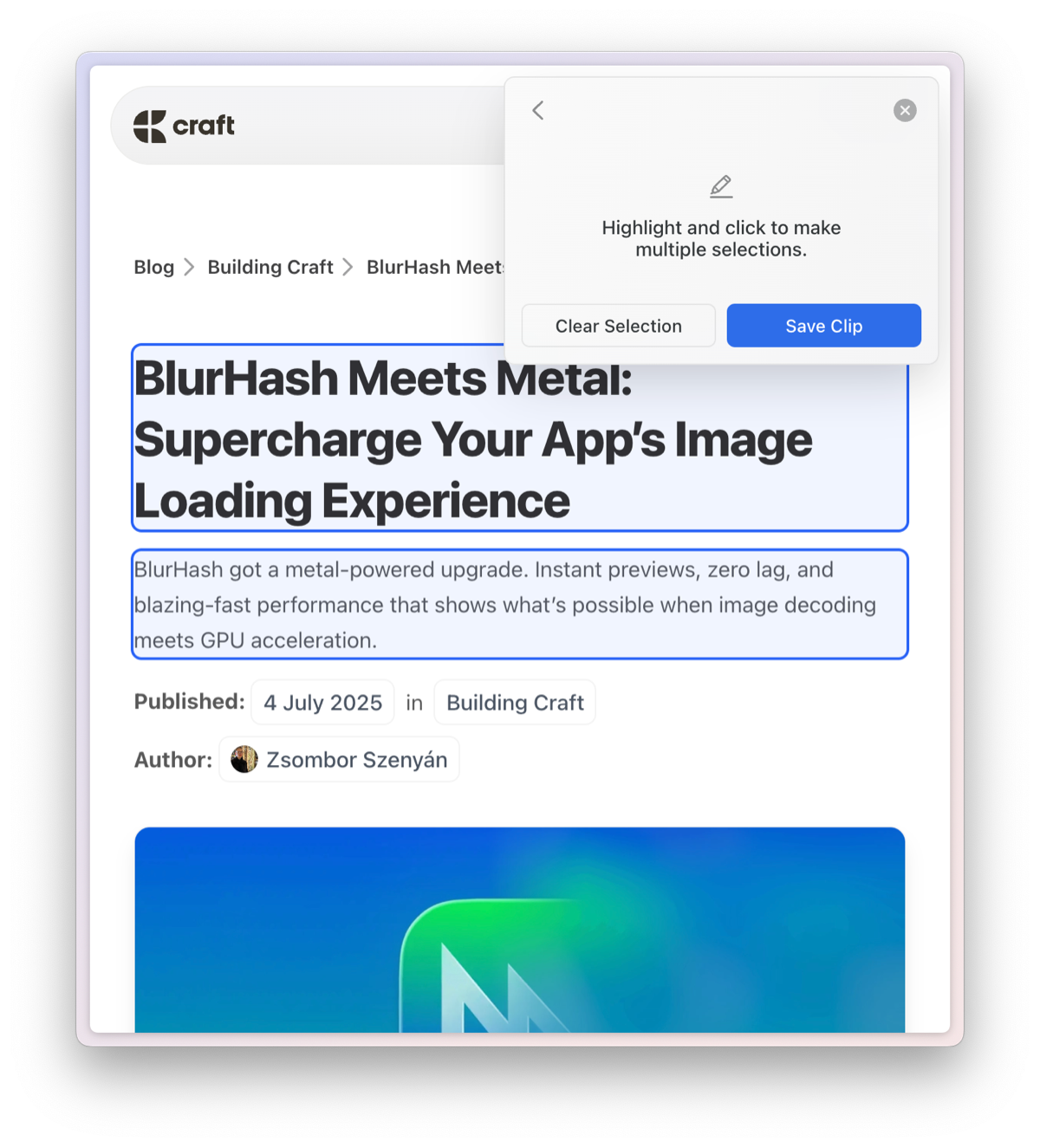
4
Click Save Clip. If you add a clip to an existing doc, it will be formatted as a page block, and if you add it to a folder, a new document will be created for you. The clipping will appear in your selected destination, formatted for easy reading. Images are also imported.
Tips and Tricks
- Change your space by clicking the space avatar in the top left corner of the Web Clipper popup, then selecting one from the dropdown.
- In this settings view, you can also see the available keyboard shortcuts.
Related Articles
Import from Other Apps
Migrate content from other note-taking apps
Email to Craft
Forward emails directly to your Craft workspace