

Craft connects directly to Apple Calendar on Mac. This integration is not available on Windows or Web. To sync Google Calendar or Outlook events, add those accounts to Apple Calendar first — see the Google and Outlook bridge steps in the Calendar view article.
Enable the Calendar View in the Sidebar
If you can’t see the Calendar view in your left sidebar, make sure to enable it via the customization options for the sidebar dropdown.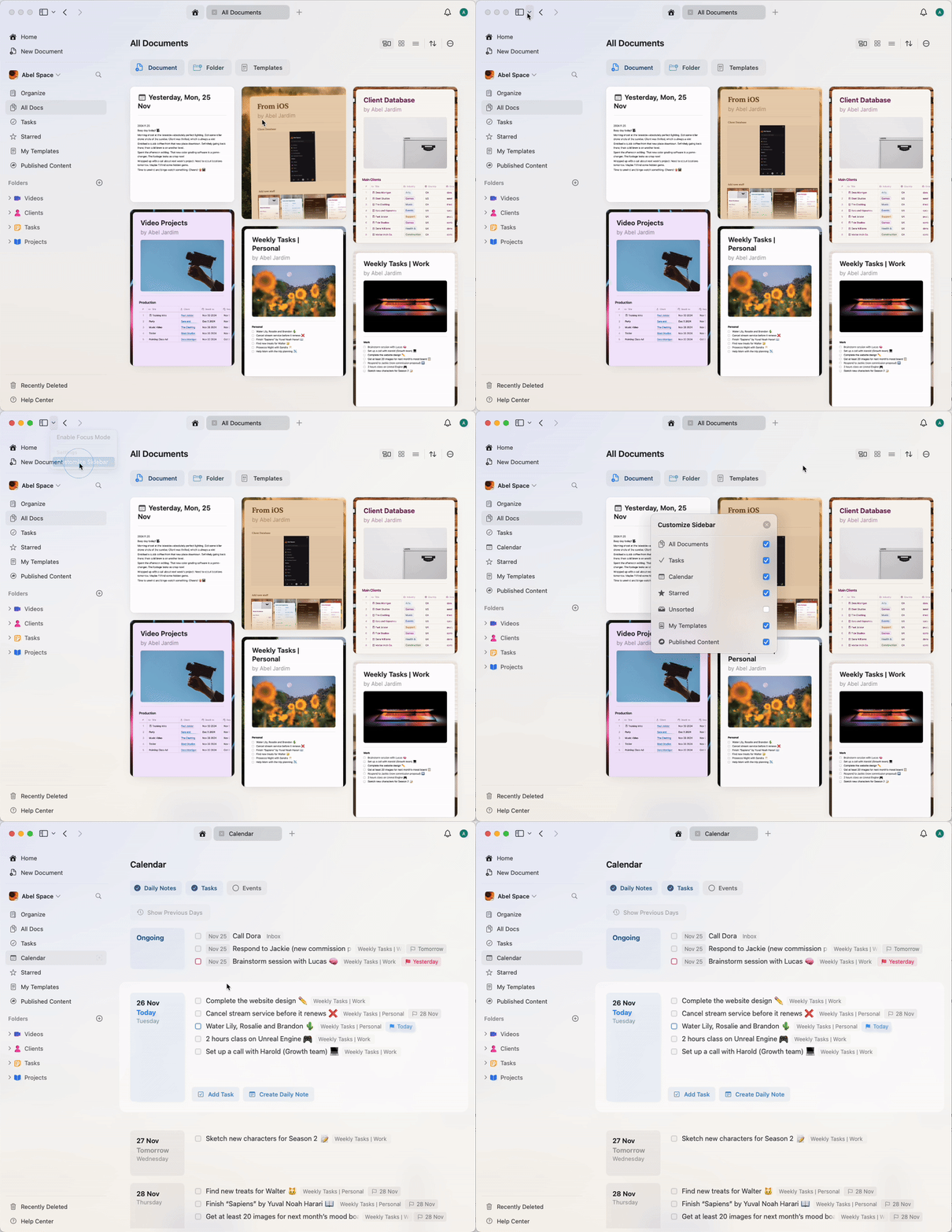
Setting Up Calendar Integration
1
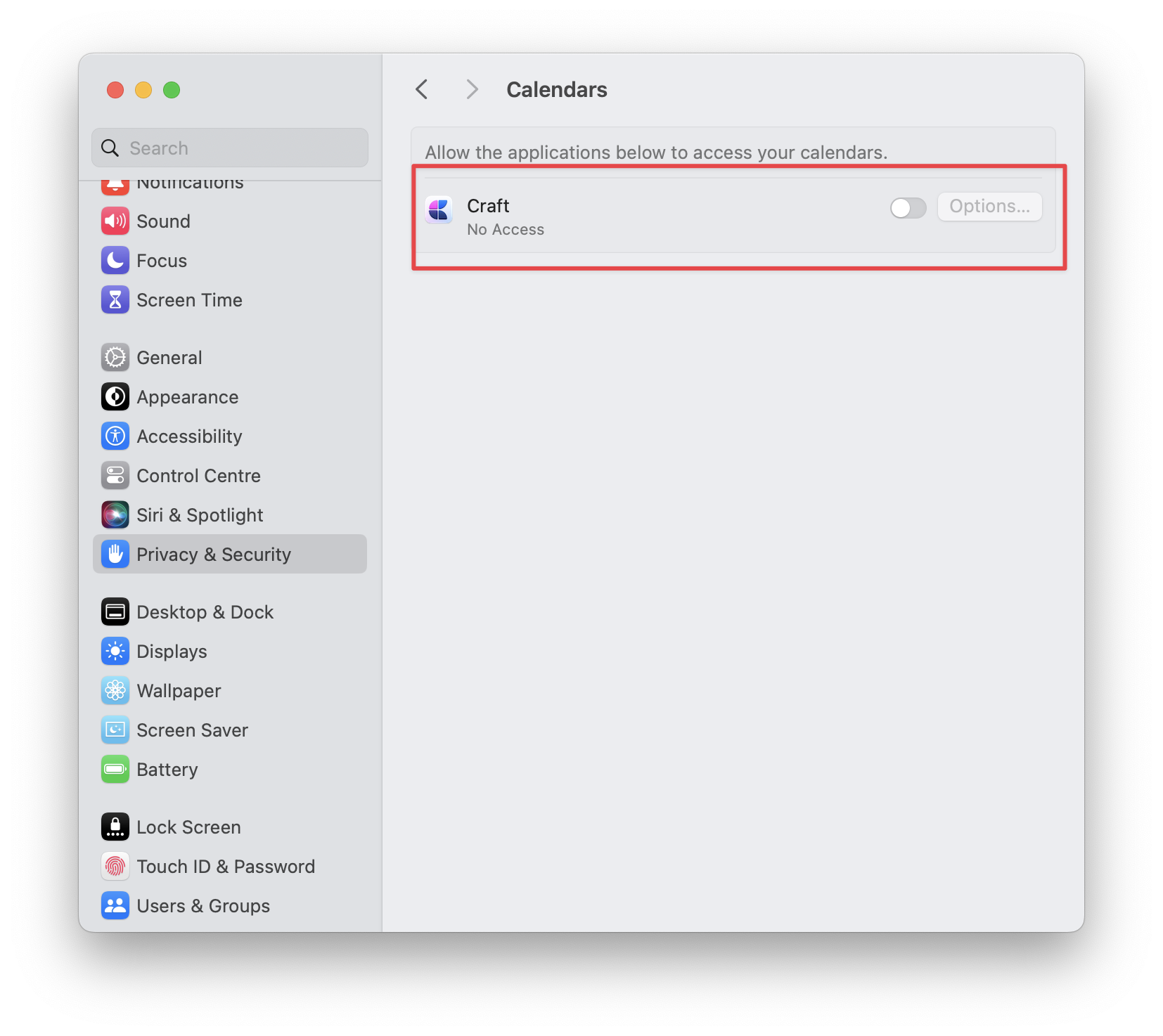
While in Calendar view, initiate the Calendar integration by attempting to enable Show Calendar Events after clicking on the Events button. You will be prompted to allow Craft to access your calendar via your Mac settings.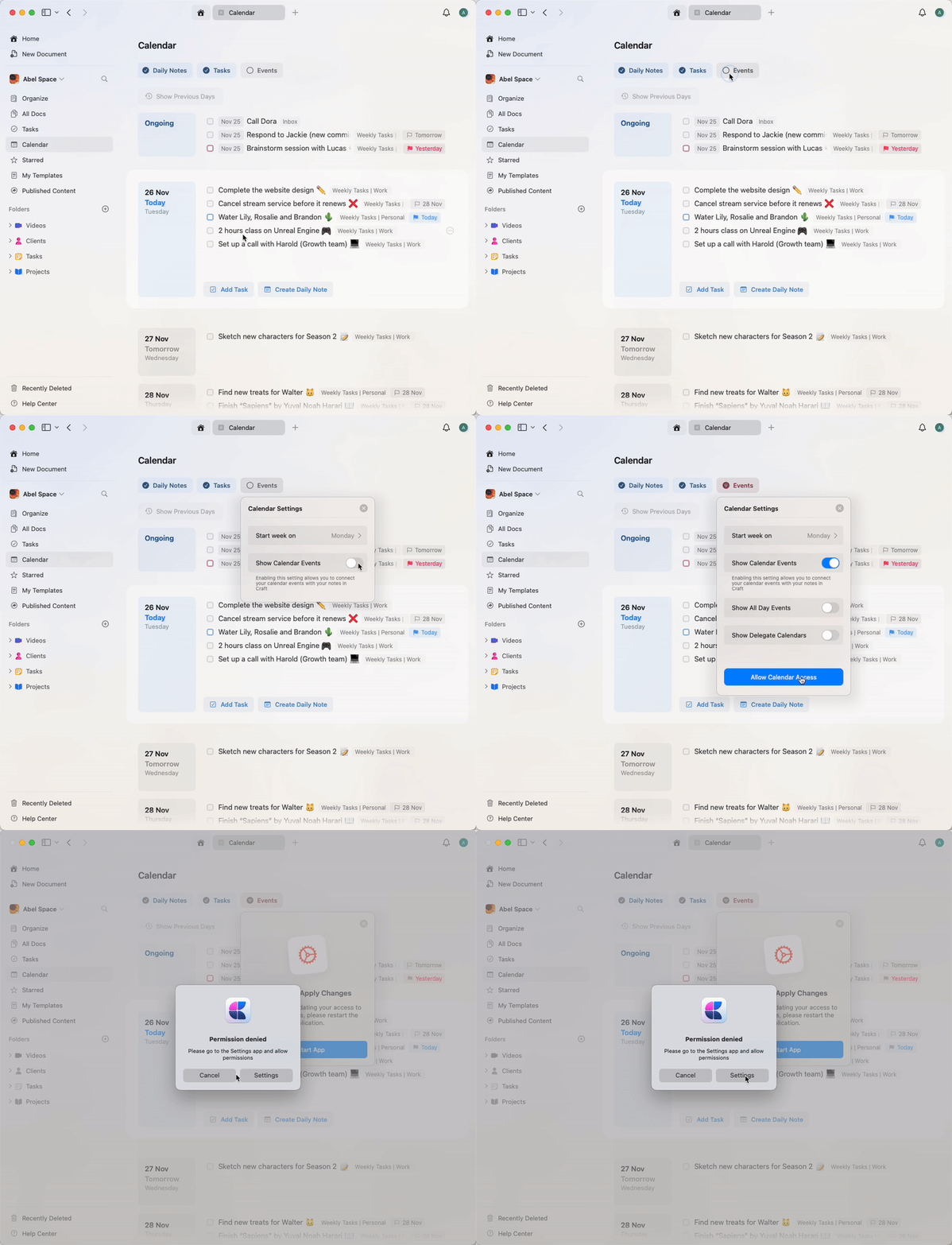
2
After allowing access to calendar, you’ll need to restart Craft to apply the changes.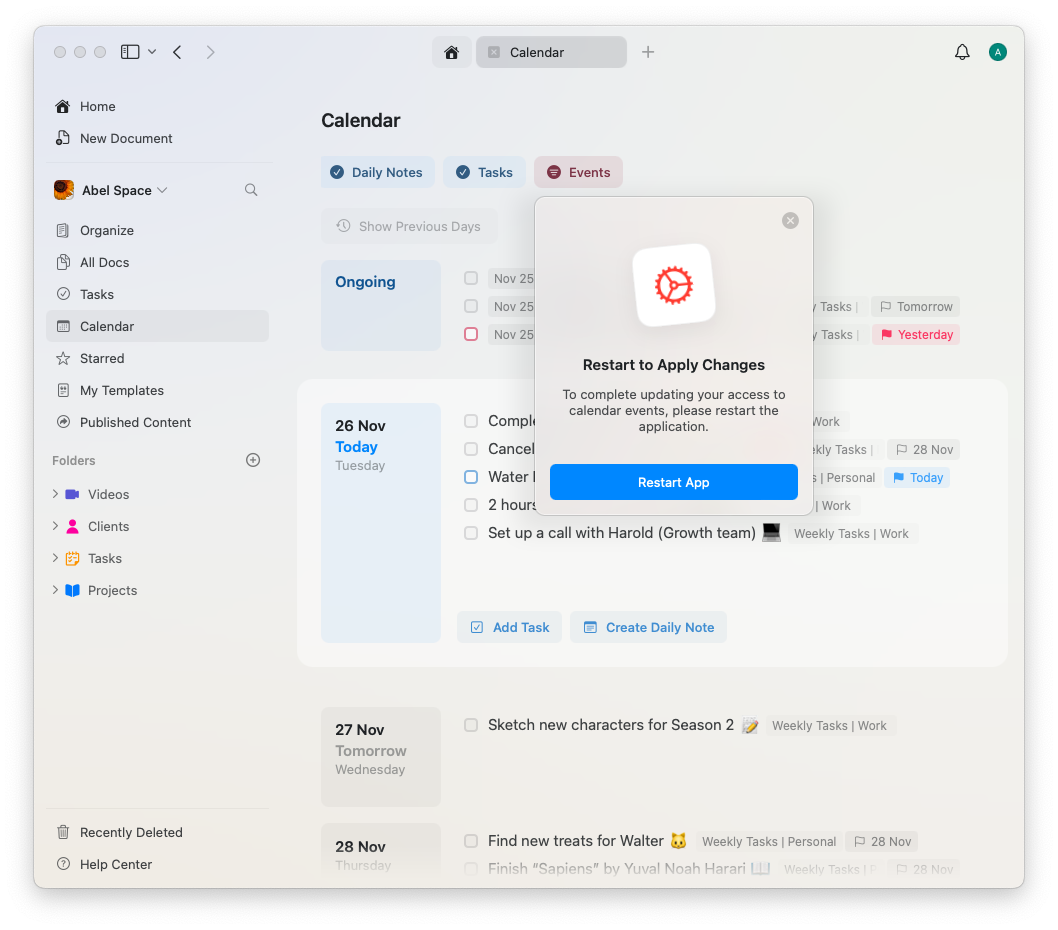
3
After restarting the app to apply the changes, go back to Calendar view and enable events to sync your calendar. You can further customize which calendars will be visible if you have multiple calendars connected to your Apple Calendar.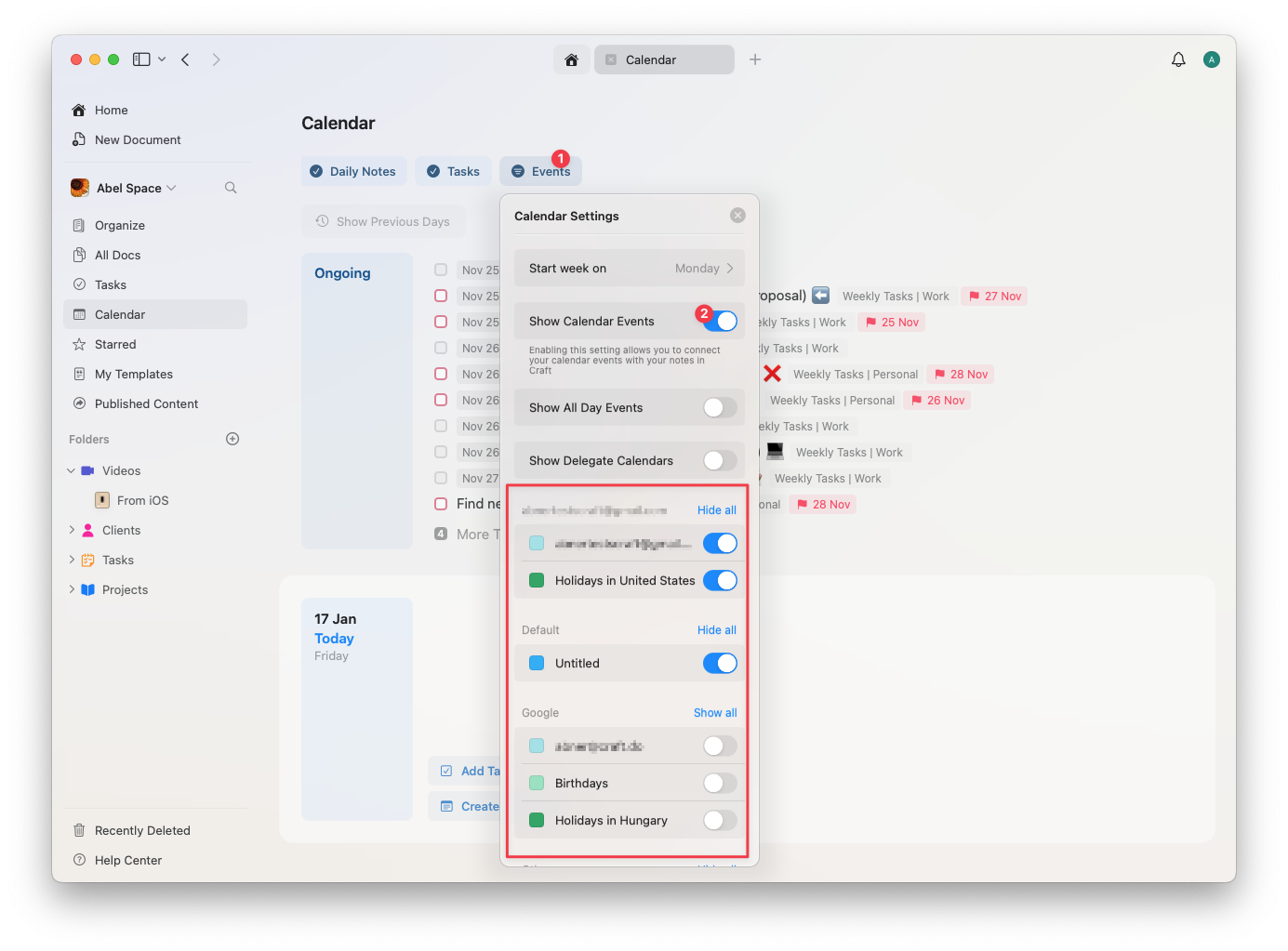
What You Can Do
Once calendar integration is enabled, you can:- View events alongside notes: See your schedule while working in Craft
- Filter calendars: Choose which calendars to display
- Navigate dates: Quickly jump to specific dates and see associated events
- Create event notes: Link notes to calendar events (see Daily Notes)
- Stay organized: Keep your schedule and notes in sync
Using Calendar with Daily Notes
The Calendar integration works seamlessly with Daily Notes. You can:- View calendar events for each day in your Daily Note
- Create notes linked to specific calendar events
- See upcoming events while planning your day
- Review past events when looking at previous Daily Notes
When you create event notes from calendar events, they automatically appear in the corresponding Daily Note, helping you keep meeting notes and event details organized by date.
Managing Calendar Access
If you need to revoke or modify Craft’s access to your calendar:1
Open System Settings (formerly System Preferences) on your Mac
2
Go to Privacy & Security → Calendars
3
Find Craft in the list and toggle access on or off
Troubleshooting
If calendar events aren’t showing up in Craft:- Make sure you’ve enabled Show Calendar Events in the Calendar view
- Check that Craft has permission to access Calendar in your macOS System Settings
- Try restarting Craft after granting permissions
- Verify that the calendar you want to see is enabled in Craft’s calendar settings
Daily Notes
Learn how to use Daily Notes with calendar integration
Calendar in Tasks
View calendar events in the tasks view
Tasks
Manage tasks alongside calendar events
Blocks and Pages
Understand how event notes work as subpages