

Home Screen and desktop widgets are available on iOS, iPadOS, and macOS. Lock Screen widgets are available on supported iPhone and iPad devices.
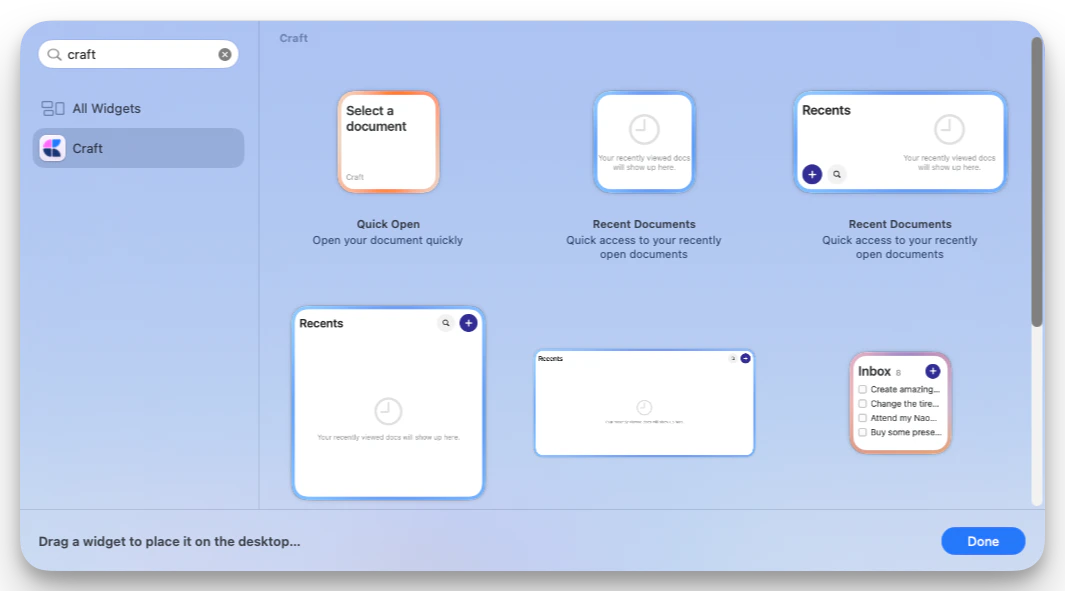
Available widgets
Craft currently offers these widget types:Quick Open
Size: Small Use Quick Open for one-tap access to a specific document or Daily Note. You can choose a Space, select the document to open, and set a widget background. Quick Open also supports Daily Note shortcuts for Yesterday, Today, and Tomorrow, so the widget can keep pointing to the right Daily Note as the date changes.Recent Documents
Sizes: Small, Medium, Large, and Extra Large where supported by the device Use Recent Documents to open recently viewed documents from Craft. You can choose which user and Space the widget shows, then tap a document to open it. On medium and larger widgets, Craft also shows quick actions for:- Search: open Craft search
- New document: create a new document in the selected Space
Tasks
Sizes: Small, Medium, and Large Use Tasks to keep task lists visible from your Home Screen or desktop. The widget can show:- Inbox: tasks from your task inbox
- Today: tasks due today plus overdue tasks
- Document: open tasks from a specific document
Lock Screen shortcuts
Size: Circular Lock Screen widget Craft also includes Lock Screen shortcuts for quick actions:- Open Craft
- Create Task in Craft
- Create Document
- Open today’s daily note

Add a widget
Widgets are added through your device’s widget gallery. The exact steps depend on the platform:- iPhone
- iPad
- Mac
- Lock Screen
- Touch and hold an empty area on the Home Screen until the apps jiggle.
- Tap the + button.
- Search for Craft.
- Choose the widget you want to add.
- Select a size.
- Tap Add Widget.
- Touch and hold the widget, then tap Edit Widget to configure it.
Configure a widget
After adding a Craft widget, edit it from the system widget menu to choose what it displays. Common configuration options include:- Space: choose which Craft Space the widget should use
- Document or display mode: choose a document, Daily Note, task list, or task source depending on the widget
- User: choose which account Recent Documents should use when multiple accounts are available
- Background: choose a visual background for Quick Open, Recent Documents, or Tasks widgets
Open Craft on the same device and make sure you are signed in. Widget options are populated from the Spaces, documents, and account data available to the app.
How often widgets update
Craft asks the system to refresh Recent Documents and Tasks widgets about every 15 minutes. Tasks widgets also refresh when you switch in or out of Craft and when Craft receives task-related updates. Apple controls the exact widget refresh timing, so updates may not appear instantly. If a widget looks stale, open Craft once, then return to the Home Screen or desktop.Tips
- Add more than one Craft widget if you want separate views for different Spaces, documents, or task lists.
- Use Quick Open with Today to keep your Daily Note one tap away.
- Use Tasks in Document mode for project-specific task lists.
- Use medium or large Recent Documents widgets if you want built-in Search and New document actions.
- If a widget does not load after updating Craft, remove it and add it again from the widget gallery.
Apple Shortcuts
Automate tasks with Shortcuts integration
Daily Notes
Use widgets with Daily Notes for quick access