

How to Start the Import
1
Open Craft
Open Craft (native app or web).
2
Start the import
Click the Import icon at the bottom of the left sidebar and select Import from Notion. This opens the import page at docs.craft.do/import/notion.
Set Up Your Notion Connection
The import page will guide you through four steps to connect your Notion workspace:1
Open Connections in the Notion developer portal
Go to Notion Connections to manage your connections.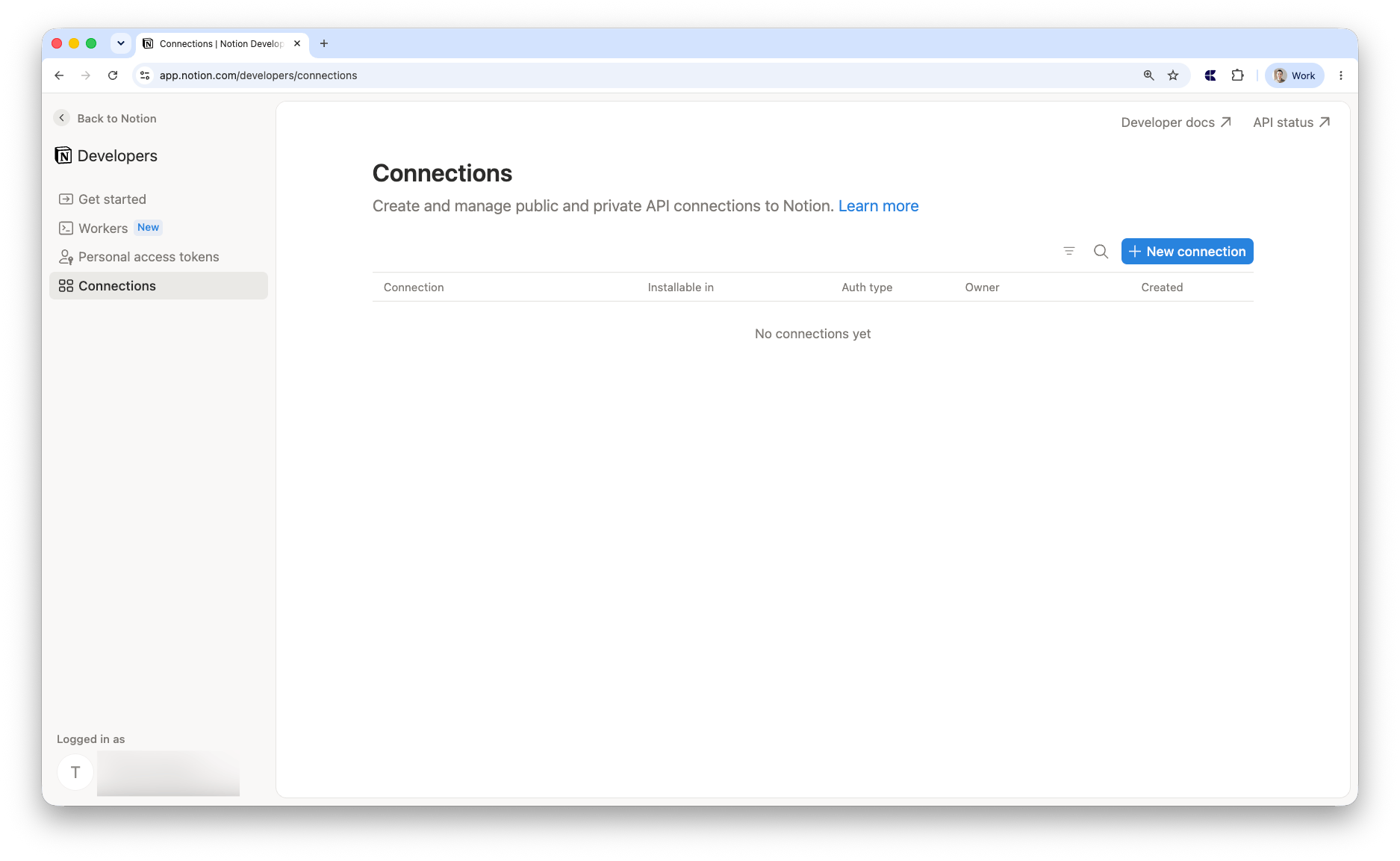
2
Create a new Connection
Give it any name, select Access token, choose your workspace, and hit Save.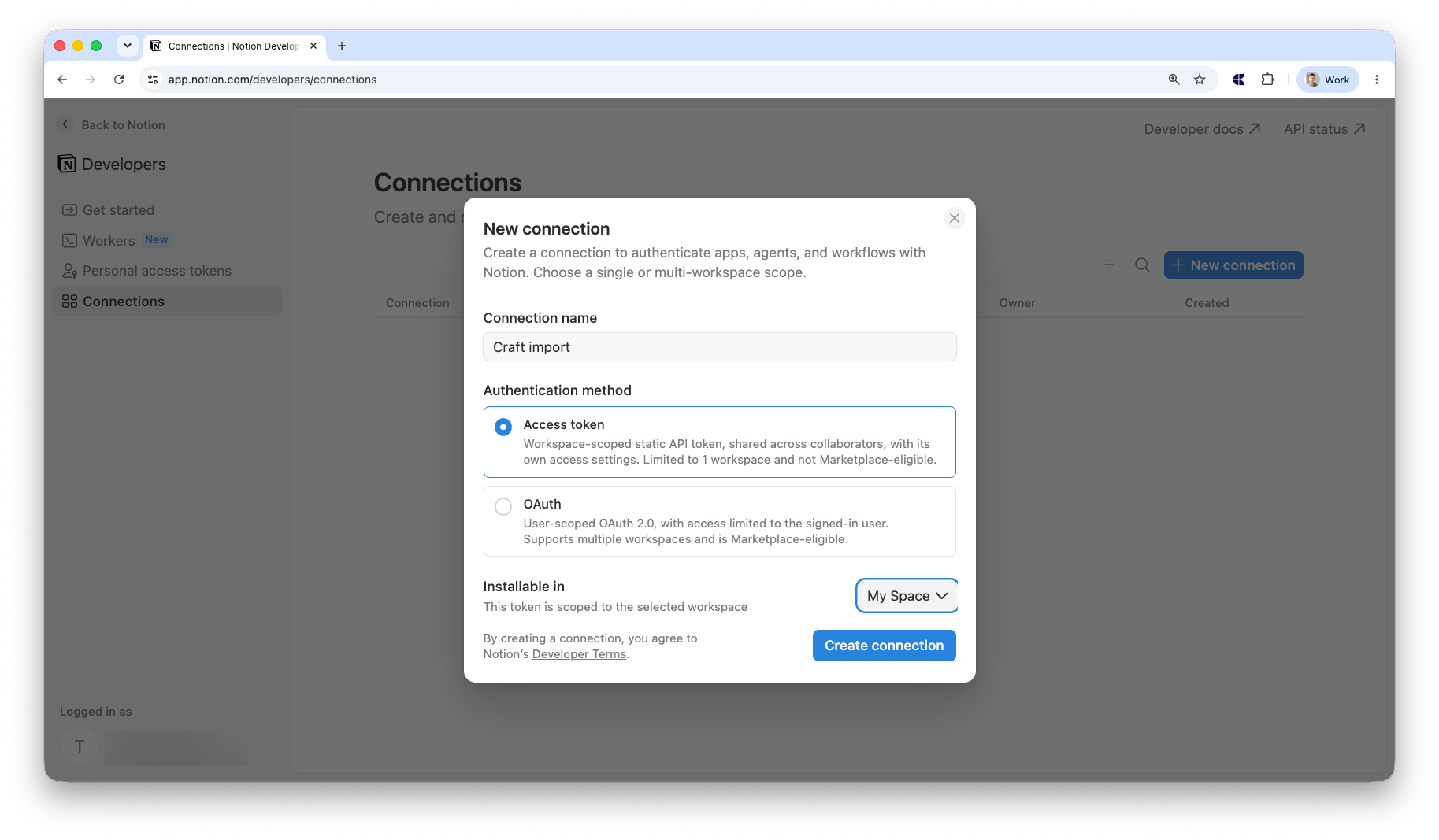
3
Go to the Content access tab
Add the pages and databases you want to import. You have to add every page individually — you cannot select the entire workspace at once. Only pages you grant access to will be included in the import.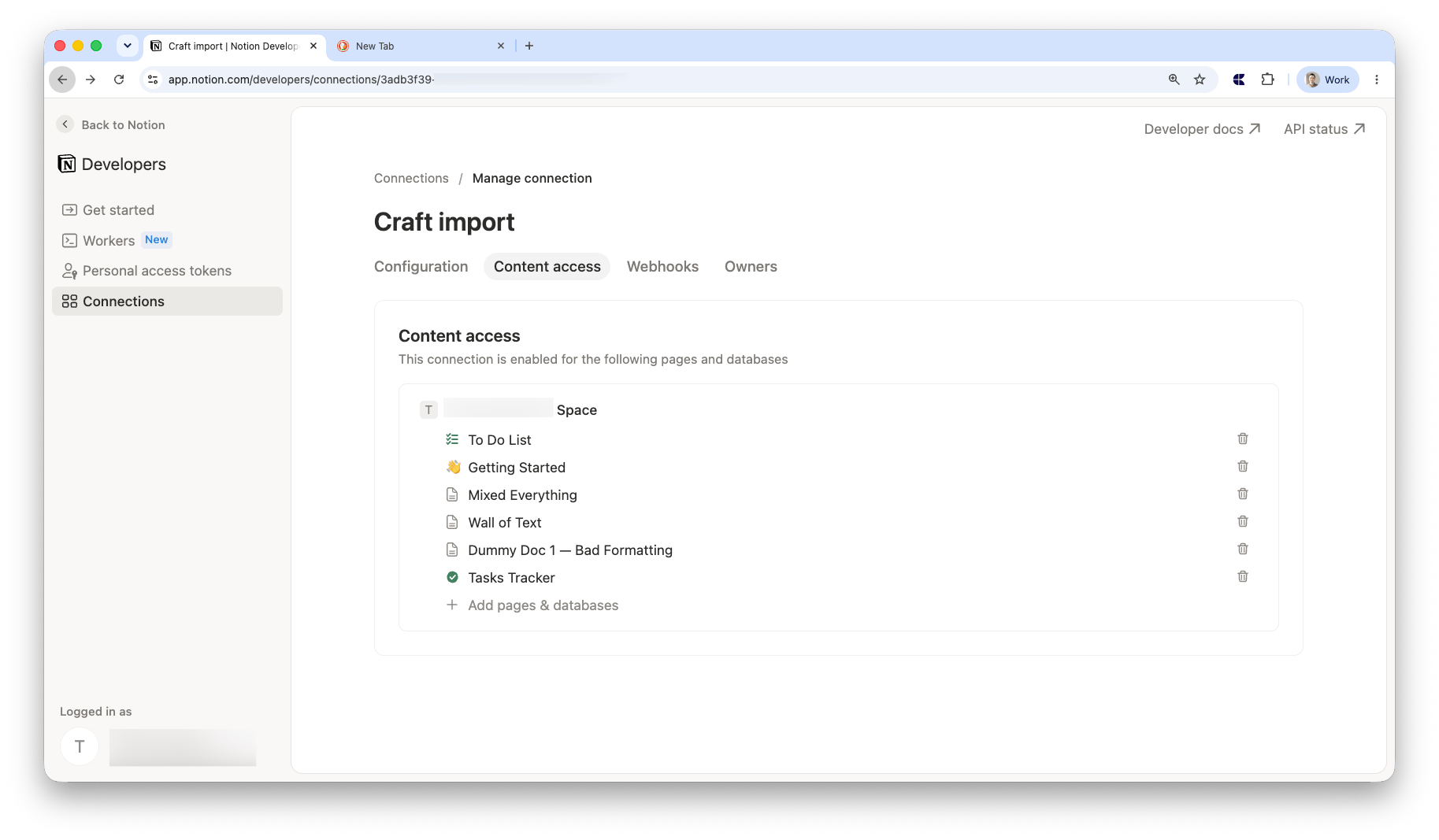
4
Copy your Access token
Go back to the Configuration tab and copy the Access token.
Import Your Documents
1
Paste your Access token
Paste your Access token into the field on the import page.
2
Choose your destination
Select the Craft Space where you want your Notion documents to appear. Optionally select a destination folder to organize your imported documents.
3
Configure options
Optionally toggle Include comments to import Notion comments alongside your pages (requires the Read comments capability — see above).
4
Start the import
Click Import. You’ll see a progress bar as your documents are imported. You can close the page at any time — the import will continue in the background.
After the Import
Once complete, you’ll see a confirmation with a button that takes you to Craft, where you’ll find your imported documents.Limitations
- Linked databases are not imported. Only original databases and standalone pages are included. Linked (mirrored) database views will be skipped.
Troubleshooting
Invalid Notion access token
Invalid Notion access token
Double-check that you copied the full Access token from the Configuration tab in your Notion connection settings.
No pages or databases found
No pages or databases found
Make sure you selected the individual pages and databases you want to import in the Content access tab of your Notion connection settings. You have to select each page individually. Also verify that Read content is enabled under Capabilities.
Import failed
Import failed
Try restarting the import. If the issue persists, contact support.