

.textbundle folder. Many note-taking apps can export to it.
There are two ways to import TextBundle notes into Craft:
- Many notes, or on the web: Use the TextBundle import page. It takes whole folders of bundles and keeps their folder structure.
- A few notes: Import the files directly in the Craft app on Mac, iPad, or iPhone.
Import on the Import Page
1
Export your notes as TextBundle
Choose TextBundle in your app’s export options. Markdown TextBundle versions 1 and 2 are supported.
2
Keep each bundle together
Keep each
.textbundle folder intact: the info.json file, the text.md or text.markdown file, and the assets folder. If your export is a ZIP or .textpack archive, unzip it first.3
Open the TextBundle import page
Go to docs.craft.do/import/textbundle and sign in to your Craft account if asked.
4
Select your bundles
Click Select a folder and choose the folder that contains your bundles, or drag the
.textbundle folders onto the upload area. Folders around your bundles are recreated in Craft.5
Choose where the notes go
Select the Space where you want your notes to appear. Optionally, select a folder. If you don’t choose one, the notes go to Unsorted.
6
Start the import
Click Import. Keep the page open while your files upload. Once the page shows Importing your documents, you can close it and the import will continue in the background.
Limits
- Each note’s Markdown text can be up to 10 MB.
- Each file can be up to 5 GB.
- You can select up to 5,000 files at a time, counting notes,
info.jsonfiles, and attachments.
Import in the Craft App
On Mac, iPad, and iPhone, you can import TextBundle files directly:1
Open the import menu
Click Import at the bottom of the left sidebar. You can also open the three-dot menu at the top right of the document list in All Docs, Organize, or Unsorted and select Import.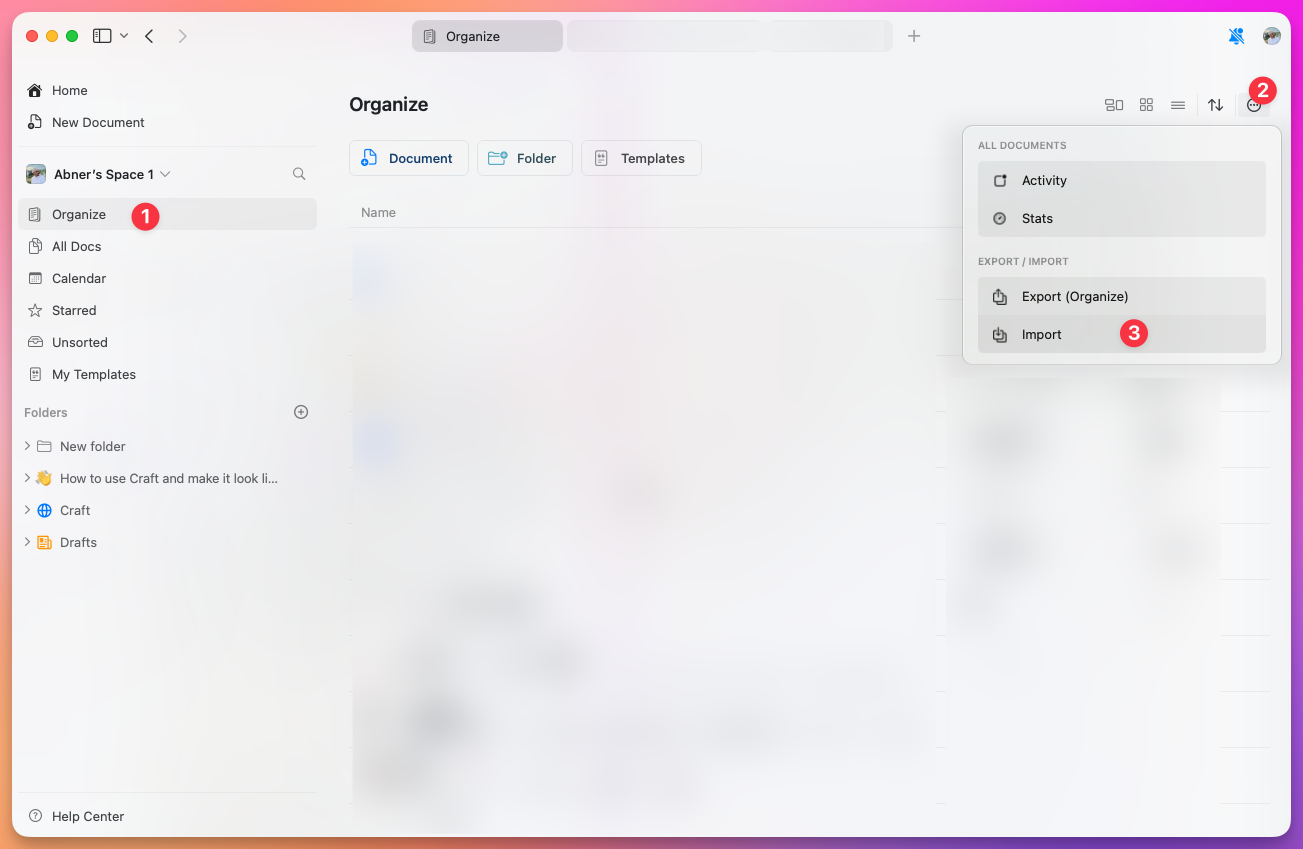
2
Choose TextBundle
Select the TextBundle option and choose your files.
Related Topics
Import Overview
All import options in Craft
Import from Bear
Export from Bear and import with links between notes