

Accessing the Calendar view
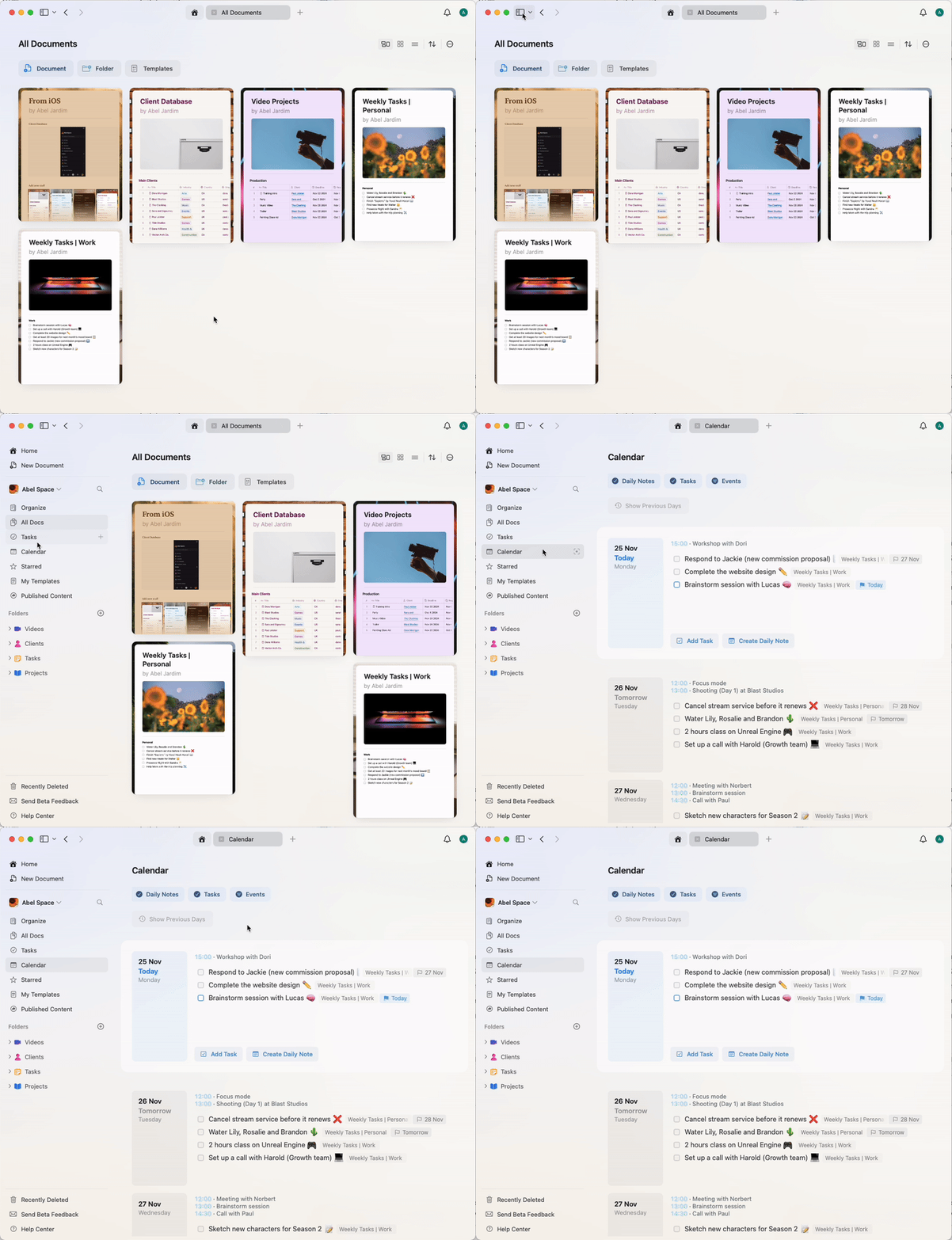
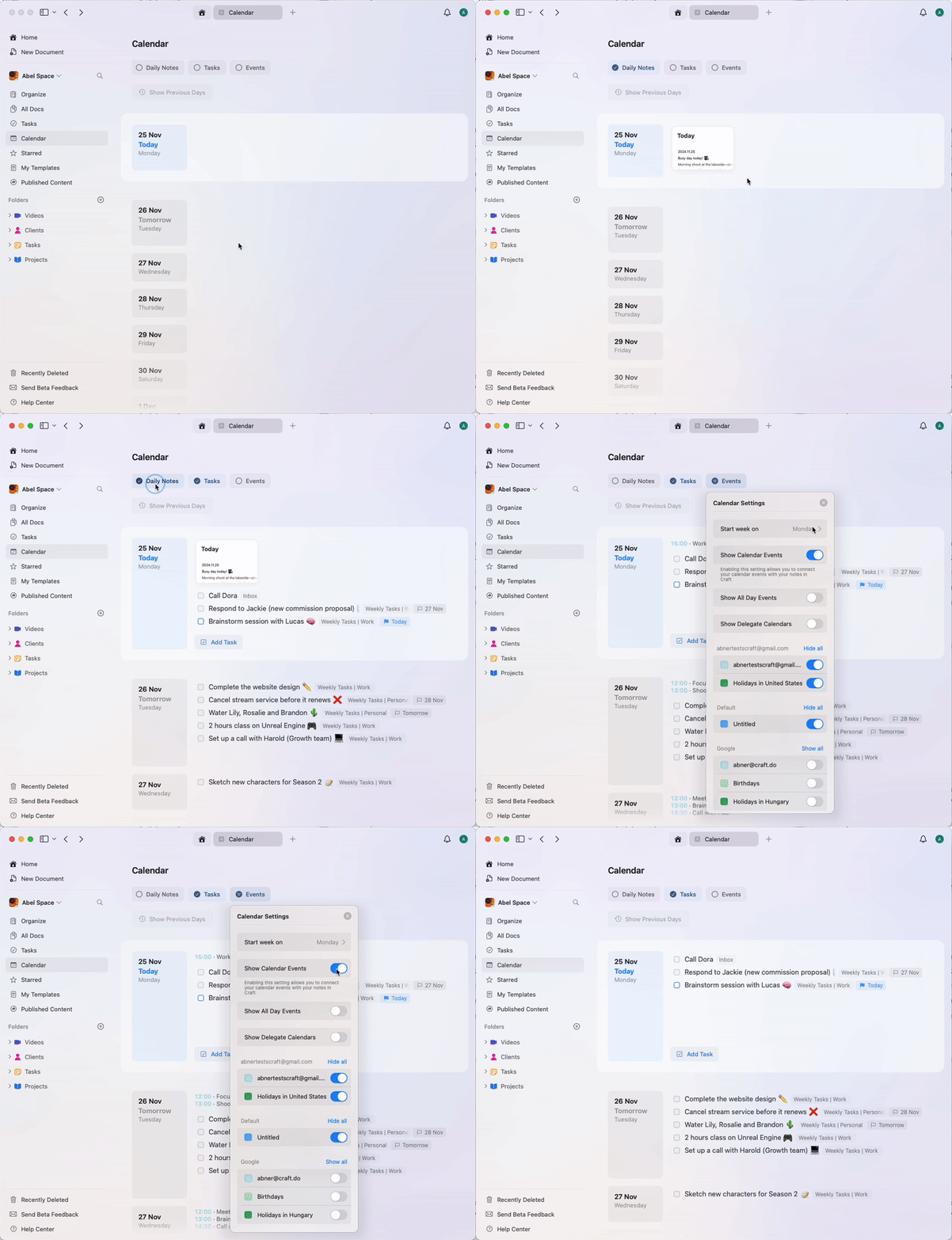
To access the Calendar view, open Craft and navigate to the Calendar tab in the sidebar. In the Calendar view, you’ll see:- Daily Notes - Your document for capturing thoughts or plans for the day
- Tasks - All tasks with a scheduled date will appear here
- Events - Any synced events from your external calendar are shown in a list format
Setting up calendar integration
Enable the Calendar view in the sidebar
If you can’t see the Calendar view in your left sidebar, enable it via the customization options for the sidebar dropdown.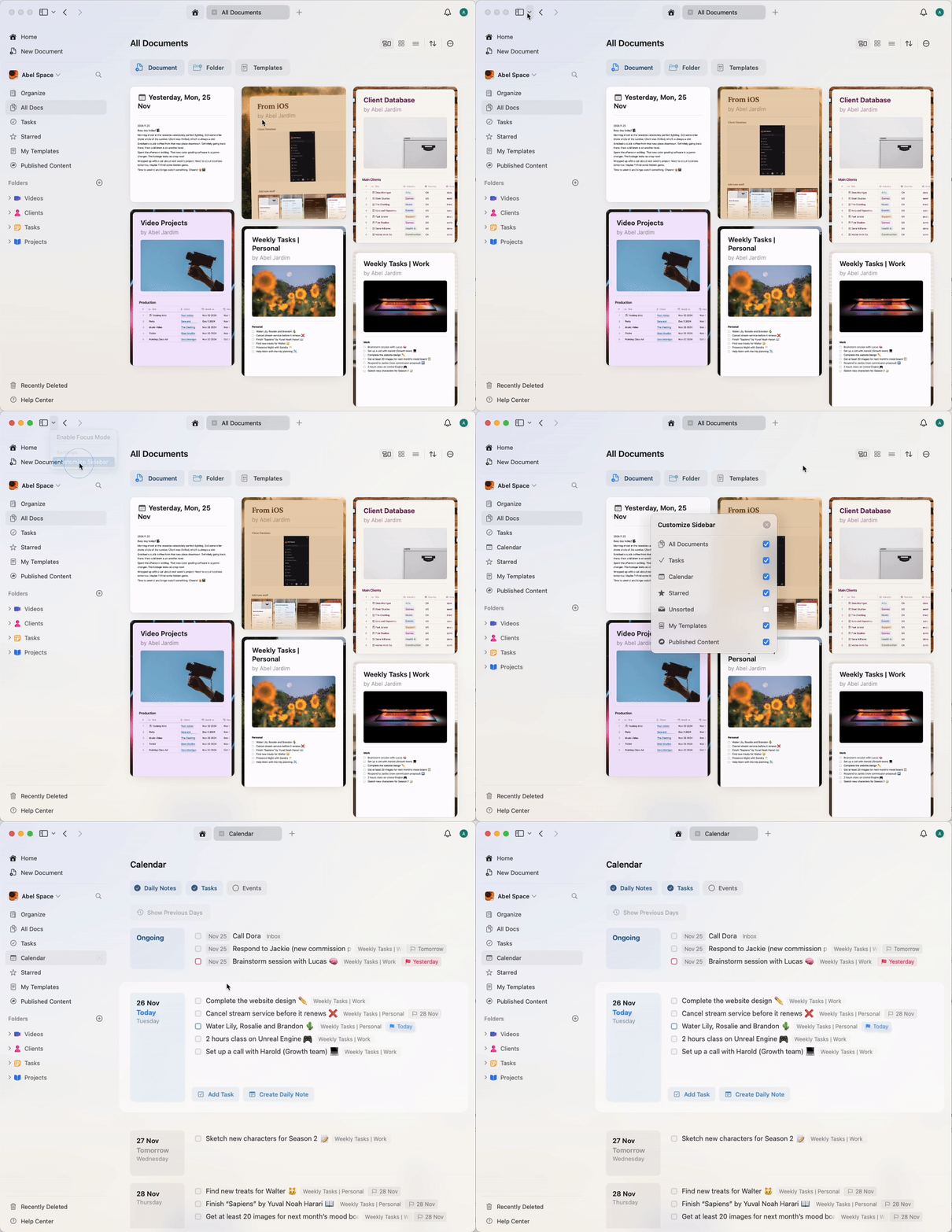
Connect your calendar
1
Navigate to the Calendar view in the sidebar
2
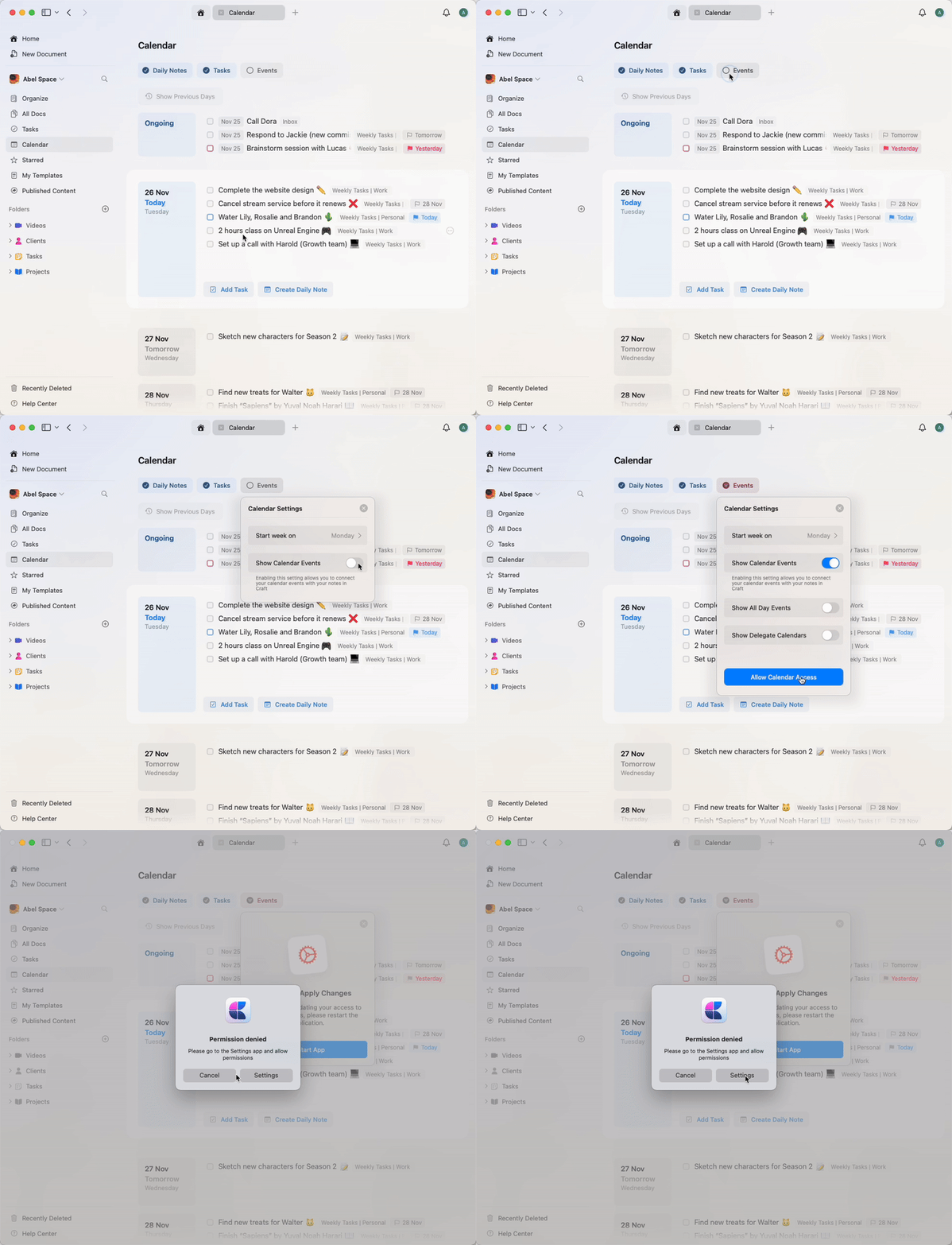
Click the Events button and attempt to enable “Show Calendar Events”
3
You will be prompted to allow Craft to access your calendar via your Mac settings
4
Grant permission for Craft to access your calendar
5
Restart Craft to apply the changes
6
After restarting, return to Calendar view and enable events to sync your calendar
7
Customize which calendars will be visible if you have multiple calendars connected to your Apple Calendar
Using Google Calendar
While Craft does not support direct integration with Google Calendar, you can still sync your Google Calendar events with Craft by adding it to Apple Calendar on your Mac, iPhone, or iPad.- macOS
- iOS
1
Open System Settings
2
Go to Internet Accounts > Add Account > Google
3
Sign in with your Google account
4
Check the box for Calendars to enable sync
Using Outlook
While Craft does not support direct integration with Outlook, you can sync your Outlook calendar with Craft by adding your Microsoft account to Apple Calendar on your Mac, iPhone, or iPad.- macOS
- iOS
1
Open the Calendar app and choose Calendar > Add Account from the menu bar (this opens System Settings > Internet Accounts)
2
Click Add Account… and enter your Outlook or Microsoft 365 email address
3
In the Microsoft Exchange dialog, enter your name and email and click Sign In
4
Complete Microsoft’s sign-in flow (you may be asked to verify your email with a code)
5
Check the box for Calendars to enable sync
Adding and managing tasks
You can manage tasks directly from the Calendar view.Enable task list
Enable the task list to see all scheduled tasks for the selected day. From here, you can complete or reschedule tasks.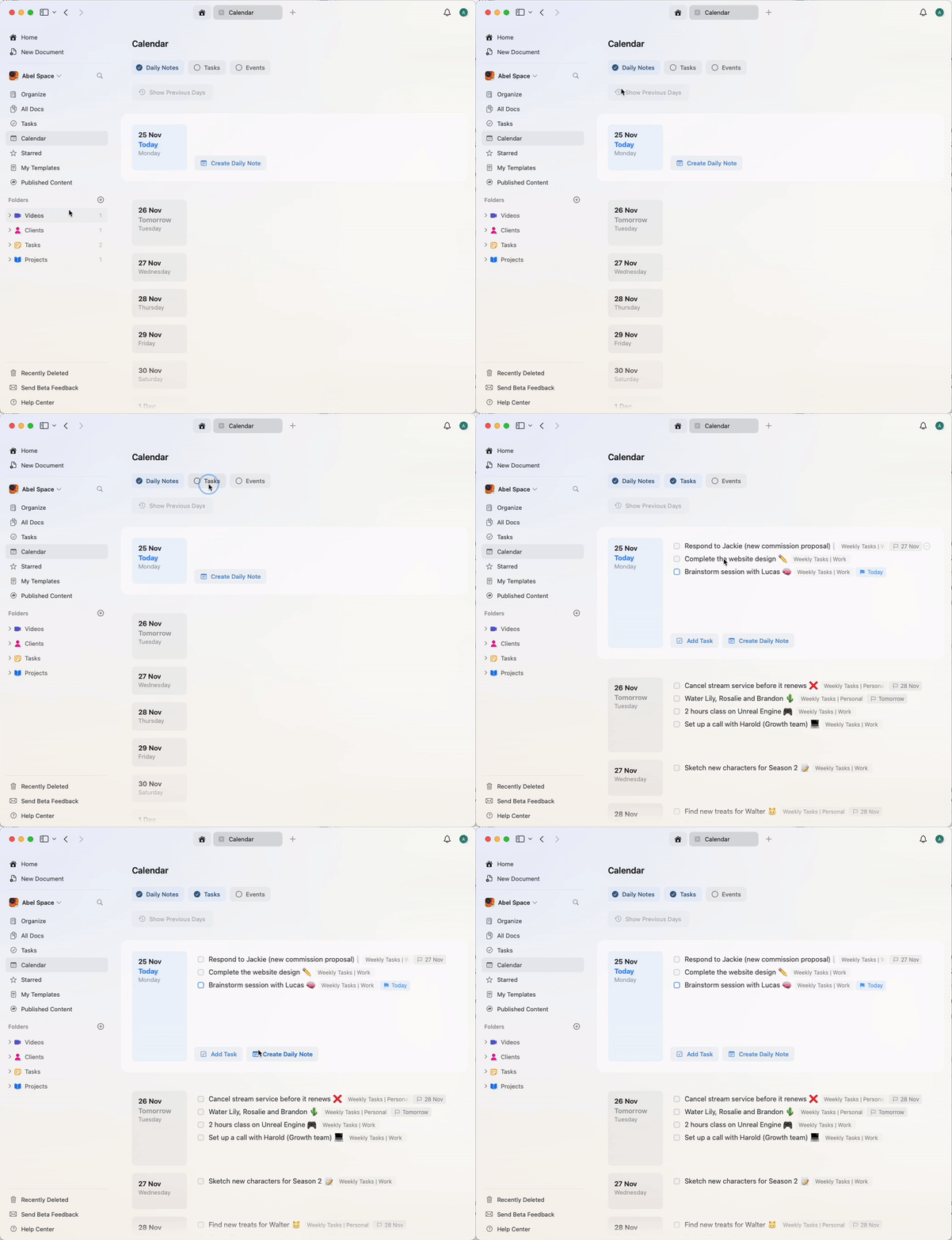
Reschedule tasks
Drag and drop a task to another day to reschedule it.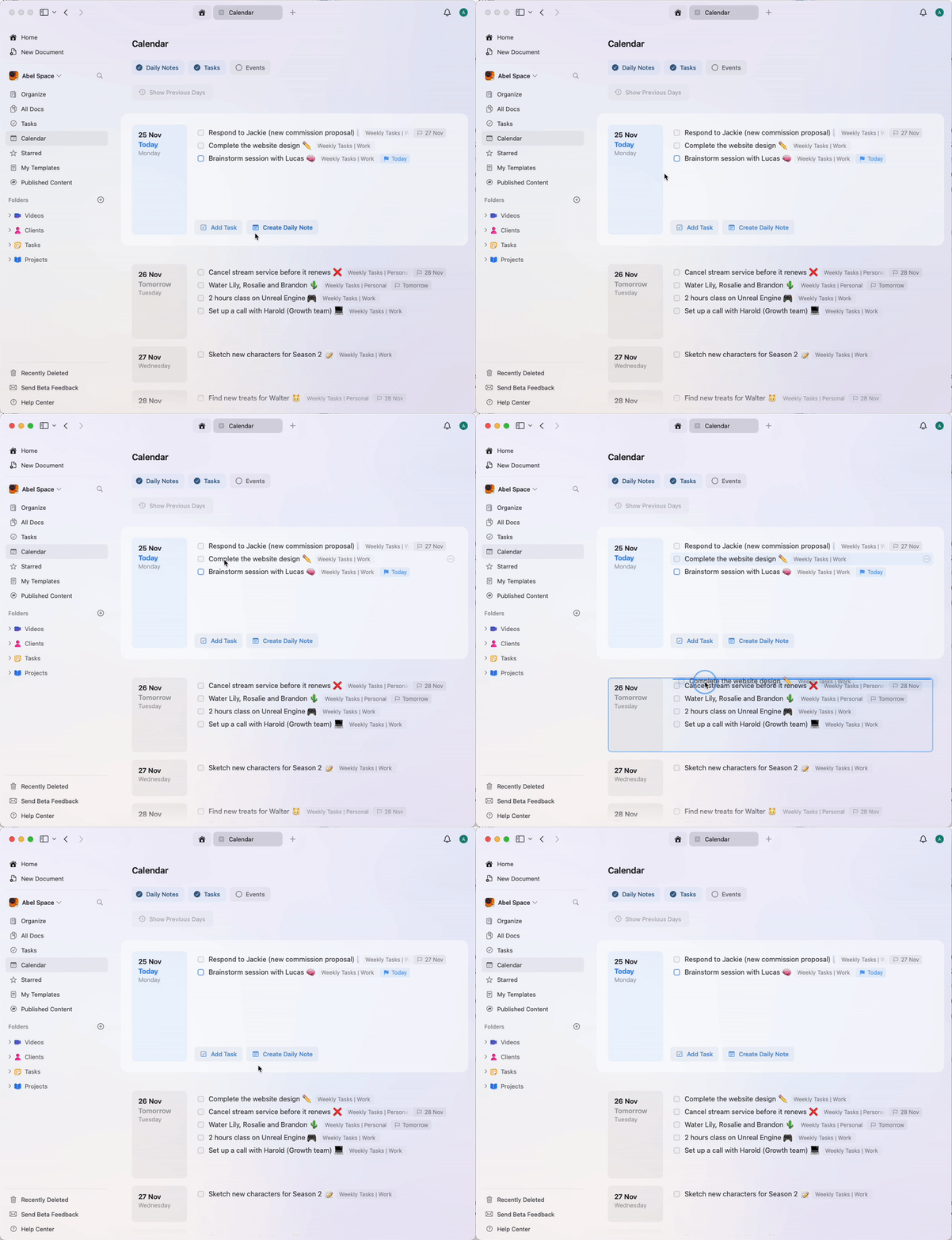
Adding a task
You can add a new task directly within the daily note, and Craft automatically assigns today’s date to it.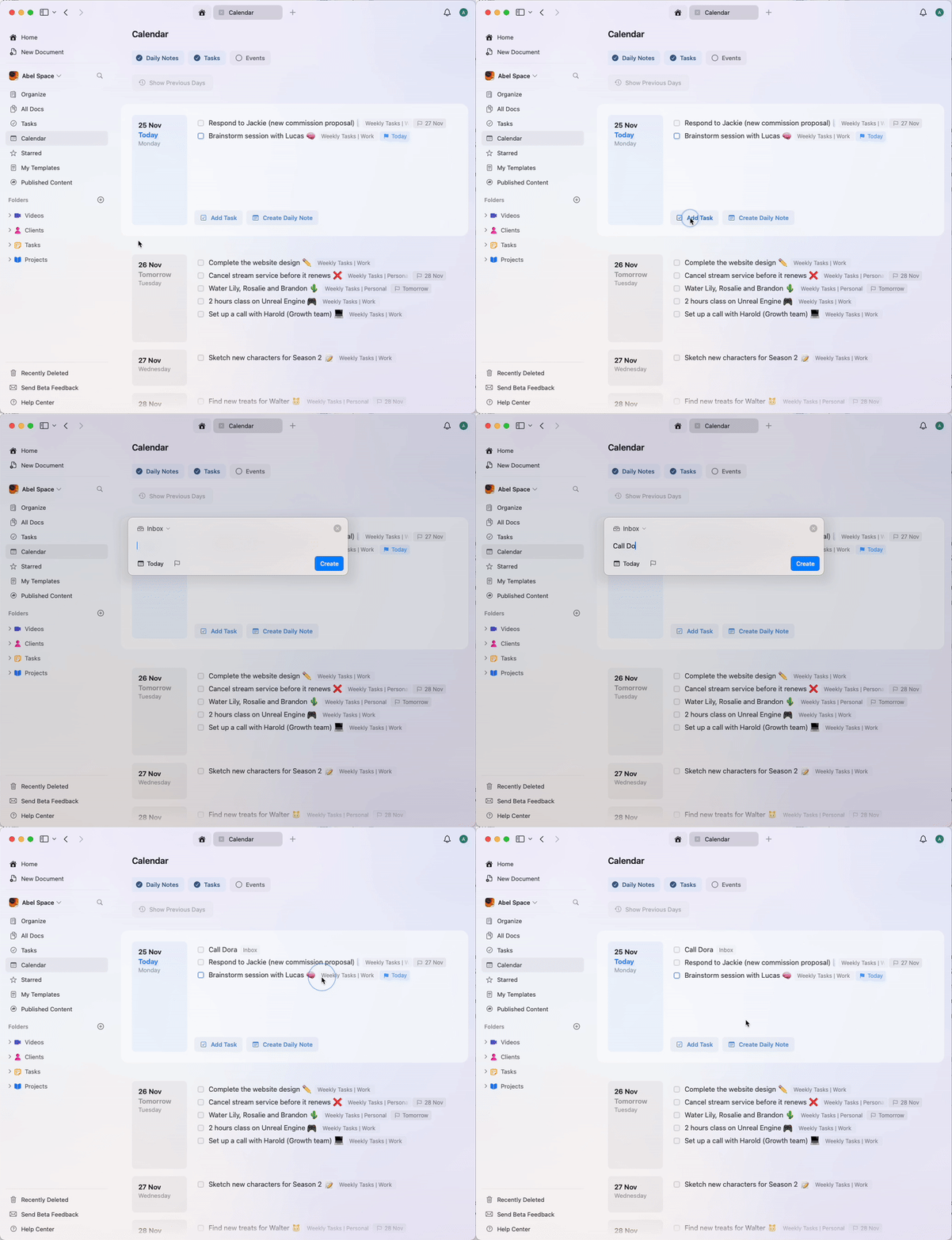
Viewing events
Turn on the events option to see meetings, appointments, and calendar events for the selected day. All events synced from your external calendar appear automatically.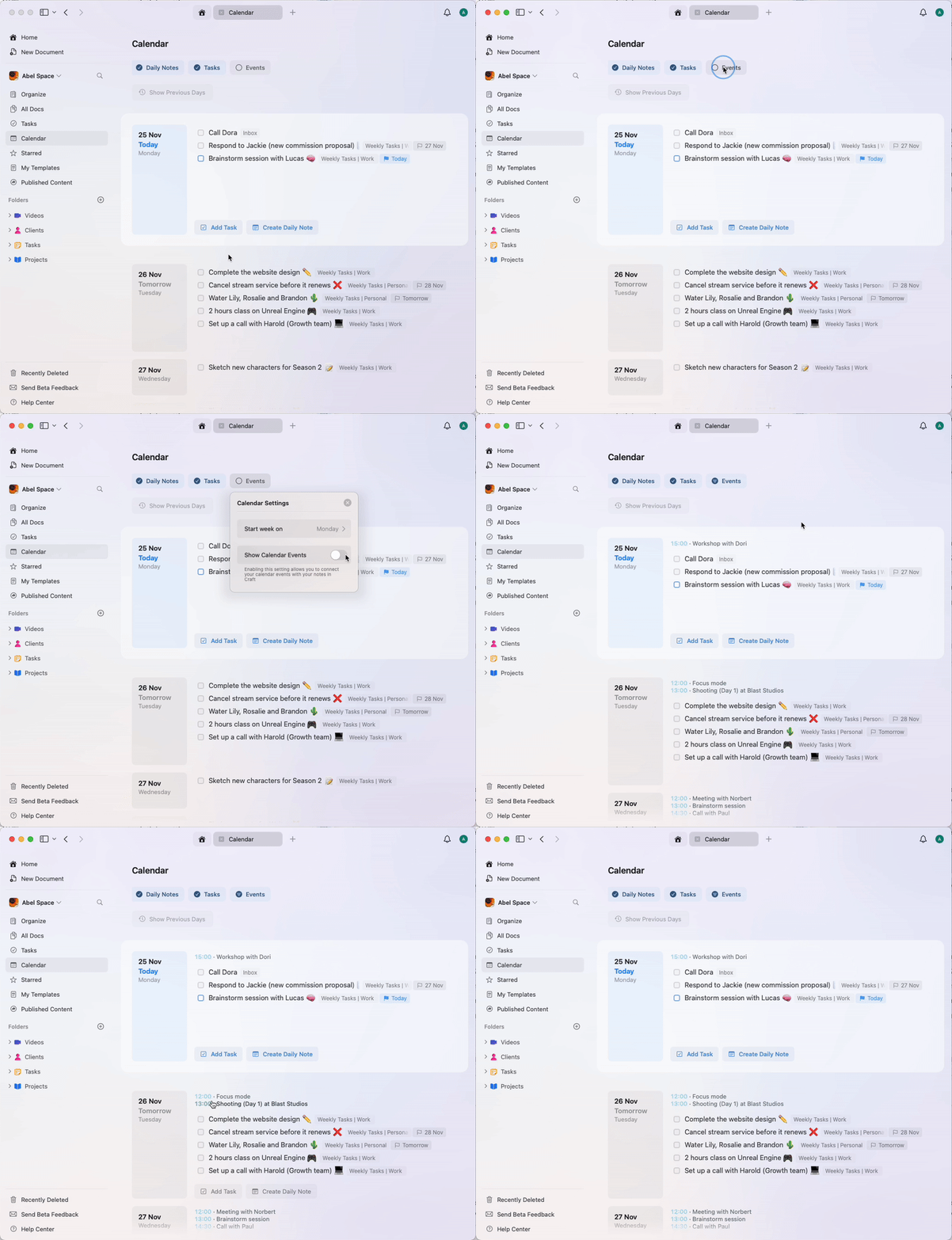
Customizing the Calendar view
Use the settings in the Calendar tab to enable or disable daily notes, tasks, and events. You can also control which day the week begins. On macOS and iOS, open Calendar → Customize and select your preferred day from the Start week on dropdown. On Web and Windows, the first day of the week depends on the language settings in Craft and your browser.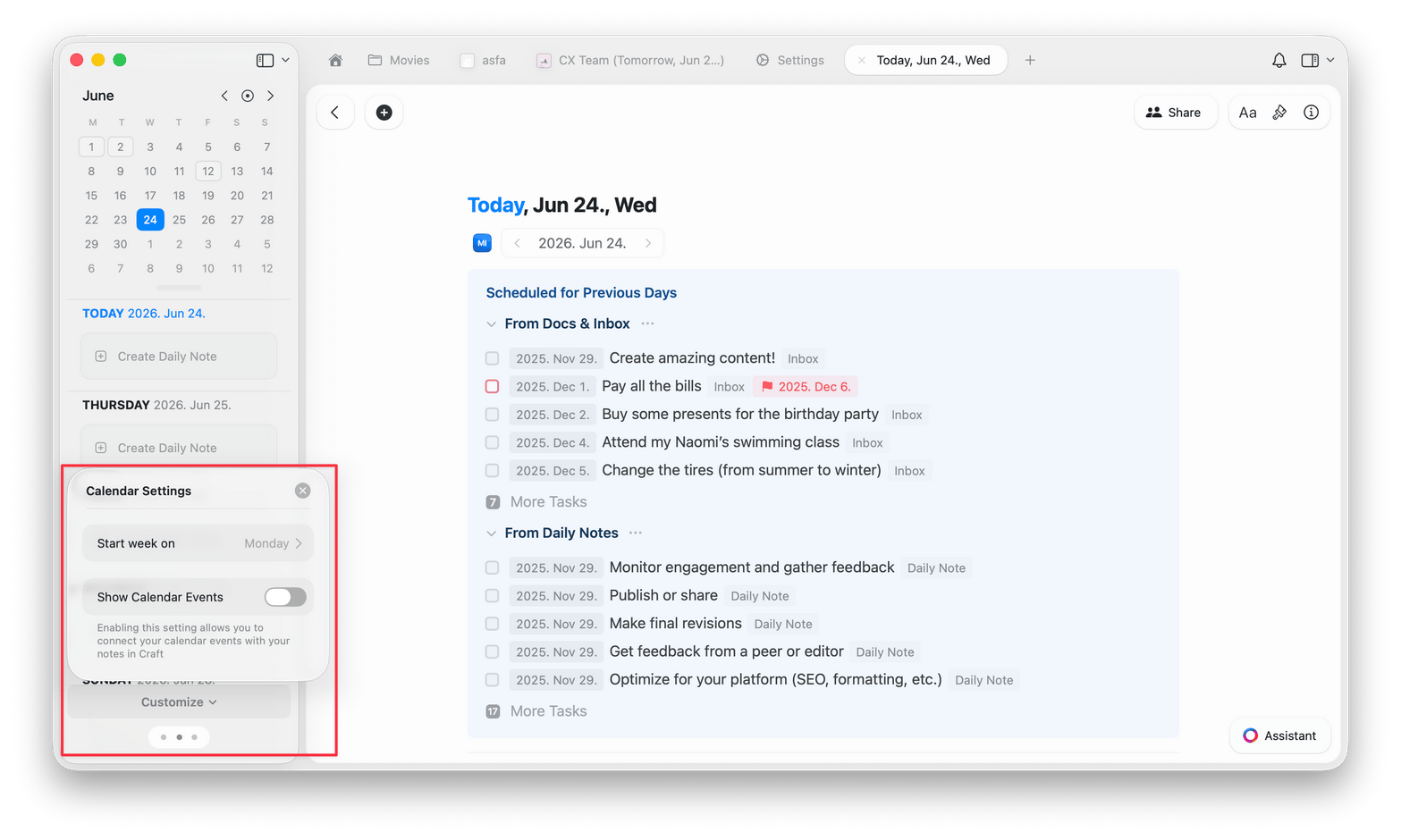
Event notes
Once your calendar is synced to Craft, you can create Event Notes for any future or past events. These notes have the same editing and styling features as any other document in Craft.Creating event notes
1
Make sure your calendar is synced to Craft
2
Open a Daily Note or create a new one
3
Switch to Calendar View in the left sidebar
4
Click the desired event and select “Create New Event Note”
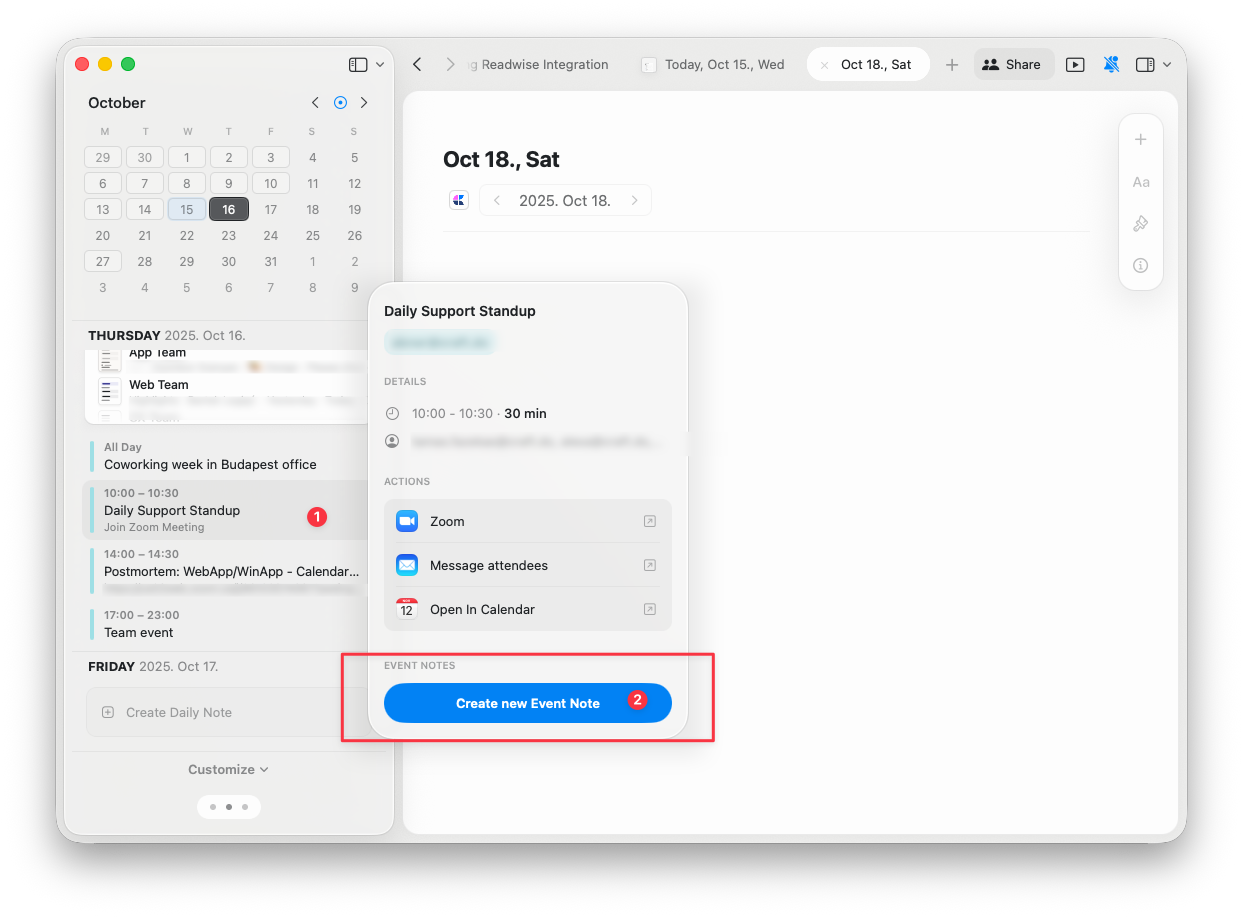
It is not possible to create event notes if your calendar is not synced to Craft.
Where event notes are stored
The new Event Note will be automatically added to the Daily Note of the corresponding date as a subpage: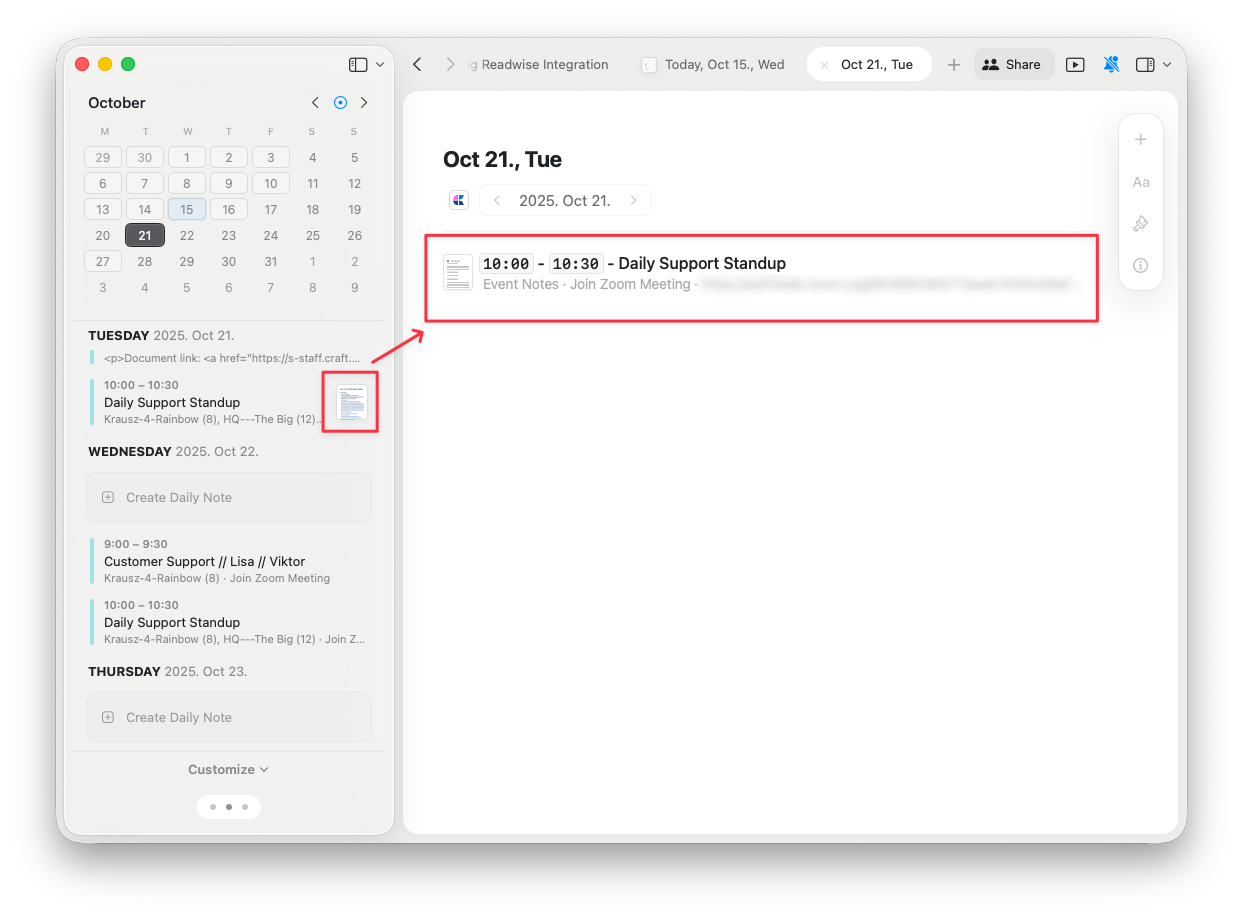
Recurring event notes
If you accepted a recurring event invitation in a single batch, all Event Notes you create for that event are visible in every past and future occurrence of the same event: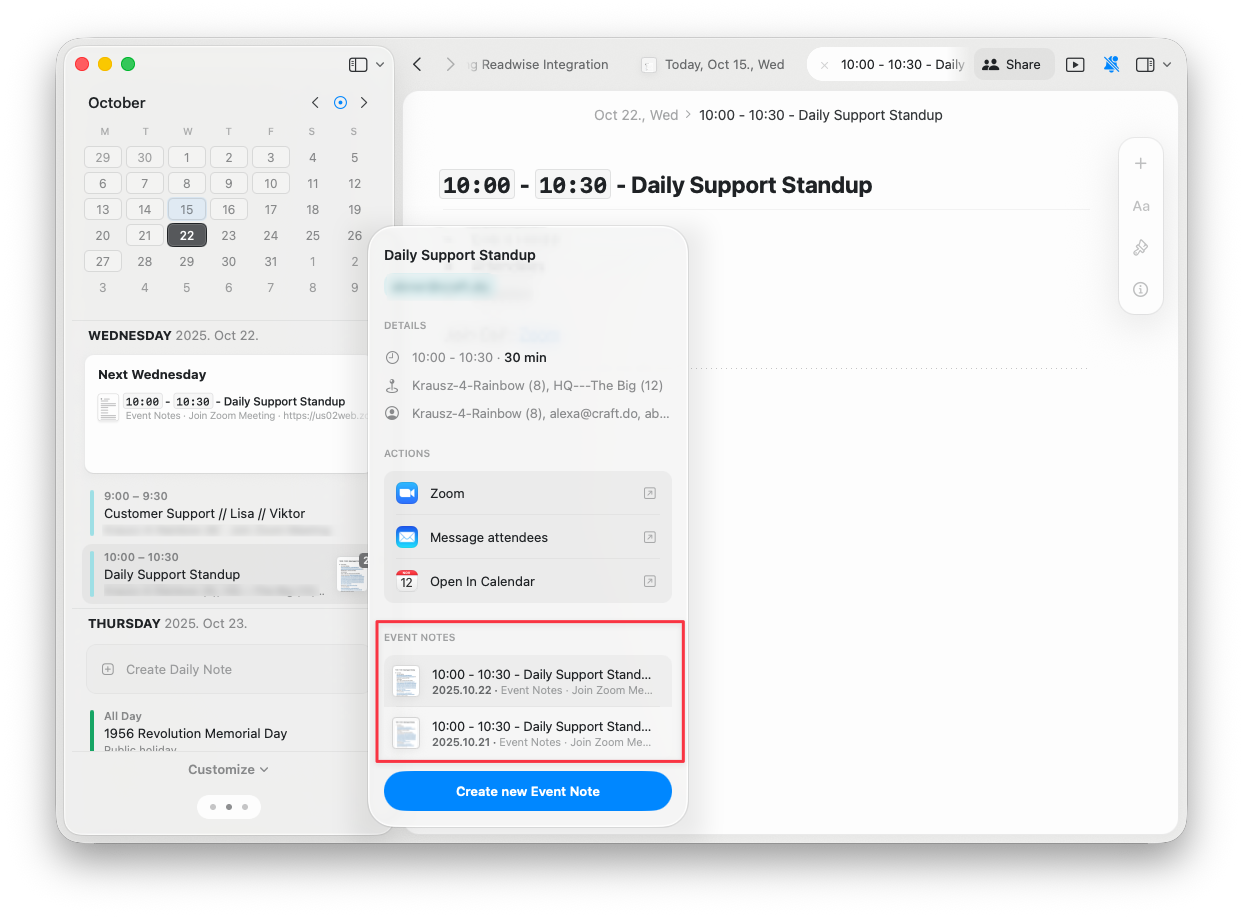
What happens to event notes if you disable calendar or delete the event?
If you delete or disable the calendar events in Craft, your Event Notes turn into subpages. They remain stored in the daily notes corresponding to the date of the excluded event.Why am I missing event notes for a recurring event?
Any change in a recurring event will be tracked as a new recurring event in Craft, hence the previous Event Notes won’t get carried over into the new event.Troubleshooting
Calendar events not appearing in Craft
Calendar events not appearing in Craft
If you’re not seeing your calendar events in the Craft app, try these steps:Step 1: Restart the Craft appFor macOS users:Step 2: Verify macOS Calendar settingsIf restarting doesn’t solve the issue, check your macOS Calendar settings:
- Close the Craft app if it’s open
- Open Activity Monitor from Applications > Utilities
- Find Craft in the list, select it, and click the “X” button to stop it
- Reopen the Craft app
A complete restart of the app is necessary after enabling the connection with your calendar for the changes to take effect.
- Go to System Settings > Internet Accounts
- Select your calendar account (e.g., Google) and ensure it’s correctly authenticated
- If necessary, sign in again to refresh the authentication
- Open the Calendar app
- Navigate to Calendar > Settings > Accounts
- Select the account that’s not showing events in Craft
- Set the “Refresh Calendars” option to “Every minute” for more frequent updates
Event note sync issue with Outlook calendar
Event note sync issue with Outlook calendar
Problem: Event notes created on iOS/macOS aren’t syncing across all platforms with an Outlook calendar integration.Reason: The event note identifiers are created in MS Exchange for different devices, which creates challenges on Craft’s side. This appears to be by design in Microsoft Exchange, and since we don’t have control over the identifier creation, it’s not something we can resolve at this time.As a workaround, try creating event notes on the platform where you’ll primarily access them.
For general troubleshooting, sync, or platform-specific issues, see the Troubleshooting Guide.
Related articles
Daily notes
Capture thoughts and plans with automatically organized daily pages
Tasks
Manage tasks across your documents with a centralized hub
Calendar Integration
Set up Apple Calendar integration with Craft
Reminders
Get notified about important deadlines and events
Blocks and Pages
Understand how event notes work with Craft’s page structure