Custom prompts allow you to tailor the Craft Assistant to your workflow. Whether you frequently rewrite text in a specific style, generate structured summaries, or follow a particular tone for your documentation, custom prompts help you get consistent results with one click.
Custom prompts now support up to 1,000 characters (increased from 400), can have custom titles, support multi-line input, and are searchable in the Assistant panel.

What are custom prompts?

Custom prompts are reusable instructions you create for the Craft Assistant. They act as shortcuts for tasks you perform often, ensuring the assistant responds in a predictable and personalized way. You can create prompts for things like:
  • Rewriting text in your preferred tone
  • Structuring meeting notes or documentation
  • Translating content into a specific language
  • Summarizing documents in a fixed format
  • Generating task lists or project plans
  • Creating consistent image captions or alt text

Accessing custom prompts

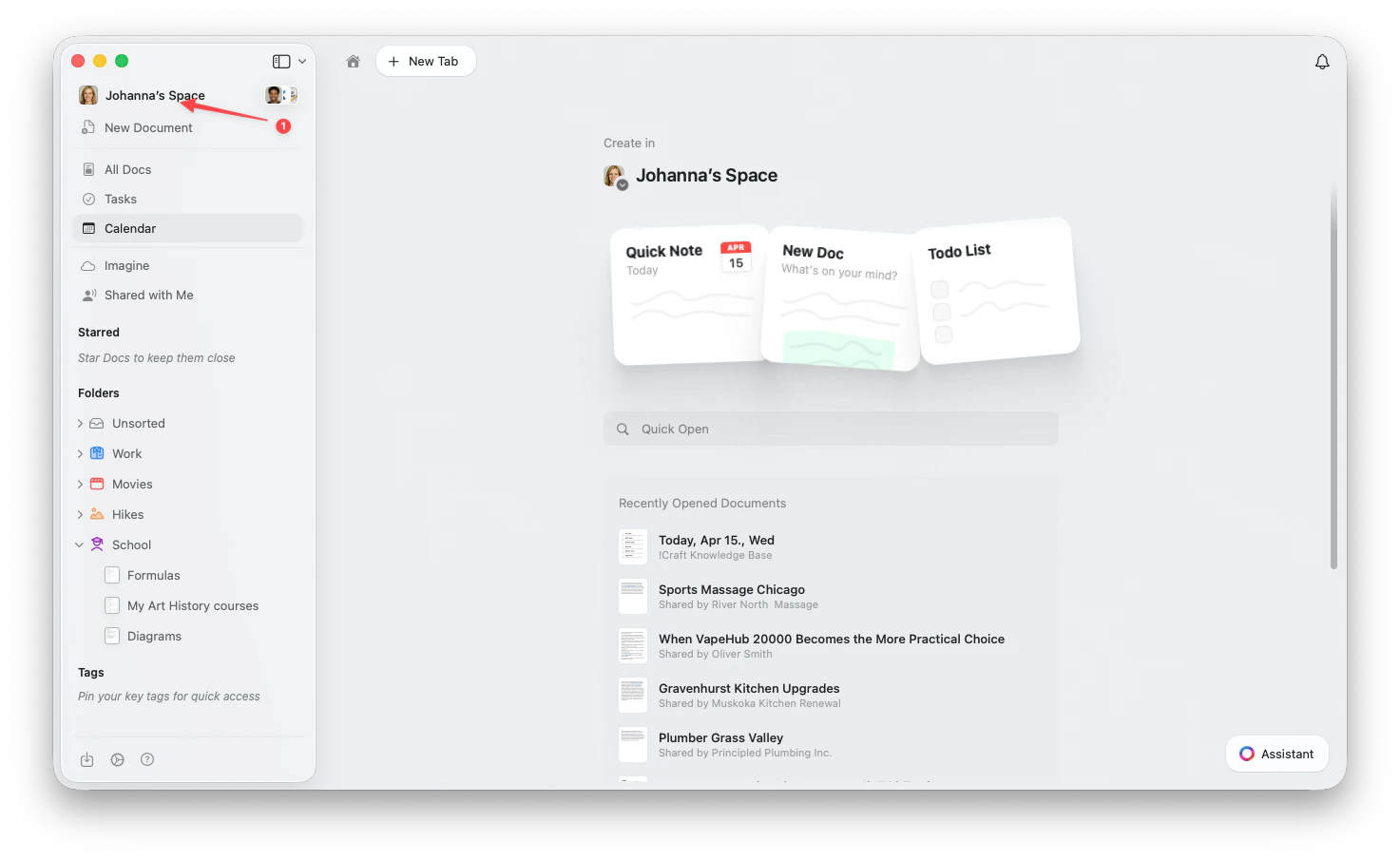
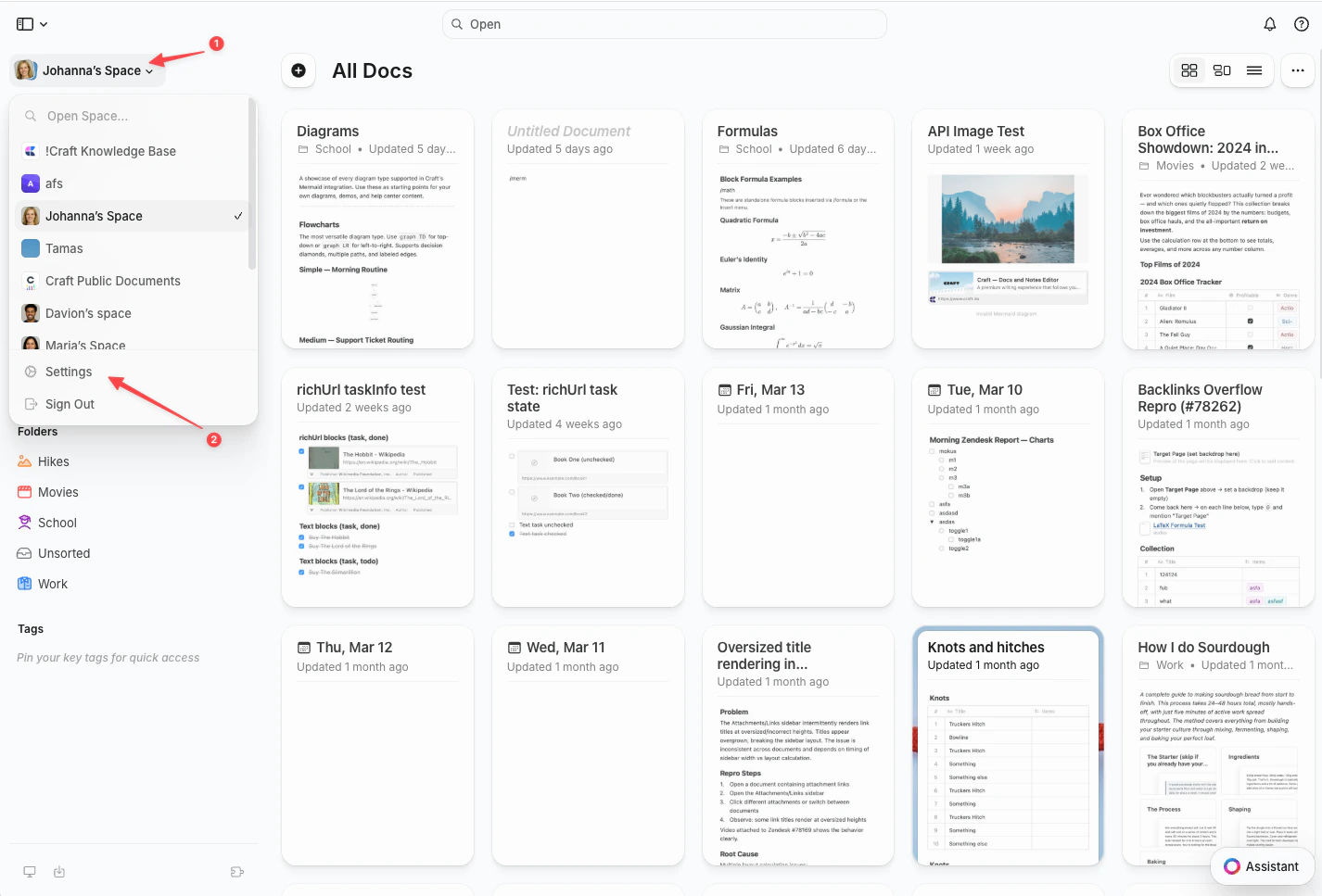
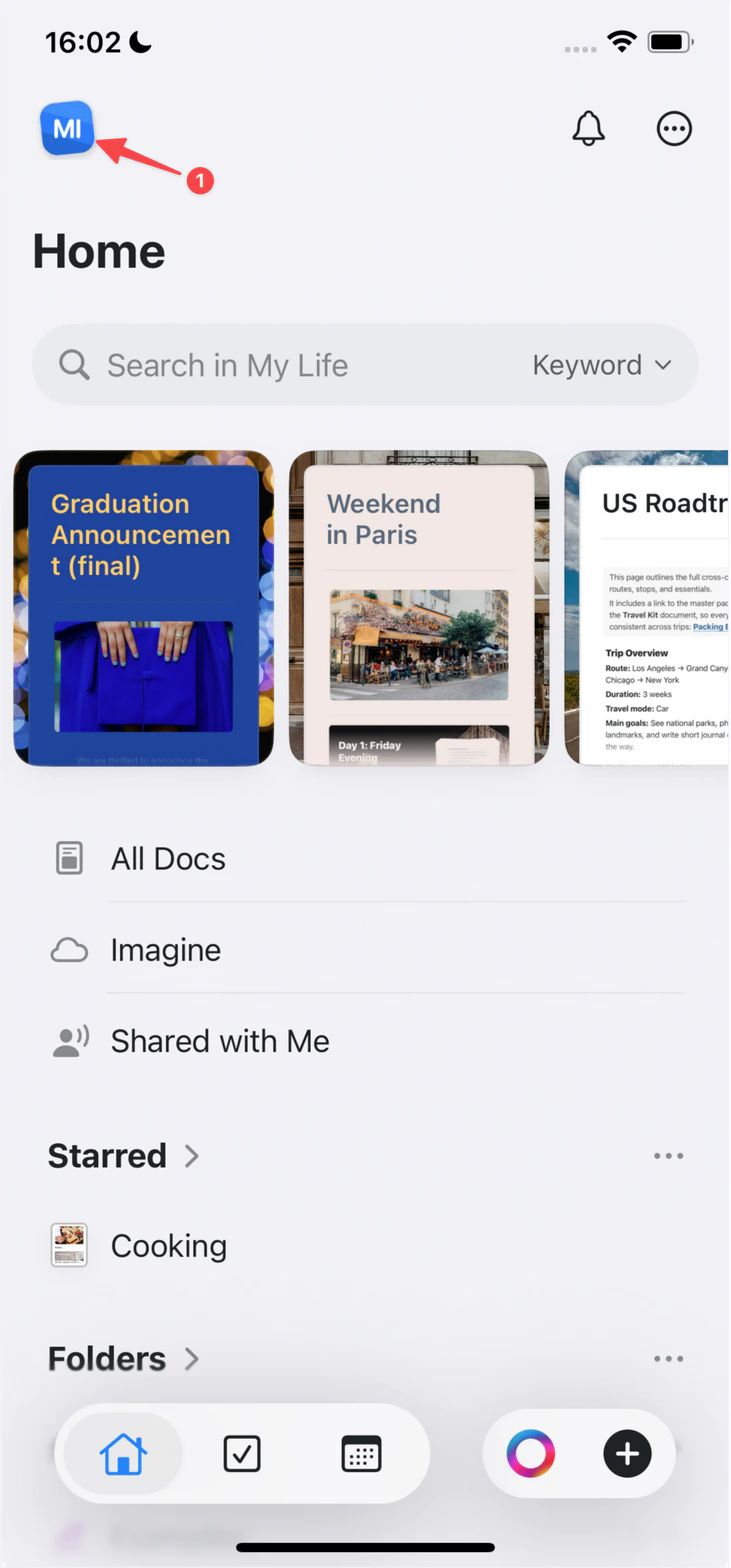
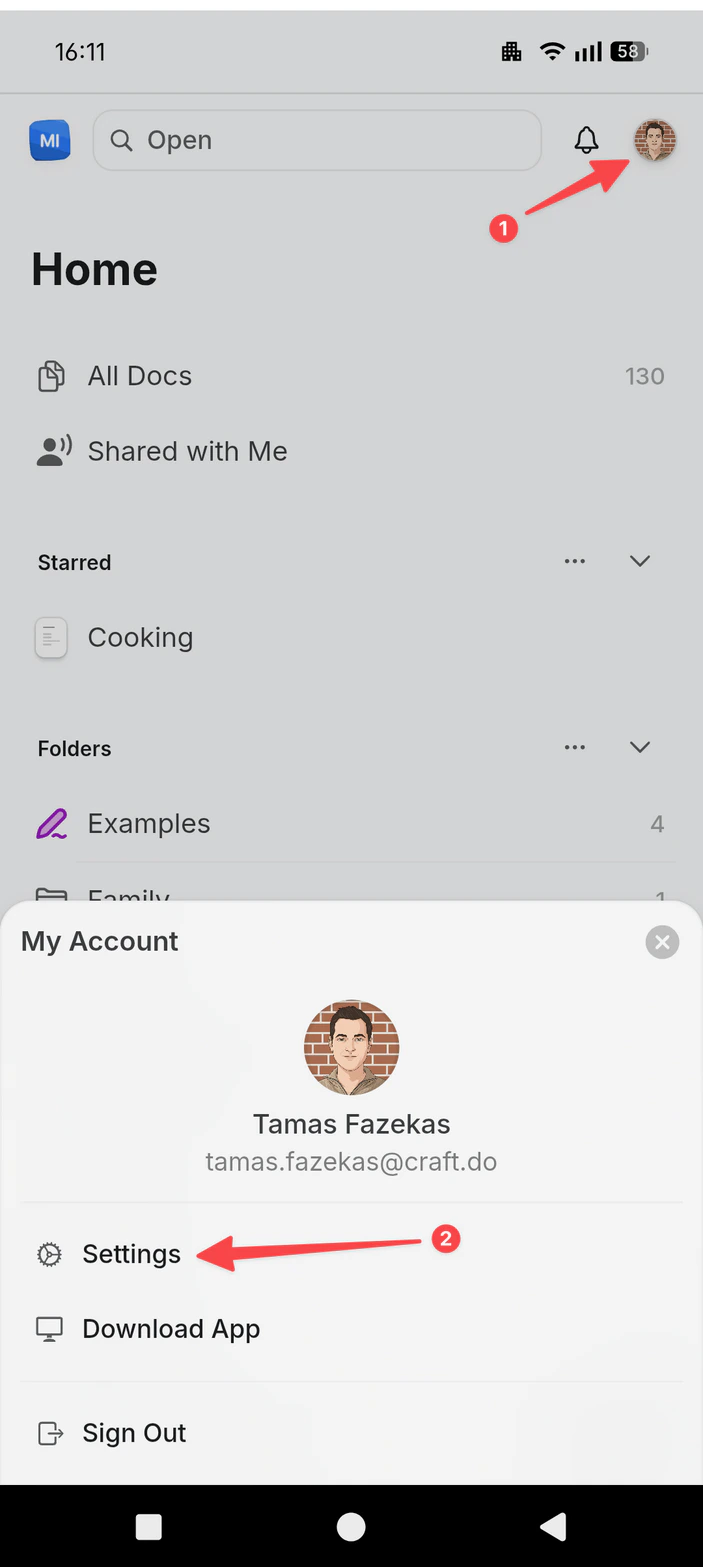
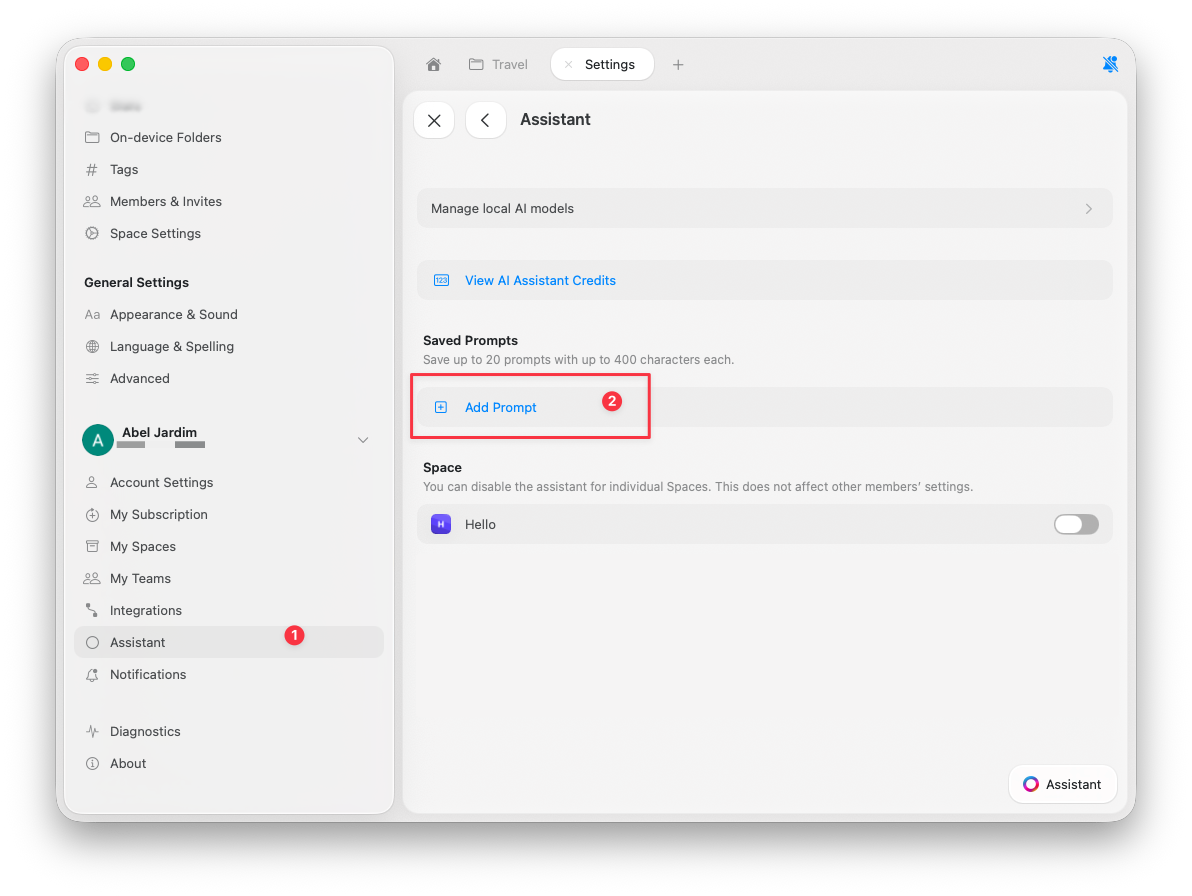
You can find and manage your saved prompts in Craft’s settings:
1
Open Settings.
2
Go to Assistant.
3
Scroll to the Saved Prompts section.
4
Click Add Prompt to create a new one.
Your saved prompts appear in the Assistant panel during use, so you can apply them instantly without rewriting instructions. Saved prompts section in Assistant settings

Creating effective prompts

The best custom prompts are: Specific and focused:
  • ✓ “Summarize this in 3 bullet points focusing on action items”
  • ✗ “Summarize this”
Clear about format:
  • ✓ “Rewrite in a friendly, conversational tone suitable for blog posts”
  • ✗ “Make this better”
Consistent with your needs:
  • ✓ “Generate alt text for this image in under 125 characters, describing key visual elements”
  • ✗ “Describe this”
Example prompts:
Title: Meeting Summary
Prompt: Extract key decisions, action items, and next steps from this meeting note. Format as:
- Decisions: [list]
- Action Items: [list with owners]
- Next Steps: [list with dates]
Title: Blog Intro
Prompt: Rewrite this as an engaging blog post introduction. Use a conversational tone, start with a hook, and keep it under 150 words.
Title: Technical Documentation
Prompt: Convert this into clear technical documentation. Use headings, code blocks where appropriate, and explain each step thoroughly.

Limits for custom prompts

  • Up to 20 saved prompts
  • Maximum of 1,000 characters per prompt (increased in v3.3.5)
This allows you to keep a concise set of well-focused, high-impact instructions for your work.

Using custom prompts

Once saved, your prompts are available in the Assistant panel:
1
Open the Assistant panel.
2
Look for your saved prompts in the quick actions menu.
3
Click a prompt to apply it to selected content or your current context.
You can also search for prompts by name in the Assistant panel.

Managing your prompts

Edit a prompt:
  • Go to Settings → Assistant → Saved Prompts
  • Click the prompt you want to edit
  • Update the title or content
  • Save changes
Delete a prompt:
  • Go to Settings → Assistant → Saved Prompts
  • Click the delete icon next to the prompt
  • Confirm deletion
Organize by use: Consider naming prompts by frequency of use or category:
  • Daily tasks: “Summary”, “Tasks”, “Email”
  • Writing: “Blog Intro”, “Docs”, “Social”
  • Technical: “Code Explain”, “Debug”, “Documentation”

Why use custom prompts?

Custom prompts help you:
  • Save time by avoiding repeated typing
  • Maintain consistency in tone and formatting
  • Standardize workflows across your documents
  • Speed up writing, editing, and organizing tasks
  • Reduce errors by using tested, reliable instructions
Once set up, your custom prompts become a reliable part of your creative and professional workflow.