

- Folders are where things live.
- Tags are how you find and connect things across folders.
Getting Started
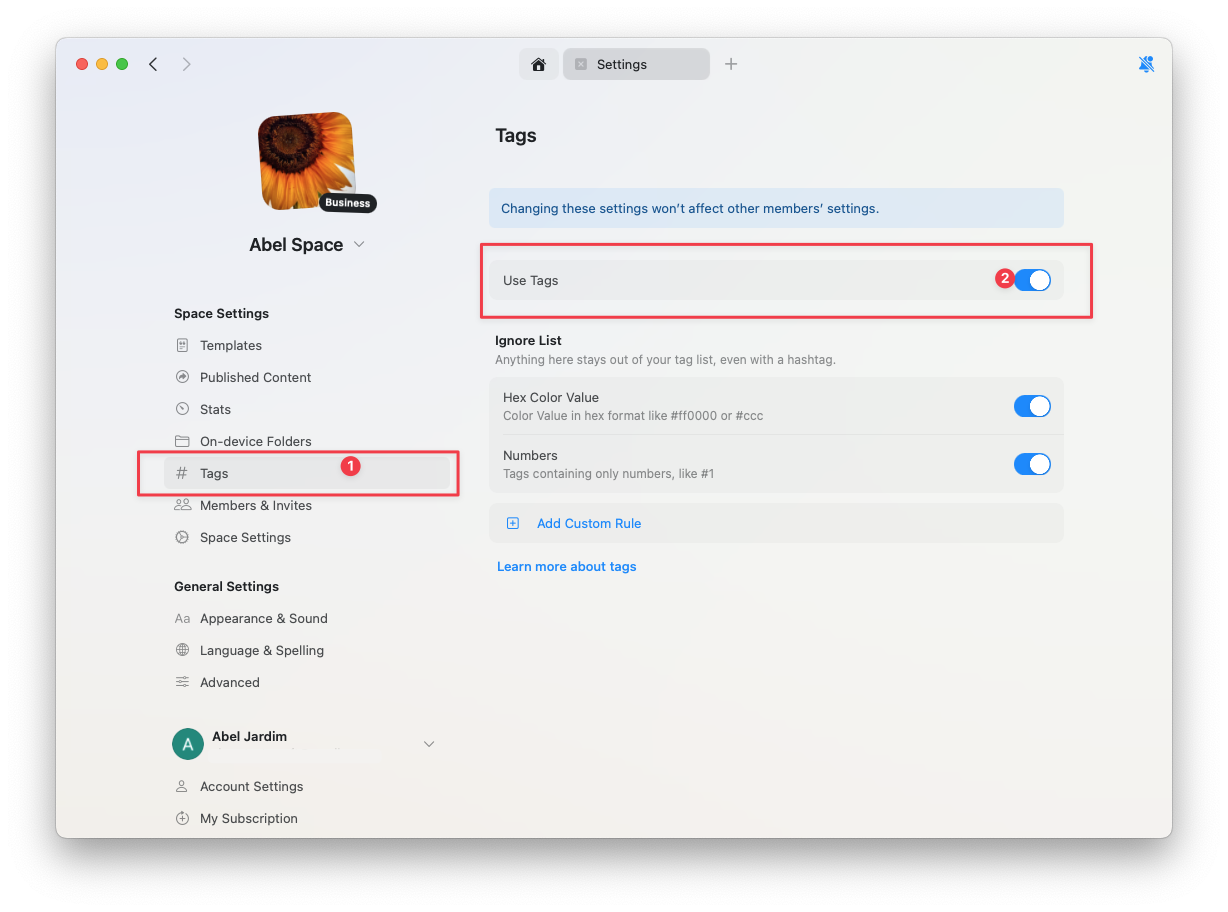
Enable tags in your space settings and start creating them inline as you write.1
Navigate to Space Settings and select Tags.
2
Enable the Tags feature for your space.
Creating Tags
Type# followed by your tag name. Press Enter to create a new tag, or select an existing one from the suggestions. The text turns into a small badge inline with your writing.

#, Craft suggests existing tags. Choose one to keep names consistent. If nothing matches, press Enter to create a new tag.
Editing Tags
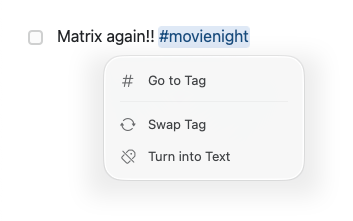
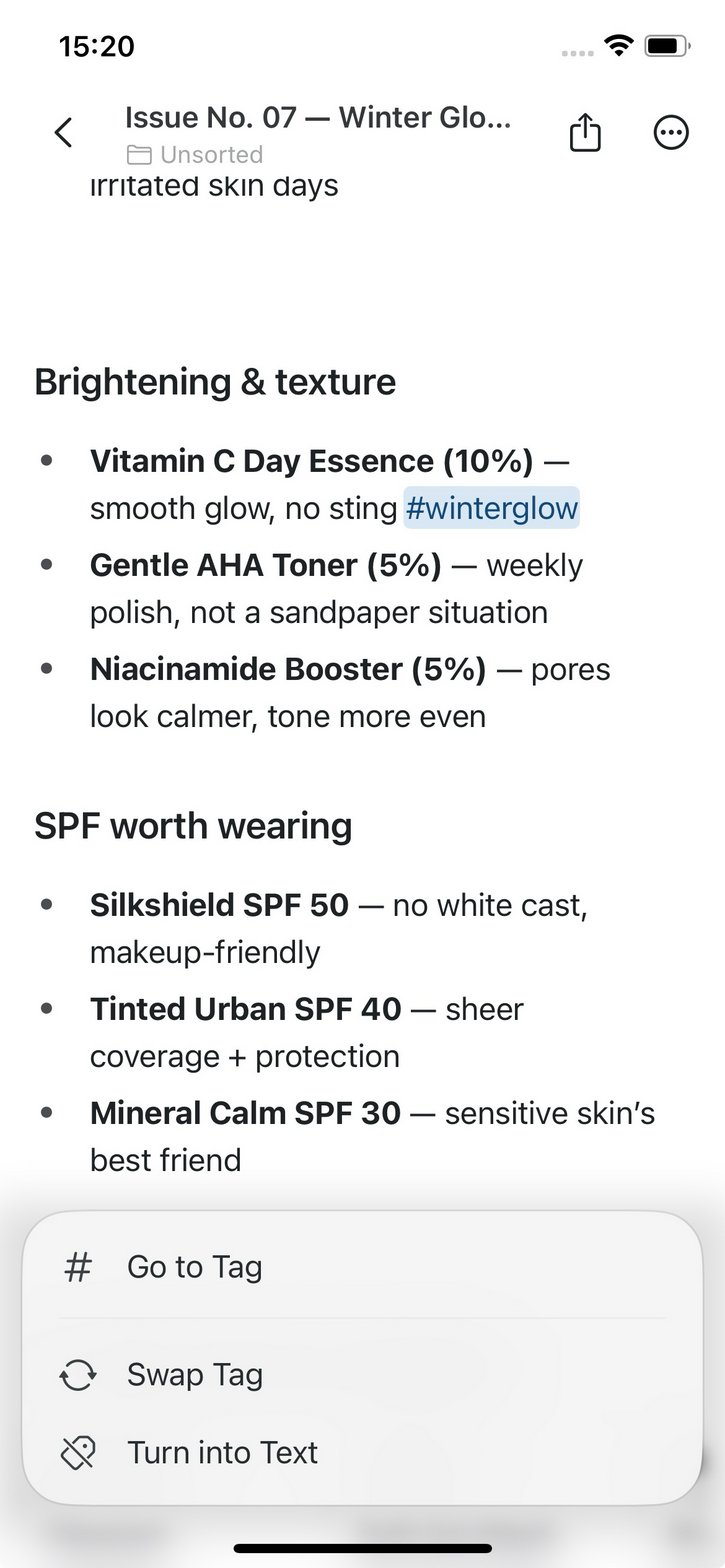
Tags are part of your text, so you can edit them like any other word. Place the cursor inside a tag and type or delete characters; the badge updates as you edit. Click a tag on Mac, or tap it on iOS, to open the tag menu:- Go to Tag – open the tag in the Tags view
- Swap Tag – replace the tag with a different one
- Turn into Text – remove the badge and keep the words as plain text
- macOS
- iOS
Where Tags Work
Tags can be added in multiple contexts across Craft:- Documents & blocks: Tags are inline and can be added anywhere you write – paragraphs, headings, list items, etc.
- Collections: Tags typed in text fields look like regular text (not a colored chip), but they behave like tags for finding and filtering. If you want stronger visual emphasis or stricter options, consider single- or multi-select fields.
- Tasks & Calendar: Tags also look like plain text here, but still work behind the scenes when those tasks live inside documents.
Browse with the Tags View
The Tags view lets you see all instances of a tag across your documents.- Open it: Click a tag in your text and choose Go to Tag, or click a pinned tag in the sidebar.
- What you’ll see: A list of places where that tag appears; hovering highlights the exact line in context.
- Refine with filters: Add more tags to narrow results and discover connections between topics.
- Pinned tags: Pin your most important tags to the sidebar for one-click access to a pre-filtered view, for example “active project,” “ideas,” or “journal” tags.
- Rename or delete: Right-click a tag to rename it or delete it. The change applies to every occurrence of the tag across your documents.
Child Tags
Sometimes you want a tiny bit of structure without creating dozens of separate tags. Add a forward slash (/) inside a tag to create a lightweight hierarchy of related tags under a common theme.
How It Works
Create child tags by adding a slash between the parent and child:#project in the Tags view, you’ll see all documents tagged with any project-related tag. Click on #project/design to narrow down to just design-related documents.

Practical Examples
- Project Management
- Content Organization
- Personal Life
- Reading & Research
Organize work by project phase or discipline:
#clientA/research– User research and discovery for Client A#clientA/design– Design work and mockups#clientA/development– Implementation tasks#clientA/review– Feedback and revisions
Benefits of Child Tags
- Flexibility – Add new child tags without restructuring your entire tagging system
- Discoverability – Find all related content by clicking the parent, or narrow down with a child tag
- Simplicity – No need to create formal folder hierarchies or complex database structures
- Personal – Each team member can organize their own tag hierarchy in shared spaces
Tips for Using Child Tags
The hierarchy is one level deep (
parent/child). Only the first slash splits the tag; in #project/design/ui, the child tag is a single tag named design/ui. Long child names are hard to remember, so keep them short. If you need more structure, consider using folders instead.#project/design (with hierarchy) and #urgent (standalone) in the same space.
Pin parents to sidebar: Pin the parent tag (#project) to your sidebar for quick access. Child tags appear when you click through to the Tags view.
Settings & Control
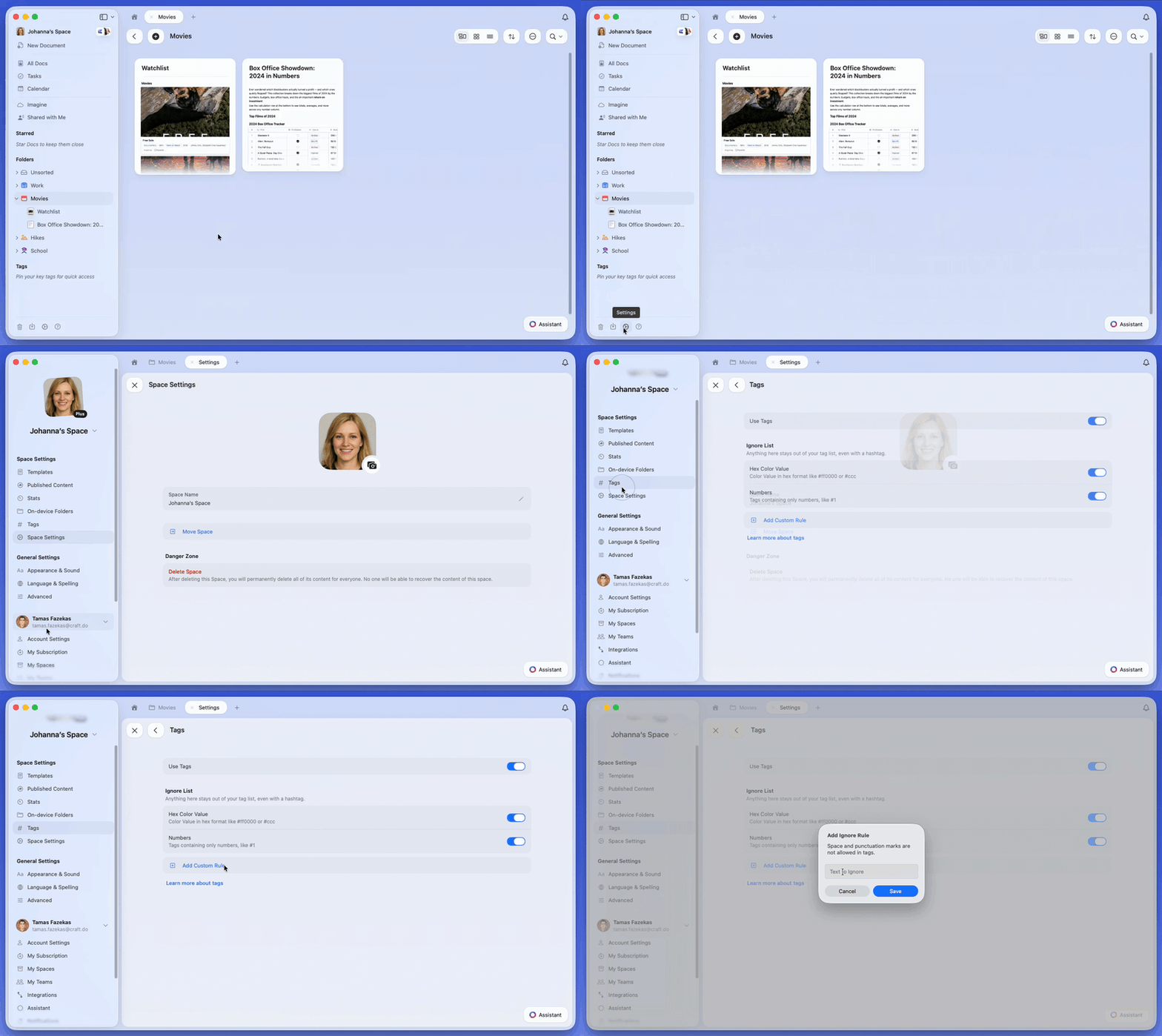
Customize how tags work in your space:- Enable/disable per space: In Space Settings → Tags, you can turn tags on or off for yourself in that space. In shared spaces, tags are off by default for members; each person can enable them individually.
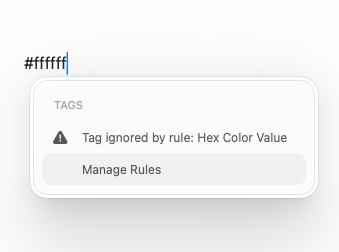
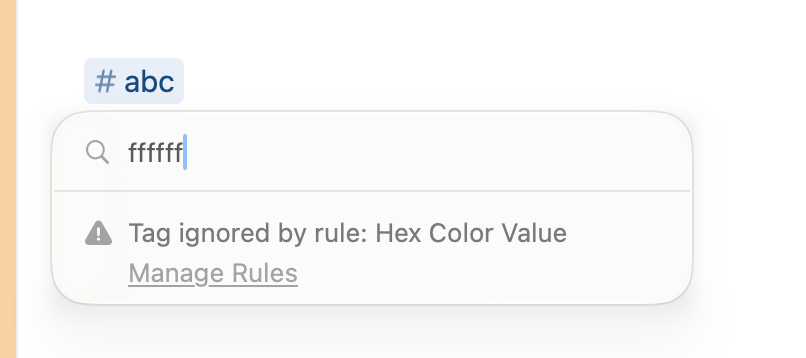
- Ignore list: Prevent unwanted patterns from becoming tags (e.g., numbers, hex codes, or specific words). Use the predefined rules or add your own custom ones. The hex code rule covers 6- and 8-digit codes like
#ffffff; number-only patterns like#2026fall under the Numbers rule. - Visual notes: In documents, tags appear as inline badges; in Collections, Tasks, and Calendar they look like regular text but still function as tags.
- While typing
Notes & Limitations
- Shared spaces: Other members can see tags used in the space. Pinned tags are personal; customize your sidebar as you like.
- Sidebar organization: You can show/hide Tags or Folders, reorder them, and use the Starred section (expandable, with quick ”+”) for favorites. See Customizing the Sidebar for the full steps.