

Create a template when you use the same structure more than once. If the document is a one-off, duplicating it may be enough. If it becomes part of your routine, turn it into a template.
Open your templates
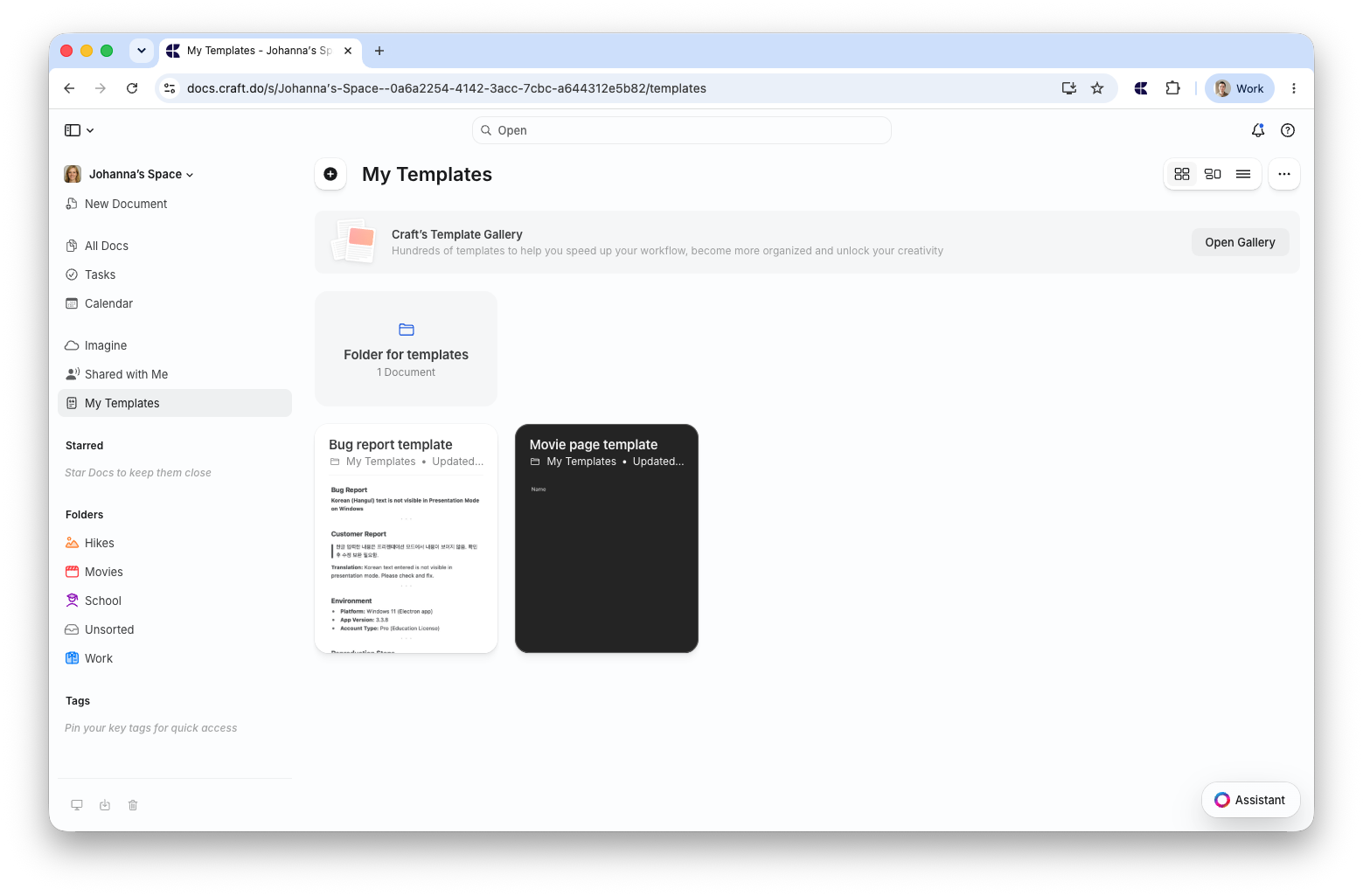
The location of Templates is different depending on the platform you use.- macOS
- Web / Windows
- iOS
Open Settings, then select Templates under Space Settings.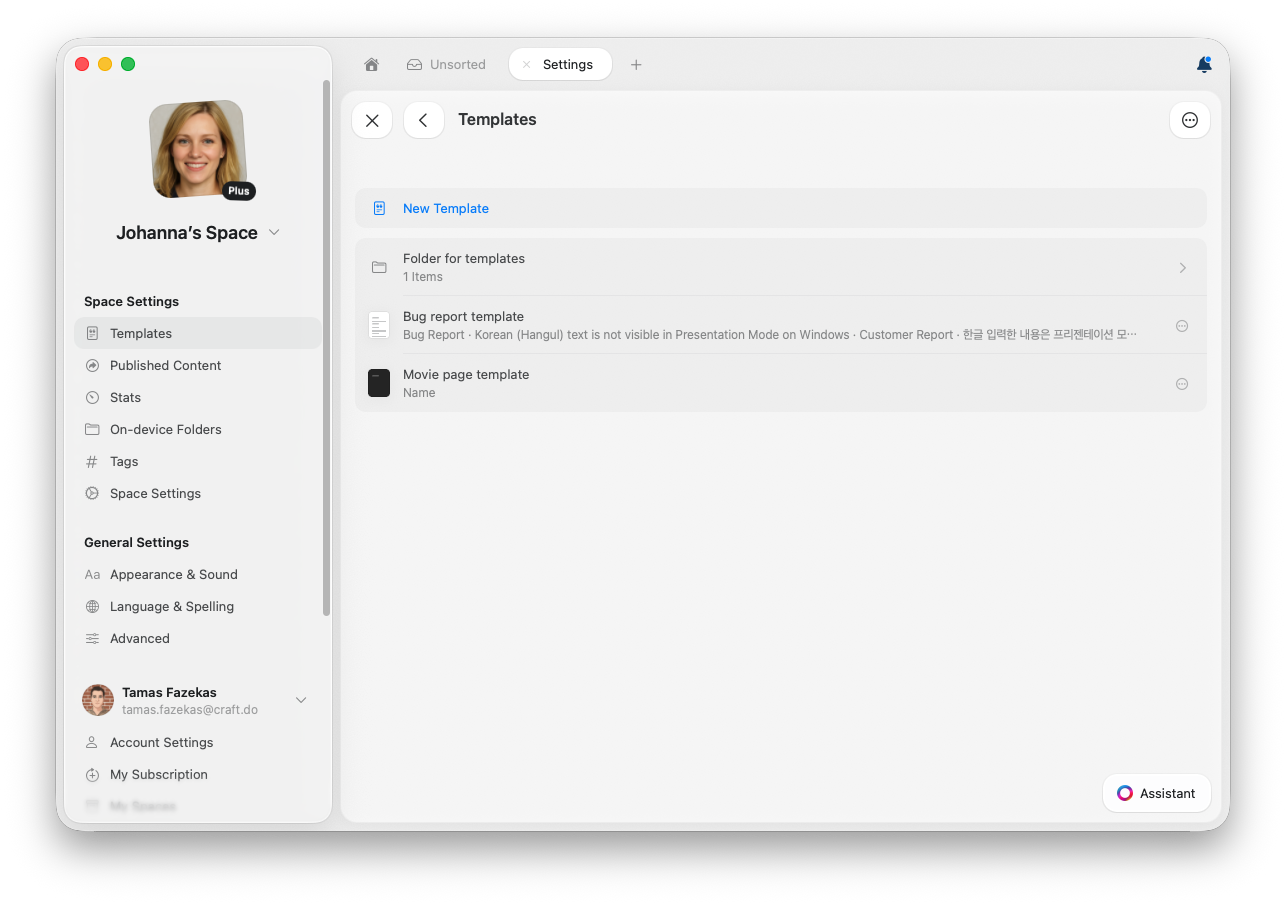
Our built-in Template Gallery has ready-made layouts for journals, planners, trackers, and more.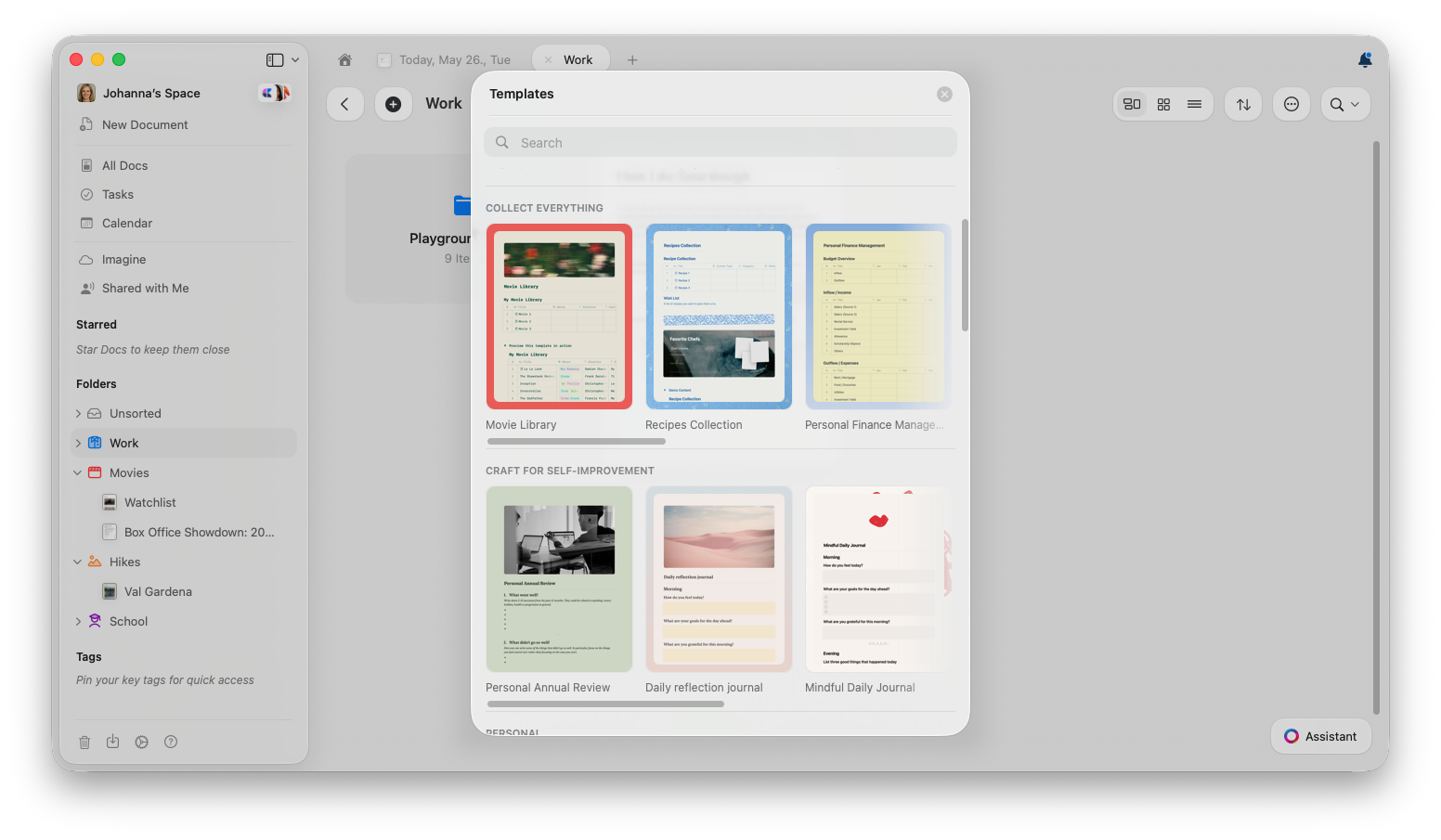
Create a custom template
You can create a template from scratch, or convert an existing document into one.Create a new template from scratch
Use this when you already know the structure you want, but do not have an existing document to reuse.- macOS
- Web / Windows
1
Open Templates settings
Go to Settings → Templates.
2
Create a new template
Select New Template.
3
Build the template
Add the sections, placeholder text, styling, cover image, tables, or other content you want to reuse.
4
Use it from Templates
The template appears in Templates and can be used to create new documents.
Convert an existing document into a template
Use this when you already have a document with the right structure and want to reuse it as the starting point for future documents.1
Open the document
Open the document you want to reuse as a template.
2
Open document info
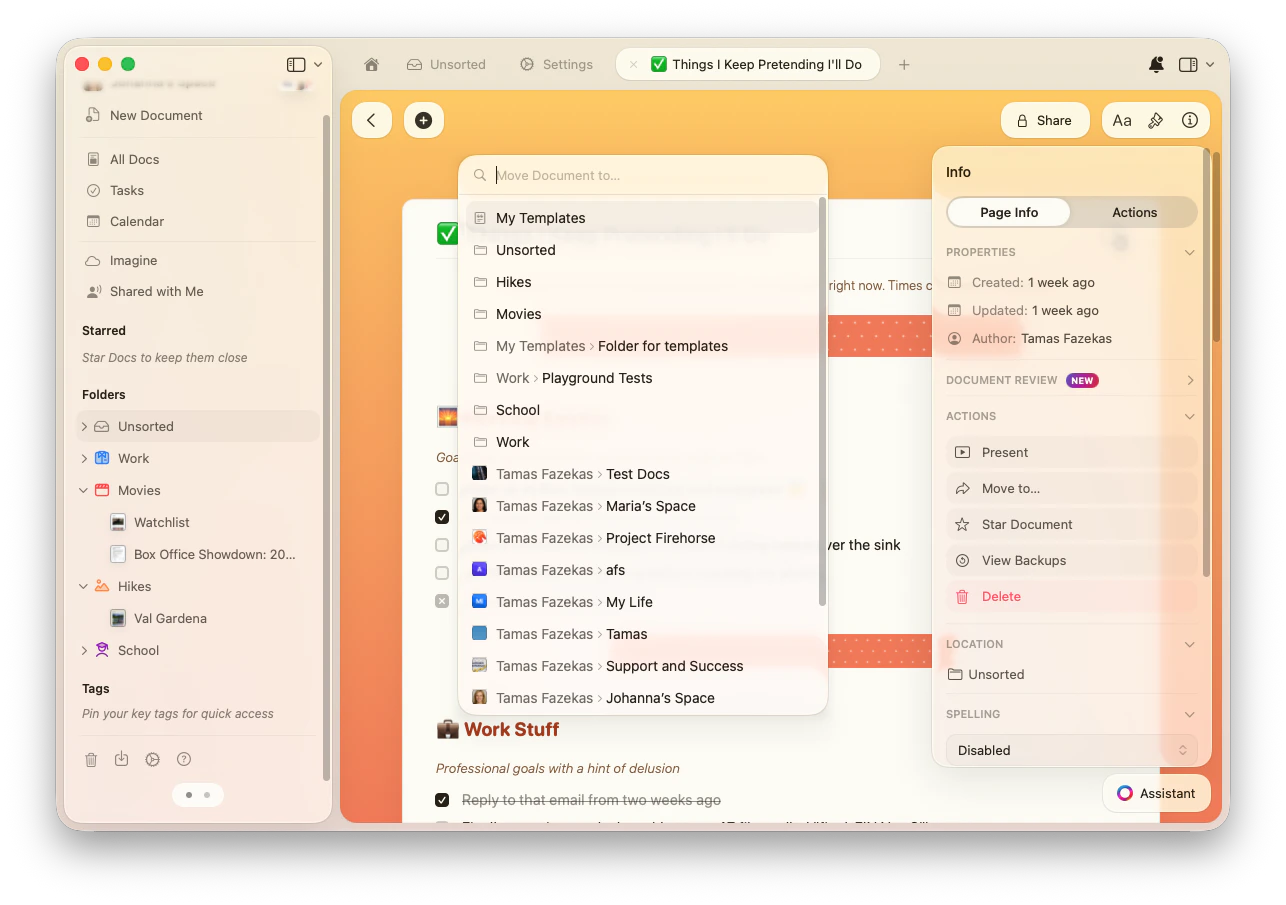
Click the Info (i) button in the top-right, or open the right sidebar and select Info.
3
Choose Move to
In the Actions section, select Move to….
4
Move it to My Templates
Select My Templates as the destination. You can also choose a folder inside My Templates.
Templates can include text, pages, cards, images, tables, collections, formatting, cover images, icons, and backgrounds. When you create a new document from a template, a copy is created so your changes do not affect the original template.
Use a template
Create a new document from a template
- macOS
- Web / Windows
1
Open Templates
Go to Settings → Templates.
2
Choose a template
Browse or search for the template you want to use.
3
Create the document
Open the template to create a new document based on it.
Insert a template into an existing document
Use this when you want to add a reusable section, checklist, or layout inside a document you are already editing. Type /template in the document, then pick the template you want to insert.Set a default template for daily notes
On macOS, iPadOS, and iOS, you can pick a template under Settings → Templates → Daily Note Template, or click the three-dot menu (⋯) next to any template and select Set as Daily Note Template. It is applied to every new daily note. See Daily notes for details.Manage custom templates
- macOS
- Web / Windows
You can edit, duplicate, move, or delete templates from Settings → Templates.
1
Open Templates settings
Go to Settings → Templates.
2
Open the template menu
Click the three-dot menu (⋯) next to the template you want to manage.
3
Choose an action
Select Edit, Duplicate, Move, or Delete.
Updating a template does not update documents that were already created from it. The changes apply the next time someone uses the template.
Practical template examples
Instead of turning every repeated document into a template, focus on documents where the structure matters. Here are useful examples to start from.Meeting notes
Meeting notes
Good for recurring team meetings, 1:1s, client calls, or project check-ins.Suggested structure:
- Date and attendees
- Agenda
- Decisions made
- Action items with owners
- Open questions
- Next meeting date
Weekly update
Weekly update
Good for status reports, team updates, or personal weekly reviews.Suggested structure:
- Highlights from the week
- Completed work
- In-progress work
- Blockers or risks
- Priorities for next week
- Links to related documents
Project brief
Project brief
Good for starting projects with the same planning structure every time.Suggested structure:
- Project goal
- Scope and non-goals
- Timeline and milestones
- Stakeholders
- Key documents and resources
- Success criteria
Personal planning
Personal planning
Good for routines you repeat, such as journaling, travel planning, meal planning, or habit tracking.Suggested structure:
- Goal or intention
- Checklist
- Notes section
- Important dates
- Links, files, or references
- Reflection or follow-up section
Related Articles
Daily Notes
Use templates with daily notes for consistent journaling
Document Styling
Style your templates with backgrounds and covers
Blocks and Pages
Understand content structure for building templates